

Mit dem Merchant API-Dienst können Sie die Merchant API in Google Apps Script verwenden, um Produkte hochzuladen und Merchant Center-Konten zu verwalten.
Ausführliche Informationen zur Merchant API finden Sie in der Referenzdokumentation. Wie alle erweiterten Dienste in Apps Script verwendet der Merchant API-Dienst dieselben Objekte, Methoden und Parameter wie die öffentliche API.
Die Merchant API ist eine Sammlung von untergeordneten APIs – Gruppen von zugehörigen Diensten und Ressourcen. Liste der untergeordneten APIs
So verwenden Sie den Merchant API-Dienst in Apps Script:
Achten Sie darauf, dass Ihr Apps Script-Projekt mit einem standardmäßigen Google Cloud-Projekt verknüpft ist. Weitere Informationen finden Sie unter Anderes Standard-Cloud-Projekt verwenden.
Aktivieren Sie den erweiterten Apps Script-Dienst, wie in diesem Dokument beschrieben:
appsscript.jsonfür neue Projekte aktivieren- Apps Script für vorhandene Projekte aktivieren
Registrieren Sie Ihr Standard-Google Cloud-Projekt mit Ihrem Merchant Center-Konto, wie im Schnellstartleitfaden für die Merchant API beschrieben.
Erweiterten Apps Script-Dienst aktivieren
Sie haben zwei Möglichkeiten, den Apps Script-Dienst zu aktivieren:
APIs in appsscript.json aktivieren
Das folgende Beispiel zeigt eine appsscript.json-Datei, in der die untergeordneten APIs für Produkte, Konten, Berichte und Datenquellen aktiviert sind.
Wählen Sie im Apps Script-Editor Projekteinstellungen aus.
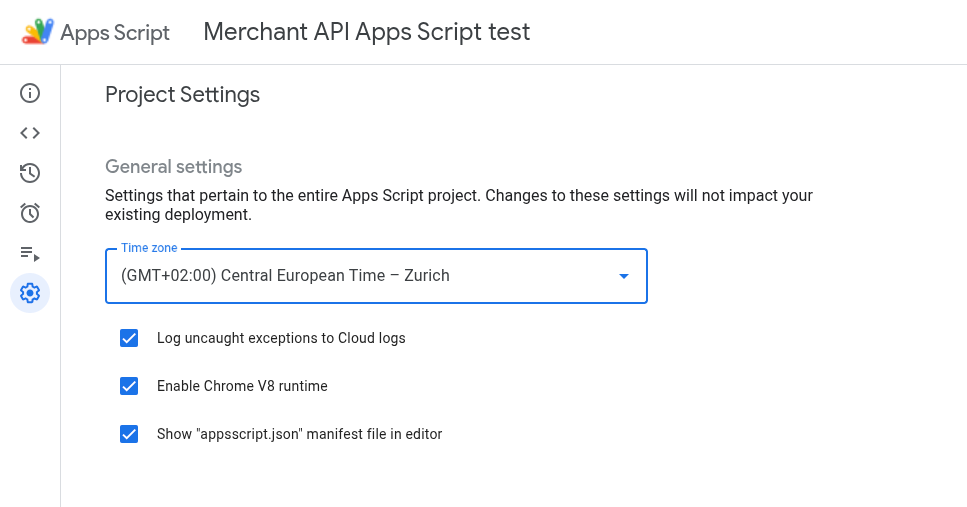
Aktivieren Sie die Option Manifestdatei „appsscript.json“ im Editor anzeigen.
Wählen Sie im Editor die Datei
appsscript.jsonaus.Ersetzen Sie den Inhalt der Datei
appsscript.jsondurch Folgendes:{ "dependencies": { "enabledAdvancedServices": [ { "userSymbol": "MerchantApiAccounts", "version": "accounts_v1", "serviceId": "merchantapi" }, { "userSymbol": "MerchantApiDataSources", "version": "datasources_v1", "serviceId": "merchantapi" }, { "userSymbol": "MerchantApiProducts", "version": "products_v1", "serviceId": "merchantapi" }, { "userSymbol": "MerchantApiReports", "version": "reports_v1", "serviceId": "merchantapi" } ] }, "exceptionLogging": "STACKDRIVER", "runtimeVersion": "V8" }Klicken Sie auf Speichern.
Sie können jetzt in Ihrem Code auf die folgenden untergeordneten APIs verweisen:
a.
MerchantApiAccountsb.
MerchantApiDataSourcesc.
MerchantApiProductsd.
MerchantApiReports
Apps Script für zusätzliche untergeordnete APIs oder vorhandene Projekte aktivieren
So aktivieren Sie untergeordnete APIs in vorhandenen Projekten:
Öffnen Sie Ihr Apps Script-Projekt.
Klicken Sie links auf Editor < >.
Klicken Sie links neben Dienste auf Dienst hinzufügen +.
Wählen Sie im Versionsselektor die untergeordnete API aus, die Sie aktivieren möchten.
Hängen Sie den Namen Ihrer untergeordneten API an die Kennung an. Wenn Sie beispielsweise die Unter-API „Inventories“ aktivieren möchten, wählen Sie die Version
inventories_v1aus und ändern Sie die Kennung inMerchantApiInventories.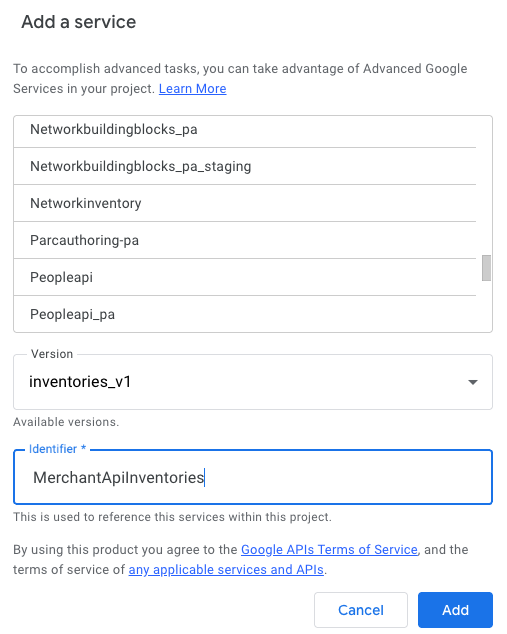
Sie können jetzt in Ihrem Code auf die Inventories-Unter-API als
MerchantApiInventoriesverweisen.
Beispielcode
In diesem Abschnitt wird erläutert, wie Sie die Merchant API für ausgewählte Funktionen verwenden.
Produkte auflisten
In diesem Beispiel wird gezeigt, wie Sie die Produkte für ein bestimmtes Merchant Center-Konto auflisten.
/**
* Lists all products for a given Merchant Center account.
*/
function productList() {
// IMPORTANT:
// Enable the Merchant API Products sub-API Advanced Service and call it
// "MerchantApiProducts"
// Replace this with your Merchant Center ID.
const accountId = '<MERCHANT_CENTER_ID>';
// Construct the parent name
const parent = 'accounts/' + accountId;
try {
console.log('Sending list Products request');
let pageToken;
// Set the page size to 1000. This is the maximum allowed page size.
let pageSize = 1000;
console.log('Retrieved products below:');
// Call the Products.list API method. Use the pageToken to iterate through
// all pages of results.
do {
response = MerchantApiProducts.Accounts.Products.list(parent, {pageToken, pageSize});
console.log(response);
pageToken = response.nextPageToken;
} while (pageToken); // Exits when there is no next page token.
} catch (e) {
console.log('ERROR!');
console.log(e);
}
}
Abgelehnte Produkte filtern
In diesem Beispiel wird gezeigt, wie Sie nach abgelehnten Produkten in einem Merchant Center-Konto filtern.
/**
* Demonstrates how to filter disapproved products using the Merchant API Reports service.
*/
function filterDisapprovedProducts() {
// IMPORTANT:
// Enable the Merchant API Reports sub-API Advanced Service and call it
// "MerchantApiReports"
// Enable the Merchant API Products sub-API Advanced Service and call it
// "MerchantApiProducts"
// Replace this with your Merchant Center ID.
const accountId = '<INSERT_MERCHANT_CENTER_ID>';
// Construct the parent name
const parent = 'accounts/' + accountId;
try {
console.log('Sending search Report request');
// Set pageSize to the maximum value (default: 1000)
let pageSize = 1000;
let pageToken;
// The query below is an example of a query for the productView that gets product informations
// for all disapproved products.
let query = 'SELECT offer_id,' +
'id,' +
'price,' +
'title' +
' FROM product_view' +
' WHERE aggregated_reporting_context_status = "NOT_ELIGIBLE_OR_DISAPPROVED"';
// Call the Reports.search API method. Use the pageToken to iterate through
// all pages of results.
do {
response =
MerchantApiReports.Accounts.Reports.search({query, pageSize, pageToken}, parent);
for (const reportRow of response.results) {
console.log("Printing data from Product View:");
console.log(reportRow);
// OPTIONALLY, you can get the full product details by calling the GetProduct method.
let productName = parent + "/products/" + reportRow.getProductView().getId();
product = MerchantApiProducts.Accounts.Products.get(productName);
console.log(product);
}
pageToken = response.nextPageToken;
} while (pageToken); // Exits when there is no next page token.
} catch (e) {
console.log('ERROR!');
console.log('Error message:' + e.message);
}
}
Bericht für ein bestimmtes Konto abrufen
In diesem Beispiel wird gezeigt, wie Sie einen Bericht für ein bestimmtes Merchant Center-Konto abrufen.
/**
* Searches a report for a given Merchant Center account.
*/
function searchReport() {
// IMPORTANT:
// Enable the Merchant API Reports sub-API Advanced Service and call it
// "MerchantApiReports"
// Replace this with your Merchant Center ID.
const accountId = '<MERCHANT_CENTER_ID>';
// Construct the parent name
const parent = 'accounts/' + accountId;
try {
console.log('Sending search Report request');
// Set pageSize to the maximum value (default: 1000)
let pageSize = 1000;
let pageToken;
// Uncomment the desired query from below. Documentation can be found at
// https://developers.google.com/merchant/api/reference/rest/reports_v1beta/accounts.reports#ReportRow
// The query below is an example of a query for the product_view.
let query = 'SELECT offer_id,' +
'id,' +
'price,' +
'gtin,' +
'item_issues,' +
'language_code,' +
'feed_label,' +
'title,' +
'brand,' +
'category_l1,' +
'product_type_l1,' +
'availability,' +
'shipping_label,' +
'thumbnail_link,' +
'click_potential' +
' FROM product_view';
/*
// The query below is an example of a query for the
price_competitiveness_product_view. let query = "SELECT offer_id,"
+ "id,"
+ "benchmark_price,"
+ "report_country_code,"
+ "price,"
+ "title,"
+ "brand,"
+ "category_l1,"
+ "product_type_l1"
+ " FROM price_competitiveness_product_view"
+ " WHERE date BETWEEN '2023-03-03' AND '2025-03-10'"; */
/*
// The query below is an example of a query for the
price_insights_product_view. let query = "SELECT offer_id,"
+ "id,"
+ "suggested_price,"
+ "price,"
+ "effectiveness,"
+ "title,"
+ "brand,"
+ "category_l1,"
+ "product_type_l1,"
+ "predicted_impressions_change_fraction,"
+ "predicted_clicks_change_fraction,"
+ "predicted_conversions_change_fraction"
+ " FROM price_insights_product_view"; */
/*
// The query below is an example of a query for the
product_performance_view. let query = "SELECT offer_id,"
+ "conversion_value,"
+ "marketing_method,"
+ "customer_country_code,"
+ "title,"
+ "brand,"
+ "category_l1,"
+ "product_type_l1,"
+ "custom_label0,"
+ "clicks,"
+ "impressions,"
+ "click_through_rate,"
+ "conversions,"
+ "conversion_rate"
+ " FROM product_performance_view"
+ " WHERE date BETWEEN '2023-03-03' AND '2025-03-10'"; */
// Call the Reports.search API method. Use the pageToken to iterate through
// all pages of results.
do {
response =
MerchantApiReports.Accounts.Reports.search({query, pageSize, pageToken}, parent);
for (const reportRow of response.results) {
console.log(reportRow);
}
pageToken = response.nextPageToken;
} while (pageToken); // Exits when there is no next page token.
} catch (e) {
console.log('ERROR!');
console.log(e);
console.log('Error message:' + e.message);
if (e.stack) {
console.log('Stack trace:' + e.stack);
}
}
}
Alle Datenquellen auflisten
In diesem Beispiel wird gezeigt, wie Sie alle Datenquellen in einem bestimmten Merchant Center-Konto auflisten.
/**
* Lists all data sources for a given Merchant Center account.
*/
function listDataSources() {
// IMPORTANT:
// Enable the Merchant API DataSources sub-API Advanced Service and call it
// "MerchantApiDataSources"
// Replace this with your Merchant Center ID.
const accountId = '<MERCHANT_CENTER_ID>';
// Construct the parent name
const parent = 'accounts/' + accountId;
let dataSources = [];
let primaryDataSources = [];
try {
console.log('Sending list DataSources request');
let pageToken;
let pageSize = 10;
// Call the DataSources.list API method. Use the pageToken to iterate through
// all pages of results.
do {
response =
MerchantApiDataSources.Accounts.DataSources.list(parent, {pageSize, pageToken});
for (const datasource of response.dataSources) {
dataSources.push(datasource);
if (datasource.primaryProductDataSource) {
primaryDataSources.push(datasource);
}
}
pageToken = response.nextPageToken;
} while (pageToken); // Exits when there is no next page token.
console.log('Retrieved ' + dataSources.length + ' data sources.');
console.log(
'There were ' + primaryDataSources.length +
' primary product data sources.');
} catch (e) {
console.log('ERROR!');
console.log(e);
}
}