

Page Summary
-
A developer token is required to make API calls to the Google Ads API and its access level controls the number of daily calls and environments.
-
You need a Google Ads manager account to obtain a developer token and a Google Ads client account is the target of your API calls, identified by a 10-digit client customer ID.
-
Making an API call requires obtaining a developer token, configuring a Google Cloud project with a service account and key for authentication, and setting up your Google Ads client account, including granting the service account access.
-
Depending on your preference for making API calls, you can either download a client library or use HTTP clients like curl or the Google Cloud CLI.
-
To make an API call using a client library or curl, you will need to provide your developer token, client customer ID, and the JSON key file path for your service account credentials in the configuration.
This quick start guide helps you make your first API call to the Google Ads API.
Key concepts
- Google Cloud project: A Google Cloud project forms the basis for creating, enabling, and using all the Google services, including managing APIs and OAuth 2.0 API credentials. You can create one from the Google Cloud Console.
- API access level: The API access level of your Google Cloud project controls the number of API calls you can make per day and the environments to which you can make API calls. Your project's API access level is listed on your project's Google Ads API Overview page.
- Google Ads manager account: A Google Ads manager account is used to manage other Google Ads accounts, which could be a collection of Google Ads client accounts or other Google Ads manager accounts.
- Google Ads client account: The Google Ads account used for running ads that you want to target with API calls.
- Client customer ID: The 10-digit number that identifies a Google Ads client account. If you copied this ID from the Google Ads UI, make sure to remove the hyphens.
- OAuth 2.0: OAuth 2.0 is an industry-standard protocol for authorization, used by all Google APIs. You need a service account and key to generate OAuth 2.0 credentials to make API calls.
- Service account: A special type of Google Account that belongs to your application rather than to an individual user. It is used to authenticate your application to the Google Ads API. You need a Google Cloud project to obtain a service account.
- Service account key: A JSON app credential file that contains the private key for your service account. It is used to generate OAuth 2.0 credentials to authenticate a service account when making an Google Ads API API call. You need a service account to obtain a service account key.
Prerequisites
To make a Google Ads API call, you should complete the following steps.
Configure your Cloud project for Google Ads API access
The Google Cloud project is used for managing Google APIs and OAuth 2.0 API credentials. You can find your existing Google Cloud projects or create one by visiting the Google Cloud console.
Start by enabling the Google Ads API in your project:
Next, visit the Google Ads API Overview page. The page displays your current API access level. If your current API access level is Test, then expand the Upgrade access level section. Follow the instructions to apply for Explorer access level.
Once you complete your application, Google will automatically review your application and upgrade it to Explorer in most cases. If you weren't granted Explorer access, don't worry; this guide will provide the appropriate instructions when configuring your Google Ads client account.
Create a service account
You need a service account and service account key to make API calls. If you are already using another Google API and have created an OAuth 2.0 service account and key, you can skip this step and reuse the existing credentials.
How to create a service account and key
- In the Google Cloud console, go to Menu > IAM & Admin > Service Accounts.
- Select your service account.
- Click Keys > Add key > Create new key.
- Select JSON, then click Create.
Your new public/private key pair is generated and downloaded to your machine as a new file. Save the downloaded JSON file as
credentials.jsonin your working directory. This file is the only copy of this key. Don't commitcredentials.jsonto version control (for example, add it to your.gitignorefile). - Click Close.
Configure your Google Ads client account
Start by identifying the Google Ads account you're making API calls against. The type of account you can make API calls to depends on the API access level of your Google Cloud project. Check your Google Ads API overview page to find out your API access level.
Explorer, Basic & Standard access levels
You can make calls to your Google Ads production account. However, you can create a Google Ads test account by following the instructions on the Test access tab if required.
Test access
Your Google Cloud project cannot be used to make API calls to a Google Ads production account. You can make API calls against Google Ads test accounts only.
How to create a Google Ads test account
The following instructions create a Google Ads test manager account and a Google Ads test advertiser account underneath it.
Click the blue button to create a Google Ads test manager account. If prompted, sign in with a Google Account that isn't linked to your Google Ads production manager account. If you don't have one, use the Create account button on that page to create a new Google Account.
- While in your Google Ads test manager account, create a Google Ads test customer account: Click Accounts > > Create new account and fill out the form. Any Google Ads accounts you create from your Google Ads test manager account are automatically Google Ads test accounts.
- Optionally, create a few campaigns under the Google Ads test client account from the Google Ads page.
To make an API call to a Google Ads customer, you must grant access and appropriate permissions to your service account to the Google Ads customer account. To do this, you need administrator access to the customer account.
How to grant the service account access to your Google Ads account
- Start by signing in to your Google Ads account as an administrator.
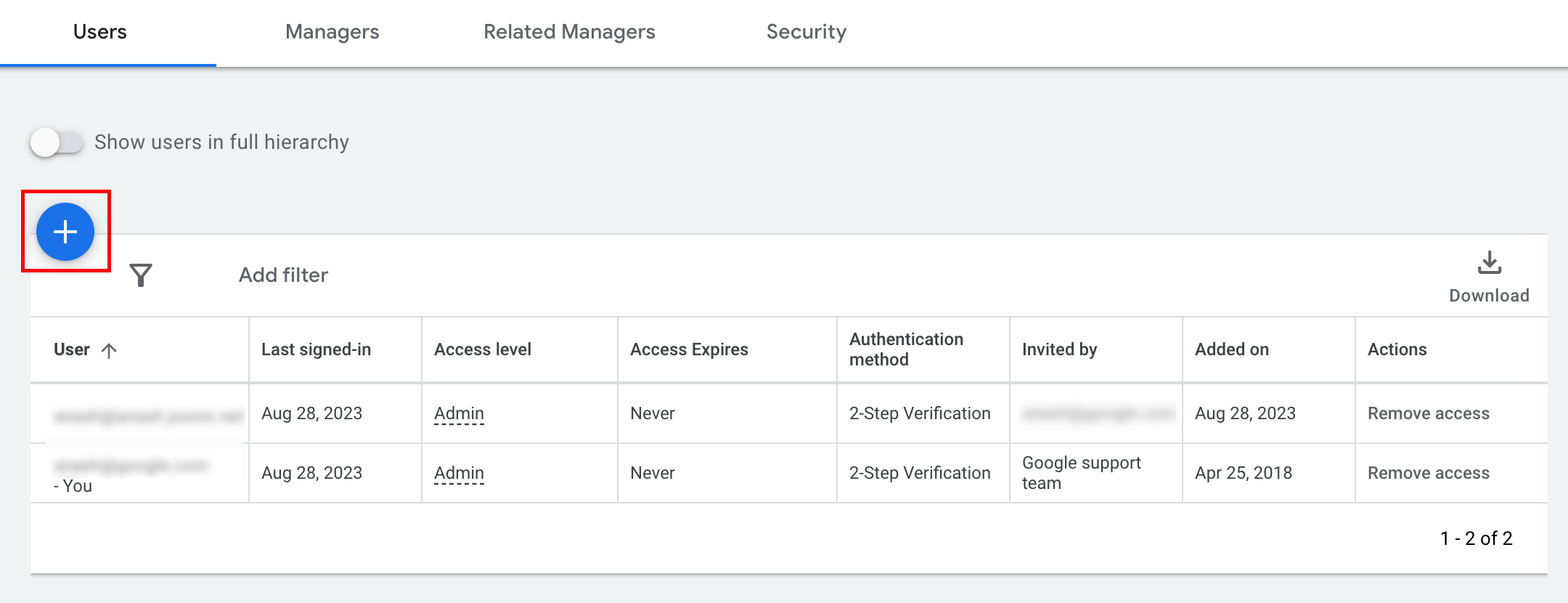
- Navigate to Admin > Access and security.
- Click the
button under the Users tab.
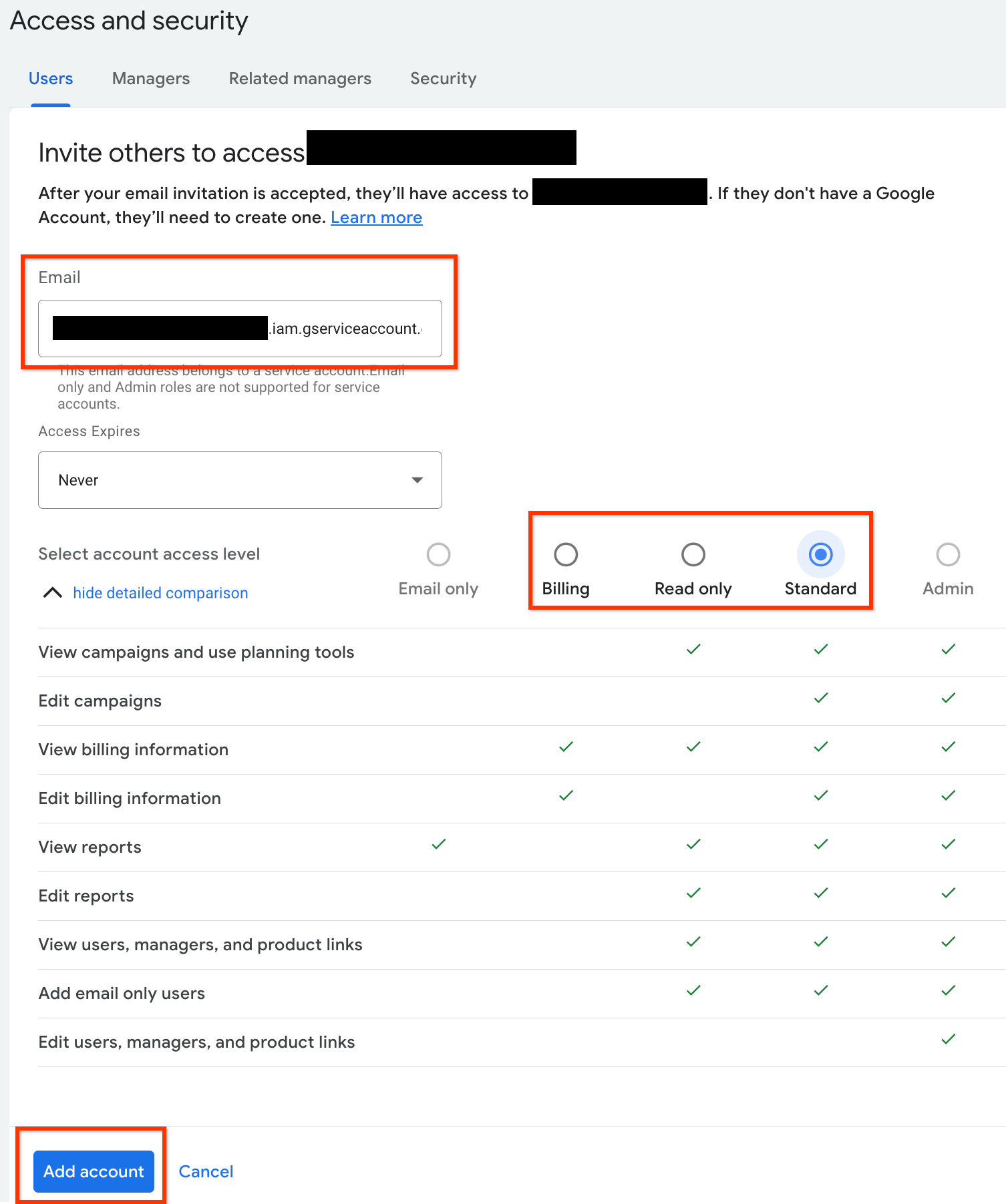
- Type the service account email address into the Email input box.
Select the appropriate account access level and click the
Add account button. Note that Email access level is not supported for
service accounts.
- The service account is granted access.
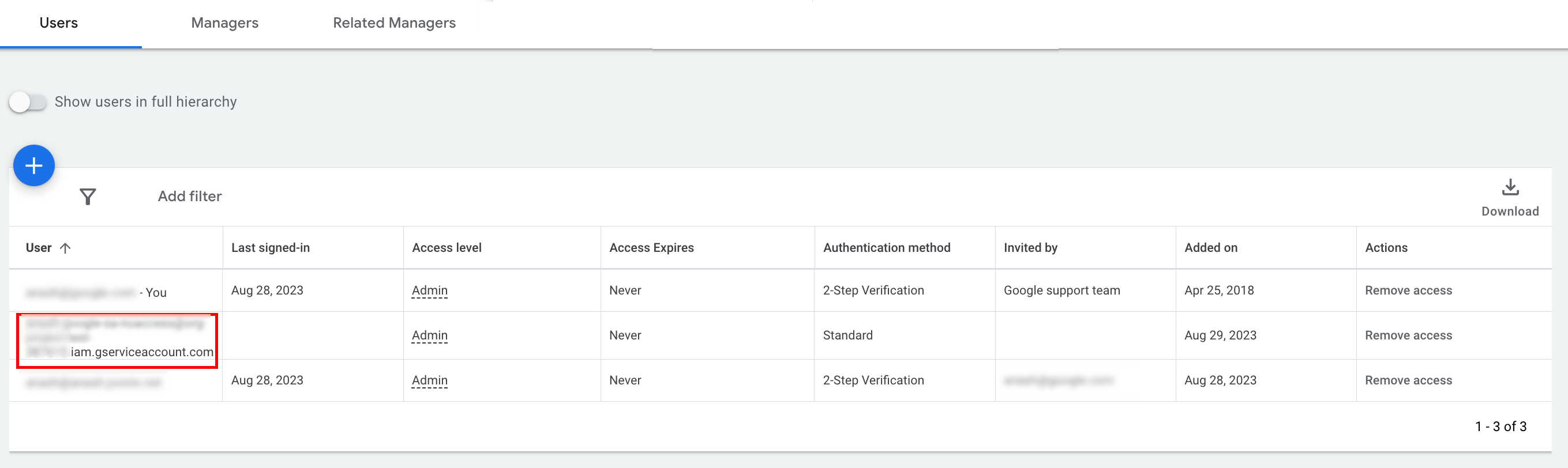
- [Optional] You cannot grant administrator access to a service
account during initial setup. If your API calls require administrator
access, you can upgrade the access as follows.
- Click the drop-down arrow next to the access level of the service account in the Access level column.
- Select Admin from the drop-down list.
Download tools and client libraries
You can choose to either download a client library or an HTTP client depending on how you'd like to make API calls.
Use a client library
Download and install a client library of your choice.
Use HTTP client (REST)
curl
Download and install curl, the command line tool for transferring data through a URL.
The Google Cloud Command Line Interface
Follow the Google Cloud CLI installation guide to install the gcloud CLI.
The instructions for the rest of this guide were verified to work with the following version of the gcloud tool and might not work with previous versions due to differences in application behavior or command-line options.
:~$ gcloud version
Google Cloud SDK 492.0.0
alpha 2024.09.06
beta 2024.09.06
bq 2.1.8
bundled-python3-unix 3.11.9
core 2024.09.06
enterprise-certificate-proxy 0.3.2
gcloud-crc32c 1.0.0
gsutil 5.30
Make an API call
Select your client of choice for instructions on how to make an API call:
Java
The client library artifacts are published to the Maven Central repository.
To manage dependency versions and prevent conflicts, see the Google Ads API Bill of Materials (BOM) guide.
If you are not using the BOM, add the client library directly to your project using one of the following build tools:
Maven: Add the following dependency to your pom.xml file:
<dependency>
  <groupId>com.google.api-ads</groupId>
  <artifactId>google-ads</artifactId>
  <version>46.1.0</version>
</dependency>
Gradle: Add the following dependency to your build.gradle file:
implementation 'com.google.api-ads:google-ads:46.1.0'
Create an ads.properties file in your home directory (~/ads.properties
on Linux and macOS, or %USERPROFILE%\ads.properties on Windows) with the
following content:
api.googleads.serviceAccountSecretsPath=JSON_KEY_FILE_PATH
api.googleads.loginCustomerId=INSERT_LOGIN_CUSTOMER_ID_HERE
Before running API requests, create a GoogleAdsClient instance. By
default, fromPropertiesFile() loads credentials from the ads.properties
file located in your home directory:
GoogleAdsClient googleAdsClient;
try {
  googleAdsClient = GoogleAdsClient.newBuilder().fromPropertiesFile().build();
} catch (IOException e) {
  System.err.printf("Failed to create GoogleAdsClient: %s%n", e);
  throw new RuntimeException("Initialization failed", e);
}
Next, run a campaign report using GoogleAdsService.SearchStream to stream large result sets efficiently and retrieve the campaigns in your account:
private void runExample(GoogleAdsClient googleAdsClient, long customerId) {
try (GoogleAdsServiceClient googleAdsServiceClient =
googleAdsClient.getLatestVersion().createGoogleAdsServiceClient()) {
String query = "SELECT campaign.id, campaign.name FROM campaign ORDER BY campaign.id";
// Constructs the SearchGoogleAdsStreamRequest.
SearchGoogleAdsStreamRequest request =
SearchGoogleAdsStreamRequest.newBuilder()
.setCustomerId(Long.toString(customerId))
.setQuery(query)
.build();
// Creates and issues a search Google Ads stream request that will retrieve all campaigns.
ServerStream<SearchGoogleAdsStreamResponse> stream =
googleAdsServiceClient.searchStreamCallable().call(request);
// Iterates through and prints all of the results in the stream response.
for (SearchGoogleAdsStreamResponse response : stream) {
for (GoogleAdsRow googleAdsRow : response.getResultsList()) {
System.out.printf(
"Campaign with ID %d and name '%s' was found.%n",
googleAdsRow.getCampaign().getId(), googleAdsRow.getCampaign().getName());
}
}
}
}
C#
The client library packages are published to the
NuGet.org repository.
Start by adding a NuGet package reference to the Google.Ads.GoogleAds
package:
dotnet add package Google.Ads.GoogleAds --version 27.4.0To make API calls, create a GoogleAdsConfig object from your configuration
settings (such as appsettings.json, environment variables, or custom
settings) and pass it to initialize a GoogleAdsClient instance:
GoogleAdsConfig config = new GoogleAdsConfig()
{
    OAuth2Mode = OAuth2Flow.SERVICE_ACCOUNT,
    OAuth2SecretsJsonPath = "JSON_KEY_FILE_PATH",
    LoginCustomerId = "INSERT_LOGIN_CUSTOMER_ID_HERE"
};
GoogleAdsClient client = new GoogleAdsClient(config);
Next, run a campaign report using the
GoogleAdsService.SearchStream
method to retrieve the campaigns in your account. This guide doesn't cover
the details of reporting.
public void Run(GoogleAdsClient client, long customerId)
{
// Get the GoogleAdsService.
GoogleAdsServiceClient googleAdsService = client.GetService(
Services.V25.GoogleAdsService);
// Create a query that will retrieve all campaigns.
string query = @"SELECT
campaign.id,
campaign.name,
campaign.network_settings.target_content_network
FROM campaign
ORDER BY campaign.id";
try
{
// Issue a search request.
googleAdsService.SearchStream(customerId.ToString(), query,
delegate (SearchGoogleAdsStreamResponse resp)
{
foreach (GoogleAdsRow googleAdsRow in resp.Results)
{
Console.WriteLine("Campaign with ID {0} and name '{1}' was found.",
googleAdsRow.Campaign.Id, googleAdsRow.Campaign.Name);
}
}
);
}
catch (GoogleAdsException e)
{
Console.WriteLine("Failure:");
Console.WriteLine($"Message: {e.Message}");
Console.WriteLine($"Failure: {e.Failure}");
Console.WriteLine($"Request ID: {e.RequestId}");
throw;
}
}
PHP
The client library packages are published to the
Packagist repository.
Ensure you have a compatible PHP version and Composer installed, then change
into the root directory of your project and run the following command to
install the library and its dependencies in your project's vendor/
directory:
composer require googleads/google-ads-php:35.1.0Make a copy of the
google_ads_php.ini
file from the GitHub repository, save it in your home directory or your
project's root directory, and modify it to include your credentials:
[GOOGLE_ADS]
loginCustomerId = "INSERT_LOGIN_CUSTOMER_ID_HERE"

[OAUTH2]
jsonKeyFilePath = "JSON_KEY_FILE_PATH"
scopes = "https://www.googleapis.com/auth/adwords"
Create a GoogleAdsClient instance using your google_ads_php.ini
configuration file:
use Google\Ads\GoogleAds\Lib\OAuth2TokenBuilder;
use Google\Ads\GoogleAds\Lib\V25\GoogleAdsClientBuilder;

$oauth2Credential = (new OAuth2TokenBuilder())
    ->fromFile('/path/to/google_ads_php.ini')
    ->build();

$googleAdsClient = (new GoogleAdsClientBuilder())
    ->fromFile('/path/to/google_ads_php.ini')
    ->withOAuth2Credential($oauth2Credential)
    ->build();
Next, run a campaign report using the
GoogleAdsService.SearchStream
method to retrieve the campaigns in your account:
public static function runExample(GoogleAdsClient $googleAdsClient, int $customerId)
{
$googleAdsServiceClient = $googleAdsClient->getGoogleAdsServiceClient();
// Creates a query that retrieves all campaigns.
$query = 'SELECT campaign.id, campaign.name FROM campaign ORDER BY campaign.id';
// Issues a search stream request.
/** @var GoogleAdsServerStreamDecorator $stream */
$stream = $googleAdsServiceClient->searchStream(
SearchGoogleAdsStreamRequest::build($customerId, $query)
);
// Iterates over all rows in all messages and prints the requested field values for
// the campaign in each row.
foreach ($stream->iterateAllElements() as $googleAdsRow) {
/** @var GoogleAdsRow $googleAdsRow */
printf(
"Campaign with ID %d and name '%s' was found.%s",
$googleAdsRow->getCampaign()->getId(),
$googleAdsRow->getCampaign()->getName(),
PHP_EOL
);
}
}
Python
The Google Ads API client library for Python is distributed on
PyPI. Ensure you have a supported Python
version installed, then install the library using
pip:
python -m pip install google-ads==33.0.0To authenticate your API calls, configure a google-ads.yaml file:
- Download a copy of the sample
google-ads.yamlfile from the GitHub repository. - Save the file in your home directory (
~/google-ads.yaml) or a custom path. Open
google-ads.yamland update it to include your credentials:login_customer_id: INSERT_LOGIN_CUSTOMER_ID_HERE json_key_file_path: JSON_KEY_FILE_PATHConfigure logging before initializing the client so that the library captures any initialization or configuration warnings. The following example configures the library's logger to output
INFOlogs to standard output (stdout):
import logging
import sys

logger = logging.getLogger("google.ads.googleads.client")
logger.setLevel(logging.INFO)
logger.addHandler(logging.StreamHandler(sys.stdout))
Create a GoogleAdsClient instance by calling the
GoogleAdsClient.load_from_storage method and passing the path to your
google-ads.yaml file:
from google.ads.googleads.client import GoogleAdsClient

client = GoogleAdsClient.load_from_storage("path/to/google-ads.yaml")
If you omit the path argument, load_from_storage() searches for the
configuration file in your home directory (~/google-ads.yaml) by default.
Next, run a campaign report using the
GoogleAdsService.SearchStream
method to retrieve the campaigns in your account:
def main(client: GoogleAdsClient, customer_id: str) -> None:
ga_service: GoogleAdsServiceClient = client.get_service("GoogleAdsService")
query: str = """
SELECT
campaign.id,
campaign.name
FROM campaign
ORDER BY campaign.id"""
# Issues a search request using streaming.
stream: Iterator[SearchGoogleAdsStreamResponse] = ga_service.search_stream(
customer_id=customer_id, query=query
)
for batch in stream:
rows: List[GoogleAdsRow] = batch.results
for row in rows:
print(
f"Campaign with ID {row.campaign.id} and name "
f'"{row.campaign.name}" was found.'
)
Ruby
The Ruby gems for the client library are published on RubyGems. Ensure you have a supported Ruby version installed, and use Bundler to install the library:
Add the gem to your application's
Gemfile:gem 'google-ads-googleads', '~> 45.1.0'Install the gem by running:
bundle install
To configure your credentials:
- Copy the sample
google_ads_config.rbfile from the GitHub repository. - Save the file in your project's root directory or your home directory
(
~). Open
google_ads_config.rband replace the placeholder values with your Google Ads API credentials:Google::Ads::GoogleAds::Config.new do |c| c.login_customer_id = 'INSERT_LOGIN_CUSTOMER_ID_HERE' c.keyfile = 'JSON_KEY_FILE_PATH' endCreate a
GoogleAdsClientinstance by passing the path to your configuration file (google_ads_config.rb):
client = Google::Ads::GoogleAds::GoogleAdsClient.new(
  'path/to/google_ads_config.rb'
)
Next, run a campaign report using the
GoogleAdsService.SearchStream
method to retrieve the campaigns in your account:
def get_campaigns(customer_id)
# GoogleAdsClient will read a config file from
# ENV['HOME']/google_ads_config.rb when called without parameters
client = Google::Ads::GoogleAds::GoogleAdsClient.new
responses = client.service.google_ads.search_stream(
customer_id: customer_id,
query: 'SELECT campaign.id, campaign.name FROM campaign ORDER BY campaign.id',
)
responses.each do |response|
response.results.each do |row|
puts "Campaign with ID #{row.campaign.id} and name '#{row.campaign.name}' was found."
end
end
end
Perl
The Perl client library is distributed on
CPAN and requires Perl
5.28 or higher and the cpan or cpanm package manager.
Clone the
google-ads-perlrepository in the directory of your choice:git clone https://github.com/googleads/google-ads-perl.gitChange into the
google-ads-perldirectory and run the following commands to install the required dependencies and build the library:cd google-ads-perl cpan install Module::Build perl Build.PL perl Build installdeps perl Build perl Build install
To configure your credentials:
Copy the sample
googleads.propertiesconfiguration file from the GitHub repository to your home directory (~/googleads.properties):cp googleads.properties ~/googleads.propertiesEdit
~/googleads.propertiesto include your credentials:jsonKeyFilePath=JSON_KEY_FILE_PATH loginCustomerId=INSERT_LOGIN_CUSTOMER_ID_HERECreate a
Clientinstance by passing the path to your configuredgoogleads.propertiesfile (such as~/googleads.properties):
my $api_client = Google::Ads::GoogleAds::Client->new({
  properties_file => "/path/to/googleads.properties"
});
Next, run a campaign report using the
GoogleAdsService.SearchStream
method to retrieve the campaigns in your account:
sub get_campaigns {
my ($api_client, $customer_id) = @_;
# Create a search Google Ads stream request that will retrieve all campaigns.
my $search_stream_request =
Google::Ads::GoogleAds::V25::Services::GoogleAdsService::SearchGoogleAdsStreamRequest
->new({
customerId => $customer_id,
query =>
"SELECT campaign.id, campaign.name FROM campaign ORDER BY campaign.id"
});
# Get the GoogleAdsService.
my $google_ads_service = $api_client->GoogleAdsService();
my $search_stream_handler =
Google::Ads::GoogleAds::Utils::SearchStreamHandler->new({
service => $google_ads_service,
request => $search_stream_request
});
# Issue a search request and process the stream response to print the requested
# field values for the campaign in each row.
$search_stream_handler->process_contents(
sub {
my $google_ads_row = shift;
printf "Campaign with ID %d and name '%s' was found.\n",
$google_ads_row->{campaign}{id}, $google_ads_row->{campaign}{name};
});
return 1;
}
When executed, the script streams the matching rows and prints the ID and name of each campaign in your account.
curl
Start by setting the service account as the active credentials in gcloud CLI.
gcloud auth login --cred-file=JSON_KEY_FILE_PATHNext, fetch an OAuth 2.0 access token for the Google Ads API.
gcloud auth \
  print-access-token \
  --scopes='https://www.googleapis.com/auth/adwords'
Create a file named query.json containing your Google Ads Query Language
(GAQL) request:
{
  "query": "SELECT campaign.id, campaign.name, campaign.network_settings.target_content_network FROM campaign ORDER BY campaign.id"
}
Run a campaign report using the
GoogleAdsService.SearchStream
method to retrieve campaigns in your account:
curl -i -X POST \
  https://googleads.googleapis.com/v25/customers/CUSTOMER_ID/googleAds:searchStream \
  -H "Content-Type: application/json" \
  -H "Authorization: Bearer ACCESS_TOKEN" \
  -H "login-customer-id: LOGIN_CUSTOMER_ID" \
--data-binary "@query.json"If you encounter errors when making your first call, see Handle API errors for guidance on troubleshooting.