

دیدن کد منبع نمونه کامل
این مثال نشان میدهد که چگونه نشانگرها را به روشهای زیر سفارشیسازی کنید: افزودن نوشتار عنوان، مقیاسبندی نشانگر، تغییر رنگ پسزمینه، تغییر رنگ حاشیه، تغییر رنگ گلیک، پنهان کردن گلیک.
TypeScript
const mapElement = document.querySelector('gmp-map')!; async function init() { // Request needed libraries. const [{ AdvancedMarkerElement, PinElement }] = await Promise.all([ google.maps.importLibrary('marker'), google.maps.importLibrary('maps'), ]); // Each PinElement is paired with a marker to demonstrate setting each parameter. // Default marker with title text (no PinElement). const markerWithText = new AdvancedMarkerElement({ position: { lat: 37.419, lng: -122.03 }, title: 'Title text for the marker at lat: 37.419, lng: -122.03', }); mapElement.append(markerWithText); // Adjust the scale. const pinScaled = new PinElement({ scale: 1.5, }); const markerScaled = new AdvancedMarkerElement({ position: { lat: 37.419, lng: -122.02 }, }); markerScaled.append(pinScaled); mapElement.append(markerScaled); // Change the background color. const pinBackground = new PinElement({ background: '#FBBC04', }); const markerBackground = new AdvancedMarkerElement({ position: { lat: 37.419, lng: -122.01 }, }); markerBackground.append(pinBackground); mapElement.append(markerBackground); // Change the border color. const pinBorder = new PinElement({ borderColor: '#137333', }); const markerBorder = new AdvancedMarkerElement({ position: { lat: 37.415, lng: -122.035 }, }); markerBorder.append(pinBorder); mapElement.append(markerBorder); // Change the glyph color. const pinGlyph = new PinElement({ glyphColor: 'white', }); const markerGlyph = new AdvancedMarkerElement({ position: { lat: 37.415, lng: -122.025 }, }); markerGlyph.append(pinGlyph); mapElement.append(markerGlyph); const pinTextGlyph = new PinElement({ glyphText: 'T', glyphColor: 'white', }); const markerGlyphText = new AdvancedMarkerElement({ position: { lat: 37.415, lng: -122.015 }, }); markerGlyphText.append(pinTextGlyph); mapElement.append(markerGlyphText); // Hide the glyph. const pinNoGlyph = new PinElement({ glyphText: '', }); const markerNoGlyph = new AdvancedMarkerElement({ position: { lat: 37.415, lng: -122.005 }, }); markerNoGlyph.append(pinNoGlyph); mapElement.append(markerNoGlyph); } void init();
JavaScript
const mapElement = document.querySelector('gmp-map'); async function init() { // Request needed libraries. const [{ AdvancedMarkerElement, PinElement }] = await Promise.all([ google.maps.importLibrary('marker'), google.maps.importLibrary('maps'), ]); // Each PinElement is paired with a marker to demonstrate setting each parameter. // Default marker with title text (no PinElement). const markerWithText = new AdvancedMarkerElement({ position: { lat: 37.419, lng: -122.03 }, title: 'Title text for the marker at lat: 37.419, lng: -122.03', }); mapElement.append(markerWithText); // Adjust the scale. const pinScaled = new PinElement({ scale: 1.5, }); const markerScaled = new AdvancedMarkerElement({ position: { lat: 37.419, lng: -122.02 }, }); markerScaled.append(pinScaled); mapElement.append(markerScaled); // Change the background color. const pinBackground = new PinElement({ background: '#FBBC04', }); const markerBackground = new AdvancedMarkerElement({ position: { lat: 37.419, lng: -122.01 }, }); markerBackground.append(pinBackground); mapElement.append(markerBackground); // Change the border color. const pinBorder = new PinElement({ borderColor: '#137333', }); const markerBorder = new AdvancedMarkerElement({ position: { lat: 37.415, lng: -122.035 }, }); markerBorder.append(pinBorder); mapElement.append(markerBorder); // Change the glyph color. const pinGlyph = new PinElement({ glyphColor: 'white', }); const markerGlyph = new AdvancedMarkerElement({ position: { lat: 37.415, lng: -122.025 }, }); markerGlyph.append(pinGlyph); mapElement.append(markerGlyph); const pinTextGlyph = new PinElement({ glyphText: 'T', glyphColor: 'white', }); const markerGlyphText = new AdvancedMarkerElement({ position: { lat: 37.415, lng: -122.015 }, }); markerGlyphText.append(pinTextGlyph); mapElement.append(markerGlyphText); // Hide the glyph. const pinNoGlyph = new PinElement({ glyphText: '', }); const markerNoGlyph = new AdvancedMarkerElement({ position: { lat: 37.415, lng: -122.005 }, }); markerNoGlyph.append(pinNoGlyph); mapElement.append(markerNoGlyph); } void init();
CSS
/* * Always set the map height explicitly to define the size of the div element * that contains the map. */ gmp-map { height: 100%; } /* * Optional: Makes the sample page fill the window. */ html, body { height: 100%; margin: 0; padding: 0; }
HTML
<html>
<head>
<title>Advanced Marker Basic Customization</title>
<link rel="stylesheet" type="text/css" href="./style.css" />
<script type="module" src="./index.js"></script>
<script>
// prettier-ignore
(g=>{var h,a,k,p="The Google Maps JavaScript API",c="google",l="importLibrary",q="__ib__",m=document,b=window;b=b[c]||(b[c]={});var d=b.maps||(b.maps={}),r=new Set,e=new URLSearchParams,u=()=>h||(h=new Promise(async(f,n)=>{await (a=m.createElement("script"));e.set("libraries",[...r]+"");for(k in g)e.set(k.replace(/[A-Z]/g,t=>"_"+t[0].toLowerCase()),g[k]);e.set("callback",c+".maps."+q);a.src=`https://maps.${c}apis.com/maps/api/js?`+e;d[q]=f;a.onerror=()=>h=n(Error(p+" could not load."));a.nonce=m.querySelector("script[nonce]")?.nonce||"";m.head.append(a)}));d[l]?console.warn(p+" only loads once. Ignoring:",g):d[l]=(f,...n)=>r.add(f)&&u().then(()=>d[l](f,...n))})({
key: "GOOGLE_MAPS_API_KEY"
});
</script>
</head>
<body>
<gmp-map
center="37.419,-122.02"
zoom="14"
map-id="4504f8b37365c3d0"></gmp-map>
</body>
</html>این صفحه به شما نشان میدهد که چگونه نشانگرها را به روشهای زیر سفارشیسازی کنید:
- افزودن نوشتار عنوان
- مقیاسبندی نشانگر
- تغییر رنگ پسزمینه
- تغییر دادن رنگ حاشیه
- تغییر دادن رنگ گلیف
- استفاده از نوشتار در گلیف
- پنهان کردن گلیف
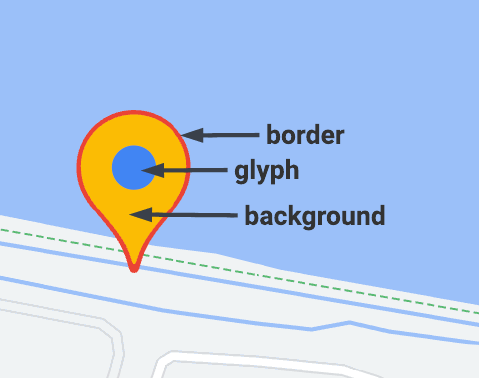
نشانگرهای پیشرفته از دو کلاس برای تعریف نشانگرها استفاده میکند: کلاس
AdvancedMarkerElement پارامترهای پایه (position،
title، و map) را ارائه میدهد، و کلاس PinElement حاوی گزینههایی برای سفارشیسازی
بیشتر است.
برای افزودن نشانگر به نقشه، ابتدا باید
کتابخانه marker را بار کنید
که کلاسهای AdvancedMarkerElement
و PinElement
را ارائه میدهد.
تکه کد زیر کد ایجاد PinElement جدید و سپس اعمال آن روی
نشانگر را نشان میدهد.
// Create a pin element.
const myPin = new PinElement({
    scale: 1.5,
});
// Create a marker.
const myMarker = new AdvancedMarkerElement({
    position: { lat: 37.4239163, lng: -122.0947209 },
});
// Append the pin to the marker.
myMarker.append(myPin);
// Append the marker to the map.
mapElement.append(myMarker);
در نقشههایی که بااستفاده از عناصر HTML سفارشی ایجاد شدهاند، پارامترهای اصلی برای
نشانگر بااستفاده از عنصر HTML gmp-advanced-marker اعلام میشوند؛ هرگونه
سفارشیسازی که از کلاس PinElement استفاده میکند باید بهصورت برنامهنویسیشده
اعمال شود. برای انجام این کار، کد شما باید عناصر gmp-advanced-marker
را از صفحه HTML بازیابی کند. تکه کد زیر کد مربوط به پُرسمان برای مجموعه
عناصر gmp-advanced-marker را نشان میدهد، سپس ازطریق نتایج تکرار میشود
تا سفارشیسازیای را که در PinElement اعلام شده است اعمال کند.
// Return an array of markers.
const advancedMarkers = [...document.querySelectorAll('gmp-advanced-marker')];

// Loop through the markers
for (let i = 0; i < advancedMarkers.length; i++) {
  const pin = new PinElement({
      scale: 2.0,
  });

  marker.append(pin);
}
افزودن نوشتار عنوان
وقتی مکاننما روی نشانگر نگه داشته میشود، نوشتار عنوان ظاهر میشود. نوشتار عنوان توسط صفحهخوانها قابلخواندن است.
برای افزودن نوشتار عنوان بهصورت برنامهنویسیشده، از گزینه AdvancedMarkerElement.title
استفاده کنید:
// Default marker with title text (no PinElement). const markerWithText = new AdvancedMarkerElement({ position: { lat: 37.419, lng: -122.03 }, title: 'Title text for the marker at lat: 37.419, lng: -122.03', }); mapElement.append(markerWithText);
برای افزودن نوشتار عنوان به نشانگری که بااستفاده از عناصر اچتیامال سفارشی ایجاد شده است، از
مشخصه title استفاده کنید:
<gmp-map
center="41.027748173921374, -92.41852445367961"
zoom="13"
map-id="DEMO_MAP_ID">
<gmp-advanced-marker
position="41.027748173921374, -92.41852445367961"
title="Ottumwa, IA"></gmp-advanced-marker>
</gmp-map>مقیاسبندی نشانگر
برای مقیاسبندی نشانگر، از گزینه scale استفاده کنید.
TypeScript
// Adjust the scale. const pinScaled = new PinElement({ scale: 1.5, }); const markerScaled = new AdvancedMarkerElement({ position: { lat: 37.419, lng: -122.02 }, }); markerScaled.append(pinScaled); mapElement.append(markerScaled);
JavaScript
// Adjust the scale. const pinScaled = new PinElement({ scale: 1.5, }); const markerScaled = new AdvancedMarkerElement({ position: { lat: 37.419, lng: -122.02 }, }); markerScaled.append(pinScaled); mapElement.append(markerScaled);
تغییر رنگ پسزمینه
برای تغییر رنگ پسزمینه نشانگر، از گزینه PinElement.background استفاده کنید:
TypeScript
// Change the background color. const pinBackground = new PinElement({ background: '#FBBC04', }); const markerBackground = new AdvancedMarkerElement({ position: { lat: 37.419, lng: -122.01 }, }); markerBackground.append(pinBackground); mapElement.append(markerBackground);
JavaScript
// Change the background color. const pinBackground = new PinElement({ background: '#FBBC04', }); const markerBackground = new AdvancedMarkerElement({ position: { lat: 37.419, lng: -122.01 }, }); markerBackground.append(pinBackground); mapElement.append(markerBackground);
تغییر رنگ حاشیه
از گزینه PinElement.borderColor برای تغییر رنگ حاشیه نشانگر استفاده کنید:
TypeScript
// Change the border color. const pinBorder = new PinElement({ borderColor: '#137333', }); const markerBorder = new AdvancedMarkerElement({ position: { lat: 37.415, lng: -122.035 }, }); markerBorder.append(pinBorder); mapElement.append(markerBorder);
JavaScript
// Change the border color. const pinBorder = new PinElement({ borderColor: '#137333', }); const markerBorder = new AdvancedMarkerElement({ position: { lat: 37.415, lng: -122.035 }, }); markerBorder.append(pinBorder); mapElement.append(markerBorder);
تغییر رنگ گلیف
از گزینه PinElement.glyphColor برای تغییر رنگ گلیف نشانگر استفاده کنید:
TypeScript
// Change the glyph color. const pinGlyph = new PinElement({ glyphColor: 'white', }); const markerGlyph = new AdvancedMarkerElement({ position: { lat: 37.415, lng: -122.025 }, }); markerGlyph.append(pinGlyph); mapElement.append(markerGlyph);
JavaScript
// Change the glyph color. const pinGlyph = new PinElement({ glyphColor: 'white', }); const markerGlyph = new AdvancedMarkerElement({ position: { lat: 37.415, lng: -122.025 }, }); markerGlyph.append(pinGlyph); mapElement.append(markerGlyph);
استفاده از نوشتار در گلیف
از گزینه PinElement.glyphText برای جایگزین کردن گلیف پیشفرض با نویسه نوشتاری استفاده کنید. حروف نوشتاری PinElement با PinElement مقیاسبندی میشود و
رنگ پیشفرض آن با glyphColor پیشفرض PinElement مطابقت دارد.
TypeScript
const pinTextGlyph = new PinElement({ glyphText: 'T', glyphColor: 'white', }); const markerGlyphText = new AdvancedMarkerElement({ position: { lat: 37.415, lng: -122.015 }, }); markerGlyphText.append(pinTextGlyph); mapElement.append(markerGlyphText);
JavaScript
const pinTextGlyph = new PinElement({ glyphText: 'T', glyphColor: 'white', }); const markerGlyphText = new AdvancedMarkerElement({ position: { lat: 37.415, lng: -122.015 }, }); markerGlyphText.append(pinTextGlyph); mapElement.append(markerGlyphText);
پنهان کردن گلیف
گزینه PinElement.glyphText را روی رشته خالی تنظیم کنید تا گلیف نشانگر پنهان شود:
TypeScript
// Hide the glyph. const pinNoGlyph = new PinElement({ glyphText: '', }); const markerNoGlyph = new AdvancedMarkerElement({ position: { lat: 37.415, lng: -122.005 }, }); markerNoGlyph.append(pinNoGlyph); mapElement.append(markerNoGlyph);
JavaScript
// Hide the glyph. const pinNoGlyph = new PinElement({ glyphText: '', }); const markerNoGlyph = new AdvancedMarkerElement({ position: { lat: 37.415, lng: -122.005 }, }); markerNoGlyph.append(pinNoGlyph); mapElement.append(markerNoGlyph);
یا PinElement.glyphColor را روی همان مقدار
PinElement.background تنظیم کنید. این کار باعث میشود که گلیف بهصورت دیداری پنهان شود.