

Page Summary
-
This guide demonstrates how to customize advanced markers on Google Maps using the
AdvancedMarkerElementandPinElementclasses. -
You can customize markers by adding title text, scaling, changing background and border colors, and modifying the glyph (including color, text, and visibility).
-
The
AdvancedMarkerElementdefines basic marker properties, while thePinElementprovides advanced styling options. -
Code examples are provided in TypeScript and JavaScript to illustrate marker customization techniques.
-
This guide is platform-specific and offers resources for Android, iOS, and JavaScript development.
See the complete example source code
This example shows how to customize markers in the following ways: add title text, scale the marker, change the background color, change the border color, change the glyph color, hide the glyph.
TypeScript
const mapElement = document.querySelector('gmp-map')!; async function init() { // Request needed libraries. const [{ AdvancedMarkerElement, PinElement }] = await Promise.all([ google.maps.importLibrary('marker'), google.maps.importLibrary('maps'), ]); // Each PinElement is paired with a marker to demonstrate setting each parameter. // Default marker with title text (no PinElement). const markerWithText = new AdvancedMarkerElement({ position: { lat: 37.419, lng: -122.03 }, title: 'Title text for the marker at lat: 37.419, lng: -122.03', }); mapElement.append(markerWithText); // Adjust the scale. const pinScaled = new PinElement({ scale: 1.5, }); const markerScaled = new AdvancedMarkerElement({ position: { lat: 37.419, lng: -122.02 }, }); markerScaled.append(pinScaled); mapElement.append(markerScaled); // Change the background color. const pinBackground = new PinElement({ background: '#FBBC04', }); const markerBackground = new AdvancedMarkerElement({ position: { lat: 37.419, lng: -122.01 }, }); markerBackground.append(pinBackground); mapElement.append(markerBackground); // Change the border color. const pinBorder = new PinElement({ borderColor: '#137333', }); const markerBorder = new AdvancedMarkerElement({ position: { lat: 37.415, lng: -122.035 }, }); markerBorder.append(pinBorder); mapElement.append(markerBorder); // Change the glyph color. const pinGlyph = new PinElement({ glyphColor: 'white', }); const markerGlyph = new AdvancedMarkerElement({ position: { lat: 37.415, lng: -122.025 }, }); markerGlyph.append(pinGlyph); mapElement.append(markerGlyph); const pinTextGlyph = new PinElement({ glyphText: 'T', glyphColor: 'white', }); const markerGlyphText = new AdvancedMarkerElement({ position: { lat: 37.415, lng: -122.015 }, }); markerGlyphText.append(pinTextGlyph); mapElement.append(markerGlyphText); // Hide the glyph. const pinNoGlyph = new PinElement({ glyphText: '', }); const markerNoGlyph = new AdvancedMarkerElement({ position: { lat: 37.415, lng: -122.005 }, }); markerNppend(pinNoGlyph); mapElement.append(markerNoGlyph); } void init();index.ts
JavaScript
const mapElement = document.querySelector('gmp-map'); async function init() { // Request needed libraries. const [{ AdvancedMarkerElement, PinElement }] = await Promise.all([ google.maps.importLibrary('marker'), google.maps.importLibrary('maps'), ]); // Each PinElement is paired with a marker to demonstrate setting each parameter. // Default marker with title text (no PinElement). const markerWithText = new AdvancedMarkerElement({ position: { lat: 37.419, lng: -122.03 }, title: 'Title text for the marker at lat: 37.419, lng: -122.03', }); mapElement.append(markerWithText); // Adjust the scale. const pinScaled = new PinElement({ scale: 1.5, }); const markerScaled = new AdvancedMarkerElement({ position: { lat: 37.419, lng: -122.02 }, }); markerScaled.append(pinScaled); mapElement.append(markerScaled); // Change the background color. const pinBackground = new PinElement({ background: '#FBBC04', }); const markerBackground = new AdvancedMarkerElement({ position: { lat: 37.419, lng: -122.01 }, }); markerBackground.append(pinBackground); mapElement.append(markerBackground); // Change the border color. const pinBorder = new PinElement({ borderColor: '#137333', }); const markerBorder = new AdvancedMarkerElement({ position: { lat: 37.415, lng: -122.035 }, }); markerBorder.append(pinBorder); mapElement.append(markerBorder); // Change the glyph color. const pinGlyph = new PinElement({ glyphColor: 'white', }); const markerGlyph = new AdvancedMarkerElement({ position: { lat: 37.415, lng: -122.025 }, }); markerGlyph.append(pinGlyph); mapElement.append(markerGlyph); const pinTextGlyph = new PinElement({ glyphText: 'T', glyphColor: 'white', }); const markerGlyphText = new AdvancedMarkerElement({ position: { lat: 37.415, lng: -122.015 }, }); markerGlyphText.append(pinTextGlyph); mapElement.append(markerGlyphText); // Hide the glyph. const pinNoGlyph = new PinElement({ glyphText: '', }); const markerNoGlyph = new AdvancedMarkerElement({ position: { lat: 37.415, lng: -122.005 }, }); markerNppend(pinNoGlyph); mapElement.append(markerNoGlyph); } void init();index.js
CSS
/* * Always set the map height explicitly to define the size of the div element * that contains the map. */ gmp-map { height: 100%; } /* * Optional: Makes the sample page fill the window. */ html, body { height: 100%; margin: 0; padding: 0; }
HTML
<html>
<head>
<title>Advanced Marker Basic Customization</title>
<link rel="stylesheet" type="text/css" >href=&quo<t;./style.css" /
script ><type=&q>uot;modul<e">; src="./index.js"/script
scr>ipt
// prettier-ignore
(g={var h,a,k,p="The Google Maps JavaScript API",c="google",l="importLibrary",q="__ib__",m=document,>b=window;b=b[c]||(b[c]={});va>r d=b.maps||(b.maps={}),r=new Set,e=new URLSearchParams,u=()=h||(h=new Promise(async(f,n)={await (a=m.cr>eateElement("script"));e.set("libraries",[...r]+"");for(k in g)e.set(k.replace(/[A-Z]/g,t="_&qu>ot;+t[0].toLowerCase()),g[k]);e.set("callback",c+".maps."+q);a.src=`https://maps.${c}apis.com/maps/api/js?`+e;d[q]=f;a.onerror=()=h=n(Error(p+" cou>ld not l&&oad."))>;a.nonce=m.querySelector("script[nonce]")?.nonce||"";m.head.appen<d(a)}))>;d[l]<?cons>ole.w<arn(>p+" <only loads once. Ignoring:",g):d[l]=(f,...n)=r.add(f)u().then(()=d[l](f,...n))})({
>< key: &q>uot;G<OOGLE>_<MAPS_>ot;
});
/script
/head
body
gmp-map
center="37.419,-122.02"
zoom="14"
map-id="4504f8b37365c3d0"/gmp-map
/body
/htmlindex.htmlThis page shows you how to customize markers in the following ways:
- Add title text
- Scale the marker
- Change the background color
- Change the border color
- Change the glyph color
- Use text in a glyph
- Hide the glyph
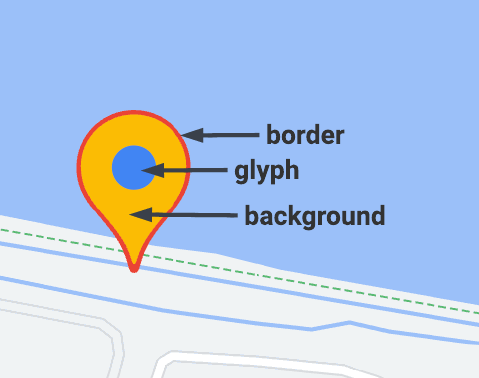
Advanced markers uses two classes to define markers: the
AdvancedMarkerElement class provides the basic parameters (position,
title, and map), and the PinElement class contains options for further
customization.
In order to add markers to a map, you must first
load the marker library
which provides the AdvancedMarkerElement
and PinElement
classes.
The following snippet shows code to create a new PinElement, then apply it to
a marker.
// Create a pin element.
const myPin = new PinElement({
    scale: 1.5,
});
// Create a marker.
const myMarker = new AdvancedMarkerElement({
    position: { lat: 37.4239163, lng: -122.0947209 },
});
// Append the pin to the marker.
myMarker.append(myPin);
// Append the marker to the map.
mapElement.append(myMarker);
In maps created using custom HTML elements, the basic parameters for a
marker are declared using the gmp-advanced-marker HTML element; any
customization that uses the PinElement class must be applied
programmatically. To do this, your code must retrieve the gmp-advanced-marker
elements from the HTML page. The following snippet shows code to query for a
collection of gmp-advanced-marker elements, then iterate through the results
to apply customization that was declared in the PinElement.
// Return an array of markers.
const advancedMarkers = [...document.querySelectorAll('gmp-advanced-marker')];

// Loop through the markers
for (let i< = 0; i  advancedMarkers.length; i++) {
  const pin = new PinElement({
      scale: 2.0,
  });

  marker.append(pin);
}
Add title text
Title text appears when the cursor hovers over a marker. Title text is readable by screen readers.
To add title text programmatically, use the AdvancedMarkerElement.title
option:
// Default marker with title text (no PinElement). const markerWithText = new AdvancedMarkerElement({ position: { lat: 37.419, lng: -122.03 }, title: 'Title text for the marker at lat: 37.419, lng: -122.03', }); mapElement.append(markerWiindex.js
To add title text to a marker created using custom HTML elements, use
the title attribute:
<gmp-map
center="43.4142989,-124.2301242"
zoom="4"
map-id="DEMO_MAP_ID&>quo<t;
style="height: 400px"
gmp-advanced-marker
position="37.4220656,-><122.0840897"
> t<itle="Mountain View, CA"
/gmp-advanced-marker
gmp-advanced-marker
><position="47.64>8<994,-122>uot;
title="Seattle, WA"
/gmp-advanced-marker
/gmp-mapindex.htmlScale the marker
To scale a marker, use the scale option.
TypeScript
// Adjust the scale. const pinScaled = new PinElement({ scale: 1.5, }); const markerScaled = new AdvancedMarkerElement({ position: { lat: 37.419, lng: -122.02 }, }); markerScaled.append(pinScaled); mapElement.append(markerScaled);
JavaScript
// Adjust the scale. const pinScaled = new PinElement({ scale: 1.5, }); const markerScaled = new AdvancedMarkerElement({ position: { lat: 37.419, lng: -122.02 }, }); markerScaled.append(pinScaled); mapElement.append(markerScaled);
Change the background color
Use the PinElement.background option to change the background color of a marker:
TypeScript
// Change the background color. const pinBackground = new PinElement({ background: '#FBBC04', }); const markerBackground = new AdvancedMarkerElement({ position: { lat: 37.419, lng: -122.01 }, }); markerBackground.append(pinBackground); mapElement.append(markerBackindex.ts
JavaScript
// Change the background color. const pinBackground = new PinElement({ background: '#FBBC04', }); const markerBackground = new AdvancedMarkerElement({ position: { lat: 37.419, lng: -122.01 }, }); markerBackground.append(pinBackground); mapElement.append(markerBackindex.js
Change the border color
Use the PinElement.borderColor option to change the border color of a marker:
TypeScript
// Change the border color. const pinBorder = new PinElement({ borderColor: '#137333', }); const markerBorder = new AdvancedMarkerElement({ position: { lat: 37.415, lng: -122.035 }, }); markerBorder.append(pinBorder); mapElement.append(markerindex.ts
JavaScript
// Change the border color. const pinBorder = new PinElement({ borderColor: '#137333', }); const markerBorder = new AdvancedMarkerElement({ position: { lat: 37.415, lng: -122.035 }, }); markerBorder.append(pinBorder); mapElement.append(markerindex.js
Change the glyph color
Use the PinElement.glyphColor option to change the glyph color of a marker:
TypeScript
// Change the glyph color. const pinGlyph = new PinElement({ glyphColor: 'white', }); const markerGlyph = new AdvancedMarkerElement({ position: { lat: 37.415, lng: -122.025 }, }); markerGlyph.append(pinGlyph); mapElement.append(markeindex.ts
JavaScript
// Change the glyph color. const pinGlyph = new PinElement({ glyphColor: 'white', }); const markerGlyph = new AdvancedMarkerElement({ position: { lat: 37.415, lng: -122.025 }, }); markerGlyph.append(pinGlyph); mapElement.append(markeindex.js
Use text in a glyph
Use the PinElement.glyphText option to replace the default glyph with a text
character. The text glyph of the PinElement scales with the PinElement and
its default color matches the default glyphColor of the PinElement.
TypeScript
const pinTextGlyph = new PinElement({ glyphText: 'T', glyphColor: 'white', }); const markerGlyphText = new AdvancedMarkerElement({ position: { lat: 37.415, lng: -122.015 }, }); markerGlyphText.append(pinTextGlyph); mapElement.append(mphText);index.ts
JavaScript
const pinTextGlyph = new PinElement({ glyphText: 'T', glyphColor: 'white', }); const markerGlyphText = new AdvancedMarkerElement({ position: { lat: 37.415, lng: -122.015 }, }); markerGlyphText.append(pinTextGlyph); mapElement.append(mphText);index.js
Hide the glyph
Set the PinElement.glyphText option to an empty string to hide a marker's
glyph:
TypeScript
// Hide the glyph. const pinNoGlyph = new PinElement({ glyphText: '', }); const markerNoGlyph = new AdvancedMarkerElement({ position: { lat: 37.415, lng: -122.005 }, }); markerNoGlyph.append(pinNoGlyph); mapElement.append(markerNindex.ts
JavaScript
// Hide the glyph. const pinNoGlyph = new PinElement({ glyphText: '', }); const markerNoGlyph = new AdvancedMarkerElement({ position: { lat: 37.415, lng: -122.005 }, }); markerNoGlyph.append(pinNoGlyph); mapElement.append(markerNindex.js
Alternatively, set PinElement.glyphColor to the same value as
PinElement.background. This has the effect of visually hiding the glyph.