

添加带标记的地图
本教程介绍了如何向 iOS 应用添加带标记的 Google 地图。本教程适用于掌握了 Swift 或 Objective-C 的初级或中级知识并对 Xcode 有一般了解的人士。有关创建地图的高级指南,请参阅开发者指南。
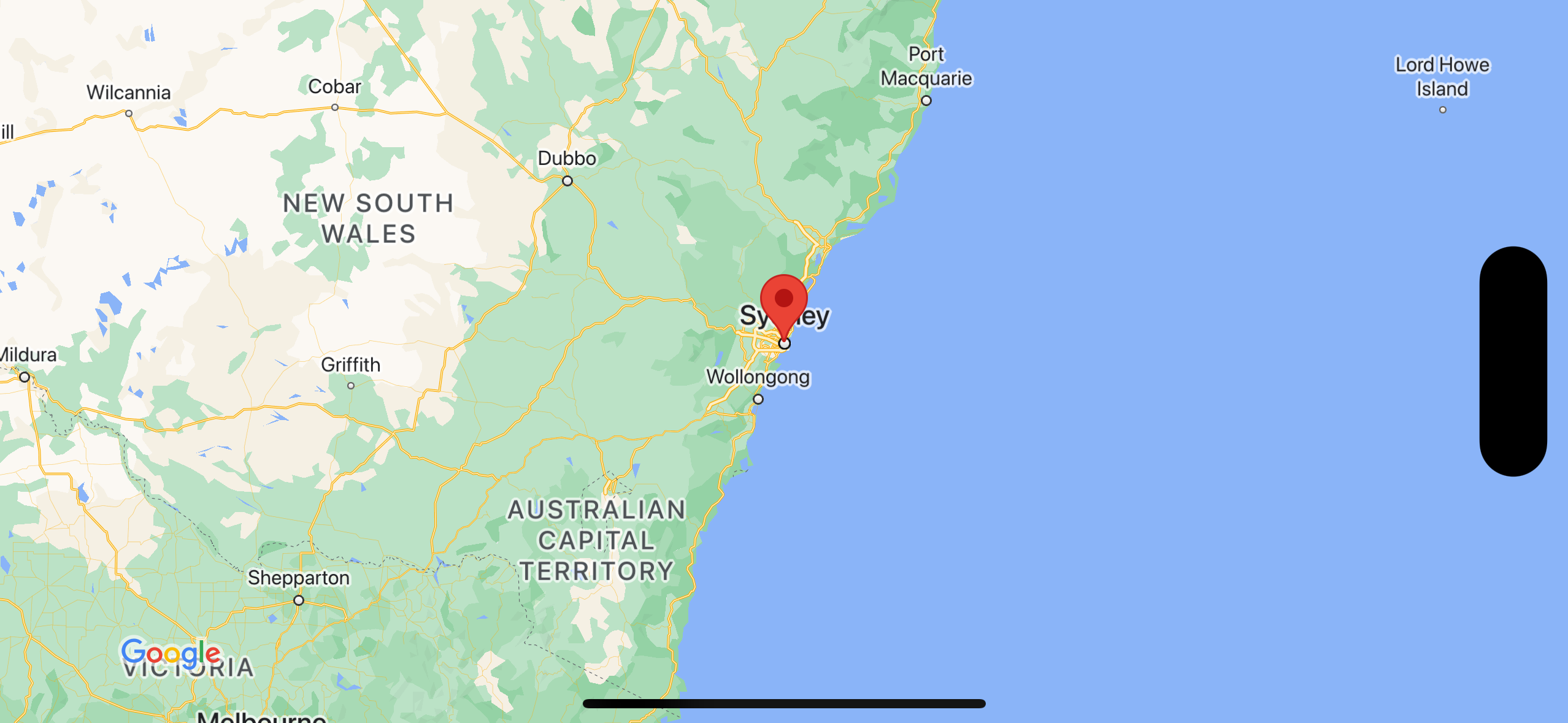
您将在本教程的指导下创建以下地图。标记位于澳大利亚悉尼。
获取代码
克隆或下载 GitHub 上的 Google Maps iOS 示例代码库。
或者,您也可以点击下面的按钮,下载源代码:
Swift
import UIKit
import GoogleMaps

class ViewController: UIViewController {

    override func viewDidLoad() {
        super.viewDidLoad()
        // Do any additional setup after loading the view.
        // Create a GMSCameraPosition that tells the map to display the
        // coordinate -33.86,151.20 at zoom level 6.
        let camera = GMSCameraPosition.camera(withLatitude: -33.86, longitude: 151.20, zoom: 6.0)
        let options = GMSMapViewOptions()
        options.camera = camera
        options.frame = self.view.frame
        let mapView = GMSMapView(options: options)
        self.view.addSubview(mapView)

        // Creates a marker in the center of the map.
        let marker = GMSMarker()
        marker.position = CLLocationCoordinate2D(latitude: -33.86, longitude: 151.20)
        marker.title = "Sydney"
        marker.snippet = "Australia"
        marker.map = mapView
  }
}
Objective-C
#import "ViewController.h"
#import <GoogleMaps/GoogleMaps.h>

@interface ViewController ()

@end

@implementation ViewController

- (void)viewDidLoad {
    [super viewDidLoad];
  // Do any additional setup after loading the view.
  // Create a GMSCameraPosition that tells the map to display the
  // coordinate -33.86,151.20 at zoom level 6.
  GMSCameraPosition *camera = [GMSCameraPosition cameraWithLatitude:-33.86
                                                          longitude:151.20
                                                               zoom:6];
  GMSMapViewOptions *options = [[GMSMapViewOptions alloc] init];
  options.camera = camera;
  options.frame = self.view.frame;
  GMSMapView *mapView = [[GMSMapView alloc] initWithOptions:options];
  mapView.myLocationEnabled = YES;
  [self.view addSubview:mapView];

  // Creates a marker in the center of the map.
  GMSMarker *marker = [[GMSMarker alloc] init];
  marker.position = CLLocationCoordinate2DMake(-33.86, 151.20);
  marker.title = @"Sydney";
  marker.snippet = @"Australia";
  marker.map = mapView;
}

@end
开始使用
Swift Package Manager
您可以使用 Swift Package Manager 安装 Maps SDK for iOS。
- 移除所有现有的 Maps SDK for iOS 依赖项。
- 打开终端窗口并导航至
tutorials/map-with-marker目录。 - 关闭 Xcode 工作区,然后运行以下命令:
sudo gem install cocoapods-deintegrate cocoapods-clean
pod deintegrate
pod cache clean --all
rm Podfile
rm map-with-marker.xcworkspace
- 打开您的 Xcode 项目,然后删除 podfile。
- 前往 File > Add Package Dependencies。
- 输入 https://github.com/googlemaps/ios-maps-sdk 作为网址,按 Enter 键拉取软件包,然后点击 Add Package。
- 您可能需要使用 File > Packages > Reset Package Cache 重置软件包缓存。
获取 API 密钥并启用必要的 API
如需完成本教程,您需要一个已获得 Maps SDK for iOS 使用授权的 Google API 密钥。点击以下按钮以获取密钥并激活 API。
开始使用如需了解详情,请参阅获取 API 密钥。
为应用添加API密钥
按照以下方法向 AppDelegate.swift 添加 API 密钥:
- 请注意,以下 import 语句已添加到该文件中:
import GoogleMaps
- 修改
application(_:didFinishLaunchingWithOptions:)方法中的以下行,并将其中的“YOUR_API_KEY”替换为您的 API 密钥:YOUR_API_KEYGMSServices.provideAPIKey("YOUR_API_KEY")
构建并运行应用
- 将 iOS 设备连接到计算机,或者从 Xcode 方案菜单中选择一个模拟器。
- 如果您使用的是设备,请确保位置信息服务已启用。 如果您使用的是模拟器,请从功能菜单中选择一个位置。
- 在 Xcode 中,点击 Product/Run 菜单选项(或 play 按钮图标)。
- Xcode 会构建应用,然后在设备或模拟器上运行该应用。
- 您应该会看到一张带有标记的地图,这张地图以位于澳大利亚东海岸的悉尼为中心,与本页上的图像类似。
问题排查:
- 如果您没有看到地图,请检查您是否已按照上文中的说明获取 API 密钥并将其添加到该应用中。在 Xcode 的调试控制台中查看有关 API 密钥的错误消息。
- 如果您已通过 iOS 软件包标识符限制了 API 密钥,请修改该密钥,以便添加该应用的软件包标识符:
com.google.examples.map-with-marker。 - 确保您的 Wi-Fi 或 GPS 连接信号良好。
- 使用 Xcode 调试工具查看日志并调试应用。
了解代码
- 创建地图并在
viewDidLoad()中将其设置为视图。Swift
// Create a GMSCameraPosition that tells the map to display the
// coordinate -33.86,151.20 at zoom level 6.
let camera = GMSCameraPosition.camera(withLatitude: -33.86, longitude: 151.20, zoom: 6.0)
let options = GMSMapViewOptions()
options.camera = camera
let mapView = GMSMapView(options: options)
view = mapView
Objective-C
// Create a GMSCameraPosition that tells the map to display the
// coordinate -33.86,151.20 at zoom level 6.
GMSCameraPosition *camera = [GMSCameraPosition cameraWithLatitude:-33.86
                                                        longitude:151.20
                                                             zoom:6.0];
GMSMapViewOptions *options = [[GMSMapViewOptions alloc] init];
options.camera = camera;
GMSMapView *mapView = [[GMSMapView alloc] initWithOptions:options];
self.view = mapView;
- 在
viewDidLoad()中向地图添加标记。Swift
// Creates a marker in the center of the map.
let marker = GMSMarker()
marker.position = CLLocationCoordinate2D(latitude: -33.86, longitude: 151.20)
marker.title = "Sydney"
marker.snippet = "Australia"
marker.map = mapView
Objective-C
// Creates a marker in the center of the map.
GMSMarker *marker = [[GMSMarker alloc] init];
marker.position = CLLocationCoordinate2DMake(-33.86, 151.20);
marker.title = @"Sydney";
marker.snippet = @"Australia";
marker.map = mapView;
默认情况下,当用户点按某个标记时,Maps SDK for iOS 会显示信息窗口的内容。如果您愿意使用该默认行为,则无需为标记添加点击监听器。
恭喜!您已构建了一个 iOS 应用,该应用显示一张 Google 地图,地图上使用标记来指示特定位置。您还学习了如何使用 Maps SDK for iOS。