
This page explains how to build a Google Chat app that interfaces with a Gemini Enterprise AI agent.
AI agents autonomously perceive their environment, reason, and execute complex, multi-step actions to achieve a defined goal. In this tutorial, you use the Idea Generation agent provided by default by Google that helps with innovation and problem-solving for enterprise users.
The following diagram shows the architecture and messaging pattern:
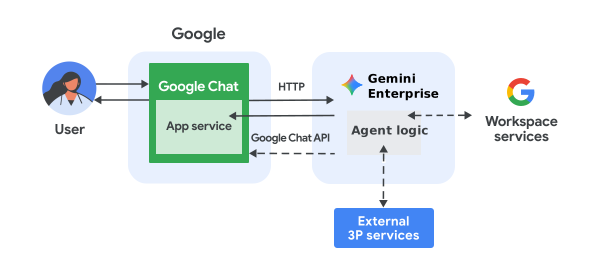
In the preceding diagram, a user interacting with a Chat app implemented with a Gemini Enterprise AI agent has the following flow of information:
- A user sends a message to a Chat app, either in a direct message or in a Chat space.
- The Chat app logic that's implemented either in Apps Script or as a web server with HTTP endpoints receives and processes the message.
- The Gemini Enterprise AI agent receives and processes the interaction.
- Optionally, the Chat app or AI agent can integrate with Google Workspace services, such as Calendar or Sheets, or other Google services, such as Google Maps or YouTube.
- The Chat app asynchronously sends responses using the Google Chat API to communicate the AI agent progress.
- The responses are delivered to the user.
Objectives
- Set up your environment.
- Deploy the Chat app.
- Configure the Chat app.
- Test the Chat app.
Prerequisites
- A Business or Enterprise Google Workspace account with access to Google Chat.
- A Google Cloud project with billing enabled. To check that an existing project has billing enabled, see Verify the billing status of your projects. To create a project and set up billing, see Create a Google Cloud project.
- A Gemini Enterprise app set up with Google Identity as identity provider.
Set up your environment
Turn on the Chat API
Before using Google APIs, you need to turn them on in a Google Cloud project. You can turn on one or more APIs in a single Google Cloud project.In the Google Cloud console, enable the Google Chat API.
Configure the OAuth consent screen
All apps using OAuth 2.0 require a consent screen configuration. Configuring your app's OAuth consent screen defines what is displayed to users and app reviewers, and registers your app so you can publish it later.
- In the Google API Console, go to Menu > Google Auth platform > Branding.
- If you have already configured the Google Auth platform, you can configure the following OAuth Consent Screen settings in Branding, Audience, and Data Access. If you see a message that says Google Auth platform not configured yet, click Get Started:
- Under App Information, in App name, enter a name for the app.
- In User support email, choose a support email address where users can contact you if they have questions about their consent.
- Click Next.
- Under Audience, select Internal.
- Click Next.
- Under Contact Information, enter an Email address where you can be notified about any changes to your project.
- Click Next.
- Under Finish, review the Google API Services User Data Policy and if you agree, select I agree to the Google API Services: User Data Policy.
- Click Continue.
- Click Create.
- For now, you can skip adding scopes. In the future, when you create an app for use outside of your Google Workspace organization, you must change the User type to External. Then add the authorization scopes that your app requires. To learn more, see the full Configure OAuth consent guide.
Create a service account in Google Cloud console
Create a new service account with the role Discovery Engine User by following
these steps:
Google Cloud Console
-
In the Google Cloud Console, go to Menu
> IAM & Admin
> Service Accounts.
The remaining steps appear in the Google Cloud Console.
- Select a Google Cloud project.
- Click Create service account.
- Enter a service account name to display in the Google Cloud Console.
- If you don't want to set access controls now, click Done to finish creating the service account. To set access controls now, click Create and continue and proceed to the next step.
- Optional: Assign roles to your service account to grant access to your Google Cloud project's resources in addition to Google Workspace resources. For more details, refer to Manage access to projects, folders, and organizations.
- Click Continue.
- Optional: Enter users or groups that can manage and perform actions with this service account. For more details, refer to Service account impersonation.
- Click Done to finish creating the service account.
Make a note of the email address for the service account.
gcloud CLI
- Create the service account:
gcloud iam service-accounts createSERVICE_ACCOUNT_NAME\ --display-name="SERVICE_ACCOUNT_NAME" - Optional: Assign roles to your service account to grant access to your Google Cloud project's resources in addition to Google Workspace resources. For more details, refer to Manage access to projects, folders, and organizations.
The service account appears on the service account page.
Create a private key
To create and download a private key for the service account, follow these steps:
-
In the Google Cloud Console, go to Menu
> IAM & Admin
> Service Accounts.
The remaining steps appear in the Google Cloud Console.
- Select a Google Cloud project.
- Click the email address of the service account that you want to create a key for.
- Click the Keys tab.
- Click the Add key drop-down menu, then select Create new key.
- Select JSON as the Key type and click Create.
Your new public/private key pair is generated and downloaded to your machine as a service account key file. Save the downloaded JSON file as
credentials.jsonin your working directory. This file is the only copy of this key. After you download the key file, you cannot download it again. For information about how to store your key securely, see Best practices for managing service account keys.
For more information about service accounts, see service accounts in the Google Cloud IAM documentation.
Create and configure the Chat app project
In the Google API Console, go to Menu > IAM & Admin > Settings.
Note the Project number and Project ID fields.
Go to Gemini Enterprise:
Note the Location and ID of the application.
Click the following button to open the GE AI Agent Quickstart Apps Script project.
Click Overview >
 Make a copy.
In your Apps Script project, click
 Project Settings
> Edit script properties > Add script property
to add the following script properties:
Project Settings
> Edit script properties > Add script property
to add the following script properties:REASONING_ENGINE_RESOURCE_NAMEwith the Gemini Enterprise app resource composed with the information noted in previous steps.projects/PROJECT_ID/locations/APP_LOCATION/collections/default_collection/engines/APP_IDSERVICE_ACCOUNT_KEYwith the JSON key from the service account downloaded in previous steps such as{ ... }.
Click Save script properties
In your Apps Script project, click
Project Settings.Under Google Cloud Platform (GCP) Project, click Change project.
In GCP project number, paste the Google Cloud project number noted in previous steps.
Click Set project. The Cloud project and Apps Script project are now connected.
Create a test deployment
You need a deployment ID for this Apps Script project, so that you can use it in the next step.
To get the head deployment ID, do the following:
- In the Chat app Apps Script project, click Deploy > Test deployments.
- Under Head deployment ID, click
Copy.
- Click Done.
Configure the Chat app
Using your Apps Script deployment, follow these steps to deploy the Google Chat app for testing:
- In the API Console, search for
Google Chat API, and click Google Chat API. - Click Manage.
Click Configuration and set up the Chat app:
- In the App name field, enter
GE Quickstart. - In the Avatar URL field, enter
https://developers.google.com/workspace/chat/images/quickstart-app-avatar.png. - In the Description field, enter
GE Quickstart. - Under Functionality, select Join spaces and group conversations.
- Under Connection settings, select Apps Script project.
- In the Deployment ID field, paste the Head deployment ID that you previously copied.
- Under Visibility, select Specific people and groups in your domain, and enter your email.
- In the App name field, enter
Click Save.
The Chat app is ready to respond to messages.
Test the Chat app
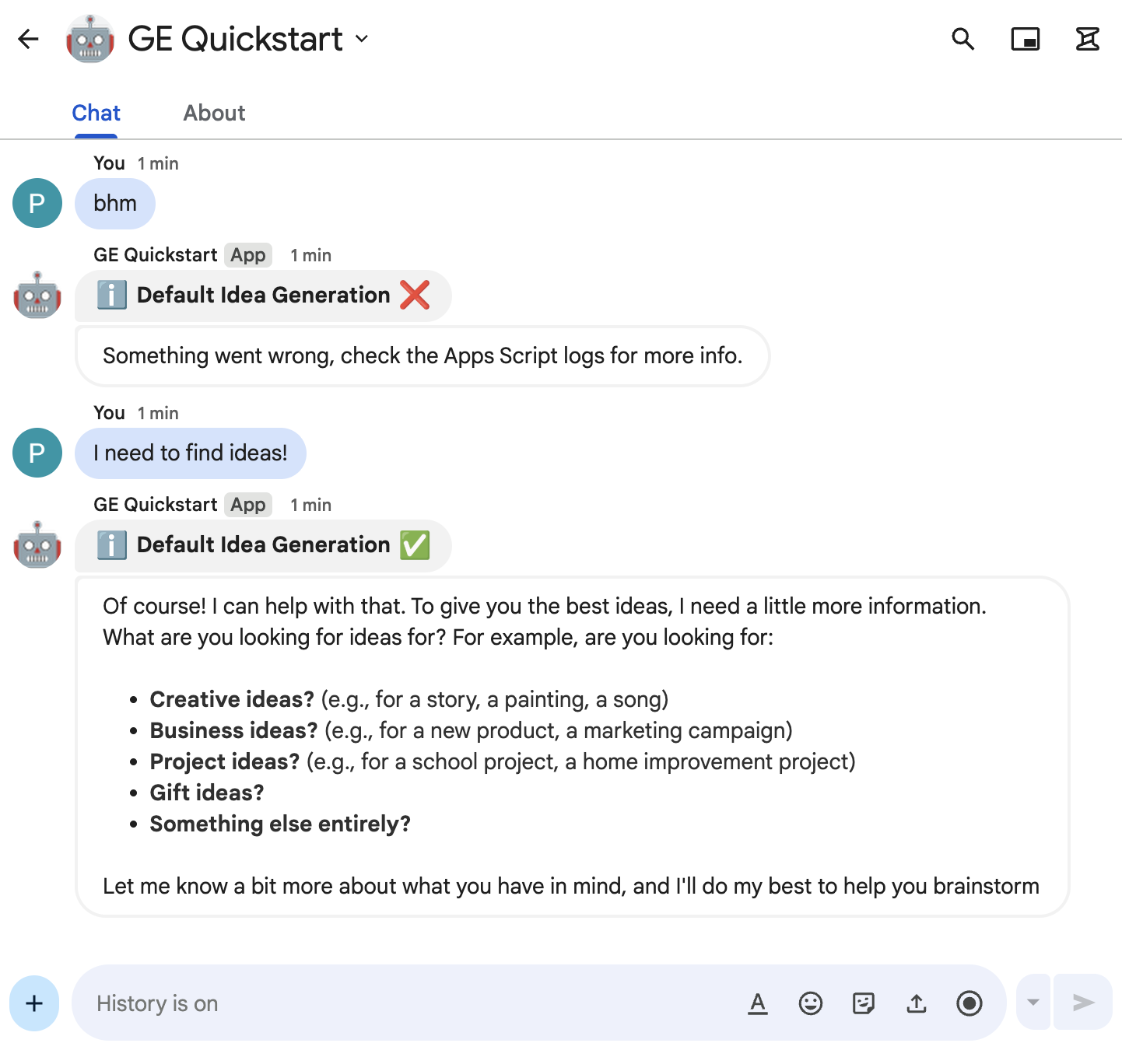
To test your Chat app, open a direct message space with the Chat app and send a message:
Open Google Chat using the Google Workspace account that you provided when you added yourself as a trusted tester.
- Click New chat.
- In the Add 1 or more people field, type the name of your Chat app.
Select your Chat app from the results. A direct message opens.
In the new direct message with the app, type
I need to find ideas!and pressenter.The Chat app replies with Default Idea Generation agent response.
To add trusted testers and learn more about testing interactive features, see Test interactive features for Google Chat apps.
Troubleshoot
When a Google Chat app or card returns an error, the Chat interface surfaces a message saying "Something went wrong." or "Unable to process your request." Sometimes the Chat UI doesn't display any error message, but the Chat app or card produces an unexpected result; for example, a card message might not appear.
Although an error message might not display in the Chat UI, descriptive error messages and log data are available to help you fix errors when error logging for Chat apps is turned on. For help viewing, debugging, and fixing errors, see Troubleshoot and fix Google Chat errors.
Clean up
To avoid incurring charges to your Google Cloud account for the resources used in this tutorial, we recommend that you delete the Cloud project.
- In the Google API Console, go to the Manage resources page. Click Menu > IAM & Admin > Manage Resources.
- In the project list, select the project you want to delete and then click Delete .
- In the dialog, type the project ID and then click Shut down to delete the project.
Related topics
- Build Gemini Enterprise agents that are tightly integrated with Workspace data stores, APIs, and Chat apps
- Build Vertex AI agents that are tightly integrated with Workspace data stores, APIs, and Chat apps
- Build a Google Chat app with an ADK AI agent
- Build a Google Chat app with an ADK AI agent exposed by A2A
- Build a Google Chat app with an ADK AI agent exposed by A2UI
- Fact-check statements with an ADK AI agent and Gemini model
- Plan travels with an AI agent accessible across Google Workspace
- Integrate fundamental AI concepts in Chat apps
- Answer questions based on Chat conversations with a Gemini AI Chat app
- Respond to incidents with Google Chat, Vertex AI, Apps Script, and user authentication
- Manage projects with Google Chat, Vertex AI, and Firestore