
Help your readers find your site through preferred sources in Google Search
If you're a website owner, you can help your audience find your publication as a preferred source in Google Search. When a user selects your site as a preferred source, your content is more likely to appear in "Top Stories", highlighted with a "preferred" badge. In AI Mode and AI Overviews, your content can be highlighted with a "preferred" badge for users who have selected your site as a preferred source.
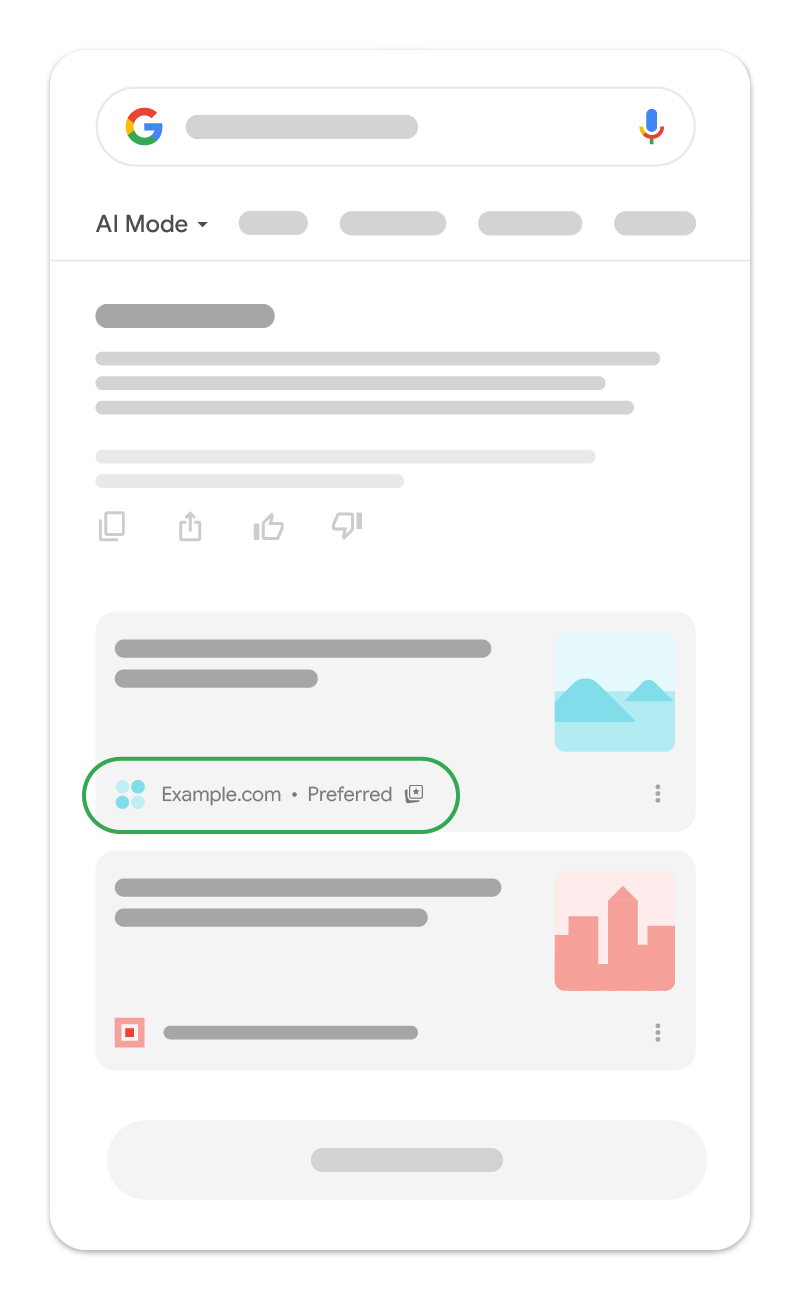
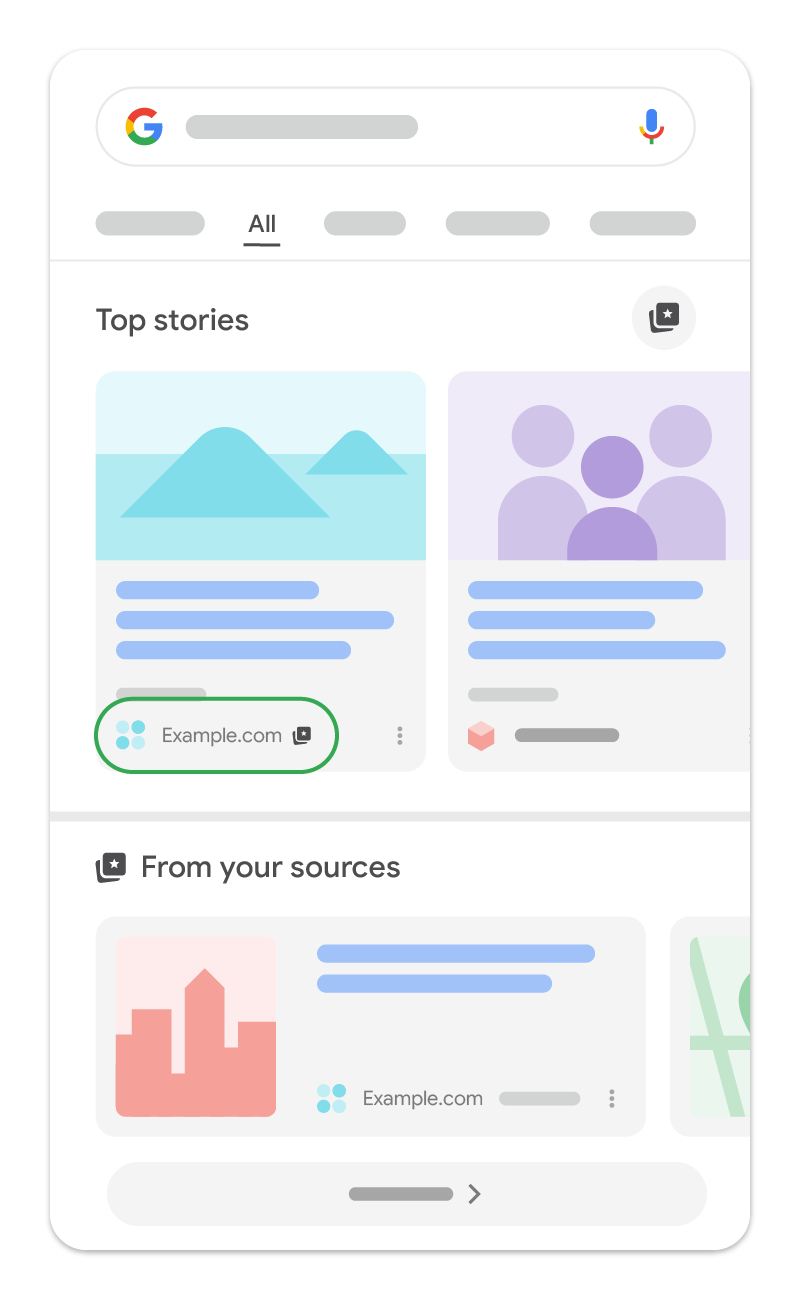
Feature availability
The preferred sources feature is available globally for the "Top Stories" feature in all languages where Google Search is available. Preferred sources can also appear in AI Mode and AI Overviews in all languages and locales where those features are available.
Only domain-level and subdomain-level sites are eligible to appear in the
source preferences tool.
For example, https://www.example.com/ and
https://code.example.com/ are eligible for preferred sources,
but the subdirectory https://www.example.com/blog isn't
eligible.
How to help users find your site as a preferred source
If your site appears in the source preferences tool (to check, enter your site in the tool's search box), you can use the following methods to guide your readers to select your site as a preferred source:
- Standard JavaScript implementation (recommended): Embed an interactive button to your web pages, which lets readers seamlessly add your site as a preferred source and returns them to your page. By adding only two lines to your HTML, this option renders an automatically localized, Google-styled button that supports device and language customization.
- Advanced JavaScript implementation with custom design assets: If you want to use your own design assets and customize the standard JavaScript button, follow the advanced JavaScript implementation instructions. The end-user UI flow remains the same as the standard JavaScript implementation.
- Deeplink implementation: If you can't implement the interactive button (for example, your CMS doesn't support it), you can use a deeplink to direct people to adding your site as a preferred source. You can do this by adding a text link or a clickable image on your web pages. You can also use the deeplink in your social posts, email newsletters, or promotions.
Standard JavaScript implementation (recommended)
By adding only two lines to your HTML, you can add an automatically translated, interactive button, which lets readers seamlessly add your site as a preferred source and return to where they left off on your page. You can also set the theme of the button (dark or light), plus override the button language. We recommend this implementation because it provides the best user experience for readers.
Here's how it'll look:
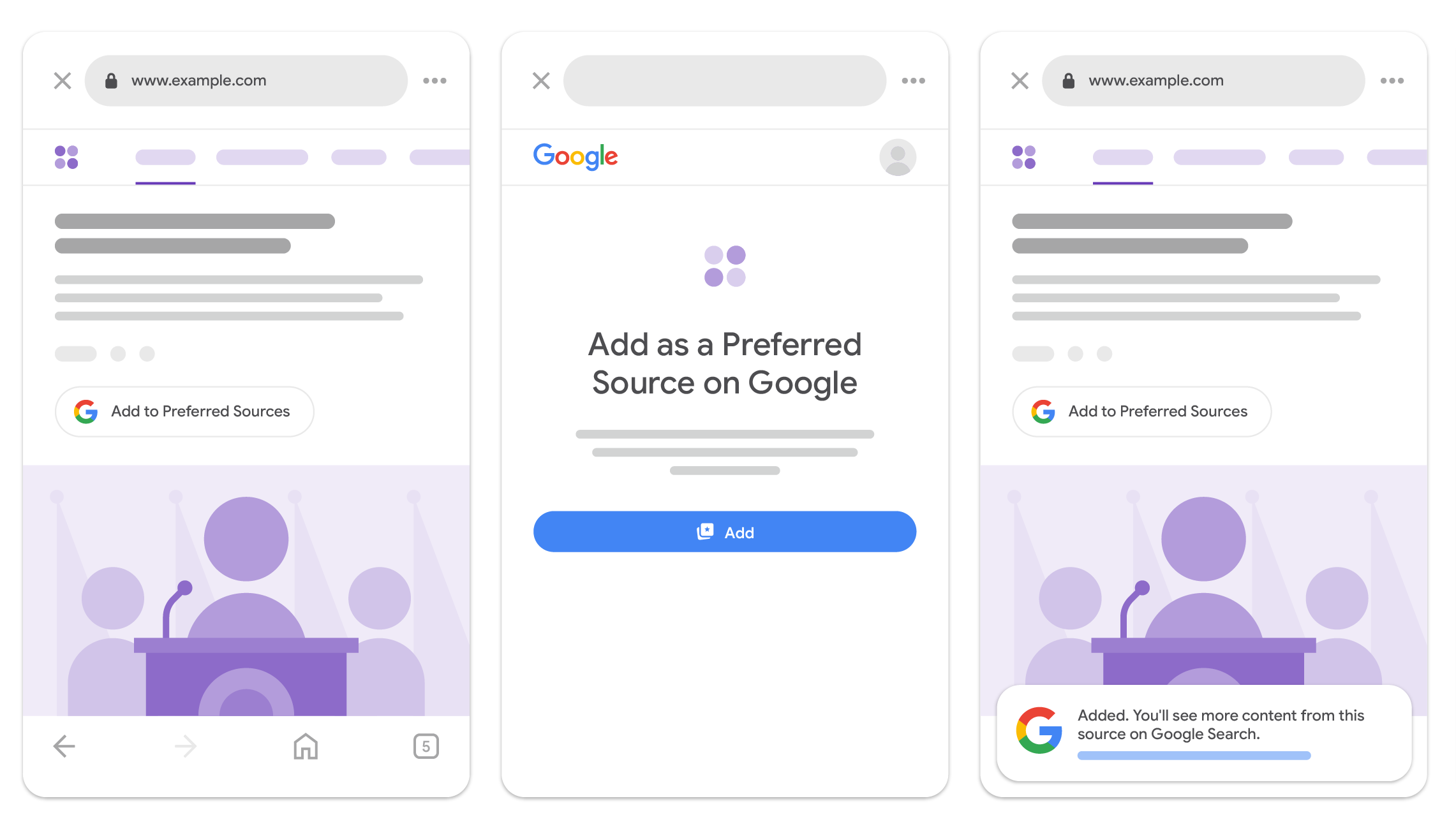
To embed the JavaScript button on your web page, do the following:
-
Add the following
<script>tag to your web page (preferably in the<head>element), which loads the Preferred Sources library.<script async src="https://news.google.com/swg/js/v1/publisher.js"></script> -
Add the following
<div>tag anywhere you'd like the button to appear in the body of your web page.<div google-add-preferred-source-btn></div>
Set the button theme
By default, the "Add to Preferred Sources" button appears in a light theme.
To adjust the theme, add the data-theme data attribute to your
<div> element and set it to either light or
dark:
<div google-add-preferred-source-btn data-theme="dark"></div>Override the button language
By default, the "Add to Preferred Sources" button displays in the user's
language based on their browser settings. To override this behavior, add the
data-lang data attribute to your <div>
element and set it to the language code you'd prefer (download the
list of supported language codes):
<div google-add-preferred-source-btn data-lang="en"></div>Download supported language codes
Advanced JavaScript implementation with custom design assets
By default, the standard JavaScript button automatically scans the DOM for
elements with the google-add-preferred-source-btn attribute and
renders the standard badge. However, for custom integrations where you want
to trigger the flow from your own UI elements or application milestones, you
can initialize the client programmatically and bind the flow to custom
triggers.
When integrating the Preferred Sources library into custom user interfaces, application milestones, or modern framework applications, you can take full programmatic control over runtime settings and flow initiation using our JavaScript SDK. We provide two distinct integration approaches depending on your tooling and architecture: ES Module imports (ESM) and standard script callback queues (IIFE). Both distribution models expose identical capabilities and methods.
ES Module imports
For modern build setups and module-based environments, import the library directly into your code.
import { preferredSource } from
  "https://news.google.com/swg/js/v1/publisher.mjs";

// 1. Initialize directly using the imported module instance
preferredSource.init({
  theme: 'light', // Theme choice: "light" or "dark" (default "light")
  lang: 'en'      // Optional: override language (defaults to page language)
});

// 2. Programmatically bind flow invocation using a click handler
const button = document.querySelector('#myButton');
button.onclick = () => {
  preferredSource.addPreferredSource();
};
Standard script callback queues
For standard script tag integrations, load the following script in the
<head> of your document with the
preferred-sources-control="manual" attribute to prevent
automatic button rendering:
<script async preferred-sources-control="manual" src="https://news.google.com/swg/js/v1/publisher.js"></script>
Then use the global PREFERRED_SOURCE callback queue to
initialize options and bind custom triggers:
<script>
  (self.PREFERRED_SOURCE = self.PREFERRED_SOURCE || []).push(
    function(preferredSource) {
      // 1. Initialize with options
      preferredSource.init({
        theme: 'light',
        lang: 'en'
      });

      // 2. Programmatically bind trigger button
      const button = document.querySelector('#myButton');
      button.addEventListener('click', () => {
        preferredSource.addPreferredSource();
      });
  });
</script>
For interactive frontend and backend implementations showcasing live usage across buttons, declarative containers, IIFE scripts, and ES Module bundles, explore the Preferred Sources demo.
Deeplink implementation
If you can't use JavaScript on your website, you can alternatively use a deeplink to direct your users to the source preferences tool, where they can add your site as a preferred source and confirm their selection.
Use the following URL format and replace example.com with your
publication's domain name, which takes users directly to your site in the
source preferences tool:
https://www.google.com/preferences/source?q=Your_Website's_URLExample text link
<a
  href="https://www.google.com/preferences/source?q=example.com">
  Add as Preferred Source
</a>
Example clickable image link
<a
  href="https://www.google.com/preferences/source?q=example.com">
  <img src="path/to/your/button.png" alt="Add as Preferred Source">
</a>
Button image assets
You can design your own custom promotion badge or download official translated graphic assets provided by Google: