Vorschaulinks

Damit Nutzer nicht den Kontext wechseln müssen, wenn sie einen Link in Google Chat teilen, kann Ihre Chat-App eine Vorschau des Links anzeigen. Dazu wird der Nachricht eine Karte angehängt, die weitere Informationen enthält und Nutzern ermöglicht, direkt in Google Chat Maßnahmen zu ergreifen.

Stellen Sie sich beispielsweise einen Google Chat-Gruppenbereich vor, der alle Kundenservicemitarbeiter eines Unternehmens sowie eine Chat-App namens Case-y enthält. Mitarbeiter teilen häufig Links zu Kundenservicefällen im Chat-Gruppenbereich. Jedes Mal müssen ihre Kollegen den Link zum Fall öffnen, um Details wie den Verantwortlichen, den Status und den Betreff zu sehen. Wenn jemand den Fall übernehmen oder den Status ändern möchte, muss er ebenfalls den Link öffnen.

Mit der Linkvorschau kann die Chat-App Case-y im Gruppenbereich eine Karte mit dem Verantwortlichen, dem Status und dem Betreff anhängen, wenn jemand einen Link zu einem Fall teilt. Über die Schaltflächen auf der Karte können Mitarbeiter den Fall übernehmen und den Status direkt im Chatstream ändern.

Wenn jemand einen Link zu seiner Nachricht hinzufügt, wird ein Chip angezeigt, der darauf hinweist, dass eine Chat-App möglicherweise eine Vorschau des Links anzeigt.
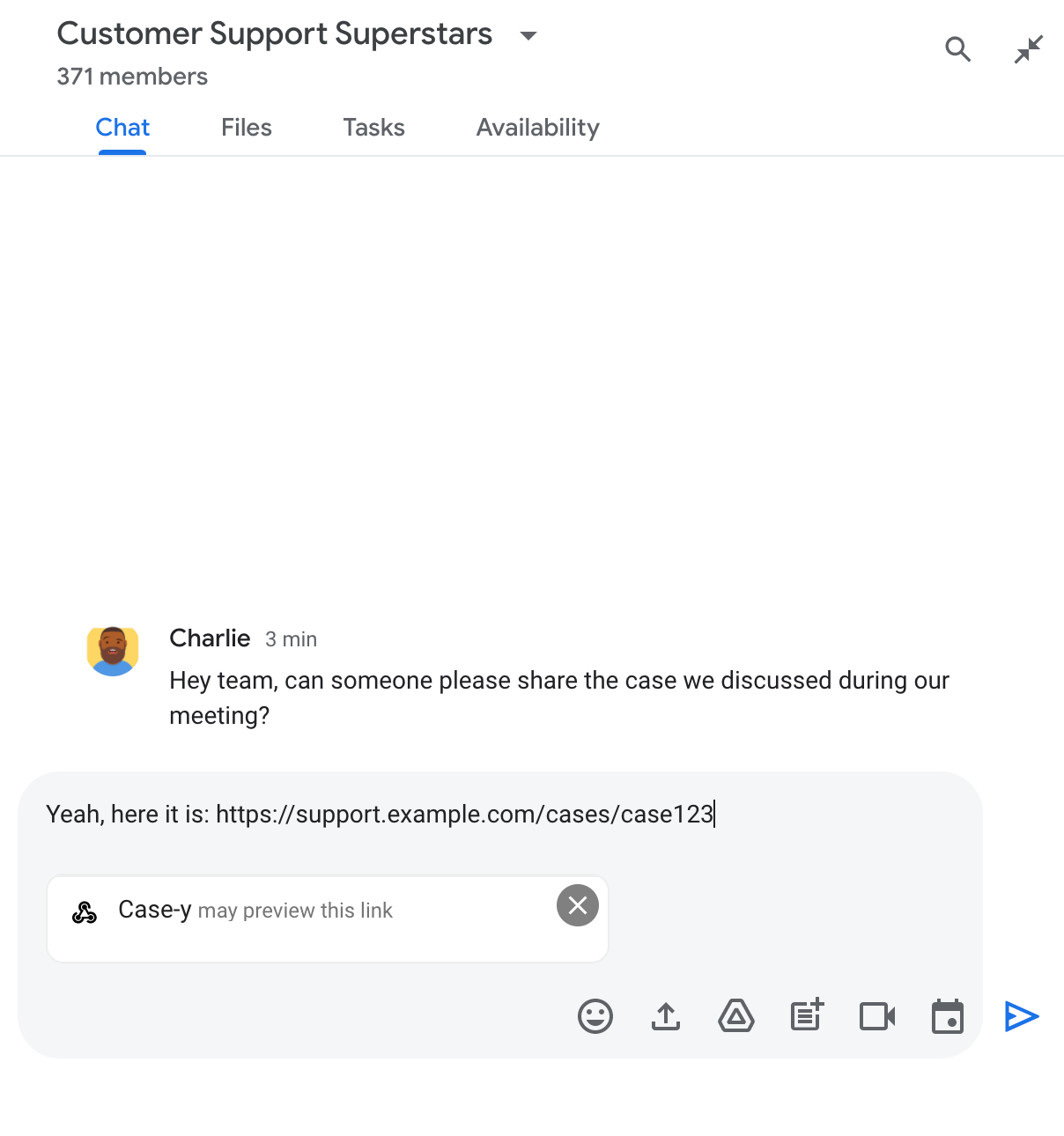
Chip, der angibt, dass eine Chat-App möglicherweise eine Vorschau eines Links anzeigt

Nach dem Senden der Nachricht wird der Link an die Chat-App gesendet, die dann die Karte generiert und an die Nachricht des Nutzers anhängt.
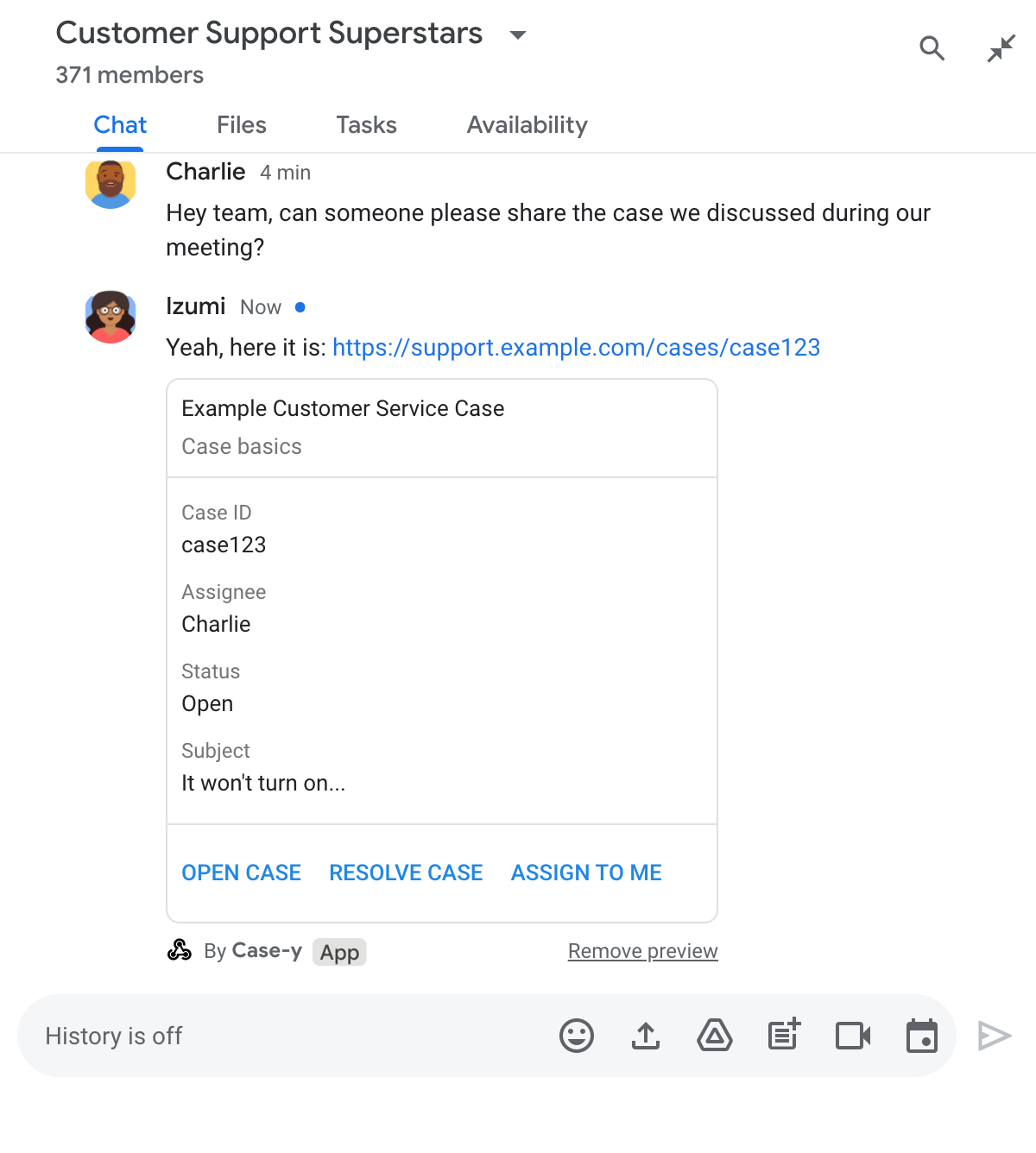
Chat-App, die eine Vorschau eines Links anzeigt, indem sie der Nachricht eine Karte anhängt

Neben dem Link enthält die Karte zusätzliche Informationen zum Link, einschließlich interaktiver Elemente wie Schaltflächen. Ihre Chat-App kann die angehängte Karte als Reaktion auf Nutzerinteraktionen wie Schaltflächenklicks aktualisieren.

Wenn ein Nutzer nicht möchte, dass die Chat-App eine Vorschau des Links anzeigt, indem sie eine Karte an die Nachricht anhängt, kann er die Vorschau verhindern, indem er auf dem Vorschau-Chip auf klickt. Nutzer können die angehängte Karte jederzeit entfernen, indem sie auf Vorschau entfernen klicken.

Vorbereitung

Node.js

Eine Google Chat-App, die Interaktionsereignisse empfängt und darauf reagiert. Wenn Sie eine interaktive Chat-App mit einem HTTP-Dienst erstellen möchten, führen Sie diese Kurzanleitung aus.

Python

Eine Google Chat-App, die Interaktionsereignisse empfängt und darauf reagiert. Wenn Sie eine interaktive Chat-App mit einem HTTP-Dienst erstellen möchten, führen Sie diese Kurzanleitung aus.

Java

Eine Google Chat-App, die Interaktionsereignisse empfängt und darauf reagiert. Wenn Sie eine interaktive Chat-App mit einem HTTP-Dienst erstellen möchten, führen Sie diese Kurzanleitung aus.

Apps Script

Eine Google Chat-App, die Interaktionsereignisse empfängt und darauf reagiert. Wenn Sie eine interaktive Chat-App in Apps Script erstellen möchten, führen Sie diese Kurzanleitung aus.

Registrieren Sie bestimmte Links wie example.com, support.example.com und support.example.com/cases/ als URL-Muster auf der Konfigurationsseite Ihrer Chat-App in der Google Cloud Console, damit Ihre Chat-App eine Vorschau davon anzeigen kann.
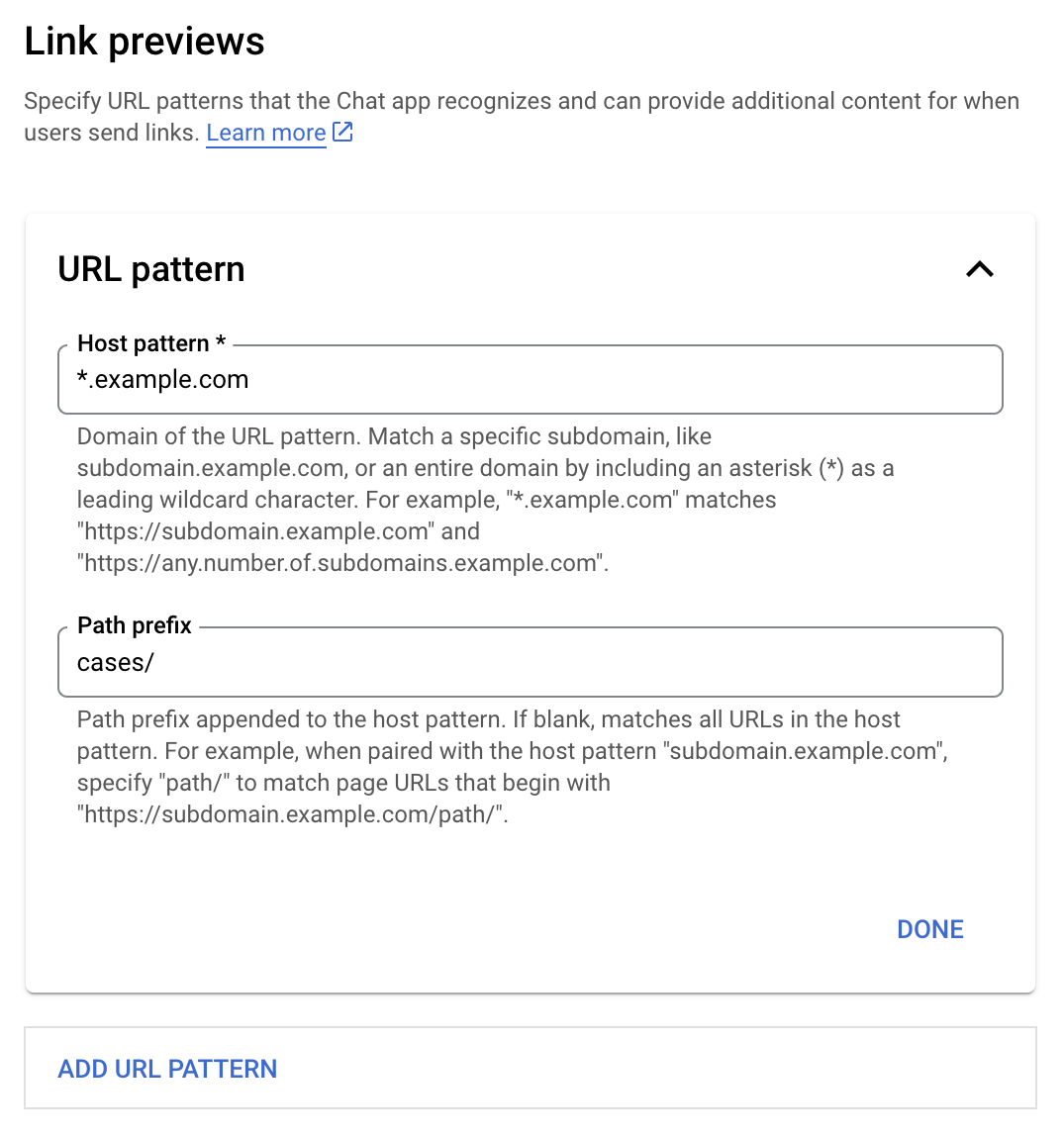
Konfigurationsmenü für Linkvorschauen

  1. Öffnen Sie die Google Cloud Console.
  2. Klicken Sie neben "Google Cloud" auf den Pfeil nach unten und öffnen Sie das Projekt Ihrer Chat-App.
  3. Geben Sie im Suchfeld Google Chat API ein und klicken Sie auf Google Chat API.
  4. Klicken Sie auf Verwalten > Konfiguration.
  5. Fügen Sie unter „Linkvorschauen“ ein URL-Muster hinzu oder bearbeiten Sie ein vorhandenes.
    1. Wenn Sie Linkvorschauen für ein neues URL-Muster konfigurieren möchten, klicken Sie auf URL-Muster hinzufügen.
    2. Wenn Sie die Konfiguration für ein vorhandenes URL-Muster bearbeiten möchten, klicken Sie auf den Pfeil nach unten .
  6. Geben Sie im Feld Hostmuster die Domain des URL-Musters ein. Die Chat-App zeigt eine Vorschau von Links zu dieser Domain an.

    Wenn die Chat-App eine Vorschau von Links für eine bestimmte Subdomain wie subdomain.example.com anzeigen soll, geben Sie die Subdomain an.

    Wenn die Chat-App eine Vorschau von Links für die gesamte Domain anzeigen soll, geben Sie ein Platzhalterzeichen mit einem Sternchen (*) als Subdomain an. Beispiel: *.example.com entspricht subdomain.example.com und any.number.of.subdomains.example.com.

  7. Geben Sie im Feld Pfadpräfix einen Pfad ein, der an die Domain des Hostmusters angehängt werden soll.

    Wenn alle URLs in der Domain des Hostmusters übereinstimmen sollen, lassen Sie Pfadpräfix leer.

    Wenn das Hostmuster beispielsweise support.example.com ist und Sie URLs für Fälle abgleichen möchten, die unter support.example.com/cases/ gehostet werden, geben Sie cases/ ein.

  8. Klicken Sie auf Fertig.

  9. Klicken Sie auf Speichern.

Wenn nun jemand einen Link, der einem URL-Muster für die Linkvorschau entspricht, in eine Nachricht in einem Chat-Gruppenbereich einfügt, der Ihre Chat-App enthält, zeigt Ihre App eine Vorschau des Links an.

Nachdem Sie die Linkvorschau für einen bestimmten Link konfiguriert haben, kann Ihre Chat-App den Link erkennen und eine Vorschau davon anzeigen, indem sie weitere Informationen daran anhängt.

Wenn die Nachricht einer Person in Chat-Gruppenbereichen, die Ihre Chat-App enthalten, einen Link enthält, der einem URL-Muster für die Linkvorschau entspricht, empfängt Ihre Chat-App ein MESSAGE Interaktionsereignis. Die JSON-Nutzlast für das Interaktionsereignis enthält das Feld matchedUrl:

JSON

message: {
  matchedUrl: {
    url: "https://support.example.com/cases/case123"
  },
  ... // other message attributes redacted
}

Wenn Ihre Chat-App das Feld matchedUrl in der Nutzlast des MESSAGE-Ereignisses findet, kann sie der Nachricht Informationen mit dem Link in der Vorschau hinzufügen. Ihre Chat-App kann entweder mit einer einfachen Textnachricht antworten oder eine Karte anhängen.

Mit einer Textnachricht antworten

Bei einfachen Antworten kann Ihre Chat-App eine Vorschau eines Links anzeigen, indem sie mit einer einfachen Textnachricht auf einen Link antwortet. In diesem Beispiel wird eine Nachricht angehängt, die die Link-URL wiederholt, die einem URL-Muster für die Linkvorschau entspricht.

Node.js

node/preview-link/index.js
// Reply with a text message for URLs of the subdomain "text"
if (event.message.matchedUrl.url.includes("text.example.com")) {
  return {
    text: 'event.message.matchedUrl.url: ' + event.message.matchedUrl.url
  };
}

Python

python/preview-link/main.py
# Reply with a text message for URLs of the subdomain "text"
if 'text.example.com' in event.get('message').get('matchedUrl').get('url'):
  return {
    'text': 'event.message.matchedUrl.url: ' +
            event.get('message').get('matchedUrl').get('url')
  }

Java

java/preview-link/src/main/java/com/google/chat/preview/App.java
// Reply with a text message for URLs of the subdomain "text"
if (event.at("/message/matchedUrl/url").asText().contains("text.example.com")) {
  return new Message().setText("event.message.matchedUrl.url: " +
    event.at("/message/matchedUrl/url").asText());
}

Apps Script

apps-script/preview-link/preview-link.gs
// Reply with a text message for URLs of the subdomain "text"
if (event.message.matchedUrl.url.includes("text.example.com")) {
  return {
    text: 'event.message.matchedUrl.url: ' + event.message.matchedUrl.url
  };
}

Wenn Sie eine Karte an einen Link in der Vorschau anhängen möchten, geben Sie eine ActionResponse vom Typ UPDATE_USER_MESSAGE_CARDS zurück. In diesem Beispiel wird eine einfache Karte angehängt.
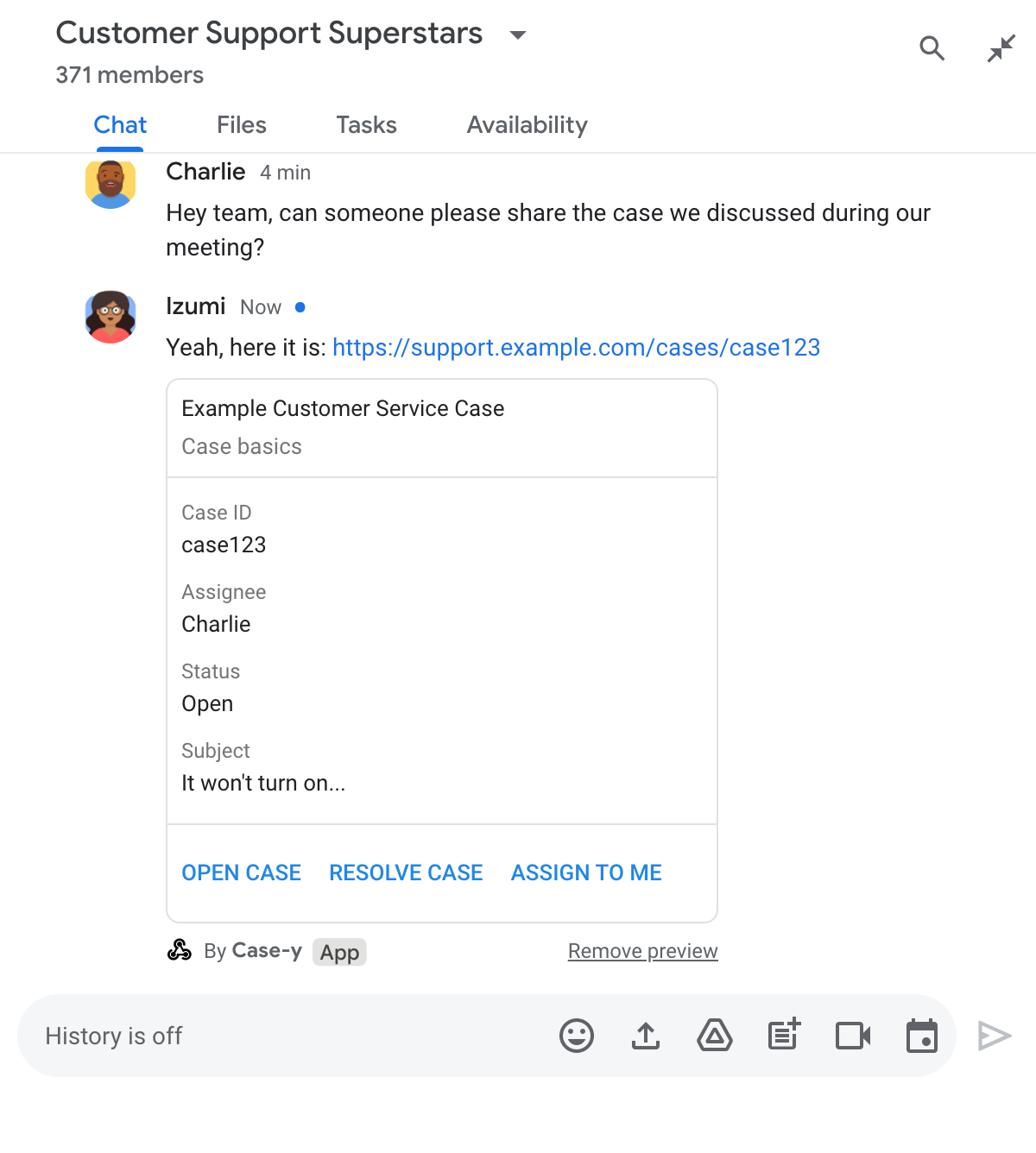
Chat-App, die eine Vorschau eines Links anzeigt, indem sie der Nachricht eine Karte anhängt

Node.js

node/preview-link/index.js
// Attach a card to the message for URLs of the subdomain "support"
if (event.message.matchedUrl.url.includes("support.example.com")) {
  // A hard-coded card is used in this example. In a real-life scenario,
  // the case information would be fetched and used to build the card.
  return {
    actionResponse: { type: 'UPDATE_USER_MESSAGE_CARDS' },
    cardsV2: [{
      cardId: 'attachCard',
      card: {
        header: {
          title: 'Example Customer Service Case',
          subtitle: 'Case basics',
        },
        sections: [{ widgets: [
          { decoratedText: { topLabel: 'Case ID', text: 'case123'}},
          { decoratedText: { topLabel: 'Assignee', text: 'Charlie'}},
          { decoratedText: { topLabel: 'Status', text: 'Open'}},
          { decoratedText: { topLabel: 'Subject', text: 'It won\'t turn on...' }},
          { buttonList: { buttons: [{
            text: 'OPEN CASE',
            onClick: { openLink: {
              url: 'https://support.example.com/orders/case123'
            }},
          }, {
            text: 'RESOLVE CASE',
            onClick: { openLink: {
              url: 'https://support.example.com/orders/case123?resolved=y',
            }},
          }, {
            text: 'ASSIGN TO ME',
            onClick: { action: { function: 'assign'}}
          }]}}
        ]}]
      }
    }]
  };
}

Python

python/preview-link/main.py
# Attach a card to the message for URLs of the subdomain "support"
if 'support.example.com' in event.get('message').get('matchedUrl').get('url'):
  # A hard-coded card is used in this example. In a real-life scenario,
  # the case information would be fetched and used to build the card.
  return {
    'actionResponse': { 'type': 'UPDATE_USER_MESSAGE_CARDS' },
    'cardsV2': [{
      'cardId': 'attachCard',
      'card': {
        'header': {
          'title': 'Example Customer Service Case',
          'subtitle': 'Case basics',
        },
        'sections': [{ 'widgets': [
          { 'decoratedText': { 'topLabel': 'Case ID', 'text': 'case123'}},
          { 'decoratedText': { 'topLabel': 'Assignee', 'text': 'Charlie'}},
          { 'decoratedText': { 'topLabel': 'Status', 'text': 'Open'}},
          { 'decoratedText': { 'topLabel': 'Subject', 'text': 'It won\'t turn on...' }},
          { 'buttonList': { 'buttons': [{
            'text': 'OPEN CASE',
            'onClick': { 'openLink': {
              'url': 'https://support.example.com/orders/case123'
            }},
          }, {
            'text': 'RESOLVE CASE',
            'onClick': { 'openLink': {
              'url': 'https://support.example.com/orders/case123?resolved=y',
            }},
          }, {
            'text': 'ASSIGN TO ME',
            'onClick': { 'action': { 'function': 'assign'}}
          }]}}
        ]}]
      }
    }]
  }

Java

java/preview-link/src/main/java/com/google/chat/preview/App.java
// Attach a card to the message for URLs of the subdomain "support"
if (event.at("/message/matchedUrl/url").asText().contains("support.example.com")) {
  // A hard-coded card is used in this example. In a real-life scenario,
  // the case information would be fetched and used to build the card.
  return new Message()
    .setActionResponse(new ActionResponse()
      .setType("UPDATE_USER_MESSAGE_CARDS"))
    .setCardsV2(List.of(new CardWithId()
      .setCardId("attachCard")
      .setCard(new GoogleAppsCardV1Card()
        .setHeader(new GoogleAppsCardV1CardHeader()
          .setTitle("Example Customer Service Case")
          .setSubtitle("Case basics"))
        .setSections(List.of(new GoogleAppsCardV1Section().setWidgets(List.of(
          new GoogleAppsCardV1Widget().setDecoratedText(new GoogleAppsCardV1DecoratedText()
            .setTopLabel("Case ID")
            .setText("case123")),
          new GoogleAppsCardV1Widget().setDecoratedText(new GoogleAppsCardV1DecoratedText()
            .setTopLabel("Assignee")
            .setText("Charlie")),
          new GoogleAppsCardV1Widget().setDecoratedText(new GoogleAppsCardV1DecoratedText()
            .setTopLabel("Status")
            .setText("Open")),
          new GoogleAppsCardV1Widget().setDecoratedText(new GoogleAppsCardV1DecoratedText()
            .setTopLabel("Subject")
            .setText("It won't turn on...")),
          new GoogleAppsCardV1Widget()
            .setButtonList(new GoogleAppsCardV1ButtonList().setButtons(List.of(
              new GoogleAppsCardV1Button()
                .setText("OPEN CASE")
                .setOnClick(new GoogleAppsCardV1OnClick()
                  .setOpenLink(new GoogleAppsCardV1OpenLink()
                    .setUrl("https://support.example.com/orders/case123"))),
              new GoogleAppsCardV1Button()
                .setText("RESOLVE CASE")
                .setOnClick(new GoogleAppsCardV1OnClick()
                  .setOpenLink(new GoogleAppsCardV1OpenLink()
                    .setUrl("https://support.example.com/orders/case123?resolved=y"))),
              new GoogleAppsCardV1Button()
                .setText("ASSIGN TO ME")
                .setOnClick(new GoogleAppsCardV1OnClick()
                  .setAction(new GoogleAppsCardV1Action().setFunction("assign")))))))))))));
}

Apps Script

In diesem Beispiel wird eine Kartennachricht gesendet, indem Karten-JSON zurückgegeben wird. Sie können auch den Apps Script-Kartendienst verwenden.

apps-script/preview-link/preview-link.gs
// Attach a card to the message for URLs of the subdomain "support"
if (event.message.matchedUrl.url.includes("support.example.com")) {
  // A hard-coded card is used in this example. In a real-life scenario,
  // the case information would be fetched and used to build the card.
  return {
    actionResponse: { type: 'UPDATE_USER_MESSAGE_CARDS' },
    cardsV2: [{
      cardId: 'attachCard',
      card: {
        header: {
          title: 'Example Customer Service Case',
          subtitle: 'Case basics',
        },
        sections: [{ widgets: [
          { decoratedText: { topLabel: 'Case ID', text: 'case123'}},
          { decoratedText: { topLabel: 'Assignee', text: 'Charlie'}},
          { decoratedText: { topLabel: 'Status', text: 'Open'}},
          { decoratedText: { topLabel: 'Subject', text: 'It won\'t turn on...' }},
          { buttonList: { buttons: [{
            text: 'OPEN CASE',
            onClick: { openLink: {
              url: 'https://support.example.com/orders/case123'
            }},
          }, {
            text: 'RESOLVE CASE',
            onClick: { openLink: {
              url: 'https://support.example.com/orders/case123?resolved=y',
            }},
          }, {
            text: 'ASSIGN TO ME',
            onClick: { action: { function: 'assign'}}
          }]}}
        ]}]
      }
    }]
  };
}

Ihre Chat-App kann eine Karte mit Linkvorschau aktualisieren, wenn Nutzer damit interagieren, z. B. auf eine Schaltfläche auf der Karte klicken.

Um die Karte zu aktualisieren, muss Ihre Chat-App das CARD_CLICKED Interaktionsereignis verarbeiten und eine actionResponse zurückgeben, je nachdem, wer die Nachricht mit der Linkvorschau gesendet hat:

  • Wenn ein Nutzer die Nachricht gesendet hat, legen Sie actionResponse.type auf UPDATE_USER_MESSAGE_CARDS fest.
  • Wenn die Chat-App die Nachricht gesendet hat, legen Sie actionResponse.type auf UPDATE_MESSAGE fest.

Mit dem Feld message.sender.type des Interaktionsereignisses können Sie feststellen, wer die Nachricht gesendet hat, und sehen, ob der Absender ein HUMAN-Nutzer oder ein BOT war.

Im folgenden Beispiel wird gezeigt, wie eine Chat-App eine Linkvorschau aktualisiert, wenn ein Nutzer auf die Schaltfläche Mir zuweisen klickt. Dazu wird das Feld Verantwortlicher der Karte aktualisiert und die Schaltfläche deaktiviert.
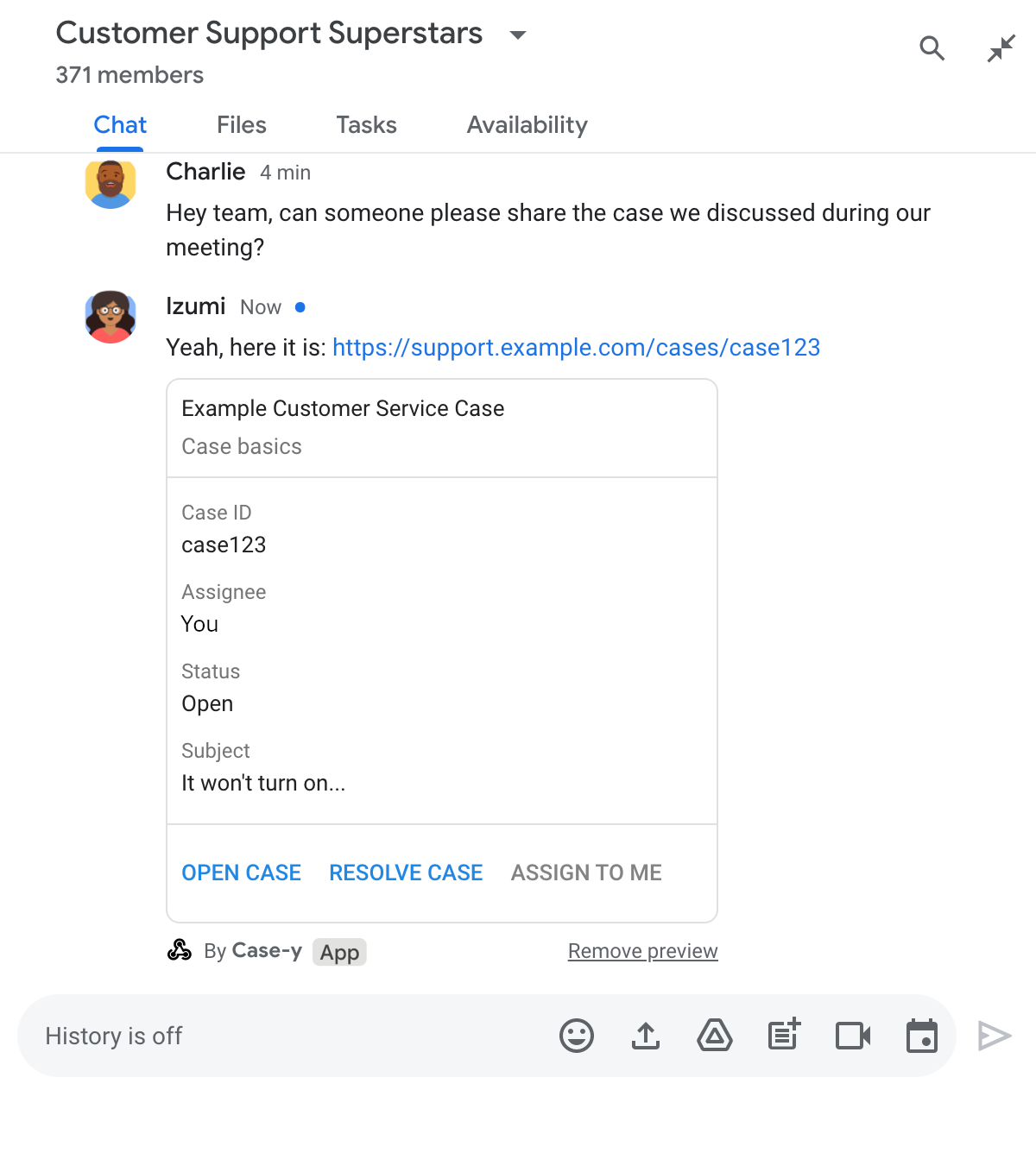
Chat-App, in der ein Link mit einer aktualisierten Version einer Karte in einer Nachricht angezeigt wird

Node.js

node/preview-link/index.js
/**
 * Updates a card that was attached to a message with a previewed link.
 *
 * @param {Object} event The event object from Chat.
 *
 * @return {Object} Response from the Chat app. Either a new card attached to
 * the message with the previewed link, or an update to an existing card.
 */
function onCardClick(event) {
  // To respond to the correct button, checks the button's actionMethodName.
  if (event.action.actionMethodName === 'assign') {
    // A hard-coded card is used in this example. In a real-life scenario,
    // an actual assign action would be performed before building the card.

    // Checks whether the message event originated from a human or a Chat app
    // and sets actionResponse.type to "UPDATE_USER_MESSAGE_CARDS if human or
    // "UPDATE_MESSAGE" if Chat app.
    const actionResponseType = event.message.sender.type === 'HUMAN' ?
      'UPDATE_USER_MESSAGE_CARDS' :
      'UPDATE_MESSAGE';

    // Returns the updated card that displays "You" for the assignee
    // and that disables the button.
    return {
      actionResponse: { type: actionResponseType },
      cardsV2: [{
        cardId: 'attachCard',
        card: {
          header: {
            title: 'Example Customer Service Case',
            subtitle: 'Case basics',
          },
          sections: [{ widgets: [
            { decoratedText: { topLabel: 'Case ID', text: 'case123'}},
            // The assignee is now "You"
            { decoratedText: { topLabel: 'Assignee', text: 'You'}},
            { decoratedText: { topLabel: 'Status', text: 'Open'}},
            { decoratedText: { topLabel: 'Subject', text: 'It won\'t turn on...' }},
            { buttonList: { buttons: [{
              text: 'OPEN CASE',
              onClick: { openLink: {
                url: 'https://support.example.com/orders/case123'
              }},
            }, {
              text: 'RESOLVE CASE',
              onClick: { openLink: {
                url: 'https://support.example.com/orders/case123?resolved=y',
              }},
            }, {
              text: 'ASSIGN TO ME',
              // The button is now disabled
              disabled: true,
              onClick: { action: { function: 'assign'}}
            }]}}
          ]}]
        }
      }]
    };
  }
}

Python

python/preview-link/main.py
def on_card_click(event: dict) -> dict:
  """Updates a card that was attached to a message with a previewed link."""
  # To respond to the correct button, checks the button's actionMethodName.
  if 'assign' == event.get('action').get('actionMethodName'):
    # A hard-coded card is used in this example. In a real-life scenario,
    # an actual assign action would be performed before building the card.

    # Checks whether the message event originated from a human or a Chat app
    # and sets actionResponse.type to "UPDATE_USER_MESSAGE_CARDS if human or
    # "UPDATE_MESSAGE" if Chat app.
    actionResponseType = 'UPDATE_USER_MESSAGE_CARDS' if \
      event.get('message').get('sender').get('type') == 'HUMAN' else \
      'UPDATE_MESSAGE'

    # Returns the updated card that displays "You" for the assignee
    # and that disables the button.
    return {
      'actionResponse': { 'type': actionResponseType },
      'cardsV2': [{
        'cardId': 'attachCard',
        'card': {
          'header': {
            'title': 'Example Customer Service Case',
            'subtitle': 'Case basics',
          },
          'sections': [{ 'widgets': [
            { 'decoratedText': { 'topLabel': 'Case ID', 'text': 'case123'}},
            # The assignee is now "You"
            { 'decoratedText': { 'topLabel': 'Assignee', 'text': 'You'}},
            { 'decoratedText': { 'topLabel': 'Status', 'text': 'Open'}},
            { 'decoratedText': { 'topLabel': 'Subject', 'text': 'It won\'t turn on...' }},
            { 'buttonList': { 'buttons': [{
              'text': 'OPEN CASE',
              'onClick': { 'openLink': {
                'url': 'https://support.example.com/orders/case123'
              }},
            }, {
              'text': 'RESOLVE CASE',
              'onClick': { 'openLink': {
                'url': 'https://support.example.com/orders/case123?resolved=y',
              }},
            }, {
              'text': 'ASSIGN TO ME',
              # The button is now disabled
              'disabled': True,
              'onClick': { 'action': { 'function': 'assign'}}
            }]}}
          ]}]
        }
      }]
    }

Java

java/preview-link/src/main/java/com/google/chat/preview/App.java
// Updates a card that was attached to a message with a previewed link.
Message onCardClick(JsonNode event) {
  // To respond to the correct button, checks the button's actionMethodName.
  if (event.at("/action/actionMethodName").asText().equals("assign")) {
    // A hard-coded card is used in this example. In a real-life scenario,
    // an actual assign action would be performed before building the card.

    // Checks whether the message event originated from a human or a Chat app
    // and sets actionResponse.type to "UPDATE_USER_MESSAGE_CARDS if human or
    // "UPDATE_MESSAGE" if Chat app.
    String actionResponseType =
      event.at("/message/sender/type").asText().equals("HUMAN")
      ? "UPDATE_USER_MESSAGE_CARDS" : "UPDATE_MESSAGE";

    // Returns the updated card that displays "You" for the assignee
    // and that disables the button.
    return new Message()
    .setActionResponse(new ActionResponse()
      .setType(actionResponseType))
    .setCardsV2(List.of(new CardWithId()
      .setCardId("attachCard")
      .setCard(new GoogleAppsCardV1Card()
        .setHeader(new GoogleAppsCardV1CardHeader()
          .setTitle("Example Customer Service Case")
          .setSubtitle("Case basics"))
        .setSections(List.of(new GoogleAppsCardV1Section().setWidgets(List.of(
          new GoogleAppsCardV1Widget().setDecoratedText(new GoogleAppsCardV1DecoratedText()
            .setTopLabel("Case ID")
            .setText("case123")),
          new GoogleAppsCardV1Widget().setDecoratedText(new GoogleAppsCardV1DecoratedText()
            .setTopLabel("Assignee")
            // The assignee is now "You"
            .setText("You")),
          new GoogleAppsCardV1Widget().setDecoratedText(new GoogleAppsCardV1DecoratedText()
            .setTopLabel("Status")
            .setText("Open")),
          new GoogleAppsCardV1Widget().setDecoratedText(new GoogleAppsCardV1DecoratedText()
            .setTopLabel("Subject")
            .setText("It won't turn on...")),
          new GoogleAppsCardV1Widget()
            .setButtonList(new GoogleAppsCardV1ButtonList().setButtons(List.of(
              new GoogleAppsCardV1Button()
                .setText("OPEN CASE")
                .setOnClick(new GoogleAppsCardV1OnClick()
                  .setOpenLink(new GoogleAppsCardV1OpenLink()
                    .setUrl("https://support.example.com/orders/case123"))),
              new GoogleAppsCardV1Button()
                .setText("RESOLVE CASE")
                .setOnClick(new GoogleAppsCardV1OnClick()
                  .setOpenLink(new GoogleAppsCardV1OpenLink()
                    .setUrl("https://support.example.com/orders/case123?resolved=y"))),
              new GoogleAppsCardV1Button()
                .setText("ASSIGN TO ME")
                // The button is now disabled
                .setDisabled(true)
                .setOnClick(new GoogleAppsCardV1OnClick()
                  .setAction(new GoogleAppsCardV1Action().setFunction("assign")))))))))))));
  }
  return null;
}

Apps Script

In diesem Beispiel wird eine Kartennachricht gesendet, indem Karten-JSON zurückgegeben wird. Sie können auch den Apps Script-Kartendienst verwenden.

apps-script/preview-link/preview-link.gs
/**
 * Updates a card that was attached to a message with a previewed link.
 *
 * @param {Object} event The event object from Chat.
 *
 * @return {Object} Response from the Chat app. Either a new card attached to
 * the message with the previewed link, or an update to an existing card.
 */
function onCardClick(event) {
  // To respond to the correct button, checks the button's actionMethodName.
  if (event.action.actionMethodName === 'assign') {
    // A hard-coded card is used in this example. In a real-life scenario,
    // an actual assign action would be performed before building the card.

    // Checks whether the message event originated from a human or a Chat app
    // and sets actionResponse.type to "UPDATE_USER_MESSAGE_CARDS if human or
    // "UPDATE_MESSAGE" if Chat app.
    const actionResponseType = event.message.sender.type === 'HUMAN' ?
      'UPDATE_USER_MESSAGE_CARDS' :
      'UPDATE_MESSAGE';

    // Returns the updated card that displays "You" for the assignee
    // and that disables the button.
    return {
      actionResponse: { type: actionResponseType },
      cardsV2: [{
        cardId: 'attachCard',
        card: {
          header: {
            title: 'Example Customer Service Case',
            subtitle: 'Case basics',
          },
          sections: [{ widgets: [
            { decoratedText: { topLabel: 'Case ID', text: 'case123'}},
            // The assignee is now "You"
            { decoratedText: { topLabel: 'Assignee', text: 'You'}},
            { decoratedText: { topLabel: 'Status', text: 'Open'}},
            { decoratedText: { topLabel: 'Subject', text: 'It won\'t turn on...' }},
            { buttonList: { buttons: [{
              text: 'OPEN CASE',
              onClick: { openLink: {
                url: 'https://support.example.com/orders/case123'
              }},
            }, {
              text: 'RESOLVE CASE',
              onClick: { openLink: {
                url: 'https://support.example.com/orders/case123?resolved=y',
              }},
            }, {
              text: 'ASSIGN TO ME',
              // The button is now disabled
              disabled: true,
              onClick: { action: { function: 'assign'}}
            }]}}
          ]}]
        }
      }]
    };
  }
}

Einschränkungen und Überlegungen

Beachten Sie beim Konfigurieren von Linkvorschauen für Ihre Chat-App die folgenden Einschränkungen und Überlegungen:

  • Jede Chat-App unterstützt Linkvorschauen für bis zu fünf URL-Muster.
  • Chat-Apps zeigen eine Vorschau von einem Link pro Nachricht an. Wenn in einer Nachricht mehrere Links vorhanden sind, für die eine Vorschau angezeigt werden kann, wird nur für den ersten Link eine Vorschau angezeigt.
  • Chat-Apps zeigen nur eine Vorschau von Links an, die mit https:// beginnen. Für https://support.example.com/cases/ wird also eine Vorschau angezeigt, für support.example.com/cases/ jedoch nicht.
  • Sofern die Nachricht keine anderen Informationen enthält, die an die Chat-App gesendet werden, z. B. einen Schrägstrichbefehl, wird nur die Link-URL von Linkvorschauen an die Chat-App gesendet.
  • Wenn ein Nutzer den Link postet, kann eine Chat-App die Karte mit der Linkvorschau nur aktualisieren, wenn Nutzer mit der Karte interagieren, z. B. auf eine Schaltfläche klicken. Sie können die Methode update() der Chat API nicht für die Ressource Message aufrufen, um die Nachricht eines Nutzers asynchron zu aktualisieren.
  • Chat-Apps müssen eine Vorschau von Links für alle Nutzer im Gruppenbereich anzeigen. Daher muss das privateMessageViewer Feld in der Nachricht weggelassen werden.

Bei der Implementierung von Linkvorschauen müssen Sie möglicherweise Fehler in Ihrer Chat-App beheben, indem Sie die Logs der App lesen. Die Logs finden Sie im Log-Explorer in der Google Cloud Console.