

Page Summary
-
Homepages in Google Workspace add-ons display non-contextual content, similar to built-in apps like Keep and Calendar, offering a starting point for users.
-
You can customize the homepage content by specifying a homepage trigger function in your add-on's manifest, potentially creating different homepages for each supported host application.
-
Add-ons can have multiple non-contextual cards, with the homepage acting as the primary entry point and other cards serving specific functions, such as settings or help.
-
Although not mandatory, designing a homepage is recommended to improve the user experience, as a generic card is used otherwise.
-
Homepage triggers are invoked without contextual information, relying on limited event object fields like client platform, host application, user locale, and timezone.
Homepages are an Google Workspace add-ons feature that provides the ability to define one or more non-contextual cards. Non-contextual cards display a user interface when the user is outside a specific context, such as when viewing their Gmail inbox without an open message or draft.
Homepages let you show non-contextual content, similar to the Google apps in the quick-access side panel (Google Keep, Google Calendar, and Google Tasks). Homepages can also provide an initial starting place when a user first opens your add-on and are useful for teaching new users how to interact with your add-on.
Define a homepage for your add-on by specifying it in
your project manifest and implementing one or more homepageTrigger
functions (see Homepage configuration).
You can have multiple homepages, one for each host application that your add-on extends. You can also define a single common default homepage that is used in hosts where you haven't specified a custom homepage.
Your add-on homepage is displayed in these cases:
- When the add-on is first opened in the host (after authorization).
- When the user switches from a contextual context to a non-contextual context while the add-on is open. For example, from editing a Calendar event to the main Calendar.
- When the user clicks the back button enough times to pop every other card off of the internal stacks.
- When a UI interaction in a non-contextual card results in a
Navigation.popToRootcall.
Designing a homepage is recommended. If you don't define any, a generic card containing your add-on name is used whenever a user navigates to the homepage.
Homepage configuration
Google Workspace add-ons use the addOns.common.homepageTrigger field to
configure the default homepage (non-contextual)
add-on content for host applications in the
add-on manifest:
{
  "addOns": {
    "common": {
      "homepageTrigger": {
        "runFunction": "myFunction",
        "enabled": true
      }
    }
  }
}
runFunction: The name of the Google Apps Script function that the Google Workspace add-ons framework invokes to render homepage add-on cards. This function is the homepage trigger function. This function must build and return an array ofCardobjects that make up the homepage UI. If more than one card is returned, the host application shows the card headers in a list that the user can select from (see Returning multiple cards).enabled: Whether homepage cards should be enabled for this scope. This field is optional, and defaults totrue. Setting this tofalsecauses homepage cards to be disabled for all hosts (unless overridden for that host; see the host-specific configuration).
For a host to use the common homepage, both
addOns.common.homepageTrigger and the host's
top-level resource must be present in the add-on manifest. For example, if
addOns.gmail isn't
present in the manifest, then the add-on is disabled
for Gmail and won't show a homepage or other functionality in
that host.
In addition to the common configuration, identically-structured per-host
overrides are available in each host application's config, at
addOns.gmail.homepageTrigger, addOns.calendar.homepageTrigger, and other
host-specific triggers.
The following example shows a manifest where a common homepage trigger is
defined but is overridden with custom functions for Calendar and
Drive, and disabled for Gmail. In this
configuration, the common buildHomePage function never executes because it is
either overridden or the host is disabled.
{
  ...
  "addOns": {
    ...
    "common": {
      "homepageTrigger": { "runFunction": "buildHomePage" }
    },
    "calendar": {
      "homepageTrigger": { "runFunction": "buildCalendarHomepage" }
    },
    "drive": {
      "homepageTrigger": { "runFunction": "buildDriveHomepage" }
    },
    "gmail": {
      "homepageTrigger": { "enabled": false }
    },
    ...
  }
}
The following manifest excerpt is equivalent to the previous example, even
though the default homepageTrigger and the Gmail configuration
are omitted:
{
  "addOns": {
    "common": {},
    "calendar": {
      "homepageTrigger": { "runFunction": "myCalendarFunction" }
    },
    "drive": {
      "homepageTrigger": { "runFunction": "myDriveFunction" }
    },
    "gmail": {},
    ...
  }
}
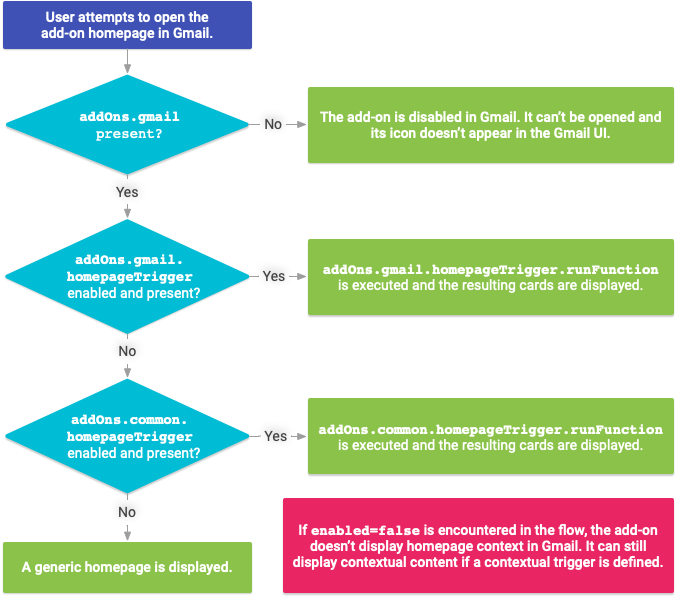
None of the homepageTrigger sections are required. The UI shown for an
add-on in a host product depends on the presence of
the corresponding manifest field and whether there's an associated
homepageTrigger. The following example shows which
add-on trigger functions are executed to create a
homepage UI for different manifest configurations:
Homepage event objects
When called, the homepage trigger function (runFunction) described previously
is passed an event object
containing data from the invocation context.
Homepage event objects don't include widget or contextual information. The information passed is limited to the following common event object fields:
commonEventObject.clientPlatformcommonEventObject.hostAppcommonEventObject.userLocaleandcommonEventObject.userTimezone(see Accessing user locale and timezone for restriction information).
See Event object for more details.
Other non-contextual cards
Your add-on UI can contain additional non-contextual cards that aren't homepages. For example, your homepage might have a button that opens a "Settings" card to adjust add-on settings (such settings are usually independent of context).
Non-contextual cards are built like any other card; the only difference is what action or event generates and displays the card. See Navigation methods for details on how to create transitions between cards.