Visualizar links em mensagens do Google Chat

Para evitar a troca de contexto quando os usuários compartilham um link no Google Chat, o app do Chat pode visualizar o link anexando um card à mensagem com mais informações e permitindo que as pessoas tomem medidas diretamente no Google Chat.

Por exemplo, imagine um espaço do Chat que inclua todos os agentes de atendimento ao cliente de uma empresa e um app do Chat chamado Case-y. Os agentes costumam compartilhar links para casos de atendimento ao cliente no espaço do Chat, e sempre que fazem isso, os colegas precisam abrir o link do caso para conferir detalhes como responsável, status e assunto. Da mesma forma, se alguém quiser assumir a propriedade de um caso ou mudar o status, será necessário abrir o link.

A visualização de links permite que o app do Chat residente do espaço, Case-y, anexe um card mostrando o responsável, o status e o assunto sempre que alguém compartilhar um link de caso. Os botões no card permitem que os agentes assumam a propriedade do caso e mudem o status diretamente no stream de chat.

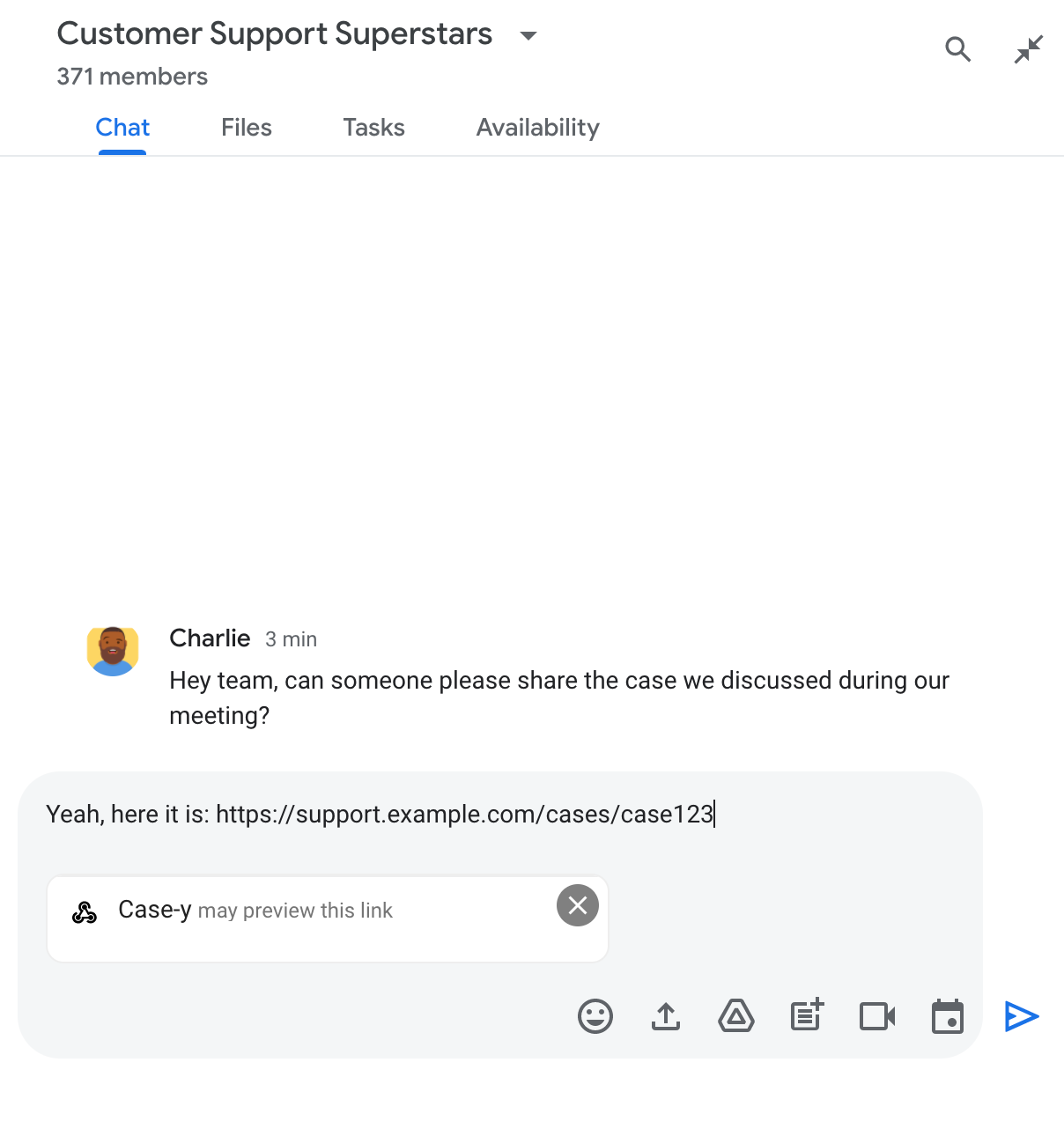
Quando alguém adiciona um link à mensagem, um ícone aparece informando que um app do Chat pode visualizar o link.

Chip indicando que um app do Chat pode visualizar um link

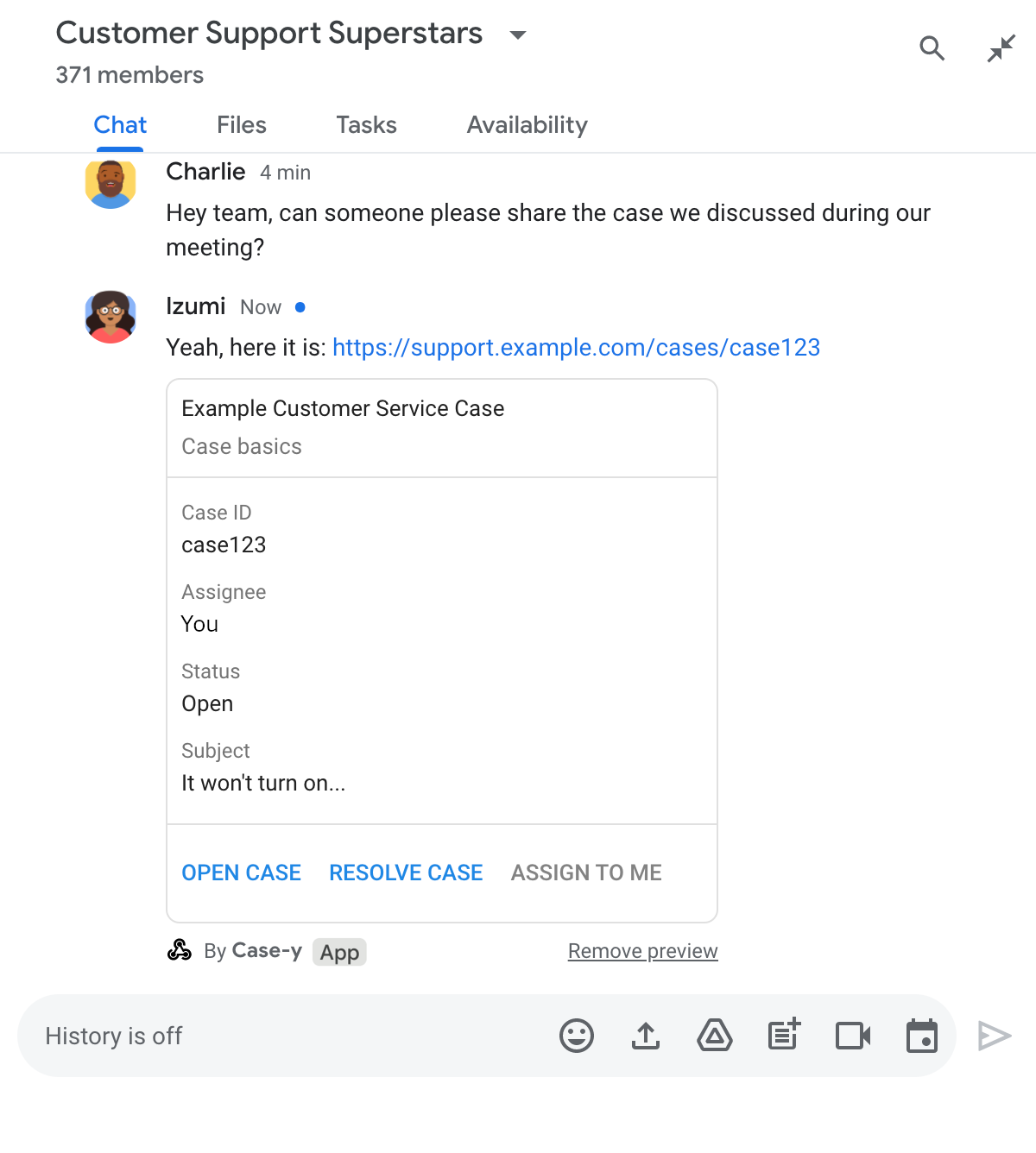
Depois de enviar a mensagem, o link é enviado ao app do Chat, que gera e anexa o card à mensagem do usuário.
App de chat mostrando a prévia de um link ao anexar um card à mensagem

Além do link, o card fornece mais informações sobre ele, incluindo elementos interativos, como botões. O app do Chat pode atualizar o card anexado em resposta às interações do usuário, como cliques em botões.

Se alguém não quiser que o app do Chat visualize o link anexando um card à mensagem, é possível impedir a visualização clicando no ícone de visualização. Os usuários podem remover o card anexado a qualquer momento clicando em Remover visualização.

Pré-requisitos

HTTP

Um complemento do Google Workspace que estende o Google Chat. Para criar um, conclua o guia de início rápido do HTTP.

Apps Script

Um complemento do Google Workspace que estende o Google Chat. Para criar um, conclua o guia de início rápido do Apps Script.

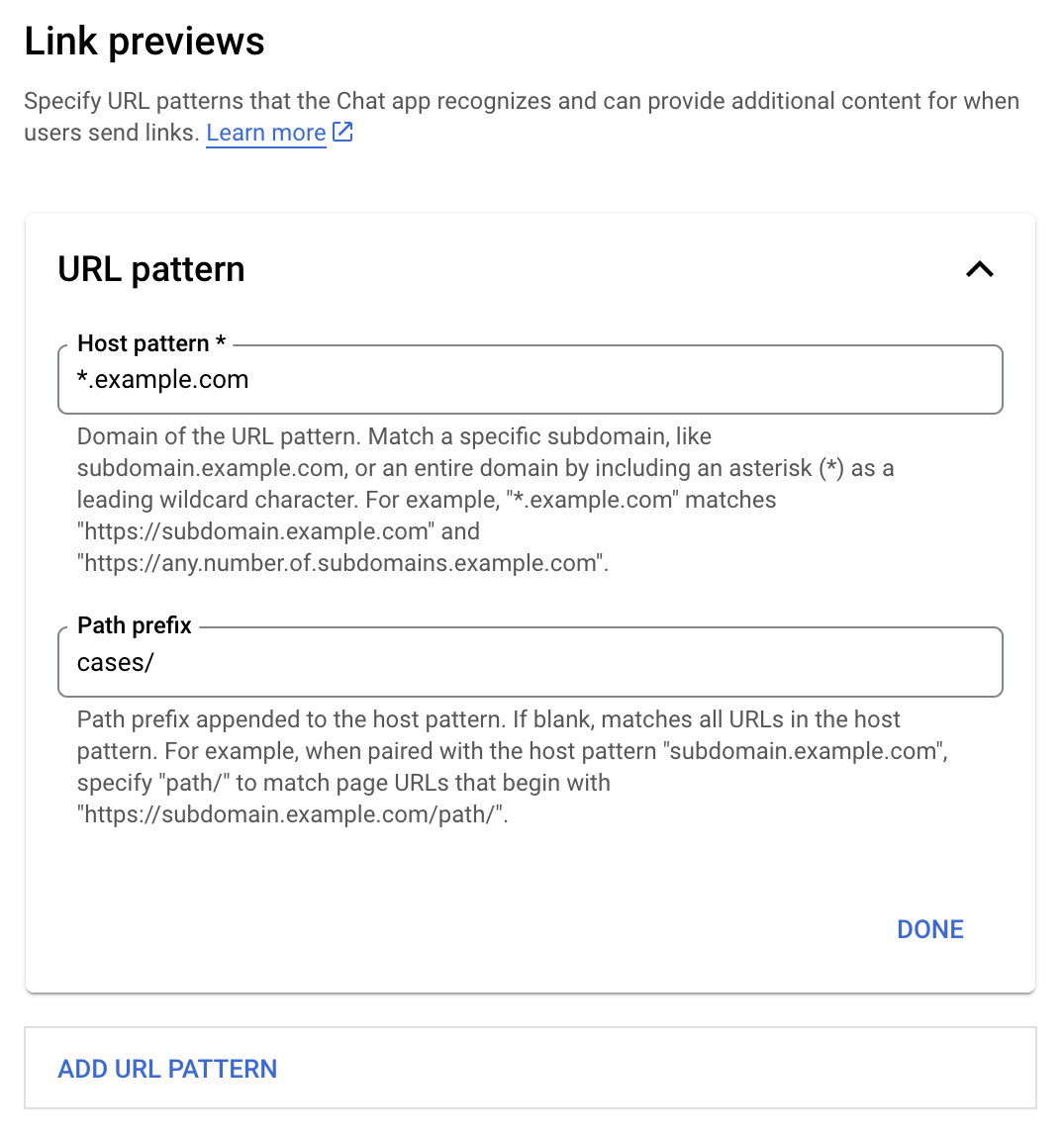
Registre links específicos, como example.com, support.example.com, e support.example.com/cases/, como padrões de URL na página de configuração do app do Chat no console do Google Cloud para que seu app do Chat possa visualizá-los.

Menu de configuração de visualizações de links

  1. Abra o Console do Google Cloud.
  2. Ao lado de "Google Cloud", clique na seta para baixo e abra o projeto do app do Chat.
  3. No campo de pesquisa, digite Google Chat API e clique em Google Chat API.
  4. Clique em Gerenciar > Configuração.
  5. Em "Visualizações de links", adicione ou edite um padrão do URL.
    1. Para configurar visualizações de links para um novo padrão do URL, clique em Adicionar padrão do URL.
    2. Para editar a configuração de um padrão de URL atual, clique na seta para baixo .
  6. No campo Padrão de host, insira o domínio do padrão do URL. O app do Chat vai visualizar links para esse domínio.

    Para que o app do Chat visualize links para um subdomínio específico, como subdomain.example.com, inclua o subdomínio.

    Para que o app do Chat visualize links para todo o domínio, especifique um caractere curinga com um asterisco (*) como subdomínio. Por exemplo, *.example.com corresponde a subdomain.example.com e any.number.of.subdomains.example.com.

  7. No campo Prefixo do caminho, insira um caminho a ser anexado ao domínio do padrão de host.

    Para corresponder a todos os URLs no domínio do padrão de host, deixe o Prefixo do caminho vazio.

    Por exemplo, se o padrão de host for support.example.com, para corresponder a URLs de casos hospedados em support.example.com/cases/, insira cases/.

  8. Clique em Concluído.

  9. Clique em Salvar.

Agora, sempre que alguém incluir um link que corresponda a um padrão de URL de visualização de link em uma mensagem em um espaço do Chat que inclua o app do Chat, o link será visualizado.

Depois de configurar a visualização de links para um determinado link, o app do Chat poderá reconhecer e visualizar o link anexando mais informações a ele.

Em espaços do Chat que incluem o app do Chat, quando a mensagem de alguém contém um link que corresponde a um padrão do URL de visualização de link, o app do Chat recebe um objeto de evento com um MessagePayload. No payload, o message.matchedUrl objeto contém o link que o usuário incluiu na mensagem:

JSON

message: {
  matchedUrl: {
    url: "https://support.example.com/cases/case123"
  },
  ... // other message attributes redacted
}

Ao verificar a presença do campo matchedUrl no payload do evento MESSAGE, o app do Chat pode adicionar informações à mensagem com o link visualizado. O app do Chat pode responder com uma mensagem de texto básica ou anexar um card.

Responder com uma mensagem de texto

Para respostas básicas, o app do Chat pode visualizar um link respondendo com uma mensagem de texto a um link. Este exemplo anexa uma mensagem que repete o URL do link que corresponde a um padrão do URL de visualização de link.

Node.js

node/chat/preview-link/index.js
// Reply with a text message for URLs of the subdomain "text"
if (chatMessage.matchedUrl.url.includes("text.example.com")) {
  return { hostAppDataAction: { chatDataAction: { createMessageAction: { message: {
    text: 'event.chat.messagePayload.message.matchedUrl.url: ' + chatMessage.matchedUrl.url
  }}}}};
}

Substitua FUNCTION_URL pelo endpoint HTTP que processa cliques em botões.

Python

python/chat/preview-link/main.py
# Reply with a text message for URLs of the subdomain "text"
if "text.example.com" in chatMessage.get('matchedUrl').get('url'):
  return { 'hostAppDataAction': { 'chatDataAction': { 'createMessageAction': { 'message': {
    'text': 'event.chat.messagePayload.message.matchedUrl.url: ' + chatMessage.get('matchedUrl').get('url')
  }}}}}

Substitua FUNCTION_URL pelo endpoint HTTP que processa cliques em botões.

Java

java/chat/preview-link/src/main/java/com/google/chat/previewLink/App.java
// Reply with a text message for URLs of the subdomain "text"
if (chatMessage.at("/matchedUrl/url").asText().contains("text.example.com")) {
  return new GenericJson() {{
    put("hostAppDataAction", new GenericJson() {{
      put("chatDataAction", new GenericJson() {{
        put("createMessageAction", new GenericJson() {{
          put("message", new Message()
            .setText("event.chat.messagePayload.message.matchedUrl.url: " + chatMessage.at("/matchedUrl/url").asText()));
        }});
      }});
    }});
  }};
}

Substitua FUNCTION_URL pelo endpoint HTTP que processa cliques em botões.

Apps Script

apps-script/chat/preview-link/preview-link.gs
// Reply with a text message for URLs of the subdomain "text".
if (chatMessage.matchedUrl.url.includes("text.example.com")) {
  return { hostAppDataAction: { chatDataAction: { createMessageAction: { message: {
    text: 'event.chat.messagePayload.message.matchedUrl.url: ' + chatMessage.matchedUrl.url
  }}}}};
}

Para anexar um card a um link visualizado, retorne a ação DataActions com o objeto ChatDataActionMarkup do tipo UpdateInlinePreviewAction.

No exemplo a seguir, um app do Chat adiciona um card de visualização a mensagens que contêm o padrão do URL support.example.com.

App de chat mostrando a prévia de um link ao anexar um card à mensagem

Node.js

node/chat/preview-link/index.js
// Attach a card to the message for URLs of the subdomain "support"
if (chatMessage.matchedUrl.url.includes("support.example.com")) {
  // A hard-coded card is used in this example. In a real-life scenario,
  // the case information would be fetched and used to build the card.
  return { hostAppDataAction: { chatDataAction: { updateInlinePreviewAction: { cardsV2: [{
    cardId: 'attachCard',
    card: {
      header: {
        title: 'Example Customer Service Case',
        subtitle: 'Case basics',
      },
      sections: [{ widgets: [
      { decoratedText: { topLabel: 'Case ID', text: 'case123'}},
      { decoratedText: { topLabel: 'Assignee', text: 'Charlie'}},
      { decoratedText: { topLabel: 'Status', text: 'Open'}},
      { decoratedText: { topLabel: 'Subject', text: 'It won\'t turn on...' }},
      { buttonList: { buttons: [{
        text: 'OPEN CASE',
        onClick: { openLink: {
          url: 'https://support.example.com/orders/case123'
        }},
      }, {
        text: 'RESOLVE CASE',
        onClick: { openLink: {
          url: 'https://support.example.com/orders/case123?resolved=y',
        }},
      }, {
        text: 'ASSIGN TO ME',
        onClick: { action: { function: FUNCTION_URL }}
      }]}}
      ]}]
    }
  }]}}}};
}

Substitua FUNCTION_URL pelo endpoint HTTP que processa cliques em botões.

Python

python/chat/preview-link/main.py
# Attach a card to the message for URLs of the subdomain "support"
if "support.example.com" in chatMessage.get('matchedUrl').get('url'):
  # A hard-coded card is used in this example. In a real-life scenario,
  # the case information would be fetched and used to build the card.
  return { 'hostAppDataAction': { 'chatDataAction': { 'updateInlinePreviewAction': { 'cardsV2': [{
    'cardId': 'attachCard',
    'card': {
      'header': {
        'title': 'Example Customer Service Case',
        'subtitle': 'Case basics',
      },
      'sections': [{ 'widgets': [
      { 'decoratedText': { 'topLabel': 'Case ID', 'text': 'case123'}},
      { 'decoratedText': { 'topLabel': 'Assignee', 'text': 'Charlie'}},
      { 'decoratedText': { 'topLabel': 'Status', 'text': 'Open'}},
      { 'decoratedText': { 'topLabel': 'Subject', 'text': 'It won\'t turn on...' }},
      { 'buttonList': { 'buttons': [{
        'text': 'OPEN CASE',
        'onClick': { 'openLink': {
          'url': 'https://support.example.com/orders/case123'
        }},
      }, {
        'text': 'RESOLVE CASE',
        'onClick': { 'openLink': {
          'url': 'https://support.example.com/orders/case123?resolved=y',
        }},
      }, {
        'text': 'ASSIGN TO ME',
        'onClick': { 'action': { 'function': FUNCTION_URL }}
      }]}}
      ]}]
    }
  }]}}}}

Substitua FUNCTION_URL pelo endpoint HTTP que processa cliques em botões.

Java

java/chat/preview-link/src/main/java/com/google/chat/previewLink/App.java
// Attach a card to the message for URLs of the subdomain "support"
if (chatMessage.at("/matchedUrl/url").asText().contains("support.example.com")) {
  // A hard-coded card is used in this example. In a real-life scenario,
  // the case information would be fetched and used to build the card.
  CardWithId cardV2 = new CardWithId()
    .setCardId("attachCard")
    .setCard(new GoogleAppsCardV1Card()
      .setHeader(new GoogleAppsCardV1CardHeader()
        .setTitle("Example Customer Service Case")
        .setSubtitle("Case basics"))
      .setSections(List.of(new GoogleAppsCardV1Section().setWidgets(List.of(
        new GoogleAppsCardV1Widget().setDecoratedText(new GoogleAppsCardV1DecoratedText()
          .setTopLabel("Case ID")
          .setText("case123")),
        new GoogleAppsCardV1Widget().setDecoratedText(new GoogleAppsCardV1DecoratedText()
          .setTopLabel("Assignee")
          .setText("Charlie")),
        new GoogleAppsCardV1Widget().setDecoratedText(new GoogleAppsCardV1DecoratedText()
          .setTopLabel("Status")
          .setText("Open")),
        new GoogleAppsCardV1Widget().setDecoratedText(new GoogleAppsCardV1DecoratedText()
          .setTopLabel("Subject")
          .setText("It won't turn on...")),
        new GoogleAppsCardV1Widget().setButtonList(new GoogleAppsCardV1ButtonList()
          .setButtons(List.of(
            new GoogleAppsCardV1Button()
              .setText("OPEN CASE")
            .setOnClick(new GoogleAppsCardV1OnClick()
                .setOpenLink(new GoogleAppsCardV1OpenLink()
                  .setUrl("https://support.example.com/orders/case123"))),
            new GoogleAppsCardV1Button()
              .setText("RESOLVE CASE")
            .setOnClick(new GoogleAppsCardV1OnClick()
                .setOpenLink(new GoogleAppsCardV1OpenLink()
                  .setUrl("https://support.example.com/orders/case123?resolved=y"))),
            new GoogleAppsCardV1Button()
              .setText("ASSIGN TO ME")
              .setOnClick(new GoogleAppsCardV1OnClick()
                .setAction(new GoogleAppsCardV1Action().setFunction(FUNCTION_URL)))
          ))
        )
      ))))
    );

  return new GenericJson() {{
    put("hostAppDataAction", new GenericJson() {{
      put("chatDataAction", new GenericJson() {{
        put("updateInlinePreviewAction", new GenericJson() {{
          put("cardsV2", List.of(cardV2));
        }});
      }});
    }});
  }};
}

Substitua FUNCTION_URL pelo endpoint HTTP que processa cliques em botões.

Apps Script

apps-script/chat/preview-link/preview-link.gs
// Attach a card to the message for URLs of the subdomain "support".
if (chatMessage.matchedUrl.url.includes("support.example.com")) {
  // A hard-coded card is used in this example. In a real-life scenario,
  // the case information would be fetched and used to build the card.
  return { hostAppDataAction: { chatDataAction: { updateInlinePreviewAction: { cardsV2: [{
    cardId: 'attachCard',
    card: {
      header: {
        title: 'Example Customer Service Case',
        subtitle: 'Case summary',
      },
      sections: [{ widgets: [
      { decoratedText: { topLabel: 'Case ID', text: 'case123'}},
      { decoratedText: { topLabel: 'Assignee', text: 'Charlie'}},
      { decoratedText: { topLabel: 'Status', text: 'Open'}},
      { decoratedText: { topLabel: 'Subject', text: 'It won\'t turn on...' }},
      { buttonList: { buttons: [{
        text: 'OPEN CASE',
        onClick: { openLink: {
          url: 'https://support.example.com/orders/case123'
        }},
      }, {
        text: 'RESOLVE CASE',
        onClick: { openLink: {
          url: 'https://support.example.com/orders/case123?resolved=y',
        }},
      }, {
        text: 'ASSIGN TO ME',
        // Clicking this button triggers the execution of the function
        // "assign" from the Apps Script project.
        onClick: { action: { function: 'assign'}}
      }]}}
      ]}]
    }
  }]}}}};
}

O app do Chat pode atualizar um card de visualização de link quando os usuários interagem com ele, como clicar em um botão no card.

Para atualizar o card, o app do Chat precisa retornar a ação DataActions com um dos seguintes ChatDataActionMarkup objetos:

Para determinar quem enviou a mensagem, use o payload do evento (buttonClickedPayload) para verificar se o remetente (message.sender.type) está definido como HUMAN (usuário) ou BOT (app do Chat).

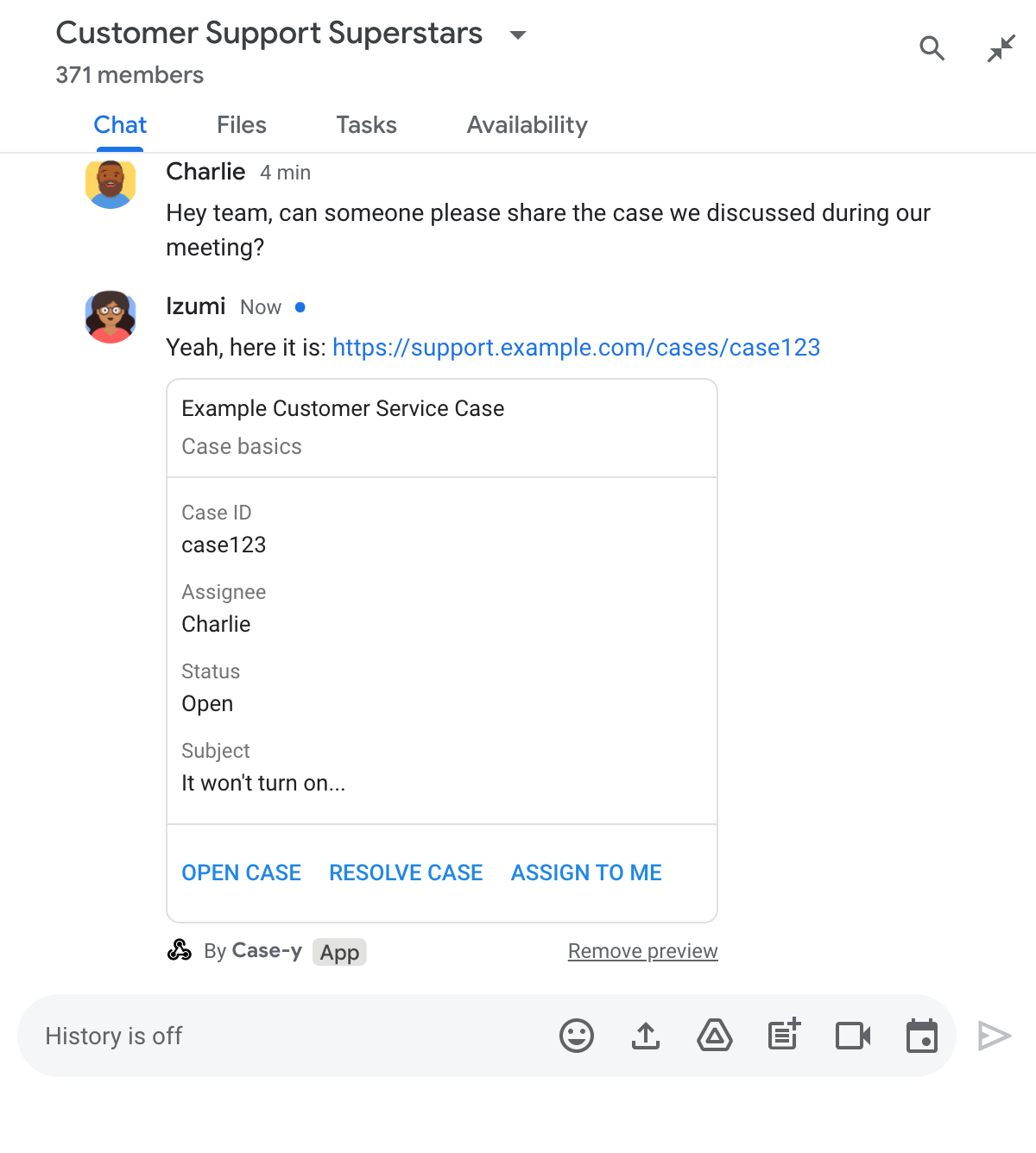
O exemplo a seguir mostra como um app do Chat atualiza uma visualização de link sempre que um usuário clica no botão Atribuir a mim atualizando o campo Responsável do card e desativando o botão.

App de chat mostrando a prévia de um link com uma versão atualizada de um card anexado a uma mensagem

Node.js

node/chat/preview-link/index.js
/**
 * Respond to clicks by assigning and updating the card that's attached to a
 * message previewed link of the pattern "support.example.com".
 *
 * @param {Object} chatMessage The chat message object from Google Workspace Add On event.
 * @return {Object} Action response depending on the message author.
 */
function handleCardClick(chatMessage) {
  // Creates the updated card that displays "You" for the assignee
  // and that disables the button.
  //
  // A hard-coded card is used in this example. In a real-life scenario,
  // an actual assign action would be performed before building the card.
  const message = { cardsV2: [{
    cardId: 'attachCard',
    card: {
      header: {
        title: 'Example Customer Service Case',
        subtitle: 'Case basics',
      },
      sections: [{ widgets: [
        { decoratedText: { topLabel: 'Case ID', text: 'case123'}},
        // The assignee is now "You"
        { decoratedText: { topLabel: 'Assignee', text: 'You'}},
        { decoratedText: { topLabel: 'Status', text: 'Open'}},
        { decoratedText: { topLabel: 'Subject', text: 'It won\'t turn on...' }},
        { buttonList: { buttons: [{
          text: 'OPEN CASE',
          onClick: { openLink: {
            url: 'https://support.example.com/orders/case123'
          }},
        }, {
          text: 'RESOLVE CASE',
          onClick: { openLink: {
            url: 'https://support.example.com/orders/case123?resolved=y',
          }},
        }, {
          text: 'ASSIGN TO ME',
          // The button is now disabled
          disabled: true,
          onClick: { action: { function: FUNCTION_URL }}
        }]}}
      ]}]
    }
  }]};

  // Use the adequate action response type. It depends on whether the message
  // the preview link card is attached to was created by a human or a Chat app.
  if(chatMessage.sender.type === 'HUMAN') {
    return { hostAppDataAction: { chatDataAction: { updateInlinePreviewAction: message }}};
  } else {
    return { hostAppDataAction: { chatDataAction: { updateMessageAction: message }}};
  }
}

Substitua FUNCTION_URL pelo endpoint HTTP que processa cliques em botões.

Python

python/chat/preview-link/main.py
def handle_card_click(chatMessage: dict) -> dict:
  """Respond to clicks by assigning and updating the card that's attached to a
  message previewed link of the pattern "support.example.com".

  - Reply with text messages that echo "text.example.com" link URLs in messages.
  - Attach cards to messages with "support.example.com" link URLs.

  Args:
      chatMessage (Mapping[str, Any]): The chat message object from Google Workspace Add On event.

  Returns:
      Mapping[str, Any]: Action response depending on the message author.
  """
  # Creates the updated card that displays "You" for the assignee
  # and that disables the button.
  #
  # A hard-coded card is used in this example. In a real-life scenario,
  # an actual assign action would be performed before building the card.
  message = { 'cardsV2': [{
    'cardId': 'attachCard',
    'card': {
      'header': {
        'title': 'Example Customer Service Case',
        'subtitle': 'Case basics',
      },
      'sections': [{ 'widgets': [
      { 'decoratedText': { 'topLabel': 'Case ID', 'text': 'case123'}},
      # The assignee is now "You"
      { 'decoratedText': { 'topLabel': 'Assignee', 'text': 'You'}},
      { 'decoratedText': { 'topLabel': 'Status', 'text': 'Open'}},
      { 'decoratedText': { 'topLabel': 'Subject', 'text': 'It won\'t turn on...' }},
      { 'buttonList': { 'buttons': [{
        'text': 'OPEN CASE',
        'onClick': { 'openLink': {
          'url': 'https://support.example.com/orders/case123'
        }},
      }, {
        'text': 'RESOLVE CASE',
        'onClick': { 'openLink': {
          'url': 'https://support.example.com/orders/case123?resolved=y',
        }},
      }, {
        'text': 'ASSIGN TO ME',
        # The button is now disabled
        'disabled': True,
        'onClick': { 'action': { 'function': FUNCTION_URL }}
      }]}}
      ]}]
    }
  }]}

  # Use the adequate action response type. It depends on whether the message
  # the preview link card is attached to was created by a human or a Chat app.
  if chatMessage.get('sender').get('type') == 'HUMAN':
    return { 'hostAppDataAction': { 'chatDataAction': { 'updateInlinePreviewAction': message }}}
  else:
    return { 'hostAppDataAction': { 'chatDataAction': { 'updateMessageAction': message }}}

Substitua FUNCTION_URL pelo endpoint HTTP que processa cliques em botões.

Java

java/chat/preview-link/src/main/java/com/google/chat/previewLink/App.java
/**
 * Respond to clicks by assigning and updating the card that's attached to a
 * message previewed link of the pattern "support.example.com".
 *
 * @param chatMessage The chat message object from Google Workspace Add On event.
 * @return Action response depending on the message author.
 */
GenericJson handleCardClick(JsonNode chatMessage) {
  // Creates the updated card that displays "You" for the assignee
  // and that disables the button.
  //
  // A hard-coded card is used in this example. In a real-life scenario,
  // an actual assign action would be performed before building the card.
  Message message = new Message().setCardsV2(List.of(new CardWithId()
    .setCardId("attachCard")
    .setCard(new GoogleAppsCardV1Card()
      .setHeader(new GoogleAppsCardV1CardHeader()
        .setTitle("Example Customer Service Case")
        .setSubtitle("Case basics"))
      .setSections(List.of(new GoogleAppsCardV1Section().setWidgets(List.of(
        new GoogleAppsCardV1Widget().setDecoratedText(new GoogleAppsCardV1DecoratedText()
          .setTopLabel("Case ID")
          .setText("case123")),
        // The assignee is now "You"
        new GoogleAppsCardV1Widget().setDecoratedText(new GoogleAppsCardV1DecoratedText()
          .setTopLabel("Assignee")
          .setText("You")),
        new GoogleAppsCardV1Widget().setDecoratedText(new GoogleAppsCardV1DecoratedText()
          .setTopLabel("Status")
          .setText("Open")),
        new GoogleAppsCardV1Widget().setDecoratedText(new GoogleAppsCardV1DecoratedText()
          .setTopLabel("Subject")
          .setText("It won't turn on...")),
        new GoogleAppsCardV1Widget().setButtonList(new GoogleAppsCardV1ButtonList()
          .setButtons(List.of(
            new GoogleAppsCardV1Button()
              .setText("OPEN CASE")
              .setOnClick(new GoogleAppsCardV1OnClick()
                .setOpenLink(new GoogleAppsCardV1OpenLink()
                  .setUrl("https://support.example.com/orders/case123"))),
            new GoogleAppsCardV1Button()
              .setText("RESOLVE CASE")
              .setOnClick(new GoogleAppsCardV1OnClick()
                .setOpenLink(new GoogleAppsCardV1OpenLink()
                  .setUrl("https://support.example.com/orders/case123?resolved=y"))),
            new GoogleAppsCardV1Button()
              .setText("ASSIGN TO ME")
              // The button is now disabled
              .setDisabled(true)
              .setOnClick(new GoogleAppsCardV1OnClick()
                .setAction(new GoogleAppsCardV1Action().setFunction(FUNCTION_URL)))
          ))
        )
      ))))
    )
  ));

  // Use the adequate action response type. It depends on whether the message
  // the preview link card is attached to was created by a human or a Chat app.
  if("HUMAN".equals(chatMessage.at("/sender/type").asText())) {
    return new GenericJson() {{
      put("hostAppDataAction", new GenericJson() {{
        put("chatDataAction", new GenericJson() {{
          put("updateInlinePreviewAction", message);
        }});
      }});
    }};
  } else {
    return new GenericJson() {{
      put("hostAppDataAction", new GenericJson() {{
        put("chatDataAction", new GenericJson() {{
          put("updateMessageAction", message);
        }});
      }});
    }};
  }
}

Substitua FUNCTION_URL pelo endpoint HTTP que processa cliques em botões.

Apps Script

apps-script/chat/preview-link/preview-link.gs
/**
 * Assigns and updates the card that's attached to a message with a
 * previewed link of the pattern "support.example.com".
 *
 * @param {Object} event The event object from the Google Workspace add-on.
 * @return {Object} Action response depending on the message author.
 */
function assign(event) {
  // Creates the updated card that displays "You" for the assignee
  // and that disables the button.
  //
  // A hard-coded card is used in this example. In a real-life scenario,
  // an actual assign action would be performed before building the card.
  const message = { cardsV2: [{
    cardId: 'attachCard',
    card: {
      header: {
        title: 'Example Customer Service Case',
        subtitle: 'Case summary',
      },
      sections: [{ widgets: [
        { decoratedText: { topLabel: 'Case ID', text: 'case123'}},
        // The assignee is now "You"
        { decoratedText: { topLabel: 'Assignee', text: 'You'}},
        { decoratedText: { topLabel: 'Status', text: 'Open'}},
        { decoratedText: { topLabel: 'Subject', text: 'It won\'t turn on...' }},
        { buttonList: { buttons: [{
          text: 'OPEN CASE',
          onClick: { openLink: {
            url: 'https://support.example.com/orders/case123'
          }},
        }, {
          text: 'RESOLVE CASE',
          onClick: { openLink: {
            url: 'https://support.example.com/orders/case123?resolved=y',
          }},
        }, {
          text: 'ASSIGN TO ME',
          // The button is now disabled
          disabled: true,
          onClick: { action: { function: 'assign'}}
        }]}}
      ]}]
    }
  }]};

  // Use the adequate action response type. It depends on whether the message
  // the preview link card is attached to was created by a human or a Chat app.
  if(event.chat.buttonClickedPayload.message.sender.type === 'HUMAN') {
    return { hostAppDataAction: { chatDataAction: { updateInlinePreviewAction: message }}};
  } else {
    return { hostAppDataAction: { chatDataAction: { updateMessageAction: message }}};
  }
}

Limites e considerações

Ao configurar visualizações de links para o app do Chat, observe estes limites e considerações:

  • Cada app do Chat oferece suporte a visualizações de links para até cinco padrões de URL.
  • Os apps do Chat visualizam um link por mensagem. Se houver vários links visualizáveis em uma única mensagem, apenas o primeiro link visualizável será visualizado.
  • Os apps do Chat só visualizam links que começam com https://, então https://support.example.com/cases/ é visualizado, mas support.example.com/cases/ não.
  • A menos que a mensagem inclua outras informações que sejam enviadas ao app do Chat, como um comando de barra, apenas o URL do link será enviado ao app do Chat por visualizações de links.
  • Se um usuário postar o link, um app do Chat só poderá atualizar o card de visualização de link se os usuários interagirem com o card, como com um clique em um botão. Não é possível chamar o método update() da API Chat no recurso Message para atualizar a mensagem de um usuário de forma assíncrona.
  • Os apps do Chat precisam visualizar links para todos no espaço, então a mensagem precisa omitir o campo privateMessageViewer.

Ao implementar visualizações de links, talvez seja necessário depurar o app do Chat lendo os registros do app. Para ler os registros, acesse o Explorador de registros no console do Google Cloud.