Önizleme bağlantıları

Kullanıcıların Google Chat'te bağlantı paylaşırken bağlam değiştirmesini önlemek için Chat uygulamanız, mesajlarına daha fazla bilgi veren ve kullanıcıların doğrudan Google Chat'ten işlem yapmasına olanak tanıyan bir kart ekleyerek bağlantıyı önizleyebilir.

Örneğin, bir şirketin tüm müşteri hizmetleri temsilcilerini ve Case-y adlı bir Chat uygulamasını içeren bir Google Chat alanı olduğunu düşünün. Temsilciler, sohbet alanında sık sık müşteri hizmetleri destek kaydı bağlantıları paylaşıyor. Her bağlantı paylaştıklarında, meslektaşlarının destek kaydı bağlantısını açarak atanan kişi, durum ve konu gibi ayrıntıları görmesi gerekiyor. Aynı şekilde, bir destek kaydının sahipliğini almak veya durumunu değiştirmek isteyen kullanıcıların da bağlantıyı açması gerekir.

Bağlantı önizleme özelliği, alanın yerleşik Chat uygulaması Case-y'nin, bir kullanıcı bir destek kaydı bağlantısı paylaştığında atanan kişiyi, durumu ve konuyu gösteren bir kart eklemesini sağlar. Karttaki düğmeler, temsilcilerin talebin sahipliğini almasına ve durumu doğrudan sohbet akışından değiştirmesine olanak tanır.

Bir kullanıcı mesajına bağlantı eklediğinde, bağlantının bir Chat uygulaması tarafından önizlenebileceğini bildiren bir çip gösterilir.
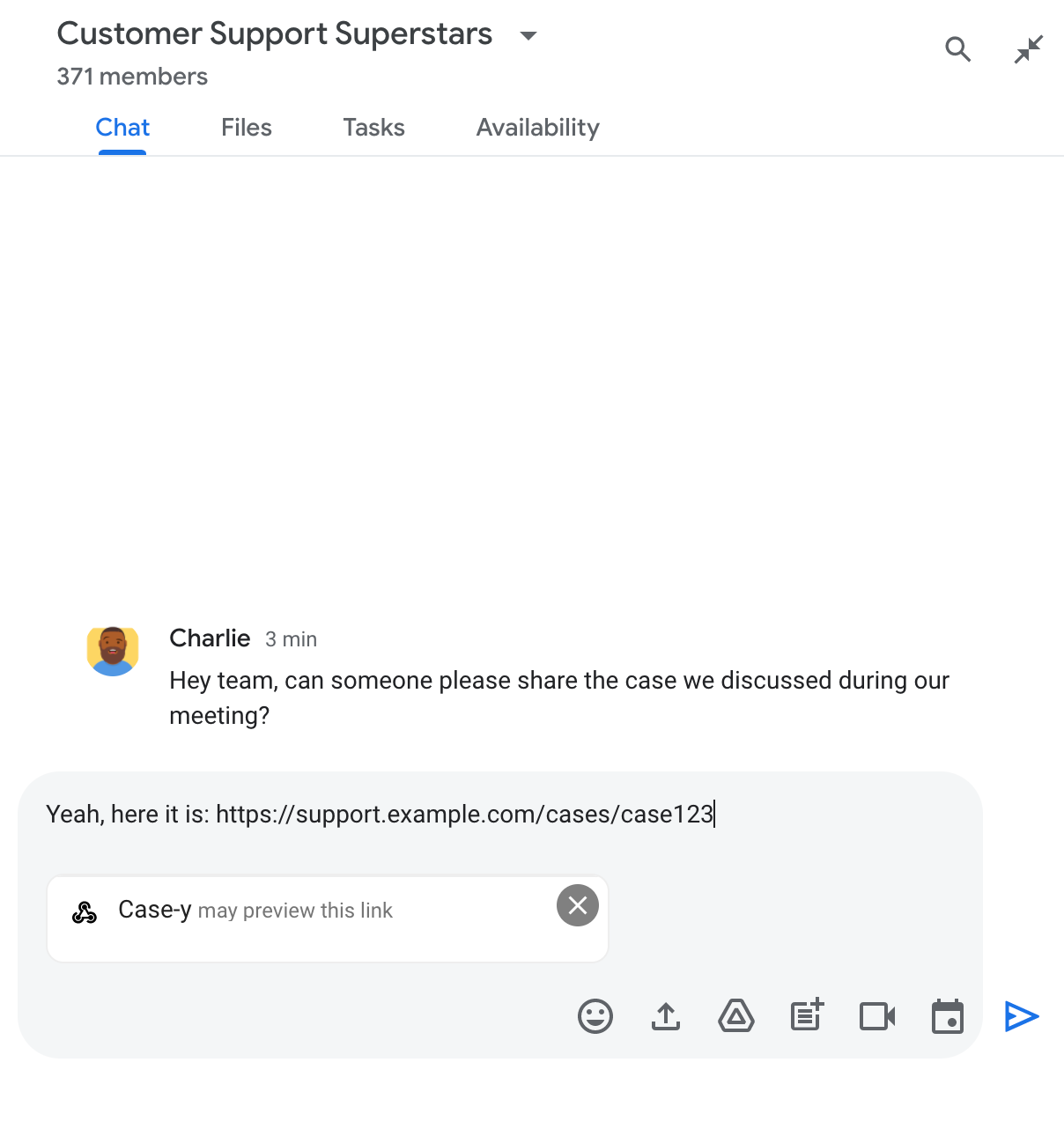
Bir Chat uygulamasının bağlantıyı önizleyebileceğini belirten çip

İleti gönderildikten sonra bağlantı, Chat uygulamasına gönderilir. Chat uygulaması da kartı oluşturup kullanıcının iletisine ekler.
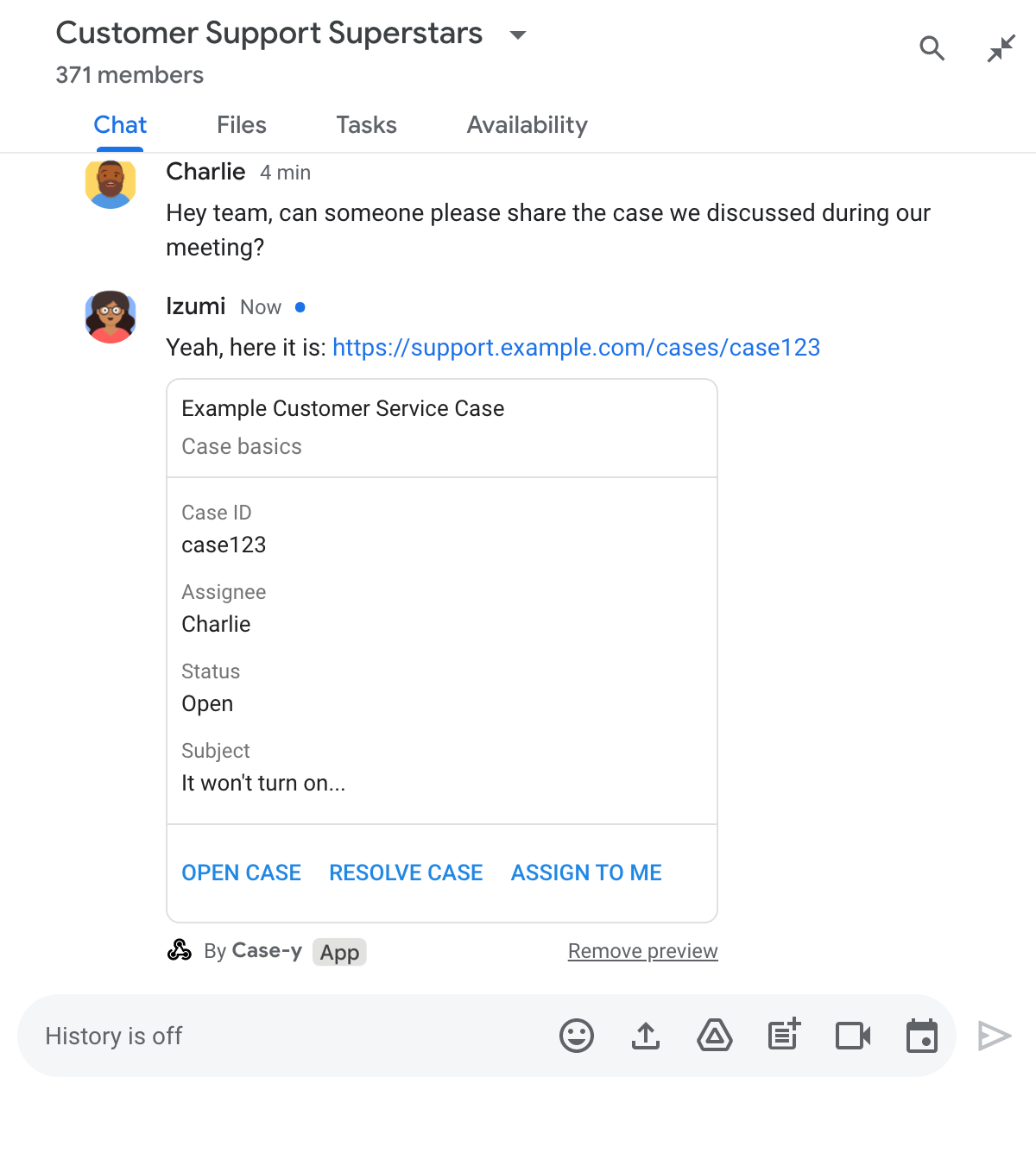
Chat uygulamasında, iletiye kart ekleyerek bağlantı önizleme

Kart, bağlantının yanı sıra düğmeler gibi etkileşimli öğeler de dahil olmak üzere bağlantıyla ilgili ek bilgiler sağlar. Sohbet uygulamanız, kullanıcı etkileşimlerine (ör. düğme tıklamaları) yanıt olarak ekli kartı güncelleyebilir.

Bir kullanıcı, Chat uygulamasının bağlantısını mesajına kart ekleyerek önizlemesini istemiyorsa önizleme çubuğunda simgesini tıklayarak önizlemeyi engelleyebilir. Kullanıcılar, Önizlemeyi kaldır'ı tıklayarak ekli kartı istediği zaman kaldırabilir.

Ön koşullar

HTTP

Kullanıcı etkileşimlerini alan ve bunlara yanıt veren bir Google Chat uygulaması. Oluşturmak için HTTP hızlı başlangıç bölümünü tamamlayın.

Apps Komut Dosyası

Kullanıcı etkileşimlerini alan ve bunlara yanıt veren bir Google Chat uygulaması. Oluşturmak için Apps Komut Dosyası hızlı başlangıç kılavuzunu tamamlayın.

example.com, support.example.com ve support.example.com/cases/ gibi belirli bağlantıları Google Cloud Console'daki Chat uygulamanızın yapılandırma sayfasında URL kalıpları olarak kaydedin. Böylece Chat uygulamanız bu bağlantıların önizlemesini gösterebilir.
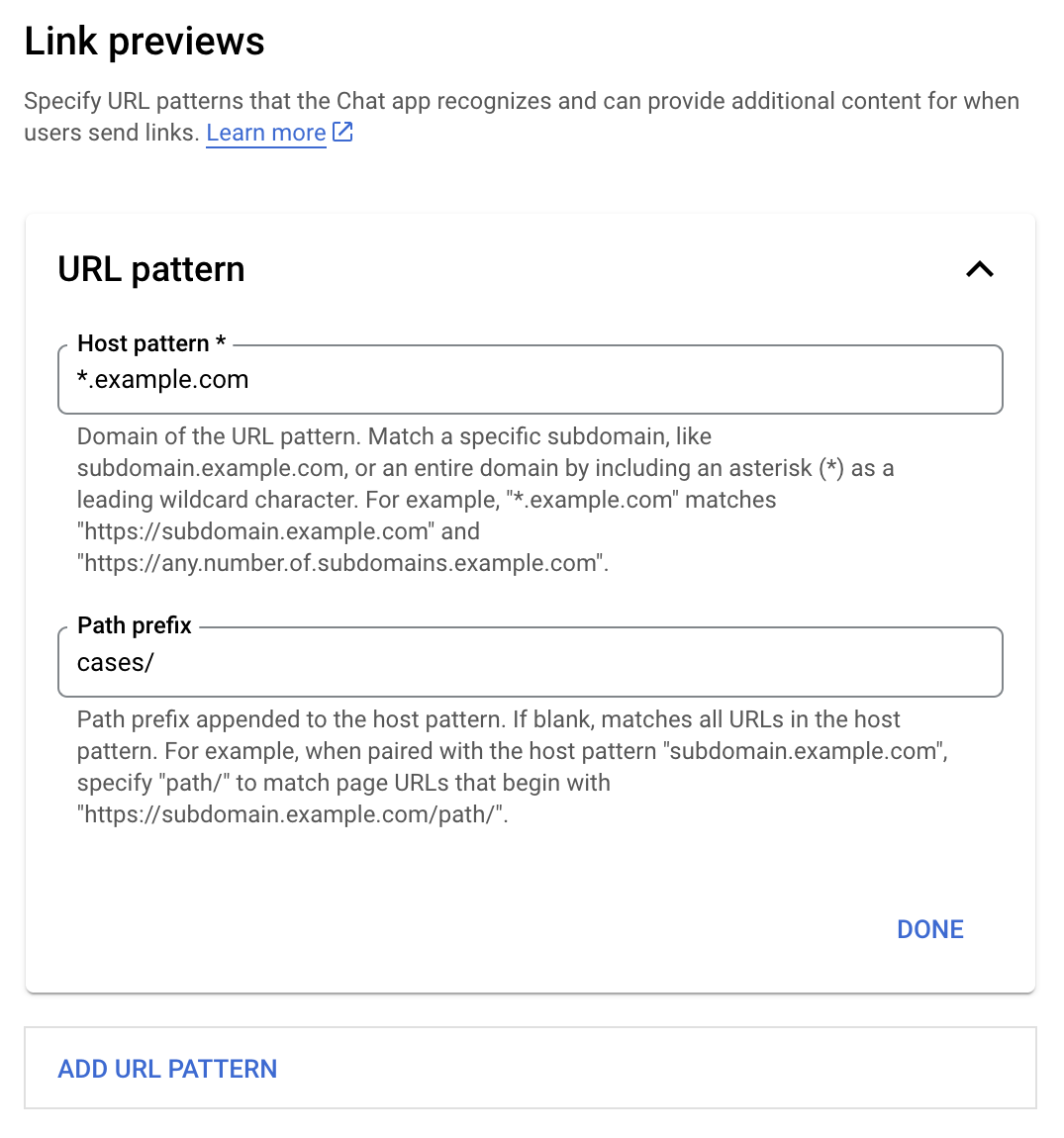
Bağlantı önizlemeleri yapılandırma menüsü

  1. Google Cloud Console'u açın.
  2. "Google Cloud"un yanındaki aşağı oku tıklayın ve Chat uygulamanızın projesini açın.
  3. Arama alanına Google Chat API yazın ve Google Chat API'yi tıklayın.
  4. Yönet > Yapılandırma'yı tıklayın.
  5. Bağlantı önizlemeleri bölümünde bir URL kalıbı ekleyin veya düzenleyin.
    1. Yeni bir URL kalıbı için bağlantı önizlemelerini yapılandırmak üzere URL Kalıbı Ekle'yi tıklayın.
    2. Mevcut bir URL kalıbının yapılandırmasını düzenlemek için aşağı oku tıklayın.
  6. Host pattern (Barındırıcı kalıbı) alanına URL kalıbının alanını girin. Chat uygulaması, bu alan adıyla ilgili bağlantıları önizler.

    Chat uygulamasının belirli bir alt alan adı (ör. subdomain.example.com) için bağlantıları önizlemesini istiyorsanız alt alan adını ekleyin.

    Sohbet uygulamasının bağlantıları alanın tamamı için önizlemesini sağlamak istiyorsanız alt alan adı olarak yıldız işareti (*) içeren bir joker karakter belirtin. Örneğin, *.example.com, subdomain.example.com ve any.number.of.subdomains.example.com ile eşleşir.

  7. Yol öneki alanına, ana makine kalıbı alanına eklenecek bir yol girin.

    Ana makine kalıbı alanındaki tüm URL'lerle eşleşmek için Yol öneki'ni boş bırakın.

    Örneğin, ana makine kalıbı support.example.com ise support.example.com/cases/ adresinde barındırılan durumlarla ilgili URL'leri eşleştirmek için cases/ girin.

  8. Bitti'yi tıklayın.

  9. Kaydet'i tıklayın.

Artık bir kullanıcı, Chat uygulamanızı içeren bir Chat alanındaki mesaja bağlantı önizleme URL kalıbıyla eşleşen bir bağlantı eklediğinde uygulamanız bağlantıyı önizler.

Belirli bir bağlantı için bağlantı önizlemeyi yapılandırdıktan sonra sohbet uygulamanız, bağlantıya daha fazla bilgi ekleyerek bağlantıyı tanıyabilir ve önizleyebilir.

Chat uygulamanızı içeren Chat alanlarında, bir kullanıcının mesajında bağlantı önizleme URL kalıbıyla eşleşen bir bağlantı varsa Chat uygulamanız MessagePayload içeren bir etkinlik nesnesi alır. Yükte, message.matchedUrl (chat.messagePayload.message.matchedUrl.url) nesnesi, kullanıcının iletiye eklediği bağlantıyı içerir:

JSON

message: {
  matchedUrl: {
    url: "https://support.example.com/cases/case123"
  },
  ... // other message attributes redacted
}

MESSAGE etkinliğindeki matchedUrl alanının varlığını kontrol ederek yük (chat.messagePayload.message.matchedUrl.url), sohbet uygulamanız önizlenen bağlantıyla iletiye bilgi ekleyebilir. Chat uygulamanız, temel bir kısa mesajla yanıt verebilir veya kart ekleyebilir.

Kısa mesajla yanıtlama

Chat uygulamanız, temel yanıtlar için bir bağlantıyı basit bir kısa mesajla yanıtlayarak önizleyebilir. Bu örnekte, bağlantı önizleme URL'si kalıbıyla eşleşen bağlantı URL'sini tekrarlayan bir ileti ekleniyor.

Node.js

node/chat/preview-link/index.js
// Reply with a text message for URLs of the subdomain "text"
if (chatMessage.matchedUrl.url.includes("text.example.com")) {
  return { hostAppDataAction: { chatDataAction: { createMessageAction: { message: {
    text: 'event.chat.messagePayload.message.matchedUrl.url: ' + chatMessage.matchedUrl.url
  }}}}};
}

FUNCTION_URL kısmını, düğme tıklamalarını işleyen HTTP uç noktasıyla değiştirin.

Python

python/chat/preview-link/main.py
# Reply with a text message for URLs of the subdomain "text"
if "text.example.com" in chatMessage.get('matchedUrl').get('url'):
  return { 'hostAppDataAction': { 'chatDataAction': { 'createMessageAction': { 'message': {
    'text': 'event.chat.messagePayload.message.matchedUrl.url: ' + chatMessage.get('matchedUrl').get('url')
  }}}}}

FUNCTION_URL kısmını, düğme tıklamalarını işleyen HTTP uç noktasıyla değiştirin.

Java

java/chat/preview-link/src/main/java/com/google/chat/previewLink/App.java
// Reply with a text message for URLs of the subdomain "text"
if (chatMessage.at("/matchedUrl/url").asText().contains("text.example.com")) {
  return new GenericJson() {{
    put("hostAppDataAction", new GenericJson() {{
      put("chatDataAction", new GenericJson() {{
        put("createMessageAction", new GenericJson() {{
          put("message", new Message()
            .setText("event.chat.messagePayload.message.matchedUrl.url: " + chatMessage.at("/matchedUrl/url").asText()));
        }});
      }});
    }});
  }};
}

FUNCTION_URL kısmını, düğme tıklamalarını işleyen HTTP uç noktasıyla değiştirin.

Apps Komut Dosyası

apps-script/chat/preview-link/preview-link.gs
// Reply with a text message for URLs of the subdomain "text".
if (chatMessage.matchedUrl.url.includes("text.example.com")) {
  return { hostAppDataAction: { chatDataAction: { createMessageAction: { message: {
    text: 'event.chat.messagePayload.message.matchedUrl.url: ' + chatMessage.matchedUrl.url
  }}}}};
}

Önizlemesi yapılan bir bağlantıya kart eklemek için UpdateInlinePreviewAction türünde ChatDataActionMarkup nesnesiyle birlikte DataActions işlemini döndürün.

Aşağıdaki örnekte, bir Chat uygulaması support.example.com URL kalıbını içeren mesajlara bir önizleme kartı ekliyor.

Chat uygulamasında, iletiye kart ekleyerek bağlantı önizleme

Node.js

node/chat/preview-link/index.js
// Attach a card to the message for URLs of the subdomain "support"
if (chatMessage.matchedUrl.url.includes("support.example.com")) {
  // A hard-coded card is used in this example. In a real-life scenario,
  // the case information would be fetched and used to build the card.
  return { hostAppDataAction: { chatDataAction: { updateInlinePreviewAction: { cardsV2: [{
    cardId: 'attachCard',
    card: {
      header: {
        title: 'Example Customer Service Case',
        subtitle: 'Case basics',
      },
      sections: [{ widgets: [
      { decoratedText: { topLabel: 'Case ID', text: 'case123'}},
      { decoratedText: { topLabel: 'Assignee', text: 'Charlie'}},
      { decoratedText: { topLabel: 'Status', text: 'Open'}},
      { decoratedText: { topLabel: 'Subject', text: 'It won\'t turn on...' }},
      { buttonList: { buttons: [{
        text: 'OPEN CASE',
        onClick: { openLink: {
          url: 'https://support.example.com/orders/case123'
        }},
      }, {
        text: 'RESOLVE CASE',
        onClick: { openLink: {
          url: 'https://support.example.com/orders/case123?resolved=y',
        }},
      }, {
        text: 'ASSIGN TO ME',
        onClick: { action: { function: FUNCTION_URL }}
      }]}}
      ]}]
    }
  }]}}}};
}

FUNCTION_URL kısmını, düğme tıklamalarını işleyen HTTP uç noktasıyla değiştirin.

Python

python/chat/preview-link/main.py
# Attach a card to the message for URLs of the subdomain "support"
if "support.example.com" in chatMessage.get('matchedUrl').get('url'):
  # A hard-coded card is used in this example. In a real-life scenario,
  # the case information would be fetched and used to build the card.
  return { 'hostAppDataAction': { 'chatDataAction': { 'updateInlinePreviewAction': { 'cardsV2': [{
    'cardId': 'attachCard',
    'card': {
      'header': {
        'title': 'Example Customer Service Case',
        'subtitle': 'Case basics',
      },
      'sections': [{ 'widgets': [
      { 'decoratedText': { 'topLabel': 'Case ID', 'text': 'case123'}},
      { 'decoratedText': { 'topLabel': 'Assignee', 'text': 'Charlie'}},
      { 'decoratedText': { 'topLabel': 'Status', 'text': 'Open'}},
      { 'decoratedText': { 'topLabel': 'Subject', 'text': 'It won\'t turn on...' }},
      { 'buttonList': { 'buttons': [{
        'text': 'OPEN CASE',
        'onClick': { 'openLink': {
          'url': 'https://support.example.com/orders/case123'
        }},
      }, {
        'text': 'RESOLVE CASE',
        'onClick': { 'openLink': {
          'url': 'https://support.example.com/orders/case123?resolved=y',
        }},
      }, {
        'text': 'ASSIGN TO ME',
        'onClick': { 'action': { 'function': FUNCTION_URL }}
      }]}}
      ]}]
    }
  }]}}}}

FUNCTION_URL kısmını, düğme tıklamalarını işleyen HTTP uç noktasıyla değiştirin.

Java

java/chat/preview-link/src/main/java/com/google/chat/previewLink/App.java
// Attach a card to the message for URLs of the subdomain "support"
if (chatMessage.at("/matchedUrl/url").asText().contains("support.example.com")) {
  // A hard-coded card is used in this example. In a real-life scenario,
  // the case information would be fetched and used to build the card.
  CardWithId cardV2 = new CardWithId()
    .setCardId("attachCard")
    .setCard(new GoogleAppsCardV1Card()
      .setHeader(new GoogleAppsCardV1CardHeader()
        .setTitle("Example Customer Service Case")
        .setSubtitle("Case basics"))
      .setSections(List.of(new GoogleAppsCardV1Section().setWidgets(List.of(
        new GoogleAppsCardV1Widget().setDecoratedText(new GoogleAppsCardV1DecoratedText()
          .setTopLabel("Case ID")
          .setText("case123")),
        new GoogleAppsCardV1Widget().setDecoratedText(new GoogleAppsCardV1DecoratedText()
          .setTopLabel("Assignee")
          .setText("Charlie")),
        new GoogleAppsCardV1Widget().setDecoratedText(new GoogleAppsCardV1DecoratedText()
          .setTopLabel("Status")
          .setText("Open")),
        new GoogleAppsCardV1Widget().setDecoratedText(new GoogleAppsCardV1DecoratedText()
          .setTopLabel("Subject")
          .setText("It won't turn on...")),
        new GoogleAppsCardV1Widget().setButtonList(new GoogleAppsCardV1ButtonList()
          .setButtons(List.of(
            new GoogleAppsCardV1Button()
              .setText("OPEN CASE")
            .setOnClick(new GoogleAppsCardV1OnClick()
                .setOpenLink(new GoogleAppsCardV1OpenLink()
                  .setUrl("https://support.example.com/orders/case123"))),
            new GoogleAppsCardV1Button()
              .setText("RESOLVE CASE")
            .setOnClick(new GoogleAppsCardV1OnClick()
                .setOpenLink(new GoogleAppsCardV1OpenLink()
                  .setUrl("https://support.example.com/orders/case123?resolved=y"))),
            new GoogleAppsCardV1Button()
              .setText("ASSIGN TO ME")
              .setOnClick(new GoogleAppsCardV1OnClick()
                .setAction(new GoogleAppsCardV1Action().setFunction(FUNCTION_URL)))
          ))
        )
      ))))
    );

  return new GenericJson() {{
    put("hostAppDataAction", new GenericJson() {{
      put("chatDataAction", new GenericJson() {{
        put("updateInlinePreviewAction", new GenericJson() {{
          put("cardsV2", List.of(cardV2));
        }});
      }});
    }});
  }};
}

FUNCTION_URL kısmını, düğme tıklamalarını işleyen HTTP uç noktasıyla değiştirin.

Apps Komut Dosyası

apps-script/chat/preview-link/preview-link.gs
// Attach a card to the message for URLs of the subdomain "support".
if (chatMessage.matchedUrl.url.includes("support.example.com")) {
  // A hard-coded card is used in this example. In a real-life scenario,
  // the case information would be fetched and used to build the card.
  return { hostAppDataAction: { chatDataAction: { updateInlinePreviewAction: { cardsV2: [{
    cardId: 'attachCard',
    card: {
      header: {
        title: 'Example Customer Service Case',
        subtitle: 'Case summary',
      },
      sections: [{ widgets: [
      { decoratedText: { topLabel: 'Case ID', text: 'case123'}},
      { decoratedText: { topLabel: 'Assignee', text: 'Charlie'}},
      { decoratedText: { topLabel: 'Status', text: 'Open'}},
      { decoratedText: { topLabel: 'Subject', text: 'It won\'t turn on...' }},
      { buttonList: { buttons: [{
        text: 'OPEN CASE',
        onClick: { openLink: {
          url: 'https://support.example.com/orders/case123'
        }},
      }, {
        text: 'RESOLVE CASE',
        onClick: { openLink: {
          url: 'https://support.example.com/orders/case123?resolved=y',
        }},
      }, {
        text: 'ASSIGN TO ME',
        // Clicking this button triggers the execution of the function
        // "assign" from the Apps Script project.
        onClick: { action: { function: 'assign'}}
      }]}}
      ]}]
    }
  }]}}}};
}

Chat uygulamanız, kullanıcılar bağlantı önizleme kartıyla etkileşimde bulunduğunda (ör. karttaki bir düğmeyi tıkladığında) kartı güncelleyebilir.

Kartı güncellemek için Chat uygulamanız aşağıdaki ChatDataActionMarkup nesnelerden biriyle birlikte DataActions işlemini döndürmelidir:

Mesajı kimin gönderdiğini belirlemek için etkinlik yükünü (buttonClickedPayload) kullanarak gönderenin (message.sender.type) HUMAN (kullanıcı) veya BOT (Chat uygulaması) olarak ayarlanıp ayarlanmadığını kontrol edin.

Aşağıdaki örnekte, bir kullanıcı Bana Ata düğmesini tıkladığında bir sohbet uygulamasının, kartın Atanan alanını güncelleyip düğmeyi devre dışı bırakarak bağlantı önizlemesini nasıl güncellediği gösterilmektedir.
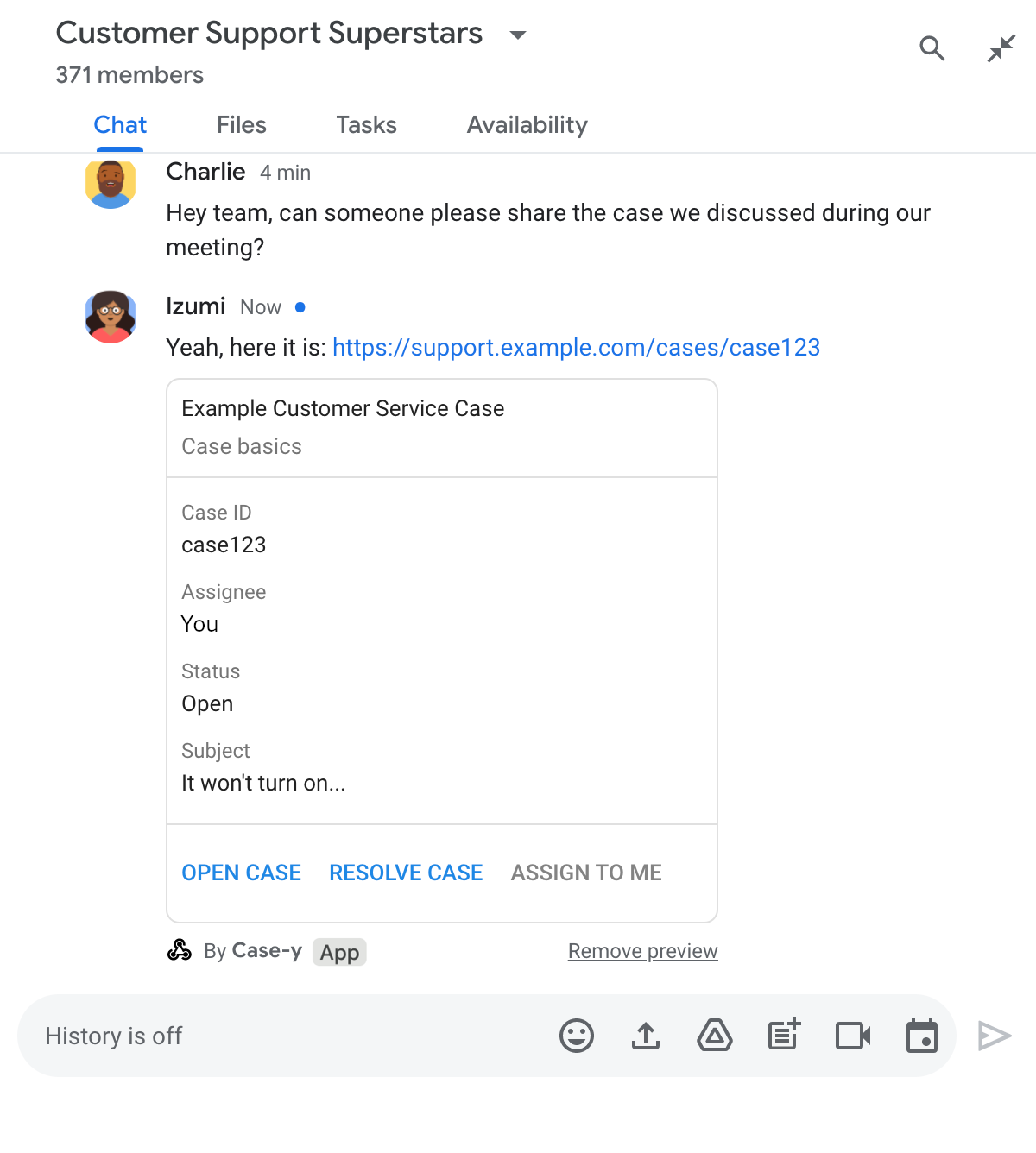
Mesaja eklenen kartın güncellenmiş sürümünü içeren bağlantıyı önizleyen sohbet uygulaması

Node.js

node/chat/preview-link/index.js
/**
 * Respond to clicks by assigning and updating the card that's attached to a
 * message previewed link of the pattern "support.example.com".
 *
 * @param {Object} chatMessage The chat message object from Google Workspace Add On event.
 * @return {Object} Action response depending on the message author.
 */
function handleCardClick(chatMessage) {
  // Creates the updated card that displays "You" for the assignee
  // and that disables the button.
  //
  // A hard-coded card is used in this example. In a real-life scenario,
  // an actual assign action would be performed before building the card.
  const message = { cardsV2: [{
    cardId: 'attachCard',
    card: {
      header: {
        title: 'Example Customer Service Case',
        subtitle: 'Case basics',
      },
      sections: [{ widgets: [
        { decoratedText: { topLabel: 'Case ID', text: 'case123'}},
        // The assignee is now "You"
        { decoratedText: { topLabel: 'Assignee', text: 'You'}},
        { decoratedText: { topLabel: 'Status', text: 'Open'}},
        { decoratedText: { topLabel: 'Subject', text: 'It won\'t turn on...' }},
        { buttonList: { buttons: [{
          text: 'OPEN CASE',
          onClick: { openLink: {
            url: 'https://support.example.com/orders/case123'
          }},
        }, {
          text: 'RESOLVE CASE',
          onClick: { openLink: {
            url: 'https://support.example.com/orders/case123?resolved=y',
          }},
        }, {
          text: 'ASSIGN TO ME',
          // The button is now disabled
          disabled: true,
          onClick: { action: { function: FUNCTION_URL }}
        }]}}
      ]}]
    }
  }]};

  // Use the adequate action response type. It depends on whether the message
  // the preview link card is attached to was created by a human or a Chat app.
  if(chatMessage.sender.type === 'HUMAN') {
    return { hostAppDataAction: { chatDataAction: { updateInlinePreviewAction: message }}};
  } else {
    return { hostAppDataAction: { chatDataAction: { updateMessageAction: message }}};
  }
}

FUNCTION_URL kısmını, düğme tıklamalarını işleyen HTTP uç noktasıyla değiştirin.

Python

python/chat/preview-link/main.py
def handle_card_click(chatMessage: dict) -> dict:
  """Respond to clicks by assigning and updating the card that's attached to a
  message previewed link of the pattern "support.example.com".

  - Reply with text messages that echo "text.example.com" link URLs in messages.
  - Attach cards to messages with "support.example.com" link URLs.

  Args:
      chatMessage (Mapping[str, Any]): The chat message object from Google Workspace Add On event.

  Returns:
      Mapping[str, Any]: Action response depending on the message author.
  """
  # Creates the updated card that displays "You" for the assignee
  # and that disables the button.
  #
  # A hard-coded card is used in this example. In a real-life scenario,
  # an actual assign action would be performed before building the card.
  message = { 'cardsV2': [{
    'cardId': 'attachCard',
    'card': {
      'header': {
        'title': 'Example Customer Service Case',
        'subtitle': 'Case basics',
      },
      'sections': [{ 'widgets': [
      { 'decoratedText': { 'topLabel': 'Case ID', 'text': 'case123'}},
      # The assignee is now "You"
      { 'decoratedText': { 'topLabel': 'Assignee', 'text': 'You'}},
      { 'decoratedText': { 'topLabel': 'Status', 'text': 'Open'}},
      { 'decoratedText': { 'topLabel': 'Subject', 'text': 'It won\'t turn on...' }},
      { 'buttonList': { 'buttons': [{
        'text': 'OPEN CASE',
        'onClick': { 'openLink': {
          'url': 'https://support.example.com/orders/case123'
        }},
      }, {
        'text': 'RESOLVE CASE',
        'onClick': { 'openLink': {
          'url': 'https://support.example.com/orders/case123?resolved=y',
        }},
      }, {
        'text': 'ASSIGN TO ME',
        # The button is now disabled
        'disabled': True,
        'onClick': { 'action': { 'function': FUNCTION_URL }}
      }]}}
      ]}]
    }
  }]}

  # Use the adequate action response type. It depends on whether the message
  # the preview link card is attached to was created by a human or a Chat app.
  if chatMessage.get('sender').get('type') == 'HUMAN':
    return { 'hostAppDataAction': { 'chatDataAction': { 'updateInlinePreviewAction': message }}}
  else:
    return { 'hostAppDataAction': { 'chatDataAction': { 'updateMessageAction': message }}}

FUNCTION_URL kısmını, düğme tıklamalarını işleyen HTTP uç noktasıyla değiştirin.

Java

java/chat/preview-link/src/main/java/com/google/chat/previewLink/App.java
/**
 * Respond to clicks by assigning and updating the card that's attached to a
 * message previewed link of the pattern "support.example.com".
 *
 * @param chatMessage The chat message object from Google Workspace Add On event.
 * @return Action response depending on the message author.
 */
GenericJson handleCardClick(JsonNode chatMessage) {
  // Creates the updated card that displays "You" for the assignee
  // and that disables the button.
  //
  // A hard-coded card is used in this example. In a real-life scenario,
  // an actual assign action would be performed before building the card.
  Message message = new Message().setCardsV2(List.of(new CardWithId()
    .setCardId("attachCard")
    .setCard(new GoogleAppsCardV1Card()
      .setHeader(new GoogleAppsCardV1CardHeader()
        .setTitle("Example Customer Service Case")
        .setSubtitle("Case basics"))
      .setSections(List.of(new GoogleAppsCardV1Section().setWidgets(List.of(
        new GoogleAppsCardV1Widget().setDecoratedText(new GoogleAppsCardV1DecoratedText()
          .setTopLabel("Case ID")
          .setText("case123")),
        // The assignee is now "You"
        new GoogleAppsCardV1Widget().setDecoratedText(new GoogleAppsCardV1DecoratedText()
          .setTopLabel("Assignee")
          .setText("You")),
        new GoogleAppsCardV1Widget().setDecoratedText(new GoogleAppsCardV1DecoratedText()
          .setTopLabel("Status")
          .setText("Open")),
        new GoogleAppsCardV1Widget().setDecoratedText(new GoogleAppsCardV1DecoratedText()
          .setTopLabel("Subject")
          .setText("It won't turn on...")),
        new GoogleAppsCardV1Widget().setButtonList(new GoogleAppsCardV1ButtonList()
          .setButtons(List.of(
            new GoogleAppsCardV1Button()
              .setText("OPEN CASE")
              .setOnClick(new GoogleAppsCardV1OnClick()
                .setOpenLink(new GoogleAppsCardV1OpenLink()
                  .setUrl("https://support.example.com/orders/case123"))),
            new GoogleAppsCardV1Button()
              .setText("RESOLVE CASE")
              .setOnClick(new GoogleAppsCardV1OnClick()
                .setOpenLink(new GoogleAppsCardV1OpenLink()
                  .setUrl("https://support.example.com/orders/case123?resolved=y"))),
            new GoogleAppsCardV1Button()
              .setText("ASSIGN TO ME")
              // The button is now disabled
              .setDisabled(true)
              .setOnClick(new GoogleAppsCardV1OnClick()
                .setAction(new GoogleAppsCardV1Action().setFunction(FUNCTION_URL)))
          ))
        )
      ))))
    )
  ));

  // Use the adequate action response type. It depends on whether the message
  // the preview link card is attached to was created by a human or a Chat app.
  if("HUMAN".equals(chatMessage.at("/sender/type").asText())) {
    return new GenericJson() {{
      put("hostAppDataAction", new GenericJson() {{
        put("chatDataAction", new GenericJson() {{
          put("updateInlinePreviewAction", message);
        }});
      }});
    }};
  } else {
    return new GenericJson() {{
      put("hostAppDataAction", new GenericJson() {{
        put("chatDataAction", new GenericJson() {{
          put("updateMessageAction", message);
        }});
      }});
    }};
  }
}

FUNCTION_URL kısmını, düğme tıklamalarını işleyen HTTP uç noktasıyla değiştirin.

Apps Komut Dosyası

apps-script/chat/preview-link/preview-link.gs
/**
 * Assigns and updates the card that's attached to a message with a
 * previewed link of the pattern "support.example.com".
 *
 * @param {Object} event The event object from the Google Workspace add-on.
 * @return {Object} Action response depending on the message author.
 */
function assign(event) {
  // Creates the updated card that displays "You" for the assignee
  // and that disables the button.
  //
  // A hard-coded card is used in this example. In a real-life scenario,
  // an actual assign action would be performed before building the card.
  const message = { cardsV2: [{
    cardId: 'attachCard',
    card: {
      header: {
        title: 'Example Customer Service Case',
        subtitle: 'Case summary',
      },
      sections: [{ widgets: [
        { decoratedText: { topLabel: 'Case ID', text: 'case123'}},
        // The assignee is now "You"
        { decoratedText: { topLabel: 'Assignee', text: 'You'}},
        { decoratedText: { topLabel: 'Status', text: 'Open'}},
        { decoratedText: { topLabel: 'Subject', text: 'It won\'t turn on...' }},
        { buttonList: { buttons: [{
          text: 'OPEN CASE',
          onClick: { openLink: {
            url: 'https://support.example.com/orders/case123'
          }},
        }, {
          text: 'RESOLVE CASE',
          onClick: { openLink: {
            url: 'https://support.example.com/orders/case123?resolved=y',
          }},
        }, {
          text: 'ASSIGN TO ME',
          // The button is now disabled
          disabled: true,
          onClick: { action: { function: 'assign'}}
        }]}}
      ]}]
    }
  }]};

  // Use the adequate action response type. It depends on whether the message
  // the preview link card is attached to was created by a human or a Chat app.
  if(event.chat.buttonClickedPayload.message.sender.type === 'HUMAN') {
    return { hostAppDataAction: { chatDataAction: { updateInlinePreviewAction: message }}};
  } else {
    return { hostAppDataAction: { chatDataAction: { updateMessageAction: message }}};
  }
}

Sınırlar ve dikkat edilmesi gereken noktalar

Chat uygulamanız için bağlantı önizlemelerini yapılandırırken aşağıdaki sınırlamaları ve dikkat edilmesi gereken noktaları göz önünde bulundurun:

  • Her Chat uygulaması, en fazla 5 URL deseni için bağlantı önizlemelerini destekler.
  • Sohbet uygulamaları, mesaj başına bir bağlantıyı önizler. Tek bir iletide birden fazla önizlenebilir bağlantı varsa yalnızca ilk önizlenebilir bağlantı önizlenir.
  • Sohbet uygulamaları yalnızca https:// ile başlayan bağlantıları önizler. Bu nedenle, https://support.example.com/cases/ önizlenir ancak support.example.com/cases/ önizlenmez.
  • Mesajda, Chat uygulamasına gönderilen başka bilgiler (ör. eğik çizgi komutu) yoksa bağlantı önizlemeleri tarafından Chat uygulamasına yalnızca bağlantı URL'si gönderilir.
  • Bir kullanıcı bağlantıyı yayınlarsa Chat uygulaması, bağlantı önizleme kartını yalnızca kullanıcılar kartla etkileşimde bulunduğunda (ör. bir düğmeyi tıkladığında) güncelleyebilir. Kullanıcının mesajını eşzamansız olarak güncellemek için Chat API'nin update() yöntemini Message kaynağında çağıramazsınız.
  • Chat uygulamaları, alandaki herkes için bağlantıları önizlemelidir. Bu nedenle, mesajda privateMessageViewer alanı atlanmalıdır.

Bağlantı önizlemelerini uygularken uygulamanın günlüklerini okuyarak sohbet uygulamanızda hata ayıklamanız gerekebilir. Günlükleri okumak için Google Cloud Console'da Günlük Gezgini'ni ziyaret edin.

Aşağıdaki belgeler, Google Workspace eklentisi olmayan Chat uygulamaları için geçerlidir. Eklenti olmayan bir Chat uygulamasını taşımak için Google Chat uygulamasını Google Workspace eklentisine dönüştürme başlıklı makaleyi inceleyin.

Eklenti olmayan bir Chat uygulamasının bulunduğu Chat alanlarında, bir kullanıcının mesajı bağlantı önizleme URL kalıbıyla eşleşen bir bağlantı içerdiğinde Chat uygulaması bir MESSAGE etkileşim etkinliği alır. Etkileşim etkinliğinin JSON yükünde matchedUrl alanı bulunur:

JSON

message: {
  matchedUrl: {
    url: "https://support.example.com/cases/case123"
  },
  ... // other message attributes redacted
}

MESSAGE etkinliği yükünde matchedUrl alanının varlığını kontrol ederek, eklenti olmayan bir Chat uygulaması, önizlenen bağlantıyla iletiye bilgi ekleyebilir.

Kısa mesajla yanıtlama

Temel yanıtlarda, eklenti olmayan bir Chat uygulaması, bağlantıya kısa mesaj ile yanıt vererek bağlantıyı önizleyebilir. Bu örnekte, bağlantı önizleme URL'si kalıbıyla eşleşen bağlantı URL'sini tekrarlayan bir ileti ekleniyor:

Node.js

node/preview-link/index.js
// Reply with a text message for URLs of the subdomain "text"
if (event.message.matchedUrl.url.includes("text.example.com")) {
  return {
    text: 'event.message.matchedUrl.url: ' + event.message.matchedUrl.url
  };
}

Python

python/preview-link/main.py
# Reply with a text message for URLs of the subdomain "text"
if 'text.example.com' in event.get('message').get('matchedUrl').get('url'):
  return {
    'text': 'event.message.matchedUrl.url: ' +
            event.get('message').get('matchedUrl').get('url')
  }

Java

java/preview-link/src/main/java/com/google/chat/preview/App.java
// Reply with a text message for URLs of the subdomain "text"
if (event.at("/message/matchedUrl/url").asText().contains("text.example.com")) {
  return new Message().setText("event.message.matchedUrl.url: " +
    event.at("/message/matchedUrl/url").asText());
}

Apps Komut Dosyası

apps-script/preview-link/preview-link.gs
// Reply with a text message for URLs of the subdomain "text"
if (event.message.matchedUrl.url.includes("text.example.com")) {
  return {
    text: 'event.message.matchedUrl.url: ' + event.message.matchedUrl.url
  };
}

Bağlantının önizlemesini içeren bir kart ekleme

Eklenti olmayan bir Chat uygulamasında önizlenen bağlantıya kart eklemek için UPDATE_USER_MESSAGE_CARDS türünde bir ActionResponse döndürün. Bu örnekte temel bir kart ekleniyor:

Node.js

node/preview-link/index.js
// Attach a card to the message for URLs of the subdomain "support"
if (event.message.matchedUrl.url.includes("support.example.com")) {
  // A hard-coded card is used in this example. In a real-life scenario,
  // the case information would be fetched and used to build the card.
  return {
    actionResponse: { type: 'UPDATE_USER_MESSAGE_CARDS' },
    cardsV2: [{
      cardId: 'attachCard',
      card: {
        header: {
          title: 'Example Customer Service Case',
          subtitle: 'Case basics',
        },
        sections: [{ widgets: [
          { decoratedText: { topLabel: 'Case ID', text: 'case123'}},
          { decoratedText: { topLabel: 'Assignee', text: 'Charlie'}},
          { decoratedText: { topLabel: 'Status', text: 'Open'}},
          { decoratedText: { topLabel: 'Subject', text: 'It won\'t turn on...' }},
          { buttonList: { buttons: [{
            text: 'OPEN CASE',
            onClick: { openLink: {
              url: 'https://support.example.com/orders/case123'
            }},
          }, {
            text: 'RESOLVE CASE',
            onClick: { openLink: {
              url: 'https://support.example.com/orders/case123?resolved=y',
            }},
          }, {
            text: 'ASSIGN TO ME',
            onClick: { action: { function: 'assign'}}
          }]}}
        ]}]
      }
    }]
  };
}

Python

python/preview-link/main.py
# Attach a card to the message for URLs of the subdomain "support"
if 'support.example.com' in event.get('message').get('matchedUrl').get('url'):
  # A hard-coded card is used in this example. In a real-life scenario,
  # the case information would be fetched and used to build the card.
  return {
    'actionResponse': { 'type': 'UPDATE_USER_MESSAGE_CARDS' },
    'cardsV2': [{
      'cardId': 'attachCard',
      'card': {
        'header': {
          'title': 'Example Customer Service Case',
          'subtitle': 'Case basics',
        },
        'sections': [{ 'widgets': [
          { 'decoratedText': { 'topLabel': 'Case ID', 'text': 'case123'}},
          { 'decoratedText': { 'topLabel': 'Assignee', 'text': 'Charlie'}},
          { 'decoratedText': { 'topLabel': 'Status', 'text': 'Open'}},
          { 'decoratedText': { 'topLabel': 'Subject', 'text': 'It won\'t turn on...' }},
          { 'buttonList': { 'buttons': [{
            'text': 'OPEN CASE',
            'onClick': { 'openLink': {
              'url': 'https://support.example.com/orders/case123'
            }},
          }, {
            'text': 'RESOLVE CASE',
            'onClick': { 'openLink': {
              'url': 'https://support.example.com/orders/case123?resolved=y',
            }},
          }, {
            'text': 'ASSIGN TO ME',
            'onClick': { 'action': { 'function': 'assign'}}
          }]}}
        ]}]
      }
    }]
  }

Java

java/preview-link/src/main/java/com/google/chat/preview/App.java
// Attach a card to the message for URLs of the subdomain "support"
if (event.at("/message/matchedUrl/url").asText().contains("support.example.com")) {
  // A hard-coded card is used in this example. In a real-life scenario,
  // the case information would be fetched and used to build the card.
  return new Message()
    .setActionResponse(new ActionResponse()
      .setType("UPDATE_USER_MESSAGE_CARDS"))
    .setCardsV2(List.of(new CardWithId()
      .setCardId("attachCard")
      .setCard(new GoogleAppsCardV1Card()
        .setHeader(new GoogleAppsCardV1CardHeader()
          .setTitle("Example Customer Service Case")
          .setSubtitle("Case basics"))
        .setSections(List.of(new GoogleAppsCardV1Section().setWidgets(List.of(
          new GoogleAppsCardV1Widget().setDecoratedText(new GoogleAppsCardV1DecoratedText()
            .setTopLabel("Case ID")
            .setText("case123")),
          new GoogleAppsCardV1Widget().setDecoratedText(new GoogleAppsCardV1DecoratedText()
            .setTopLabel("Assignee")
            .setText("Charlie")),
          new GoogleAppsCardV1Widget().setDecoratedText(new GoogleAppsCardV1DecoratedText()
            .setTopLabel("Status")
            .setText("Open")),
          new GoogleAppsCardV1Widget().setDecoratedText(new GoogleAppsCardV1DecoratedText()
            .setTopLabel("Subject")
            .setText("It won't turn on...")),
          new GoogleAppsCardV1Widget()
            .setButtonList(new GoogleAppsCardV1ButtonList().setButtons(List.of(
              new GoogleAppsCardV1Button()
                .setText("OPEN CASE")
                .setOnClick(new GoogleAppsCardV1OnClick()
                  .setOpenLink(new GoogleAppsCardV1OpenLink()
                    .setUrl("https://support.example.com/orders/case123"))),
              new GoogleAppsCardV1Button()
                .setText("RESOLVE CASE")
                .setOnClick(new GoogleAppsCardV1OnClick()
                  .setOpenLink(new GoogleAppsCardV1OpenLink()
                    .setUrl("https://support.example.com/orders/case123?resolved=y"))),
              new GoogleAppsCardV1Button()
                .setText("ASSIGN TO ME")
                .setOnClick(new GoogleAppsCardV1OnClick()
                  .setAction(new GoogleAppsCardV1Action().setFunction("assign")))))))))))));
}

Apps Komut Dosyası

Bu örnek, card JSON döndürerek kart mesajı gönderir. Apps Komut Dosyası kart hizmetini de kullanabilirsiniz.

apps-script/preview-link/preview-link.gs
// Attach a card to the message for URLs of the subdomain "support"
if (event.message.matchedUrl.url.includes("support.example.com")) {
  // A hard-coded card is used in this example. In a real-life scenario,
  // the case information would be fetched and used to build the card.
  return {
    actionResponse: { type: 'UPDATE_USER_MESSAGE_CARDS' },
    cardsV2: [{
      cardId: 'attachCard',
      card: {
        header: {
          title: 'Example Customer Service Case',
          subtitle: 'Case basics',
        },
        sections: [{ widgets: [
          { decoratedText: { topLabel: 'Case ID', text: 'case123'}},
          { decoratedText: { topLabel: 'Assignee', text: 'Charlie'}},
          { decoratedText: { topLabel: 'Status', text: 'Open'}},
          { decoratedText: { topLabel: 'Subject', text: 'It won\'t turn on...' }},
          { buttonList: { buttons: [{
            text: 'OPEN CASE',
            onClick: { openLink: {
              url: 'https://support.example.com/orders/case123'
            }},
          }, {
            text: 'RESOLVE CASE',
            onClick: { openLink: {
              url: 'https://support.example.com/orders/case123?resolved=y',
            }},
          }, {
            text: 'ASSIGN TO ME',
            onClick: { action: { function: 'assign'}}
          }]}}
        ]}]
      }
    }]
  };
}

Bağlantı önizleme kartını güncelleme

Eklenti olmayan bir Chat uygulamasında bağlantı önizleme kartını güncellemek için CARD_CLICKED etkileşim etkinliğini işleyin ve bağlantı önizlemesini içeren mesajı kimin gönderdiğine bağlı olarak actionResponse döndürün:

  • İletiyi bir kullanıcı gönderdiyse actionResponse.type değerini UPDATE_USER_MESSAGE_CARDS olarak ayarlayın.
  • Mesajı Chat uygulaması gönderdiyse actionResponse.type öğesini UPDATE_MESSAGE olarak ayarlayın.

İletiyi kimin gönderdiğini belirlemek için etkileşim etkinliğinin message.sender.type alanını kullanarak gönderenin HUMAN kullanıcısı mı yoksa BOT kullanıcısı mı olduğunu görebilirsiniz.

Aşağıdaki örnekte, eklenti olmayan bir Chat uygulamasının, kullanıcı Bana Ata düğmesini her tıkladığında kartın Atanan alanını güncelleyerek ve düğmeyi devre dışı bırakarak bağlantı önizlemesini nasıl güncellediği gösterilmektedir:

Node.js

node/preview-link/index.js
/**
 * Updates a card that was attached to a message with a previewed link.
 *
 * @param {Object} event The event object from Chat.
 *
 * @return {Object} Response from the Chat app. Either a new card attached to
 * the message with the previewed link, or an update to an existing card.
 */
function onCardClick(event) {
  // To respond to the correct button, checks the button's actionMethodName.
  if (event.action.actionMethodName === 'assign') {
    // A hard-coded card is used in this example. In a real-life scenario,
    // an actual assign action would be performed before building the card.

    // Checks whether the message event originated from a human or a Chat app
    // and sets actionResponse.type to "UPDATE_USER_MESSAGE_CARDS if human or
    // "UPDATE_MESSAGE" if Chat app.
    const actionResponseType = event.message.sender.type === 'HUMAN' ?
      'UPDATE_USER_MESSAGE_CARDS' :
      'UPDATE_MESSAGE';

    // Returns the updated card that displays "You" for the assignee
    // and that disables the button.
    return {
      actionResponse: { type: actionResponseType },
      cardsV2: [{
        cardId: 'attachCard',
        card: {
          header: {
            title: 'Example Customer Service Case',
            subtitle: 'Case basics',
          },
          sections: [{ widgets: [
            { decoratedText: { topLabel: 'Case ID', text: 'case123'}},
            // The assignee is now "You"
            { decoratedText: { topLabel: 'Assignee', text: 'You'}},
            { decoratedText: { topLabel: 'Status', text: 'Open'}},
            { decoratedText: { topLabel: 'Subject', text: 'It won\'t turn on...' }},
            { buttonList: { buttons: [{
              text: 'OPEN CASE',
              onClick: { openLink: {
                url: 'https://support.example.com/orders/case123'
              }},
            }, {
              text: 'RESOLVE CASE',
              onClick: { openLink: {
                url: 'https://support.example.com/orders/case123?resolved=y',
              }},
            }, {
              text: 'ASSIGN TO ME',
              // The button is now disabled
              disabled: true,
              onClick: { action: { function: 'assign'}}
            }]}}
          ]}]
        }
      }]
    };
  }
}

Python

python/preview-link/main.py
def on_card_click(event: dict) -> dict:
  """Updates a card that was attached to a message with a previewed link."""
  # To respond to the correct button, checks the button's actionMethodName.
  if 'assign' == event.get('action').get('actionMethodName'):
    # A hard-coded card is used in this example. In a real-life scenario,
    # an actual assign action would be performed before building the card.

    # Checks whether the message event originated from a human or a Chat app
    # and sets actionResponse.type to "UPDATE_USER_MESSAGE_CARDS if human or
    # "UPDATE_MESSAGE" if Chat app.
    actionResponseType = 'UPDATE_USER_MESSAGE_CARDS' if \
      event.get('message').get('sender').get('type') == 'HUMAN' else \
      'UPDATE_MESSAGE'

    # Returns the updated card that displays "You" for the assignee
    # and that disables the button.
    return {
      'actionResponse': { 'type': actionResponseType },
      'cardsV2': [{
        'cardId': 'attachCard',
        'card': {
          'header': {
            'title': 'Example Customer Service Case',
            'subtitle': 'Case basics',
          },
          'sections': [{ 'widgets': [
            { 'decoratedText': { 'topLabel': 'Case ID', 'text': 'case123'}},
            # The assignee is now "You"
            { 'decoratedText': { 'topLabel': 'Assignee', 'text': 'You'}},
            { 'decoratedText': { 'topLabel': 'Status', 'text': 'Open'}},
            { 'decoratedText': { 'topLabel': 'Subject', 'text': 'It won\'t turn on...' }},
            { 'buttonList': { 'buttons': [{
              'text': 'OPEN CASE',
              'onClick': { 'openLink': {
                'url': 'https://support.example.com/orders/case123'
              }},
            }, {
              'text': 'RESOLVE CASE',
              'onClick': { 'openLink': {
                'url': 'https://support.example.com/orders/case123?resolved=y',
              }},
            }, {
              'text': 'ASSIGN TO ME',
              # The button is now disabled
              'disabled': True,
              'onClick': { 'action': { 'function': 'assign'}}
            }]}}
          ]}]
        }
      }]
    }

Java

java/preview-link/src/main/java/com/google/chat/preview/App.java
// Updates a card that was attached to a message with a previewed link.
Message onCardClick(JsonNode event) {
  // To respond to the correct button, checks the button's actionMethodName.
  if (event.at("/action/actionMethodName").asText().equals("assign")) {
    // A hard-coded card is used in this example. In a real-life scenario,
    // an actual assign action would be performed before building the card.

    // Checks whether the message event originated from a human or a Chat app
    // and sets actionResponse.type to "UPDATE_USER_MESSAGE_CARDS if human or
    // "UPDATE_MESSAGE" if Chat app.
    String actionResponseType =
      event.at("/message/sender/type").asText().equals("HUMAN")
      ? "UPDATE_USER_MESSAGE_CARDS" : "UPDATE_MESSAGE";

    // Returns the updated card that displays "You" for the assignee
    // and that disables the button.
    return new Message()
    .setActionResponse(new ActionResponse()
      .setType(actionResponseType))
    .setCardsV2(List.of(new CardWithId()
      .setCardId("attachCard")
      .setCard(new GoogleAppsCardV1Card()
        .setHeader(new GoogleAppsCardV1CardHeader()
          .setTitle("Example Customer Service Case")
          .setSubtitle("Case basics"))
        .setSections(List.of(new GoogleAppsCardV1Section().setWidgets(List.of(
          new GoogleAppsCardV1Widget().setDecoratedText(new GoogleAppsCardV1DecoratedText()
            .setTopLabel("Case ID")
            .setText("case123")),
          new GoogleAppsCardV1Widget().setDecoratedText(new GoogleAppsCardV1DecoratedText()
            .setTopLabel("Assignee")
            // The assignee is now "You"
            .setText("You")),
          new GoogleAppsCardV1Widget().setDecoratedText(new GoogleAppsCardV1DecoratedText()
            .setTopLabel("Status")
            .setText("Open")),
          new GoogleAppsCardV1Widget().setDecoratedText(new GoogleAppsCardV1DecoratedText()
            .setTopLabel("Subject")
            .setText("It won't turn on...")),
          new GoogleAppsCardV1Widget()
            .setButtonList(new GoogleAppsCardV1ButtonList().setButtons(List.of(
              new GoogleAppsCardV1Button()
                .setText("OPEN CASE")
                .setOnClick(new GoogleAppsCardV1OnClick()
                  .setOpenLink(new GoogleAppsCardV1OpenLink()
                    .setUrl("https://support.example.com/orders/case123"))),
              new GoogleAppsCardV1Button()
                .setText("RESOLVE CASE")
                .setOnClick(new GoogleAppsCardV1OnClick()
                  .setOpenLink(new GoogleAppsCardV1OpenLink()
                    .setUrl("https://support.example.com/orders/case123?resolved=y"))),
              new GoogleAppsCardV1Button()
                .setText("ASSIGN TO ME")
                // The button is now disabled
                .setDisabled(true)
                .setOnClick(new GoogleAppsCardV1OnClick()
                  .setAction(new GoogleAppsCardV1Action().setFunction("assign")))))))))))));
  }
  return null;
}

Apps Komut Dosyası

Bu örnek, card JSON döndürerek kart mesajı gönderir. Apps Komut Dosyası kart hizmetini de kullanabilirsiniz.

apps-script/preview-link/preview-link.gs
/**
 * Updates a card that was attached to a message with a previewed link.
 *
 * @param {Object} event The event object from Chat.
 *
 * @return {Object} Response from the Chat app. Either a new card attached to
 * the message with the previewed link, or an update to an existing card.
 */
function onCardClick(event) {
  // To respond to the correct button, checks the button's actionMethodName.
  if (event.action.actionMethodName === 'assign') {
    // A hard-coded card is used in this example. In a real-life scenario,
    // an actual assign action would be performed before building the card.

    // Checks whether the message event originated from a human or a Chat app
    // and sets actionResponse.type to "UPDATE_USER_MESSAGE_CARDS if human or
    // "UPDATE_MESSAGE" if Chat app.
    const actionResponseType = event.message.sender.type === 'HUMAN' ?
      'UPDATE_USER_MESSAGE_CARDS' :
      'UPDATE_MESSAGE';

    // Returns the updated card that displays "You" for the assignee
    // and that disables the button.
    return {
      actionResponse: { type: actionResponseType },
      cardsV2: [{
        cardId: 'attachCard',
        card: {
          header: {
            title: 'Example Customer Service Case',
            subtitle: 'Case basics',
          },
          sections: [{ widgets: [
            { decoratedText: { topLabel: 'Case ID', text: 'case123'}},
            // The assignee is now "You"
            { decoratedText: { topLabel: 'Assignee', text: 'You'}},
            { decoratedText: { topLabel: 'Status', text: 'Open'}},
            { decoratedText: { topLabel: 'Subject', text: 'It won\'t turn on...' }},
            { buttonList: { buttons: [{
              text: 'OPEN CASE',
              onClick: { openLink: {
                url: 'https://support.example.com/orders/case123'
              }},
            }, {
              text: 'RESOLVE CASE',
              onClick: { openLink: {
                url: 'https://support.example.com/orders/case123?resolved=y',
              }},
            }, {
              text: 'ASSIGN TO ME',
              // The button is now disabled
              disabled: true,
              onClick: { action: { function: 'assign'}}
            }]}}
          ]}]
        }
      }]
    };
  }
}