Prévisualiser les liens dans les messages Google Chat

Pour éviter que les utilisateurs ne changent de contexte lorsqu'ils partagent un lien dans Google Chat, votre application Chat peut prévisualiser le lien en ajoutant une fiche à leur message. Cette fiche fournit plus d'informations et permet aux utilisateurs d'effectuer des actions directement depuis Google Chat.

Imaginez, par exemple, un espace Google Chat qui inclut tous les agents du service client d'une entreprise, ainsi qu'une application Chat nommée Case-y. Les agents partagent fréquemment des liens vers des demandes d'assistance client dans l'espace Chat. Chaque fois qu'ils le font, leurs collègues doivent ouvrir le lien de la demande pour afficher des informations telles que l'assignataire, l'état et l'objet. De même, si quelqu'un souhaite prendre en charge une demande ou modifier son état, il doit ouvrir le lien.

La prévisualisation des liens permet à l'application Chat résidente de l'espace, Case-y, d'ajouter une fiche indiquant l'assignataire, l'état et l'objet chaque fois qu'un utilisateur partage un lien de demande. Les boutons de la fiche permettent aux agents de prendre en charge la demande et de modifier son état directement depuis le flux de discussion.

Lorsqu'un utilisateur ajoute un lien à son message, un chip s'affiche pour l'informer qu'une application Chat peut prévisualiser le lien.
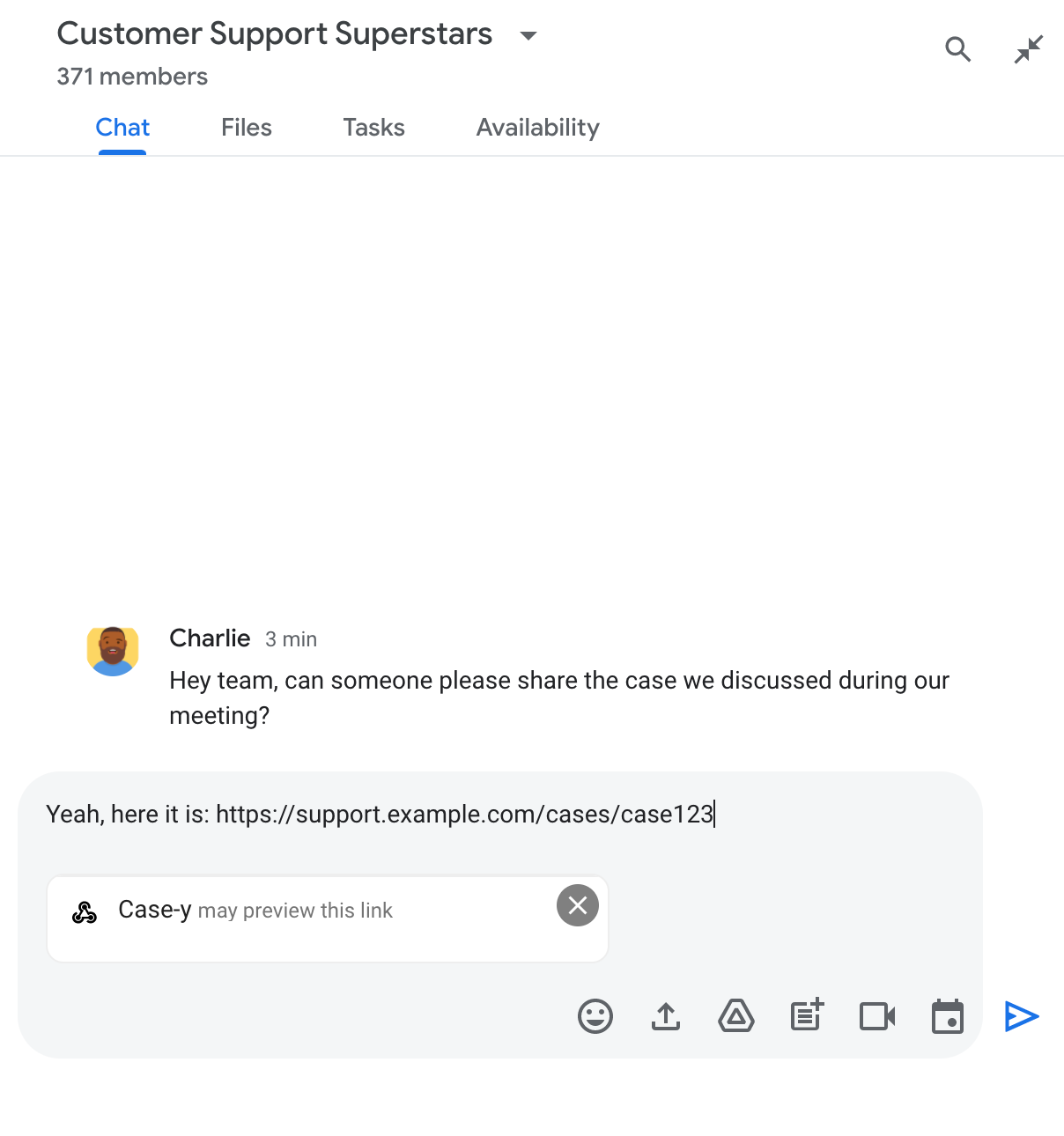
Chip indiquant qu'une application Chat peut prévisualiser un lien

Une fois le message envoyé, le lien est transmis à l'application Chat, qui génère ensuite la fiche et l'ajoute au message de l'utilisateur.
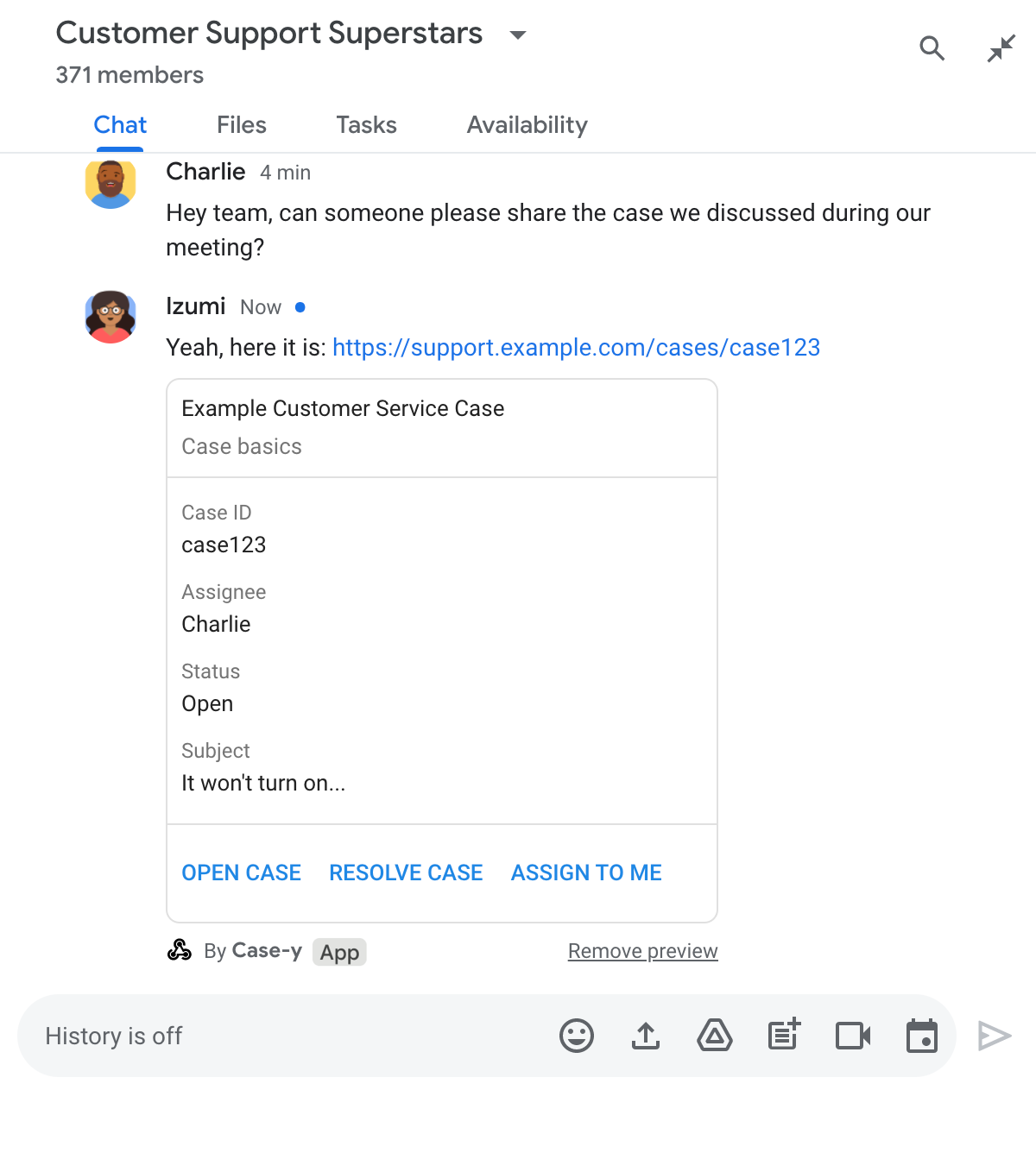
Application de chat prévisualisant un lien en ajoutant une fiche au message

En plus du lien, la fiche fournit des informations supplémentaires sur le lien, y compris des éléments interactifs tels que des boutons. Votre application Chat peut mettre à jour la fiche jointe en réponse aux interactions de l'utilisateur, comme les clics sur des boutons.

Si un utilisateur ne souhaite pas que l'application Chat prévisualise son lien en ajoutant une fiche à son message, il peut empêcher la prévisualisation en cliquant dans le chip de prévisualisation. Les utilisateurs peuvent supprimer la fiche jointe à tout moment en cliquant sur Supprimer l'aperçu.

Prérequis

HTTP

Module complémentaire Google Workspace qui étend Google Chat. Pour en créer un, suivez le guide de démarrage rapide HTTP.

Apps Script

Module complémentaire Google Workspace qui étend Google Chat. Pour en créer un, suivez le guide de démarrage rapide Apps Script.

Enregistrez des liens spécifiques (tels que example.com, support.example.com et support.example.com/cases/) en tant que formats d'URL sur la page de configuration de votre application Chat dans la console Google Cloud afin que votre application Chat puisse les prévisualiser.
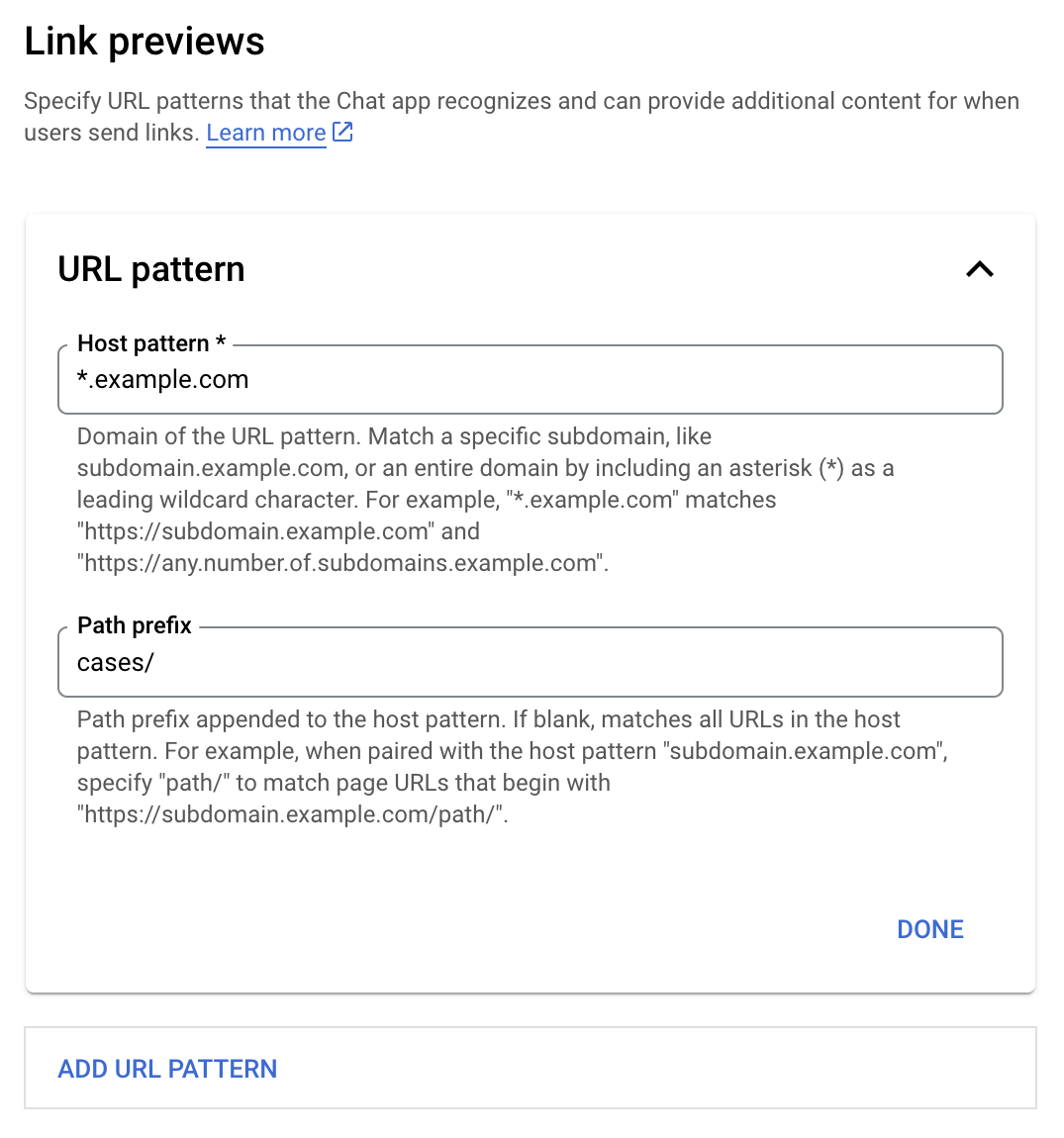
Menu de configuration des aperçus de liens

  1. Ouvrez la console Google Cloud.
  2. À côté de "Google Cloud", cliquez sur la flèche vers le bas et ouvrez le projet de votre application Chat.
  3. Dans le champ de recherche, saisissez Google Chat API, puis cliquez sur Google Chat API.
  4. Cliquez sur Gérer > Configuration.
  5. Sous "Aperçus de liens", ajoutez ou modifiez un format d'URL.
    1. Pour configurer les aperçus de liens pour un nouveau format d'URL, cliquez sur Ajouter un format d'URL.
    2. Pour modifier la configuration d'un format d'URL existant, cliquez sur la flèche vers le bas .
  6. Dans le champ Format d'hôte, saisissez le domaine du format d'URL. L'application Chat prévisualisera les liens vers ce domaine.

    Pour que l'application Chat prévisualise les liens d'un sous-domaine spécifique, tel que subdomain.example.com, incluez le sous-domaine.

    Pour que l'application Chat prévisualise les liens de l'ensemble du domaine, spécifiez un caractère générique avec un astérisque (*) comme sous-domaine. Par exemple, *.example.com correspond à subdomain.example.com et any.number.of.subdomains.example.com.

  7. Dans le champ Préfixe de chemin, saisissez un chemin à ajouter au domaine du format d'hôte.

    Pour faire correspondre toutes les URL du domaine du format d'hôte, laissez le champ Préfixe de chemin vide.

    Par exemple, si le format d'hôte est support.example.com, pour faire correspondre les URL des demandes hébergées sur support.example.com/cases/, saisissez cases/.

  8. Cliquez sur OK.

  9. Cliquez sur Enregistrer.

Désormais, chaque fois qu'un utilisateur inclut un lien qui correspond à un format d'URL de prévisualisation de lien dans un message d'un espace Chat qui inclut votre application Chat, votre application prévisualise le lien.

Une fois que vous avez configuré la prévisualisation des liens pour un lien donné, votre application Chat peut reconnaître et prévisualiser le lien en y ajoutant des informations.

Dans les espaces Chat qui incluent votre application Chat, lorsque le message d'un utilisateur contient un lien qui correspond à un format d'URL de prévisualisation de lien, votre application Chat reçoit un objet d'événement avec un MessagePayload. Dans la charge utile, message.matchedUrl objet contient le lien que l'utilisateur a inclus dans le message :

JSON

message: {
  matchedUrl: {
    url: "https://support.example.com/cases/case123"
  },
  ... // other message attributes redacted
}

En vérifiant la présence du champ matchedUrl dans la charge utile de l'événement MESSAGE, votre application Chat peut ajouter des informations au message avec le lien prévisualisé. Votre application Chat peut répondre avec un message texte de base ou ajouter une fiche.

Répondre avec un message texte

Pour les réponses de base, votre application Chat peut prévisualiser un lien en répondant avec un message texte à un lien. Cet exemple ajoute un message qui répète l'URL du lien correspondant à un format d'URL de prévisualisation de lien.

Node.js

node/chat/preview-link/index.js
// Reply with a text message for URLs of the subdomain "text"
if (chatMessage.matchedUrl.url.includes("text.example.com")) {
  return { hostAppDataAction: { chatDataAction: { createMessageAction: { message: {
    text: 'event.chat.messagePayload.message.matchedUrl.url: ' + chatMessage.matchedUrl.url
  }}}}};
}

Remplacez FUNCTION_URL par le point de terminaison HTTP qui gère les clics sur les boutons.

Python

python/chat/preview-link/main.py
# Reply with a text message for URLs of the subdomain "text"
if "text.example.com" in chatMessage.get('matchedUrl').get('url'):
  return { 'hostAppDataAction': { 'chatDataAction': { 'createMessageAction': { 'message': {
    'text': 'event.chat.messagePayload.message.matchedUrl.url: ' + chatMessage.get('matchedUrl').get('url')
  }}}}}

Remplacez FUNCTION_URL par le point de terminaison HTTP qui gère les clics sur les boutons.

Java

java/chat/preview-link/src/main/java/com/google/chat/previewLink/App.java
// Reply with a text message for URLs of the subdomain "text"
if (chatMessage.at("/matchedUrl/url").asText().contains("text.example.com")) {
  return new GenericJson() {{
    put("hostAppDataAction", new GenericJson() {{
      put("chatDataAction", new GenericJson() {{
        put("createMessageAction", new GenericJson() {{
          put("message", new Message()
            .setText("event.chat.messagePayload.message.matchedUrl.url: " + chatMessage.at("/matchedUrl/url").asText()));
        }});
      }});
    }});
  }};
}

Remplacez FUNCTION_URL par le point de terminaison HTTP qui gère les clics sur les boutons.

Apps Script

apps-script/chat/preview-link/preview-link.gs
// Reply with a text message for URLs of the subdomain "text".
if (chatMessage.matchedUrl.url.includes("text.example.com")) {
  return { hostAppDataAction: { chatDataAction: { createMessageAction: { message: {
    text: 'event.chat.messagePayload.message.matchedUrl.url: ' + chatMessage.matchedUrl.url
  }}}}};
}

Pour ajouter une fiche à un lien prévisualisé, renvoyez l'action DataActions avec l'objet ChatDataActionMarkup de type UpdateInlinePreviewAction.

Dans l'exemple suivant, une application Chat ajoute une fiche d'aperçu aux messages contenant le format d'URL support.example.com.

Application de chat prévisualisant un lien en ajoutant une fiche au message

Node.js

node/chat/preview-link/index.js
// Attach a card to the message for URLs of the subdomain "support"
if (chatMessage.matchedUrl.url.includes("support.example.com")) {
  // A hard-coded card is used in this example. In a real-life scenario,
  // the case information would be fetched and used to build the card.
  return { hostAppDataAction: { chatDataAction: { updateInlinePreviewAction: { cardsV2: [{
    cardId: 'attachCard',
    card: {
      header: {
        title: 'Example Customer Service Case',
        subtitle: 'Case basics',
      },
      sections: [{ widgets: [
      { decoratedText: { topLabel: 'Case ID', text: 'case123'}},
      { decoratedText: { topLabel: 'Assignee', text: 'Charlie'}},
      { decoratedText: { topLabel: 'Status', text: 'Open'}},
      { decoratedText: { topLabel: 'Subject', text: 'It won\'t turn on...' }},
      { buttonList: { buttons: [{
        text: 'OPEN CASE',
        onClick: { openLink: {
          url: 'https://support.example.com/orders/case123'
        }},
      }, {
        text: 'RESOLVE CASE',
        onClick: { openLink: {
          url: 'https://support.example.com/orders/case123?resolved=y',
        }},
      }, {
        text: 'ASSIGN TO ME',
        onClick: { action: { function: FUNCTION_URL }}
      }]}}
      ]}]
    }
  }]}}}};
}

Remplacez FUNCTION_URL par le point de terminaison HTTP qui gère les clics sur les boutons.

Python

python/chat/preview-link/main.py
# Attach a card to the message for URLs of the subdomain "support"
if "support.example.com" in chatMessage.get('matchedUrl').get('url'):
  # A hard-coded card is used in this example. In a real-life scenario,
  # the case information would be fetched and used to build the card.
  return { 'hostAppDataAction': { 'chatDataAction': { 'updateInlinePreviewAction': { 'cardsV2': [{
    'cardId': 'attachCard',
    'card': {
      'header': {
        'title': 'Example Customer Service Case',
        'subtitle': 'Case basics',
      },
      'sections': [{ 'widgets': [
      { 'decoratedText': { 'topLabel': 'Case ID', 'text': 'case123'}},
      { 'decoratedText': { 'topLabel': 'Assignee', 'text': 'Charlie'}},
      { 'decoratedText': { 'topLabel': 'Status', 'text': 'Open'}},
      { 'decoratedText': { 'topLabel': 'Subject', 'text': 'It won\'t turn on...' }},
      { 'buttonList': { 'buttons': [{
        'text': 'OPEN CASE',
        'onClick': { 'openLink': {
          'url': 'https://support.example.com/orders/case123'
        }},
      }, {
        'text': 'RESOLVE CASE',
        'onClick': { 'openLink': {
          'url': 'https://support.example.com/orders/case123?resolved=y',
        }},
      }, {
        'text': 'ASSIGN TO ME',
        'onClick': { 'action': { 'function': FUNCTION_URL }}
      }]}}
      ]}]
    }
  }]}}}}

Remplacez FUNCTION_URL par le point de terminaison HTTP qui gère les clics sur les boutons.

Java

java/chat/preview-link/src/main/java/com/google/chat/previewLink/App.java
// Attach a card to the message for URLs of the subdomain "support"
if (chatMessage.at("/matchedUrl/url").asText().contains("support.example.com")) {
  // A hard-coded card is used in this example. In a real-life scenario,
  // the case information would be fetched and used to build the card.
  CardWithId cardV2 = new CardWithId()
    .setCardId("attachCard")
    .setCard(new GoogleAppsCardV1Card()
      .setHeader(new GoogleAppsCardV1CardHeader()
        .setTitle("Example Customer Service Case")
        .setSubtitle("Case basics"))
      .setSections(List.of(new GoogleAppsCardV1Section().setWidgets(List.of(
        new GoogleAppsCardV1Widget().setDecoratedText(new GoogleAppsCardV1DecoratedText()
          .setTopLabel("Case ID")
          .setText("case123")),
        new GoogleAppsCardV1Widget().setDecoratedText(new GoogleAppsCardV1DecoratedText()
          .setTopLabel("Assignee")
          .setText("Charlie")),
        new GoogleAppsCardV1Widget().setDecoratedText(new GoogleAppsCardV1DecoratedText()
          .setTopLabel("Status")
          .setText("Open")),
        new GoogleAppsCardV1Widget().setDecoratedText(new GoogleAppsCardV1DecoratedText()
          .setTopLabel("Subject")
          .setText("It won't turn on...")),
        new GoogleAppsCardV1Widget().setButtonList(new GoogleAppsCardV1ButtonList()
          .setButtons(List.of(
            new GoogleAppsCardV1Button()
              .setText("OPEN CASE")
            .setOnClick(new GoogleAppsCardV1OnClick()
                .setOpenLink(new GoogleAppsCardV1OpenLink()
                  .setUrl("https://support.example.com/orders/case123"))),
            new GoogleAppsCardV1Button()
              .setText("RESOLVE CASE")
            .setOnClick(new GoogleAppsCardV1OnClick()
                .setOpenLink(new GoogleAppsCardV1OpenLink()
                  .setUrl("https://support.example.com/orders/case123?resolved=y"))),
            new GoogleAppsCardV1Button()
              .setText("ASSIGN TO ME")
              .setOnClick(new GoogleAppsCardV1OnClick()
                .setAction(new GoogleAppsCardV1Action().setFunction(FUNCTION_URL)))
          ))
        )
      ))))
    );

  return new GenericJson() {{
    put("hostAppDataAction", new GenericJson() {{
      put("chatDataAction", new GenericJson() {{
        put("updateInlinePreviewAction", new GenericJson() {{
          put("cardsV2", List.of(cardV2));
        }});
      }});
    }});
  }};
}

Remplacez FUNCTION_URL par le point de terminaison HTTP qui gère les clics sur les boutons.

Apps Script

apps-script/chat/preview-link/preview-link.gs
// Attach a card to the message for URLs of the subdomain "support".
if (chatMessage.matchedUrl.url.includes("support.example.com")) {
  // A hard-coded card is used in this example. In a real-life scenario,
  // the case information would be fetched and used to build the card.
  return { hostAppDataAction: { chatDataAction: { updateInlinePreviewAction: { cardsV2: [{
    cardId: 'attachCard',
    card: {
      header: {
        title: 'Example Customer Service Case',
        subtitle: 'Case summary',
      },
      sections: [{ widgets: [
      { decoratedText: { topLabel: 'Case ID', text: 'case123'}},
      { decoratedText: { topLabel: 'Assignee', text: 'Charlie'}},
      { decoratedText: { topLabel: 'Status', text: 'Open'}},
      { decoratedText: { topLabel: 'Subject', text: 'It won\'t turn on...' }},
      { buttonList: { buttons: [{
        text: 'OPEN CASE',
        onClick: { openLink: {
          url: 'https://support.example.com/orders/case123'
        }},
      }, {
        text: 'RESOLVE CASE',
        onClick: { openLink: {
          url: 'https://support.example.com/orders/case123?resolved=y',
        }},
      }, {
        text: 'ASSIGN TO ME',
        // Clicking this button triggers the execution of the function
        // "assign" from the Apps Script project.
        onClick: { action: { function: 'assign'}}
      }]}}
      ]}]
    }
  }]}}}};
}

Votre application Chat peut mettre à jour une fiche d'aperçu de lien lorsque les utilisateurs interagissent avec elle, par exemple en cliquant sur un bouton de la fiche.

Pour mettre à jour la fiche, votre application Chat doit renvoyer l'action DataActions avec l'un des objets ChatDataActionMarkup suivants :

Pour déterminer qui a envoyé le message, utilisez la charge utile de l'événement (buttonClickedPayload) pour vérifier si l'expéditeur (message.sender.type) est défini sur HUMAN (utilisateur) ou BOT (application Chat).

L'exemple suivant montre comment une application Chat met à jour un aperçu de lien chaque fois qu'un utilisateur clique sur le bouton M'attribuer en mettant à jour le champ Assignataire de la fiche et en désactivant le bouton.
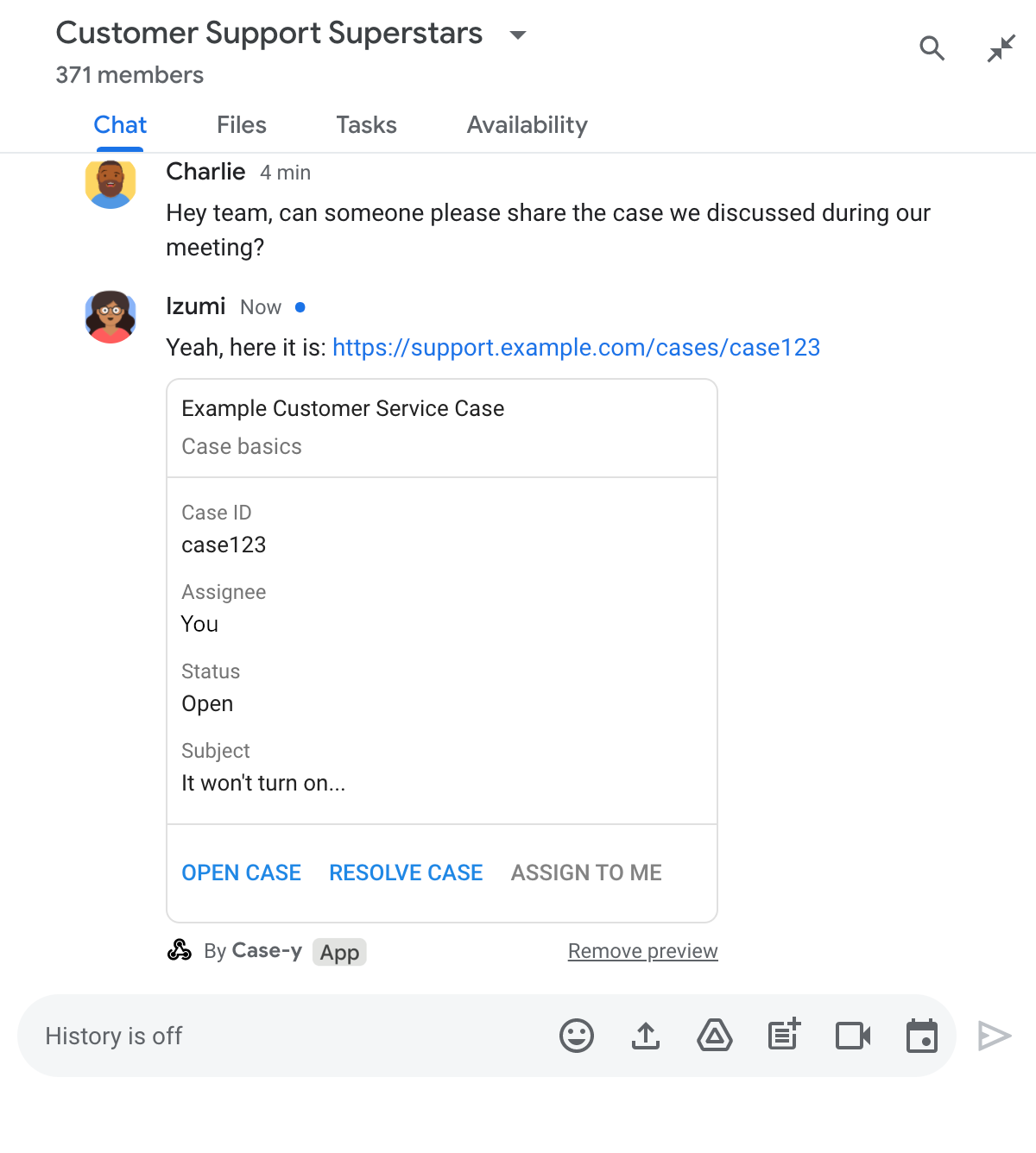
Aperçu d'un lien dans une application de chat avec une version mise à jour d'une fiche jointe à un message

Node.js

node/chat/preview-link/index.js
/**
 * Respond to clicks by assigning and updating the card that's attached to a
 * message previewed link of the pattern "support.example.com".
 *
 * @param {Object} chatMessage The chat message object from Google Workspace Add On event.
 * @return {Object} Action response depending on the message author.
 */
function handleCardClick(chatMessage) {
  // Creates the updated card that displays "You" for the assignee
  // and that disables the button.
  //
  // A hard-coded card is used in this example. In a real-life scenario,
  // an actual assign action would be performed before building the card.
  const message = { cardsV2: [{
    cardId: 'attachCard',
    card: {
      header: {
        title: 'Example Customer Service Case',
        subtitle: 'Case basics',
      },
      sections: [{ widgets: [
        { decoratedText: { topLabel: 'Case ID', text: 'case123'}},
        // The assignee is now "You"
        { decoratedText: { topLabel: 'Assignee', text: 'You'}},
        { decoratedText: { topLabel: 'Status', text: 'Open'}},
        { decoratedText: { topLabel: 'Subject', text: 'It won\'t turn on...' }},
        { buttonList: { buttons: [{
          text: 'OPEN CASE',
          onClick: { openLink: {
            url: 'https://support.example.com/orders/case123'
          }},
        }, {
          text: 'RESOLVE CASE',
          onClick: { openLink: {
            url: 'https://support.example.com/orders/case123?resolved=y',
          }},
        }, {
          text: 'ASSIGN TO ME',
          // The button is now disabled
          disabled: true,
          onClick: { action: { function: FUNCTION_URL }}
        }]}}
      ]}]
    }
  }]};

  // Use the adequate action response type. It depends on whether the message
  // the preview link card is attached to was created by a human or a Chat app.
  if(chatMessage.sender.type === 'HUMAN') {
    return { hostAppDataAction: { chatDataAction: { updateInlinePreviewAction: message }}};
  } else {
    return { hostAppDataAction: { chatDataAction: { updateMessageAction: message }}};
  }
}

Remplacez FUNCTION_URL par le point de terminaison HTTP qui gère les clics sur les boutons.

Python

python/chat/preview-link/main.py
def handle_card_click(chatMessage: dict) -> dict:
  """Respond to clicks by assigning and updating the card that's attached to a
  message previewed link of the pattern "support.example.com".

  - Reply with text messages that echo "text.example.com" link URLs in messages.
  - Attach cards to messages with "support.example.com" link URLs.

  Args:
      chatMessage (Mapping[str, Any]): The chat message object from Google Workspace Add On event.

  Returns:
      Mapping[str, Any]: Action response depending on the message author.
  """
  # Creates the updated card that displays "You" for the assignee
  # and that disables the button.
  #
  # A hard-coded card is used in this example. In a real-life scenario,
  # an actual assign action would be performed before building the card.
  message = { 'cardsV2': [{
    'cardId': 'attachCard',
    'card': {
      'header': {
        'title': 'Example Customer Service Case',
        'subtitle': 'Case basics',
      },
      'sections': [{ 'widgets': [
      { 'decoratedText': { 'topLabel': 'Case ID', 'text': 'case123'}},
      # The assignee is now "You"
      { 'decoratedText': { 'topLabel': 'Assignee', 'text': 'You'}},
      { 'decoratedText': { 'topLabel': 'Status', 'text': 'Open'}},
      { 'decoratedText': { 'topLabel': 'Subject', 'text': 'It won\'t turn on...' }},
      { 'buttonList': { 'buttons': [{
        'text': 'OPEN CASE',
        'onClick': { 'openLink': {
          'url': 'https://support.example.com/orders/case123'
        }},
      }, {
        'text': 'RESOLVE CASE',
        'onClick': { 'openLink': {
          'url': 'https://support.example.com/orders/case123?resolved=y',
        }},
      }, {
        'text': 'ASSIGN TO ME',
        # The button is now disabled
        'disabled': True,
        'onClick': { 'action': { 'function': FUNCTION_URL }}
      }]}}
      ]}]
    }
  }]}

  # Use the adequate action response type. It depends on whether the message
  # the preview link card is attached to was created by a human or a Chat app.
  if chatMessage.get('sender').get('type') == 'HUMAN':
    return { 'hostAppDataAction': { 'chatDataAction': { 'updateInlinePreviewAction': message }}}
  else:
    return { 'hostAppDataAction': { 'chatDataAction': { 'updateMessageAction': message }}}

Remplacez FUNCTION_URL par le point de terminaison HTTP qui gère les clics sur les boutons.

Java

java/chat/preview-link/src/main/java/com/google/chat/previewLink/App.java
/**
 * Respond to clicks by assigning and updating the card that's attached to a
 * message previewed link of the pattern "support.example.com".
 *
 * @param chatMessage The chat message object from Google Workspace Add On event.
 * @return Action response depending on the message author.
 */
GenericJson handleCardClick(JsonNode chatMessage) {
  // Creates the updated card that displays "You" for the assignee
  // and that disables the button.
  //
  // A hard-coded card is used in this example. In a real-life scenario,
  // an actual assign action would be performed before building the card.
  Message message = new Message().setCardsV2(List.of(new CardWithId()
    .setCardId("attachCard")
    .setCard(new GoogleAppsCardV1Card()
      .setHeader(new GoogleAppsCardV1CardHeader()
        .setTitle("Example Customer Service Case")
        .setSubtitle("Case basics"))
      .setSections(List.of(new GoogleAppsCardV1Section().setWidgets(List.of(
        new GoogleAppsCardV1Widget().setDecoratedText(new GoogleAppsCardV1DecoratedText()
          .setTopLabel("Case ID")
          .setText("case123")),
        // The assignee is now "You"
        new GoogleAppsCardV1Widget().setDecoratedText(new GoogleAppsCardV1DecoratedText()
          .setTopLabel("Assignee")
          .setText("You")),
        new GoogleAppsCardV1Widget().setDecoratedText(new GoogleAppsCardV1DecoratedText()
          .setTopLabel("Status")
          .setText("Open")),
        new GoogleAppsCardV1Widget().setDecoratedText(new GoogleAppsCardV1DecoratedText()
          .setTopLabel("Subject")
          .setText("It won't turn on...")),
        new GoogleAppsCardV1Widget().setButtonList(new GoogleAppsCardV1ButtonList()
          .setButtons(List.of(
            new GoogleAppsCardV1Button()
              .setText("OPEN CASE")
              .setOnClick(new GoogleAppsCardV1OnClick()
                .setOpenLink(new GoogleAppsCardV1OpenLink()
                  .setUrl("https://support.example.com/orders/case123"))),
            new GoogleAppsCardV1Button()
              .setText("RESOLVE CASE")
              .setOnClick(new GoogleAppsCardV1OnClick()
                .setOpenLink(new GoogleAppsCardV1OpenLink()
                  .setUrl("https://support.example.com/orders/case123?resolved=y"))),
            new GoogleAppsCardV1Button()
              .setText("ASSIGN TO ME")
              // The button is now disabled
              .setDisabled(true)
              .setOnClick(new GoogleAppsCardV1OnClick()
                .setAction(new GoogleAppsCardV1Action().setFunction(FUNCTION_URL)))
          ))
        )
      ))))
    )
  ));

  // Use the adequate action response type. It depends on whether the message
  // the preview link card is attached to was created by a human or a Chat app.
  if("HUMAN".equals(chatMessage.at("/sender/type").asText())) {
    return new GenericJson() {{
      put("hostAppDataAction", new GenericJson() {{
        put("chatDataAction", new GenericJson() {{
          put("updateInlinePreviewAction", message);
        }});
      }});
    }};
  } else {
    return new GenericJson() {{
      put("hostAppDataAction", new GenericJson() {{
        put("chatDataAction", new GenericJson() {{
          put("updateMessageAction", message);
        }});
      }});
    }};
  }
}

Remplacez FUNCTION_URL par le point de terminaison HTTP qui gère les clics sur les boutons.

Apps Script

apps-script/chat/preview-link/preview-link.gs
/**
 * Assigns and updates the card that's attached to a message with a
 * previewed link of the pattern "support.example.com".
 *
 * @param {Object} event The event object from the Google Workspace add-on.
 * @return {Object} Action response depending on the message author.
 */
function assign(event) {
  // Creates the updated card that displays "You" for the assignee
  // and that disables the button.
  //
  // A hard-coded card is used in this example. In a real-life scenario,
  // an actual assign action would be performed before building the card.
  const message = { cardsV2: [{
    cardId: 'attachCard',
    card: {
      header: {
        title: 'Example Customer Service Case',
        subtitle: 'Case summary',
      },
      sections: [{ widgets: [
        { decoratedText: { topLabel: 'Case ID', text: 'case123'}},
        // The assignee is now "You"
        { decoratedText: { topLabel: 'Assignee', text: 'You'}},
        { decoratedText: { topLabel: 'Status', text: 'Open'}},
        { decoratedText: { topLabel: 'Subject', text: 'It won\'t turn on...' }},
        { buttonList: { buttons: [{
          text: 'OPEN CASE',
          onClick: { openLink: {
            url: 'https://support.example.com/orders/case123'
          }},
        }, {
          text: 'RESOLVE CASE',
          onClick: { openLink: {
            url: 'https://support.example.com/orders/case123?resolved=y',
          }},
        }, {
          text: 'ASSIGN TO ME',
          // The button is now disabled
          disabled: true,
          onClick: { action: { function: 'assign'}}
        }]}}
      ]}]
    }
  }]};

  // Use the adequate action response type. It depends on whether the message
  // the preview link card is attached to was created by a human or a Chat app.
  if(event.chat.buttonClickedPayload.message.sender.type === 'HUMAN') {
    return { hostAppDataAction: { chatDataAction: { updateInlinePreviewAction: message }}};
  } else {
    return { hostAppDataAction: { chatDataAction: { updateMessageAction: message }}};
  }
}

Limites et points à noter

Lorsque vous configurez les aperçus de liens pour votre application Chat, tenez compte des limites et points à noter suivants :

  • Chaque application Chat est compatible avec les aperçus de liens pour un maximum de cinq formats d'URL.
  • Les applications Chat prévisualisent un lien par message. Si plusieurs liens prévisualisables sont présents dans un même message, seul le premier lien prévisualisable est prévisualisé.
  • Les applications Chat ne prévisualisent que les liens commençant par https://. Par conséquent, https://support.example.com/cases/ est prévisualisé, mais pas support.example.com/cases/.
  • Sauf si le message inclut d'autres informations envoyées à l' application Chat, comme une commande à barre oblique, seule l'URL du lien est envoyée à l'application Chat par les aperçus de liens.
  • Si un utilisateur publie le lien, une application Chat ne peut mettre à jour la fiche d'aperçu de lien que si les utilisateurs interagissent avec la fiche, par exemple en cliquant sur un bouton. Vous ne pouvez pas appeler la méthode update() de l'API Chat sur la ressource Message pour mettre à jour le message d'un utilisateur de manière asynchrone.
  • Les applications Chat doivent prévisualiser les liens pour tous les membres de l'espace. Le message doit donc omettre le champ privateMessageViewer.

Lorsque vous implémentez des aperçus de liens, vous devrez peut-être déboguer votre application Chat en lisant ses journaux. Pour lire les journaux, accédez à l'explorateur de journaux dans la console Google Cloud.