

Page Summary
-
Google Chat apps use dialogs, card-based interfaces, to collect information from users in a multi-step process, triggered by user interactions like button clicks.
-
Dialogs are built using cards with sections for headers, widgets (like text fields and buttons), and actions, allowing for dynamic content and user input.
-
Data is transferred between dialog steps using parameters, enabling the app to maintain context and user progress.
-
Upon submission, the app processes the data, potentially sending a confirmation message and closing the dialog, or presenting another dialog for further interaction.
-
Developers can use provided code snippets in Node.js, Python, Java, and Apps Script to implement dialog functionality and handle user interactions within their Google Chat apps.
This page describes how a Google Chat app can open dialogs to display user interfaces (UIs) and respond to users.
Dialogs are windowed, card-based interfaces that open from a Chat space or message. The dialog and its contents are only visible to the user who opened it.
Chat apps can use dialogs to request and collect information from Chat users, including multi-step forms. For more details on building form inputs, see Collect and process information from users.
Prerequisites
HTTP
A Google Chat app that receives and responds to user interactions. To build one, complete the HTTP quickstart.
Apps Script
A Google Chat app that receives and responds to user interactions. To build one, complete the Apps Script quickstart.
Open a dialog
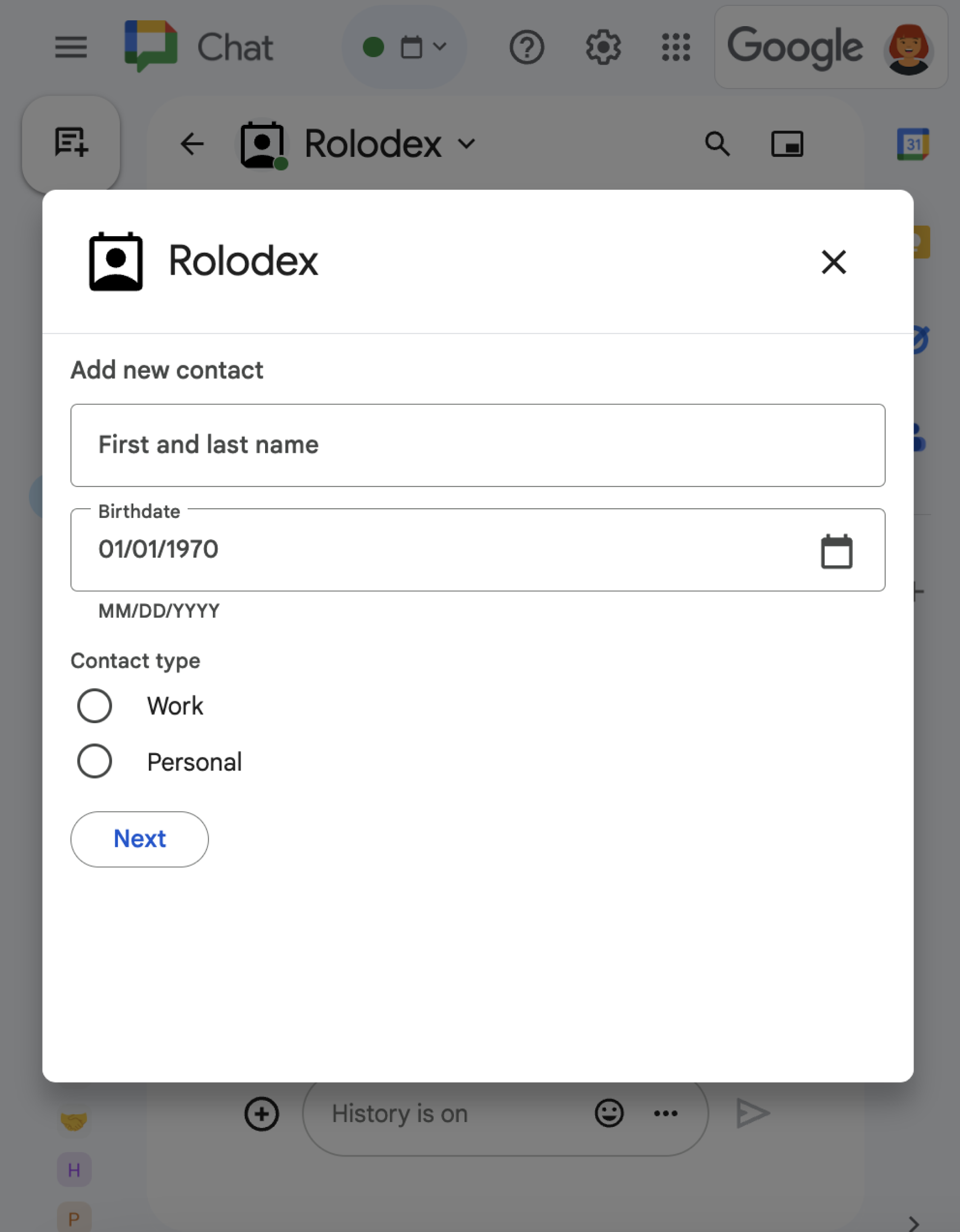
This section explains how to respond and set up a dialog by doing the following:
- Trigger the dialog request from a user interaction.
- Handle the request by returning and opening a dialog.
- After users submit information, process the submission by either closing the dialog or returning another dialog.
Trigger a dialog request
A Chat app can only open dialogs to respond to a user interaction, such as a command or a button click from a message in a card.
To respond to users with a dialog, a Chat app must build an interaction that triggers the dialog request, such as the following:
- Respond to a command. To trigger the request from a command, you must check the Opens a dialog checkbox when configuring the command.
- Respond to a button click in a
message,
either as part of a card or at the bottom of the message. To trigger the
request from a button in a message, you configure the
button's
onClickaction by setting itsinteractiontoOPEN_DIALOG. - Respond to a button click in a Chat app homepage. To learn about opening dialogs from homepages, see Build a homepage for your Google Chat app.
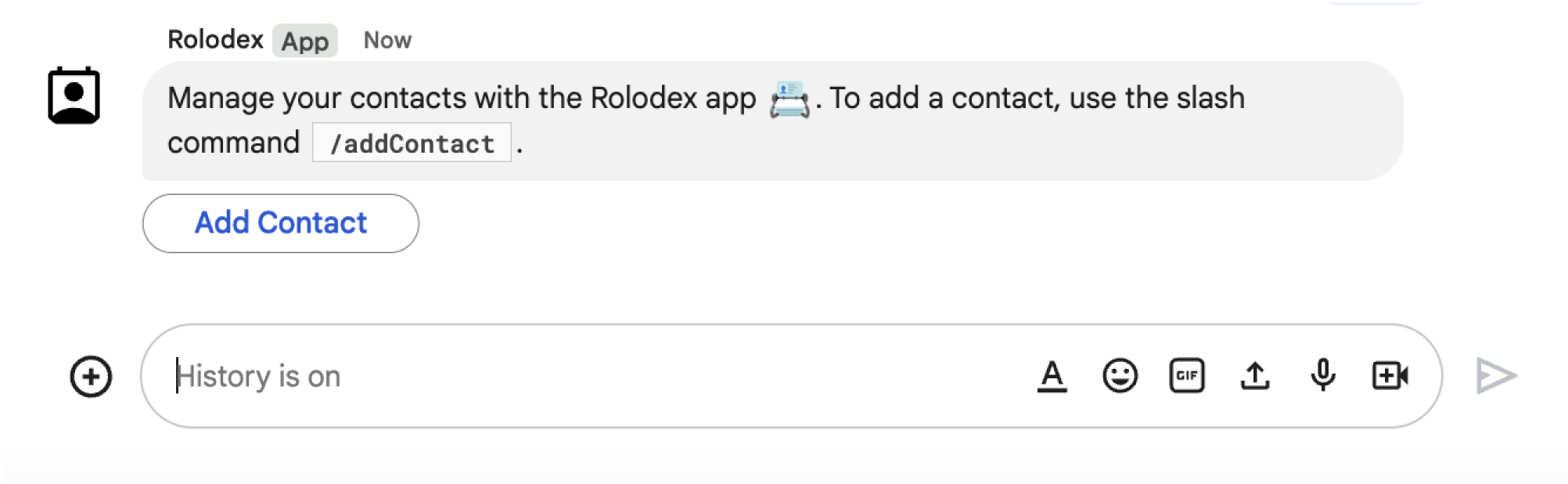
/addContact slash command. The message also includes a button that users can click to trigger the command.
The following code sample shows how to trigger a dialog request from a button in
a card message. To open the dialog, set the field
onClick.action.interaction
of the button to OPEN_DIALOG:
Node.js
Replace FUNCTION_URL with the HTTP endpoint that handles
the button clicks.
Python
Replace FUNCTION_URL with the HTTP endpoint that handles
the button clicks.
Java
Replace FUNCTION_URL with the HTTP endpoint that handles
the button clicks.
Apps Script
This example sends a card message by returning card JSON. You can also use the Apps Script card service.
Open the initial dialog
When a user triggers a dialog request, your Chat app
receives an
event object with
a payload that specifies a dialogEventType object as REQUEST_DIALOG.
To open a dialog, your Chat app can respond to the
request by returning a
RenderActions
object with the navigation pushCard to display a card. The card should contain
any user interface (UI) elements, including one or more
sections[]
of widgets. To collect information from users, you can specify form input
widgets and a button widget. To learn more about designing form inputs, see
Collect and process information from users.
The following code sample shows how a Chat app returns a response that opens a dialog:
Node.js
Replace FUNCTION_URL with the HTTP endpoint that handles
the button clicks.
Python
Replace FUNCTION_URL with the HTTP endpoint that handles
the button clicks.
Java
Replace FUNCTION_URL with the HTTP endpoint that handles
the button clicks.
Apps Script
This example sends a card message by returning card JSON. You can also use the Apps Script card service.
Handle the dialog submission
When users click a button that submits a dialog, your
Chat app receives an event object with a
buttonClickedPayload
object. In the payload, the dialogEventType is set to SUBMIT_DIALOG. To
understand how to collect and process the information in the dialog, see
Collect and process information from Google Chat users.
Your Chat app must respond to the event object by doing one of the following:
- Return another dialog to populate another card or form.
- Close the dialog after validating the data the user submitted, and optionally, send a confirmation message.
Optional: Return another dialog
After users submit the initial dialog, Chat apps can return one or more additional dialogs to help users review information before submitting, complete multi-step forms, or populate form content dynamically.
To process the data that users input, the Chat app
handles the data in the event's
commonEventObject.formInputs
object. To learn more about retrieving values from input widgets, see
Collect and process information from users.
To keep track of any data that users input from the initial dialog, you must add parameters to the button that opens the next dialog. For details, see Transfer data to another card.
In this example, a Chat app opens an initial dialog that leads to a second dialog for confirmation before submitting:
Node.js
Replace FUNCTION_URL with the HTTP endpoint that handles
the button clicks.
Python
Replace FUNCTION_URL with the HTTP endpoint that handles
the button clicks.
Java
Replace FUNCTION_URL with the HTTP endpoint that handles
the button clicks.
Apps Script
This example sends a card message by returning card JSON. You can also use the Apps Script card service.
Close the dialog
When users click a submit button on a dialog, your
Chat app executes its associated action and provides
the event object with buttonClickedPayload set to the following:
isDialogEventistrue.dialogEventTypeisSUBMIT_DIALOG.
The Chat app should return a
RenderActions
object with
endNavigation
set to CLOSE_DIALOG (endNavigation: "CLOSE_DIALOG").
Optional: Display a temporary notification
When you close the dialog, you can also display a temporary text notification to the user who is interacting with the app.
To display a notification, return the
RenderActions
object with the field notification set.
The following example closes the dialog with a text notification:
Node.js
Python
Java
Apps Script
This example sends a card message by returning card JSON. You can also use the Apps Script card service.
For details about passing parameters between dialogs, see Transfer data to another card.
Optional: Send a confirmation Chat message
When you close the dialog, you can also send a new Chat message, or update an existing one.
To send a new message, return a
DataActions
object with the field
CreateMessageAction set with the new message.
The following example closes the dialog by sending a new message:
Node.js
Python
Java
Apps Script
This example sends a card message by returning card JSON. You can also use the Apps Script card service.
To update a message after the user submits a dialog, return a DataActions
object that contains one of the following actions:
UpdateMessageAction: Updates a message sent by the Chat app, such as the message from which the user requested the dialog.UpdateInlinePreviewAction: Updates the card from a link preview.
Troubleshoot
When a Google Chat app or card returns an error, the Chat interface surfaces a message saying "Something went wrong." or "Unable to process your request." Sometimes the Chat UI doesn't display any error message, but the Chat app or card produces an unexpected result; for example, a card message might not appear.
Although an error message might not display in the Chat UI, descriptive error messages and log data are available to help you fix errors when error logging for Chat apps is turned on. For help viewing, debugging, and fixing errors, see Troubleshoot and fix Google Chat errors.
Related topics
- View the Contact Manager sample, which is a Chat app that uses dialogs to collect contact information.
- Open dialogs from a Google Chat app homepage.
- Respond to Google Chat app commands
- Process information inputted by users
Chat apps that aren't add-ons: Open interactive dialogs
The following documentation applies to Chat apps that aren't Google Workspace add-ons. To migrate a Chat app that isn't an add-on, see Convert a Google Chat app to a Google Workspace add-on.
Trigger a dialog request
The following code sample shows how a Chat app that
isn't an add-on
triggers a dialog request from a button in a card message. To open the dialog,
the
button.interaction
field is set to OPEN_DIALOG:
Node.js
Python
Java
Apps Script
This example sends a card message by returning card JSON. You can also use the Apps Script card service.
Open the initial dialog
When a user triggers a dialog request, a Chat app that
isn't an add-on
receives an interaction event, represented as an
event type in the
Chat API. If the interaction triggers a dialog request, the event's
dialogEventType field is set to REQUEST_DIALOG.
To open a dialog, a Chat app that isn't an
add-on can respond to the
request by returning an
actionResponse
object with type: "DIALOG" and a
Message
object. To specify the contents of the dialog, you include the following
objects:
- An
actionResponseobject, with itstypeset toDIALOG. - A
dialogActionobject. Thebodyfield contains the user interface (UI) elements to display in the card, including one or moresectionsof widgets. To collect information from users, you can specify form input widgets and a button widget.
The following code sample shows how a Chat app that isn't an add-on returns a response that opens a dialog:
Node.js
Python
Java
Apps Script
This example sends a card message by returning card JSON. You can also use the Apps Script card service.
Handle the dialog submission
When users click a button that submits a dialog, a
Chat app that isn't an add-on
receives
a CARD_CLICKED interaction
event where the
dialogEventType
is SUBMIT_DIALOG.
Optional: Return another dialog
To process the data that users input in a Chat app that
isn't an add-on, the Chat app
uses the
event.common.formInputs
object.
In this example, a Chat app that isn't an add-on opens an initial dialog that leads to a second dialog for confirmation before submitting:
Node.js
Python
Java
Apps Script
This example sends a card message by returning card JSON. You can also use the Apps Script card service.
Close the dialog
When users click a button on a dialog, a Chat app that isn't an add-on executes its associated action and provides the event object with the following information:
eventTypeisCARD_CLICKED.dialogEventTypeisSUBMIT_DIALOG.
The Chat app that isn't an
add-on should return an
ActionResponse
object with its type set to DIALOG, and dialogAction populated. If the
action did not fail, then the dialogAction.actionStatus should be OK as in
the following example:
Node.js
Python
Java
Apps Script
This example sends a card message by returning card JSON. You can also use the Apps Script card service.
Optional: Display a temporary notification
A Chat app that isn't an
add-on can respond with a success or error
notification by returning an
ActionResponse
with actionStatus set.
The following example checks that parameters are valid and closes the dialog with a text notification when invalid:
Node.js
Python
Java
Apps Script
This example sends a card message by returning card JSON. You can also use the Apps Script card service.
Optional: Send a confirmation Chat message
To send a new message when closing a dialog in a
Chat app that isn't an add-on,
return an
ActionResponse
object with type: "NEW_MESSAGE". The following example closes the
dialog with a confirmation text message:
Node.js
Python
Java
Apps Script
This example sends a card message by returning card JSON. You can also use the Apps Script card service.
To update a message, return an actionResponse object that contains the
updated message and sets the type to one of the following:
UPDATE_MESSAGE: Updates the message that triggered the dialog request.UPDATE_USER_MESSAGE_CARDS: Updates the card from a link preview.