

Page Summary
-
Every Google Chat app needs its own Google Cloud project with the Chat API enabled and configured, following specific prerequisites.
-
Chat apps require a display name, avatar URL, and description, which are visible to users and used by Chat for attributions.
-
The Chat API is configured in the Google Cloud console, where you can set the app's details, enable/disable interactive features, and optionally enable error logging.
-
Access to the Chat app configuration page can be granted to other users via specific Google Cloud IAM roles.
Each Google Chat app that you create requires its own Google Cloud project with the Chat API enabled and configured.
To perform read-only API calls with user authentication, like getting spaces and listing messages, you only need to enable the API and create an OAuth client.
To perform create, update, and delete API calls, or to deploy and test an interactive Chat app (built as a Google Workspace add-on that extends Chat), you must also configure the Chat API. The Chat API configuration settings are where you specify all the details about the Chat app, including its display name, avatar, deployment endpoints, and interactive features.
Prerequisites
- A Business or Enterprise Google Workspace account with access to Google Chat.
- Create a Google Cloud project.
- Configure the OAuth consent screen.
- Enable the Google Chat API.
Choose a display name, avatar, and description for your Chat app
When you enable the Chat API, you configure the details about your Chat app that appear to users in Chat, including a display name, avatar, and description. These details only appear in Chat. To publish your Chat app to the Marketplace, you must also specify the details that appear in your Chat app's Marketplace listing.
Before you configure a Chat app, prepare the following information:
| Field | Description | Format |
|---|---|---|
| App name | The display name for the Chat app. | Up to 25 alphanumeric characters |
| Avatar URL | The image that displays as your Chat app's avatar. | An HTTPS URL pointing to a square graphics image (PNG or JPEG). Recommended size is 256 by 256 pixels or more. |
| Description | A brief description of the purpose of the Chat app. | Up to 40 alphanumeric characters |
The Chat app's name, avatar, and description are displayed to users in the Chat UI. For some Chat API write requests, Chat uses this information to attribute the actions that a Chat app takes in Chat.
For example, if you call the spaces.create() method, Chat
includes the name of the Chat app in the
description of who created the space, as shown in the following image:
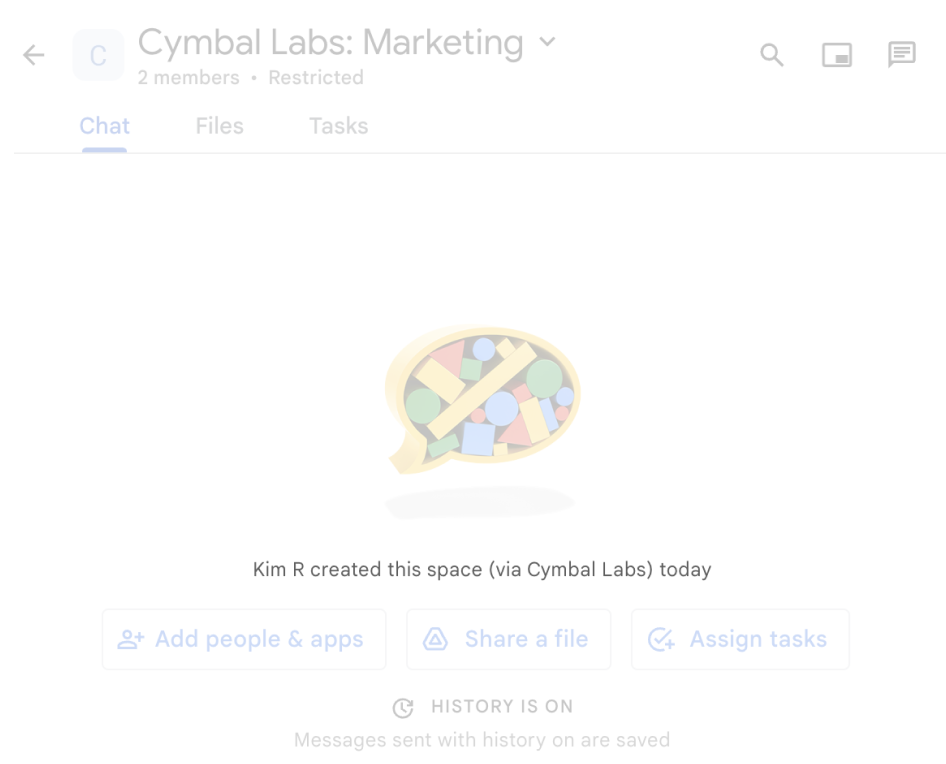
spaces.create() method is used to create a
space on behalf of a user.
To interact with Chat apps, users also see or use this information in the following ways:
- @mention the Chat app to add it to a space or send it a message.
- Find and start a direct message with the Chat app. In the Apps menu, direct messages display the Chat app's name and avatar.
- From the compose bar, users can browse Chat apps and see their name, avatar, and description.
Configure your Chat app in the Google Cloud console
When you have your Chat app details, open your Cloud project and configure the Chat API:
In the Google Cloud console, go to the Chat API page and click the Configuration page:
Under Application info, fill out the App name, Avatar URL, and Description fields.
Under Interactive features, configure whether your Chat app responds to user interactions:
To build an interactive Chat app, turn on Enable interactive features and complete the following:
- Under Functionality:
- Optional: Select Support App Home to display a homepage card in the Home tab of 1:1 direct messages with the Chat app.
- Select Join spaces and group conversations to make your Chat app available to install and use. By default, users can install and message with the Chat app in a dedicated space between the user and Chat app. Users can also add and interact with the Chat app in spaces with multiple people.
Under Connection settings, select the architecture that you want to use to receive event objects from Chat:
- To use an HTTP service, select HTTP endpoint URL and provide a URL.
- To use a Google Apps Script project, select Apps Script and provide a deployment ID for the project.
- To use a Dialogflow agent, select Dialogflow, select Dialogflow CX or Dialogflow ES, and provide the agent's resource name.
- To use Pub/Sub, select Cloud Pub/Sub and enter the topic name.
Optional: To route event objects to specific endpoints or functions, go to Connection settings > Triggers and provide or update the callback endpoints or functions for the following Chat triggers:
- App home (if Support App Home is enabled): A user opens the Home tab in a 1:1 direct message with the Chat app.
- Added to space: A user adds the Chat app to a group conversation or space, or installs the Chat app for 1:1 messages.
- Message: A user sends a message to the Chat app. For example, a user sends a direct message to the Chat app or @mentions the Chat app in a space with multiple people.
- Removed from space: A user uninstalls or removes the Chat app from a space.
- App command: A user invokes a quick command, slash command, or message action from the Chat app.
Optional: Add other interactive features such as starter prompts, commands (quick commands, slash commands, and message actions), or link previews.
Under Visibility, specify your email address so that you can install and test the Chat app before you publish to the Google Workspace Marketplace. You can specify up to five individuals, or one or more Google Groups from your Google Workspace organization.
- Under Functionality:
Optional: Under Logs, select the Log errors to Logging checkbox to use Google Cloud Logging. For more information, see Query error logs for Chat apps.
Click Save.
After you save the configuration, anyone that you specified in the Chat API's Visibility setting can install, test, or use the Chat app. To start testing and debugging your Chat app, see Test interactive features for Google Chat apps.
Considerations for existing Google Workspace add-ons
Chat apps require a different configuration compared to Google Workspace add-ons that extend other Google Workspace applications. If your add-on extends other Google Workspace applications, consider the following requirements for configuring the Chat app:
- Both individuals and Google Workspace administrators must be able to install your add-on from the Marketplace. You configure these installation settings in the Google Workspace Marketplace SDK.
- Chat apps don't use the name and logo that you configure
for other Google Workspace applications in the
addons.commonobject of the manifest. - For add-ons that are published to the Google Workspace Marketplace, you can't save a draft of any changes to the Google Chat API configuration settings. After you update and save the Chat API configuration settings, the updated Chat app is immediately available to all existing users. To update your Marketplace listing, you can create a draft before submitting any changes.
- If you built your add-on using
Apps Script:
- You must use the same Apps Script deployment ID that you use for the rest of your add-on configuration.
- You can't use the Apps Script editor to install test deployments in Chat. Instead, you must install them directly from the Chat UI.
- If you built your add-on using an HTTP service, omit any Chat app configuration details in the manifest and deployments that you create using the Google Workspace add-ons API. The HTTP deployments that you specify in the Google Workspace Marketplace SDK are only used for other Google Workspace applications.
Grant other people permission to configure the Chat API
You can give specific users access to the Chat app configuration page by granting them the Chat apps Owner or Chat apps Viewer Google Cloud Identity Access Management (IAM) role. Users with these roles can't navigate to the Chat apps configuration page by using the APIs & Services dashboard, but can access the configuration page by navigating to the Google Cloud console for the Chat app's host Cloud project as follows:
https://console.developers.google.com/apis/api/chat.googleapis.com/hangouts-chat?project=PROJECT_ID
Where PROJECT_ID is the project ID of the
Google Cloud project hosting the Chat app.
Related topics
- Choose a Chat app architecture
- Receive and respond to user interactions
- Test interactive features for Google Chat apps
Chat apps that aren't add-ons: Configure the Google Chat API
If you maintain a Chat app that isn't a Google Workspace add-on, your configuration uses a single endpoint for all interaction events rather than per-event triggers:
In the Google Cloud console, go to the Chat API Configuration page:
Under Interactive features, turn on Enable interactive features.
Clear Build this Chat app as a Google Workspace add-on. A dialog opens asking you to confirm. In the dialog, click Disable.
Under Functionality, select Support App Home or Join spaces and group conversations as needed.
Under Connection settings, specify a single endpoint for your Chat app (HTTP endpoint URL, Apps Script deployment ID, Cloud Pub/Sub topic name, or Dialogflow).
Configure optional Commands, Link previews, Visibility, and Logs, then click Save.
To upgrade a Chat app that isn't an add-on to a Google Workspace add-on that extends Google Chat, see Convert a Google Chat app to a Google Workspace add-on.