Once your integration is tested end to end in the sandbox, register your
application with Google to receive your signed production certificate and unique
relying party metadata (gw_rp_metadata_bytes). This guide applies to Direct
Relying Parties—apps and websites verifying users for themselves.
Choose your path RP, Verifier Registrar, or In-Person
Steps on this page
Step A: Prepare your submission
Before going live in production, Google uses a certificate signing process where Google signs your certificate to establish trust. Gather the following three items:
- Your production Certificate Signing Request (CSR): Generated from your production P-256 / ECDSA private key.
- Your display assets:
- Display Name
- Logo URL (must comply with the Brand Guidelines)
- Privacy Policy URL
- Terms of Service URL
- Your end-to-end sandbox demonstration video: Recorded after completing Step 4.D: Record your end-to-end demonstration video.
Step B: Submit the intake form & accept the Terms of Service
Fill out and submit the Relying Party Onboarding Form.
Open Relying Party Onboarding Form
Step C: Review & receive your production credentials
Onboarding review typically takes 3–5 business days. Once approved, Google provides you with:
- Your signed production X.509 certificate.
- Your unique Base64URL-encoded metadata string (
gw_rp_metadata_bytes).
If you have not heard back after 5 business days, reach out to
wallet-identity-rp-support@google.com.
Step D: Switch your server & device to production
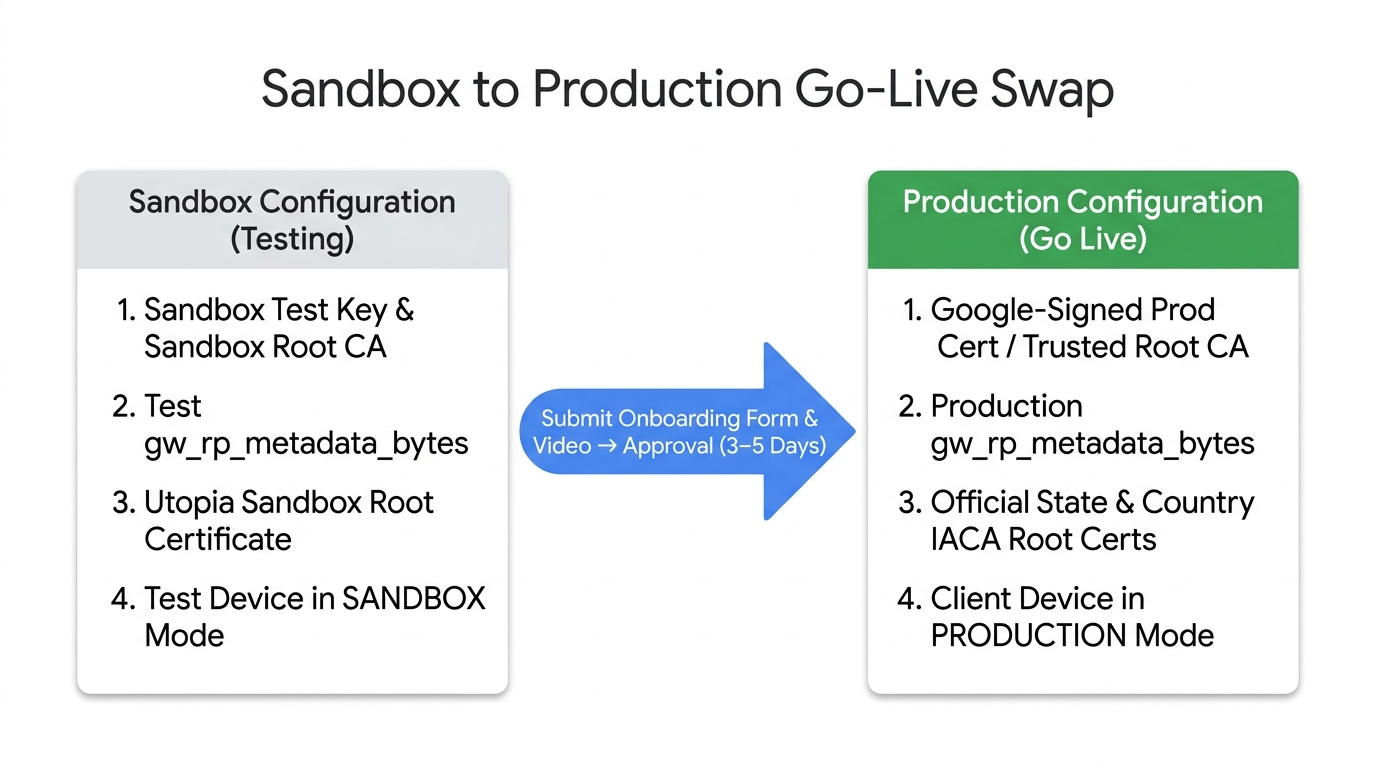
Update your verifier server and test device from sandbox to production:
- Replace your signing key and certificate: Sign OpenID4VP requests with
your production private key and include your Google-signed production
certificate in the JWS
x5cheader (Step 3.A). - Update
client_id: Recomputex509_hash:<base64url_sha256>from your production DER certificate. - Update
gw_rp_metadata_bytes: Replace the sandbox test metadata string inclient_metadatawith your productiongw_rp_metadata_bytes. - Configure production IACA root certificates: Ensure your server's trust
store validates
issuerAuthagainst the official production root certificates in Supported Issuers & IACA Certificates (and remove the Utopia Sandbox cert from production). - Switch your test device back to PRODUCTION: Follow Step 1.C: Switch back to production and verify the production flow.
Related resources
- Step 3: Integrate as a Relying Party
- Supported Issuers & IACA Certificates
- Relying Party Terms of Service
- Onboarding FAQ