By default, Google Wallet works in production mode with real Identities. You can reconfigure Google Wallet to work in sandbox mode. Requests are routed to Google's sandbox environment.
We recommend that you use sandbox mode during development and pre-production testing. Once you're ready, you can switch the device back to production mode.
Sandbox uptime
The sandbox environment doesn't have uptime SLAs like our production environment. If you encounter an error that you suspect is related to a sandbox outage, wait one United States business day before contacting us. Outages typically resolve themselves within that time period. Due to the potential for downtime, do not design any of your critical release processes to be dependent on the sandbox environment.
Enable and disable sandbox mode on an Android device
You can enable sandbox mode using the TapAndPay environment settings. To return to production mode, you follow the same steps outlined but select production instead of sandbox.
Use the TapAndPay environment settings
Execute the following steps to enable sandbox mode:
- Open the Settings app.
- Tap your Google Account / Profile Picture at the very top of the screen (it will say your name and "Google services and preferences").
- Choose your profile if given the option, then tap All services.
- Scroll to category Other and tap TapAndPay Environment. If you don't see TapAndPay Environment, reboot your device and start over from step 1.
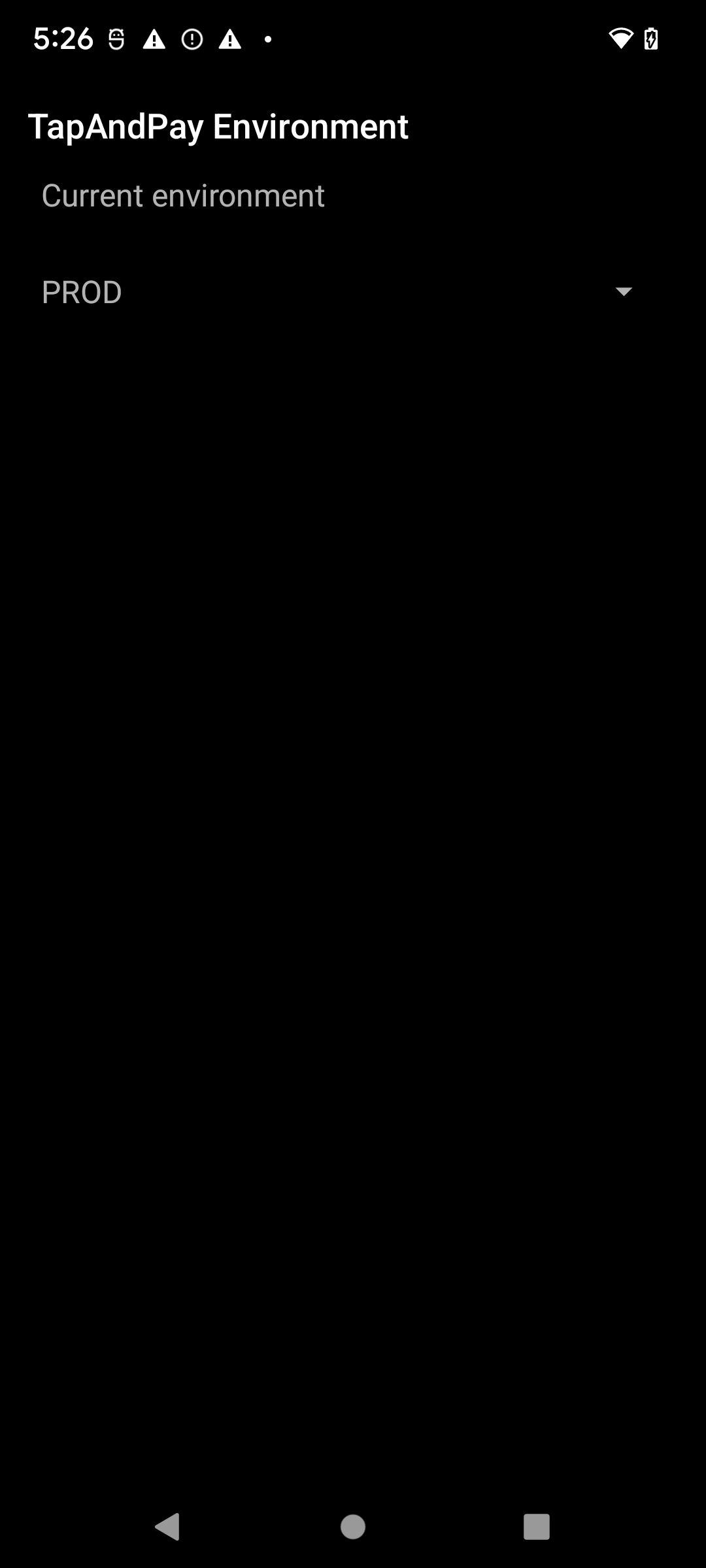
- Tap the drop-down menu and select SANDBOX.
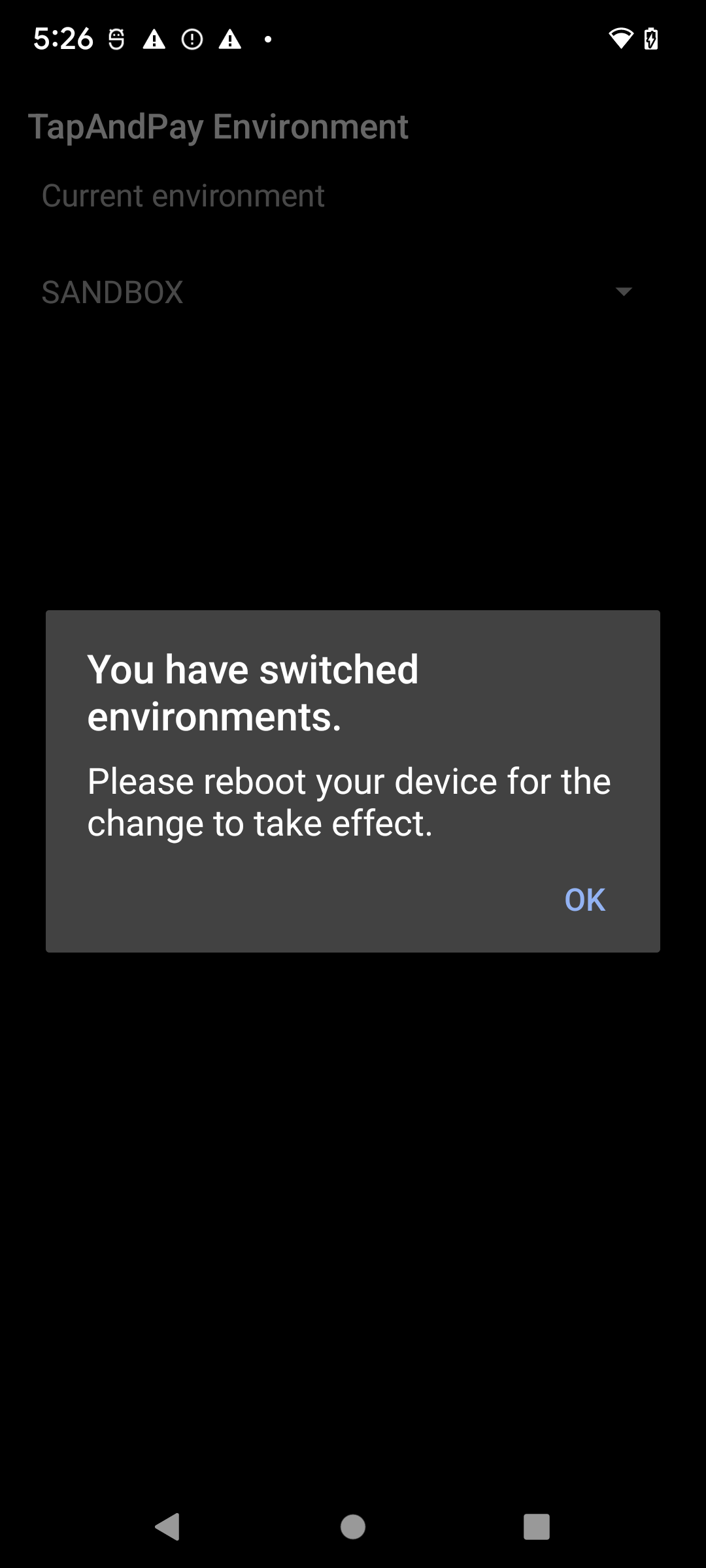
- You should see the following dialog notifying that the environment has changed. Tap OK and reboot your device.
Sync Google Wallet environment
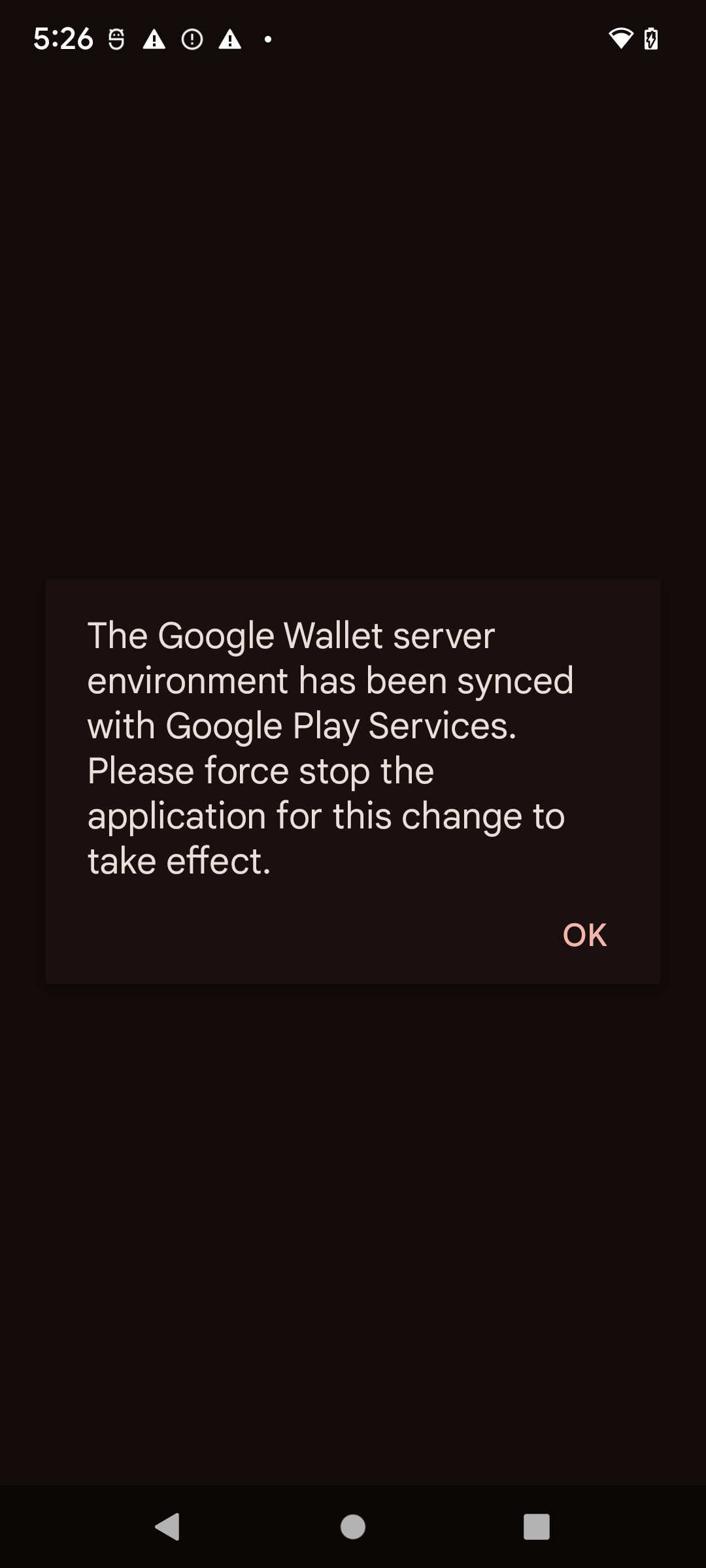
When you open Google Wallet after rebooting, you may see the following dialog , which will require you to force stop and reopen Google Wallet:
Enable and disable sandbox mode on a Wear OS device
To enable sandbox mode on a connected Wear OS device, add an empty file and reboot, as the following example shows:
adb shell touch /sdcard/Download/android_pay_env_override_sandboxadb reboot
To switch back to production mode on a connected Wear OS device, delete the file and reboot the device, as the following example shows:
adb shell rm /sdcard/Download/android_pay_env_override_sandboxadb reboot
Check if your Android device is in sandbox or production mode
To see if your Android device is in sandbox or production mode, execute the following steps
- Open the Google Wallet app .
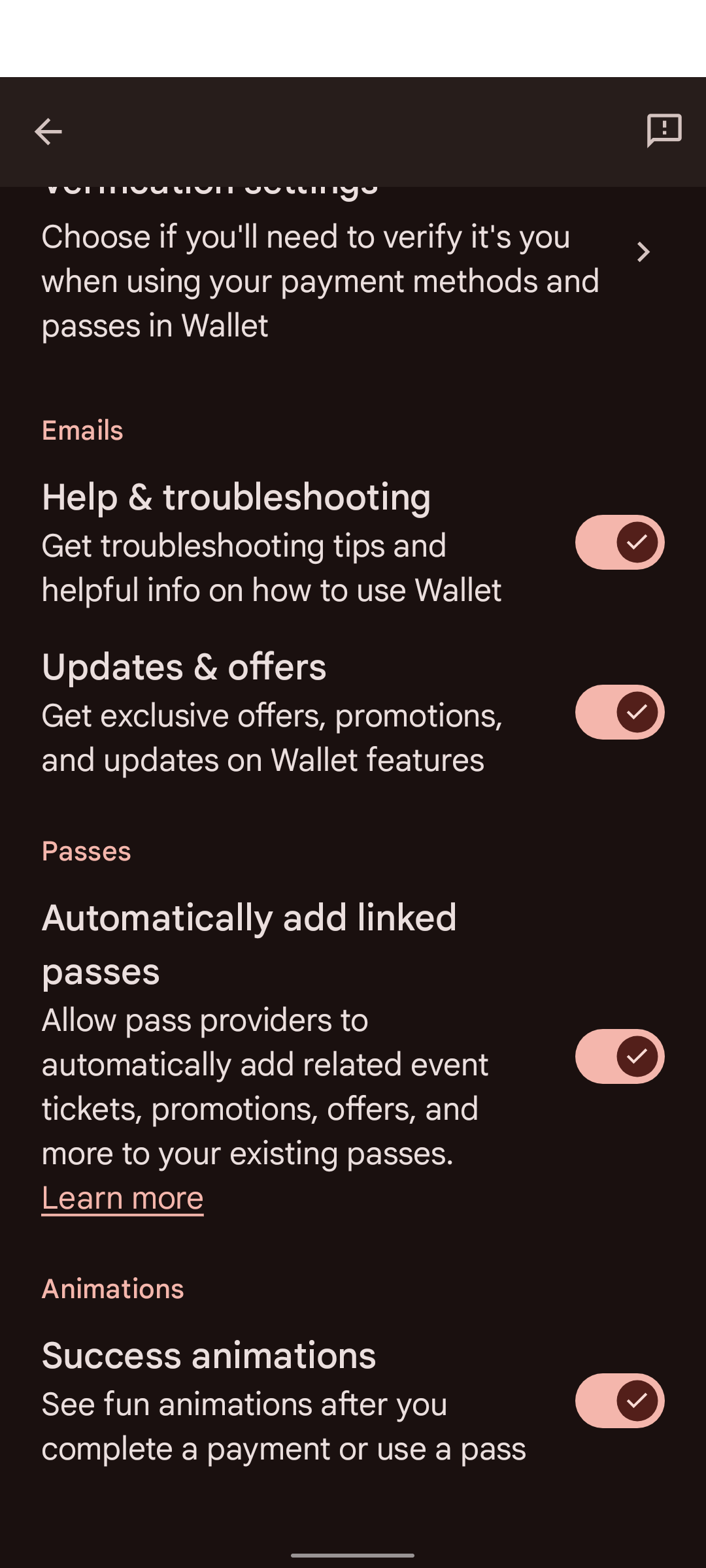
- At the top right, tap your profile picture or account > Wallet settings.
- Scroll to the bottom of page and if you see a confirmation message that says SANDBOX, you're configured to make sandbox calls. If you don't see a message, you're configured to make production calls.
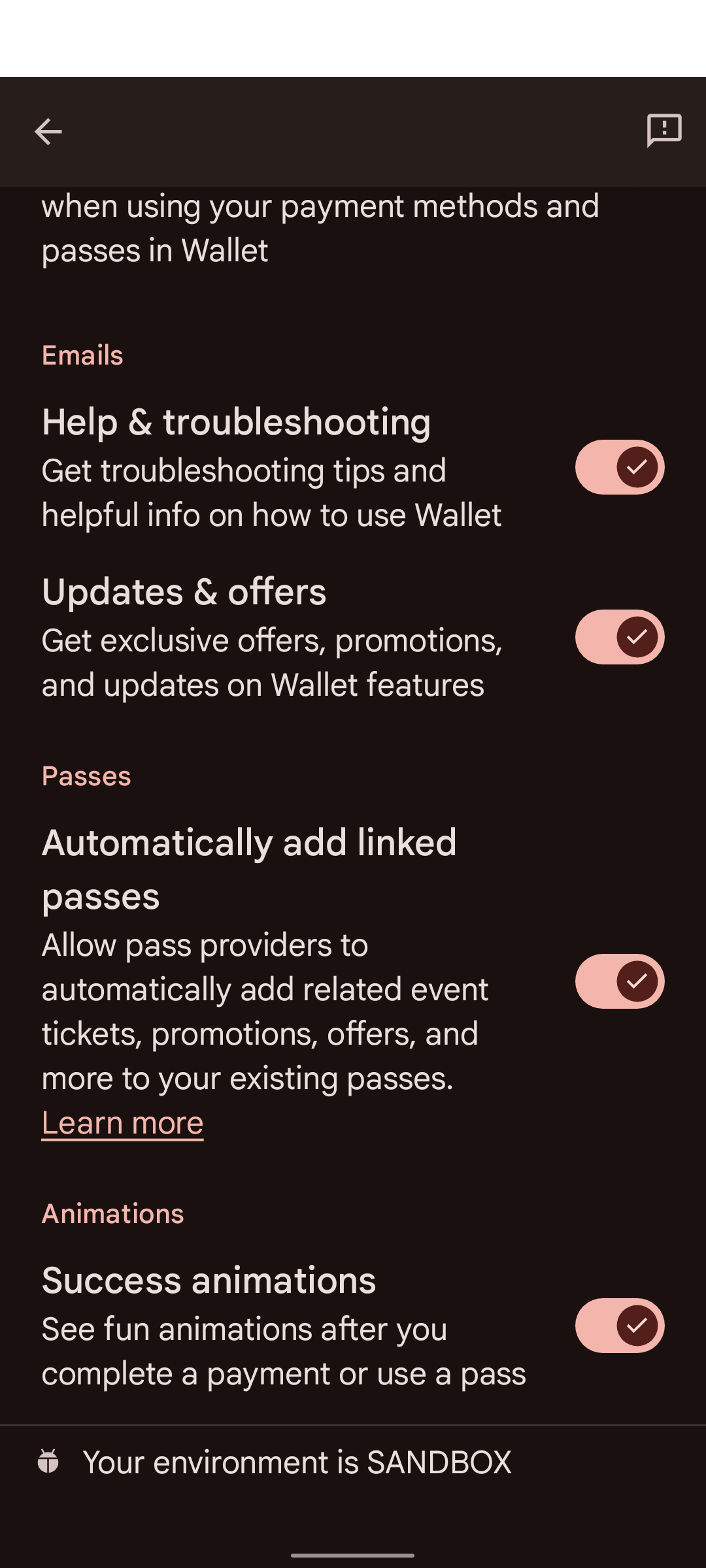
Some devices don't have Google Wallet in their Google Settings. In order to access Google Wallet Settings, you need to use adb with the following command:
adb shell am start -n com.google.android.gms/com.google.android.gms.tapandpay.settings.TapAndPaySettingsActivity
Testing Signed Requests in Sandbox
To test signed requests in the Sandbox environment without registering your own production keys, you can use the following test key pair. These keys are pre-trusted in the Sandbox environment.
Test Keys
Private Key (PEM):
-----BEGIN PRIVATE KEY-----
MIGHAgEAMBMGByqGSM49AgEGCCqGSM49AwEHBG0wawIBAQQggRmIZIHQhXcYIeZ7
KSqS/WwJrsOetdI8ZE4HG0fd+3uhRANCAAR3GR6mdt/NOErO7+XtKqo7orgXWPMI
jEQDeE1PP4KWXTBAhuewPvF8uOiYakz5Jqd1kEFKfiecZEZRrLnC7U+e
-----END PRIVATE KEY-----
Relying Party Metadata (Base64url CBOR):
2BhY56Juc2NoZW1hX3ZlcnNpb25idjFnZGlzcGxheaNsZGlzcGxheV9uYW1leBhURVNUIFVTRSBPTkxZIFNhbmRib3ggUlBobG9nb191cml4YWh0dHBzOi8vZm9udHMuZ3N0YXRpYy5jb20vcy9pL3Byb2R1Y3Rsb2dvcy9nb29nbGVnL3Y2L3dlYi02NGRwL2xvZ29fZ29vZ2xlZ19jb2xvcl8xeF93ZWJfNjRkcC5wbmdycHJpdmFjeV9wb2xpY3lfdXJpeCNodHRwczovL3BvbGljaWVzLmdvb2dsZS5jb20vcHJpdmFjeQ
Relying Party Metadata (CBOR Dump):
#24# .bstr

{
  "schema_version": "v1",
  "display": {
    "display_name": "TEST USE ONLY Sandbox RP",
    "logo_uri": "https://fonts.gstatic.com/s/i/productlogos/googleg/v6/web-64dp/logo_googleg_color_1x_web_64dp.png",
    "privacy_policy_uri": "https://policies.google.com/privacy"
  }
}
Public Certificate (PEM):
Certificate:
    Data:
        Version: 3 (0x2)
        Serial Number:
            97:99:aa:8b:09:93:5a:20:c1:8b:27:6c:e2:da:91:97:f2:b7:79:8d
        Signature Algorithm: ecdsa-with-SHA256
        Issuer: O=Google, OU=Wallet, CN=TEST USE ONLY Sandbox RP
        Validity
            Not Before: Jun  2 00:39:54 2026 GMT
            Not After : Jun  2 00:39:54 2027 GMT
        Subject: O=Google, OU=Wallet, CN=TEST USE ONLY Sandbox RP
        Subject Public Key Info:
            Public Key Algorithm: id-ecPublicKey
                Public-Key: (256 bit)
                pub:
                    04:77:19:1e:a6:76:df:cd:38:4a:ce:ef:e5:ed:2a:
                    aa:3b:a2:b8:17:58:f3:08:8c:44:03:78:4d:4f:3f:
                    82:96:5d:30:40:86:e7:b0:3e:f1:7c:b8:e8:98:6a:
                    4c:f9:26:a7:75:90:41:4a:7e:27:9c:64:46:51:ac:
                    b9:c2:ed:4f:9e
                ASN1 OID: prime256v1
                NIST CURVE: P-256
        X509v3 extensions:
            X509v3 Subject Key Identifier:
                29:CA:DA:07:9B:1F:68:FA:80:01:E1:68:E3:38:E8:5A:5C:28:B1:6A
            X509v3 Authority Key Identifier:
                29:CA:DA:07:9B:1F:68:FA:80:01:E1:68:E3:38:E8:5A:5C:28:B1:6A
            X509v3 Basic Constraints: critical
                CA:TRUE
            1.3.6.1.4.1.11129.10.1:
                . ...?..!H.Z\j...uT2. .u.:.O.... 0
    Signature Algorithm: ecdsa-with-SHA256
    Signature Value:
        30:46:02:21:00:91:94:fa:b9:85:82:92:bd:6a:98:44:73:ec:
        30:26:1f:92:01:8f:5b:06:d7:8f:21:34:dc:76:f0:89:3c:04:
        8c:02:21:00:ae:3e:9d:46:99:bd:63:7a:cc:59:30:66:48:d0:
        75:cc:c9:82:07:ca:39:f1:f0:df:2b:07:7b:32:b9:5b:3f:0a

-----BEGIN CERTIFICATE-----
MIICFDCCAbmgAwIBAgIVAJeZqosJk1ogwYsnbOLakZfyt3mNMAoGCCqGSM49BAMC
MEUxDzANBgNVBAoMBkdvb2dsZTEPMA0GA1UECwwGV2FsbGV0MSEwHwYDVQQDDBhU
RVNUIFVTRSBPTkxZIFNhbmRib3ggUlAwHhcNMjYwNjAyMDAzOTU0WhcNMjcwNjAy
MDAzOTU0WjBFMQ8wDQYDVQQKDAZHb29nbGUxDzANBgNVBAsMBldhbGxldDEhMB8G
A1UEAwwYVEVTVCBVU0UgT05MWSBTYW5kYm94IFJQMFkwEwYHKoZIzj0CAQYIKoZI
zj0DAQcDQgAEdxkepnbfzThKzu/l7SqqO6K4F1jzCIxEA3hNTz+Cll0wQIbnsD7x
fLjomGpM+SandZBBSn4nnGRGUay5wu1PnqOBhTCBgjAdBgNVHQ4EFgQUKcraB5sf
aPqAAeFo4zjoWlwosWowHwYDVR0jBBgwFoAUKcraB5sfaPqAAeFo4zjoWlwosWow
DwYDVR0TAQH/BAUwAwEB/zAvBgkrBgEEAdZ5CgEEIgQg5taUP70bIUiJWlxqkwYP
dVQyoyCvdaw62E8u4ASBIDAwCgYIKoZIzj0EAwIDSQAwRgIhAJGU+rmFgpK9aphE
c+wwJh+SAY9bBtePITTcdvCJPASMAiEArj6dRpm9Y3rMWTBmSNB1zMmCB8o58fDf
Kwd7MrlbPwo=
-----END CERTIFICATE-----
Instructions
- Use the test private key to sign your request (JWS).
- Embed the test public certificate in the
x5cheader of your request. - Set the
client_idto thex509_hashof this certificate. See Online Acceptance - Signed Requests for details on calculating the hash.