

Questa pagina descrive come configurare un webhook per inviare messaggi asincroni in uno spazio di Chat utilizzando trigger esterni. Ad esempio, puoi configurare un'applicazione di monitoraggio per inviare una notifica al personale di reperibilità su Chat quando un server è inattivo. Per inviare un messaggio sincrono con un'app di chat, vedi Inviare un messaggio.
Con questo tipo di architettura, gli utenti non possono interagire con il webhook o con l'applicazione esterna connessa perché la comunicazione è unidirezionale. I webhook non sono conversazionali. Non possono rispondere a o ricevere messaggi da utenti o eventi di interazione dell'app Chat. Per rispondere ai messaggi, crea un'app di chat anziché un webhook.
Anche se tecnicamente un webhook non è un'app di chat (i webhook collegano le applicazioni utilizzando richieste HTTP standard), questa pagina lo definisce un'app di chat per semplificare la terminologia. Ogni webhook funziona solo nello spazio di Chat in cui è registrato. I webhook in entrata funzionano nei messaggi diretti, ma solo quando tutti gli utenti hanno attivato le app di chat. Non puoi pubblicare webhook su Google Workspace Marketplace.
Il seguente diagramma mostra l'architettura di un webhook connesso a Chat:
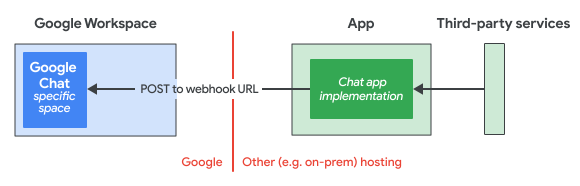
Nel diagramma precedente, un'app Chat ha il seguente flusso di informazioni:
- La logica dell'app Chat riceve informazioni da servizi esterni di terze parti, come un sistema di gestione dei progetti o uno strumento di gestione dei ticket.
- La logica dell'app di Chat è ospitata in un sistema cloud o on-premise in grado di inviare messaggi utilizzando un URL webhook a uno spazio di Chat specifico.
- Gli utenti possono ricevere messaggi dall'app di Chat in quello spazio di Chat specifico, ma non possono interagire con l'app di Chat.
Prerequisiti
Node.js
- Un account Google Workspace Business o Enterprise con accesso a Google Chat. La tua organizzazione Google Workspace deve consentire agli utenti di aggiungere e utilizzare i webhook in entrata.
- Node.js 14 o versioni successive
- Lo strumento di gestione pacchetti npm
- Uno spazio di Chat di Google. Per crearne uno utilizzando l'API Google Chat, consulta Crea uno spazio. Per crearne uno in Chat, visita la documentazione del Centro assistenza.
Python
- Un account Google Workspace Business o Enterprise con accesso a Google Chat. La tua organizzazione Google Workspace deve consentire agli utenti di aggiungere e utilizzare i webhook in entrata.
- Python 3.6 o versioni successive
- Lo strumento di gestione pacchetti pip
La libreria
httplib2. Per installare la libreria, esegui il seguente comando nell'interfaccia a riga di comando:pip install httplib2Uno spazio di Chat di Google. Per crearne uno utilizzando l'API Google Chat, consulta Crea uno spazio. Per crearne uno in Chat, visita la documentazione del Centro assistenza.
Java
- Un account Google Workspace Business o Enterprise con accesso a Google Chat. La tua organizzazione Google Workspace deve consentire agli utenti di aggiungere e utilizzare i webhook in entrata.
- Java 11 o versioni successive
- Lo strumento di gestione dei pacchetti Maven
- Uno spazio di Chat di Google. Per crearne uno utilizzando l'API Google Chat, consulta Crea uno spazio. Per crearne uno in Chat, visita la documentazione del Centro assistenza.
Apps Script
- Un account Google Workspace Business o Enterprise con accesso a Google Chat. La tua organizzazione Google Workspace deve consentire agli utenti di aggiungere e utilizzare i webhook in entrata.
- Crea un progetto Apps Script autonomo e attiva il servizio di chat avanzato.
- Uno spazio di Chat di Google. Per crearne uno utilizzando l'API Google Chat, consulta Crea uno spazio. Per crearne uno in Chat, visita la documentazione del Centro assistenza.
Crea un webhook
Per creare un webhook, registralo nello spazio di Chat in cui vuoi ricevere i messaggi, quindi scrivi uno script che invii i messaggi.
Registra il webhook in entrata
- In un browser, apri Chat. I webhook non sono configurabili dall'app mobile Chat.
- Vai allo spazio in cui vuoi aggiungere un webhook.
- Accanto al titolo dello spazio, fai clic sulla freccia di espansione Altro e poi su App e integrazioni.
Fai clic su Aggiungi webhook.
Nel campo Nome, inserisci
Quickstart Webhook.Nel campo URL avatar, inserisci
https://developers.google.com/chat/images/chat-product-icon.png.Fai clic su Salva.
Per copiare l'URL webhook, fai clic su Altro e poi su Copia link.
L'URL webhook contiene due parametri:
key, un valore comune condiviso tra i webhook, etoken, un valore univoco che deve essere mantenuto segreto per preservare la sicurezza del webhook.
Scrivere lo script webhook
Lo script webhook di esempio invia un messaggio allo spazio in cui il webhook è
registrato inviando una richiesta POST all'URL webhook. L'API
Chat risponde con un'istanza di
Message.
Seleziona una lingua per scoprire come creare uno script webhook:
Node.js
Nella directory di lavoro, crea un file denominato
index.js.In
index.js, incolla il seguente codice:Sostituisci il valore della variabile
urlcon l'URL webhook che hai copiato quando hai registrato il webhook.
Python
Nella directory di lavoro, crea un file denominato
quickstart.py.In
quickstart.py, incolla il seguente codice:Sostituisci il valore della variabile
urlcon l'URL webhook che hai copiato quando hai registrato il webhook.
Java
Nella directory di lavoro, crea un file denominato
pom.xml.In
pom.xml, copia e incolla quanto segue:Nella directory di lavoro, crea la seguente struttura di directory
src/main/java.Nella directory
src/main/java, crea un file denominatoApp.java.In
App.java, incolla il seguente codice:Sostituisci il valore della variabile
URLcon l'URL webhook che hai copiato quando hai registrato il webhook.
Apps Script
In un browser, vai a Apps Script.
Fai clic su Nuovo progetto.
Incolla il seguente codice:
Sostituisci il valore della variabile
urlcon l'URL webhook che hai copiato quando hai registrato il webhook.
Esegui lo script webhook
In una CLI, esegui lo script:
Node.js
node index.jsPython
python3 quickstart.pyJava
mvn compile exec:java -Dexec.mainClass=AppApps Script
- Fai clic su Esegui.
Quando esegui il codice, il webhook invia un messaggio allo spazio in cui lo hai registrato.
Avviare o rispondere a un thread di messaggi
Specifica
spaces.messages.thread.threadKeycome parte del corpo della richiesta di messaggio. A seconda che tu stia avviando o rispondendo a un thread, utilizza i seguenti valori perthreadKey:Se avvii un thread, imposta
threadKeysu una stringa arbitraria, ma prendi nota di questo valore per pubblicare una risposta al thread.Se rispondi a un thread, specifica il
threadKeyimpostato all'avvio del thread. Ad esempio, per pubblicare una risposta al thread in cui il messaggio iniziale utilizzavaMY-THREAD, impostaMY-THREAD.
Definisci il comportamento del thread se non viene trovato il
threadKeyspecificato:Rispondi a un thread o avvia un nuovo thread. Aggiungi il parametro
messageReplyOption=REPLY_MESSAGE_FALLBACK_TO_NEW_THREADall'URL del webhook. Il passaggio di questo parametro URL fa sì che Chat cerchi un thread esistente utilizzando ilthreadKeyspecificato. Se ne viene trovato uno, il messaggio viene pubblicato come risposta a quel thread. Se non viene trovato, il messaggio avvia un nuovo thread corrispondente a quelthreadKey.Rispondi a un thread o non fare nulla. Aggiungi il parametro
messageReplyOption=REPLY_MESSAGE_OR_FAILall'URL webhook. Il passaggio di questo parametro URL fa sì che Chat cerchi un thread esistente utilizzando ilthreadKeyspecificato. Se ne viene trovato uno, il messaggio viene pubblicato come risposta a quel thread. Se non viene trovato alcun contatto, il messaggio non viene inviato.
Per saperne di più, consulta
messageReplyOption.
Il seguente esempio di codice avvia o risponde a un thread di messaggi:
Node.js
Python
Java
Apps Script
Gestisci gli errori
Le richieste webhook possono non riuscire per una serie di motivi, tra cui:
- Richiesta non valida.
- Il webhook o lo spazio che lo ospita viene eliminato.
- Problemi intermittenti come la connettività di rete o i limiti di quota.
Quando crei il webhook, devi gestire gli errori in modo appropriato:
- Registrazione dell'errore.
- Per gli errori basati su tempo, quota o connettività di rete, riprova la richiesta con backoff esponenziale.
- Non fare nulla, il che è appropriato se l'invio del messaggio webhook non è importante.
L'API Google Chat restituisce gli errori come
google.rpc.Status,
che include un errore HTTP code che indica il tipo di errore riscontrato: un errore client (serie 400) o un errore del server (serie 500). Per
esaminare tutti i mapping HTTP, consulta
google.rpc.Code.
{
    "code": 503,
    "message": "The service is currently unavailable.",
    "status": "UNAVAILABLE"
}
Per scoprire come interpretare i codici di stato HTTP e gestire gli errori, consulta la sezione Errori.
Limitazioni e considerazioni
- Quando crei un messaggio
con un webhook nell'API Google Chat, la risposta non contiene il messaggio completo.
La risposta compila solo i campi
nameethread.name. - I webhook sono soggetti alla quota per spazio per
spaces.messages.create: 1 richiesta al secondo, condivisa tra tutti i webhook dello spazio. Chat potrebbe anche rifiutare le richieste webhook che superano 1 query al secondo nello stesso spazio. Per saperne di più sulle quote dell'API Chat, consulta Limiti di utilizzo.