

Page Summary
-
Google Chat apps respond to user interactions, like @mentions or button clicks, called interaction events (
ADDED_TO_SPACE,CARD_CLICKED, etc.). -
Configure your app to receive these events and define how it should respond (sending messages, updating data).
-
Responses can be immediate (synchronous) or delayed (asynchronous), depending on the task.
-
Dialogs within Chat apps have their own set of events for interactions like opening, submitting, or canceling.
-
Refer to the provided resources and examples to learn how to build interactive Google Chat apps.
This page describes how your Google Chat app can receive and respond to user interactions in Google Chat.
To build interactive interfaces for Chat apps, you use the following components:
- Triggers: The ways that Google Chat users can invoke a Chat app, such as adding it to a space or sending it a message.
- Event objects: The data that Chat apps receive from triggers or UI interactions.
- Actions: The ways that Chat apps can respond to interactions, such as sending messages or returning a card-based user interface.

Chat apps can build and display interfaces in the following ways:
- Messages that can contain text, static or interactive cards, and accessory buttons.
- Homepages (App Home) that appear in the Home tab of 1:1 direct messages with the Chat app.
- Dialogs, which are cards that open in a new window and typically prompt users to submit information.
- Link previews, which are cards that preview information about an external service.
Prerequisites
- A Business or Enterprise Google Workspace account with access to Google Chat.
- Create a Google Cloud project.
- Configure the OAuth consent screen.
- Enable and configure the Google Chat API.
How user interactions work
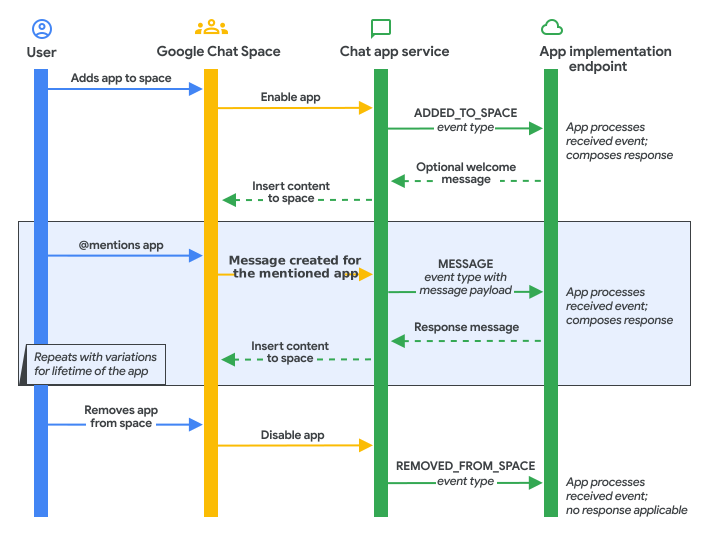
When a user interacts with a Chat app, Google Chat invokes a configured trigger and sends an event object to your Chat app's endpoint or function. Your Chat app processes the event object and can either return an action synchronously within 30 seconds or respond asynchronously using the Chat API.
The following diagram demonstrates how Google Chat apps process and respond to user interactions:
Triggers
Triggers are the specific ways that users invoke a Chat app using the Chat UI, such as using @mentions or app commands.
The following table shows Chat triggers, a description, and how Chat apps typically respond:
| Trigger | Description | Typical response |
|---|---|---|
| Added to space |
A user adds the Chat app to a space, or a Google Workspace administrator installs the Chat app in direct message spaces for users in their organization. To learn about Chat apps installed by administrators, see Install Marketplace apps in your domain in the Google Workspace Admin Help documentation. |
The Chat app sends an onboarding message that explains what it does and how users in the space can interact with it. |
| Message |
A user interacts with the Chat app in a message in one of the following ways:
|
The Chat app responds based on the content of the message. For example, a Chat app replies with a message, attaches a link preview card, or suggests items in a multiselect menu. |
| Removed from space |
A user removes the Chat app from a space, or a Google Workspace administrator uninstalls the Chat app for a user in their organization. Users can't remove Chat apps that were installed by their administrator. If a user had previously installed the Chat app, the Chat app remains installed regardless of whether a Google Workspace administrator tries to uninstall it. |
The Chat app removes any incoming notifications configured for the space (such as deleting a webhook) and clears up any internal storage. Chat apps can't respond with messages to this trigger because they're no longer a member of the space. |
| App command |
A user invokes a Chat app command (such as a slash command, quick command, or message action). |
The Chat app responds to the command. For example, it replies with a message or opens a dialog. |
| App Home |
A user opens the Home tab in a 1:1 direct message (DM) space with the Chat app, or interacts with a widget on the homepage card. |
The Chat app returns a
RenderActions object that pushes a homepage card
(pushCard) or updates the displayed homepage card
(updateCard).
|
You configure the endpoints or callback functions for these triggers in the Google Cloud console on the Chat API Configuration page. For step-by-step instructions, see Configure the Google Chat API.
Configure starter prompts
Starter prompts help users discover your Chat app's functionality when they open an empty 1:1 direct message with your app. You can configure up to three starter prompts.
To add and configure starter prompts:
In the Google Cloud console, go to the Chat API Configuration page:
Under Interactive features, locate Starter prompts and click Add a prompt.
In the Rank (1-3) field, enter a number from
1to3to specify the display order.Under Type selection, choose how the prompt behaves:
- Text prompt: Populates the compose bar with predefined text when the user clicks the prompt chip.
- Command prompt: Runs a registered slash command or quick command when clicked. Commands that require additional arguments cannot be selected.
Configure the prompt based on your type selection:
If you selected Text prompt:
- In Title, enter the prompt title displayed on the chip (up to 30 characters).
- In Prompt text, enter the text populated in the compose bar (up to 60 characters).
- Optional: Add localized titles and text for users in other languages:
- Under Localized prompts, click Add a language.
- In Language, select a supported language from the drop-down.
- In Localized Title, enter the localized title (up to 30 characters).
- In Localized Prompt text, enter the localized prompt text (up to 60 characters).
- Repeat to add more languages as needed.
If you selected Command prompt:
- In Slash command / Quick command, select the command from the drop-down.
Click Done, and then click Save at the bottom of the page.
Handle HTTP call retries to your service
If an HTTPS request to your service fails (such as a timeout, temporary network failure, or non-2xx HTTPS status code), Google Chat might retry delivery a few times within a few minutes (but this isn't guaranteed). As a result, a Chat app might receive the same event a few times in certain situations. If the request completes successfully but returns an invalid response payload, Google Chat doesn't retry the request.
Event objects
Chat apps receive event objects when a Chat trigger runs, or when Chat users interact with a UI from the Chat app (such as clicking a button or submitting a dialog). The event object lets you use interaction data to respond or update a UI.
Event object payloads
Each Chat event object includes a
commonEventObject
with host and platform details (hostApp: "CHAT", clientPlatform,
userLocale, userTimezone, parameters, and formInputs) and a
chat object
containing Chat-specific context:
- For an App Home trigger (when a user opens the Home tab in a 1:1
direct message with the Chat app), the
chatobject containschat.userandchat.eventTimewithout a unionpayloadfield. When a user clicks a button in the homepage card, the event object includeschat.buttonClickedPayloadalong withcommonEventObject.parameters(andcommonEventObject.formInputsif the card contains form inputs). - For space and message interactions (Added to space, Message, Removed
from space, App command, or button and widget interactions), the
chatobject includeschat.user,chat.space,chat.eventTime, and the corresponding interaction payload:messagePayload: Contains thespace,message, andconfigCompleteRedirectUriwhen a user sends a message.addedToSpacePayload: Contains thespace,interactionAdd, andconfigCompleteRedirectUriwhen the Chat app is added to a space.removedFromSpacePayload: Contains thespacewhen the Chat app is removed from a space.buttonClickedPayload: Contains thespace,message,isDialogEvent, anddialogEventTypewhen a user clicks a button on a card or dialog.widgetUpdatedPayload: Contains thespacewhen a user interacts with a widget, such as typing into a multiselect menu with an external data source.appCommandPayload: Contains thespace,message,appCommandMetadata,isDialogEvent,dialogEventType, andconfigCompleteRedirectUriwhen a user invokes an app command.
To learn about add-on event objects within Chat and other Google Workspace applications, see Event objects.
Deliver a response
This section explains how Chat apps use actions to respond synchronously to user interactions.
To respond with an action, a Chat app must respond within 30 seconds, and the response must apply to the space where the interaction occurred. These synchronous responses don't require authentication. If your Chat app needs more than 30 seconds or needs to act outside the space, set up authentication and respond asynchronously using the Google Chat API.
To respond to user interactions synchronously, your Chat app handles the incoming event object and returns one of the following JSON objects:
DataActions: Creates or updates Chat messages (CreateMessageAction,UpdateMessageAction) or attaches link previews (UpdateInlinePreviewAction) usingchatDataActionMarkup.RenderActions: Creates, updates, or closes a homepage or dialog (pushCard,updateCard,endNavigation: "CLOSE_DIALOG"), or provides dynamic input suggestions for a multiselect menu (modifyCard).AuthorizationError: Prompts users with a basic authorization card (basic_authorization_prompt) to sign in or authenticate to an external service.
The following table shows how Chat apps can respond with
actions. Chat apps can return JSON objects directly or build the
response using Apps Script's
AddOnResponseService
and CardService.
| Chat app response | Required action to return (JSON) | Required action to return (Apps Script) |
|---|---|---|
| Send a message or update a message. | DataActions (createMessageAction or updateMessageAction) |
DataActionsResponse |
| Preview links in messages that Chat users send in a space. | DataActions (updateInlinePreviewAction) |
DataActionsResponse |
| Render or update a homepage in the Home tab of a direct message. | RenderActions (pushCard or updateCard) |
ActionResponse |
| Open, update, or close a dialog. | RenderActions (pushCard, updateCard, or endNavigation: "CLOSE_DIALOG") |
ActionResponse |
| To collect information from a card or dialog, suggest selection items based on what users type into a multiselect menu. | RenderActions (modifyCard) |
ActionResponse |
| Request configuration or authorization for an external service. | AuthorizationError (basic_authorization_prompt) |
AuthorizationException |
Reply with a message
Chat apps can respond with a message to any of the following triggers or interactions:
- Message triggers, such as when users @mention or direct message a Chat app.
- Added to space triggers, such as when users install the Chat app from the Google Workspace Marketplace or add it to a space.
- App command triggers, such as when users invoke a slash command or quick command.
- Button clicks from cards in messages or dialogs. For example, when users input information and click submit.
Chat apps can include any of the following in a message:
- Text that contains hyperlinks, @mentions, and emoji. See Format messages.
- One or more cards, which can appear in a message or open in a new window as a dialog. See Build cards for Google Chat apps.
- One or more accessory widgets, which are buttons that appear after any text or cards in a message.
To reply with a message, return DataActions with a
CreateMessageAction object:
{
  "hostAppDataAction": {
    "chatDataAction": {
      "createMessageAction": {
        "message": <var>MESSAGE</var>
      }
    }
  }
}
Replace MESSAGE with a
Message
resource from the Chat API.
In the following example, a Chat app creates and sends
an onboarding text message whenever it's added to a space by responding to the
Added to space trigger with DataActions:
Node.js
/**
 * Sends an onboarding message when the Chat app is added to a space.
 *
 * @param {Object} req The request object from Google Chat.
 * @param {Object} res The response object from the Chat app.
 */
exports.cymbalApp = function cymbalApp(req, res) {
  const chatEvent = req.body.chat;
  // Send an onboarding message when added to a Chat space
  if (chatEvent.addedToSpacePayload) {
    res.json({ hostAppDataAction: { chatDataAction: { createMessageAction: { message: {
      text: 'Hi, Cymbal at your service. I help you manage your calendar ' +
        'from Google Chat. Take a look at your schedule today by typing ' +
        '`/checkCalendar`, or schedule a meeting with `/scheduleMeeting`. ' +
        'To learn what else I can do, type `/help`.'
    }}}}});
  }
};
Python
from flask import Flask, request, json
app = Flask(__name__)

@app.route('/', methods=['POST'])
def cymbal_app():
  """Sends an onboarding message when the Chat app is added to a space.

  Returns:
    Mapping[str, Any]: The response object from the Chat app.
  """
  chat_event = request.get_json()["chat"]
  if "addedToSpacePayload" in chat_event:
    return json.jsonify({ "hostAppDataAction": { "chatDataAction": {
      "createMessageAction": { "message": {
        "text": 'Hi, Cymbal at your service. I help you manage your calendar ' +
        'from Google Chat. Take a look at your schedule today by typing ' +
        '`/checkCalendar`, or schedule a meeting with `/scheduleMeeting`. ' +
        'To learn what else I can do, type `/help`.'
      }}
    }}})
Java
@SpringBootApplication
@RestController
public class App {
  public static void main(String[] args) {
    SpringApplication.run(App.class, args);
  }

  /*
   * Sends an onboarding message when the Chat app is added to a space.
   *
   * @return The response object from the Chat app.
   */
  @PostMapping("/")
  @ResponseBody
  public GenericJson onEvent(@RequestBody JsonNode event) throws Exception {
    JsonNode chatEvent = event.at("/chat");
    if (!chatEvent.at("/addedToSpacePayload").isEmpty()) {
      return new GenericJson() { {
        put("hostAppDataAction", new GenericJson() { {
          put("chatDataAction", new GenericJson() { {
            put("createMessageAction", new GenericJson() { {
              put("message", new Message().setText(
                "Hi, Cymbal at your service. I help you manage your calendar " +
                "from Google Chat. Take a look at your schedule today by typing " +
                "`/checkCalendar`, or schedule a meeting with `/scheduleMeeting`. " +
                "To learn what else I can do, type `/help`."
              ));
            } });
          } });
        } });
      } };
    }
    return new GenericJson();
  }
}
Apps Script
/**
 * Sends an onboarding message when the Chat app is added to a space.
 *
 * @param {Object} event The event object from Google Chat.
 * @return {Object} Response from the Chat app.
 */
function onAddedToSpace(event) {
  return { hostAppDataAction: { chatDataAction: { createMessageAction: { message: {
    text: 'Hi, Cymbal at your service. I help you manage your calendar ' +
          'from Google Chat. Take a look at your schedule today by typing ' +
          '`/checkCalendar`, or schedule a meeting with `/scheduleMeeting`. ' +
          'To learn what else I can do, type `/help`.'
  }}}}};
}
The code sample returns the following text message:
Update a message
Chat apps can also update messages they send. For example, a Chat app can update a message after a user submits a dialog or clicks a button on a card in a message.
To update a Chat app message in response to an
interaction, return DataActions with an
UpdateMessageAction:
{
  "hostAppDataAction": {
    "chatDataAction": {
      "updateMessageAction": {
        "message": <var>MESSAGE</var>
      }
    }
  }
}
Replace MESSAGE with a
Message
resource from the Chat API.
Chat apps can also update a message sent by a user to attach a
link preview card using updateInlinePreviewAction. For details, see
Preview links.
Respond asynchronously using the Google Chat API
Instead of returning an action synchronously, Chat apps might need to call the Google Chat API to respond to an interaction or send proactive messages. For example, Chat apps must call the Google Chat API to do any of the following:
- Respond to an interaction after 30 seconds (such as after completing a long-running task).
- Send messages on a schedule, or send notifications about changes to external resources.
- Perform tasks outside of the space where the interaction took place.
- Perform tasks in Chat that aren't available as synchronous actions, such as listing spaces or adding members to a space.
- Perform tasks on behalf of a Chat user (which requires user authentication).
When responding to an interaction after 30 seconds, to avoid a user-facing error message saying your Chat app isn't responding, you must acknowledge receipt of the event object within 30 seconds by returning an empty response:
Node.js
async function onEvent(req, res) {
  // Trigger asynchronous job that will respond using the Google Chat API.
  ...

  // Respond with an empty response to the Google Chat platform.
  return res.send({});
};
Python
def on_event(event) -> dict:
  # Trigger asynchronous job that will respond using the Google Chat API.
  ...

  // Respond with an empty response to the Google Chat platform.
  return {}
Java
public String onEvent(JsonNode event) {
  // Trigger asynchronous job that will respond using the Google Chat API.
  ...

  // Respond with an empty response to the Google Chat platform.
  return "{}";
}
Apps Script
function onEvent(event) {
  // Trigger asynchronous job that will respond using the Google Chat API.
  ...

  // Respond with an empty response to the Google Chat platform.
  return null;
}
To send a message using the Chat API, set up authentication and call
the spaces.messages.create method. For steps, see
Send a message. For guides on using
additional Chat API methods, see the
Chat API overview.
Related topics
- Configure the Google Chat API
- Send a message
- Respond to commands
- Open interactive dialogs
- Read form data input by users on cards
- Preview links
- Build a homepage for a Chat app
- Verify requests from Chat
- Test interactive features for Google Chat apps
Chat apps that aren't add-ons: Receive and respond to user interactions
Chat apps that aren't Google Workspace add-ons receive
Chat API interaction events (Event)
instead of
Google Workspace add-on event objects (EventObject),
and respond by returning a
Message
resource instead of an action.
To upgrade a Chat app that isn't an add-on to the Google Workspace add-ons framework, see Convert a Google Chat app to a Google Workspace add-on.
Types of interaction events
For each type of user interaction, Google Chat sends a
Chat app that isn't an add-on
an Event object whose type is represented by the
eventType field:
| User interaction | eventType |
Typical response from a Chat app that isn't an add-on |
|---|---|---|
| A user messages a Chat app. For example, @mentions the Chat app or uses a slash command. | MESSAGE |
The Chat app responds based on the content of the
message. For example, a Chat app replies to
the slash command /about with a message that explains the tasks
that the Chat app can do. |
| A user adds a Chat app to a space. | ADDED_TO_SPACE |
The Chat app sends an onboarding message that explains what it does and how users in the space can interact with it. |
| A user removes a Chat app from a space. | REMOVED_FROM_SPACE |
The Chat app removes any incoming notifications configured for the space (such as deleting a webhook) and clears up any internal storage. |
| A user clicks a button on a card from a Chat app message, dialog, or homepage. | CARD_CLICKED |
The Chat app either processes and stores any data that the user submitted, or returns another card. |
| A user opens the homepage of the Chat app by clicking on the Home tab in a 1:1 message. | APP_HOME |
The Chat app returns a static or interactive card from the homepage. |
| A user submits a form from the homepage of the Chat app. | SUBMIT_FORM |
The Chat app either processes and stores any data that the user submitted, or returns another card. |
| A user invokes a command by using a quick command. | APP_COMMAND |
The Chat app responds based on the command that was invoked. For example, a Chat app replies to the About command with a message that explains the tasks that the Chat app can do. |
To see all supported interaction events and example JSON payloads, see
Types of Chat app interaction events
and the
EventType reference documentation.
Interaction events from dialogs
If your Chat app that isn't an add-on opens dialogs, the interaction event contains the following additional information that you can use to process a response:
- The
isDialogEventfield is set totrue. - The
DialogEventType(REQUEST_DIALOG,SUBMIT_DIALOG, orCANCEL_DIALOG) clarifies whether the interaction triggers a dialog to open, submits information from a dialog, or closes a dialog.
Configure a Chat app that isn't an add-on to receive interaction events
In the Google Cloud console, go to the Chat API Configuration page:
Under Interactive features, clear Build this Chat app as a Google Workspace add-on, and configure Functionality, a single Connection settings endpoint (HTTP endpoint URL, Apps Script, Cloud Pub/Sub topic name, or Dialogflow), Commands, Starter prompts, Link previews, and Visibility.
Click Save.
Reply with a message in a Chat app that isn't an add-on
To respond synchronously in a Chat app that isn't an
add-on, return a
Message object
directly. The following example responds to an ADDED_TO_SPACE interaction
event with a text message:
Node.js
/**
 * Sends an onboarding message when the Chat app is added to a space.
 *
 * @param {Object} req The event object from Chat API.
 * @param {Object} res The response object from the Chat app.
 */
exports.cymbalApp = function cymbalApp(req, res) {
  // Send an onboarding message when added to a Chat space
  if (req.body.type === 'ADDED_TO_SPACE') {
    res.json({
      'text': 'Hi, Cymbal at your service. I help you manage your calendar ' +
        'from Google Chat. Take a look at your schedule today by typing ' +
        '`/checkCalendar`, or schedule a meeting with `/scheduleMeeting`. To ' +
        'learn what else I can do, type `/help`.'
    });
  }
};
Python
from flask import Flask, request, json
app = Flask(__name__)

@app.route('/', methods=['POST'])
def cymbal_app():
  """Sends an onboarding message when the Chat app is added to a space.

  Returns:
    Mapping[str, Any]: The response object from the Chat app.
  """
  event = request.get_json()
  if event['type'] == 'ADDED_TO_SPACE':
    return json.jsonify({
      'text': 'Hi, Cymbal at your service. I help you manage your calendar ' +
      'from Google Chat. Take a look at your schedule today by typing ' +
      '`/checkCalendar`, or schedule a meeting with `/scheduleMeeting`. To ' +
      'learn what else I can do, type `/help`.'
    })
  return json.jsonify({})
Java
@SpringBootApplication
@RestController
public class App {
  public static void main(String[] args) {
    SpringApplication.run(App.class, args);
  }

  /*
   * Sends an onboarding message when the Chat app is added to a space.
   *
   * @return The response object from the Chat app.
   */
  @PostMapping("/")
  @ResponseBody
  public Message onEvent(@RequestBody JsonNode event) {
    switch (event.get("type").asText()) {
      case "ADDED_TO_SPACE":
        return new Message().setText(
          "Hi, Cymbal at your service. I help you manage your calendar " +
          "from Google Chat. Take a look at your schedule today by typing " +
          "`/checkCalendar`, or schedule a meeting with `/scheduleMeeting`. " +
          "To learn what else I can do, type `/help`.");
      default:
        return new Message();
    }
  }
}
Apps Script
/**
 * Sends an onboarding message when the Chat app is added to a space.
 *
 * @param {Object} event The event object from Chat API.
 * @return {Object} Response from the Chat app.
 */
function onAddToSpace(event) {
  return {
    'text': 'Hi, Cymbal at your service. I help you manage your calendar ' +
      'from Google Chat. Take a look at your schedule today by typing ' +
      '`/checkCalendar`, or schedule a meeting with `/scheduleMeeting`. To learn ' +
      'what else I can do, type `/help`.'
  };
}