

Настройка сбоев в режиме реального времени
Real-time disruptions are a collection of features that alert users about disruptions along their route and allow users to report and verify disruptions that they encounter. Examples of disruptions include vehicle accidents, traffic congestion, police and speed camera presence, construction, lane closures, and certain weather conditions. This page explains the real-time disruption features and their configuration options, including considerations for apps that use custom navigation UIs.
Функции реагирования на сбои в режиме реального времени
В состав Navigation SDK входят следующие функции, имитирующие сбои в реальном времени, которые являются частью основной системы навигации:- Интерактивные оповещения о сбоях в работе транспорта вдоль маршрутов .
- Автоматические оповещения о сбоях с возможностью голосования во время активной навигации .
- Сообщение о сбоях во время активной навигации .
Эти функции настраиваются и включены по умолчанию. В следующих разделах представлена более подробная информация о функциях и доступных параметрах конфигурации.
Интерактивные оповещения о сбоях в работе транспорта вдоль маршрутов
Когда приложение отображает маршрут, будь то в обзоре маршрута или во время активной навигации, любые текущие препятствия отображаются в виде всплывающих подсказок вдоль маршрута. Всплывающие подсказки содержат значок, указывающий на тип препятствия.
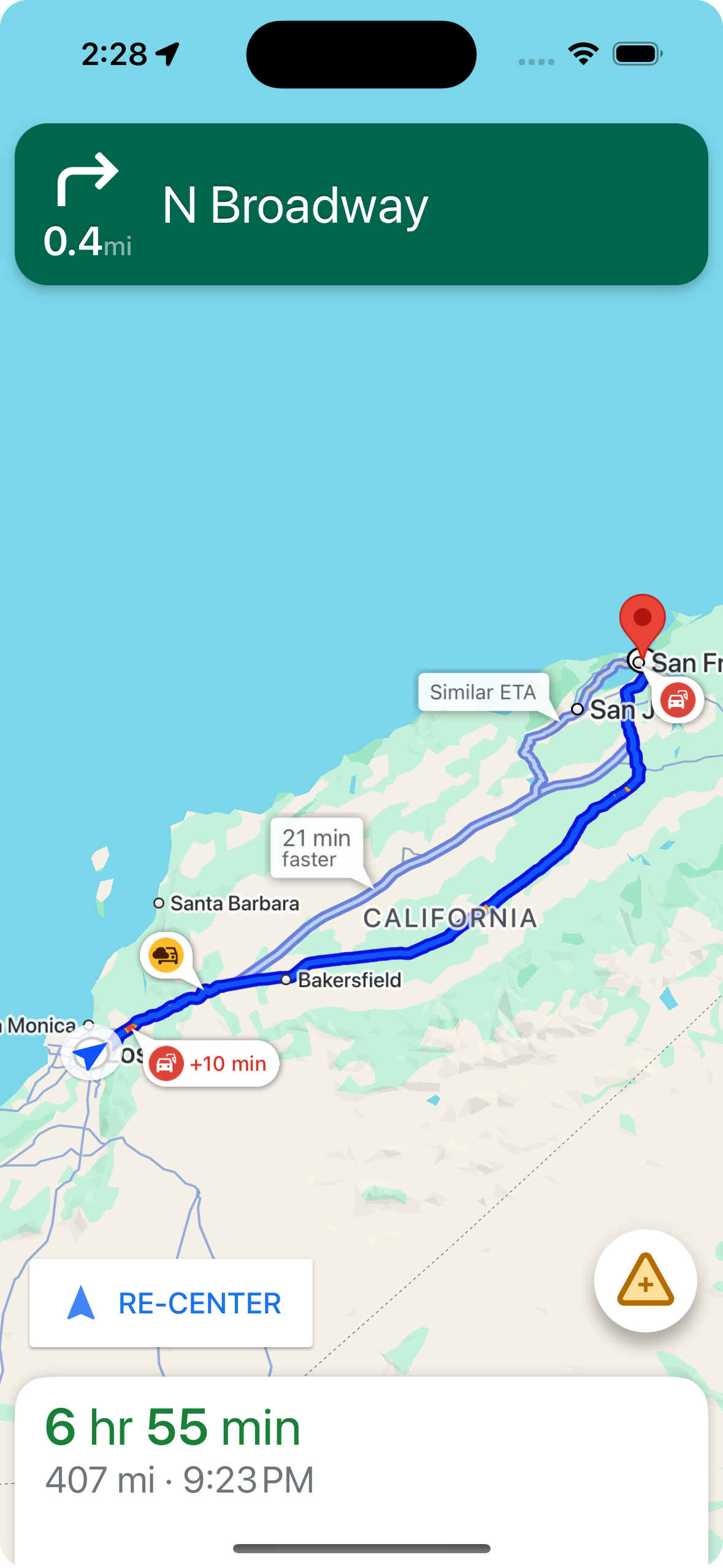
Вы можете управлять отображением предупреждений о сбоях вдоль маршрутов с помощью shouldDisplayPrompts , который также управляет отображением автоматических оповещений, когда пользователь приближается к месту сбоя .
mapView.navigator.shouldDisplayPrompts = true
Отображение подробной информации о сбое при нажатии пользователем на всплывающее окно.
Users can tap a callout to display an info card with more information about the disruption, including the disruption type, the time it was last reported, and in some cases, an option for voting on whether the disruption is still present. There are two different types of info cards that may appear, depending on whether the user is in active navigation, and the configuration options vary for each type.
Информационные карточки с описанием маршрута, которые отображаются перед началом активной навигации.
Когда пользователь нажимает на всплывающее окно в обзоре маршрута, перед началом активной навигации появляется информационная карточка с более подробной информацией о возникшей проблеме.
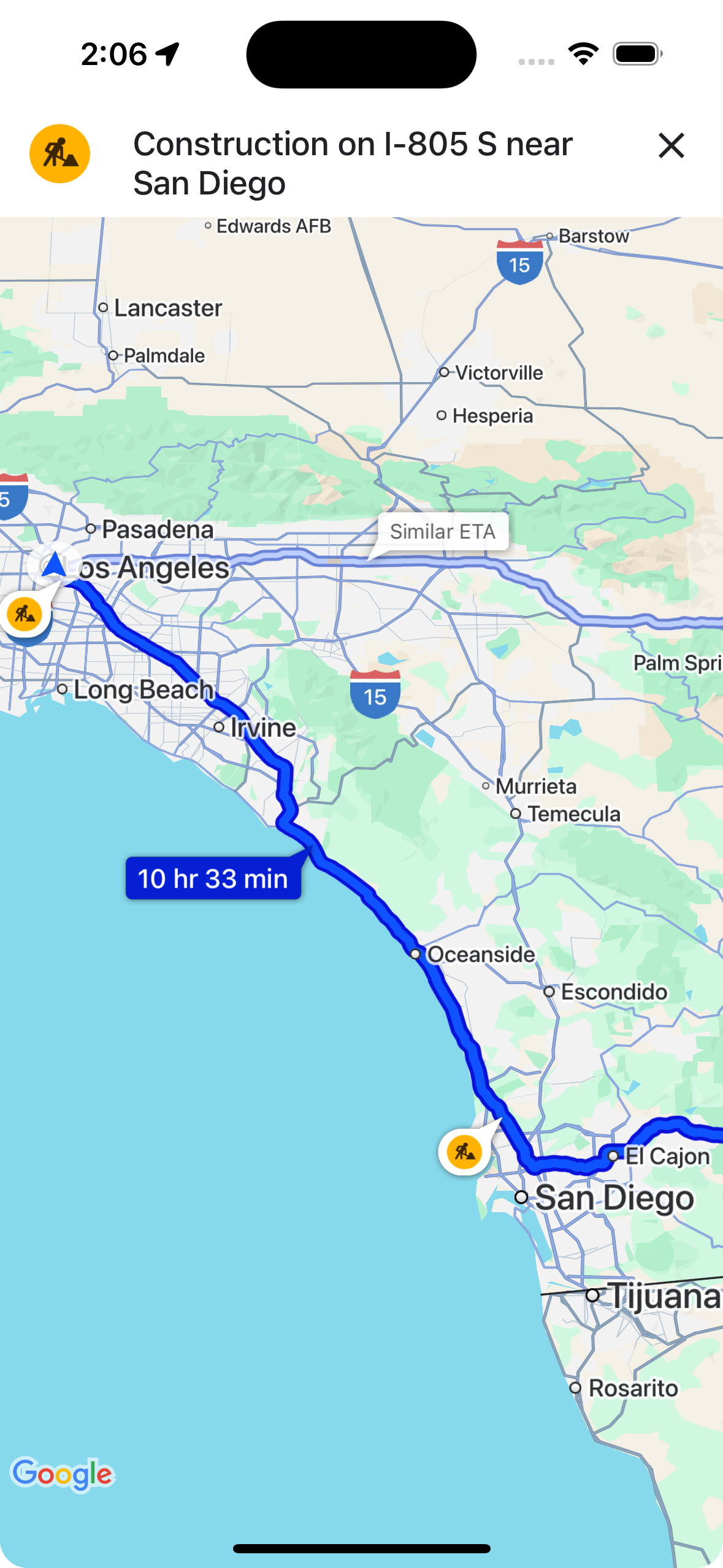
С помощью showsIncidentCards вы можете управлять возможностью пользователей нажимать на всплывающие подсказки о сбоях в обзоре маршрута для отображения дополнительной информации.
mapView.settings.showsIncidentCards = true
Информационные карточки-выноски во время активной навигации
When a disruption callout appears along a route during active navigation, users can tap the callout to display an info card with more information about the disruption, including the disruption type and the time it was last reported, as well as buttons for voting on whether the disruption is still present. Votes submitted by users are processed by Google and may be surfaced on the map for other Google Maps users and Navigation SDK users, as well as used to determine whether to continue showing the disruption.
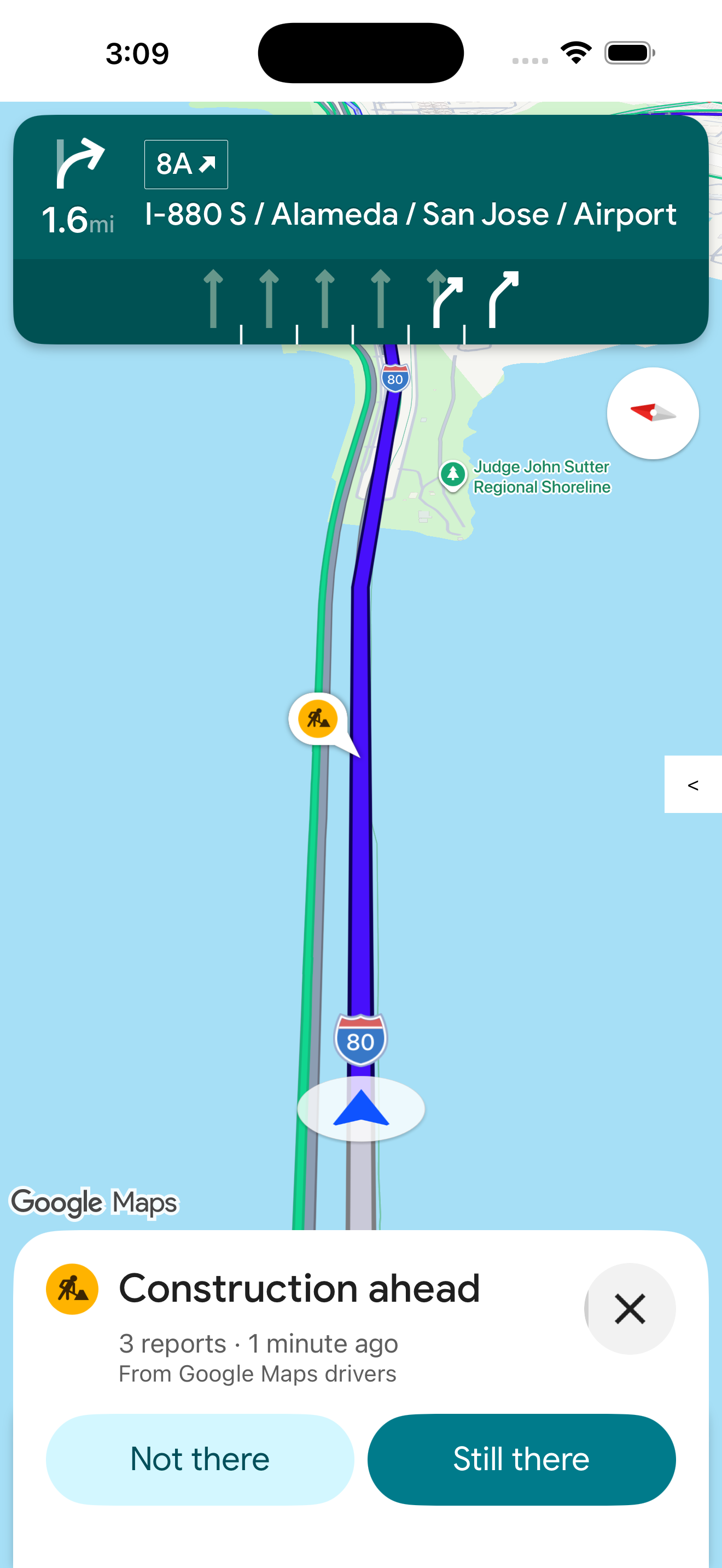
С помощью shouldDisplayPrompts вы можете управлять отображением и возможностью нажатия на всплывающие подсказки о сбоях во время активной навигации, а также отображением всплывающих подсказок вдоль маршрутов и автоматических оповещений, когда пользователь приближается к сбою .
mapView.navigator.shouldDisplayPrompts = true
Автоматические оповещения о сбоях с возможностью голосования во время активной навигации.
During active navigation, when a user approaches a disruption along a route, a prompt appears with information about the disruption and buttons for voting on whether the disruption is still present. Votes submitted by users are processed by Google and may be surfaced on the map for other Google Maps and Navigation SDK users, as well as used to determine whether to continue showing the disruption.
Вы можете настроить отображение всплывающих уведомлений во время активной навигации с помощью shouldDisplayPrompts , который также управляет отображением всплывающих подсказок вдоль маршрутов .
mapView.navigator.shouldDisplayPrompts = true
Сообщение о сбоях во время активной навигации
В режиме активной навигации на пользовательском интерфейсе появляется кнопка, позволяющая пользователям сообщать о новых препятствиях на своем маршруте. При нажатии на кнопку появляется меню с доступными типами препятствий для сообщения. Сообщения, отправленные пользователями, обрабатываются Google и могут отображаться на карте для других пользователей Google Maps и Navigation SDK.
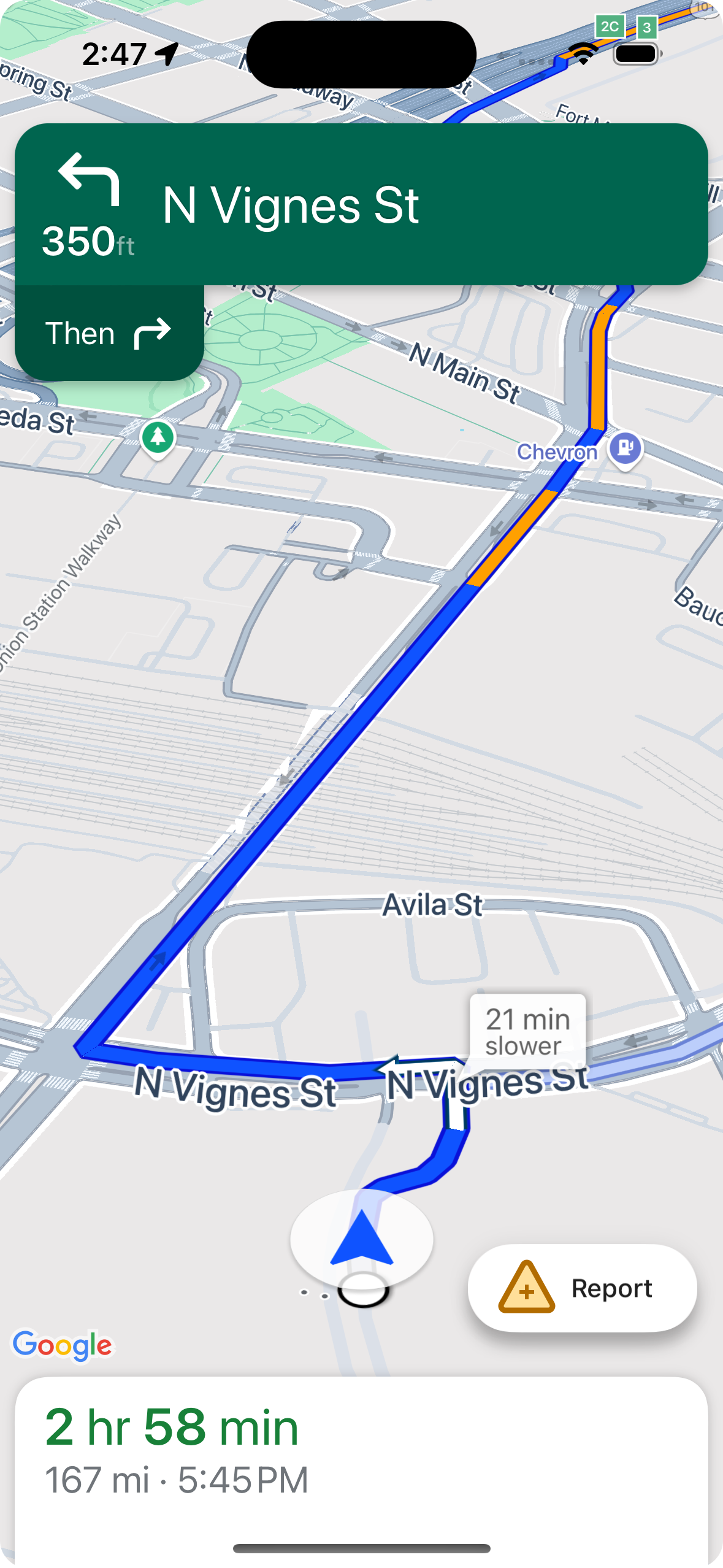
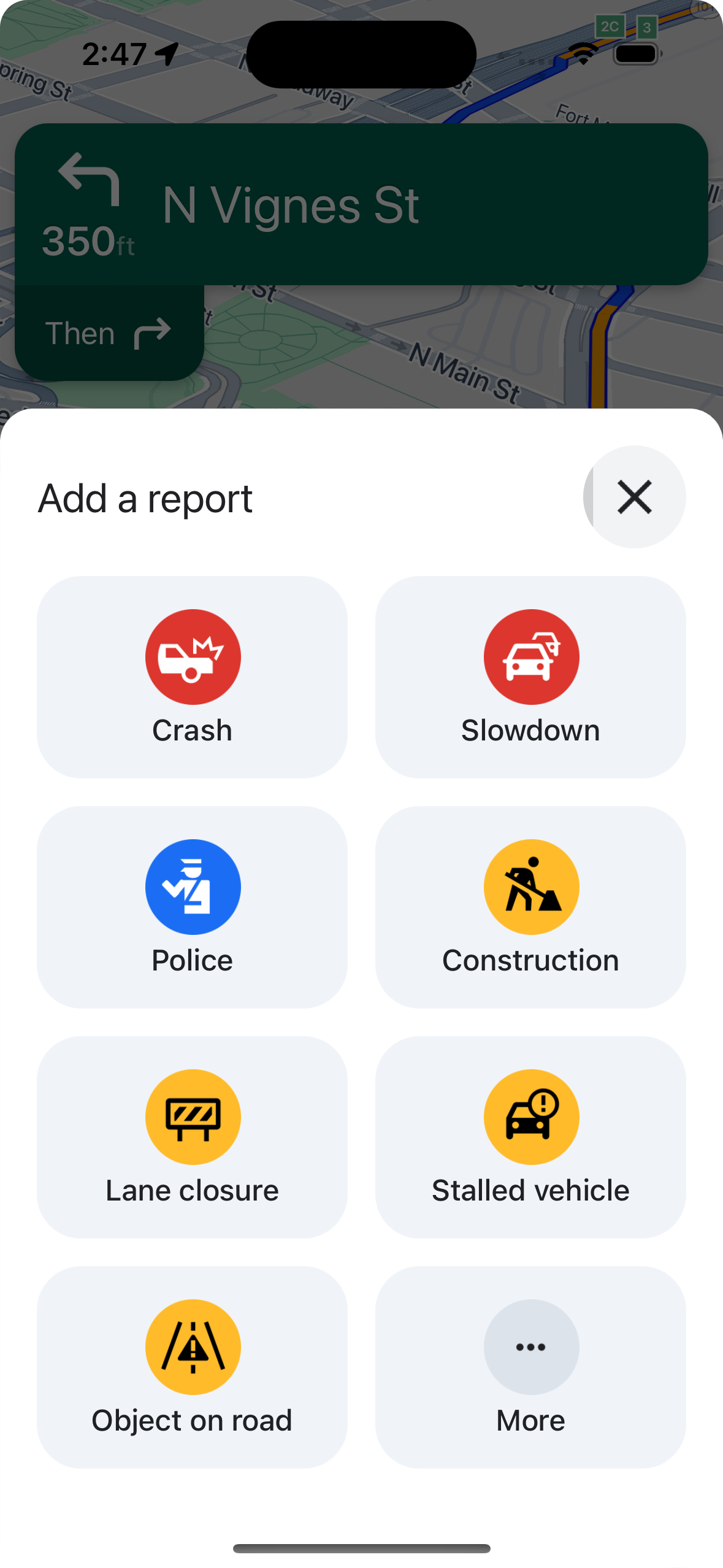
Показать или скрыть стандартную кнопку отчета
Вы можете настроить видимость стандартной кнопки отчета во время активной навигации с помощью navigationReportIncidentButtonEnabled .
// Enables the incident reporting FAB to show in situations where incident
// reporting is possible.
mapView.settings.navigationReportIncidentButtonEnabled = true
Добавьте пользовательскую кнопку для создания отчетов.
In place of the standard disruption reporting button, you can add a custom reporting button to the navigation UI. When the user clicks the custom button, you can trigger the display of the reporting menu by calling the presentReportIncidentsPanel method. Before adding a custom reporting button, verify that the app is in active navigation and the user is in a country where reporting is enabled by calling reportIncidentsAvailable . If either of these is not true, the reporting menu won't appear.
  // Check if reporting is available before displaying your button
  let isReportingAvailable = mapview.isIncidentReportingAvailable()
  customReportingIncidentButton.isHidden = !isReportingAvailable
  customReportingIncidentButton.addTarget(self, action: #selector(didTapReportIncidentButton), for: .touchUpInside)

  // Trigger the reporting flow if the button is clicked
  func didTapReportIncidentButton() {
          mapView.presentReportIncidentsPanel(self) { [weak self] error in
              guard let self = self else { return }
              if let error = error as NSError? {
                  if error.domain == GMSMapViewPresentReportIncidentPanelErrorDomain {
                      let errorCode = GMSMapViewPresentReportIncidentPanelErrorCode(rawValue: error.code)

                      switch errorCode {
                      case .internal:
                          self.showErrorMessage(
                              title: "Error Presenting Report Incident Panel",
                              message: "An internal error occurred."
                          )
                      case .reportingNotAvailable:
                          self.showErrorMessage(
                              title: "Error Presenting Report Incident Panel",
                              message: "Reporting is not available."
                          )
                      case .none:
                          self.showErrorMessage(
                              title: "Error Presenting Report Incident Panel",
                              message: "An unknown error occurred."
                          )
                      }
                  } else {
                      // Handle other potential errors (e.g., network errors)
                      self.showErrorMessage(
                          title: "Error Presenting Report Incident Panel",
                          message: "An unexpected error occurred: \(error.localizedDescription)"
                      )
                  }
              }
              // If error is nil, the panel was presented successfully. You can add any extra logic here.
          }
     }
Работа с пользовательскими интерфейсами навигации
Если ваша реализация Navigation SDK включает пользовательские элементы интерфейса, вам необходимо учитывать элементы, влияющие на работу системы в реальном времени, чтобы избежать конфликтов.
Расположение кнопки «Отчет»
По умолчанию кнопка сообщения о сбоях располагается в нижнем/заднем углу карты — справа для языков с направлением письма слева направо и слева для языков с направлением письма справа налево. Если вам нужно переместить кнопку сообщения, чтобы освободить место для пользовательских элементов интерфейса, используйтеbottomTrailingButtonsLayoutGuide .Быстрый
// Create a new layout guide
let topRightLayoutGuide = UILayoutGuide()
self.view.addLayoutGuide(topRightLayoutGuide)

// Activate constraints using fixed constants here as an example
// assuming the current reporting button is of fixed height
topRightLayoutGuide.topAnchor.constraint(equalTo: _mapView.navigationHeaderLayoutGuide.bottomAnchor, constant: 50).isActive = true
topRightLayoutGuide.trailingAnchor.constraint(equalTo: self.view.safeAreaLayoutGuide.trailingAnchor, constant: -14).isActive = true

// Assign the layout guide
_mapView.bottomTrailingButtonsLayoutGuide = topRightLayoutGuide

// Create an alternate layout guide to use when the header and the footer are not full width
let topRightAlternateLayoutGuide = UILayoutGuide()
self.view.addLayoutGuide(topRightAlternateLayoutGuide)

// Activate constraints using fixed constants here as an example
// assuming the current RTD button is of fixed height
topRightAlternateLayoutGuide.topAnchor.constraint(equalTo: _mapView.navigationHeaderLayoutGuide.bottomAnchor, constant: 20).isActive = true
topRightAlternateLayoutGuide.trailingAnchor.constraint(equalTo: self.view.safeAreaLayoutGuide.trailingAnchor, constant: -10).isActive = true

// Assign the layout guide
_mapView.bottomTrailingButtonsAlternateLayoutGuide = topRightAlternateLayoutGuide
Objective-C
// Create a new layout guide
UILayoutGuide *topRightLayoutGuide = [[UILayoutGuide alloc] init];
[self.view addLayoutGuide:topRightLayoutGuide];

// Activate constraints using fixed constants here as an example
// assuming the current RTD button is of fixed height
[[topRightLayoutGuide.topAnchor
    constraintEqualToAnchor:_mapView.navigationHeaderLayoutGuide.bottomAnchor
                   constant:50]
    setActive:YES];

[[topRightLayoutGuide.trailingAnchor
    constraintEqualToAnchor:self.view.safeAreaLayoutGuide.trailingAnchor
                   constant:-14]
    setActive:YES];

// Assign the layout guide
_mapView.bottomTrailingButtonsLayoutGuide = topRightLayoutGuide;

// Create an alternate layout guide to use when the header and the footer are not full width
UILayoutGuide *topRightAlternateLayoutGuide = [[UILayoutGuide alloc] init];
[self.view addLayoutGuide:topRightAlternateLayoutGuide];

// Activate constraints using fixed constants here as an example
// assuming the current RTD button is of fixed height
[[topRightAlternateLayoutGuide.topAnchor
    constraintEqualToAnchor:_mapView.navigationHeaderLayoutGuide.bottomAnchor
                   constant:50]
    setActive:YES];

[[topRightAlternateLayoutGuide.trailingAnchor
    constraintEqualToAnchor:self.view.safeAreaLayoutGuide.trailingAnchor
                   constant:-14]
    setActive:YES];

// Assign the layout guide
_mapView.bottomTrailingButtonsAlternateLayoutGuide = topRightAlternateLayoutGuide;
API для отображения подсказок (экспериментальная версия)
The Prompt Visibility API helps you avoid conflicts between UI elements generated by the Navigation SDK and your own custom UI elements by adding a listener to receive a callback before a Navigation SDK UI element is about to appear and as soon as the element is removed. You can receive callbacks for real-time disruption elements, including info cards, prompts, and the disruption reporting menu—as well as for other notifications generated by the Navigation SDK.Быстрый
// Additional methods added to GMSNavigatorListener
...
func navigatorWillPresentPrompt(_ navigator: GMSNavigator) {
  // Hide any sort of custom UI element.
}

func navigatorDidDismissPrompt(_ navigator: GMSNavigator) {
  // Show any sort of custom UI element.
}
...
Objective-C
// Additional methods added to GMSNavigatorListener
...
- (void)navigatorWillPresentPrompt:(GMSNavigator *)navigator {
  // Hide any sort of custom UI element.
}

- (void)navigatorDidDismissPrompt:(GMSNavigator *)navigator {
  // Show any sort of custom UI element.
}
...