

設定即時中斷
即時中斷資訊是一系列功能,可提醒使用者路線上的中斷情形,並允許使用者回報及驗證遇到的中斷情形。中斷的例子包括車禍、交通壅塞、警察和測速照相機出現、施工、車道封閉和特定天氣狀況。本頁面說明即時中斷功能和設定選項,包括使用自訂導覽使用者介面的應用程式注意事項。
即時交通異動功能
Navigation SDK 包含下列即時中斷功能,可做為核心導航體驗的一部分:這些功能可供設定,且預設為啟用。以下各節將提供更多資訊,說明這些功能和可用的設定選項。
路線沿途的互動式中斷標註
應用程式顯示路線時 (無論是路線總覽或導航期間),路線上出現的任何中斷情形都會以標註形式顯示。啟用車流量圖層後,地圖上也會顯示偏離路線的交通中斷狀況。附註會顯示圖示,指出中斷類型。

您可以使用 shouldDisplayPrompts 控制路線沿途的干擾標註顯示,這項屬性也會控制使用者接近干擾時的自動警示顯示。
mapView.navigator.shouldDisplayPrompts = true
使用者輕觸標註時顯示中斷詳細資料
輕觸中斷通知,即可開啟資訊卡查看詳細資料。這項功能適用於路徑內和路徑外的標註,但路徑外的標註只會在啟用交通資訊圖層時顯示。資訊卡會顯示中斷類型、上次回報時間,有時還會提供選項,讓您投票決定中斷情形是否仍然存在。資訊卡類型和設定選項會因使用者是否處於主動導航狀態而異。
在開始導航前,路徑總覽中的標註資訊卡
開始導航前,使用者可以輕觸地圖上或路線總覽中的路線內或路線外標註,開啟資訊卡。如要顯示路線外標示,必須啟用車流量圖層。資訊卡會提供有關中斷的詳細資訊。
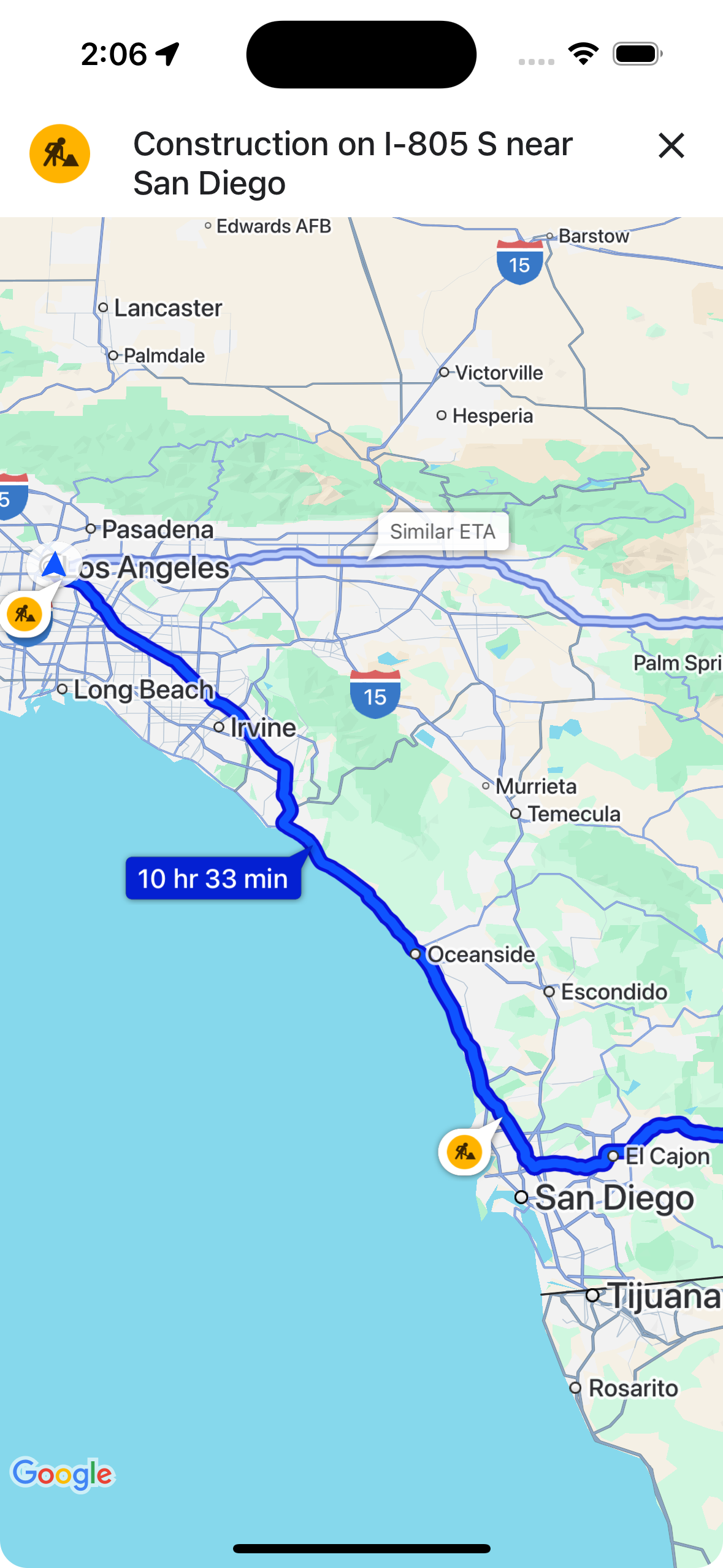
您可以使用 showsIncidentCards 控制使用者是否能輕觸路線總覽中的中斷通知,顯示更多資訊。
mapView.settings.showsIncidentCards = true
導航期間顯示的資訊卡
在導航期間,使用者可以輕觸路線上或路線外的中斷通知,開啟資訊卡。資訊卡會顯示中斷類型和上次回報時間,並提供按鈕供使用者投票,指出中斷情形是否仍然存在。
使用者在路線上或路線外 5 公里內,都可以針對中斷情況投票 (道路封閉除外)。Google 會處理這些投票結果,判斷是否要繼續顯示中斷情形。其他 Google 地圖和 Navigation SDK 使用者也可能會在地圖上看到票選結果。
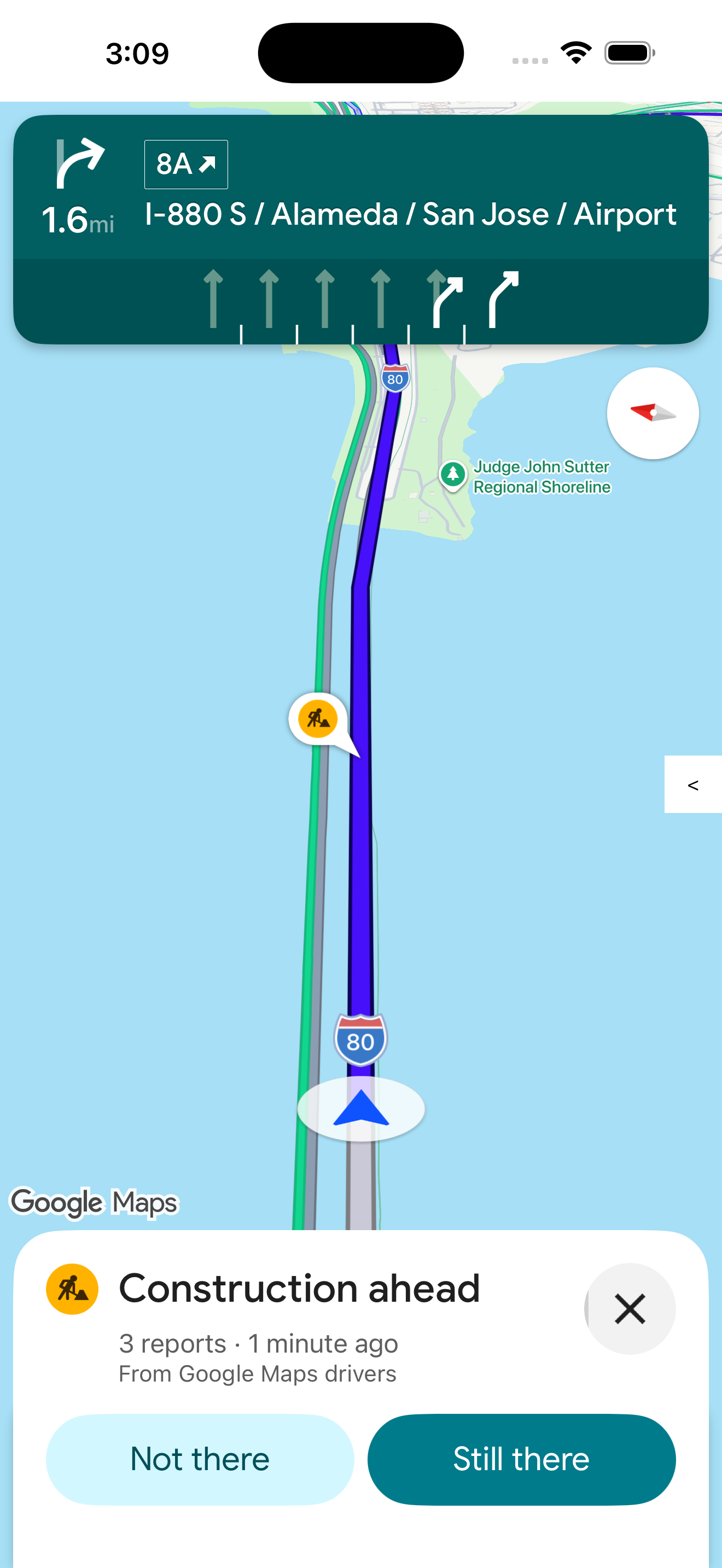
您可以使用 shouldDisplayPrompts 控制導航期間的干擾標註顯示和輕觸功能,這項設定也會控制路線沿途的標註顯示,以及使用者接近干擾時的自動警示顯示。
mapView.navigator.shouldDisplayPrompts = true
導航期間自動發出異動快訊,並提供投票功能
在導覽期間,如果使用者接近路線上的中斷點,系統會顯示提示,提供中斷點的相關資訊,以及用於投票表決中斷點是否仍然存在。Google 會處理使用者提交的票選結果,並可能在 Google 地圖和 Navigation SDK 中顯示給其他使用者,以及用來判斷是否要繼續顯示中斷資訊。
您可以使用 shouldDisplayPrompts 設定在導覽期間顯示的快訊提示,這項設定也會控管路線沿途的標註顯示方式。
mapView.navigator.shouldDisplayPrompts = true
導航期間回報交通異動
在操作模式啟用期間,導航使用者介面會顯示按鈕,方便使用者回報路線上的新狀況。使用者輕觸按鈕後,系統會顯示可回報的干擾類型選單。Google 會處理使用者提交的檢舉內容,並可能在地圖上顯示給其他 Google 地圖和 Navigation SDK 使用者。
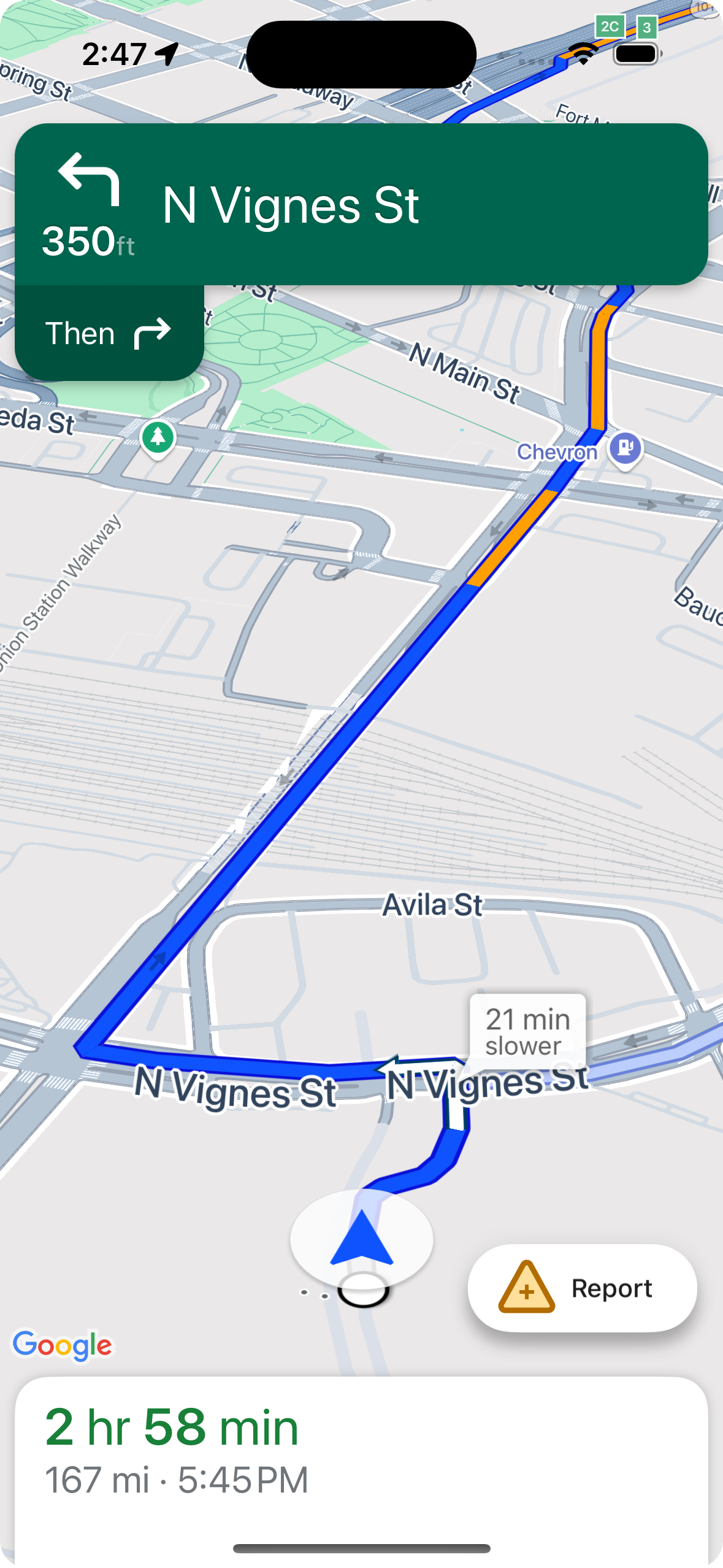

顯示或隱藏標準報表按鈕
您可以使用 navigationReportIncidentButtonEnabled,在導覽期間設定標準報表按鈕的顯示狀態。
// Enables the incident reporting FAB to show in situations where incident
// reporting is possible.
mapView.settings.navigationReportIncidentButtonEnabled = true
新增自訂檢舉按鈕
您可以將自訂回報按鈕新增至導覽使用者介面,取代標準的服務中斷回報按鈕。使用者點選自訂按鈕時,您可以呼叫 presentReportIncidentsPanel 方法,觸發顯示檢舉選單。新增自訂檢舉按鈕前,請先呼叫 reportIncidentsAvailable,確認應用程式處於有效導覽狀態,且使用者位於檢舉功能已啟用的國家/地區。如果不符合上述任一條件,系統就不會顯示報表選單。
  // Check if reporting is available before displaying your button
  let isReportingAvailable = mapview.isIncidentReportingAvailable()
  customReportingIncidentButton.isHidden = !isReportingAvailable
  customReportingIncidentButton.addTarget(self, action: #selector(didTapReportIncidentButton), for: .touchUpInside)

  // Trigger the reporting flow if the button is clicked
  func didTapReportIncidentButton() {
          mapView.presentReportIncidentsPanel(self) { [weak self] error in
              guard let self = self else { return }
              if let error = error as NSError? {
                  if error.domain == GMSMapViewPresentReportIncidentPanelErrorDomain {
                      let errorCode = GMSMapViewPresentReportIncidentPanelErrorCode(rawValue: error.code)

                      switch errorCode {
                      case .internal:
                          self.showErrorMessage(
                              title: "Error Presenting Report Incident Panel",
                              message: "An internal error occurred."
                          )
                      case .reportingNotAvailable:
                          self.showErrorMessage(
                              title: "Error Presenting Report Incident Panel",
                              message: "Reporting is not available."
                          )
                      case .none:
                          self.showErrorMessage(
                              title: "Error Presenting Report Incident Panel",
                              message: "An unknown error occurred."
                          )
                      }
                  } else {
                      // Handle other potential errors (e.g., network errors)
                      self.showErrorMessage(
                          title: "Error Presenting Report Incident Panel",
                          message: "An unexpected error occurred: \(error.localizedDescription)"
                      )
                  }
              }
              // If error is nil, the panel was presented successfully. You can add any extra logic here.
          }
     }
使用自訂導覽 UI
如果 Navigation SDK 導入作業包含自訂 UI 元素,您必須考量即時中斷元素,以免發生衝突。
檢舉按鈕位置
根據預設,中斷回報按鈕會顯示在地圖的底部/尾端角落,如果語言是從左至右,按鈕會顯示在右側,如果語言是從右至左,按鈕會顯示在左側。如要移動報表按鈕,為自訂 UI 元素騰出空間,請使用bottomTrailingButtonsLayoutGuide。
Swift
// Create a new layout guide
let topRightLayoutGuide = UILayoutGuide()
self.view.addLayoutGuide(topRightLayoutGuide)

// Activate constraints using fixed constants here as an example
// assuming the current reporting button is of fixed height
topRightLayoutGuide.topAnchor.constraint(equalTo: _mapView.navigationHeaderLayoutGuide.bottomAnchor, constant: 50).isActive = true
topRightLayoutGuide.trailingAnchor.constraint(equalTo: self.view.safeAreaLayoutGuide.trailingAnchor, constant: -14).isActive = true

// Assign the layout guide
_mapView.bottomTrailingButtonsLayoutGuide = topRightLayoutGuide

// Create an alternate layout guide to use when the header and the footer are not full width
let topRightAlternateLayoutGuide = UILayoutGuide()
self.view.addLayoutGuide(topRightAlternateLayoutGuide)

// Activate constraints using fixed constants here as an example
// assuming the current RTD button is of fixed height
topRightAlternateLayoutGuide.topAnchor.constraint(equalTo: _mapView.navigationHeaderLayoutGuide.bottomAnchor, constant: 20).isActive = true
topRightAlternateLayoutGuide.trailingAnchor.constraint(equalTo: self.view.safeAreaLayoutGuide.trailingAnchor, constant: -10).isActive = true

// Assign the layout guide
_mapView.bottomTrailingButtonsAlternateLayoutGuide = topRightAlternateLayoutGuide
Objective-C
// Create a new layout guide
UILayoutGuide *topRightLayoutGuide = [[UILayoutGuide alloc] init];
[self.view addLayoutGuide:topRightLayoutGuide];

// Activate constraints using fixed constants here as an example
// assuming the current RTD button is of fixed height
[[topRightLayoutGuide.topAnchor
    constraintEqualToAnchor:_mapView.navigationHeaderLayoutGuide.bottomAnchor
                   constant:50]
    setActive:YES];

[[topRightLayoutGuide.trailingAnchor
    constraintEqualToAnchor:self.view.safeAreaLayoutGuide.trailingAnchor
                   constant:-14]
    setActive:YES];

// Assign the layout guide
_mapView.bottomTrailingButtonsLayoutGuide = topRightLayoutGuide;

// Create an alternate layout guide to use when the header and the footer are not full width
UILayoutGuide *topRightAlternateLayoutGuide = [[UILayoutGuide alloc] init];
[self.view addLayoutGuide:topRightAlternateLayoutGuide];

// Activate constraints using fixed constants here as an example
// assuming the current RTD button is of fixed height
[[topRightAlternateLayoutGuide.topAnchor
    constraintEqualToAnchor:_mapView.navigationHeaderLayoutGuide.bottomAnchor
                   constant:50]
    setActive:YES];

[[topRightAlternateLayoutGuide.trailingAnchor
    constraintEqualToAnchor:self.view.safeAreaLayoutGuide.trailingAnchor
                   constant:-14]
    setActive:YES];

// Assign the layout guide
_mapView.bottomTrailingButtonsAlternateLayoutGuide = topRightAlternateLayoutGuide;
Prompt Visibility API (實驗性)
您可以透過「提示顯示 API」新增監聽器,在 Navigation SDK UI 元素即將顯示前和移除後立即接收回呼,避免 Navigation SDK 產生的 UI 元素與自訂 UI 元素發生衝突。您可以接收即時中斷元素的回呼,包括資訊卡、提示和中斷回報選單,以及 Navigation SDK 產生的其他通知。Swift
// Additional methods added to GMSNavigatorListener
...
func navigatorWillPresentPrompt(_ navigator: GMSNavigator) {
  // Hide any sort of custom UI element.
}

func navigatorDidDismissPrompt(_ navigator: GMSNavigator) {
  // Show any sort of custom UI element.
}
...
Objective-C
// Additional methods added to GMSNavigatorListener
...
- (void)navigatorWillPresentPrompt:(GMSNavigator *)navigator {
  // Hide any sort of custom UI element.
}

- (void)navigatorDidDismissPrompt:(GMSNavigator *)navigator {
  // Show any sort of custom UI element.
}
...