

Photorealistic 3D Tiles は OGC 標準の glTF 形式であるため、OGC 3D Tiles 仕様をサポートするレンダラを使用して 3D 可視化を構築できます。たとえば、Cesium は、3D 可視化のレンダリング用の基盤となるオープンソース ライブラリです。
CesiumJS を使用する
CesiumJS は、ウェブ上の 3D 可視化のためのオープンソースの JavaScript ライブラリです。CesiumJS の使用方法については、CesiumJS を学ぶをご覧ください。
ユーザー コントロール
CesiumJS タイル レンダラには、標準のユーザー コントロール セットがあります。
| アクション | 説明 |
|---|---|
| ビューのパン | 左クリックしてドラッグ |
| ズーム表示 | 右クリックしてドラッグするか、マウスホイールをスクロールする |
| ビューを回転 | Ctrl+左クリック/右クリックしてドラッグ、または中央クリックしてドラッグ |
ベスト プラクティス
CesiumJS の 3D 読み込み時間を短縮する方法はいくつかあります。次に例を示します。
次のステートメントをレンダリング HTML に追加して、同時リクエストを有効にします。
Cesium.RequestScheduler.requestsByServer["tile.googleapis.com:443"] = <REQUEST_COUNT>REQUEST_COUNTが大きいほど、タイルの読み込みが速くなります。ただし、REQUEST_COUNTが 10 より大きく、キャッシュが無効になっている Chrome ブラウザで読み込むと、既知の Chrome の問題が発生する可能性があります。ほとんどのユースケースでは、最適なパフォーマンスを得るためにREQUEST_COUNTを 18 にすることをおすすめします。詳細レベルのスキップを有効にします。詳細については、こちらの Cesium の問題をご覧ください。
showCreditsOnScreen: true を有効にして、データ アトリビューションが適切に表示されるようにします。詳細については、ポリシーをご覧ください。
レンダリング指標
フレームレートを確認するには、requestAnimationFrame メソッドが 1 秒間に呼び出される回数を調べます。
フレーム レイテンシの計算方法については、PerformanceDisplay クラスをご覧ください。
CesiumJS レンダラの例
ルート タイルセットの URL を指定するだけで、Map Tiles API の 3D タイルで CesiumJS レンダラを使用できます。
簡単な例
次の例では、CesiumJS レンダラを初期化してから、ルート タイルセットを読み込みます。
<!DOCTYPE html>
<head>
  <meta charset="utf-8">
  <title>CesiumJS 3D Tiles Simple Demo</title>
  <script src="https://ajax.googleapis.com/ajax/libs/cesiumjs/1.105/Build/Cesium/Cesium.js"></script>
  <link href="https://ajax.googleapis.com/ajax/libs/cesiumjs/1.105/Build/Cesium/Widgets/widgets.css" rel="stylesheet">
</head>
<body>
  <div id="cesiumContainer"></div>
  <script>

    // Enable simultaneous requests.
    Cesium.RequestScheduler.requestsByServer["tile.googleapis.com:443"] = 18;

    // Create the viewer.
    const viewer = new Cesium.Viewer('cesiumContainer', {
      imageryProvider: false,
      baseLayerPicker: false,
      geocoder: false,
      globe: false,
      // https://cesium.com/blog/2018/01/24/cesium-scene-rendering-performance/#enabling-request-render-mode
      requestRenderMode: true,
    });

    // Add 3D Tiles tileset.
    const tileset = viewer.scene.primitives.add(new Cesium.Cesium3DTileset({
      url: "https://tile.googleapis.com/v1/3dtiles/root.json?key=YOUR_API_KEY",
      // This property is needed to appropriately display attributions
      // as required.
      showCreditsOnScreen: true,
    }));
  </script>
</body>
requestRenderMode については、リクエスト レンダリング モードを有効にするをご覧ください。
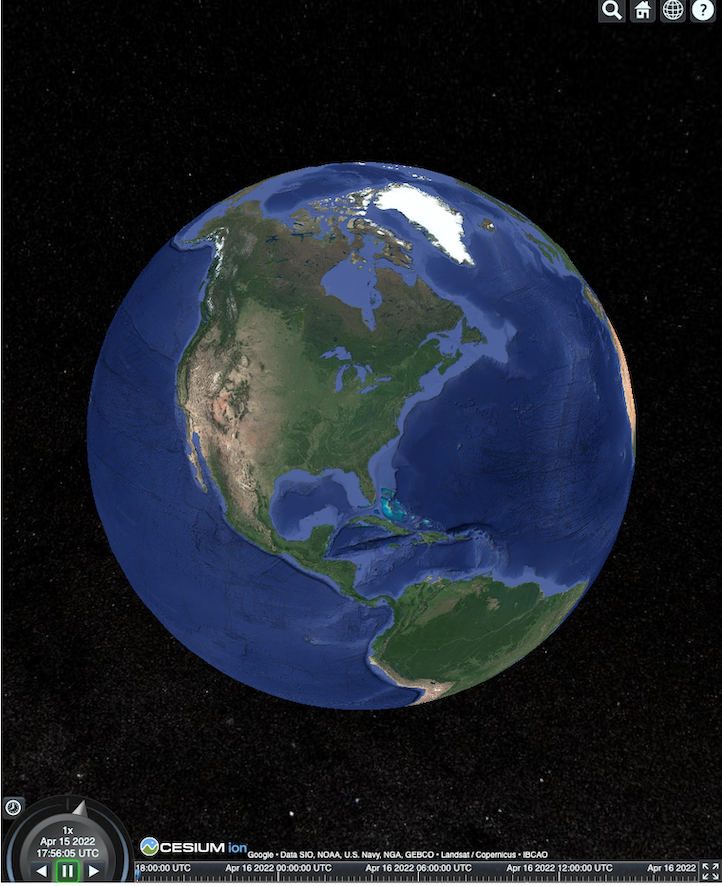
HTML ページは次のようにレンダリングされます。
Places API(新版)の統合
Places API(新版)で CesiumJS を使用すると、詳細情報を取得できます。予測入力ウィジェットを使用して、Places のビューポートに移動できます。この例では、こちらの手順に沿って有効にした Place Autocomplete API と、こちらの手順に沿って有効にした Maps JavaScript API を使用します。
<!DOCTYPE html>
<head>
 <meta charset="utf-8" />
 <title>CesiumJS 3D Tiles Places API (New) Integration Demo</title>
 <script src="https://ajax.googleapis.com/ajax/libs/cesiumjs/1.105/Build/Cesium/Cesium.js"></script>
 <link href="https://ajax.googleapis.com/ajax/libs/cesiumjs/1.105/Build/Cesium/Widgets/widgets.css" rel="stylesheet">
</head>
<body>
 <label for="pacViewPlace">Go to a place: </label>
 <input
   type="text"
   id="pacViewPlace"
   name="pacViewPlace"
   placeholder="Enter a location..."
   style="width: 300px"
 />
 <div id="cesiumContainer"></div>
 <script>
   // Enable simultaneous requests.
   Cesium.RequestScheduler.requestsByServer["tile.googleapis.com:443"] = 18;

   // Create the viewer.
   const viewer = new Cesium.Viewer("cesiumContainer", {
     imageryProvider: false,
     baseLayerPicker: false,
     requestRenderMode: true,
     geocoder: false,
     globe: false,
   });

   // Add 3D Tiles tileset.
   const tileset = viewer.scene.primitives.add(
     new Cesium.Cesium3DTileset({
       url: "https://tile.googleapis.com/v1/3dtiles/root.json?key=YOUR_API_KEY",
       // This property is required to display attributions as required.
       showCreditsOnScreen: true,
     })
   );

   const zoomToViewport = (viewport) => {
     viewer.entities.add({
       polyline: {
         positions: Cesium.Cartesian3.fromDegreesArray([
           viewport.getNorthEast().lng(), viewport.getNorthEast().lat(),
           viewport.getSouthWest().lng(), viewport.getNorthEast().lat(),
           viewport.getSouthWest().lng(), viewport.getSouthWest().lat(),
           viewport.getNorthEast().lng(), viewport.getSouthWest().lat(),
           viewport.getNorthEast().lng(), viewport.getNorthEast().lat(),
         ]),
         width: 10,
         clampToGround: true,
         material: Cesium.Color.RED,
       },
     });
     viewer.flyTo(viewer.entities);
   };

   function initAutocomplete() {
     const autocomplete = new google.maps.places.Autocomplete(
       document.getElementById("pacViewPlace"),
       {
         fields: [
           "geometry",
           "name",
         ],
       }
     );
     autocomplete.addListener("place_changed", () => {
       viewer.entities.removeAll();
       const place = autocomplete.getPlace();
       if (!place.geometry || !place.geometry.viewport) {
         window.alert("No viewport for input: " + place.name);
         return;
       }
       zoomToViewport(place.geometry.viewport);
     });
   }
 </script>
 <script
   async=""
   src="https://maps.googleapis.com/maps/api/js?key=YOUR_API_KEY&libraries=places&callback=initAutocomplete"
 ></script>
</body>
回転するドローン ビュー
カメラを制御して、タイルセットをアニメーション化できます。Places API(新版)と Elevation API を組み合わせることで、任意のスポットをドローンでインタラクティブに飛行する様子をシミュレートできます。
このコードサンプルでは、Autocomplete ウィジェットで選択した場所を飛び回ります。
<!DOCTYPE html>
<head>
  <meta charset="utf-8" />
  <title>CesiumJS 3D Tiles Rotating Drone View Demo</title>
  <script src="https://ajax.googleapis.com/ajax/libs/cesiumjs/1.105/Build/Cesium/Cesium.js"></script>
  <link href="https://ajax.googleapis.com/ajax/libs/cesiumjs/1.105/Build/Cesium/Widgets/widgets.css" rel="stylesheet">
</head>
<body>
  <label for="pacViewPlace">Go to a place: </label>
  <input type="text" id="pacViewPlace" name="pacViewPlace" placeholder="Enter a location..." style="width: 300px" />
  <div id="cesiumContainer"></div>
  <script>
    // Enable simultaneous requests.
    Cesium.RequestScheduler.requestsByServer["tile.googleapis.com:443"] = 18;

    // Create the viewer and remove unneeded options.
    const viewer = new Cesium.Viewer("cesiumContainer", {
      imageryProvider: false,
      baseLayerPicker: false,
      homeButton: false,
      fullscreenButton: false,
      navigationHelpButton: false,
      vrButton: false,
      sceneModePicker: false,
      geocoder: false,
      globe: false,
      infobox: false,
      selectionIndicator: false,
      timeline: false,
      projectionPicker: false,
      clockViewModel: null,
      animation: false,
      requestRenderMode: true,
    });

    // Add 3D Tile set.
    const tileset = viewer.scene.primitives.add(
      new Cesium.Cesium3DTileset({
        url: "https://tile.googleapis.com/v1/3dtiles/root.json?key=YOUR_API_KEY",
        // This property is required to display attributions.
        showCreditsOnScreen: true,
      })
    );

    // Point the camera at a location and elevation, at a viewport-appropriate distance.
    function pointCameraAt(location, viewport, elevation) {
      const distance = Cesium.Cartesian3.distance(
        Cesium.Cartesian3.fromDegrees(
          viewport.getSouthWest().lng(), viewport.getSouthWest().lat(), elevation),
        Cesium.Cartesian3.fromDegrees(
          viewport.getNorthEast().lng(), viewport.getNorthEast().lat(), elevation)
      ) / 2;
      const target = new Cesium.Cartesian3.fromDegrees(location.lng(), location.lat(), elevation);
      const pitch = -Math.PI / 4;
      const heading = 0;
      viewer.camera.lookAt(target, new Cesium.HeadingPitchRange(heading, pitch, distance));
    }

    // Rotate the camera around a location and elevation, at a viewport-appropriate distance.
    let unsubscribe = null;
    function rotateCameraAround(location, viewport, elevation) {
      if(unsubscribe) unsubscribe();
      pointCameraAt(location, viewport, elevation);
      unsubscribe = viewer.clock.onTick.addEventListener(() => {
        viewer.camera.rotate(Cesium.Cartesian3.UNIT_Z);
      });
    }

    function initAutocomplete() {
      const autocomplete = new google.maps.places.Autocomplete(
        document.getElementById("pacViewPlace"), {
          fields: [
            "geometry",
            "name",
          ],
        }
      );

      autocomplete.addListener("place_changed", async () => {
        const place = autocomplete.getPlace();

        if (!(place.geometry && place.geometry.viewport && place.geometry.location)) {
          window.alert(`Insufficient geometry data for place: ${place.name}`);
          return;
        }
        // Get place elevation using the ElevationService.
        const elevatorService = new google.maps.ElevationService();
        const elevationResponse =  await elevatorService.getElevationForLocations({
          locations: [place.geometry.location],
        });

        if(!(elevationResponse.results && elevationResponse.results.length)){
          window.alert(`Insufficient elevation data for place: ${place.name}`);
          return;
        }
        const elevation = elevationResponse.results[0].elevation || 10;

        rotateCameraAround(
          place.geometry.location,
          place.geometry.viewport,
          elevation
        );
      });
    }
  </script>
  <script async src="https://maps.googleapis.com/maps/api/js?key=YOUR_API_KEY&libraries=places&callback=initAutocomplete"></script>
</body>
ポリラインとラベルを描画する
このコードサンプルは、地図にポリラインとラベルを追加する方法を示しています。地図にポリラインを追加して、運転ルートや徒歩経路を表示したり、土地の境界線を表示したり、運転時間や徒歩時間を計算したりできます。シーンを実際にレンダリングせずに属性を取得することもできます。
ユーザーに近隣の厳選されたツアーを提供したり、現在販売中の近隣の物件を表示したり、看板などの 3D オブジェクトをシーンに追加したりできます。
旅行を要約し、閲覧した物件をリストアップして、これらの詳細を仮想オブジェクトに表示できます。
<!DOCTYPE html>
<head>
  <meta charset="utf-8" />
  <title>CesiumJS 3D Tiles Polyline and Label Demo</title>
  <script src="https://ajax.googleapis.com/ajax/libs/cesiumjs/1.105/Build/Cesium/Cesium.js"></script>
  <link
    href="https://ajax.googleapis.com/ajax/libs/cesiumjs/1.105/Build/Cesium/Widgets/widgets.css"
    rel="stylesheet"
  />
</head>
<body>
  <div id="cesiumContainer"></div>
  <script>
    // Enable simultaneous requests.
    Cesium.RequestScheduler.requestsByServer["tile.googleapis.com:443"] = 18;

    // Create the viewer.
    const viewer = new Cesium.Viewer("cesiumContainer", {
      imageryProvider: false,
      baseLayerPicker: false,
      requestRenderMode: true,
      geocoder: false,
      globe: false,
    });

    // Add 3D Tiles tileset.
    const tileset = viewer.scene.primitives.add(
      new Cesium.Cesium3DTileset({
        url: "https://tile.googleapis.com/v1/3dtiles/root.json?key=YOUR_API_KEY",

        // This property is required to display attributions as required.
        showCreditsOnScreen: true,
      })
    );

    // Draws a circle at the position, and a line from the previous position.
    const drawPointAndLine = (position, prevPosition) => {
      viewer.entities.removeAll();
      if (prevPosition) {
        viewer.entities.add({
          polyline: {
            positions: [prevPosition, position],
            width: 3,
            material: Cesium.Color.WHITE,
            clampToGround: true,
            classificationType: Cesium.ClassificationType.CESIUM_3D_TILE,
          },
        });
      }
      viewer.entities.add({
        position: position,
        ellipsoid: {
          radii: new Cesium.Cartesian3(1, 1, 1),
          material: Cesium.Color.RED,
        },
      });
    };

    // Compute, draw, and display the position's height relative to the previous position.
    var prevPosition;
    const processHeights = (newPosition) => {
      drawPointAndLine(newPosition, prevPosition);

      const newHeight = Cesium.Cartographic.fromCartesian(newPosition).height;
      let labelText = "Current altitude (meters above sea level):\n\t" + newHeight;
      if (prevPosition) {
        const prevHeight =
          Cesium.Cartographic.fromCartesian(prevPosition).height;
        labelText += "\nHeight from previous point (meters):\n\t" + Math.abs(newHeight - prevHeight);
      }
      viewer.entities.add({
        position: newPosition,
        label: {
          text: labelText,
          disableDepthTestDistance: Number.POSITIVE_INFINITY,
          pixelOffset: new Cesium.Cartesian2(0, -10),
          showBackground: true,
          verticalOrigin: Cesium.VerticalOrigin.BOTTOM,
        }
      });

      prevPosition = newPosition;
    };

    const handler = new Cesium.ScreenSpaceEventHandler(viewer.canvas);
    handler.setInputAction(function (event) {
      const earthPosition = viewer.scene.pickPosition(event.position);
      if (Cesium.defined(earthPosition)) {
        processHeights(earthPosition);
      }
    }, Cesium.ScreenSpaceEventType.LEFT_CLICK);
  </script>
</body>
カメラの軌道
Cesium では、建物との衝突を避けながら、カメラを対象地点の周りで回転させることができます。また、カメラが建物を通過するときに建物を透明にすることもできます。
まず、カメラをポイントにロックしてから、アセットを紹介するカメラ オービットを作成します。これを行うには、このコードサンプルに示すように、イベント リスナーでカメラの lookAtTransform 関数を使用します。
// Lock the camera onto a point.
const center = Cesium.Cartesian3.fromRadians(
  2.4213211833389243,
  0.6171926869414084,
  3626.0426275055174
);

const transform = Cesium.Transforms.eastNorthUpToFixedFrame(center);

viewer.scene.camera.lookAtTransform(
  transform,
  new Cesium.HeadingPitchRange(0, -Math.PI / 8, 2900)
);

// Orbit around this point.
viewer.clock.onTick.addEventListener(function (clock) {
  viewer.scene.camera.rotateRight(0.005);
});
カメラの操作について詳しくは、カメラを操作するをご覧ください。
Cesium for Unreal を使用する
Cesium for Unreal プラグインを 3D Tiles API で使用する手順は次のとおりです。
Cesium for Unreal プラグインをインストールします。
新しい Unreal プロジェクトを作成します。
Google Photorealistic 3D Tiles API に接続します。
メニューから [Cesium] > [Cesium] を選択して、Cesium ウィンドウを開きます。
[Blank 3D Tiles Tileset] を選択します。
[World Outliner] で、この Cesium3DTileset を選択して [Details] パネルを開きます。
[ソース] を [Cesium Ion から] から [URL から] に変更します。
URL を Google 3D タイルの URL に設定します。
https://tile.googleapis.com/v1/3dtiles/root.json?key=YOUR_API_KEY- 帰属情報を適切に表示するには、[画面にクレジットを表示] を有効にします。
これにより、世界が読み込まれます。LatLng に移動するには、[Outliner] パネルで CesiumGeoreference アイテムを選択し、[Details] パネルで [Origin Latitude/Longitude/Height] を編集します。
Cesium for Unity を使用する
Cesium for Unity でフォトリアリスティック タイルを使用する手順は次のとおりです。
新しい Unity プロジェクトを作成します。
Package Manager セクション([Editor] > [Project Settings])に新しい Scoped Registry を追加します。
名前: Cesium
URL: https://unity.pkg.cesium.com
スコープ: com.cesium.unity
Cesium for Unity パッケージをインストールします。
Google Photorealistic 3D Tiles API に接続します。
メニューから [Cesium] > [Cesium] を選択して、Cesium ウィンドウを開きます。
[Blank 3D Tiles Tileset] をクリックします。
左側のパネルの [ソース] の [タイルセット ソース] オプションで、[Cesium Ion から] ではなく [URL から] を選択します。
URL を Google 3D タイルの URL に設定します。
https://tile.googleapis.com/v1/3dtiles/root.json?key=YOUR_API_KEY- 帰属情報を適切に表示するには、[画面にクレジットを表示] を有効にします。
これにより、世界が読み込まれます。任意の LatLng に移動するには、[Scene Hierarchy] で [CesiumGeoreference] アイテムを選択し、[Inspector] で [Origin Latitude]、[Origin Longitude]、[Origin Height] を編集します。
deck.gl を使用する
WebGL を利用した deck.gl は、高性能で大規模なデータ可視化のためのオープンソースの JavaScript フレームワークです。
アトリビューション
タイル gltf asset から copyright フィールドを抽出し、レンダリングされたビューに表示することで、データ属性が正しく表示されるようにします。詳しくは、データ帰属を表示するをご覧ください。
deck.gl レンダラの例
簡単な例
次の例では、deck.gl レンダラを初期化し、3D で場所を読み込みます。コードで、YOUR_API_KEY は実際の API キーに置き換えてください。
<!DOCTYPE html>
<html>
 <head>
   <title>deck.gl Photorealistic 3D Tiles example</title>
   <script src="https://unpkg.com/deck.gl@latest/dist.min.js"></script>
   <style>
     body { margin: 0; padding: 0;}
     #map { position: absolute; top: 0;bottom: 0;width: 100%;}
     #credits { position: absolute; bottom: 0; right: 0; padding: 2px; font-size: 15px; color: white;
        text-shadow: -1px 0 black, 0 1px black, 1px 0 black, 0 -1px black;}
   </style>
 </head>

 <body>
   <div id="map"></div>
   <div id="credits"></div>
   <script>
     const GOOGLE_API_KEY = YOUR_API_KEY;
     const TILESET_URL = `https://tile.googleapis.com/v1/3dtiles/root.json`;
     const creditsElement = document.getElementById('credits');
     new deck.DeckGL({
       container: 'map',
       initialViewState: {
         latitude: 50.0890,
         longitude: 14.4196,
         zoom: 16,
         bearing: 90,
         pitch: 60,
         height: 200
       },
       controller: {minZoom: 8},
       layers: [
         new deck.Tile3DLayer({
           id: 'google-3d-tiles',
           data: TILESET_URL,
           loadOptions: {
            fetch: {
              headers: {
                'X-GOOG-API-KEY': GOOGLE_API_KEY
              }
            }
          },
           onTilesetLoad: tileset3d => {
             tileset3d.options.onTraversalComplete = selectedTiles => {
               const credits = new Set();
               selectedTiles.forEach(tile => {
                 const {copyright} = tile.content.gltf.asset;
                 copyright.split(';').forEach(credits.add, credits);
                 creditsElement.innerHTML = [...credits].join('; ');
               });
               return selectedTiles;
             }
           }
         })
       ]
     });
   </script>
 </body>
</html>
Google Photorealistic 3D Tiles の上に 2D レイヤを可視化する
deck.gl の TerrainExtension は、2D データを 3D サーフェスにレンダリングします。たとえば、建物のフットプリントの GeoJSON を Photorealistic 3D Tiles ジオメトリの上にドレープできます。
次の例では、建物のレイヤが Photorealistic 3D Tiles のサーフェスに合わせて調整されたポリゴンで可視化されています。
<!DOCTYPE html>
<html>
 <head>
   <title>Google 3D tiles example</title>
   <script src="https://unpkg.com/deck.gl@latest/dist.min.js"></script>
   <style>
     body { margin: 0; padding: 0;}
     #map { position: absolute; top: 0;bottom: 0;width: 100%;}
     #credits { position: absolute; bottom: 0; right: 0; padding: 2px; font-size: 15px; color: white;
        text-shadow: -1px 0 black, 0 1px black, 1px 0 black, 0 -1px black;}
   </style>
 </head>

 <body>
   <div id="map"></div>
   <div id="credits"></div>
   <script>
     const GOOGLE_API_KEY = YOUR_API_KEY;
     const TILESET_URL = `https://tile.googleapis.com/v1/3dtiles/root.json`;
     const BUILDINGS_URL = 'https://raw.githubusercontent.com/visgl/deck.gl-data/master/examples/google-3d-tiles/buildings.geojson'
     const creditsElement = document.getElementById('credits');
     const deckgl = new deck.DeckGL({
       container: 'map',
       initialViewState: {
         latitude: 50.0890,
         longitude: 14.4196,
         zoom: 16,
         bearing: 90,
         pitch: 60,
         height: 200
       },
       controller: true,
       layers: [
         new deck.Tile3DLayer({
           id: 'google-3d-tiles',
           data: TILESET_URL,
           loadOptions: {
            fetch: {
              headers: {
                'X-GOOG-API-KEY': GOOGLE_API_KEY
              }
            }
          },
          onTilesetLoad: tileset3d => {
             tileset3d.options.onTraversalComplete = selectedTiles => {
               const credits = new Set();
               selectedTiles.forEach(tile => {
                 const {copyright} = tile.content.gltf.asset;
                 copyright.split(';').forEach(credits.add, credits);
                 creditsElement.innerHTML = [...credits].join('; ');
               });
               return selectedTiles;
             }
           },
           operation: 'terrain+draw'
         }),
         new deck.GeoJsonLayer({
           id: 'buildings',
           // This dataset is created by CARTO, using other Open Datasets available. More info at: https://3dtiles.carto.com/#about.
           data: 'https://raw.githubusercontent.com/visgl/deck.gl-data/master/examples/google-3d-tiles/buildings.geojson',
           stroked: false,
           filled: true,
           getFillColor: ({properties}) => {
             const {tpp} = properties;
             // quantiles break
             if (tpp < 0.6249)
               return [254, 246, 181]
             else if (tpp < 0.6780)
               return [255, 194, 133]
             else if (tpp < 0.8594)
               return [250, 138, 118]
             return [225, 83, 131]
           },
           opacity: 0.2,
           extensions: [new deck._TerrainExtension()]
         })
       ]
     });
   </script>
 </body>
</html>