

為進一步提升建構動作的彈性,您可以將邏輯委派給 HTTPS 網路服務 (執行要求)。動作可以觸發 Webhook,向 HTTPS 端點發出要求。以下列舉幾種可透過出貨服務執行的動作:
- 根據使用者提供的資訊生成動態提示。
- 在外部系統下單並確認成功。
- 使用後端資料驗證時段。
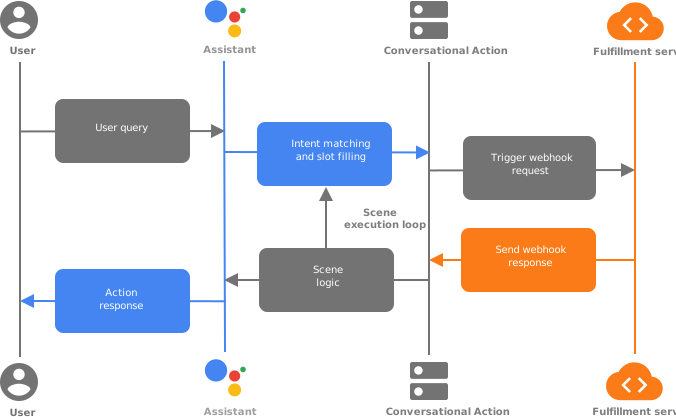
Webhook 觸發條件和處理常式
您的動作可以在叫用意圖或場景中觸發 Webhook,向執行要求端點傳送要求。執行要求包含處理要求中 JSON 酬載的 Webhook 處理常式。在下列情況中,您可以觸發 Webhook:
- 叫用意圖相符後
- 在場景的進入階段
- 場景的條件階段中,條件評估結果為 true 時
- 在場景的填寫空位階段
- 在場景的輸入階段發生意圖比對後
在動作中觸發 Webhook 時,Google 助理會將含有 JSON 酬載的要求傳送至執行要求,其中包含用於處理事件的處理常式名稱。執行要求端點可將事件路徑導向適當的處理常式,以執行邏輯並傳回含有 JSON 酬載的相應回應。
酬載
下列程式碼片段顯示 Actions 傳送至執行階段的要求範例,以及執行階段傳送回覆的範例。詳情請參閱參考文件。
要求範例
{
  "handler": {
    "name": "handler_name"
  },
  "intent": {
    "name": "actions.intent.MAIN",
    "params": {},
    "query": ""
  },
  "scene": {
    "name": "SceneName",
    "slotFillingStatus": "UNSPECIFIED",
    "slots": {}
  },
  "session": {
    "id": "example_session_id",
    "params": {},
    "typeOverrides": []
  },
  "user": {
    "locale": "en-US",
    "params": {
      "verificationStatus": "VERIFIED"
    }
  },
  "home": {
    "params": {}
  },
  "device": {
    "capabilities": [
      "SPEECH",
      "RICH_RESPONSE",
      "LONG_FORM_AUDIO"
    ]
  }
}
回應範例
{
  "session": {
    "id": "example_session_id",
    "params": {}
  },
  "prompt": {
    "override": false,
    "firstSimple": {
      "speech": "Hello World.",
      "text": ""
    }
  },
  "scene": {
    "name": "SceneName",
    "slots": {},
    "next": {
      "name": "actions.scene.END_CONVERSATION"
    }
  }
}
執行階段互動
以下各節說明可在 Webhook 處理常式中執行的常見工作。
傳送提示
您可以建立簡單文字、RTF 格式、資訊卡,甚至是完整的 HTML 提示,並透過互動式畫布支援的網頁應用程式使用。如要瞭解如何處理 Webhook 事件時建立提示,請參閱提示說明文件。下列程式碼片段顯示資訊卡提示:
Node.js
app.handle('rich_response', conv => {
  conv.add('This is a card rich response.');
  conv.add(new Card({
    title: 'Card Title',
    subtitle: 'Card Subtitle',
    text: 'Card Content',
    image: new Image({
      url: 'https://developers.google.com/assistant/assistant_96.png',
      alt: 'Google Assistant logo'
    })
  }));
});
回應 JSON
{
  "session": {
    "id": "example_session_id",
    "params": {}
  },
  "prompt": {
    "override": false,
    "content": {
      "card": {
        "title": "Card Title",
        "subtitle": "Card Subtitle",
        "text": "Card Content",
        "image": {
          "alt": "Google Assistant logo",
          "height": 0,
          "url": "https://developers.google.com/assistant/assistant_96.png",
          "width": 0
        }
      }
    },
    "firstSimple": {
      "speech": "This is a card rich response.",
      "text": ""
    }
  }
}
讀取意圖參數
當 Google 助理執行階段比對出相符的意圖時,就會擷取所有已定義的參數。原始屬性是使用者提供的輸入內容,而解析後的屬性則是 NLU 根據類型規格解析輸入內容後得出的結果。
Node.js
conv.intent.params['param_name'].original
conv.intent.params['param_name'].resolved
要求 JSON
{
  "handler": {
    "name": "handler_name"
  },
  "intent": {
    "name": "intent_name",
    "params": {
      "slot_name": {
        "original": "1",
        "resolved": 1
      }
    },
    "query": ""
  },
  "scene": {
    "name": "SceneName",
    "slotFillingStatus": "UNSPECIFIED",
    "slots": {},
    "next": {
      "name": "actions.scene.END_CONVERSATION"
    }
  },
  "session": {
    "id": "session_id",
    "params": {},
    "typeOverrides": []
  },
  "user": {
    "locale": "en-US",
    "params": {
      "verificationStatus": "VERIFIED"
    }
  },
  "home": {
    "params": {}
  },
  "device": {
    "capabilities": [
      "SPEECH",
      "RICH_RESPONSE",
      "LONG_FORM_AUDIO"
    ]
  }
}
讀取使用者語言代碼
這個值對應 Google 助理的使用者地區設定。
Node.js
conv.user.locale
JSON
{
  "handler": {
    "name": "handler_name"
  },
  "intent": {
    "name": "actions.intent.MAIN",
    "params": {},
    "query": ""
  },
  "scene": {
    "name": "SceneName",
    "slotFillingStatus": "UNSPECIFIED",
    "slots": {}
  },
  "session": {
    "id": "session_id",
    "params": {},
    "typeOverrides": []
  },
  "user": {
    "locale": "en-US",
    "params": {
      "verificationStatus": "VERIFIED"
    }
  },
  "home": {
    "params": {}
  },
  "device": {
    "capabilities": [
      "SPEECH",
      "RICH_RESPONSE",
      "LONG_FORM_AUDIO"
    ]
  }
}
讀取及寫入儲存空間
如要進一步瞭解如何使用各種儲存空間功能,請參閱儲存空間說明文件。
Node.js
//read
conv.session.params.key
conv.user.params.key
conv.home.params.key

// write
conv.session.params.key = value
conv.user.params.key = value
conv.home.params.key = value
要求 JSON
{
  "handler": {
    "name": "handler_name"
  },
  "intent": {
    "name": "actions.intent.MAIN",
    "params": {},
    "query": ""
  },
  "scene": {
    "name": "SceneName",
    "slotFillingStatus": "UNSPECIFIED",
    "slots": {}
  },
  "session": {
    "id": "session_id",
    "params": {
      "key": "value"
    },
    "typeOverrides": [],
    "languageCode": ""
  },
  "user": {
    "locale": "en-US",
    "params": {
      "verificationStatus": "VERIFIED",
      "key": "value"
    }
  },
  "home": {
    "params": {
      "key": "value"
    }
  },
  "device": {
    "capabilities": [
      "SPEECH",
      "RICH_RESPONSE",
      "LONG_FORM_AUDIO"
    ]
  }
}
回應 JSON
{
  "session": {
    "id": "session_id",
    "params": {
      "key": "value"
    }
  },
  "prompt": {
    "override": false,
    "firstSimple": {
      "speech": "Hello world.",
      "text": ""
    }
  },
  "user": {
    "locale": "en-US",
    "params": {
      "verificationStatus": "VERIFIED",
      "key": "value"
    }
  },
  "home": {
    "params": {
      "key": "value"
    }
  }
}
檢查裝置功能
您可以檢查裝置的功能,提供不同的體驗或對話流程。
Node.js
const supportsRichResponse = conv.device.capabilities.includes("RICH_RESPONSE");
const supportsLongFormAudio = conv.device.capabilities.includes("LONG_FORM_AUDIO");
const supportsSpeech = conv.device.capabilities.includes("SPEECH");
const supportsInteractiveCanvas = conv.device.capabilities.includes("INTERACTIVE_CANVAS");
要求 JSON
{
  "handler": {
    "name": "handler_name"
  },
  "intent": {
    "name": "actions.intent.MAIN",
    "params": {},
    "query": ""
  },
  "scene": {
    "name": "SceneName",
    "slotFillingStatus": "UNSPECIFIED",
    "slots": {}
  },
  "session": {
    "id": "session_id",
    "params": {},
    "typeOverrides": [],
    "languageCode": ""
  },
  "user": {
    "locale": "en-US",
    "params": {
      "verificationStatus": "VERIFIED"
    }
  },
  "home": {
    "params": {}
  },
  "device": {
    "capabilities": [
      "SPEECH",
      "RICH_RESPONSE",
      "LONG_FORM_AUDIO",
      "INTERACTIVE_CANVAS"
    ]
  }
}
如需介面功能的完整清單,請參閱 Capability 參考資料。
覆寫執行階段類型
執行階段型別可讓您在執行階段修改型別規格。您可以使用這項功能載入其他來源的資料,填入類型的有效值。舉例來說,您可以使用執行階段型別覆寫,在問卷調查問題中新增動態選項,或在菜單中新增每日項目。
如要使用執行階段型別,請從動作觸發 Webhook,在執行要求中呼叫處理常式。然後在傳回 Action 的回應中填入 session.typeOverrides 參數。可用模式包括 TYPE_MERGE (保留現有型別項目) 或 TYPE_REPLACE (以覆寫項目取代現有項目)。
Node.js
conv.session.typeOverrides = [{
    name: type_name,
    mode: 'TYPE_REPLACE',
    synonym: {
      entries: [
        {
          name: 'ITEM_1',
          synonyms: ['Item 1', 'First item']
        },
        {
          name: 'ITEM_2',
          synonyms: ['Item 2', 'Second item']
       },
       {
          name: 'ITEM_3',
          synonyms: ['Item 3', 'Third item']
        },
        {
          name: 'ITEM_4',
          synonyms: ['Item 4', 'Fourth item']
        },
    ]
  }
}];
回應 JSON
{
  "session": {
    "id": "session_id",
    "params": {},
    "typeOverrides": [
      {
        "name": "type_name",
        "synonym": {
          "entries": [
            {
              "name": "ITEM_1",
              "synonyms": [
                "Item 1",
                "First item"
              ]
            },
            {
              "name": "ITEM_2",
              "synonyms": [
                "Item 2",
                "Second item"
              ]
            },
            {
              "name": "ITEM_3",
              "synonyms": [
                "Item 3",
                "Third item"
              ]
            },
            {
              "name": "ITEM_4",
              "synonyms": [
                "Item 4",
                "Fourth item"
              ]
            }
          ]
        },
        "typeOverrideMode": "TYPE_REPLACE"
      }
    ]
  },
  "prompt": {
    "override": false,
    "firstSimple": {
      "speech": "This is an example prompt.",
      "text": "This is an example prompt."
    }
  }
}
提供語音偏誤
語音偏誤功能可讓您指定 NLU 的提示,提升意圖比對成效。最多可指定 1000 個項目。
Node.js
conv.expected.speech = ['value_1', 'value_2']
conv.expected.language = 'locale_string'
回應 JSON
{
  "session": {
    "id": "session_id",
    "params": {}
  },
  "prompt": {
    "override": false,
    "firstSimple": {
      "speech": "This is an example prompt.",
      "text": "This is an example prompt."
    }
  },
  "expected": {
    "speech": "['value_1', 'value_2']",
    "language": "locale_string"
  }
}
轉場
除了在 Actions 專案中定義靜態轉場效果,您也可以在執行階段觸發場景轉場效果。
Node.js
app.handle('transition_to_hidden_scene', conv => {
  // Dynamic transition
  conv.scene.next.name = "HiddenScene";
});
回應 JSON
{
  "session": {
    "id": "session_id",
    "params": {}
  },
  "prompt": {
    "override": false,
    "firstSimple": {
      "speech": "This is an example prompt.",
      "text": ""
    }
  },
  "scene": {
    "name": "SceneName",
    "slots": {},
    "next": {
      "name": "HiddenScene"
    }
  }
}
讀取場景時段
在運算單元填充期間,您可以使用完成動作來驗證運算單元,或檢查運算單元填充狀態 (SlotFillingStatus)。
Node.js
conv.scene.slotFillingStatus  // FINAL means all slots are filled
conv.scene.slots  // Object that contains all the slots
conv.scene.slots['slot_name'].<property_name> // Accessing a specific slot's properties
舉例來說,假設您想從回覆中擷取時區,在本範例中,位置名稱為 datetime1。如要取得時區,請使用:
conv.scene.slots['datetime1'].value.time_zone.id
要求 JSON
{
  "handler": {
    "name": "handler_name"
  },
  "intent": {
    "name": "",
    "params": {
      "slot_name": {
        "original": "1",
        "resolved": 1
      }
    },
    "query": ""
  },
  "scene": {
    "name": "SceneName",
    "slotFillingStatus": "FINAL",
    "slots": {
      "slot_name": {
        "mode": "REQUIRED",
        "status": "SLOT_UNSPECIFIED",
        "updated": true,
        "value": 1
      }
    },
    "next": {
      "name": "actions.scene.END_CONVERSATION"
    }
  },
  "session": {
    "id": "session_id",
    "params": {
      "slot_name": 1
    },
    "typeOverrides": []
  },
  "user": {
    "locale": "en-US",
    "params": {
      "verificationStatus": "VERIFIED"
    }
  },
  "home": {
    "params": {}
  },
  "device": {
    "capabilities": [
      "SPEECH",
      "RICH_RESPONSE",
      "LONG_FORM_AUDIO"
    ]
  }
}
使場景時段失效
您可以使時段失效,並要求使用者提供新值。
Node.js
conv.scene.slots['slot_name'].status = 'INVALID'
回應 JSON
{
  "session": {
    "id": "session_id",
    "params": {
      "slot_name": 1
    }
  },
  "prompt": {
    "override": false,
    "firstSimple": {
      "speech": "This is an example prompt.",
      "text": ""
    }
  },
  "scene": {
    "name": "SceneName",
    "slots": {
      "slot_name": {
        "mode": "REQUIRED",
        "status": "INVALID",
        "updated": true,
        "value": 1
      }
    },
    "next": {
      "name": "actions.scene.END_CONVERSATION"
    }
  }
}
開發選項
Actions Builder 提供名為「Cloud Functions 編輯器」的內嵌編輯器,可讓您直接在控制台中建構及部署 Cloud Functions for Firebase。您也可以在選擇的代管服務中建構及部署完成動作,並將 HTTPS 完成動作端點註冊為 Webhook 處理常式。
內嵌編輯器
如要使用 Cloud Functions 編輯器開發,請按照下列步驟操作:
- 開啟 Actions 專案,然後依序前往「Develop」分頁 >「Webhook」>「Change fulfillment method」。系統會隨即顯示「出貨方式」視窗。
- 選取「Inline Cloud Functions」,然後按一下「確認」。
外部 HTTPS 端點
本節說明如何將 Cloud Functions for Firebase 設為對話動作的執行要求服務。不過,您可以將出貨作業部署到所選的代管服務。
設定環境
如要設定環境,請按照下列步驟操作:
- 下載並安裝 Node.js。
設定並初始化 Firebase CLI。如果下列指令失敗並顯示
EACCES錯誤,你可能需要變更 npm 權限。npm install -g firebase-tools使用 Google 帳戶驗證 firebase 工具:
firebase login啟動儲存Actions 專案的專案目錄。 系統會要求您選取要為 Actions 專案設定的 Firebase CLI 功能。選擇
Functions和其他您可能想使用的功能 (例如 Firestore),然後按下 Enter 鍵確認並繼續:$ cd <ACTIONS_PROJECT_DIRECTORY> $ firebase init使用箭頭鍵瀏覽專案清單,然後選取 Firebase 工具,將其與 Actions 專案建立關聯:
選擇專案後,Firebase 工具會開始設定函式,並詢問您要使用的語言。使用方向鍵選取,然後按下 Enter 鍵繼續。
=== Functions Setup
A functions directory will be created in your project with a Node.js
package pre-configured. Functions can be deployed with firebase deploy.

? What language would you like to use to write Cloud Functions? (Use arrow keys)
> JavaScript
TypeScript
輸入 Y 或 N,選擇是否要使用 ESLint 找出可能的錯誤並強制執行樣式:
? Do you want to use ESLint to catch probable bugs and enforce style? (Y/n)
在提示字元視窗中輸入 Y,取得專案依附元件:
? Do you want to install dependencies with npm now? (Y/n)
設定完成後,畫面會顯示類似以下的輸出:
✔ Firebase initialization complete!安裝 @assistant/conversation 依附元件:
$ cd <ACTIONS_PROJECT_DIRECTORY>/functions
$ npm install @assistant/conversation --save
取得完成作業的依附元件,並部署完成作業的函式:
$ npm install $ firebase deploy --only functions部署作業需要幾分鐘才能完成。完成後,您會看到類似以下的輸出內容。您需要函式網址,才能在 Dialogflow 中輸入。
✔  Deploy complete!

Project Console: https://console.firebase.google.com/project/<PROJECT_ID>/overview
Function URL (<FUNCTION_NAME>): https://us-central1-<PROJECT_ID>.cloudfunctions.net/<FUNCTION_NAME>
複製完成網址,以便在下一節中使用。
註冊 Webhook 處理常式
如要將 Cloud Functions 端點註冊為 Webhook 處理常式,請按照下列步驟操作:
- 在 Actions 控制台中,依序點選「開發」>「Webhook」。
- 按一下「變更運送方式」。系統會顯示「履行方式」視窗。
- 選取「Webhook」,然後按一下「確認」。
- 將網路服務網址貼到「Webhook」欄位。
- 按一下 [儲存]。