
アダプティブ バナーでは、指定した広告の幅に応じて、最適な広告サイズが決定されます。また、デバイスに合わせて広告サイズが最適化されるため、パフォーマンスを最大限に高めることができます。これにより、広告のパフォーマンスの向上につながります。
アンカー アダプティブ バナーと比べて、インライン アダプティブ バナーは大きく、高さがあります。また高さは固定されておらず、変動します。インライン アダプティブ バナーは高さを変えることによって、画面全体に表示したり、指定した最大の高さで表示したりすることができます。
インライン アダプティブ バナーは、次のようなスクロールできるコンテンツに配置します。
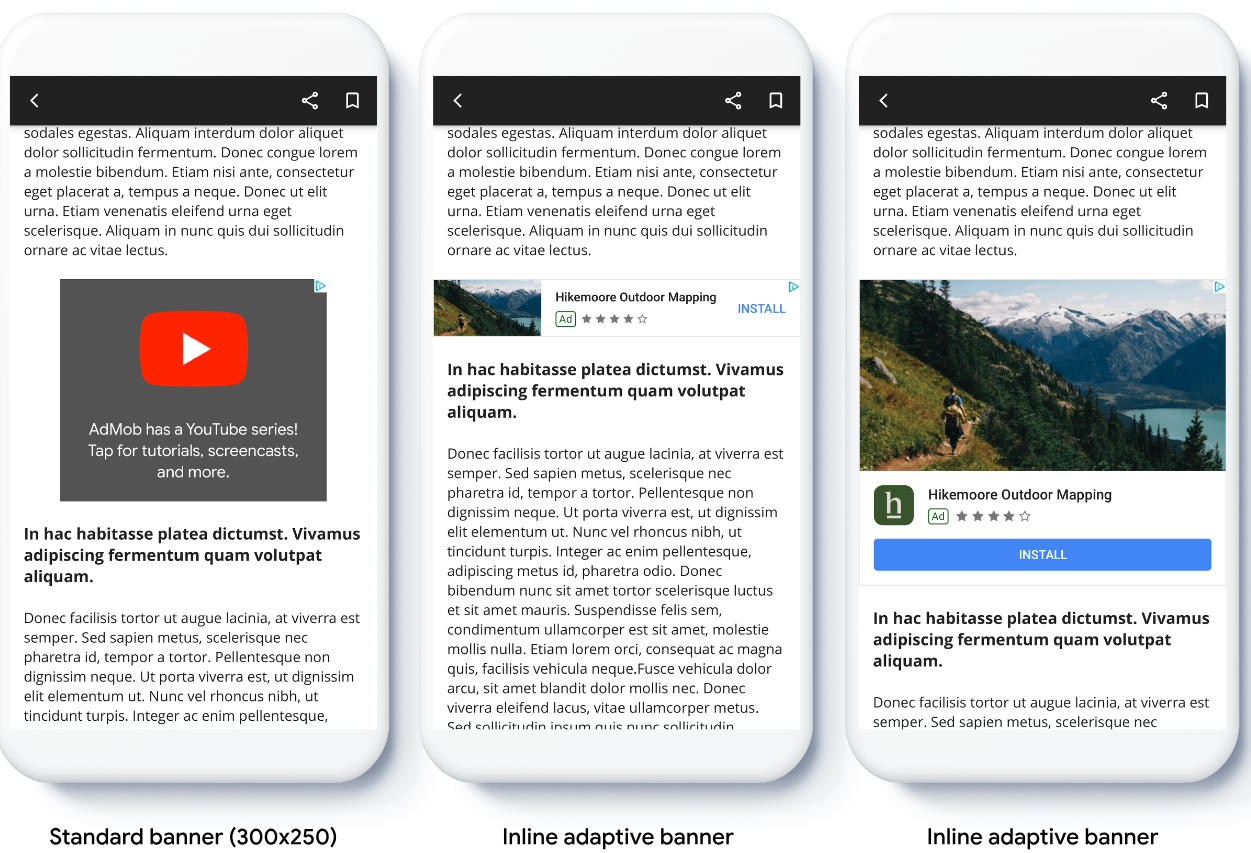
始める前に
続行する前に、スタートガイドのバナー広告を完了していることを確認してください。
インライン アダプティブ バナーを実装する
次の例は、これらの手順を示しています。
Kotlin
private fun loadAd() {
  // Create an inline adaptive ad size. 320 is a placeholder value.
  // Replace 320 with your banner container width.
  val adSize = AdSize.getCurrentOrientationInlineAdaptiveBannerAdSize(this, 320)

  // Step 1 - Create a BannerAdRequest object with ad unit ID and size.
  val adRequest = BannerAdRequest.Builder("AD_UNIT_ID", adSize).build()

  // Step 2 - Load the ad.
  BannerAd.load(
    adRequest,
    object : AdLoadCallback<BannerAd> {
      override fun onAdLoaded(ad: BannerAd) {
        // Assign the loaded ad to the BannerAd object.
        bannerAd = ad
        // Step 3 - Call BannerAd.getView() to get the View and add it
        // to view hierarchy on the UI thread.
        activity?.runOnUiThread {
          binding.bannerViewContainer.addView(ad.getView(requireActivity()))
        }
      }

      override fun onAdFailedToLoad(loadAdError: LoadAdError) {
        bannerAd = null
      }
    }
  )
}
Java
private void loadAd() {
  // Create an inline adaptive ad size. 320 is a placeholder value.
  // Replace 320 with your banner container width.
  AdSize adSize = AdSize.getCurrentOrientationInlineAdaptiveBannerAdSize(this, 320);

  // Step 1 - Create a BannerAdRequest object with ad unit ID and size.
  BannerAdRequest adRequest = new BannerAdRequest.Builder("AD_UNIT_ID",
      adSize).build();

  // Step 2 - Load the ad.
  BannerAd.load(
      adRequest,
      new AdLoadCallback<BannerAd>() {
        @Override
        public void onAdLoaded(@NonNull BannerAd ad) {
          // Assign the loaded ad to the BannerAd object.
          bannerAd = ad;
          // Step 3 - Call BannerAd.getView() to get the View and add it
          // to view hierarchy on the UI thread.
          if (getActivity() != null) {
            getActivity()
                .runOnUiThread(() ->
                    binding.bannerViewContainer.addView(ad.getView(getActivity())));
          }
        }

        @Override
        public void onAdFailedToLoad(@NonNull LoadAdError adError) {
          bannerAd = null;
        }
      });
}
アプリにアダプティブ バナーを実装する際には、次の点に注意してください。
- インライン アダプティブ バナーは、利用できるスペースの横幅いっぱいに表示すると最も効果を発揮するように設計されています。ほとんどの場合は、使用しているデバイス画面の全幅、またはバナーの親コンテンツの全幅です。広告を配置する画面の幅、デバイスの幅、親コンテンツの幅、該当するセーフエリアを確認してください。
インライン アダプティブ バナーのサイズの向きを指定する
特定の画面の向きでインライン アダプティブ バナー広告をプリロードするには、次のメソッドを使用します。
AdSize.getPortraitInlineAdaptiveBannerAdSize(Context context, int width)AdSize.getLandscapeInlineAdaptiveBannerAdSize(Context context, int width)
アプリが縦向きと横向きの両方の画面表示に対応しており、現在のデバイスの向きでアダプティブ バナー広告をプリロードするには、AdSize.getCurrentOrientationInlineAdaptiveBannerAdSize(Context context, int width) を使用します。このメソッドでは現在の向きで広告を読み込みます。
インライン アダプティブ バナーの高さを制限する
デフォルトでは、maxHeight 値を指定せずにインスタンス化されたインライン アダプティブ バナーの maxHeight はデバイスの高さと同じになります。インライン アダプティブ バナーの高さを制限するには、AdSize.getInlineAdaptiveBannerAdSize(int width, int maxHeight) メソッドを使用します。