
This guide shows you how to use Google Mobile Ads SDK (Legacy) to load and display ads from Verve HyBid SDK using mediation covering bidding integrations. It covers how to add Verve HyBid SDK to an ad unit's mediation configuration, and how to integrate the Verve HyBid SDK and adapter into an Android app.
Supported integrations and ad formats
The mediation adapter for Verve HyBid SDK has the following capabilities:
| Integration | |
|---|---|
| Bidding | 1 |
| Waterfall | |
| Formats | |
| Banner | |
| Interstitial | |
| Rewarded Interstitial | |
| Rewarded | |
| Native | |
1 Bidding integration is in alpha. Reach out to your your account manager to request access.
Prerequisites
Before you continue, verify the following:
- Android API level 24 or later.
Latest Google Mobile Ads SDK (Legacy) version.
Step 1: Set up configurations in Verve HyBid SDK UI
For configuration setup, contact Verve.
Step 2: Set up Verve HyBid SDK demand in Ad Manager UI
Sign in to your Ad Manager account.
Enable secure signal sharing
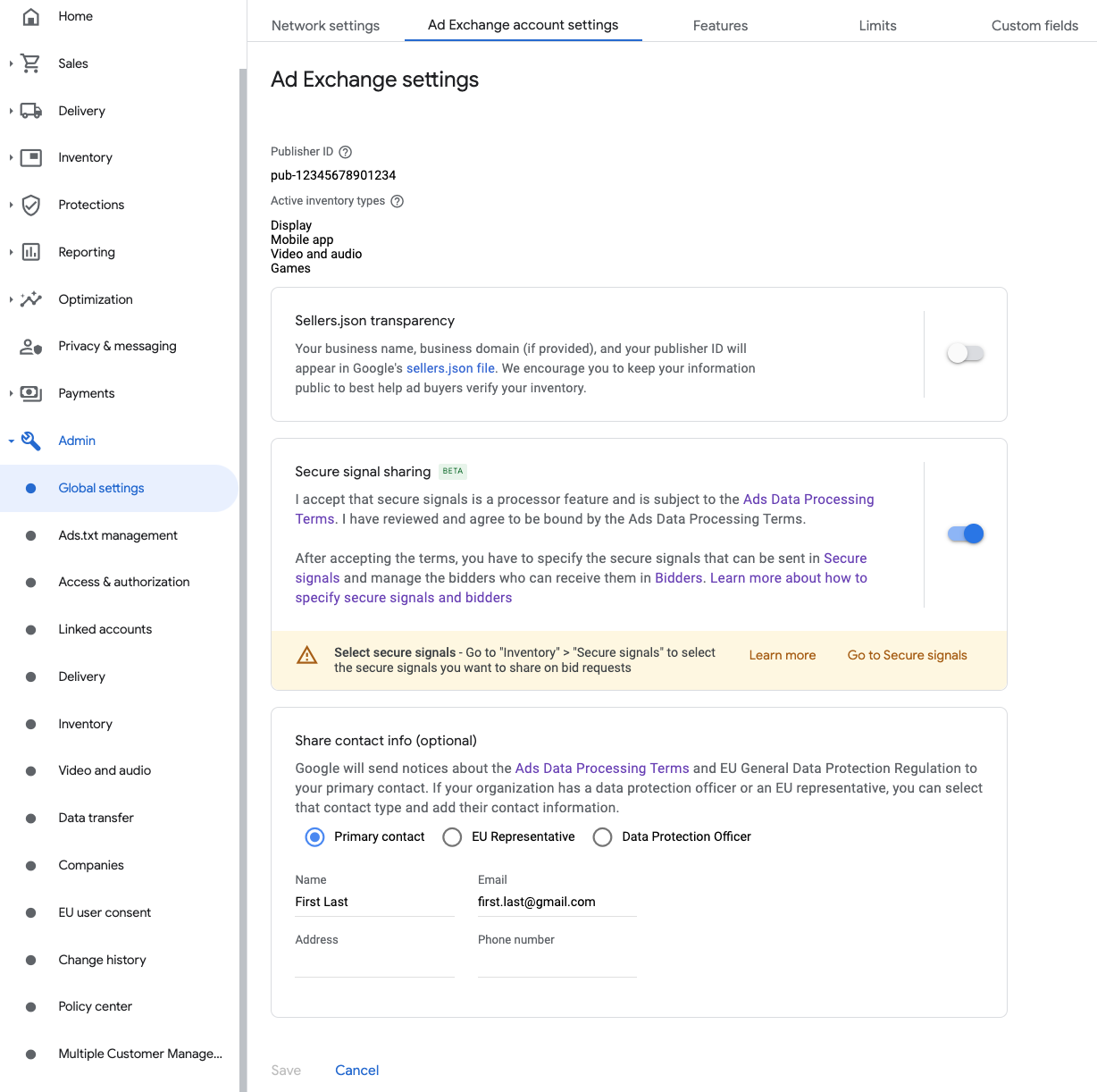
Navigate to Admin > Global settings. Go to the Ad Exchange account settings tab and review and toggle on Secure signal sharing. Click Save.
Share secure signal on bid requests
Navigate to Inventory > Secure Signals. Under Secure signals, search for Verve HyBid SDK and toggle on Enable app integration.
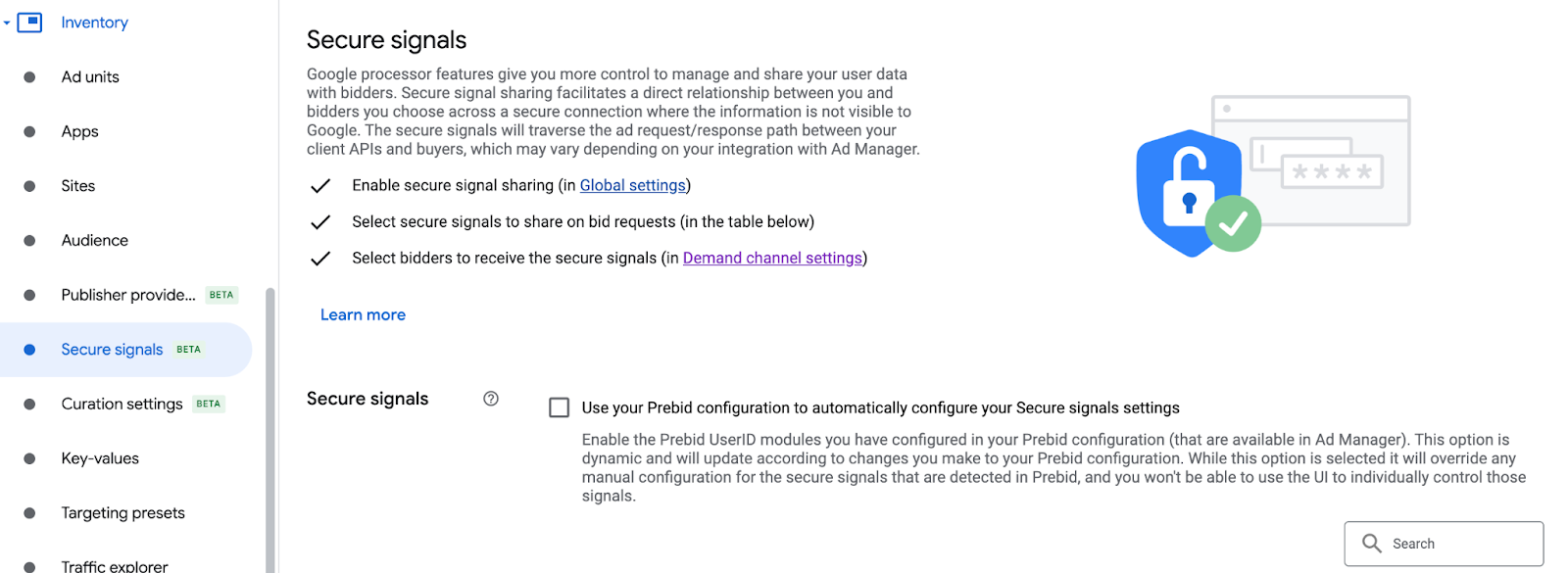
Click Save.
Allow secure signal sharing for SDK Bidding
Navigate to Delivery > Demand channel settings. In the Default settings tab, toggle on Allow secure signal sharing for SDK Bidding.
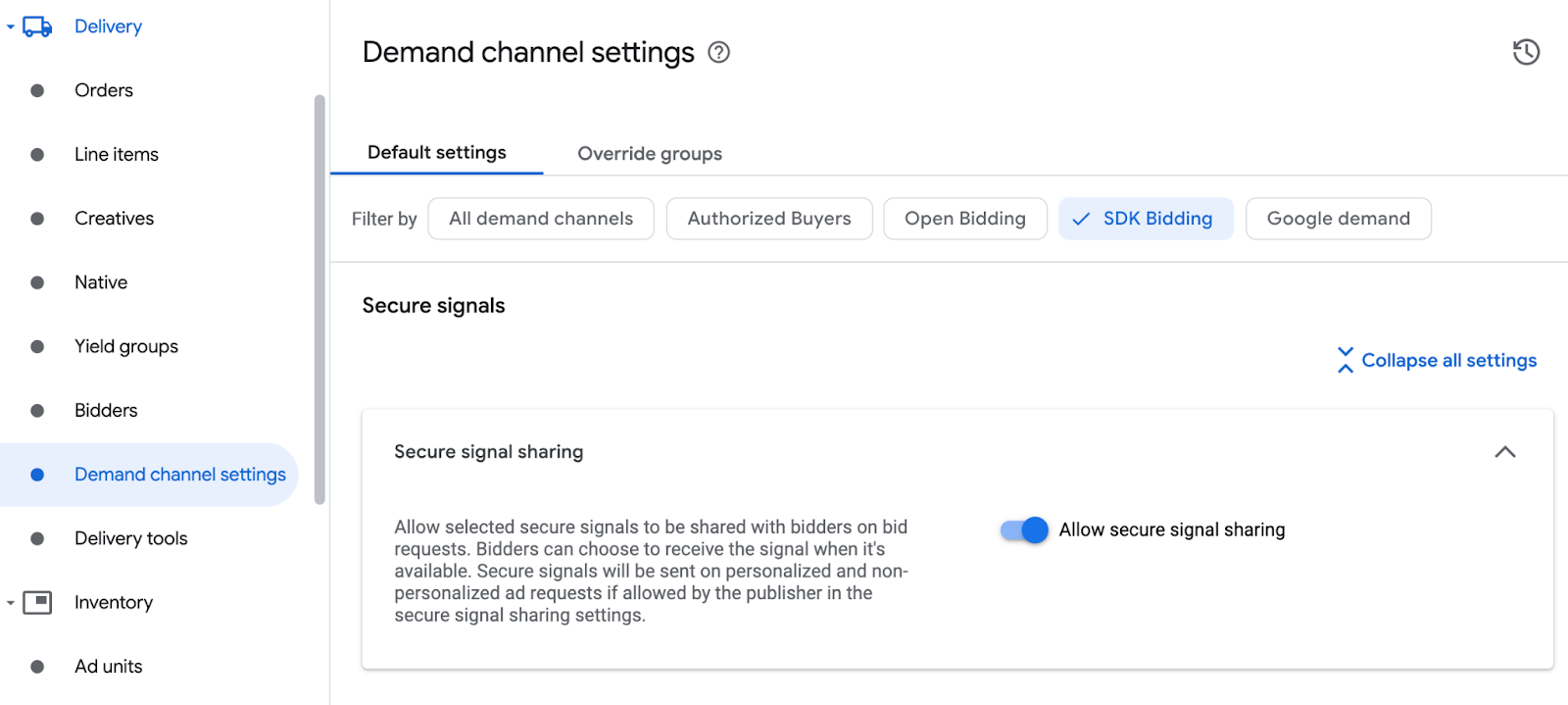
Click Save.
Configure Verve HyBid SDK bidding
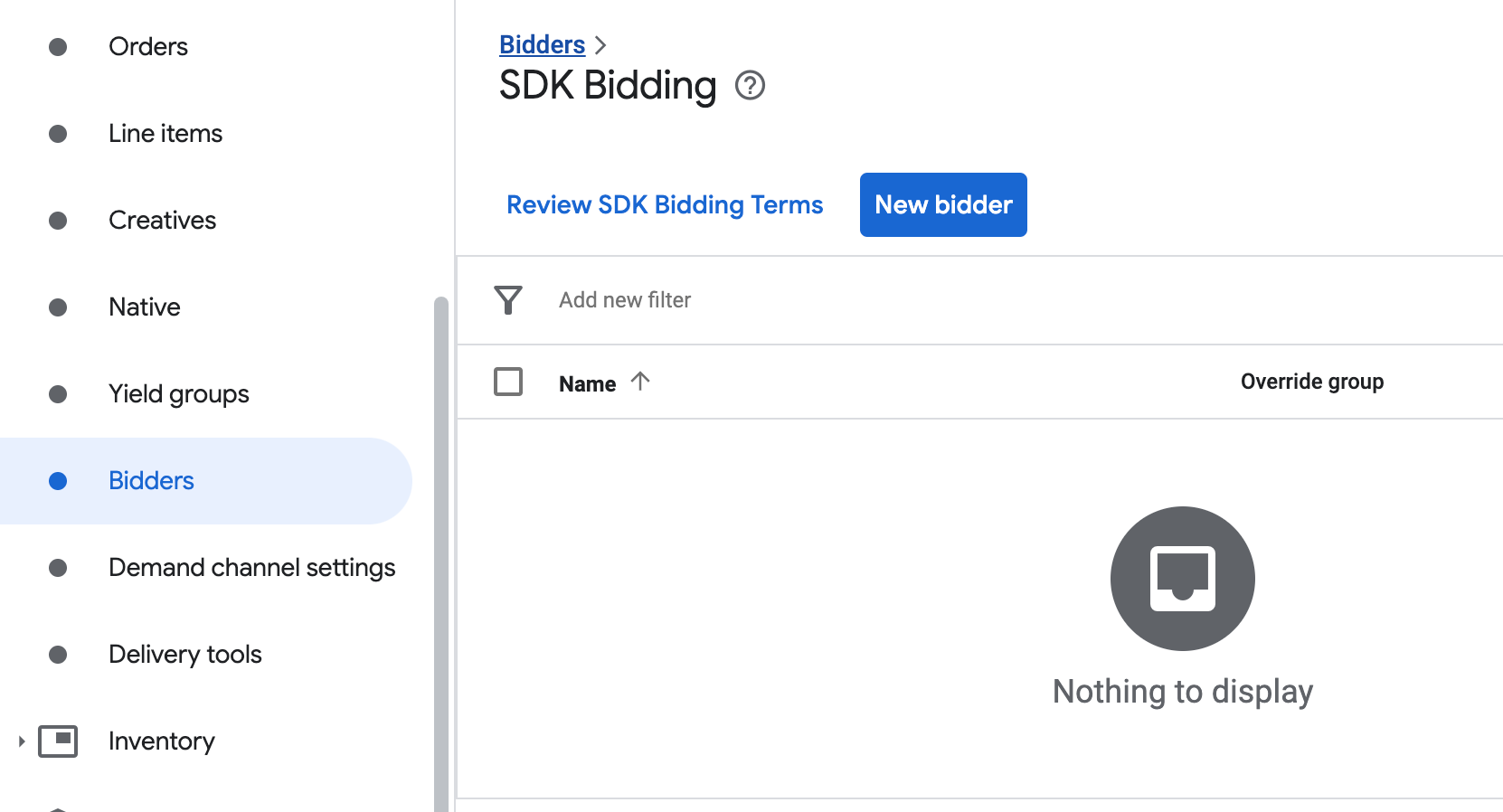
Navigate to Delivery > Bidders, and click Go to SDK Bidding.
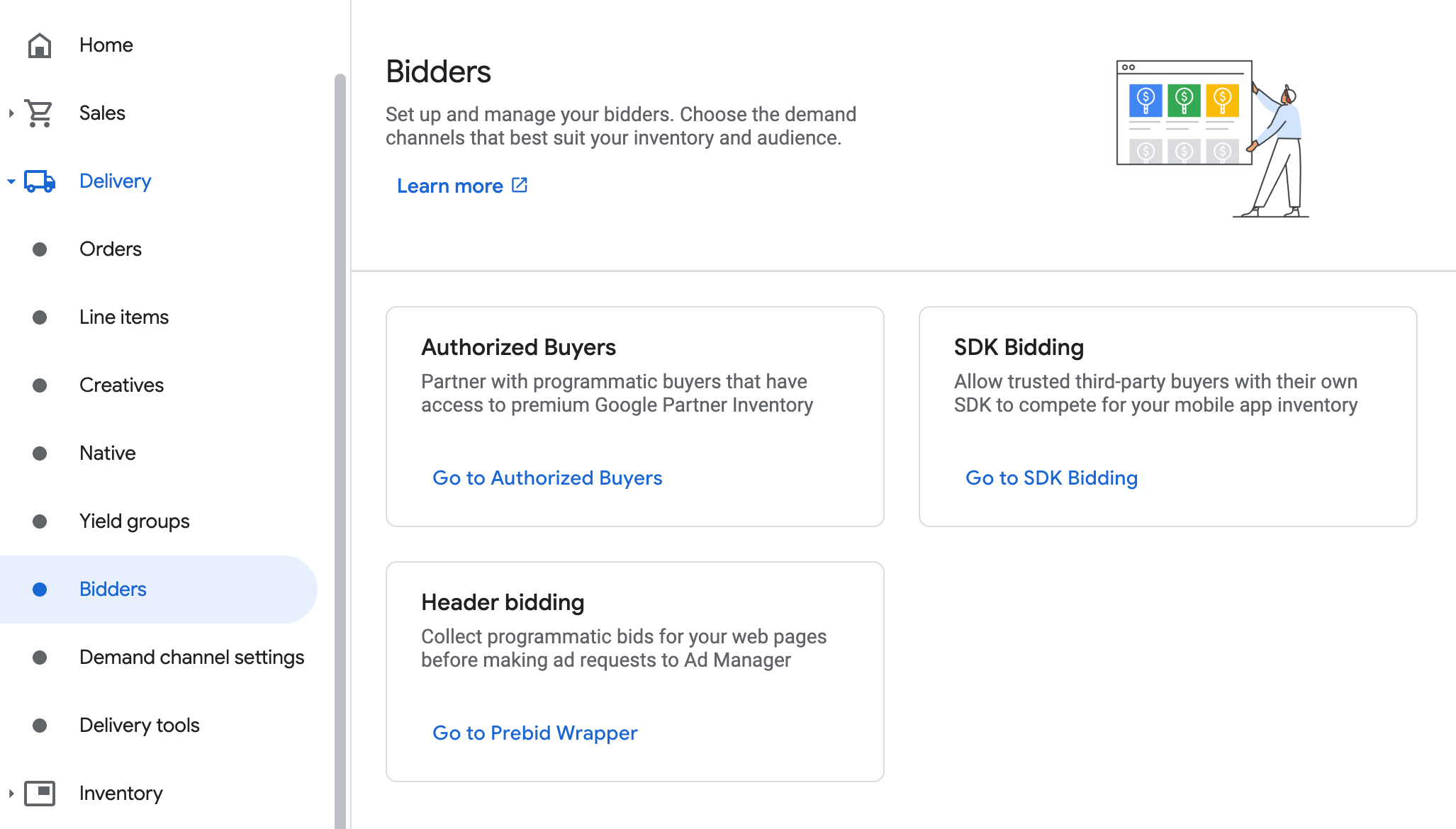
Click New bidder.
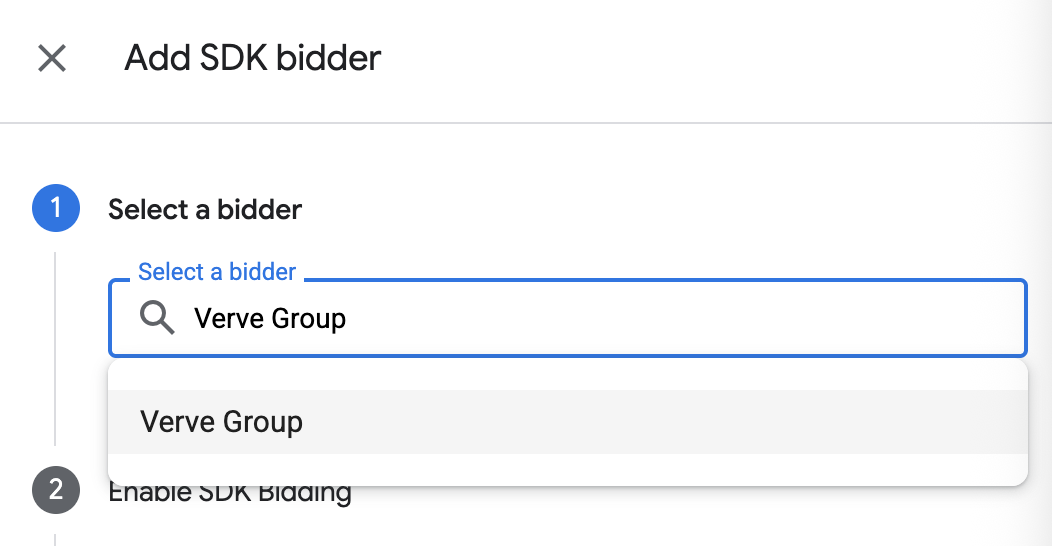
Select Verve Group as the bidder.
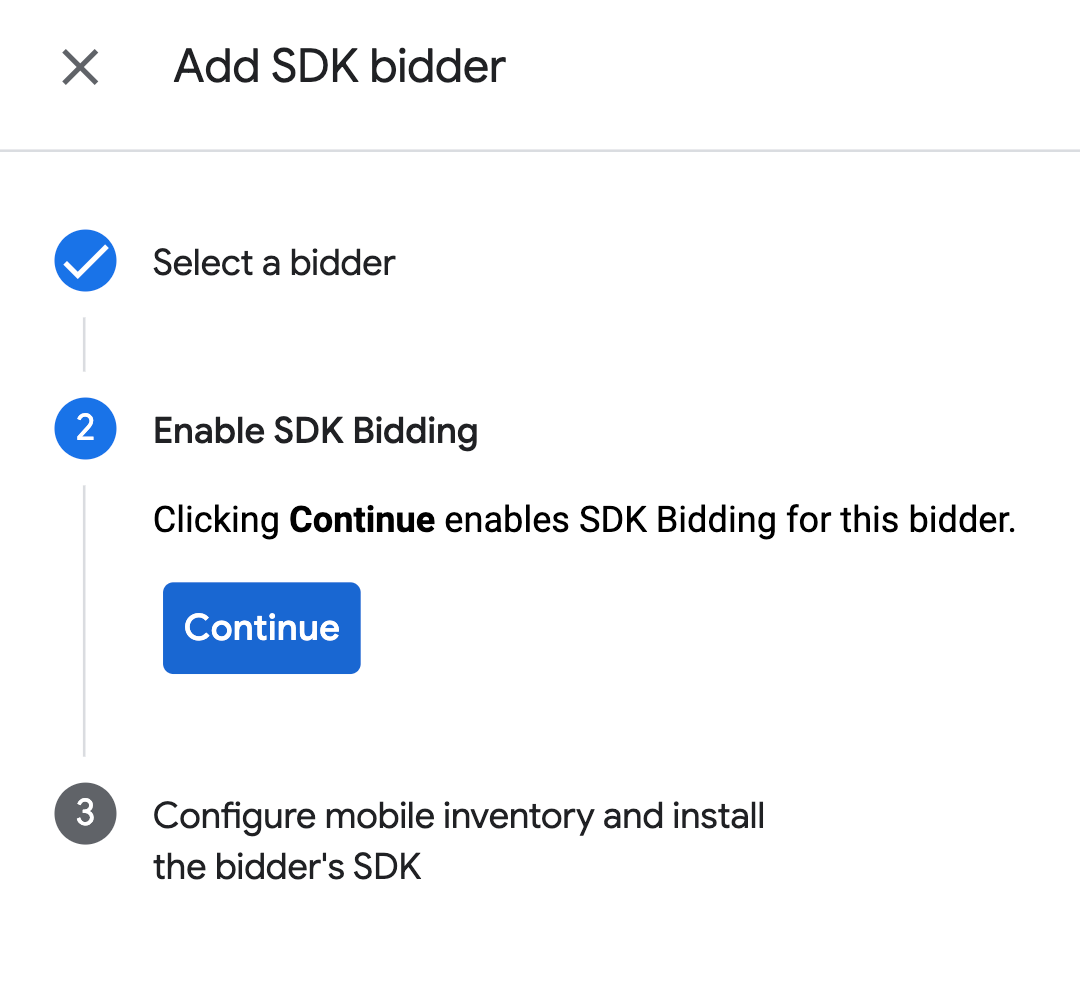
Click Continue to enable SDK Bidding for this bidder.
Click Done.
Configure ad unit mapping
Navigate to Delivery > Bidders, and click Go to SDK Bidding.
Select the company for Verve HyBid SDK.
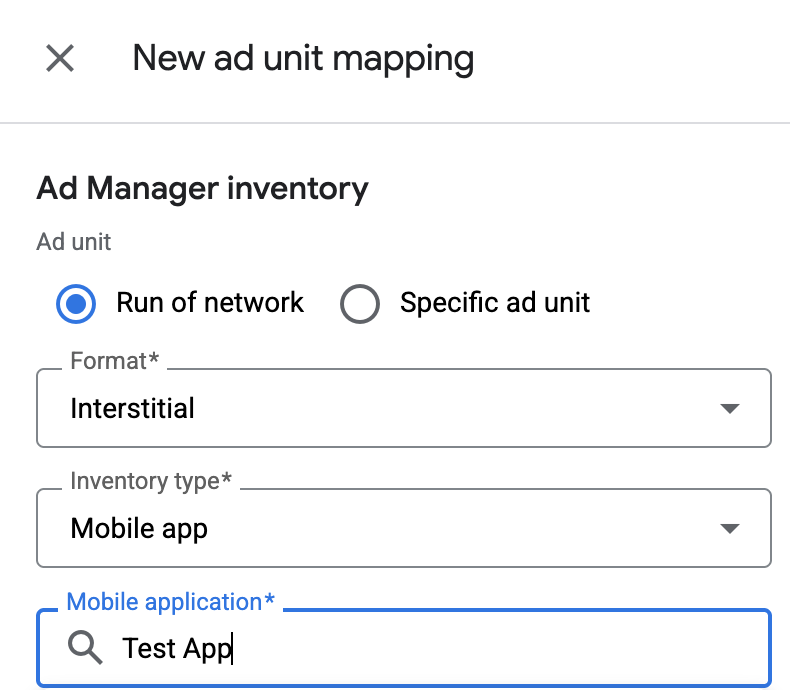
Go to the Ad unit mapping tab and click New ad unit mapping.
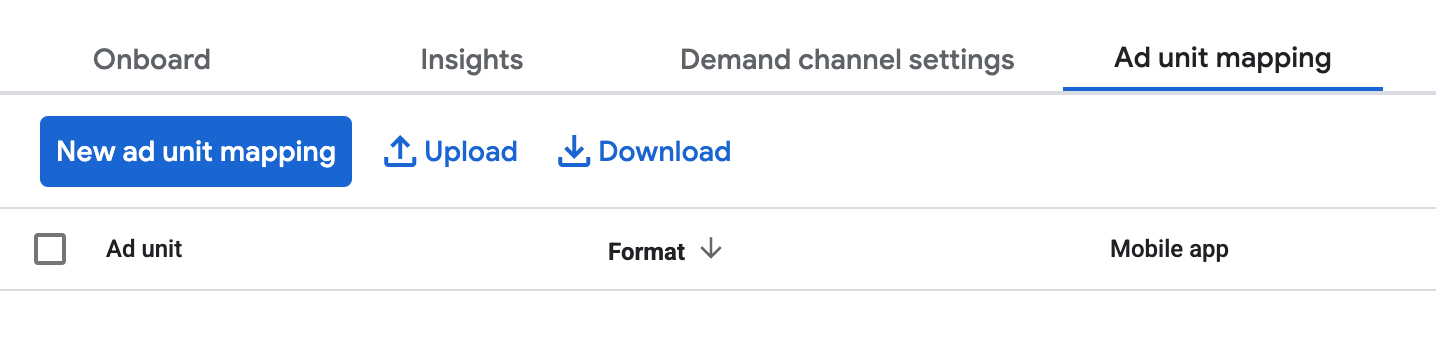
Choose Specific ad unit. Select an ad unit and format, Mobile app as the Inventory type, and your Mobile application. Then, enter Zone ID and AppToken obtained in the previous section.
If you are configuring ad unit mapping for a rewarded interstitial ad within the Ad Manager UI, choose the Rewarded format and use the rewarded interstitial placement ID.
Finally, click Save.
Add Verve Group to GDPR and US state regulations ad partners list
Follow the steps in European regulations settings and US state regulations settings to add Verve Group to the European and US state regulations ad partners list in the Ad Manager UI.
Step 3: Import the Verve HyBid SDK and adapter
Android Studio integration (recommended)
In your project-level settings.gradle.kts file, add the following
repositories:
dependencyResolutionManagement {
  repositories {
    google()
    mavenCentral()
    maven {
      url = uri("https://verve.jfrog.io/artifactory/verve-gradle-release")
    }
  }
}
Then, in your app-level build.gradle.kts file, add the following
implementation dependencies and configurations. Use the latest versions of the
Verve HyBid SDK and adapter:
dependencies {
    implementation("com.google.android.gms:play-services-ads:25.5.0")
    implementation("com.google.ads.mediation:verve:3.9.2.0")
}
Step 4: Implement privacy settings on Verve SDK
EU Consent and GDPR
To comply with the Google EU User Consent Policy, you must make certain disclosures to your users in the European Economic Area (EEA), the UK, and Switzerland, and obtain their consent for the use of cookies or other local storage where legally required, and for the collection, sharing, and use of personal data for ads personalization. This policy reflects the requirements of the EU ePrivacy Directive and the General Data Protection Regulation (GDPR). You are responsible for verifying that consent is propagated to each ad source in your mediation chain.
Verve HyBid SDK automatically reads GDPR consent set by consent management platforms including UMP SDK. For more information, see GDPR TCF Compliance.
US states privacy laws
US states privacy laws require giving users the right to opt out of the "sale" of their "personal information" (as the law defines those terms), with the opt-out offered through a prominent "Do Not Sell My Personal Information" link on the "selling" party's homepage. The US states privacy laws compliance guide offers the ability to enable restricted data processing for Google ad serving, but Google is unable to apply this setting to each ad network in your mediation chain. Therefore, you must identify each ad network in your mediation chain that may participate in the sale of personal information and follow guidance from each of those networks to ensure compliance.
Verve HyBid SDK supports privacy settings through a method. The following sample code passes this consent information to Verve HyBid SDK. If you pass consent information to Verve HyBid SDK manually, we recommend that you call the example before you request ads through Google Mobile Ads SDK (Legacy).
Java
Kotlin
Replace US_PRIVACY_STRING with your US privacy string.
For details, see Verve HyBid SDK privacy documentation on CCPA Compliance.
Step 5: Add required code
No additional code is required for Verve HyBid SDK integration.
Step 6: Test your implementation
Enable test ads
Make sure you register your test device for Ad Manager.
Verify test ads
To verify that you are receiving test ads from Verve HyBid SDK, enable single ad source testing in ad inspector using the Verve (Bidding) ad source(s).
Follow Verve HyBid SDK's documentation for additional configuration.
Error codes
If the adapter fails to receive an ad from Verve HyBid SDK, publishers can
check the underlying error from the ad response using
ResponseInfo.getAdapterResponses()
under the following classes:
net.pubnative.lite.sdk
com.google.ads.mediation.verve
Here are the codes and accompanying messages thrown by the Verve HyBid SDK adapter when an ad fails to load:
| Error code | Domain | Reason |
|---|---|---|
| 101 | The requested ad size does not match a Verve HyBid SDK supported banner size. | |
| 102 | net.pubnative.lite.sdk | Verve HyBid Error - Couldn't load ad. |
| 103 | com.google.ads.mediation.verve | Attempted to show a null fullscreen ad. |
| 104 | com.google.ads.mediation.verve | MobileAds.getRequestConfiguration() indicates the user is a child. Verve will be dropped. |
Verve Android Mediation Adapter Changelog
Version 3.9.2.0
- Pin the adapter's Kotlin dependency to 1.9.0 (the min Kotlin version supported by GMA NextGen SDK).
- Verified compatibility with Verve HyBid SDK version 3.9.2.
Built and tested with:
- Google Mobile Ads SDK version 25.4.0.
- Google Mobile Ads Next-Gen SDK version 1.4.0.
- Verve HyBid SDK version 3.9.2.
Version 3.9.1.0
- Verified compatibility with Verve HyBid SDK version 3.9.1.
Built and tested with:
- Google Mobile Ads SDK version 25.4.0.
- Google Mobile Ads Next-Gen SDK version 1.3.1.
- Verve HyBid SDK version 3.9.1.
Version 3.9.0.0
- Filter age-restricted requests for Verve SDK when new
AgeRestrictedTreatmentis set toCHILD. - Verified compatibility with Verve HyBid SDK version 3.9.0.
Built and tested with:
- Google Mobile Ads SDK version 25.4.0.
- Google Mobile Ads Next-Gen SDK version 1.2.1.
- Verve HyBid SDK version 3.9.0.
Version 3.8.2.0
- Verified compatibility with Verve HyBid SDK version 3.8.2.
Built and tested with:
- Google Mobile Ads SDK version 25.3.0.
- Google Mobile Ads Next-Gen SDK version 1.2.1.
- Verve HyBid SDK version 3.8.2.
Version 3.8.1.1
- Filter clickable views to differentiate content info click from regular ad click for VerveNativeAd.
Built and tested with:
- Google Mobile Ads SDK version 25.2.0.
- Google Mobile Ads Next-Gen SDK version 1.0.1.
- Verve HyBid SDK version 3.8.1.
Version 3.8.1.0
- Added property to build the adapter with GMA Next-Gen SDK dependency.
- Verified compatibility with Verve HyBid SDK version 3.8.1.
Built and tested with:
- Google Mobile Ads SDK version 25.1.0.
- Verve HyBid SDK version 3.8.1.
Version 3.7.1.1
- Removed banner size check from the Verve Adapter to resolve signal collection failures.
Built and tested with:
- Google Mobile Ads SDK version 25.0.0.
- Verve HyBid SDK version 3.7.1.
Version 3.7.1.0
- Initial release.
- Verified compatibility with Verve HyBid SDK version 3.7.1.
Built and tested with:
- Google Mobile Ads SDK version 24.8.0.
- Verve HyBid SDK version 3.7.1.