
Users can control the zoom, tilt, position, and rotation of the camera using gestures on the map. You can also configure the camera programmatically.
The Camera Position
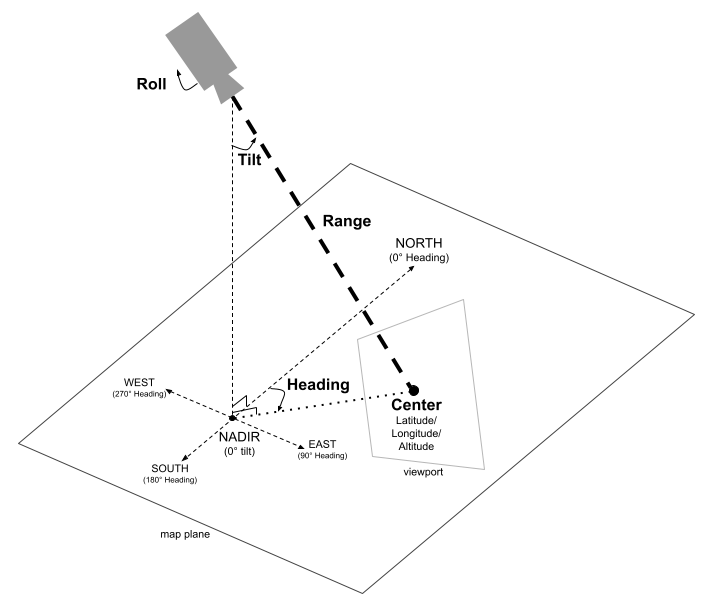
The map view is modeled as a camera looking at a specific point in space. The position and orientation of the camera are defined by latitude/longitude/altitude coordinates (defined as the "center", where the camera is pointing), heading, tilt, range, and roll.
Center (latitude, longitude, altitude)
The center defines the specific point in 3D space that the camera is observing.
This is specified using the LatLngAltitude class,
which combines values for latitude, longitude, and altitude. This allows for precise
positioning of the camera's focal point in three dimensions.
The latitude can be between -90 and 90 degrees, inclusive. Longitude ranges between -180 and 180 degrees, inclusive. Altitude is specified in meters above sea level.
Heading
The heading specifies the compass direction of the map, measured in degrees clockwise from true North. North corresponds to 0 degrees, East to 90 degrees, South to 180 degrees, and West to 270 degrees.
Tilt
The tilt specifies the angle of the camera with respect to the vertical axis, measured in degrees. A tilt of 0 degrees means the camera is pointing straight down towards the Earth (nadir). A tilt of 90 degrees means the camera is pointed horizontally in the direction specified by the heading.
Range
The range defines the distance in meters between the camera's own position and the center of the map. The range can vary from zero meters (very close up) up to sixty-three million meters, allowing for views from very close up all the way to a truly global perspective. This effectively controls how "zoomed in" or "zoomed out" the map appears.
Roll
The roll sets the angle of the camera with respect to the horizon, measured in degrees. This parameter can be used to create effects like banking during flight simulations or even a full barrel roll, rotating the camera around its viewing axis.
Controlling the camera
The following code sample demonstrates how to control the camera programmatically by calling thesetCamera
method.
To use this code sample, follow the instructions in
Setup and
Add a 3D map to your app to set
up your Android Studio project with a basic 3D map. Then, add the following
code to the
MainActivity.kt file:
// Add imports
import com.google.android.gms.maps3d.model.Map3DMode
import com.google.android.gms.maps3d.model.latLngAltitude

...

// Add to the onMap3DViewReady method, after the googleMap3D object has been initialized
googleMap3D.setMapMode(Map3DMode.HYBRID)
googleMap3D.setCamera(
    camera {
        center = latLngAltitude {
            latitude = 38.743502
            longitude = -109.499374
            altitude = 1467.0
        }
        heading = 350.0
        tilt = 58.1
        range = 138.2
        roll = 0.0
    }
)