
Page Summary
-
The Cast framework supports iOS 15 and later and is available in static and dynamic frameworks.
-
Using
-Ofastfor the Optimization Level flag in Xcode will cause the Cast iOS SDK to crash; the SDK supports the default value-Os. -
For iOS 14, you must add
NSBonjourServicesandNSLocalNetworkUsageDescriptionto yourInfo.plistfile for device discovery to work correctly. -
Adding the Cast iOS SDK can be done using CocoaPods or by manually adding the framework to your project.
The Cast framework supports iOS 16 and later, and comes in both static and dynamic frameworks.
See the Google Cast iOS API Reference for descriptions of all classes and methods.
Xcode setup
-
Add the Cast iOS SDK 4.8.6 to your project
If using Swift Package Manager, update the
google-cast-ios-sdkpackage to version 4.8.6.Otherwise, pull in the SDK manually.
-
Add
NSBonjourServicesto yourInfo.plistSpecify
NSBonjourServicesin yourInfo.plistto allow local network discovery to succeed.You will need to add both
_googlecast._tcpand_<your-app-id>._googlecast._tcpas services for device discovery to work properly.The appID is your receiverID, which is the same ID that is defined in your
GCKDiscoveryCriteria.Update the following example
NSBonjourServicesdefinition and replace "ABCD1234" with your appID. -
Add
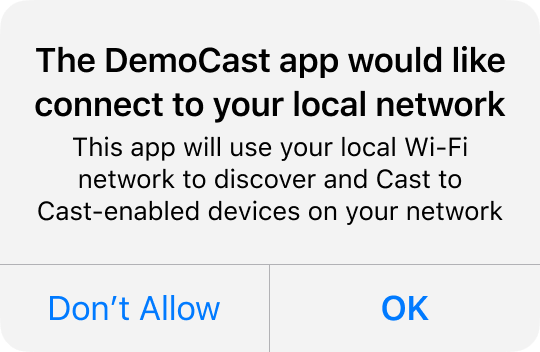
NSLocalNetworkUsageDescriptionto yourInfo.plistWe strongly recommend that you customize the message shown in the Local Network prompt by adding an app-specific permission string in your app's
Info.plistfile for theNSLocalNetworkUsageDescriptionsuch as to describe Cast discovery and other discovery services, like DIAL.This message will appear as part of the iOS Local Network Access dialog as shown in the mock.
-
Re-release your app to the Apple App Store
We recommend you also re-release your app using 4.8.6 as soon as possible.
Swift Package Manager setup
The recommended way of integrating Google Cast is using Swift Package Manager (SPM). The Cast iOS SDK package is available from the google-cast-ios-sdk GitHub repository.
To add the Cast iOS SDK to your project in Xcode:
- In Xcode, select File > Add Packages....
- Enter the repository URL:
https://github.com/googlecast/google-cast-ios-sdk. - Select your versioning rules. For example, select Up to Next Major Version with a minimum version of 4.8.6 to receive compatible updates without unexpected breaking changes.
- Click Add Package.
- Select either the
GoogleCastDynamicor theGoogleCastStaticproduct, and add it to your app target.
Choose a framework variant
The Cast iOS SDK package provides two products:
GoogleCastDynamic: The dynamic framework. It includes all of the asset resources required by the Cast UI components, and doesn't require any additional linker flags. Apps that support Mac Catalyst must use the dynamic framework. For more information, see Mac Catalyst setup.GoogleCastStatic: The static framework. It requires the additional setup steps described in Static framework setup.
Static framework setup
Static frameworks can't include resource bundles. As a result, Swift Package
Manager can't automatically bundle the asset resources required by the Cast UI
components (such as UI images, storyboards, and localization files) with the
GoogleCastStatic product. If you add GoogleCastStatic to your target,
complete the following steps:
- In your Xcode project, add the flags
-ObjC -lc++to Build Settings > Other Linker Flags. - If your app uses the Cast UI components, manually add the asset bundles to
your project:
- Download the static library from Downloads. Make sure that the version of the static library matches the version of the package that you added.
- Locate the
Resourcesfolder in the unzipped directory and drag all of the.bundlefiles into your Xcode project. Check 'Copy all items if needed', and add to all targets.
CocoaPods setup
Manual setup
The following instructions are for adding the Cast iOS SDK to your project without using Swift Package Manager:
Downloads
After downloading the appropriate library below, follow the setup steps to add the framework to your project.
Cast iOS Sender SDK 4.8.6 libraries:
Setup steps
To install the library:
- Download and extract the appropriate SDK for your project.
- Set up the dynamic GoogleCastSDK library:
-
Drag the unzipped
.xcframeworkinto your main project in the Xcode project navigator. Check 'Copy all items if needed', and add to all targets. -
In your Xcode target, under the
Generaltab, selectEmbed and SignforGoogleCast.xcframework.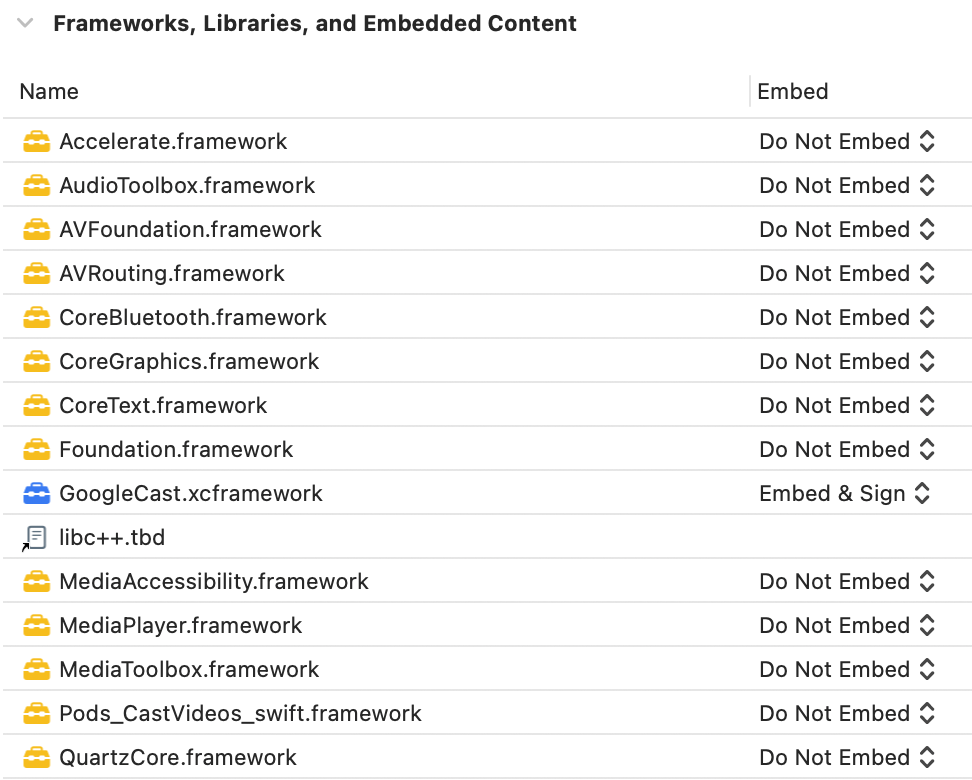
If you are setting up the dynamic library, follow these steps in addition to the previous steps:
-
Remove the current version of
GoogleCastSDKif present. - Add the Protobuf library v3.13 or greater, following the instructions found on the Protobuf GitHub repo.
If you are setting up the static library, follow these steps in addition to the previous steps:
-
In your Xcode project, add the flags
-ObjC -lc++to Build Settings > Other Linker Flags.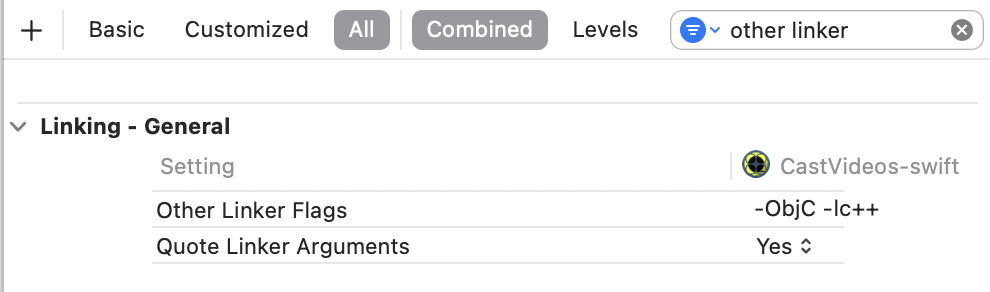
-
Locate the Resources folder in the unzipped directory and
drag all of the
.bundlefiles into the your project next to theGoogleCast.xcframeworkyou added previously. Check 'Copy all items if needed', and add to all targets.
Mac Catalyst setup
For Apps that support Mac Catalyst, use the dynamic library of the Cast SDK. Follow the manual setup process to add the framework to your project. Then conditionally exclude the Cast SDK from the Mac target as mentioned in the Apple documentation. Static libraries are pre-compiled for iOS architecture, which causes a linker error when building against the Mac target.