

Page Summary
-
Apps Script allows extending Google products with user-interface elements like custom menus, images, and drawings that trigger script functions.
-
Custom menus can be added to Google Docs, Sheets, Slides, or Forms and are tied to specific script functions.
-
Images and drawings in Google Sheets can also have Apps Script functions assigned to them to run when clicked.
Scripts can extend certain Google products by adding user-interface elements that, when clicked, execute an Google Apps Script function. The most common example is running a script from a custom menu item in Google Docs, Google Sheets, Google Slides, or Google Forms, but script functions can also be triggered by clicking on images and drawings in Sheets.
Custom menus in Docs, Sheets, Slides, or Forms
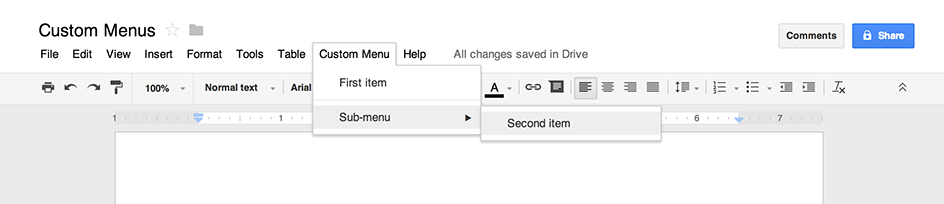
Apps Script can add new menus in Docs, Sheets, Slides, or Forms, with each menu item tied to a function in a script. (In Forms, custom menus are visible only to an editor who opens the form to modify it, not to a user who opens the form to respond.)
Only bound scripts can create menus. To display the menu when the user opens a
file, write the menu code within an
onOpen function.
The following example shows how to add a menu with one item, followed by a visual separator, then a sub-menu that contains another item. When the user selects either menu item, a corresponding function opens an alert dialog. For more information on the types of dialogs you can open, see the guide to dialogs and sidebars.
function onOpen() {
  const ui = SpreadsheetApp.getUi();
  // Or DocumentApp, SlidesApp or FormApp.
  ui.createMenu('Custom Menu')
      .addItem('First item', 'menuItem1')
      .addSeparator()
      .addSubMenu(ui.createMenu('Sub-menu')
          .addItem('Second item', 'menuItem2'))
      .addToUi();
}

function menuItem1() {
  SpreadsheetApp.getUi() // Or DocumentApp, SlidesApp or FormApp.
      .alert('You clicked the first menu item!');
}

function menuItem2() {
  SpreadsheetApp.getUi() // Or DocumentApp, SlidesApp or FormApp.
      .alert('You clicked the second menu item!');
}
A document, spreadsheet, presentation, or form can only contain one menu with
a given name. If the same script or another script adds a menu with the same
name, the new menu replaces the old. Menus cannot be removed while the file
is open, although you can write your onOpen function to skip the menu in
the future if a certain property is set.
Editor add-ons can have menu items as well, but use special rules for how they are defined.
Clickable images and drawings in Sheets
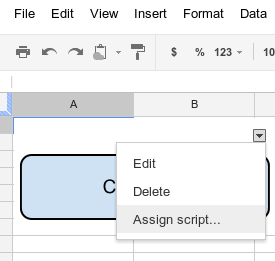
You can also assign an Apps Script function to an image or drawing in Sheets, provided the script is bound to the spreadsheet. The following example shows how to set this up.
- In Sheets, select the menu item Extensions > Apps Script to create a script that is bound to the spreadsheet.
- Delete any code in the script editor and paste in the code below.
function showMessageBox() {
  SpreadsheetApp.getUi().alert('You clicked it!');
}
- Return to Sheets and insert an image or drawing by selecting Insert > Image or Insert > Drawing.
- After inserting the image or drawing, click it. A small drop-down menu selector appears in the top right-hand corner. Click it and choose Assign script.
- In the dialog that appears, type the name of the Apps Script function
that you want to run, without parentheses — in this case,
showMessageBox. Click OK. - Click the image or drawing again. The function now executes.
The script execution is only triggered by clicking the image or drawing in a web browser. The script doesn't execute if the image or drawing is clicked on mobile.