

Page Summary
-
Bound scripts in Google Docs, Sheets, or Forms can display prebuilt alerts and prompts, along with custom dialogs and sidebars using HTML service pages.
-
Alert dialogs are prebuilt and display a message with an "OK" button, suspending the script until closed.
-
Prompt dialogs are prebuilt and include a message, text-input field, and an "OK" button, also suspending the script until closed.
-
Custom dialogs and sidebars display HTML service interfaces and do not suspend the server-side script, allowing for asynchronous communication.
-
Google Picker can be used in custom HTML service dialogs to enable users to select or upload Google Drive files.
Google Apps Script projects bound to Google Docs, Google Sheets, or Google Forms can display user-interface elements, such as prebuilt alerts, prompts, toasts, dialogs, and sidebars. These elements typically contain custom HTML service content and are often opened from menu items. In Forms, user-interface elements are visible only to an editor who opens the form to modify it, not to a respondent.
Alert dialogs
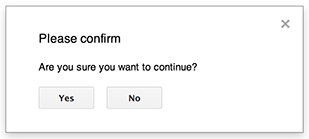
An alert is a prebuilt dialog that opens inside a Docs,
Sheets, Slides, or Forms editor. It
displays a message and an OK button; a title and alternative buttons are
optional. It is similar to calling
window.alert
in client-side JavaScript within a web browser.
Alerts suspend the server-side script while the dialog is open. The script resumes after the user closes the dialog, but JDBC connections don't persist across the suspension.
As shown in the following example, Docs, Forms,
Slides, and Sheets all use the method
Ui.alert, which is available
in three variants. To override the default OK button, pass a value from the
Ui.ButtonSet enum as the buttons
argument. To evaluate which button the user clicked, compare the return value
for alert to the Ui.Button enum.
function onOpen() {
  SpreadsheetApp.getUi() // Or DocumentApp or SlidesApp or FormApp.
    .createMenu("Custom Menu")
    .addItem("Show alert", "showAlert")
    .addToUi();
}

function showAlert() {
  const ui = SpreadsheetApp.getUi(); // Same variations.

  const result = ui.alert(
    "Please confirm",
    "Are you sure you want to continue?",
    ui.ButtonSet.YES_NO,
  );

  // Process the user's response.
  if (result === ui.Button.YES) {
    // User clicked "Yes".
    ui.alert("Confirmation received.");
  } else {
    // User clicked "No" or X in the title bar.
    ui.alert("Permission denied.");
  }
}
Prompt dialogs
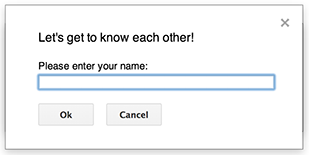
A prompt is a prebuilt dialog that opens inside a Docs,
Sheets, Slides, or Forms editor. It
displays a message, a text-input field, and an OK button; a title and
alternative buttons are optional. It is similar to calling
window.prompt
in client-side JavaScript within a web browser.
Prompts suspend the server-side script while the dialog is open. The script resumes after the user closes the dialog, but JDBC connections don't persist across the suspension.
As shown in the following example, Docs, Forms,
Slides, and Sheets all use the method
Ui.prompt, which is
available in three variants. To override the default OK button, pass a value
from the Ui.ButtonSet enum as the
buttons argument. To evaluate the user's response, capture the return value
for prompt, then call
PromptResponse.getResponseText
to retrieve the user's input, and compare the return value for
PromptResponse.getSelectedButton
to the Ui.Button enum.
function onOpen() {
  SpreadsheetApp.getUi() // Or DocumentApp or SlidesApp or FormApp.
    .createMenu("Custom Menu")
    .addItem("Show prompt", "showPrompt")
    .addToUi();
}

function showPrompt() {
  const ui = SpreadsheetApp.getUi(); // Same variations.

  const result = ui.prompt(
    "Let's get to know each other!",
    "Please enter your name:",
    ui.ButtonSet.OK_CANCEL,
  );

  // Process the user's response.
  const button = result.getSelectedButton();
  const text = result.getResponseText();
  if (button === ui.Button.OK) {
    // User clicked "OK".
    ui.alert("Your name is " + text + ".");
  } else if (button === ui.Button.CANCEL) {
    // User clicked "Cancel".
    ui.alert("I didn't get your name.");
  } else if (button === ui.Button.CLOSE) {
    // User clicked X in the title bar.
    ui.alert("You closed the dialog.");
  }
}
Spreadsheet toasts
A "toast" is a small dialog window in the lower right corner of a Sheets editor that displays a message but does not suspend the script. It is a good way to show status messages or updates that don't require user interaction.
As shown in the following example, Sheets uses the method
Spreadsheet.toast.
Toasts are only available in Sheets.
function showToast() {
  SpreadsheetApp.getActiveSpreadsheet().toast("Task completed successfully.");
}
Custom dialogs
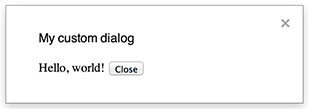
A custom dialog can display an HTML service user interface inside a Docs, Sheets, Slides, or Forms editor.
Custom dialogs do not suspend the server-side script while the dialog is open.
Because they are asynchronous, the server-side function that opens the dialog
finishes immediately. To pass data from the custom dialog back to the server,
use the google.script API in your
client-side code.
The dialog can close itself by calling
google.script.host.close
in the client side of an HTML-service interface. The dialog cannot be closed by
other interfaces, only by the user or itself.
As shown in the following example, Docs, Forms,
Slides, and Sheets all use the method
Ui.showModalDialog
to open the dialog.
Code.gs
function onOpen() {
  SpreadsheetApp.getUi() // Or DocumentApp or SlidesApp or FormApp.
      .createMenu('Custom Menu')
      .addItem('Show dialog', 'showDialog')
      .addToUi();
}

function showDialog() {
  const html = HtmlService.createHtmlOutputFromFile('Page')
      .setWidth(400)
      .setHeight(300);
  SpreadsheetApp.getUi() // Or DocumentApp or SlidesApp or FormApp.
      .showModalDialog(html, 'My custom dialog');
}
Page.html
Hello, world! <input type="button" value="Close" onclick="google.script.host.close()" />
Custom sidebars

A sidebar can display an HTML service user interface inside a Docs, Forms, Slides, and Sheets editor.
Sidebars do not suspend the server-side script while the dialog is open. The
client-side component can make asynchronous calls to the server-side script
using the google.script API for
HTML-service interfaces.
The sidebar can close itself by calling
google.script.host.close
in the client side of an HTML-service interface. The sidebar cannot be closed by
other interfaces, only by the user or itself.
As shown in the following example, Docs, Forms,
Slides, and Sheets all use the method
Ui.showSidebar to open
the sidebar.
Code.gs
function onOpen() {
  SpreadsheetApp.getUi() // Or DocumentApp or SlidesApp or FormApp.
      .createMenu('Custom Menu')
      .addItem('Show sidebar', 'showSidebar')
      .addToUi();
}

function showSidebar() {
  const html = HtmlService.createHtmlOutputFromFile('Page')
      .setTitle('My custom sidebar');
  SpreadsheetApp.getUi() // Or DocumentApp or SlidesApp or FormApp.
      .showSidebar(html);
}
Page.html
Hello, world! <input type="button" value="Close" onclick="google.script.host.close()" />
File-open dialogs
Google Picker is a JavaScript API that lets users select or upload Google Drive files. Use the Google Picker library with the HTML service to create a custom dialog that lets users select existing files or upload new ones, then pass the selection back to your script.
Requirements
Using Google Picker with Google Apps Script has several requirements:
Set up your environment for the Google Picker.
Your script project must use a standard Google Cloud project.
If using the
drive.filescope, pass the same Cloud project number to thePickerBuilder.setAppIdmethod.The Apps Script project manifest must specify the authorization scopes required by the Google Picker API so that the
ScriptApp.getOAuthTokenmethod returns the correct token for thePickerBuilder.setOAuthTokenmethod.Restrict the API key set in the
PickerBuilder.setDeveloperKeymethod to Apps Script. Under Application restrictions, follow these steps:- Select HTTP referrers (web sites).
- Under Website restrictions, click Add an item.
- Click Referrer and enter
*.google.com. - Add another item and enter
*.googleusercontent.comas the referrer. - Click Done.
Call the
PickerBuilder.setOriginmethod.
Example
The following code sample shows how to use the Google Picker in Apps Script.
code.gs
dialog.html
appsscript.json
For more information on how to load and display the Google Picker, see Integrate the Google Picker into web apps.