
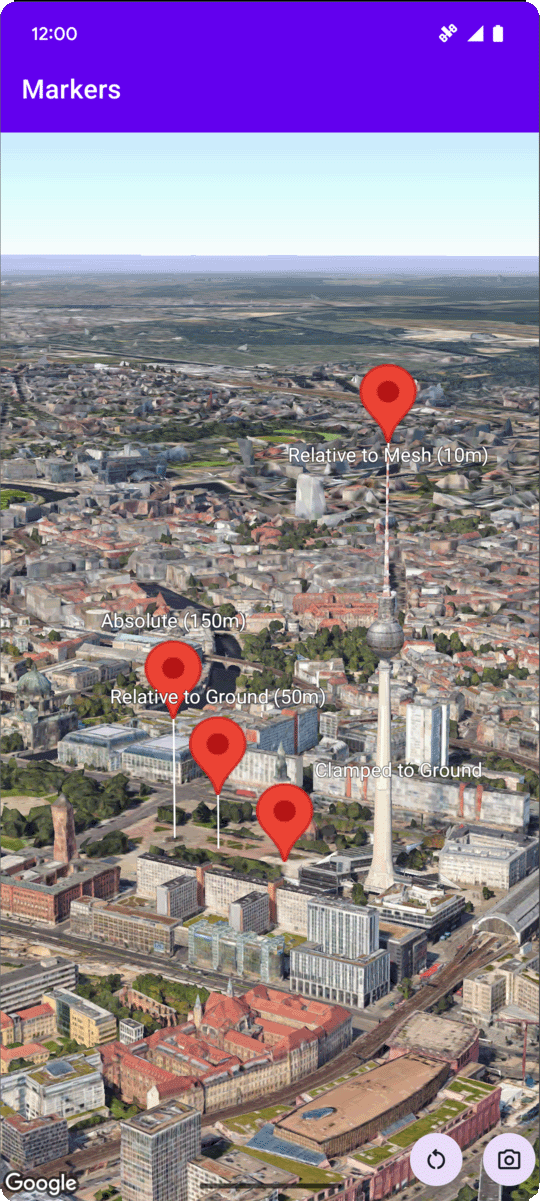
The following code sample demonstrates how to add a basic marker to a 3D map by
calling the addMarker
method. To use this code sample, follow the instructions in
Setup and Add a 3D map to your app
to set up your Android Studio project with a basic 3D map. Then, add the
following code to the MainActivity.kt file:
// Add imports
import com.google.android.gms.maps3d.model.latLngAltitude

...

// Add to the onMap3DViewReady method, after the googleMap3D object has been initialized
googleMap3D.setMapMode(Map3DMode.SATELLITE)

googleMap3D.setCamera(
    camera {
        center = latLngAltitude {
            latitude = 52.51974795
            longitude = 13.40715553
            altitude = 150.0
        }
        heading = 252.7
        tilt = 79.0
        range = 1500.0
    }
)

// Add a marker using absolute altitude positioning
googleMap3D.addMarker(markerOptions {
    position = latLngAltitude {
        latitude = 52.519605780912585
        longitude = 13.406867190588198
        altitude = 150.0
    }
    label = "Absolute (150m)"
    altitudeMode = AltitudeMode.ABSOLUTE
    isExtruded = true
    isDrawnWhenOccluded = true
    collisionBehavior = CollisionBehavior.REQUIRED_AND_HIDES_OPTIONAL
})
Listen for marker click events
To listen for click events on a marker, call setClickListener on
the marker object. The following example shows how to set a click listener on a
marker:
  marker.setClickListener {
      lifecycleScope.launch(Dispatchers.Main) {
          Toast.makeText(this@MarkersActivity, "Clicked on marker: ${marker.label}", Toast.LENGTH_SHORT)
              .show()
      }
  }
Note that the click handler does not run on the Main (or UI) thread. If you
want to make changes to the UI (such as showing a Toast message), you must
switch to the Main thread. For Kotlin, you can do this using
lifecycleScope.launch(Dispatchers.Main).