

নেটিভ অ্যাড ফরম্যাট ব্যবহার করে যেকোনো আকারের বিজ্ঞাপন তৈরি করা যায়, যার মধ্যে ফুল-স্ক্রিন বিজ্ঞাপনও অন্তর্ভুক্ত, যেমনটি সোশ্যাল এবং এন্টারটেইনমেন্ট অ্যাপগুলোতে অত্যন্ত জনপ্রিয়। ফুল-স্ক্রিন নেটিভ বিজ্ঞাপনগুলো আয় এবং গ্রাহক ধরে রাখার হার উন্নত করতে পারে; হয় সোশ্যাল অ্যাপের মতো বিদ্যমান ফুল-স্ক্রিন কন্টেন্টের স্টাইলের সাথে মিল রেখে, অথবা 'স্টোরি' ফিডে বিজ্ঞাপন দেওয়ার একটি উপায় প্রদান করে। নিচে ফুল-স্ক্রিন নেটিভ বিজ্ঞাপনের কিছু উদাহরণ দেওয়া হলো:
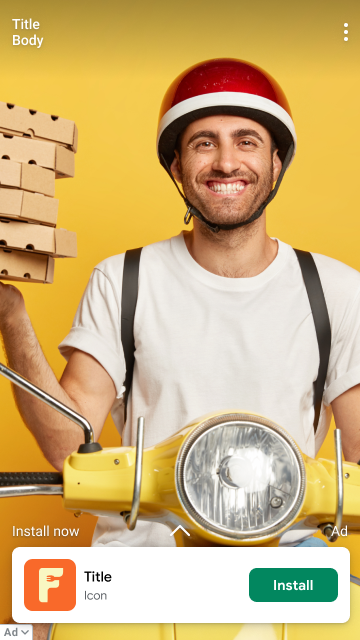
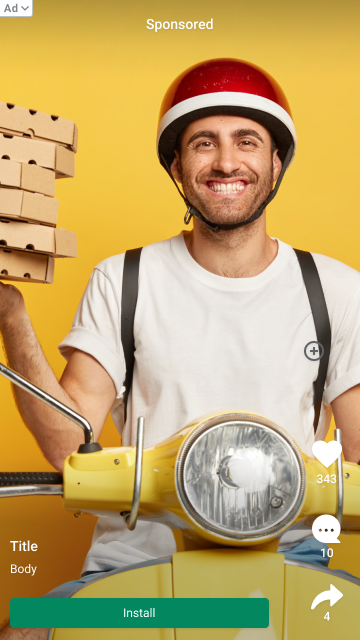
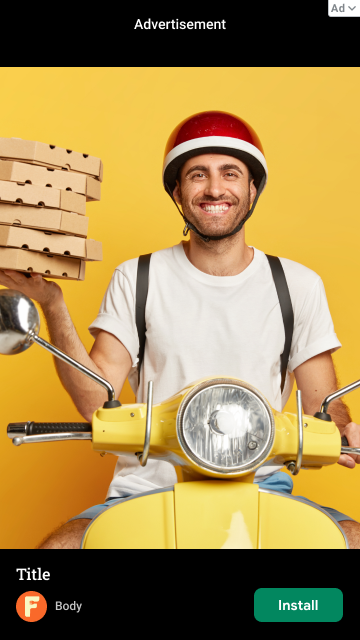
Native Advanced- এর নির্দেশাবলীর বাইরে ফুল-স্ক্রিন নেটিভ বিজ্ঞাপন পরিবেশন সক্ষম করার জন্য কল করার মতো কোনো আলাদা API নেই। তবে, ফুল-স্ক্রিন বিজ্ঞাপন অভিজ্ঞতা তৈরি করার ক্ষেত্রে আমরা কিছু সেরা অনুশীলন অনুসরণ করার পরামর্শ দিই:
- AdChoices আইকনের অবস্থান কাস্টমাইজ করুন
- ডিফল্টরূপে, AdChoices আইকনটি বিজ্ঞাপনের উপরের-ডান কোণায় স্থাপন করা হয়, কিন্তু বিজ্ঞাপনের অবস্থানের উপর ভিত্তি করে
AdChoicesPositionসেট করার মাধ্যমে আপনি যেকোনো কোণা নির্দিষ্ট করে দিতে পারেন যেখানে AdChoices আইকনটি প্রদর্শিত হবে। পূর্ববর্তী বিভাগের তিনটি ছবিতে, ভুলবশত ক্লিক এড়ানোর জন্য AdChoices আইকনটি Install বাটন, মেনু বাটন এবং বিজ্ঞাপনের অন্যান্য অংশ থেকে দূরে একটি কোণায় স্থাপন করা হয়েছে। - প্রতিটি প্লেসমেন্টের জন্য স্বতন্ত্র বিজ্ঞাপন ইউনিট আইডি ব্যবহার করুন।
আপনার অ্যাপের প্রতিটি ভিন্ন অ্যাড প্লেসমেন্টের জন্য একটি অনন্য অ্যাড ইউনিট আইডি তৈরি করতে ভুলবেন না, এমনকি যদি সমস্ত অ্যাড প্লেসমেন্ট একই ফরম্যাটের হয়। উদাহরণস্বরূপ, যদি আপনার অ্যাপে নন-ফুল স্ক্রিন অভিজ্ঞতার জন্য একটি বিদ্যমান নেটিভ অ্যাড প্লেসমেন্ট থাকে, তাহলে ফুল স্ক্রিন অভিজ্ঞতার জন্য একটি নতুন অ্যাড ইউনিট আইডি ব্যবহার করুন। অনন্য অ্যাড ইউনিট ব্যবহার:
- কর্মক্ষমতা সর্বোচ্চ করে
- গুগলকে এমন বিজ্ঞাপন সম্পদ ফেরত দিতে সাহায্য করে যা আপনার লেআউটের সাথে আরও ভালোভাবে খাপ খায়।
- আরও বিশদ প্রতিবেদন সক্ষম করে।
- আপনার মিডিয়া ভিউ একটি সামঞ্জস্যপূর্ণ আকারে সেট করুন।
সর্বোত্তম পারফরম্যান্সের জন্য গুগল সর্বদা সেরা আকারের নেটিভ অ্যাসেট পরিবেশন করার চেষ্টা করে। এটি সহজ করার জন্য, আপনার নেটিভ বিজ্ঞাপনের আকার অনুমানযোগ্য এবং সামঞ্জস্যপূর্ণ হওয়া উচিত। একই ডিভাইসে প্রতিটি বিজ্ঞাপন অনুরোধের জন্য আপনার মিডিয়া ভিউ অ্যাসেটের আকার একই হওয়া উচিত। এটি করার জন্য, আপনার মিডিয়া ভিউকে একটি নির্দিষ্ট আকারে সেট করুন, অথবা মিডিয়া ভিউকে
MATCH_PARENTএ সেট করুন এবং প্যারেন্ট ভিউকে একটি নির্দিষ্ট আকার দিন। মিডিয়া ভিউয়ের প্রতিটি প্যারেন্ট ভিউ, যা নির্দিষ্ট আকারের নয়, তার জন্য এই ধাপটি পুনরাবৃত্তি করুন।- ভিডিও বিজ্ঞাপন চালু করুন
AdMob UI-তে নেটিভ বিজ্ঞাপন কনফিগার করার সময়
Videoমিডিয়া টাইপটি সক্রিয় করুন। আপনার ইনভেন্টরির জন্য ভিডিও বিজ্ঞাপনকে প্রতিযোগিতা করার সুযোগ দিলে পারফরম্যান্স উল্লেখযোগ্যভাবে উন্নত হতে পারে।- [ঐচ্ছিক] মিডিয়া অ্যাসেটের জন্য নির্দিষ্ট অ্যাস্পেক্ট রেশিও অনুরোধ করুন
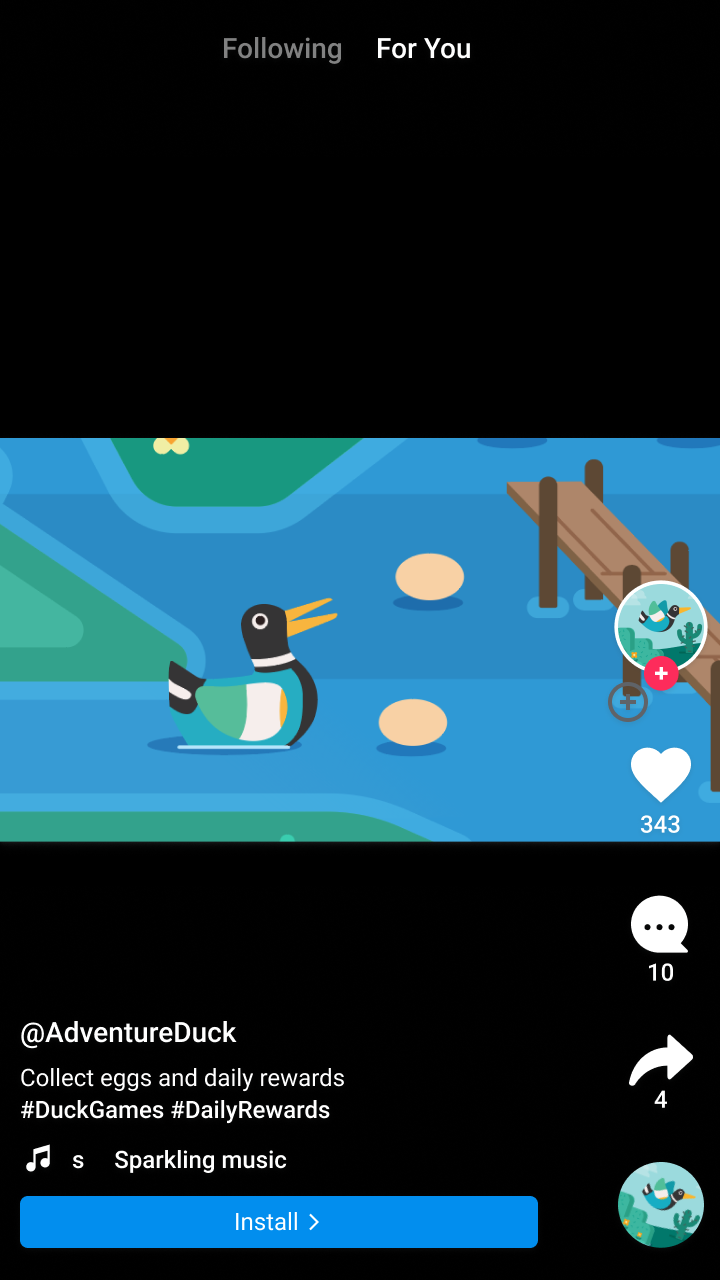
ডিফল্টরূপে, যেকোনো অ্যাস্পেক্ট রেশিওর বিজ্ঞাপন দেখানো হতে পারে। উদাহরণস্বরূপ, আপনার অ্যাপটি পোর্ট্রেট মোডে থাকলেও আপনি একটি ল্যান্ডস্কেপ বা বর্গাকার প্রধান ক্রিয়েটিভ অ্যাসেট পেতে পারেন। আপনার নেটিভ বিজ্ঞাপন লেআউটের উপর নির্ভর করে, আপনি শুধুমাত্র পোর্ট্রেট, ল্যান্ডস্কেপ বা বর্গাকার বিজ্ঞাপন দেখাতে চাইতে পারেন। আপনার লেআউটের সাথে সবচেয়ে ভালোভাবে মানানসই করার জন্য আপনি নির্দিষ্ট অ্যাস্পেক্ট রেশিওর অ্যাসেটের অনুরোধ করতে পারেন।
ভূদৃশ্য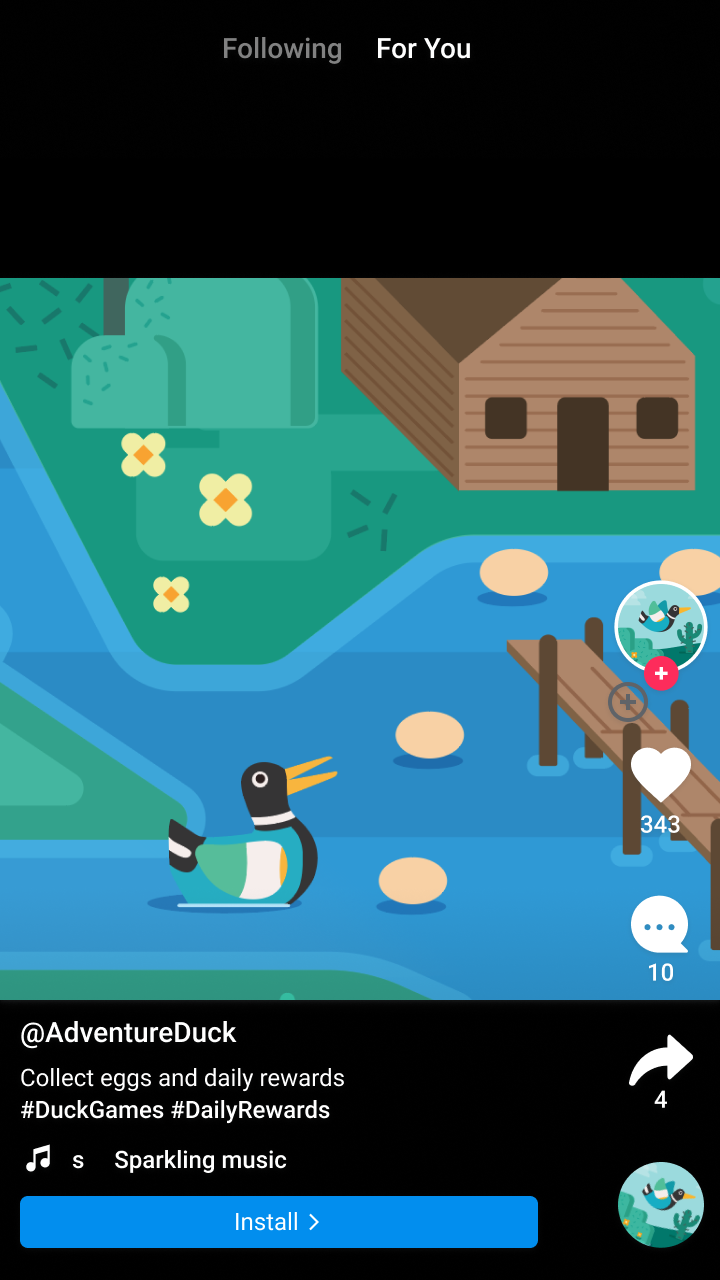
স্কয়ার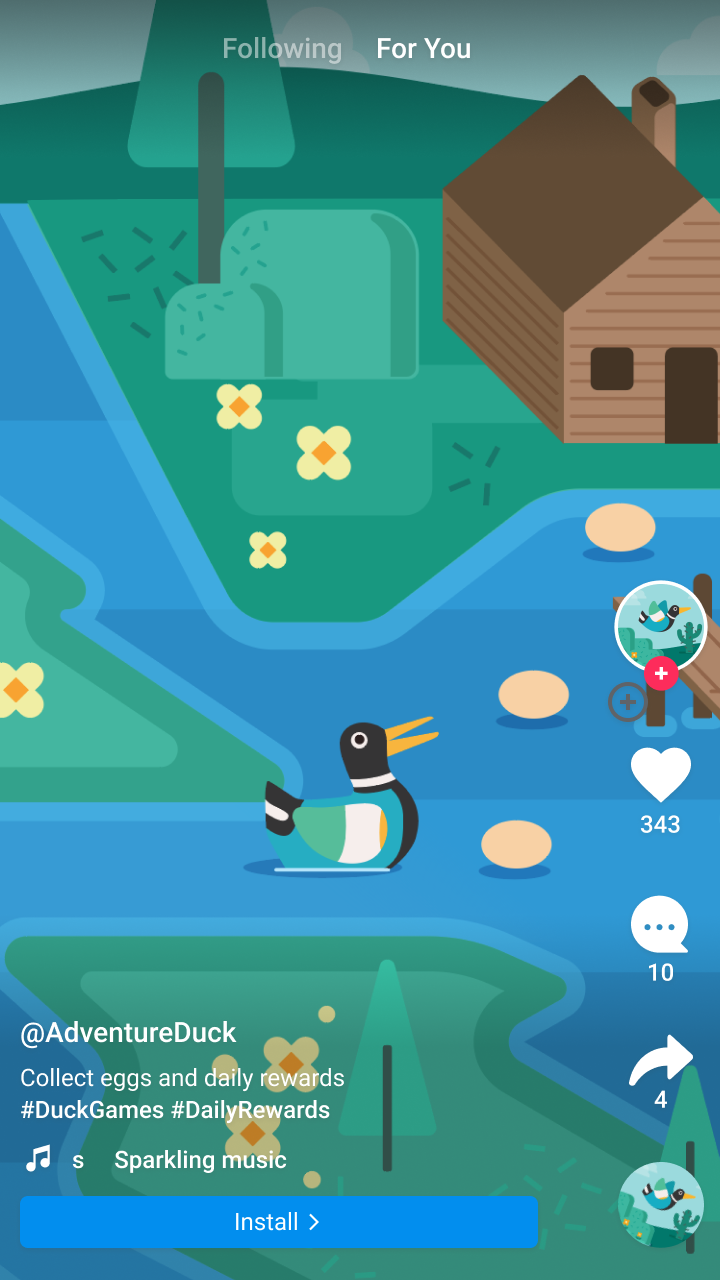
প্রতিকৃতিকোটলিন
val adRequest = NativeAdRequest.Builder(adUnitId, listOf(NativeAd.NativeAdType.NATIVE))
   .setMediaAspectRatio(NativeAd.NativeMediaAspectRatio.PORTRAIT)
   .build()
জাভা
List<NativeAd.NativeAdType> adTypes = Arrays.asList(NativeAd.NativeAdType.NATIVE);
NativeAdRequest adRequest = new NativeAdRequest.Builder(adUnitId, adTypes)
   .setMediaAspectRatio(NativeAd.NativeMediaAspectRatio.PORTRAIT)
   .build();