Adaptive banners let you specify the width of an ad to determine the optimal ad size for each device. Unlike anchored adaptive banners, inline adaptive banners are larger, taller, and don't use fixed heights. Inline adaptive banners have variable height. These banners might fill the entire screen or a maximum height you specify.
This guide covers creating inline adaptive banners and setting the banner size.
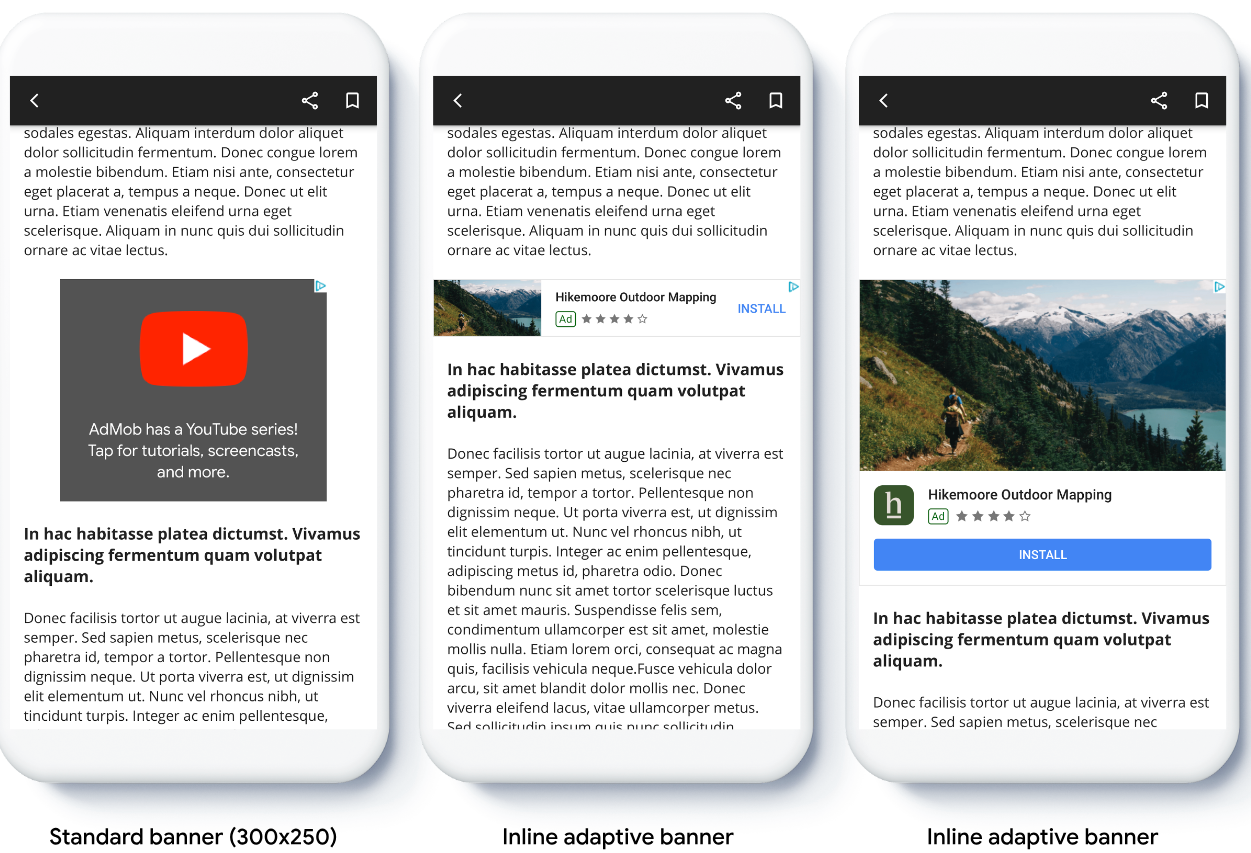
The following image shows inline adaptive banners in scrolling content:
Before you begin
Before continuing, make sure you set up banner ads.
To view a full inline adaptive banner example, download the following sample app:
Implement inline adaptive banners
To implement inline adaptive banners, you set the ad size, create an ad request, and load the ad.
To size an inline adaptive banner, determine the ad width. Common approaches include the following:
- Using the full-screen width.
- Using the width of the parent layout containing the ad.
- Adjusting the width to account for device safe areas.
When creating the ad size object, use this calculated width.
The following example sets the ad size, creates an ad request, and loads the ad:
Kotlin
private fun loadAd() {
  // Create an inline adaptive ad size. 320 is a placeholder value.
  // Replace 320 with your banner container width.
  val adSize = AdSize.getCurrentOrientationInlineAdaptiveBannerAdSize(this, 320)

  // Step 1 - Create a BannerAdRequest object with ad unit ID and size.
  val adRequest = BannerAdRequest.Builder("AD_UNIT_ID", adSize).build()

  // Step 2 - Load the ad.
  BannerAd.load(
    adRequest,
    object : AdLoadCallback<BannerAd> {
      override fun onAdLoaded(ad: BannerAd) {
        // Assign the loaded ad to the BannerAd object.
        bannerAd = ad
        // Step 3 - Call BannerAd.getView() to get the View and add it
        // to view hierarchy on the UI thread.
        activity?.runOnUiThread {
          binding.bannerViewContainer.addView(ad.getView(requireActivity()))
        }
      }

      override fun onAdFailedToLoad(loadAdError: LoadAdError) {
        bannerAd = null
      }
    }
  )
}
Java
private void loadAd() {
  // Create an inline adaptive ad size. 320 is a placeholder value.
  // Replace 320 with your banner container width.
  AdSize adSize = AdSize.getCurrentOrientationInlineAdaptiveBannerAdSize(this, 320);

  // Step 1 - Create a BannerAdRequest object with ad unit ID and size.
  BannerAdRequest adRequest = new BannerAdRequest.Builder("AD_UNIT_ID",
      adSize).build();

  // Step 2 - Load the ad.
  BannerAd.load(
      adRequest,
      new AdLoadCallback<BannerAd>() {
        @Override
        public void onAdLoaded(@NonNull BannerAd ad) {
          // Assign the loaded ad to the BannerAd object.
          bannerAd = ad;
          // Step 3 - Call BannerAd.getView() to get the View and add it
          // to view hierarchy on the UI thread.
          if (getActivity() != null) {
            getActivity()
                .runOnUiThread(() ->
                    binding.bannerViewContainer.addView(ad.getView(getActivity())));
          }
        }

        @Override
        public void onAdFailedToLoad(@NonNull LoadAdError adError) {
          bannerAd = null;
        }
      });
}
Set an ad size smaller than or equal to the device screen size.
To determine the maximum screen size, use the
Resources.getDisplayMetrics
method. The AdSize object dimensions use density-independent pixels (dp). When comparing, convert the
screen size from pixels to dp.
For details about size constraints, see
Ad request size requirements.
Set the inline adaptive banner layout
To preload an inline adaptive banner ad for a specific layout, use the following methods:
AdSize.getPortraitInlineAdaptiveBannerAdSize(Context context, int width)AdSize.getLandscapeInlineAdaptiveBannerAdSize(Context context, int width)
If your app supports portrait and landscape views, and you want to preload
an adaptive banner ad in the current layout, use the
AdSize.getCurrentOrientationInlineAdaptiveBannerAdSize(Context context, int width)
method.
This method loads an ad in the current layout.
Limit inline adaptive banner height
By default, inline adaptive banners created without a maxHeight value
have a maximum height equal to the device height. To limit the inline adaptive
banner height, use the
AdSize.getInlineAdaptiveBannerAdSize(int width, int maxHeight)
method.