

Page Summary
-
The Google Mobile Ads Unity plugin allows Unity developers to serve Google mobile ads on Android and iOS apps using a C# interface.
-
Prerequisites for using the plugin include specific versions of Unity Editor, Xcode, iOS, CocoaPods, and Android API levels.
-
You can import the plugin using OpenUPM-CLI, the OpenUPM package manager, or by importing a
.unitypackagefrom GitHub. -
Setting your Ad Manager app ID for both Android and iOS in the Unity editor is a necessary step.
-
Before loading ads, the Google Mobile Ads SDK must be initialized once, ideally at app launch, by calling
MobileAds.Initialize(). -
The SDK supports various ad formats including Banner, Interstitial, Native, and Rewarded ads, each with its own implementation guide.
The Google Mobile Ads Unity plugin lets Unity developers serve Google mobile ads on Android and iOS apps without having to write Java or Objective-C code. The plugin provides a C# interface for requesting ads that is used by C# scripts in your Unity project.
This guide is intended for publishers who want to monetize a Unity app.
Prerequisites
- Use Unity Editor 2019.4 or higher.
- We recommend 2022.2 or higher.
- To deploy to iOS
- Xcode 16.0 or higher
- Target iOS 13.0 or higher
- CocoaPods
- To deploy to Android
- Minimum Android API level of 23 or higher
- Target Android API level 35 or higher
Android API level is set in Project Settings > Player > Android > Other Settings > Other Settings.
Import the Mobile Ads for Unity plugin
OpenUPM-CLI
If you have the OpenUPM CLI installed, you can install the OpenUPM registry with the following command:
openupm add com.google.ads.mobile
Remove .unitypackage plugin assets
If you are migrating from using a .unitypackage to using OpenUPM, you
must manually uninstall the assets from the old location. Remove the
following directories that were imported from the .unitypackage:
- Assets/ExternalDependencyManager
- Assets/GoogleMobileAds
- Assets/Plugins/Android/googlemobileads-unity.aar
- Assets/Plugins/Android/GoogleMobileAdsPlugin
- Assets/Plugins/iOS/GADUAdNetworkExtras
- Assets/Plugins/iOS/unity-plugin-library.a
OpenUPM with UI
- Open the package manager settings by selecting the Unity menu option Edit > Project Settings > Package Manager.
Add OpenUPM as a scoped registry to the Package Manager window:
Name: OpenUPM
URL: https://package.openupm.com
Scopes: com.google
Open the package manager menu by selecting the Unity menu option Window > Package Manager.
Set the manager scope drop-down to select My Registries.
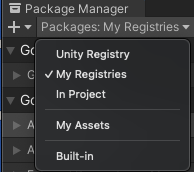
Select the Google Mobile Ads for Unity package from the package list and press Install.
Remove .unitypackage plugin assets
If you are migrating from using a .unitypackage to using OpenUPM, you
must manually uninstall the assets from the old location. Remove the
following directories that were imported from the .unitypackage:
- Assets/ExternalDependencyManager
- Assets/GoogleMobileAds
- Assets/Plugins/Android/googlemobileads-unity.aar
- Assets/Plugins/Android/GoogleMobileAdsPlugin
- Assets/Plugins/iOS/GADUAdNetworkExtras
- Assets/Plugins/iOS/unity-plugin-library.a
OpenUPM
Fetch the version tag of the most recent release. The tag returned, excluding the
vprefix, is the Google Mobile Ads Unity Plugin version.macOS and Linux
curl -sS https://api.github.com/repos/googleads/googleads-mobile-unity/releases/latest | jq -r '.tag_name'Windows PowerShell
(Invoke-RestMethod -Uri "https://api.github.com/repos/googleads/googleads-mobile-unity/releases/latest").tag_name
Modify the
Packages/manifest.jsonfile to add the OpenUPM scoped registry and dependency by using the version obtained from the preceding command:{ "scopedRegistries": [ { "name": "google", "url": "https://package.openupm.com", "scopes": [ "com.google" ] } ], "dependencies": { "com.google.ads.mobile": "11.5.0" } }
Remove .unitypackage plugin assets
If you are migrating from using a .unitypackage to using OpenUPM, you
must manually uninstall the assets from the old location. Remove the
following directories that were imported from the .unitypackage:
- Assets/ExternalDependencyManager
- Assets/GoogleMobileAds
- Assets/Plugins/Android/googlemobileads-unity.aar
- Assets/Plugins/Android/GoogleMobileAdsPlugin
- Assets/Plugins/iOS/GADUAdNetworkExtras
- Assets/Plugins/iOS/unity-plugin-library.a
Import from GitHub
- Download the
.unitypackagerelease from GitHub. - Import the
.unitypackagefile by selecting the Unity menu option Assets > Import package > Custom Package and importing all items.
Set your Ad Manager app ID
In the Unity editor, select Assets > Google Mobile Ads > Settings from the menu.
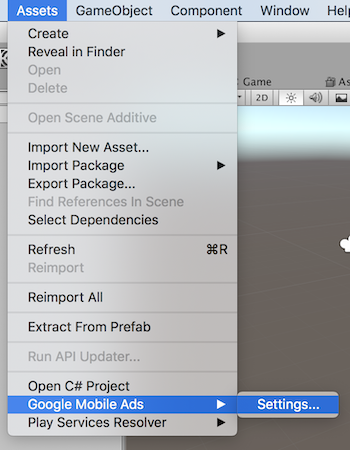
Enter your Android and iOS Ad Manager app ID in each field.
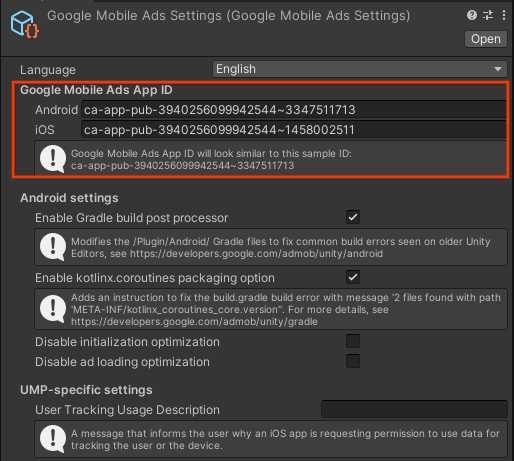
Google Mobile Ads Unity Plugin saves these settings as text in the
Assets/GoogleMobileAds/Resources/GoogleMobileAdsSettings.asset
configuration file.
Initialize the SDK
Before loading ads, have your app initialize Google Mobile Ads Unity Plugin by
calling MobileAds.Initialize(). This needs to be done only once, ideally at
app launch.
Here's an example of how to call MobileAds.Initialize():
Interact with Unity objects on the main thread
Google Mobile Ads Unity Plugin raises ad events on a background thread. If
ad callbacks interact with Unity objects, like UnityEngine, explicitly
schedule that work on the Unity main thread by using the
MobileAdsEventExecutor.ExecuteInUpdate method. For implementation details,
see Raise ad events on the Unity main thread.
Select an ad format
Google Mobile Ads Unity Plugin is now included in your Unity app when deploying to either the Android or iOS platform. You're now ready to implement an ad. AdMob offers a number of different ad formats, so you can choose the one that makes for the best user experience.
Banner
Banner ad units display rectangular ads that occupy a portion of an app's layout. They can refresh automatically after a set period of time. This means users view a new ad at regular intervals, even if they stay on the same screen in your app. They're also the simplest ad format to implement.
Interstitial

Interstitial ad units show full-page ads in your app. Place them at natural breaks and transitions in your app's interface, such as after level completion in a gaming app.
Native

Native ads are ads where you can customize the way assets such as headlines and calls to action are presented in your apps. By styling the ad yourself, you can create a natural, unobtrusive ad presentations that can add to a rich user experience.
Rewarded
Rewarded ad units enable users to play games, take surveys, or watch videos to earn in-app rewards, such as coins, extra lives, or points. You can set different rewards for different ad units, and specify the reward values and items the user received.