

これは、Classroom アドオンのチュートリアル シリーズの 4 番目のチュートリアルです。
このチュートリアルでは、Google Classroom API を使用して添付ファイルを作成します。ユーザーが添付ファイルのコンテンツを表示するためのルートを提供します。表示は、クラスでのユーザーの役割によって異なります。このチュートリアルでは、生徒の提出を必要としないコンテンツ タイプの添付ファイルについて説明します。
このチュートリアルでは、次のことを行います。
- 次のアドオン クエリ パラメータを取得して使用します。
addOnToken: Attachment Discovery View に渡される認証トークン。itemId: アドオンの添付ファイルを受け取る CourseWork、CourseWorkMaterial、または Announcement の固有識別子。itemType: 「courseWork」、「courseWorkMaterials」、「announcement」のいずれか。courseId: 課題が作成される Google Classroom コースの一意の識別子。attachmentId: Google Classroom がアドオンの添付ファイルの作成後に割り当てる一意の識別子。
- コンテンツ タイプ添付ファイル用の永続ストレージを実装します。
- 添付ファイルを作成し、教師用ビューと生徒用ビューの iframe を提供するルートを提供します。
- Google Classroom アドオン API に次のリクエストを発行します。
- 新しい添付ファイルを作成します。
- アドオンのコンテキストを取得します。これにより、ログインしているユーザーが生徒か教師かを特定できます。
完了すると、教師としてログインしているときに、Google Classroom UI を通じて課題にコンテンツ タイプ添付ファイルを作成できます。クラスの教師と生徒もコンテンツを表示できます。
Classroom API を有効にする
この手順から Classroom API の呼び出しを開始します。API を呼び出すには、その前に Google Cloud プロジェクトで API を有効にする必要があります。Google Classroom API のライブラリ エントリに移動し、[有効にする] を選択します。
添付ファイル検出ビューのクエリ パラメータを処理する
前述のとおり、Google Classroom は iframe で添付ファイル検出ビューを読み込むときにクエリ パラメータを渡します。
courseId: 現在の Classroom コースの ID。itemId: アドオンの添付ファイルを受け取る CourseWork、CourseWorkMaterial、または Announcement の固有識別子。itemType: 「courseWork」、「courseWorkMaterials」、「announcement」のいずれか。addOnToken: 特定の Classroom アドオン アクションの承認に使用されるトークン。login_hint: 現在のユーザーの Google ID。
このチュートリアルでは、courseId、itemId、itemType、addOnToken について説明します。Classroom API への呼び出しを発行するときに、これらを保持して渡します。
前のチュートリアル ステップと同様に、渡されたクエリ パラメータ値をセッションに保存します。添付ファイル検出ビューが最初に開かれたときにこれを行うことが重要です。これは、Classroom がこれらのクエリ パラメータを渡す唯一の機会であるためです。
Python
添付ファイル検出ビューのルートを提供する Flask サーバー ファイルに移動します(提供されている例に沿って操作している場合は attachment-discovery-routes.py)。アドオンのランディング ルートの先頭(提供されている例では /classroom-addon)で、courseId、itemId、itemType、addOnToken のクエリ パラメータを取得して保存します。
# Retrieve the itemId, courseId, and addOnToken query parameters.
if flask.request.args.get("itemId"):
    flask.session["itemId"] = flask.request.args.get("itemId")
if flask.request.args.get("itemType"):
    flask.session["itemType"] = flask.request.args.get("itemType")
if flask.request.args.get("courseId"):
    flask.session["courseId"] = flask.request.args.get("courseId")
if flask.request.args.get("addOnToken"):
    flask.session["addOnToken"] = flask.request.args.get("addOnToken")
これらの値は、存在する場合にのみセッションに書き込みます。ユーザーが iframe を閉じずに後で添付ファイル検出ビューに戻った場合、これらの値は再度渡されません。
コンテンツ タイプの添付ファイルに永続ストレージを追加
作成した添付ファイルのローカル レコードが必要です。これにより、Classroom から提供された ID を使用して、教師が選択したコンテンツを検索できます。
Attachment のデータベース スキーマを設定します。提供されている例では、画像とキャプションを表示する添付ファイルを示しています。Attachment には次の属性が含まれます。
attachment_id: アタッチメントの一意の識別子。Classroom によって割り当てられ、添付ファイルの作成時にレスポンスで返されます。image_filename: 表示する画像のローカル ファイル名。image_caption: 画像とともに表示するキャプション。
Python
前のステップの SQLite と flask_sqlalchemy の実装を拡張します。
User テーブルを定義したファイルに移動します(提供されている例に沿って作業している場合は models.py)。ファイルの末尾の User クラスの下に、以下を追加します。
class Attachment(db.Model):
    # The attachmentId is the unique identifier for the attachment.
    attachment_id = db.Column(db.String(120), primary_key=True)

    # The image filename to store.
    image_filename = db.Column(db.String(120))

    # The image caption to store.
    image_caption = db.Column(db.String(120))
新しい Attachment クラスを、添付ファイル処理ルートを含むサーバー ファイルにインポートします。
新しいルートを設定する
このチュートリアルでは、まずアプリケーションに新しいページをいくつか設定します。これらにより、ユーザーはアドオンを通じてコンテンツを作成、閲覧できます。
添付ファイル作成ルートを追加
教師がコンテンツを選択して添付ファイルの作成リクエストを発行するためのページが必要です。/attachment-options ルートを実装して、教師が選択できるコンテンツ オプションを表示します。コンテンツの選択と作成の確認ページ用のテンプレートも必要です。提供されている例には、これらのテンプレートが含まれており、Classroom API からのリクエストとレスポンスを表示することもできます。
新しい /attachment-options ページを作成する代わりに、既存の Attachment Discovery View ランディング ページを変更して、コンテンツ オプションを表示することもできます。この演習では、2 番目のチュートリアル ステップで実装した SSO の動作(アプリの権限の取り消しなど)を維持するため、新しいページを作成することをおすすめします。これらは、アドオンのビルドとテストに役立ちます。
教師は、提供された例にあるキャプション付きの画像の小さなセットから選択できます。有名なランドマークの 4 枚の画像が提供されており、キャプションはファイル名から派生しています。
Python
この例では、webapp/attachment_routes.py ファイルにあります。
@app.route("/attachment-options", methods=["GET", "POST"])
def attachment_options():
    """
    Render the attachment options page from the "attachment-options.html"
    template.

    This page displays a grid of images that the user can select using
    checkboxes.
    """

    # A list of the filenames in the static/images directory.
    image_filenames = os.listdir(os.path.join(app.static_folder, "images"))

    # The image_list_form_builder method creates a form that displays a grid
    # of images, checkboxes, and captions with a Submit button. All images
    # passed in image_filenames will be shown, and the captions will be the
    # title-cased filenames.

    # The form must be built dynamically due to limitations in WTForms. The
    # image_list_form_builder method therefore also returns a list of
    # attribute names in the form, which will be used by the HTML template
    # to properly render the form.
    form, var_names = image_list_form_builder(image_filenames)

    # If the form was submitted, validate the input and create the attachments.
    if form.validate_on_submit():

        # Build a dictionary that maps image filenames to captions.
        # There will be one dictionary entry per selected item in the form.
        filename_caption_pairs = construct_filename_caption_dictionary_list(
            form)

        # Check that the user selected at least one image, then proceed to
        # make requests to the Classroom API.
        if len(filename_caption_pairs) > 0:
            return create_attachments(filename_caption_pairs)
        else:
            return flask.render_template(
                "create-attachment.html",
                message="You didn't select any images.",
                form=form,
                var_names=var_names)

    return flask.render_template(
        "attachment-options.html",
        message=("You've reached the attachment options page. "
                "Select one or more images and click 'Create Attachment'."),
        form=form,
        var_names=var_names,
    )
これにより、次のような [添付ファイルの作成] ページが表示されます。
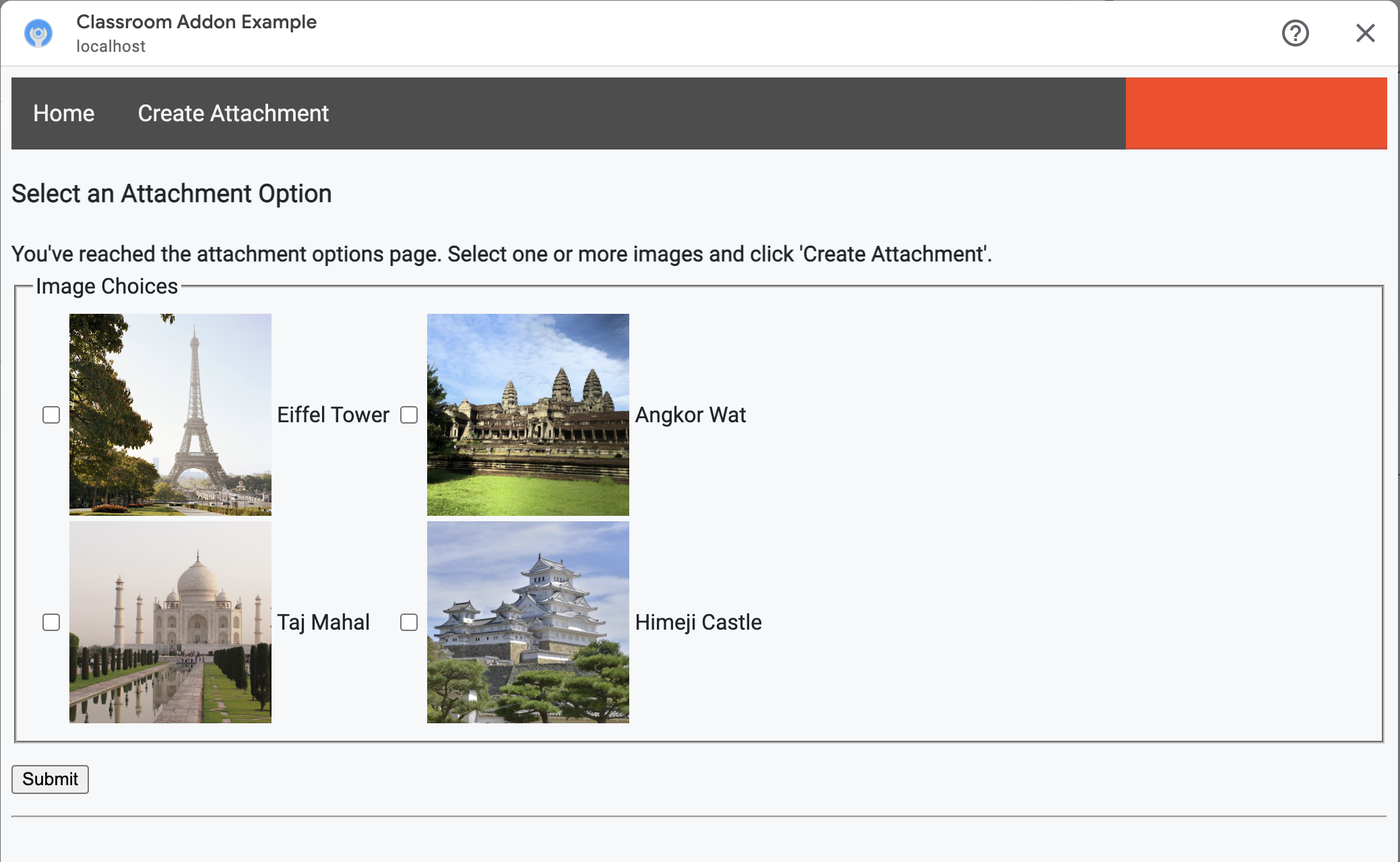
教師は複数の画像を選択できます。教師が create_attachments メソッドで選択した画像ごとに 1 つの添付ファイルを作成します。
問題の添付ファイル作成リクエストを発行する
教師が添付したいコンテンツがわかったら、Classroom API にリクエストを送信して、課題に添付ファイルを作成します。Classroom API からレスポンスを受け取ったら、添付ファイルの詳細をデータベースに保存します。
まず、Classroom サービスのインスタンスを取得します。
Python
この例では、webapp/attachment_routes.py ファイルにあります。
def create_attachments(filename_caption_pairs):
    """
    Create attachments and show an acknowledgement page.

    Args:
        filename_caption_pairs: A dictionary that maps image filenames to
            captions.
    """
    # Get the Google Classroom service.
    classroom_service = googleapiclient.discovery.build(
        serviceName="classroom",
        version="v1",
        credentials=credentials)
courses.courseWork.addOnAttachments エンドポイントに CREATE リクエストを発行します。教師が選択した画像ごとに、まず AddOnAttachment オブジェクトを構築します。
Python
提供されている例では、これは create_attachments メソッドの続きです。
# Create a new attachment for each image that was selected.
attachment_count = 0
for key, value in filename_caption_pairs.items():
    attachment_count += 1

    # Create a dictionary with values for the AddOnAttachment object fields.
    attachment = {
        # Specifies the route for a teacher user.
        "teacherViewUri": {
            "uri":
                flask.url_for(
                    "load_content_attachment", _scheme='https', _external=True),
        },
        # Specifies the route for a student user.
        "studentViewUri": {
            "uri":
                flask.url_for(
                    "load_content_attachment", _scheme='https', _external=True)
        },
        # The title of the attachment.
        "title": f"Attachment {attachment_count}",
    }
各添付ファイルには、少なくとも teacherViewUri、studentViewUri、title の各フィールドを指定する必要があります。teacherViewUri と studentViewUri は、それぞれのユーザータイプが添付ファイルを開いたときに読み込まれる URL を表します。
リクエストの本文で AddOnAttachment オブジェクトを適切な addOnAttachments エンドポイントに送信します。各リクエストで courseId、itemId、itemType、addOnToken の識別子を指定します。
Python
提供されている例では、これは create_attachments メソッドの続きです。
# Use the itemType to determine which stream item type the teacher created
match flask.session["itemType"]:
    case "announcements":
        parent = classroom_service.courses().announcements()
    case "courseWorkMaterials":
        parent = classroom_service.courses().courseWorkMaterials()
    case _:
        parent = classroom_service.courses().courseWork()

# Issue a request to create the attachment.
resp = parent.addOnAttachments().create(
    courseId=flask.session["courseId"],
    itemId=flask.session["itemId"],
    addOnToken=flask.session["addOnToken"],
    body=attachment).execute()
後で正しいコンテンツを読み込めるように、ローカル データベースにこの添付ファイルのエントリを作成します。Classroom は、作成リクエストに対するレスポンスで一意の id 値を返すため、これをデータベースの主キーとして使用します。また、教師用ビューと生徒用ビューを開くときに、Classroom が attachmentId クエリ パラメータを渡すことにも注意してください。
Python
提供されている例では、これは create_attachments メソッドの続きです。
# Store the value by id.
new_attachment = Attachment(
    # The new attachment's unique ID, returned in the CREATE response.
    attachment_id=resp.get("id"),
    image_filename=key,
    image_caption=value)
db.session.add(new_attachment)
db.session.commit()
この時点でユーザーを確認ページにルーティングし、添付ファイルの作成が成功したことを確認することを検討してください。
アドオンからの添付ファイルを許可する
この機会に、Google Workspace Marketplace SDK の [アプリの構成] ページの [許可された添付ファイル URI 接頭辞] フィールドに、適切なアドレスを追加することをおすすめします。アドオンで作成できる添付ファイルは、このページに記載されている URI 接頭辞のいずれかからのみです。これは、中間者攻撃の可能性を減らすためのセキュリティ対策です。
最も簡単な方法は、このフィールドにトップレベル ドメイン(https://example.com など)を指定することです。ローカルマシンをウェブサーバーとして使用している場合は、https://localhost:<your port number>/ が機能します。
教師用ビューと生徒用ビューのルートを追加する
Google Classroom アドオンが読み込まれる可能性のある iframe は 4 つあります。これまでは、添付ファイル検出ビューの iframe を提供するルートのみを構築しました。次に、教師用ビューと生徒用ビューの iframe も提供するルートを追加します。
教師用ビューの iframe は、生徒の操作画面のプレビューを表示するために必要ですが、必要に応じて追加情報や編集機能を含めることができます。
[生徒用ビュー] は、生徒がアドオンの添付ファイルを開いたときに表示されるページです。
この演習では、教師ビューと生徒ビューの両方を提供する 1 つの /load-content-attachment ルートを作成します。Classroom API メソッドを使用して、ページが読み込まれたときにユーザーが教師か生徒かを判断します。
Python
この例では、webapp/attachment_routes.py ファイルにあります。
@app.route("/load-content-attachment")
def load_content_attachment():
    """
    Load the attachment for the user's role."""

    # Since this is a landing page for the Teacher and Student View iframes, we
    # need to preserve the incoming query parameters.
    if flask.request.args.get("itemId"):
        flask.session["itemId"] = flask.request.args.get("itemId")
    if flask.request.args.get("itemType"):
        flask.session["itemType"] = flask.request.args.get("itemType")
    if flask.request.args.get("courseId"):
        flask.session["courseId"] = flask.request.args.get("courseId")
    if flask.request.args.get("attachmentId"):
        flask.session["attachmentId"] = flask.request.args.get("attachmentId")
この時点でユーザーの認証も行う必要があります。また、ここで login_hint クエリ パラメータを処理し、必要に応じてユーザーを認証フローに転送する必要があります。このフローについて詳しくは、前のチュートリアルで説明したログイン ガイダンスの詳細をご覧ください。
次に、アイテムタイプに一致する getAddOnContext エンドポイントにリクエストを送信します。
Python
この例では、load_content_attachment メソッドの続きです。
# Create an instance of the Classroom service.
classroom_service = googleapiclient.discovery.build(
    serviceName="classroom"
    version="v1",
    credentials=credentials)

# Use the itemType to determine which stream item type the teacher created
match flask.session["itemType"]:
    case "announcements":
        parent = classroom_service.courses().announcements()
    case "courseWorkMaterials":
        parent = classroom_service.courses().courseWorkMaterials()
    case _:
        parent = classroom_service.courses().courseWork()

addon_context_response = parent.getAddOnContext(
    courseId=flask.session["courseId"],
    itemId=flask.session["itemId"]).execute()
このメソッドは、クラス内の現在のユーザーの役割に関する情報を返します。ユーザーのロールに応じて、ユーザーに表示されるビューを変更します。レスポンス オブジェクトには、studentContext フィールドまたは teacherContext フィールドのいずれか 1 つだけが格納されます。これらを調べて、お客様への対応方法を判断します。
いずれにしても、attachmentId クエリ パラメータ値を使用して、データベースから取得する添付ファイルを特定します。このクエリ パラメータは、教師ビューまたは生徒ビューの URI を開くときに指定します。
Python
この例では、load_content_attachment メソッドの続きです。
# Determine which view we are in by testing the returned context type.
user_context = "student" if addon_context_response.get(
    "studentContext") else "teacher"

# Look up the attachment in the database.
attachment = Attachment.query.get(flask.session["attachmentId"])

# Set the text for the next page depending on the user's role.
message_str = f"I see that you're a {user_context}! "
message_str += (
    f"I've loaded the attachment with ID {attachment.attachment_id}. "
    if user_context == "teacher" else
    "Please enjoy this image of a famous landmark!")

# Show the content with the customized message text.
return flask.render_template(
    "show-content-attachment.html",
    message=message_str,
    image_filename=attachment.image_filename,
    image_caption=attachment.image_caption,
    responses=response_strings)
アドオンをテストする
添付ファイルの作成をテストする手順は次のとおりです。
- 教師のテストユーザーのいずれかとして [Google Classroom] にログインします。
- [授業] タブに移動して、新しい課題を作成します。
- テキスト ボックスの下にある [アドオン] ボタンをクリックし、アドオンを選択します。iframe が開き、Google Workspace Marketplace SDK の [アプリの構成] ページで指定した添付ファイル設定 URI がアドオンによって読み込まれます。
- 課題に添付するコンテンツを選択します。
- 添付ファイルの作成フローが完了したら、iframe を閉じます。
Google Classroom の課題作成 UI に添付ファイル カードが表示されます。カードをクリックして教師用ビューの iframe を開き、正しい添付ファイルが表示されることを確認します。[割り当て] ボタンをクリックします。
生徒の操作性をテストする手順は次のとおりです。
- 次に、教師テストユーザーと同じクラスの生徒テストユーザーとして Classroom にログインします。
- [授業] タブでテスト課題を見つけます。
- 課題を開き、添付ファイル カードをクリックして生徒用ビューの iframe を開きます。
生徒に正しい添付ファイルが表示されることを確認します。
おめでとうございます!次のステップ(アクティビティ タイプのアタッチメントの作成)に進む準備が整いました。