

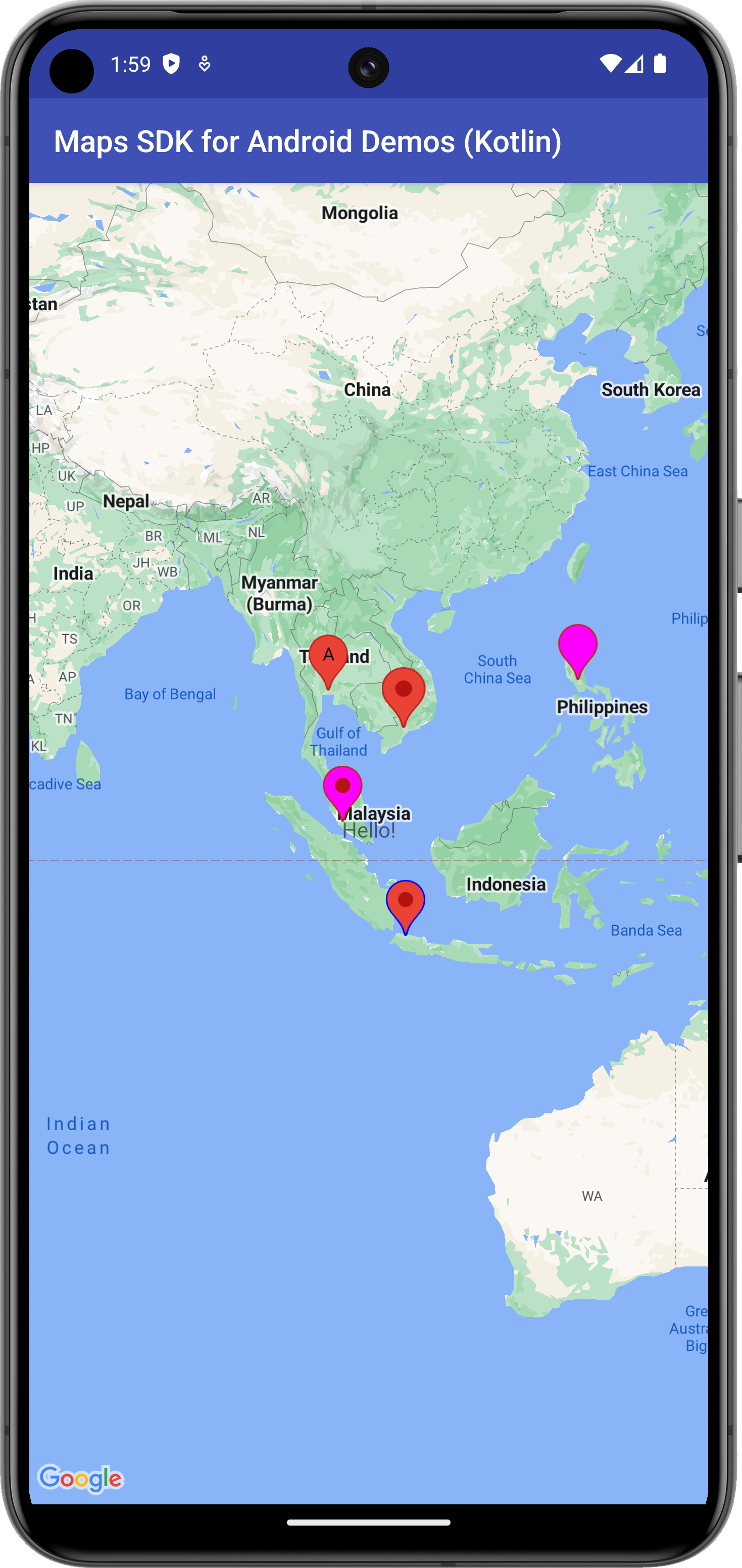
Ten przykład wskazuje na mapie lokalizację za pomocą zaawansowanego znacznika i pokazuje niektóre możliwości zaawansowanych znaczników.
Więcej informacji znajdziesz w dokumentacji.
Rozpocznij
Zanim spróbujesz użyć przykładowego kodu, musisz skonfigurować środowisko programistyczne. Więcej informacji znajdziesz w przykładach kodu Maps SDK na Androida.
Wyświetlanie kodu
Kotlin
class AdvancedMarkersDemoActivity : SamplesBaseActivity(), OnMapReadyCallback { /** * This method is called when the activity is first created. * * It sets up the activity's layout and then initializes the map. * * The key logic here is to check if the developer has provided a Map ID in the * `strings.xml` file. * * If the `R.string.map_id` value is not the default "DEMO_MAP_ID", it means a * custom Map ID has been provided. In this case, we can rely on the simpler setup * where the `SupportMapFragment` is inflated directly from the XML layout, and it * will automatically use the Map ID from the string resource. * * However, if the `R.string.map_id` is still the default value, we fall back to a * programmatic setup. This involves: * 1. Retrieving the Map ID from the `secrets.properties` file, which is managed by the * `ApiDemoApplication` class. * 2. Creating a `GoogleMapOptions` object. * 3. Explicitly setting the retrieved `mapId` on the `GoogleMapOptions`. This step is * **critical** because Advanced Markers will not work without a valid Map ID. * 4. Creating a new `SupportMapFragment` instance with these options and replacing the * placeholder fragment in the layout. * * This dual approach ensures that the demo can run seamlessly while also providing a * clear path for developers to use their own Map IDs, which is a requirement for using * Advanced Markers. */ /** * This method is called when the activity is first created. * * It sets up the activity's layout and then initializes the map. * * The key logic here is to check if the developer has provided a Map ID in the * `strings.xml` file. * * If the `R.string.map_id` value is not the default "DEMO_MAP_ID", it means a * custom Map ID has been provided. In this case, we can rely on the simpler setup * where the `SupportMapFragment` is inflated directly from the XML layout, and it * will automatically use the Map ID from the string resource. * * However, if the `R.string.map_id` is still the default value, we fall back to a * programmatic setup. This involves: * 1. Retrieving the Map ID from the `secrets.properties` file, via the * `ApiDemoApplication.mapId` property. * 2. Creating a `GoogleMapOptions` object. * 3. Explicitly setting the retrieved `mapId` on the `GoogleMapOptions`. This step is * **critical** because Advanced Markers will not work without a valid Map ID. * 4. Creating a new `SupportMapFragment` instance with these options and replacing the * placeholder fragment in the layout. * * This dual approach ensures that the demo can run seamlessly while also providing a * clear path for developers to use their own Map IDs, which is a requirement for using * Advanced Markers. */ override fun onCreate(savedInstanceState: Bundle?) { super.onCreate(savedInstanceState) setContentView(com.example.common_ui.R.layout.advanced_markers_demo) if (getString(com.example.common_ui.R.string.map_id) != "DEMO_MAP_ID") { val mapFragment = supportFragmentManager.findFragmentById(com.example.common_ui.R.id.map) as SupportMapFragment? mapFragment?.getMapAsync(this) } else { val mapId = (application as ApiDemoApplication).mapId // --- Map ID Check --- if (mapId == null) { finish() return // Exit early if no valid Map ID } // --- Programmatically create and add the map fragment --- val mapOptions = GoogleMapOptions().apply { mapId(mapId) } val mapFragment = SupportMapFragment.newInstance(mapOptions) supportFragmentManager.beginTransaction() .replace(R.id.map, mapFragment) // Use the container ID .commit() mapFragment.getMapAsync(this) } applyInsets(findViewById(com.example.common_ui.R.id.map_container)) } override fun onMapReady(map: GoogleMap) { val bounds = LatLngBounds.builder() .include(SINGAPORE) .include(KUALA_LUMPUR) .include(JAKARTA) .include(BANGKOK) .include(MANILA) .include(HO_CHI_MINH_CITY) .build() map.moveCamera(CameraUpdateFactory.newLatLngBounds(bounds, 120)) val capabilities: MapCapabilities = map.mapCapabilities Log.d(TAG, "are advanced marker enabled?" + capabilities.isAdvancedMarkersAvailable) // 1. Custom View as iconView (Framed circular badge with Android logo) val iconImageView = android.widget.ImageView(this).apply { setImageResource(R.drawable.ic_android) setColorFilter("#3DDC84".toColorInt()) // Android Green setBackgroundResource(R.drawable.bg_marker_badge) val padding = (8 * resources.displayMetrics.density).toInt() setPadding(padding, padding, padding, padding) layoutParams = android.view.ViewGroup.LayoutParams( (44 * resources.displayMetrics.density).toInt(), (44 * resources.displayMetrics.density).toInt() ) } map.addMarker( AdvancedMarkerOptions() .position(SINGAPORE) .iconView(iconImageView) .title("Singapore (Custom Framed Badge)") .zIndex(1f) ) // 2. PinConfig with custom background color val pinConfigMagenta = PinConfig.builder() .setBackgroundColor(Color.MAGENTA) .build() map.addMarker( AdvancedMarkerOptions() .icon(BitmapDescriptorFactory.fromPinConfig(pinConfigMagenta)) .position(KUALA_LUMPUR) .title("Kuala Lumpur (Magenta Pin)") ) // 3. PinConfig with custom border color val pinConfigBorder = PinConfig.builder() .setBorderColor(Color.BLUE) .build() map.addMarker( AdvancedMarkerOptions() .icon(BitmapDescriptorFactory.fromPinConfig(pinConfigBorder)) .position(JAKARTA) .title("Jakarta (Blue Border)") ) // 4. PinConfig with text glyph ("A") val pinConfigTextGlyph = PinConfig.builder() .setGlyph(PinConfig.Glyph("A")) .build() map.addMarker( AdvancedMarkerOptions() .icon(BitmapDescriptorFactory.fromPinConfig(pinConfigTextGlyph)) .position(BANGKOK) .title("Bangkok (Text Glyph 'A')") ) // 5. PinConfig with transparent glyph (cutout / donut pin) val pinConfigHole = PinConfig.builder() .setBackgroundColor(Color.MAGENTA) .setGlyph(PinConfig.Glyph(Color.TRANSPARENT)) .build() map.addMarker( AdvancedMarkerOptions() .icon(BitmapDescriptorFactory.fromPinConfig(pinConfigHole)) .position(MANILA) .title("Manila (Transparent Cutout Glyph)") ) // 6. Collision behavior val collisionBehavior = AdvancedMarkerOptions.CollisionBehavior.REQUIRED_AND_HIDES_OPTIONAL map.addMarker( AdvancedMarkerOptions() .position(HO_CHI_MINH_CITY) .collisionBehavior(collisionBehavior) .title("Ho Chi Minh City (Collision Behavior)") ) } }
Java
public class AdvancedMarkersDemoActivity extends SamplesBaseActivity implements OnMapReadyCallback { private static final LatLng SINGAPORE = new LatLng(1.3521, 103.8198); private static final LatLng KUALA_LUMPUR = new LatLng(3.1390, 101.6869); private static final LatLng JAKARTA = new LatLng(-6.2088, 106.8456); private static final LatLng BANGKOK = new LatLng(13.7563, 100.5018); private static final LatLng MANILA = new LatLng(14.5995, 120.9842); private static final LatLng HO_CHI_MINH_CITY = new LatLng(10.7769, 106.7009); private static final float ZOOM_LEVEL = 3.5f; private static final String TAG = AdvancedMarkersDemoActivity.class.getName(); /** * This method is called when the activity is first created. * * It sets up the activity's layout and then initializes the map. * * The key logic here is to check if the developer has provided a Map ID in the * `strings.xml` file. * * If the `R.string.map_id` value is not the default "DEMO_MAP_ID", it means a * custom Map ID has been provided. In this case, we can rely on the simpler setup * where the `SupportMapFragment` is inflated directly from the XML layout, and it * will automatically use the Map ID from the string resource. * * However, if the `R.string.map_id` is still the default value, we fall back to a * programmatic setup. This involves: * 1. Retrieving the Map ID from the `secrets.properties` file, which is managed by the * `ApiDemoApplication` class. * 2. Creating a `GoogleMapOptions` object. * 3. Explicitly setting the retrieved `mapId` on the `GoogleMapOptions`. This step is * **critical** because Advanced Markers will not work without a valid Map ID. * 4. Creating a new `SupportMapFragment` instance with these options and replacing the * placeholder fragment in the layout. * * This dual approach ensures that the demo can run seamlessly while also providing a * clear path for developers to use their own Map IDs, which is a requirement for using * Advanced Markers. */ @Override protected void onCreate(Bundle savedInstanceState) { super.onCreate(savedInstanceState); setContentView(com.example.common_ui.R.layout.advanced_markers_demo); if (!getString(com.example.common_ui.R.string.map_id).equals("DEMO_MAP_ID")) { SupportMapFragment mapFragment = (SupportMapFragment) getSupportFragmentManager().findFragmentById(com.example.common_ui.R.id.map); if (mapFragment != null) { mapFragment.getMapAsync(this); } } else { String mapId = ((ApiDemoApplication) getApplication()).getMapId(); if (mapId == null) { finish(); return; } GoogleMapOptions mapOptions = new GoogleMapOptions().mapId(mapId); SupportMapFragment mapFragment = SupportMapFragment.newInstance(mapOptions); getSupportFragmentManager().beginTransaction() .replace(com.example.common_ui.R.id.map, mapFragment) .commit(); mapFragment.getMapAsync(this); } applyInsets(findViewById(com.example.common_ui.R.id.map_container)); } @Override public void onMapReady(GoogleMap map) { LatLngBounds bounds = new LatLngBounds.Builder() .include(SINGAPORE) .include(KUALA_LUMPUR) .include(JAKARTA) .include(BANGKOK) .include(MANILA) .include(HO_CHI_MINH_CITY) .build(); map.moveCamera(CameraUpdateFactory.newLatLngBounds(bounds, 120)); MapCapabilities capabilities = map.getMapCapabilities(); Log.d(TAG, "Are advanced markers enabled? " + capabilities.isAdvancedMarkersAvailable()); // 1. Custom View as iconView (Framed circular badge with Android logo) ImageView iconImageView = new ImageView(this); iconImageView.setImageResource(R.drawable.ic_android); iconImageView.setColorFilter(Color.parseColor("#3DDC84")); // Android Green iconImageView.setBackgroundResource(R.drawable.bg_marker_badge); int padding = (int) (8 * getResources().getDisplayMetrics().density); iconImageView.setPadding(padding, padding, padding, padding); int size = (int) (44 * getResources().getDisplayMetrics().density); iconImageView.setLayoutParams(new ViewGroup.LayoutParams(size, size)); map.addMarker(new AdvancedMarkerOptions() .position(SINGAPORE) .iconView(iconImageView) .title("Singapore (Custom Framed Badge)") .zIndex(1f)); // This uses PinConfig.Builder to create an instance of PinConfig. PinConfig.Builder pinConfigBuilder = PinConfig.builder(); pinConfigBuilder.setBackgroundColor(Color.MAGENTA); PinConfig pinConfig = pinConfigBuilder.build(); // Use the PinConfig instance to set the icon for AdvancedMarkerOptions. AdvancedMarkerOptions advancedMarkerOptions = new AdvancedMarkerOptions() .icon(BitmapDescriptorFactory.fromPinConfig(pinConfig)) .position(KUALA_LUMPUR); // Pass the AdvancedMarkerOptions instance to addMarker(). Marker marker = map.addMarker(advancedMarkerOptions); // This sample changes the border color of the advanced marker PinConfig.Builder pinConfigBuilder2 = PinConfig.builder(); pinConfigBuilder2.setBorderColor(Color.BLUE); PinConfig pinConfig2 = pinConfigBuilder2.build(); AdvancedMarkerOptions advancedMarkerOptions2 = new AdvancedMarkerOptions() .icon(BitmapDescriptorFactory.fromPinConfig(pinConfig2)) .position(JAKARTA); Marker marker2 = map.addMarker(advancedMarkerOptions2); // Set the glyph text. PinConfig.Builder pinConfigBuilder3 = PinConfig.builder(); PinConfig.Glyph glyphText = new PinConfig.Glyph("A"); // Alternatively, you can set the text color: // Glyph glyphText = new Glyph("A", Color.GREEN); pinConfigBuilder3.setGlyph(glyphText); PinConfig pinConfig3 = pinConfigBuilder3.build(); AdvancedMarkerOptions advancedMarkerOptions3 = new AdvancedMarkerOptions() .icon(BitmapDescriptorFactory.fromPinConfig(pinConfig3)) .position(BANGKOK); Marker marker3 = map.addMarker(advancedMarkerOptions3); // Create a transparent glyph. PinConfig.Builder pinConfigBuilder4 = PinConfig.builder(); pinConfigBuilder4.setBackgroundColor(Color.MAGENTA); pinConfigBuilder4.setGlyph(new PinConfig.Glyph(Color.TRANSPARENT)); PinConfig pinConfig4 = pinConfigBuilder4.build(); AdvancedMarkerOptions advancedMarkerOptions4 = new AdvancedMarkerOptions() .icon(BitmapDescriptorFactory.fromPinConfig(pinConfig4)) .position(MANILA); Marker marker4 = map.addMarker(advancedMarkerOptions4); // Collision behavior can only be changed in the AdvancedMarkerOptions object. // Changes to collision behavior after a marker has been created are not possible int collisionBehavior = AdvancedMarkerOptions.CollisionBehavior.REQUIRED_AND_HIDES_OPTIONAL; AdvancedMarkerOptions advancedMarkerOptions5 = new AdvancedMarkerOptions() .position(HO_CHI_MINH_CITY) .collisionBehavior(collisionBehavior); Marker marker5 = map.addMarker(advancedMarkerOptions5); } }
Klonowanie i uruchamianie próbek
Aby uruchomić ten przykład lokalnie, musisz mieć zainstalowany Git. To polecenie klonuje przykładowe repozytorium aplikacji.
git clone git@github.com:googlemaps-samples/android-samples.git
Zaimportuj przykładowy projekt do Android Studio:
- W Android Studio kliknij Plik > Nowy > Importuj projekt.
Otwórz lokalizację, w której zapisano repozytorium, i wybierz katalog projektu Kotlin lub Java:
- Kotlin:
PATH-REPO/android-samples/ApiDemos/kotlin - Java:
PATH-REPO/android-samples/ApiDemos/java
- Kotlin:
- Wybierz Otwórz. Android Studio kompiluje projekt za pomocą narzędzia do kompilacji Gradle.
- Utwórz pusty plik
secrets.propertiesw tym samym katalogu, w którym znajduje się pliklocal.propertiesprojektu. Więcej informacji o tym pliku znajdziesz w artykule Dodawanie klucza interfejsu API do projektu. - Uzyskaj klucz interfejsu API z projektu z włączonym pakietem SDK Map Google na Androida.
Dodaj ten ciąg do pliku
secrets.properties, zastępując YOUR_API_KEY wartością klucza API:MAPS_API_KEY=YOUR_API_KEY- Uruchom aplikację.