

Project Google Apps Script yang terikat ke Google Dokumen, Google Spreadsheet, atau Google Formulir dapat menampilkan elemen antarmuka pengguna, seperti pemberitahuan, perintah, toast, dialog, dan sidebar bawaan. Elemen ini biasanya berisi konten layanan HTML kustom dan sering dibuka dari item menu. Di Formulir, elemen antarmuka pengguna hanya terlihat oleh editor yang membuka formulir untuk mengubahnya, bukan oleh responden.
Dialog pemberitahuan
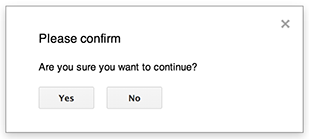
Peringatan adalah dialog bawaan yang terbuka di dalam editor Dokumen, Spreadsheet, Slide, atau Formulir. Dialog ini
menampilkan pesan dan tombol Oke; judul dan tombol alternatif bersifat
opsional. Tindakan ini mirip dengan memanggil
window.alert
di JavaScript sisi klien dalam browser web.
Peringatan menangguhkan skrip sisi server saat dialog terbuka. Skrip akan dilanjutkan setelah pengguna menutup dialog, tetapi koneksi JDBC tidak akan dipertahankan selama penangguhan.
Seperti yang ditunjukkan dalam contoh berikut, Dokumen, Formulir, Slide, dan Spreadsheet semuanya menggunakan metode Ui.alert, yang tersedia dalam tiga varian. Untuk mengganti tombol OK default, teruskan nilai dari
enum Ui.ButtonSet sebagai argumen
buttons. Untuk mengevaluasi tombol mana yang diklik pengguna, bandingkan nilai yang ditampilkan
untuk alert dengan enum Ui.Button.
function onOpen() {
  SpreadsheetApp.getUi() // Or DocumentApp or SlidesApp or FormApp.
    .createMenu("Custom Menu")
    .addItem("Show alert", "showAlert")
    .addToUi();
}

function showAlert() {
  const ui = SpreadsheetApp.getUi(); // Same variations.

  const result = ui.alert(
    "Please confirm",
    "Are you sure you want to continue?",
    ui.ButtonSet.YES_NO,
  );

  // Process the user's response.
  if (result === ui.Button.YES) {
    // User clicked "Yes".
    ui.alert("Confirmation received.");
  } else {
    // User clicked "No" or X in the title bar.
    ui.alert("Permission denied.");
  }
}
Dialog perintah
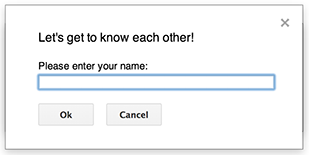
Perintah adalah dialog bawaan yang terbuka di dalam editor Dokumen, Spreadsheet, Slide, atau Formulir. Dialog
menampilkan pesan, kolom input teks, dan tombol OK; judul dan
tombol alternatif bersifat opsional. Tindakan ini mirip dengan memanggil
window.prompt
di JavaScript sisi klien dalam browser web.
Perintah menangguhkan skrip sisi server saat dialog terbuka. Skrip akan dilanjutkan setelah pengguna menutup dialog, tetapi koneksi JDBC tidak akan dipertahankan selama penangguhan.
Seperti yang ditunjukkan dalam contoh berikut, Dokumen, Formulir, Slide, dan Spreadsheet semuanya menggunakan metode Ui.prompt, yang tersedia dalam tiga varian. Untuk mengganti tombol OK default, teruskan nilai
dari enum Ui.ButtonSet sebagai
argumen buttons. Untuk mengevaluasi respons pengguna, ambil nilai yang ditampilkan
untuk prompt, lalu panggil
PromptResponse.getResponseText
untuk mengambil input pengguna, dan bandingkan nilai yang ditampilkan untuk
PromptResponse.getSelectedButton
dengan enum Ui.Button.
function onOpen() {
  SpreadsheetApp.getUi() // Or DocumentApp or SlidesApp or FormApp.
    .createMenu("Custom Menu")
    .addItem("Show prompt", "showPrompt")
    .addToUi();
}

function showPrompt() {
  const ui = SpreadsheetApp.getUi(); // Same variations.

  const result = ui.prompt(
    "Let's get to know each other!",
    "Please enter your name:",
    ui.ButtonSet.OK_CANCEL,
  );

  // Process the user's response.
  const button = result.getSelectedButton();
  const text = result.getResponseText();
  if (button === ui.Button.OK) {
    // User clicked "OK".
    ui.alert("Your name is " + text + ".");
  } else if (button === ui.Button.CANCEL) {
    // User clicked "Cancel".
    ui.alert("I didn't get your name.");
  } else if (button === ui.Button.CLOSE) {
    // User clicked X in the title bar.
    ui.alert("You closed the dialog.");
  }
}
Toast spreadsheet
"Toast" adalah jendela dialog kecil di pojok kanan bawah editor Spreadsheet yang menampilkan pesan, tetapi tidak menangguhkan skrip. Cara ini adalah cara yang baik untuk menampilkan pesan status atau update yang tidak memerlukan interaksi pengguna.
Seperti yang ditunjukkan dalam contoh berikut, Spreadsheet menggunakan metode
Spreadsheet.toast.
Toast hanya tersedia di Spreadsheet.
function showToast() {
  SpreadsheetApp.getActiveSpreadsheet().toast("Task completed successfully.");
}
Dialog kustom
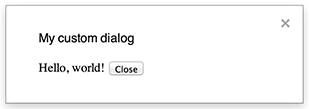
Dialog kustom dapat menampilkan antarmuka pengguna layanan HTML di dalam editor Dokumen, Spreadsheet, Slide, atau Formulir.
Dialog kustom tidak menangguhkan skrip sisi server saat dialog terbuka.
Karena bersifat asinkron, fungsi sisi server yang membuka dialog
akan segera selesai. Untuk meneruskan data dari dialog kustom kembali ke server,
gunakan API google.script di kode
sisi klien Anda.
Dialog dapat menutup sendiri dengan memanggil
google.script.host.close
di sisi klien antarmuka layanan HTML. Dialog tidak dapat ditutup oleh
antarmuka lain, hanya oleh pengguna atau dirinya sendiri.
Seperti yang ditunjukkan dalam contoh berikut, Dokumen, Formulir, Slide, dan Spreadsheet semuanya menggunakan metode Ui.showModalDialog untuk membuka dialog.
Code.gs
function onOpen() {
  SpreadsheetApp.getUi() // Or DocumentApp or SlidesApp or FormApp.
      .createMenu('Custom Menu')
      .addItem('Show dialog', 'showDialog')
      .addToUi();
}

function showDialog() {
  const html = HtmlService.createHtmlOutputFromFile('Page')
      .setWidth(400)
      .setHeight(300);
  SpreadsheetApp.getUi() // Or DocumentApp or SlidesApp or FormApp.
      .showModalDialog(html, 'My custom dialog');
}
Page.html
Hello, world! <input type="button" value="Close" onclick="google.script.host.close()" />
Sidebar kustom

Sidebar dapat menampilkan antarmuka pengguna layanan HTML di dalam editor Dokumen, Formulir, Slide, dan Spreadsheet.
Sidebar tidak menangguhkan skrip sisi server saat dialog terbuka. Komponen sisi klien dapat melakukan panggilan asinkron ke skrip sisi server menggunakan API google.script untuk antarmuka layanan HTML.
Sidebar dapat menutup sendiri dengan memanggil
google.script.host.close
di sisi klien antarmuka layanan HTML. Sidebar tidak dapat ditutup oleh
antarmuka lain, hanya oleh pengguna atau dirinya sendiri.
Seperti yang ditunjukkan dalam contoh berikut, Dokumen, Formulir, Slide, dan Spreadsheet semuanya menggunakan metode Ui.showSidebar untuk membuka sidebar.
Code.gs
function onOpen() {
  SpreadsheetApp.getUi() // Or DocumentApp or SlidesApp or FormApp.
      .createMenu('Custom Menu')
      .addItem('Show sidebar', 'showSidebar')
      .addToUi();
}

function showSidebar() {
  const html = HtmlService.createHtmlOutputFromFile('Page')
      .setTitle('My custom sidebar');
  SpreadsheetApp.getUi() // Or DocumentApp or SlidesApp or FormApp.
      .showSidebar(html);
}
Page.html
Hello, world! <input type="button" value="Close" onclick="google.script.host.close()" />
Dialog buka file
Google Picker adalah JavaScript API yang memungkinkan pengguna memilih atau mengupload file Google Drive. Gunakan library Google Picker di layanan HTML untuk membuat dialog kustom yang memungkinkan pengguna memilih file yang ada atau mengupload file baru, lalu meneruskan pilihan kembali ke skrip Anda.
Persyaratan
Penggunaan Pemilih Google dengan Google Apps Script memiliki beberapa persyaratan:
Siapkan lingkungan Anda untuk Google Picker.
Project skrip Anda harus menggunakan project Google Cloud standar.
Teruskan nomor project Cloud yang sama ke
PickerBuilder.setAppIdjika menggunakan cakupandrive.file.Manifes projectApps Script harus menentukan cakupan otorisasi yang diperlukan oleh Google Picker API sehingga
ScriptApp.getOAuthTokenmenampilkan token yang benar untukPickerBuilder.setOauthtoken.Batasi set kunci API di
PickerBuilder.setDeveloperKeyke Apps Script. Di bagian Pembatasan aplikasi, ikuti langkah-langkah berikut:- Pilih Perujuk HTTP (situs).
- Di bagian Pembatasan situs, klik Tambahkan item.
- Klik Perujuk, lalu masukkan
*.google.com. - Tambahkan item lain dan masukkan
*.googleusercontent.comsebagai perujuk. - Klik Selesai.
Panggil
PickerBuilder.setOrigin.
Contoh
Contoh berikut menunjukkan Google Picker di Apps Script.