
अडैप्टिव बैनर, रिस्पॉन्सिव विज्ञापनों की अगली जनरेशन हैं. ये हर डिवाइस के हिसाब से विज्ञापन के साइज़ को ऑप्टिमाइज़ करके, परफ़ॉर्मेंस को बेहतर बनाते हैं. तय साइज़ वाले बैनर विज्ञापनों में सिर्फ़ तय ऊंचाई वाले विज्ञापन दिखाए जा सकते थे. हालांकि, अडैप्टिव बैनर विज्ञापनों में डेवलपर, विज्ञापन की चौड़ाई तय कर सकते हैं. साथ ही, इसका इस्तेमाल करके विज्ञापन का सबसे सही साइज़ तय कर सकते हैं.
विज्ञापन का सबसे सही साइज़ चुनने के लिए, इनलाइन अडैप्टिव बैनर तय ऊंचाई के बजाय ज़्यादा से ज़्यादा ऊंचाई का इस्तेमाल करते हैं. इससे परफ़ॉर्मेंस को बेहतर बनाने के अवसर मिलते हैं.
इनलाइन अडैप्टिव बैनर का इस्तेमाल कब करना चाहिए
इनलाइन अडैप्टिव बैनर, ऐंकर किए गए अडैप्टिव बैनर की तुलना में बड़े और लंबे होते हैं. इनकी ऊंचाई अलग-अलग होती है और ये डिवाइस की स्क्रीन जितनी लंबी हो सकती हैं.
इन्हें स्क्रोल किए जा सकने वाले कॉन्टेंट में दिखाने के लिए डिज़ाइन किया गया है. उदाहरण के लिए:
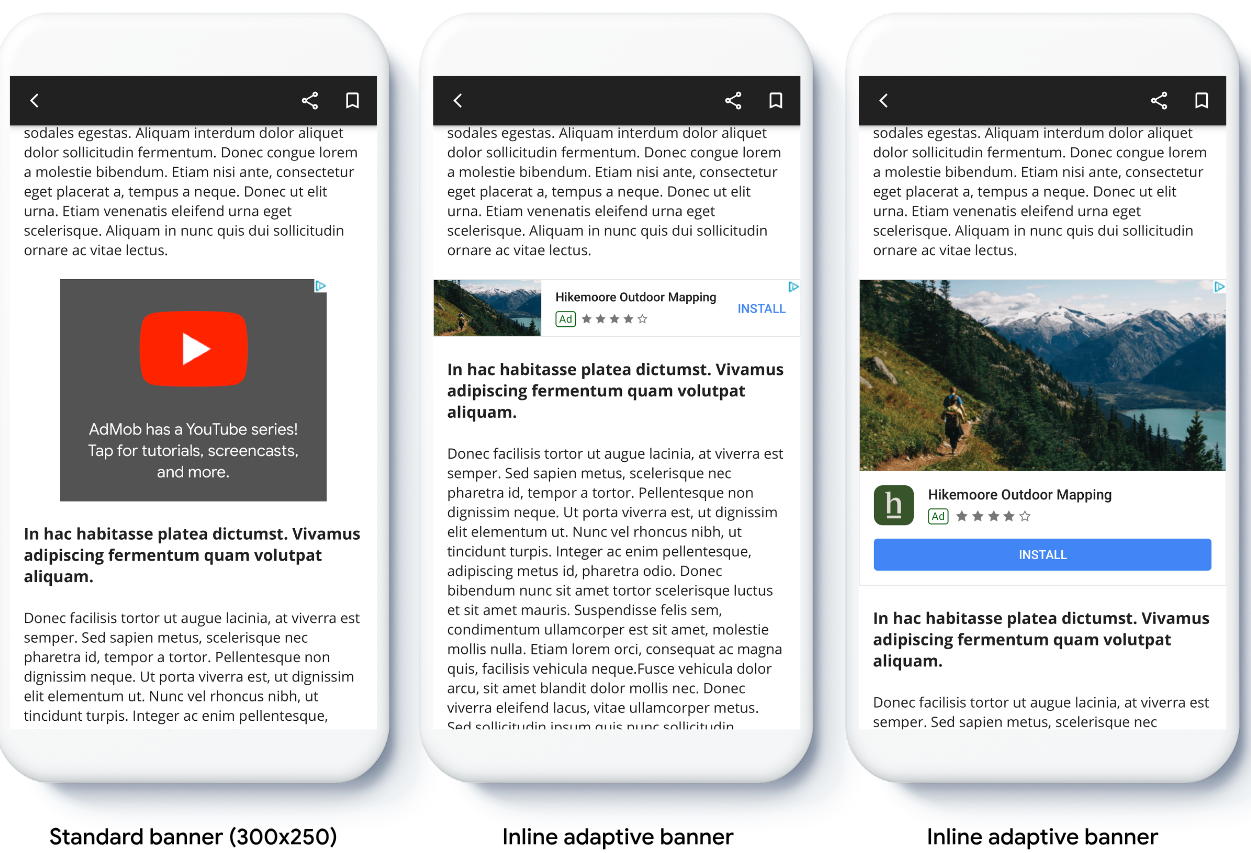
ज़रूरी शर्तें
आगे बढ़ने से पहले, Google Mobile Ads Flutter Plugin सेट अप करें.
शुरू करने से पहले
अपने ऐप्लिकेशन में अडैप्टिव बैनर लागू करते समय, इन बातों का ध्यान रखें:
पक्का करें कि Google Mobile Ads Flutter Plugin का सबसे नया वर्शन इस्तेमाल किया जा रहा हो. साथ ही, अगर AdMob मीडिएशन का इस्तेमाल किया जा रहा है, तो मीडिएशन अडैप्टर के सबसे नए वर्शन इस्तेमाल किए जा रहे हों.
इनलाइन अडैप्टिव बैनर के साइज़, पूरी उपलब्ध चौड़ाई का इस्तेमाल करने पर सबसे अच्छी तरह काम करते हैं. ज़्यादातर मामलों में, यह इस्तेमाल किए जा रहे डिवाइस की स्क्रीन की पूरी चौड़ाई होगी. यह पक्का करें कि आपने सेफ़ एरिया के बारे में ध्यान रखा हो.
विज्ञापन का साइज़ पाने के ये तरीके हैं
AdSize.getCurrentOrientationInlineAdaptiveBannerAdSize(int width)AdSize.getLandscapeInlineAdaptiveBannerAdSize(int width)AdSize.getPortraitInlineAdaptiveBannerAdSize(int width)AdSize.getInlineAdaptiveBannerAdSize(int width, int maxHeight)
इनलाइन अडैप्टिव बैनर एपीआई का इस्तेमाल करते समय, Google Mobile Ads Flutter Plugin दिए गए चौड़ाई और इनलाइन फ़्लैग के साथ
AdSizeदिखाता है. इस्तेमाल किए जा रहे एपीआई के हिसाब से, ऊंचाई या तो शून्य होती है याmaxHeightहोती है. विज्ञापन दिखाए जाने पर, उसकी असल ऊंचाई उपलब्ध कराई जाती है.इनलाइन अडैप्टिव बैनर को स्क्रोल किए जा सकने वाले कॉन्टेंट में दिखाने के लिए डिज़ाइन किया गया है. बैनर की ऊंचाई, डिवाइस की स्क्रीन जितनी हो सकती है या एपीआई के हिसाब से इसकी ऊंचाई तय की जा सकती है.
लागू करना
आसान इनलाइन अडैप्टिव बैनर को लागू करने के लिए, यहां दिया गया तरीका अपनाएं.
- इनलाइन अडैप्टिव बैनर विज्ञापन का साइज़ पाएं. आपको स्टैटिक मेथड से साइज़ की जानकारी मिलती है. अडैप्टिव बैनर का अनुरोध करते समय, इस साइज़ का इस्तेमाल किया जाता है. विज्ञापन के अडैप्टिव साइज़ को पाने के लिए, पक्का करें कि आपने:
- इस्तेमाल किए जा रहे डिवाइस की चौड़ाई को डेनसिटी इंडिपेंडेंट पिक्सल में पाएं या अगर आपको स्क्रीन की पूरी चौड़ाई का इस्तेमाल नहीं करना है, तो अपनी चौड़ाई सेट करें.
स्क्रीन की चौड़ाई पाने के लिए,
MediaQuery.of(context)का इस्तेमाल किया जा सकता है. - विज्ञापन के साइज़ वाली क्लास पर सही स्टैटिक तरीकों का इस्तेमाल करें. जैसे, मौजूदा ओरिएंटेशन के लिए इनलाइन अडैप्टिव
AdSizeऑब्जेक्ट पाने के लिएAdSize.getCurrentOrientationInlineAdaptiveBannerAdSize(int width)का इस्तेमाल करें. - अगर आपको बैनर की ऊंचाई को सीमित करना है, तो स्टैटिक
तरीके
AdSize.getInlineAdaptiveBannerAdSize(int width, int maxHeight)का इस्तेमाल करें.
- इस्तेमाल किए जा रहे डिवाइस की चौड़ाई को डेनसिटी इंडिपेंडेंट पिक्सल में पाएं या अगर आपको स्क्रीन की पूरी चौड़ाई का इस्तेमाल नहीं करना है, तो अपनी चौड़ाई सेट करें.
स्क्रीन की चौड़ाई पाने के लिए,
- अपनी विज्ञापन यूनिट का आईडी, अडैप्टिव विज्ञापन के साइज़, और विज्ञापन दिखाने के अनुरोध वाले ऑब्जेक्ट के साथ
BannerAdऑब्जेक्ट बनाएं. - विज्ञापन लोड करें.
onAdLoadedकॉलबैक में,BannerAd.getPlatformAdSize()का इस्तेमाल करके, प्लैटफ़ॉर्म के विज्ञापन के अपडेट किए गए साइज़ की जानकारी पाएं. साथ ही,AdWidgetकंटेनर की ऊंचाई को अपडेट करें.
कोड का उदाहरण
यहां एक उदाहरण विजेट दिया गया है, जो स्क्रीन की चौड़ाई के हिसाब से इनसेट को ध्यान में रखते हुए, इनलाइन अडैप्टिव बैनर लोड करता है:
import 'package:flutter/material.dart';
import 'package:google_mobile_ads/google_mobile_ads.dart';

/// This example demonstrates inline adaptive banner ads.
///
/// Loads and shows an inline adaptive banner ad in a scrolling view,
/// and reloads the ad when the orientation changes.
class InlineAdaptiveExample extends StatefulWidget {
  @override
  _InlineAdaptiveExampleState createState() => _InlineAdaptiveExampleState();
}

class _InlineAdaptiveExampleState extends State<InlineAdaptiveExample> {
  static const _insets = 16.0;
  BannerAd? _inlineAdaptiveAd;
  bool _isLoaded = false;
  AdSize? _adSize;
  late Orientation _currentOrientation;

  double get _adWidth => MediaQuery.of(context).size.width - (2 * _insets);

  @override
  void didChangeDependencies() {
    super.didChangeDependencies();
    _currentOrientation = MediaQuery.of(context).orientation;
    _loadAd();
  }

  void _loadAd() async {
    await _inlineAdaptiveAd?.dispose();
    setState(() {
      _inlineAdaptiveAd = null;
      _isLoaded = false;
    });

    // Get an inline adaptive size for the current orientation.
    AdSize size = AdSize.getCurrentOrientationInlineAdaptiveBannerAdSize(
        _adWidth.truncate());

    _inlineAdaptiveAd = BannerAd(
      // TODO: replace this test ad unit with your own ad unit.
      adUnitId: 'ca-app-pub-3940256099942544/9214589741',
      size: size,
      request: AdRequest(),
      listener: BannerAdListener(
        onAdLoaded: (Ad ad) async {
          print('Inline adaptive banner loaded: ${ad.responseInfo}');

          // After the ad is loaded, get the platform ad size and use it to
          // update the height of the container. This is necessary because the
          // height can change after the ad is loaded.
          BannerAd bannerAd = (ad as BannerAd);
          final AdSize? size = await bannerAd.getPlatformAdSize();
          if (size == null) {
            print('Error: getPlatformAdSize() returned null for $bannerAd');
            return;
          }

          setState(() {
            _inlineAdaptiveAd = bannerAd;
            _isLoaded = true;
            _adSize = size;
          });
        },
        onAdFailedToLoad: (Ad ad, LoadAdError error) {
          print('Inline adaptive banner failedToLoad: $error');
          ad.dispose();
        },
      ),
    );
    await _inlineAdaptiveAd!.load();
  }

  /// Gets a widget containing the ad, if one is loaded.
  ///
  /// Returns an empty container if no ad is loaded, or the orientation
  /// has changed. Also loads a new ad if the orientation changes.
  Widget _getAdWidget() {
    return OrientationBuilder(
      builder: (context, orientation) {
        if (_currentOrientation == orientation &&
            _inlineAdaptiveAd != null &&
            _isLoaded &&
            _adSize != null) {
          return Align(
              child: Container(
            width: _adWidth,
            height: _adSize!.height.toDouble(),
            child: AdWidget(
              ad: _inlineAdaptiveAd!,
            ),
          ));
        }
        // Reload the ad if the orientation changes.
        if (_currentOrientation != orientation) {
          _currentOrientation = orientation;
          _loadAd();
        }
        return Container();
      },
    );
  }

  @override
  Widget build(BuildContext context) => Scaffold(
      appBar: AppBar(
        title: Text('Inline adaptive banner example'),
      ),
      body: Center(
        child: Padding(
          padding: const EdgeInsets.symmetric(horizontal: _insets),
          child: ListView.separated(
            itemCount: 20,
            separatorBuilder: (BuildContext context, int index) {
              return Container(
                height: 40,
              );
            },
            itemBuilder: (BuildContext context, int index) {
              if (index == 10) {
                return _getAdWidget();
              }
              return Text(
                'Placeholder text',
                style: TextStyle(fontSize: 24),
              );
            },
          ),
        ),
      ));

  @override
  void dispose() {
    super.dispose();
    _inlineAdaptiveAd?.dispose();
  }
}