

รูปแบบโฆษณาที่กำหนดเอง
รูปแบบโฆษณาเนทีฟที่กำหนดเองจะโหลดโดยใช้ออบเจ็กต์ GADAdLoader เช่นเดียวกับรูปแบบโฆษณาเนทีฟที่กำหนดโดยระบบ การรวมค่าคงที่
GADAdLoaderAdTypeCustomNative ไว้ในอาร์เรย์ adTypes เมื่อ
เริ่มต้น GADAdLoader จะกำหนดค่าให้ขอรูปแบบเนทีฟที่กำหนดเอง
เมื่อโหลดโฆษณา
GADCustomNativeAdLoaderDelegate
โปรโตคอลสำหรับการโหลดรูปแบบที่กำหนดเองมี 2 วิธี โดยGADAdLoader ใช้รายการแรกเพื่อดูว่าควรขอรหัสรูปแบบใด
Swift
public func customNativeAdFormatIDs(for adLoader: AdLoader) -> [Any]
Objective-C
- (NSArray *)customNativeAdFormatIDsForAdLoader:(AdLoader *)adLoader;
รูปแบบโฆษณาเนทีฟที่กำหนดเองทุกรูปแบบจะมีรหัสรูปแบบที่เกี่ยวข้องซึ่งระบุ รูปแบบนั้น เมื่อเรียกใช้เมธอดนี้ แอปควรแสดงอาร์เรย์ที่มีรหัสรูปแบบของโฆษณาที่พร้อมแสดง
ข้อความที่ 2 จะส่งเมื่อโหลดโฆษณาเนทีฟที่กำหนดเองแล้ว เช่นเดียวกับข้อความสำหรับรูปแบบที่ระบบกำหนด
Swift
public func adLoader(_ adLoader: AdLoader,
    didReceive customNativeAd: CustomNativeAd)
Objective-C
- (void)adLoader:(AdLoader *)adLoader
    didReceiveCustomNativeAd:(CustomNativeAd *)customNativeAd;
รหัสรูปแบบ
รหัสรูปแบบที่ใช้เพื่ออ้างอิงรูปแบบโฆษณาเนทีฟที่กำหนดเองแบบไม่ซ้ำกัน จะอยู่ใน UI ของ Ad Manager ในส่วนเนทีฟภายในเมนูแบบเลื่อนลงการแสดงผล
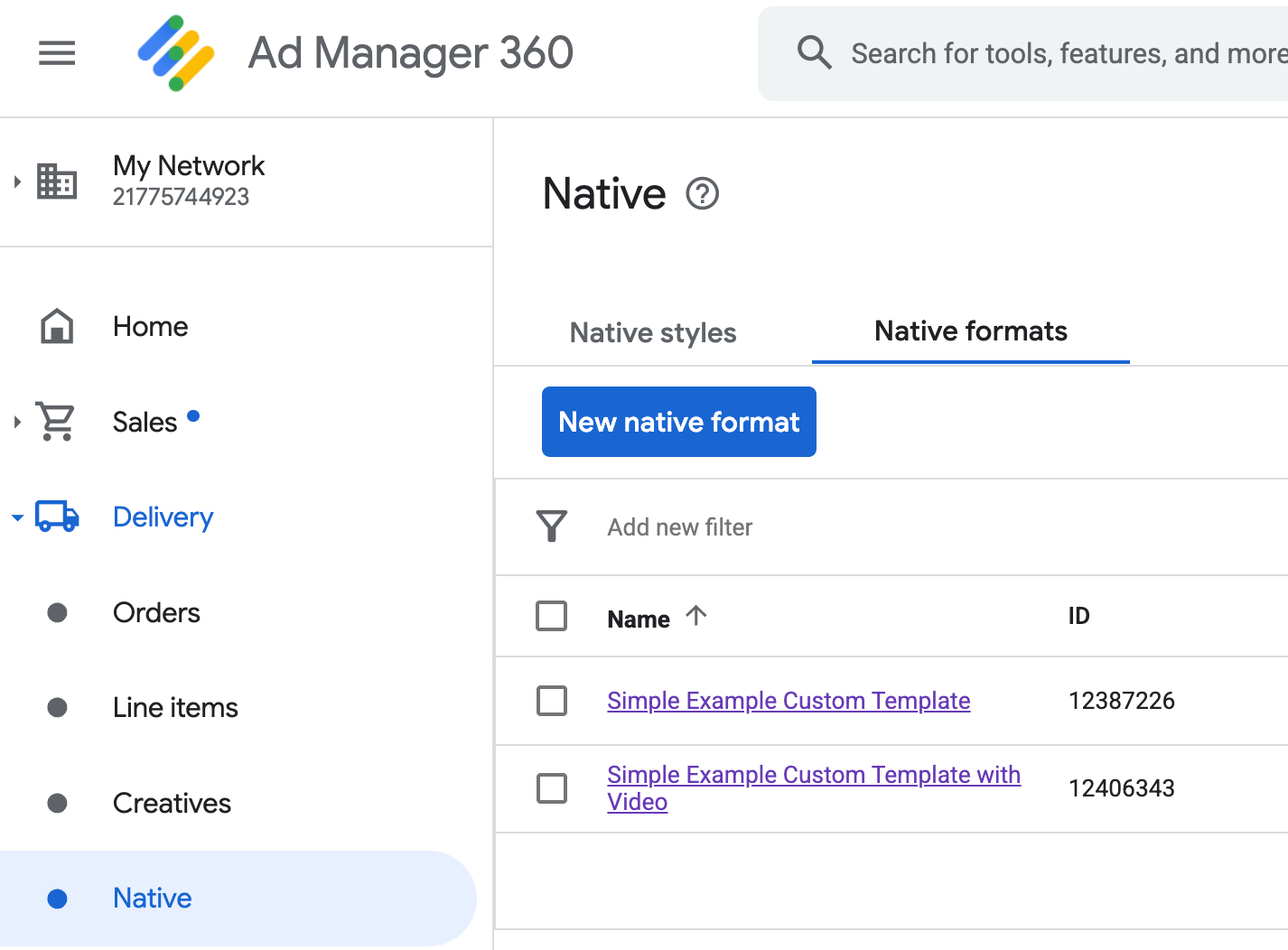
รหัสรูปแบบของโฆษณาเนทีฟที่กำหนดเองแต่ละรายการจะปรากฏข้างชื่อ การคลิกชื่อใดชื่อหนึ่งจะนำคุณไปยังหน้าจอรายละเอียด ซึ่งแสดงข้อมูลเกี่ยวกับฟิลด์ของรูปแบบ
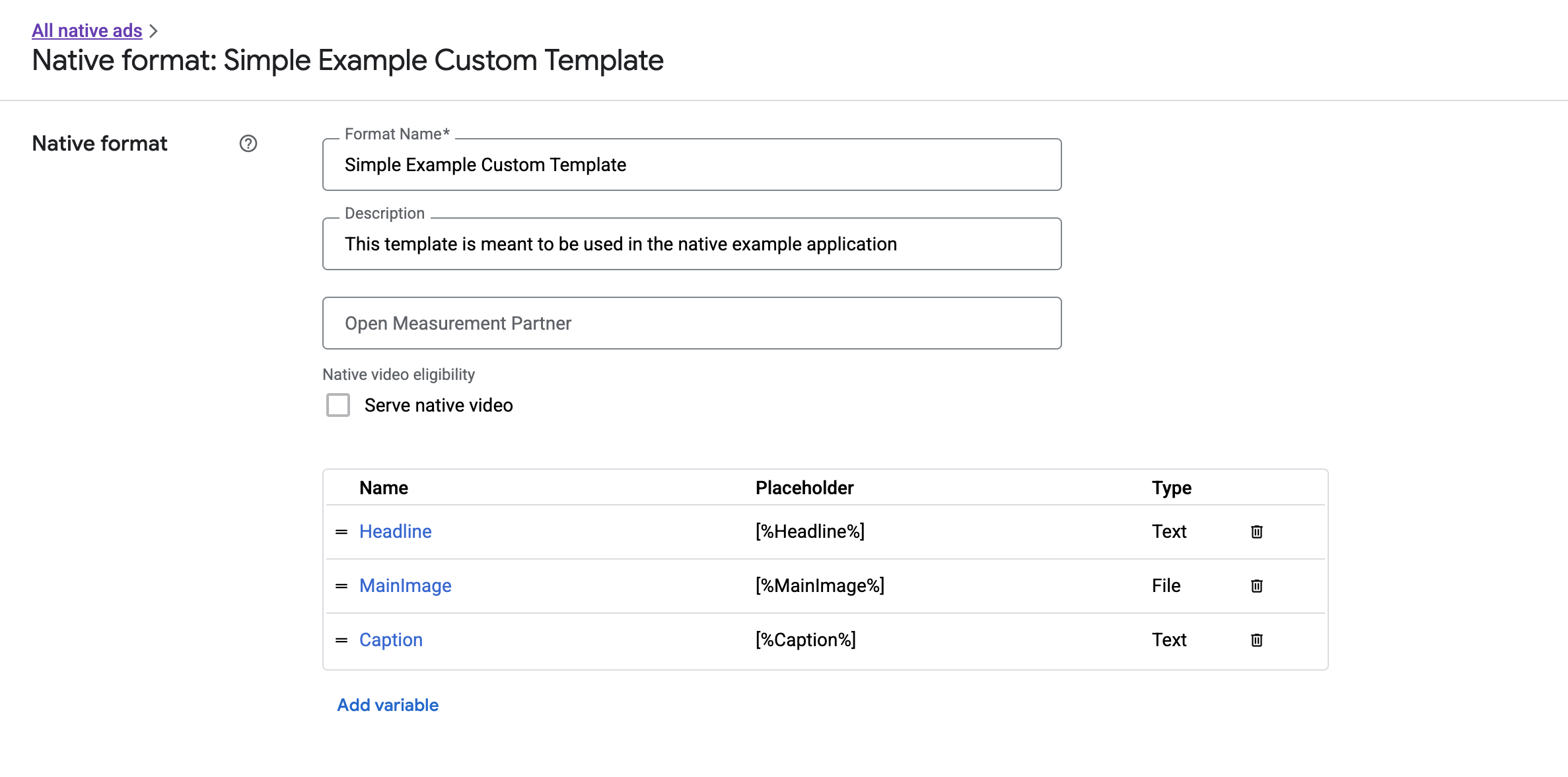
คุณจะเพิ่ม แก้ไข และนำฟิลด์แต่ละรายการออกได้จากที่นี่ จดชื่อของชิ้นงานแต่ละรายการ ชื่อคือคีย์ที่ใช้เพื่อรับข้อมูลสำหรับ ชิ้นงานแต่ละรายการเมื่อแสดงรูปแบบโฆษณาเนทีฟที่กำหนดเอง
การแสดงรูปแบบโฆษณาเนทีฟที่กำหนดเอง
รูปแบบโฆษณาเนทีฟที่กำหนดเองแตกต่างจากรูปแบบที่ระบบกำหนดไว้ตรงที่ผู้เผยแพร่โฆษณามีสิทธิ์กำหนดรายการชิ้นงานของตนเองที่ประกอบกันเป็นโฆษณา ด้วยเหตุนี้ กระบวนการแสดงโฆษณาเนทีฟที่กำหนดเองจึงแตกต่างจากกระบวนการแสดงโฆษณาในรูปแบบที่ระบบกำหนดในบางประการ ดังนี้
- เนื่องจาก
GADCustomNativeAdมีไว้เพื่อจัดการรูปแบบโฆษณาเนทีฟที่กำหนดเองที่คุณสร้างขึ้น จึงไม่มีตัวช่วยเข้าถึงชิ้นงานที่มีชื่อ แต่จะมีเมธอดอย่างimageForKey:และstringForKey:ที่ใช้ชื่อของฟิลด์เป็นอาร์กิวเมนต์แทน - ไม่มีคลาสมุมมองโฆษณาเฉพาะ เช่น
GADNativeAdViewที่จะใช้กับGADCustomNativeAdคุณสามารถใช้มุมมองใดก็ได้ ที่เหมาะกับประสบการณ์ของผู้ใช้ - เนื่องจากไม่มีคลาสมุมมองโฆษณาเฉพาะ คุณจึงไม่จำเป็นต้องลงทะเบียนมุมมองใดๆ ที่ใช้เพื่อแสดงชิ้นงานของโฆษณา
ต่อไปนี้คือตัวอย่างมุมมองโฆษณาที่แสดงโฆษณาเนทีฟที่กำหนดเองแบบง่ายได้
MySimpleNativeAdView.h
Swift
import UIKit
import GoogleMobileAds

/// Custom native ad view class with format ID 10063170.
class MySimpleNativeAdView: UIView {

  /// Weak references to this ad's asset views.
  @IBOutlet weak var headlineView: UILabel!
  @IBOutlet weak var mainImageView: UIImageView!
  @IBOutlet weak var captionView: UILabel!

  ...

  /// Populates the ad view with the custom native ad object.
  func populateWithCustomNativeAd(_ customNativeAd: CustomNativeAd) {
    ...
  }
}
Objective-C
@import UIKit;
@import GoogleMobileAds;

/// View representing a custom native ad format with format ID 10063170.
@interface MySimpleNativeAdView : UIView

// Weak references to this ad's asset views.
@property(weak, nonatomic) IBOutlet UILabel *headlineView;
@property(weak, nonatomic) IBOutlet UIImageView *mainImageView;
@property(weak, nonatomic) IBOutlet UILabel *captionView;

/// Populates the ad view with the custom native ad object.
- (void)populateWithCustomNativeAd:(GADCustomNativeAd *)customNativeAd;

@end
MySimpleNativeAdView.m (ข้อความที่ตัดตอนมา)
Swift
...
func populateWithCustomNativeAd(_ customNativeAd: CustomNativeAd) {
  self.customNativeAd = customNativeAd

  // Populate the custom native ad assets.
  headlineView.text = self.customNativeAd.stringForKey("Headline")
  mainImageView.image = self.customNativeAd.imageForKey("MainImage")?.image
  captionView.text = self.customNativeAd.stringForKey("Caption")
}
...
Objective-C
...
- (void)populateWithCustomNativeAd:(GADCustomNativeAd *)customNativeAd {
  self.customNativeAd = customNativeAd;

  // Populate the custom native ad assets.
  self.headlineView.text = [customNativeAd stringForKey:@"Headline"];
  self.mainImageView.image = [customNativeAd imageForKey:@"MainImage"].image;
  self.captionView.text = [customNativeAd stringForKey:@"Caption"];
}
...
แสดงผลไอคอนตัวเลือกโฆษณาอื่นๆ
ในส่วนของการสนับสนุนกฎหมายบริการดิจิทัล (DSA) โฆษณาแบบจองล่วงหน้าที่แสดงในเขตเศรษฐกิจยุโรป (EEA) ต้องมี ไอคอนตัวเลือกโฆษณาอื่นๆ และลิงก์ไปยังหน้า "เกี่ยวกับโฆษณานี้" ของ Google เมื่อติดตั้งใช้งานโฆษณาเนทีฟที่กำหนดเอง คุณจะเป็นผู้รับผิดชอบในการแสดงผลไอคอน ตัวเลือกโฆษณาอื่นๆ โดยต้องทำตามขั้นตอนเพื่อแสดงผลและตั้งค่า Listener การคลิกสำหรับไอคอนตัวเลือกโฆษณาอื่นๆ เมื่อแสดงผลชิ้นงานโฆษณาหลัก
ตัวอย่างต่อไปนี้จะแสดงไอคอนตัวเลือกโฆษณาอื่นๆ และกำหนดค่าลักษณะการคลิกที่เหมาะสม
Swift
class MySimpleNativeAdView: UIView {
  @IBOutlet weak var adChoicesView: UIImageView!

  override func awakeFromNib() {
    super.awakeFromNib()

    // Enable clicks on AdChoices.
    adChoicesView.addGestureRecognizer(
      UITapGestureRecognizer(
        target: self,
        action: #selector(performClickOnAdChoices(_:))))
    adChoicesView.isUserInteractionEnabled = true
  }

  @objc func performClickOnAdChoices(_ sender: UIImage!) {
    customNativeAd.performClickOnAsset(withKey:
      NativeAssetIdentifier.adChoicesViewAsset.rawValue)
  }

  func populate(withCustomNativeAd customNativeAd: CustomNativeAd) {

    // Render the AdChoices image.
    let adChoicesKey = NativeAssetIdentifier.adChoicesViewAsset.rawValue
    let adChoicesImage = customNativeAd.image(forKey: adChoicesKey)?.image
    adChoicesView.image = adChoicesImage
    adChoicesView.isHidden = adChoicesImage == nil
    ...
  }
}
Objective-C
@interface MySimpleNativeAdView ()

@property(nonatomic, weak) IBOutlet UIImageView *adChoicesView;

@end

@implementation MySimpleNativeAdView

- (void)awakeFromNib {
  [super awakeFromNib];
  // Enable clicks on AdChoices.
  [self.adChoicesView addGestureRecognizer:[[UITapGestureRecognizer alloc]
                                            initWithTarget:self
                                            action:@selector(performClickOnAdChoices:)]];
  self.adChoicesView.userInteractionEnabled = YES;
}

- (void)performClickOnAdChoices:(UITapGestureRecognizer *)sender {
    [self.customNativeAd performClickOnAssetWithKey:GADNativeAdChoicesViewAsset];
}

- (void)populateWithCustomNativeAd:(GADCustomNativeAd *)customNativeAd {
  // Render the AdChoices image.
  GADNativeAdImage *adChoicesAsset = [customNativeAd
    imageForKey:GADNativeAdChoicesViewAsset];
  self.adChoicesView.image = adChoicesAsset.image;
  self.adChoicesView.hidden = (adChoicesAsset == nil);
  ...
}
วิดีโอเนทีฟสำหรับรูปแบบโฆษณาเนทีฟที่กำหนดเอง
เมื่อสร้างรูปแบบที่กำหนดเอง คุณจะมีตัวเลือกในการทำให้รูปแบบมีสิทธิ์สำหรับวิดีโอ
ในการติดตั้งใช้งานแอป คุณสามารถใช้พร็อพเพอร์ตี้
GADCustomNativeAd.mediaView
เพื่อดูยอดดูของวิดีโอได้ จากนั้นเพิ่มมุมมองนี้ลงใน
ลำดับชั้นของ View หากโฆษณาไม่มีเนื้อหาวิดีโอ ให้วางแผนสำรอง
เพื่อแสดงโฆษณาโดยไม่มีวิดีโอ
ตัวอย่างด้านล่างจะตรวจสอบว่าโฆษณามีเนื้อหาวิดีโอหรือไม่ และแสดงรูปภาพ แทนหากไม่มีวิดีโอ
Swift
...
  /// Populates the ad view with the custom native ad object.
  func populate(withCustomNativeAd customNativeAd: CustomNativeAd) {
    if customNativeAd.videoController.hasVideoContent(),
      let mediaView = customNativeAd.mediaView {
      updateMainView(mediaView)
    } else {
      // Assumes your native format has an image asset with the name MainImage.
      let image: UIImage? = customNativeAd.image(forKey: "MainImage")?.image
      updateMainView(UIImageView(image: image))
    }
  }

  private func updateMainView(_ mainView:UIView) {
    // Assumes you have a placeholder view for your media content.
    // Remove all the placeholder's subviews.
    for subview: UIView in mainPlaceholder.subviews {
      subview.removeFromSuperview()
    }
    mainPlaceholder.addSubview(mainView)
    // Size the media view to fill our container size.
    mainView.translatesAutoresizingMaskIntoConstraints = false
    let viewDictionary: [AnyHashable: Any] = ["mainView":mainView]
    mainPlaceholder.addConstraints(NSLayoutConstraint.constraints(
      withVisualFormat: "H:|[mainView]|", options: [], metrics: nil,
      views: viewDictionary as? [String : Any] ?? [String : Any]()))
    mainPlaceholder.addConstraints(NSLayoutConstraint.constraints(
      withVisualFormat: "V:|[mainView]|", options: [], metrics: nil,
      views: viewDictionary as? [String : Any] ?? [String : Any]()))
  }
...
Objective-C
...
- (void)populateWithCustomNativeAd:(GADCustomNativeAd *)ad {
  UIView *mainView = nil;
  if (ad.videoController.hasVideoContent) {
    mainView = ad.mediaView;
  } else {
    // Assumes your native format has an image asset with the name MainImage.
    UIImage *image = [ad imageForKey:@"MainImage"].image;
    mainView = [[UIImageView alloc] initWithImage:image];
  }
  // Assumes you have a placeholder view for your media content.
  for (UIView *subview in self.mainPlaceholder.subviews) {
    [subview removeFromSuperview];
  }
  [self.mainPlaceholder addSubview:mainView];

  // Size the main view to fill our container size.
  [mainView setTranslatesAutoresizingMaskIntoConstraints:NO];
  NSDictionary *viewDictionary = NSDictionaryOfVariableBindings(mainView);
  [self.mainPlaceholder
      addConstraints:[NSLayoutConstraint constraintsWithVisualFormat:@"H:|[mainView]|"
                                                             options:0
                                                             metrics:nil
                                                               views:viewDictionary]];
}
...
ดูข้อมูลเพิ่มเติมเกี่ยวกับวิธีปรับแต่งประสบการณ์วิดีโอของโฆษณาเนทีฟที่กำหนดเองได้ที่ GADVideoController
ดาวน์โหลดตัวอย่างการแสดงผลที่กำหนดเองของ Ad Manager เพื่อดูตัวอย่างการทำงานของวิดีโอเนทีฟ
การจัดการการคลิกและการแสดงผลโฆษณาเนทีฟที่กำหนดเอง
สำหรับรูปแบบโฆษณาเนทีฟที่กำหนดเอง แอปของคุณมีหน้าที่รับผิดชอบในการบันทึกการแสดงผล และรายงานเหตุการณ์คลิกไปยัง SDK
การบันทึกการแสดงผล
หากต้องการบันทึกการแสดงผลสำหรับโฆษณาเนทีฟที่กำหนดเอง ให้เรียกใช้เมธอด recordImpression ใน GADCustomNativeAd ที่เกี่ยวข้อง
Swift
myCustomNativeAd.recordImpression()
Objective-C
[myCustomNativeAd recordImpression];
SDK จะป้องกันไม่ให้ระบบบันทึกการแสดงผลที่ซ้ำกันสำหรับคำขอเดียว ในกรณีที่แอปเรียกเมธอดหลายครั้งสำหรับโฆษณาเดียวกันโดยไม่ตั้งใจ
การรายงานการคลิก
หากต้องการรายงานให้ SDK ทราบว่ามีการคลิกในมุมมองชิ้นงาน ให้เรียกใช้เมธอด performClickOnAssetWithKey: ใน GADCustomNativeAd ที่เกี่ยวข้อง และส่งชื่อของชิ้นงานที่คลิก
ตัวอย่างเช่น หากคุณมีชิ้นงานในรูปแบบที่กำหนดเองชื่อ "MainImage"
และต้องการรายงานการคลิกในมุมมองที่สอดคล้องกับชิ้นงานนั้น
โค้ดจะมีลักษณะดังนี้
Swift
myCustomNativeAd.performClickOnAsset(withKey: "MainImage")
Objective-C
[myCustomNativeAd performClickOnAssetWithKey:@"MainImage"];
โปรดทราบว่าคุณไม่จำเป็นต้องเรียกใช้เมธอดนี้สำหรับการดูชิ้นงานทุกครั้งที่เชื่อมโยง
กับโฆษณา เช่น หากคุณมีชิ้นงานอื่นชื่อ "คำบรรยายแทนเสียง" ซึ่งมีไว้เพื่อแสดงแต่ผู้ใช้ไม่ได้คลิกหรือแตะ แอปของคุณก็ไม่จำเป็นต้องเรียกใช้ performClickOnAssetWithKey: สำหรับมุมมองนั้น
การตอบสนองต่อการกระทำเมื่อคลิกที่กำหนดเอง
GADCustomNativeAd มีพร็อพเพอร์ตี้ customClickHandler ซึ่งเป็นประเภท
GADNativeAdCustomClickHandler
Swift
typealias NativeAdCustomClickHandler = (assetID: String) -> Void
Objective-C
typedef void (^GADNativeAdCustomClickHandler)(NSString *assetID);
นี่คือบล็อก (Objective-C) / Closure (Swift) ที่ยอมรับ assetID เป็นพารามิเตอร์อินพุต ซึ่งระบุชิ้นงานที่คลิก
เมื่อมีการคลิกโฆษณาเนทีฟที่กำหนดเอง SDK อาจส่งการตอบกลับ 3 แบบตามลำดับต่อไปนี้
- เรียกใช้
customClickHandlerบล็อกใน Objective-C หรือ Closure ใน Swift หากมีการตั้งค่าไว้ - วนซ้ำ URL Deep Link ของโฆษณาและเปิด URL แรกที่พบแอปที่ตรงกัน
- เปิดเบราว์เซอร์แล้วไปที่ URL ปลายทางแบบเดิมของโฆษณา
พร็อพเพอร์ตี้ customClickHandler ยอมรับบล็อกใน Objective-C และ Closure ใน Swift หากคุณตั้งค่าการบล็อกหรือการปิด SDK จะเรียกใช้การบล็อกหรือการปิดนั้นและจะไม่ดำเนินการใดๆ เพิ่มเติม อย่างไรก็ตาม หากคุณตั้งค่าเป็น nil SDK จะกลับไปใช้ Deep Link
และ/หรือ URL ปลายทางที่ลงทะเบียนไว้กับโฆษณา
ตัวแฮนเดิลการคลิกที่กำหนดเองช่วยให้แอปตัดสินใจได้เองว่าควรดำเนินการใดดีที่สุด เพื่อตอบสนองต่อการคลิก ไม่ว่าจะเป็นการอัปเดต UI, การแสดงตัวควบคุมมุมมองอื่น หรือเพียงแค่บันทึกการคลิก ตัวอย่างต่อไปนี้แสดงการแจ้งเตือน
Swift
myCustomNativeAd.customClickHandler = { assetID in
  if assetID == "MainImage" {
    let alertView = UIAlertView(title: "Custom Click",
        message: "You just clicked on the image!",
        delegate: self,
        cancelButtonTitle: "OK")
    alertView.alertViewStyle = .default
    alertView.show()
  }
}
myCustomNativeAd.performClickOnAsset(withKey: "MainImage")
Objective-C
[self.customNativeAd setCustomClickHandler:^(NSString *assetID){
  if ([assetID isEqualToString:@"MainImage"]) {
    [[[UIAlertView alloc] initWithTitle:@"Custom Click"
                                message:@"You just clicked on the image!"
                               delegate:self
                      cancelButtonTitle:@"OK"
                      otherButtonTitles:nil] show];
  }
}];
[self.customNativeAd performClickOnAssetWithKey:@"MainImage"];
การทดสอบโค้ดโฆษณาเนทีฟ
โฆษณาแบบขายตรง
หากต้องการทดสอบว่าโฆษณาเนทีฟที่ขายโดยตรงมีลักษณะอย่างไร คุณสามารถใช้รหัสหน่วยโฆษณา Ad Manager นี้ได้
/21775744923/example/native
โดยได้รับการกำหนดค่าให้แสดงโฆษณาเพื่อการติดตั้งแอปและโฆษณาแบบคอนเทนต์ตัวอย่าง รวมถึงรูปแบบโฆษณาเนทีฟที่กำหนดเองซึ่งมีชิ้นงานต่อไปนี้
- บรรทัดแรก (ข้อความ)
- MainImage (รูปภาพ)
- คำบรรยาย (ข้อความ)
โฆษณาทดแทนเนทีฟ
หากต้องการทดสอบลักษณะการทำงานของโฆษณาทดแทนเนทีฟ ให้ใช้หน่วยโฆษณา Ad Manager นี้
/21775744923/example/native-backfill
โดยจะแสดงโฆษณาการติดตั้งแอปและโฆษณาเนื้อหาตัวอย่าง ซึ่งมีการวางซ้อนตัวเลือกโฆษณาอื่นๆ
อย่าลืมอัปเดตโค้ดเพื่ออ้างอิงรหัสหน่วยโฆษณาและรหัสรูปแบบจริง ก่อนที่จะเผยแพร่