

Функция автозаполнения мест (устаревшая версия) возвращает подсказки о местах в ответ на поисковые запросы пользователя. По мере ввода текста сервис автозаполнения выдает предложения по таким местам, как предприятия, адреса, а также коды и достопримечательности.
Добавить функцию автозаполнения в приложение можно следующими способами:
- Добавьте элемент управления автозаполнением , чтобы сэкономить время на разработке и обеспечить единообразный пользовательский опыт.
- Получайте прогнозы местоположения программным способом для создания персонализированного пользовательского опыта.
Добавление элемента управления автозаполнения в пользовательский интерфейс.
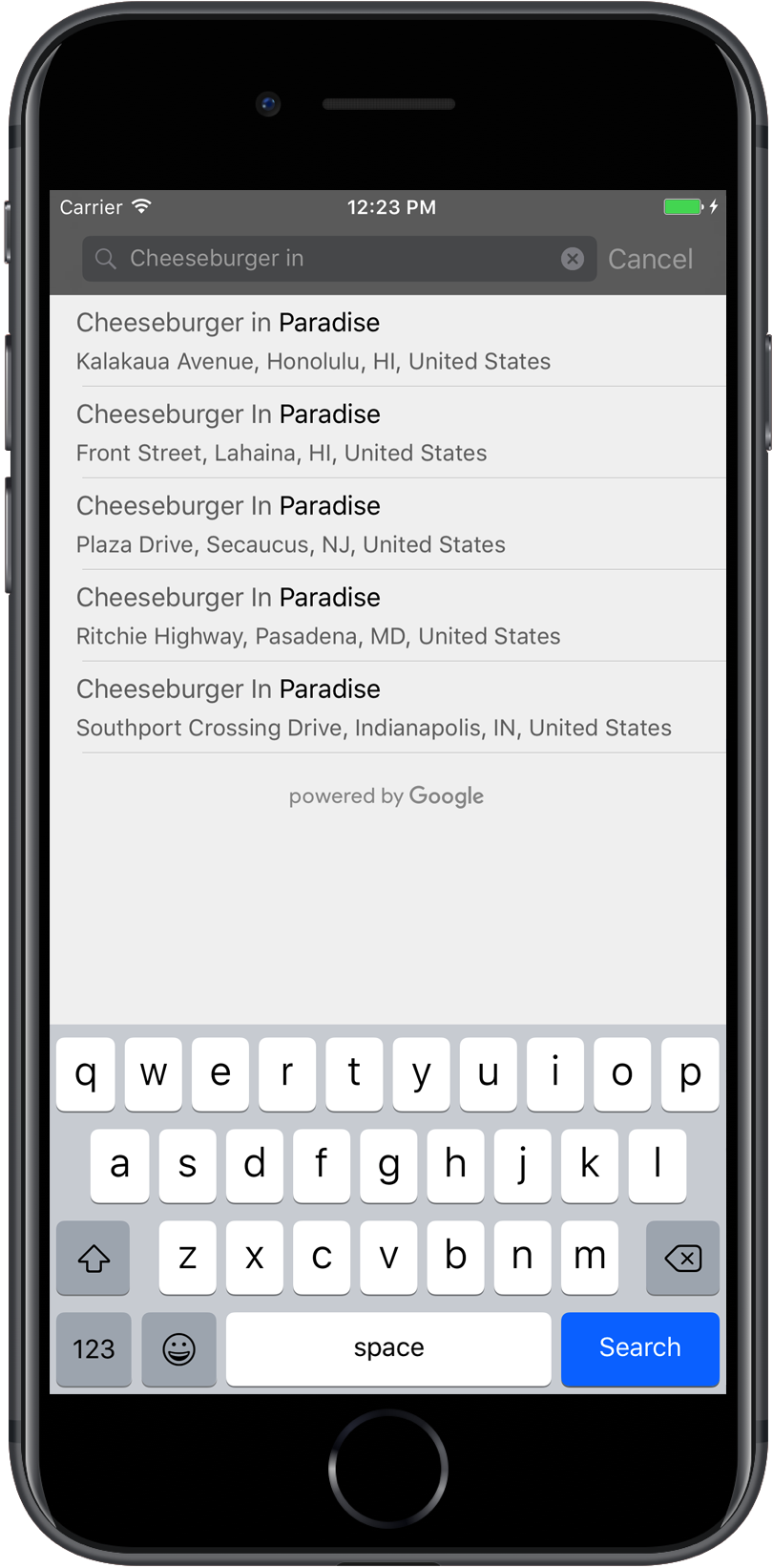
Элемент управления автозаполнения представляет собой диалоговое окно поиска со встроенной функцией автозаполнения. Когда пользователь вводит поисковые запросы, элемент управления отображает список предполагаемых мест на выбор. После выбора пользователем возвращается экземпляр GMSPlace , который ваше приложение может использовать для получения подробной информации о выбранном месте.
Добавить элемент управления автозаполнением в ваше приложение можно следующими способами:
- Добавить элемент управления полноэкранным режимом
- Добавьте контроллер результатов.
- Используйте табличный источник данных.
Добавление элемента управления полноэкранным режимом
Используйте полноэкранный режим, когда вам нужен модальный контекст, в котором интерфейс автозаполнения временно заменяет интерфейс вашего приложения, пока пользователь не сделает свой выбор. Эта функциональность предоставляется классом GMSAutocompleteViewController . Когда пользователь выбирает место, ваше приложение получает обратный вызов.
Чтобы добавить в приложение полноэкранный режим:
- Создайте в основном приложении элемент пользовательского интерфейса для запуска автозаполнения, например, обработчик касания на
UIButton. - Реализуйте протокол
GMSAutocompleteViewControllerDelegateв родительском контроллере представления. - Создайте экземпляр
GMSAutocompleteViewControllerи назначьте родительский контроллер представления в качестве свойства делегата. - Создайте объект
GMSPlaceField, чтобы определить типы данных о местах, которые будут возвращаться. - Добавьте
GMSAutocompleteFilter, чтобы ограничить запрос определенным типом места . - Отобразите
GMSAutocompleteViewControllerс помощью[self presentViewController...]. - Обработайте выбор пользователя в методе делегата
didAutocompleteWithPlace. - Закройте контроллер в методах делегата
didAutocompleteWithPlace,didFailAutocompleteWithErrorиwasCancelled.
В следующем примере показан один из возможных способов запуска GMSAutocompleteViewController в ответ на нажатие пользователем кнопки.
Быстрый
import UIKit
import GooglePlaces

class ViewController: UIViewController {

  override func viewDidLoad() {
    makeButton()
  }

  // Present the Autocomplete view controller when the button is pressed.
  @objc func autocompleteClicked(_ sender: UIButton) {
    let autocompleteController = GMSAutocompleteViewController()
    autocompleteController.delegate = self

    // Specify the place data types to return.
    let fields: GMSPlaceField = GMSPlaceField(rawValue: UInt(GMSPlaceField.name.rawValue) |
      UInt(GMSPlaceField.placeID.rawValue))!
    autocompleteController.placeFields = fields

    // Specify a filter.
    let filter = GMSAutocompleteFilter()
    filter.types = [kGMSPlaceTypeCollectionAddress]
    autocompleteController.autocompleteFilter = filter

    // Display the autocomplete view controller.
    present(autocompleteController, animated: true, completion: nil)
  }

  // Add a button to the view.
  func makeButton() {
    let btnLaunchAc = UIButton(frame: CGRect(x: 5, y: 150, width: 300, height: 35))
    btnLaunchAc.backgroundColor = .blue
    btnLaunchAc.setTitle("Launch autocomplete", for: .normal)
    btnLaunchAc.addTarget(self, action: #selector(autocompleteClicked), for: .touchUpInside)
    self.view.addSubview(btnLaunchAc)
  }

}

extension ViewController: GMSAutocompleteViewControllerDelegate {

  // Handle the user's selection.
  func viewController(_ viewController: GMSAutocompleteViewController, didAutocompleteWith place: GMSPlace) {
    print("Place name: \(place.name)")
    print("Place ID: \(place.placeID)")
    print("Place attributions: \(place.attributions)")
    dismiss(animated: true, completion: nil)
  }

  func viewController(_ viewController: GMSAutocompleteViewController, didFailAutocompleteWithError error: Error) {
    // TODO: handle the error.
    print("Error: ", error.localizedDescription)
  }

  // User canceled the operation.
  func wasCancelled(_ viewController: GMSAutocompleteViewController) {
    dismiss(animated: true, completion: nil)
  }

  // Turn the network activity indicator on and off again.
  func didRequestAutocompletePredictions(_ viewController: GMSAutocompleteViewController) {
    UIApplication.shared.isNetworkActivityIndicatorVisible = true
  }

  func didUpdateAutocompletePredictions(_ viewController: GMSAutocompleteViewController) {
    UIApplication.shared.isNetworkActivityIndicatorVisible = false
  }

}
Objective-C
#import "ViewController.h"
@import GooglePlaces;

@interface ViewController () <GMSAutocompleteViewControllerDelegate>

@end

@implementation ViewController {
  GMSAutocompleteFilter *_filter;
}

-   (void)viewDidLoad {
  [super viewDidLoad];
  [self makeButton];
}

  // Present the autocomplete view controller when the button is pressed.
-   (void)autocompleteClicked {
  GMSAutocompleteViewController *acController = [[GMSAutocompleteViewController alloc] init];
  acController.delegate = self;

  // Specify the place data types to return.
  GMSPlaceField fields = (GMSPlaceFieldName | GMSPlaceFieldPlaceID);
  acController.placeFields = fields;

  // Specify a filter.
  _filter = [[GMSAutocompleteFilter alloc] init];
  _filter.types = @[ kGMSPlaceTypeBank ];
  acController.autocompleteFilter = _filter;

  // Display the autocomplete view controller.
  [self presentViewController:acController animated:YES completion:nil];
}

  // Add a button to the view.
-   (void)makeButton{
  UIButton *btnLaunchAc = [UIButton buttonWithType:UIButtonTypeCustom];
  [btnLaunchAc addTarget:self
             action:@selector(autocompleteClicked) forControlEvents:UIControlEventTouchUpInside];
  [btnLaunchAc setTitle:@"Launch autocomplete" forState:UIControlStateNormal];
  btnLaunchAc.frame = CGRectMake(5.0, 150.0, 300.0, 35.0);
  btnLaunchAc.backgroundColor = [UIColor blueColor];
  [self.view addSubview:btnLaunchAc];
}

  // Handle the user's selection.
-   (void)viewController:(GMSAutocompleteViewController *)viewController
didAutocompleteWithPlace:(GMSPlace *)place {
  [self dismissViewControllerAnimated:YES completion:nil];
  // Do something with the selected place.
  NSLog(@"Place name %@", place.name);
  NSLog(@"Place ID %@", place.placeID);
  NSLog(@"Place attributions %@", place.attributions.string);
}

-   (void)viewController:(GMSAutocompleteViewController *)viewController
didFailAutocompleteWithError:(NSError *)error {
  [self dismissViewControllerAnimated:YES completion:nil];
  // TODO: handle the error.
  NSLog(@"Error: %@", [error description]);
}

  // User canceled the operation.
-   (void)wasCancelled:(GMSAutocompleteViewController *)viewController {
  [self dismissViewControllerAnimated:YES completion:nil];
}

  // Turn the network activity indicator on and off again.
-   (void)didRequestAutocompletePredictions:(GMSAutocompleteViewController *)viewController {
  [UIApplication sharedApplication].networkActivityIndicatorVisible = YES;
}

-   (void)didUpdateAutocompletePredictions:(GMSAutocompleteViewController *)viewController {
  [UIApplication sharedApplication].networkActivityIndicatorVisible = NO;
}

@end
Добавление контроллера результатов
Используйте контроллер результатов, если вам нужен больший контроль над пользовательским интерфейсом текстового поля ввода. Контроллер результатов динамически переключает видимость списка результатов в зависимости от фокуса поля ввода.
Чтобы добавить контроллер результатов в ваше приложение:
- Создайте контроллер представления
GMSAutocompleteResultsViewController.- Реализуйте протокол
GMSAutocompleteResultsViewControllerDelegateв родительском контроллере представления и назначьте родительский контроллер представления в качестве свойства делегата.
- Реализуйте протокол
- Создайте объект
UISearchController, передав в качестве аргумента контроллера результатов объектGMSAutocompleteResultsViewController. - Установите свойство
searchResultsUpdaterконтроллераUISearchControllerв качестве свойстваGMSAutocompleteResultsViewController. - Добавьте строку
searchBarдляUISearchControllerв пользовательский интерфейс вашего приложения. - Обработайте выбор пользователя в методе делегата
didAutocompleteWithPlace.
Существует несколько способов разместить строку поиска из UISearchController в пользовательском интерфейсе вашего приложения:
- Добавьте строку поиска в панель навигации.
- Добавьте строку поиска в верхнюю часть экрана.
- Добавьте строку поиска, используя всплывающие результаты.
Добавление строки поиска в панель навигации.
Следующий пример кода демонстрирует добавление контроллера результатов, добавление строки searchBar в панель навигации и обработку выбора пользователя:
Быстрый
class ViewController: UIViewController {

  var resultsViewController: GMSAutocompleteResultsViewController?
  var searchController: UISearchController?
  var resultView: UITextView?

  override func viewDidLoad() {
    super.viewDidLoad()

    resultsViewController = GMSAutocompleteResultsViewController()
    resultsViewController?.delegate = self

    searchController = UISearchController(searchResultsController: resultsViewController)
    searchController?.searchResultsUpdater = resultsViewController

    // Put the search bar in the navigation bar.
    searchController?.searchBar.sizeToFit()
    navigationItem.titleView = searchController?.searchBar

    // When UISearchController presents the results view, present it in
    // this view controller, not one further up the chain.
    definesPresentationContext = true

    // Prevent the navigation bar from being hidden when searching.
    searchController?.hidesNavigationBarDuringPresentation = false
  }
}

// Handle the user's selection.
extension ViewController: GMSAutocompleteResultsViewControllerDelegate {
  func resultsController(_ resultsController: GMSAutocompleteResultsViewController,
                         didAutocompleteWith place: GMSPlace) {
    searchController?.isActive = false
    // Do something with the selected place.
    print("Place name: \(place.name)")
    print("Place address: \(place.formattedAddress)")
    print("Place attributions: \(place.attributions)")
  }

  func resultsController(_ resultsController: GMSAutocompleteResultsViewController,
                         didFailAutocompleteWithError error: Error){
    // TODO: handle the error.
    print("Error: ", error.localizedDescription)
  }

  // Turn the network activity indicator on and off again.
  func didRequestAutocompletePredictions(_ viewController: GMSAutocompleteViewController) {
    UIApplication.shared.isNetworkActivityIndicatorVisible = true
  }

  func didUpdateAutocompletePredictions(_ viewController: GMSAutocompleteViewController) {
    UIApplication.shared.isNetworkActivityIndicatorVisible = false
  }
}
Objective-C
-   (void)viewDidLoad {
  _resultsViewController = [[GMSAutocompleteResultsViewController alloc] init];
  _resultsViewController.delegate = self;

  _searchController = [[UISearchController alloc]
                       initWithSearchResultsController:_resultsViewController];
  _searchController.searchResultsUpdater = _resultsViewController;

  // Put the search bar in the navigation bar.
  [_searchController.searchBar sizeToFit];
  self.navigationItem.titleView = _searchController.searchBar;

  // When UISearchController presents the results view, present it in
  // this view controller, not one further up the chain.
  self.definesPresentationContext = YES;

  // Prevent the navigation bar from being hidden when searching.
  _searchController.hidesNavigationBarDuringPresentation = NO;
}

// Handle the user's selection.
-   (void)resultsController:(GMSAutocompleteResultsViewController *)resultsController
  didAutocompleteWithPlace:(GMSPlace *)place {
    _searchController.active = NO;
    // Do something with the selected place.
    NSLog(@"Place name %@", place.name);
    NSLog(@"Place address %@", place.formattedAddress);
    NSLog(@"Place attributions %@", place.attributions.string);
}

-   (void)resultsController:(GMSAutocompleteResultsViewController *)resultsController
didFailAutocompleteWithError:(NSError *)error {
  [self dismissViewControllerAnimated:YES completion:nil];
  // TODO: handle the error.
  NSLog(@"Error: %@", [error description]);
}

// Turn the network activity indicator on and off again.
-   (void)didRequestAutocompletePredictionsForResultsController:
    (GMSAutocompleteResultsViewController *)resultsController {
  [UIApplication sharedApplication].networkActivityIndicatorVisible = YES;
}

-   (void)didUpdateAutocompletePredictionsForResultsController:
    (GMSAutocompleteResultsViewController *)resultsController {
  [UIApplication sharedApplication].networkActivityIndicatorVisible = NO;
}
Добавление строки поиска в верхнюю часть экрана
В следующем примере кода показано добавление строки searchBar в верхнюю часть представления.
Быстрый
import UIKit
import GooglePlaces

class ViewController: UIViewController {

  var resultsViewController: GMSAutocompleteResultsViewController?
  var searchController: UISearchController?
  var resultView: UITextView?

  override func viewDidLoad() {
    super.viewDidLoad()

    resultsViewController = GMSAutocompleteResultsViewController()
    resultsViewController?.delegate = self

    searchController = UISearchController(searchResultsController: resultsViewController)
    searchController?.searchResultsUpdater = resultsViewController

    let subView = UIView(frame: CGRect(x: 0, y: 65.0, width: 350.0, height: 45.0))

    subView.addSubview((searchController?.searchBar)!)
    view.addSubview(subView)
    searchController?.searchBar.sizeToFit()
    searchController?.hidesNavigationBarDuringPresentation = false

    // When UISearchController presents the results view, present it in
    // this view controller, not one further up the chain.
    definesPresentationContext = true
  }
}

// Handle the user's selection.
extension ViewController: GMSAutocompleteResultsViewControllerDelegate {
  func resultsController(_ resultsController: GMSAutocompleteResultsViewController,
                         didAutocompleteWith place: GMSPlace) {
    searchController?.isActive = false
    // Do something with the selected place.
    print("Place name: \(place.name)")
    print("Place address: \(place.formattedAddress)")
    print("Place attributions: \(place.attributions)")
  }

  func resultsController(_ resultsController: GMSAutocompleteResultsViewController,
                         didFailAutocompleteWithError error: Error){
    // TODO: handle the error.
    print("Error: ", error.localizedDescription)
  }

  // Turn the network activity indicator on and off again.
  func didRequestAutocompletePredictions(forResultsController resultsController: GMSAutocompleteResultsViewController) {
    UIApplication.shared.isNetworkActivityIndicatorVisible = true
  }

  func didUpdateAutocompletePredictions(forResultsController resultsController: GMSAutocompleteResultsViewController) {
    UIApplication.shared.isNetworkActivityIndicatorVisible = false
  }
}
Objective-C
-   (void)viewDidLoad {
    [super viewDidLoad];

    _resultsViewController = [[GMSAutocompleteResultsViewController alloc] init];
    _resultsViewController.delegate = self;

    _searchController = [[UISearchController alloc]
                             initWithSearchResultsController:_resultsViewController];
    _searchController.searchResultsUpdater = _resultsViewController;

    UIView *subView = [[UIView alloc] initWithFrame:CGRectMake(0, 65.0, 250, 50)];

    [subView addSubview:_searchController.searchBar];
    [_searchController.searchBar sizeToFit];
    [self.view addSubview:subView];

    // When UISearchController presents the results view, present it in
    // this view controller, not one further up the chain.
    self.definesPresentationContext = YES;
}

// Handle the user's selection.
-   (void)resultsController:(GMSAutocompleteResultsViewController *)resultsController
didAutocompleteWithPlace:(GMSPlace *)place {
  [self dismissViewControllerAnimated:YES completion:nil];
  // Do something with the selected place.
  NSLog(@"Place name %@", place.name);
  NSLog(@"Place address %@", place.formattedAddress);
  NSLog(@"Place attributions %@", place.attributions.string);
}

-   (void)resultsController:(GMSAutocompleteResultsViewController *)resultsController
didFailAutocompleteWithError:(NSError *)error {
  [self dismissViewControllerAnimated:YES completion:nil];
  // TODO: handle the error.
  NSLog(@"Error: %@", [error description]);
}

// Turn the network activity indicator on and off again.
-   (void)didRequestAutocompletePredictionsForResultsController:
    (GMSAutocompleteResultsViewController *)resultsController {
  [UIApplication sharedApplication].networkActivityIndicatorVisible = YES;
}

-   (void)didUpdateAutocompletePredictionsForResultsController:
    (GMSAutocompleteResultsViewController *)resultsController {
  [UIApplication sharedApplication].networkActivityIndicatorVisible = NO;
}
По умолчанию UISearchController скрывает панель навигации при отображении (эту функцию можно отключить). В случаях, когда панель навигации видна, но непрозрачна, UISearchController некорректно устанавливает её расположение.
В качестве обходного решения воспользуйтесь следующим кодом:
Быстрый
navigationController?.navigationBar.translucent = false
searchController?.hidesNavigationBarDuringPresentation = false

// This makes the view area include the nav bar even though it is opaque.
// Adjust the view placement down.
self.extendedLayoutIncludesOpaqueBars = true
self.edgesForExtendedLayout = .top
Objective-C
self.navigationController.navigationBar.translucent = NO;
_searchController.hidesNavigationBarDuringPresentation = NO;

// This makes the view area include the nav bar even though it is opaque.
// Adjust the view placement down.
self.extendedLayoutIncludesOpaqueBars = YES;
self.edgesForExtendedLayout = UIRectEdgeTop;
Добавление строки поиска с использованием всплывающих результатов
В следующем примере кода показано размещение строки поиска справа от панели навигации и отображение результатов во всплывающем окне.
Быстрый
import UIKit
import GooglePlaces

class ViewController: UIViewController {

  var resultsViewController: GMSAutocompleteResultsViewController?
  var searchController: UISearchController?
  var resultView: UITextView?

  override func viewDidLoad() {
    super.viewDidLoad()

    resultsViewController = GMSAutocompleteResultsViewController()
    resultsViewController?.delegate = self

    searchController = UISearchController(searchResultsController: resultsViewController)
    searchController?.searchResultsUpdater = resultsViewController

    // Add the search bar to the right of the nav bar,
    // use a popover to display the results.
    // Set an explicit size as we don't want to use the entire nav bar.
    searchController?.searchBar.frame = (CGRect(x: 0, y: 0, width: 250.0, height: 44.0))
    navigationItem.rightBarButtonItem = UIBarButtonItem(customView: (searchController?.searchBar)!)

    // When UISearchController presents the results view, present it in
    // this view controller, not one further up the chain.
    definesPresentationContext = true

    // Keep the navigation bar visible.
    searchController?.hidesNavigationBarDuringPresentation = false
    searchController?.modalPresentationStyle = .popover
  }
}
// Handle the user's selection.
extension ViewController: GMSAutocompleteResultsViewControllerDelegate {
  func resultsController(_ resultsController: GMSAutocompleteResultsViewController,
                         didAutocompleteWith place: GMSPlace) {
    searchController?.isActive = false
    // Do something with the selected place.
    print("Place name: \(place.name)")
    print("Place address: \(place.formattedAddress)")
    print("Place attributions: \(place.attributions)")
  }

  func resultsController(_ resultsController: GMSAutocompleteResultsViewController,
                         didFailAutocompleteWithError error: Error){
    // TODO: handle the error.
    print("Error: ", error.localizedDescription)
  }

  // Turn the network activity indicator on and off again.
  func didRequestAutocompletePredictions(forResultsController resultsController: GMSAutocompleteResultsViewController) {
    UIApplication.shared.isNetworkActivityIndicatorVisible = true
  }

  func didUpdateAutocompletePredictions(forResultsController resultsController: GMSAutocompleteResultsViewController) {
    UIApplication.shared.isNetworkActivityIndicatorVisible = false
  }
}
Objective-C
-   (void)viewDidLoad {
  [super viewDidLoad];

  _resultsViewController = [[GMSAutocompleteResultsViewController alloc] init];
  _resultsViewController.delegate = self;

  _searchController = [[UISearchController alloc]
                           initWithSearchResultsController:_resultsViewController];
  _searchController.searchResultsUpdater = _resultsViewController;

  // Add the search bar to the right of the nav bar,
  // use a popover to display the results.
  // Set an explicit size as we don't want to use the entire nav bar.
  _searchController.searchBar.frame = CGRectMake(0, 0, 250.0f, 44.0f);
  self.navigationItem.rightBarButtonItem =
  [[UIBarButtonItem alloc] initWithCustomView:_searchController.searchBar];

  // When UISearchController presents the results view, present it in
  // this view controller, not one further up the chain.
  self.definesPresentationContext = YES;

  // Keep the navigation bar visible.
  _searchController.hidesNavigationBarDuringPresentation = NO;

  _searchController.modalPresentationStyle = UIModalPresentationPopover;
}

// Handle the user's selection.
-   (void)resultsController:(GMSAutocompleteResultsViewController *)resultsController
didAutocompleteWithPlace:(GMSPlace *)place {
  [self dismissViewControllerAnimated:YES completion:nil];
  NSLog(@"Place name %@", place.name);
  NSLog(@"Place address %@", place.formattedAddress);
  NSLog(@"Place attributions %@", place.attributions.string);
}

-   (void)resultsController:(GMSAutocompleteResultsViewController *)resultsController
didFailAutocompleteWithError:(NSError *)error {
  [self dismissViewControllerAnimated:YES completion:nil];
  // TODO: handle the error.
  NSLog(@"Error: %@", [error description]);
}

// Turn the network activity indicator on and off again.
-   (void)didRequestAutocompletePredictionsForResultsController:
    (GMSAutocompleteResultsViewController *)resultsController {
  [UIApplication sharedApplication].networkActivityIndicatorVisible = YES;
}

-   (void)didUpdateAutocompletePredictionsForResultsController:
    (GMSAutocompleteResultsViewController *)resultsController {
  [UIApplication sharedApplication].networkActivityIndicatorVisible = NO;
}
Использование табличного источника данных
Если в вашем приложении есть собственный текстовый интерфейс поиска, вы можете использовать класс GMSAutocompleteTableDataSource для управления табличным представлением, отображающим результаты в контроллере представления.
Чтобы использовать GMSAutocompleteTableDataSource в качестве источника данных и делегата для UITableView в контроллере представления:
- Реализуйте протоколы
GMSAutocompleteTableDataSourceDelegateиUISearchBarDelegateв контроллере представления. - Создайте экземпляр
GMSAutocompleteTableDataSourceи назначьте контроллер представления в качестве свойства делегата. - Установите свойство
GMSAutocompleteTableDataSourceв качестве источника данных и свойства делегата экземпляраUITableViewв контроллере представления. - В обработчике текстового поля поиска вызовите
sourceTextHasChangedдля объектаGMSAutocompleteTableDataSource.- Обработайте выбор пользователя в методе делегата
didAutocompleteWithPlace.
- Обработайте выбор пользователя в методе делегата
- Закройте контроллер в методах делегата
didAutocompleteWithPlace,didFailAutocompleteWithError,wasCancelled.
В следующем примере кода показано, как использовать класс GMSAutocompleteTableDataSource для управления табличным представлением UIViewController , когда UISearchBar добавлен отдельно.
Быстрый
// Copyright 2020 Google LLC
//
// Licensed under the Apache License, Version 2.0 (the "License");
// you may not use this file except in compliance with the License.
// You may obtain a copy of the License at
//
//      http://www.apache.org/licenses/LICENSE-2.0
//
// Unless required by applicable law or agreed to in writing, software
// distributed under the License is distributed on an "AS IS" BASIS,
// WITHOUT WARRANTIES OR CONDITIONS OF ANY KIND, either express or implied.
// See the License for the specific language governing permissions and
// limitations under the License.

import GooglePlaces
import UIKit

class PlaceAutocompleteViewController: UIViewController {

  private var tableView: UITableView!
  private var tableDataSource: GMSAutocompleteTableDataSource!

  override func viewDidLoad() {
    super.viewDidLoad()

    let searchBar = UISearchBar(frame: CGRect(x: 0, y: 20, width: self.view.frame.size.width, height: 44.0))
    searchBar.delegate = self
    view.addSubview(searchBar)

    tableDataSource = GMSAutocompleteTableDataSource()
    tableDataSource.delegate = self

    tableView = UITableView(frame: CGRect(x: 0, y: 64, width: self.view.frame.size.width, height: self.view.frame.size.height - 44))
    tableView.delegate = tableDataSource
    tableView.dataSource = tableDataSource

    view.addSubview(tableView)
  }
}

extension PlaceAutocompleteViewController: UISearchBarDelegate {
  func searchBar(_ searchBar: UISearchBar, textDidChange searchText: String) {
    // Update the GMSAutocompleteTableDataSource with the search text.
    tableDataSource.sourceTextHasChanged(searchText)
  }
}

extension PlaceAutocompleteViewController: GMSAutocompleteTableDataSourceDelegate {
  func didUpdateAutocompletePredictions(for tableDataSource: GMSAutocompleteTableDataSource) {
    // Turn the network activity indicator off.
    UIApplication.shared.isNetworkActivityIndicatorVisible = false
    // Reload table data.
    tableView.reloadData()
  }

  func didRequestAutocompletePredictions(for tableDataSource: GMSAutocompleteTableDataSource) {
    // Turn the network activity indicator on.
    UIApplication.shared.isNetworkActivityIndicatorVisible = true
    // Reload table data.
    tableView.reloadData()
  }

  func tableDataSource(_ tableDataSource: GMSAutocompleteTableDataSource, didAutocompleteWith place: GMSPlace) {
    // Do something with the selected place.
    print("Place name: \(place.name)")
    print("Place address: \(place.formattedAddress)")
    print("Place attributions: \(place.attributions)")
  }

  func tableDataSource(_ tableDataSource: GMSAutocompleteTableDataSource, didFailAutocompleteWithError error: Error) {
    // Handle the error.
    print("Error: \(error.localizedDescription)")
  }

  func tableDataSource(_ tableDataSource: GMSAutocompleteTableDataSource, didSelect prediction: GMSAutocompletePrediction) -> Bool {
    return true
  }
}
Objective-C
// Copyright 2020 Google LLC
//
// Licensed under the Apache License, Version 2.0 (the "License");
// you may not use this file except in compliance with the License.
// You may obtain a copy of the License at
//
//      http://www.apache.org/licenses/LICENSE-2.0
//
// Unless required by applicable law or agreed to in writing, software
// distributed under the License is distributed on an "AS IS" BASIS,
// WITHOUT WARRANTIES OR CONDITIONS OF ANY KIND, either express or implied.
// See the License for the specific language governing permissions and
// limitations under the License.

#import "PlaceAutocompleteViewController.h"
@import GooglePlaces;
@import UIKit;

@interface PlaceAutocompleteViewController () <GMSAutocompleteTableDataSourceDelegate, UISearchBarDelegate>

@end

@implementation PlaceAutocompleteViewController {
  UITableView *tableView;
  GMSAutocompleteTableDataSource *tableDataSource;
}

- (void)viewDidLoad {
  [super viewDidLoad];

  UISearchBar *searchBar = [[UISearchBar alloc] initWithFrame:CGRectMake(0, 20, self.view.frame.size.width, 44)];
  searchBar.delegate = self;

  [self.view addSubview:searchBar];

  tableDataSource = [[GMSAutocompleteTableDataSource alloc] init];
  tableDataSource.delegate = self;

  tableView = [[UITableView alloc] initWithFrame:CGRectMake(0, 64, self.view.frame.size.width, self.view.frame.size.height - 44)];
  tableView.delegate = tableDataSource;
  tableView.dataSource = tableDataSource;

  [self.view addSubview:tableView];
}

#pragma mark - GMSAutocompleteTableDataSourceDelegate

- (void)didUpdateAutocompletePredictionsForTableDataSource:(GMSAutocompleteTableDataSource *)tableDataSource {
  // Turn the network activity indicator off.
  UIApplication.sharedApplication.networkActivityIndicatorVisible = NO;

  // Reload table data.
  [tableView reloadData];
}

- (void)didRequestAutocompletePredictionsForTableDataSource:(GMSAutocompleteTableDataSource *)tableDataSource {
  // Turn the network activity indicator on.
  UIApplication.sharedApplication.networkActivityIndicatorVisible = YES;

  // Reload table data.
  [tableView reloadData];
}

- (void)tableDataSource:(GMSAutocompleteTableDataSource *)tableDataSource didAutocompleteWithPlace:(GMSPlace *)place {
  // Do something with the selected place.
  NSLog(@"Place name: %@", place.name);
  NSLog(@"Place address: %@", place.formattedAddress);
  NSLog(@"Place attributions: %@", place.attributions);
}

- (void)tableDataSource:(GMSAutocompleteTableDataSource *)tableDataSource didFailAutocompleteWithError:(NSError *)error {
  // Handle the error
  NSLog(@"Error %@", error.description);
}

- (BOOL)tableDataSource:(GMSAutocompleteTableDataSource *)tableDataSource didSelectPrediction:(GMSAutocompletePrediction *)prediction {
  return YES;
}

#pragma mark - UISearchBarDelegate

- (void)searchBar:(UISearchBar *)searchBar textDidChange:(NSString *)searchText {
  // Update the GMSAutocompleteTableDataSource with the search text.
  [tableDataSource sourceTextHasChanged:searchText];
}

@end
Настройка цветов текста и фона.
Вы можете задать цвета всего текста и фона в элементе управления автозаполнения, чтобы виджет больше соответствовал визуальному оформлению вашего приложения. Существует два способа задать цвета элемента управления:
- Используя встроенный протокол iOS UIAppearance, можно глобально стилизовать элементы управления пользовательского интерфейса, где это возможно. Эти настройки применяются ко многим, но не ко всем элементам управления пользовательского интерфейса.
- Используя методы SDK в классах виджетов, можно устанавливать свойства, которые не поддерживаются протоколом UIAppearance .
Как правило, ваше приложение будет использовать некоторую комбинацию протокола UIAppearance и методов SDK. На следующей диаграмме показано, какие элементы можно стилизовать:
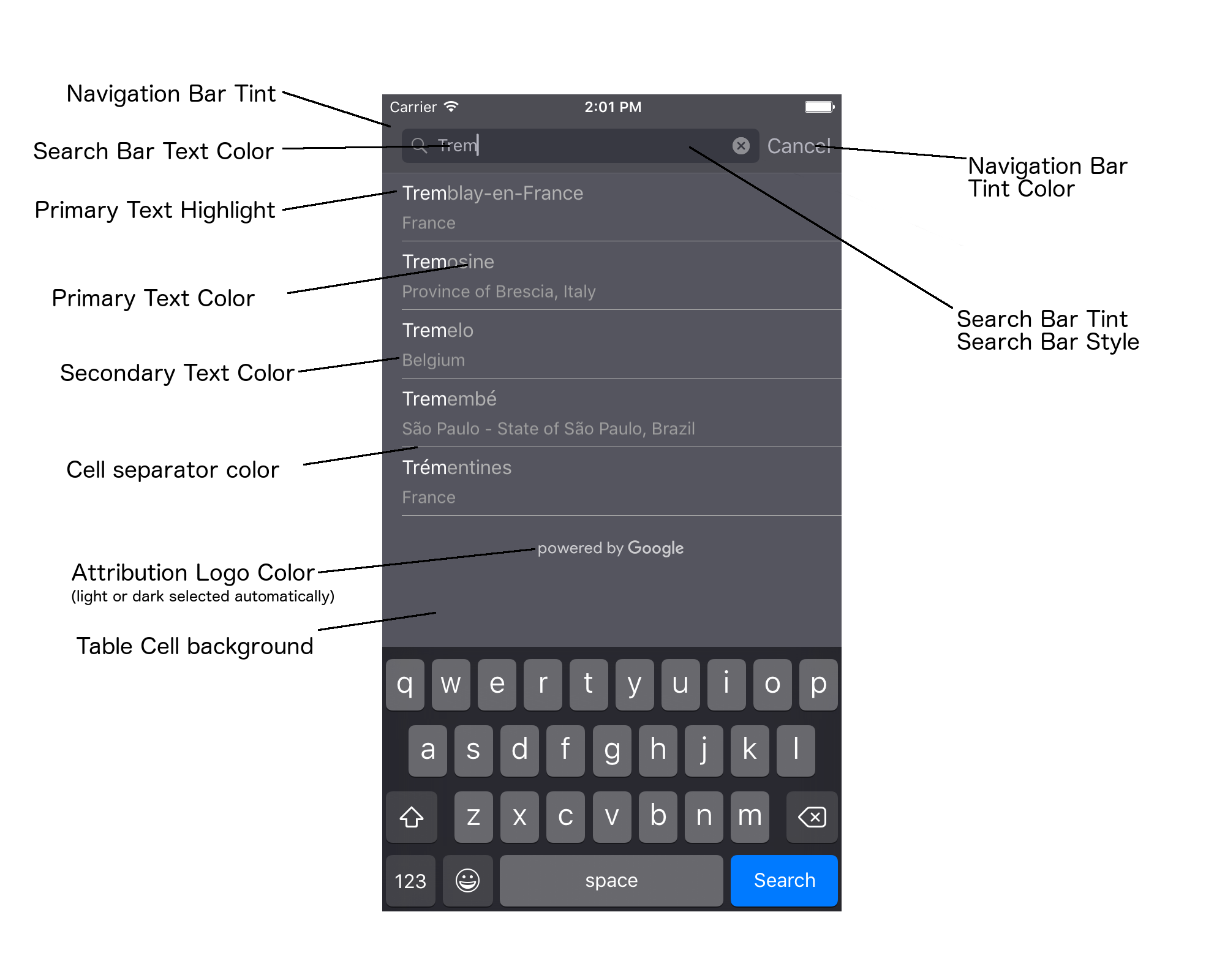
В таблице ниже перечислены все элементы пользовательского интерфейса и указано, как следует стилизовать каждый из них (протокол UIAppearance или метод SDK).
| Элемент пользовательского интерфейса | Метод | Как создать стиль |
|---|---|---|
| Оттенок панели навигации (фон) | протокол UIAppearance | Вызовите setBarTintColor для прокси-объекта UINavigationBar . |
| Цвет навигационной панели (стрелка в строке поиска и кнопка «Отмена») | протокол UIAppearance | Вызовите setTintColor для прокси-объекта UINavigationBar . |
| Цвет текста строки поиска | протокол UIAppearance | Установите значение NSForegroundColorAttributeName в searchBarTextAttributes . |
| цвет подсветки поисковой строки | Н/Д | Поисковая строка полупрозрачна и будет отображаться как затененная версия панели навигации. |
| Цвет текста-заполнителя в строке поиска (текст поиска по умолчанию) | протокол UIAppearance | Установите NSForegroundColorAttributeName в placeholderAttributes . |
| Основной текст (также применяется к тексту ошибок и сообщениям) | метод SDK | Вызовите функцию primaryTextColor . |
| Выделение основного текста | метод SDK | Вызовите функцию primaryTextHighlightColor . |
| Вторичный текст | метод SDK | Вызовите функцию secondaryTextColor . |
| Текст ошибки и сообщения | метод SDK | Вызовите функцию primaryTextColor . |
| Фон ячейки таблицы | метод SDK | Вызовите функцию tableCellBackgroundColor . |
| Цвет разделителя ячеек таблицы | метод SDK | Вызовите метод tableCellSeparatorColor . |
| Кнопка «Попробовать снова» | метод SDK | Вызовите функцию tintColor . |
| Индикатор активности (вращающийся индикатор прогресса) | протокол UIAppearance | Вызовите setColor для прокси-объекта UIActivityIndicatorView . |
| Логотип «Powered by Google», изображение грустного облака | Н/Д | Белый или серый вариант автоматически выбирается в зависимости от контраста фона. |
| Значки лупы и прозрачного текста в текстовом поле строки поиска. | Н/Д | Для оформления замените изображения по умолчанию изображениями желаемого цвета. |
Использование протокола UIAppearance
Вы можете использовать протокол UIAppearance для получения прокси-объекта внешнего вида для заданного элемента пользовательского интерфейса, который затем можно использовать для установки цвета этого элемента. При внесении изменений затрагиваются все экземпляры данного элемента пользовательского интерфейса. Например, следующий пример глобально изменяет цвет текста элементов класса UITextField на зеленый, когда они находятся в элементе UISearchBar :
[[UITextField appearanceWhenContainedIn:[UISearchBar class], nil]
    setDefaultTextAttributes:@{NSForegroundColorAttributeName:[UIColor greenColor]}];
Для получения более подробной информации об определении цветовых значений обратитесь к справочнику классов UIColor .
Приведенные ниже фрагменты кода демонстрируют все команды прокси, необходимые для стилизации всего содержимого полноэкранного элемента управления автозаполнения. Добавьте этот код в метод didFinishLaunchingWithOptions в файле Appdelegate.m:
// Define some colors.
UIColor *darkGray = [UIColor darkGrayColor];
UIColor *lightGray = [UIColor lightGrayColor];

// Navigation bar background.
[[UINavigationBar appearance] setBarTintColor:darkGray];
[[UINavigationBar appearance] setTintColor:lightGray];

// Color of typed text in the search bar.
NSDictionary *searchBarTextAttributes = @{
                                          NSForegroundColorAttributeName: lightGray,
                                          NSFontAttributeName : [UIFont systemFontOfSize:[UIFont systemFontSize]]
                                          };
[UITextField appearanceWhenContainedInInstancesOfClasses:@[[UISearchBar class]]]
    .defaultTextAttributes = searchBarTextAttributes;

// Color of the placeholder text in the search bar prior to text entry.
NSDictionary *placeholderAttributes = @{
                                        NSForegroundColorAttributeName: lightGray,
                                        NSFontAttributeName : [UIFont systemFontOfSize:[UIFont systemFontSize]]
                                        };

// Color of the default search text.
// NOTE: In a production scenario, "Search" would be a localized string.
NSAttributedString *attributedPlaceholder =
[[NSAttributedString alloc] initWithString:@"Search"
                                attributes:placeholderAttributes];
[UITextField appearanceWhenContainedInInstancesOfClasses:@[[UISearchBar class]]]
    .attributedPlaceholder = attributedPlaceholder;

// Color of the in-progress spinner.
[[UIActivityIndicatorView appearance] setColor:lightGray];

// To style the two image icons in the search bar (the magnifying glass
// icon and the 'clear text' icon), replace them with different images.
[[UISearchBar appearance] setImage:[UIImage imageNamed:@"custom_clear_x_high"]
                  forSearchBarIcon:UISearchBarIconClear
                            state:UIControlStateHighlighted];
[[UISearchBar appearance] setImage:[UIImage imageNamed:@"custom_clear_x"]
                  forSearchBarIcon:UISearchBarIconClear
                            state:UIControlStateNormal];
[[UISearchBar appearance] setImage:[UIImage imageNamed:@"custom_search"]
                    forSearchBarIcon:UISearchBarIconSearch
                            state:UIControlStateNormal];

// Color of selected table cells.
UIView *selectedBackgroundView = [[UIView alloc] init];
selectedBackgroundView.backgroundColor = [UIColor lightGrayColor];
[UITableViewCell appearanceWhenContainedIn:[GMSAutocompleteViewController class], nil]
    .selectedBackgroundView = selectedBackgroundView;
Настройка свойств стиля элементов управления пользовательского интерфейса
Некоторые элементы управления пользовательского интерфейса имеют свойства, на которые не влияет протокол UIAppearance, поэтому их необходимо задавать напрямую. В следующем примере кода показано определение цветов переднего и заднего плана и их применение к экземпляру элемента управления пользовательского интерфейса с именем acController . Добавьте этот код в метод onLaunchClicked в файле ViewController.m:
UIColor *darkGray = [UIColor darkGrayColor];
UIColor *lightGray = [UIColor lightGrayColor];

acController.secondaryTextColor = [UIColor colorWithWhite:1.0f alpha:0.5f];
acController.primaryTextColor = lightGray;
acController.primaryTextHighlightColor = [UIColor grayColor];
acController.tableCellBackgroundColor = darkGray;
acController.tableCellSeparatorColor = lightGray;
acController.tintColor = lightGray;
Получение прогнозов местоположения программным способом
В качестве альтернативы интерфейсу автозаполнения можно создать собственный интерфейс поиска. Для этого ваше приложение должно получать прогнозы мест программным способом. Список прогнозируемых названий мест и/или адресов можно получить одним из следующих способов:
Вызов функции GMSPlacesClient findAutocompletePredictionsFromQuery:
Чтобы получить список прогнозируемых названий мест и/или адресов, сначала создайте экземпляр класса GMSPlacesClient , а затем вызовите метод GMSPlacesClient findAutocompletePredictionsFromQuery: со следующими параметрами:
- Строка
autocompleteQueryсодержащая текст, введенный пользователем. - Объект
GMSAutocompleteSessionTokenиспользуется для идентификации каждой отдельной сессии. Ваше приложение должно передавать один и тот же токен для каждого вызова запроса автозаполнения, а затем передавать этот токен вместе с идентификатором места (Place ID) в последующем вызове функцииfetchPlacefromPlaceID:чтобы получить подробную информацию о месте, выбранном пользователем. - Фильтр
GMSAutocompleteFilterдля:- Предвзятость или ограничение результатов определенным регионом.
- Ограничьте результаты определенным типом мест .
- Объект
GMSPlaceLocationBias/Restriction, изменяющий результаты в сторону определенной области, заданной широтой и долготой.
- Метод обратного вызова для обработки возвращаемых прогнозов.
Приведенные ниже примеры кода демонстрируют вызов функции findAutocompletePredictionsFromQuery: .
Быстрый
/**
 *   Create a new session token. Be sure to use the same token for calling
 *   findAutocompletePredictions, as well as the subsequent place details request.
 *   This ensures that the user's query and selection are billed as a single session.
 */
let token = GMSAutocompleteSessionToken.init()

// Create a type filter.
let filter = GMSAutocompleteFilter()
filter.types = [kGMSPlaceTypeBank]
filter.locationBias = GMSPlaceRectangularLocationOption( northEastBounds,
                                   southWestBounds);

placesClient?.findAutocompletePredictions(fromQuery: "cheesebu",

                                          filter: filter,
                                          sessionToken: token,
                                          callback: { (results, error) in
    if let error = error {
      print("Autocomplete error: \(error)")
      return
    }
    if let results = results {
      for result in results {
        print("Result \(result.attributedFullText) with placeID \(result.placeID)")
      }
    }
})
Objective-C
/**
 *   Create a new session token. Be sure to use the same token for calling
 *   findAutocompletePredictionsFromQuery:, as well as the subsequent place details request.
 *   This ensures that the user's query and selection are billed as a single session.
 */
GMSAutocompleteSessionToken *token = [[GMSAutocompleteSessionToken alloc] init];

// Create a type filter.
GMSAutocompleteFilter *_filter = [[GMSAutocompleteFilter alloc] init];
_filter.types = @[ kGMSPlaceTypeBank ];

[_placesClient findAutocompletePredictionsFromQuery:@"cheesebu"
filter:_filter sessionToken:token callback:^(NSArray<GMSAutocompletePrediction *> * _Nullable results, NSError * _Nullable error) {
  if (error != nil) {
    NSLog(@"An error occurred %@", [error localizedDescription]);
    return;
  }
  if (results != nil) {
    for (GMSAutocompletePrediction *result in results) {
      NSLog(@"Result %@ with PlaceID %@", result.attributedFullText, result.placeID);
    }
  }
}];
API вызывает указанный метод обратного вызова, передавая в него массив объектов GMSAutocompletePrediction .
Каждый объект GMSAutocompletePrediction содержит следующую информацию:
-
attributedFullText– Полный текст предсказания в виде строки типаNSAttributedString. Например, 'Sydney Opera House, Sydney, New South Wales, Australia'. Каждый текстовый диапазон, соответствующий пользовательскому вводу, имеет атрибутkGMSAutocompleteMatchAttribute. Вы можете использовать этот атрибут для выделения соответствующего текста в запросе пользователя, например, как показано ниже. -
placeID– Идентификатор предполагаемого места. Place ID – это текстовый идентификатор, который однозначно определяет место. Для получения дополнительной информации об идентификаторах мест см. раздел « Обзор идентификаторов мест» . -
distanceMeters– Расстояние по прямой от указаннойoriginдо конечной. Если свойствоoriginне задано, значение distance не будет возвращено.
Следующий пример кода демонстрирует, как выделить жирным шрифтом те части результата, которые соответствуют тексту в запросе пользователя, используя enumerateAttribute :
Быстрый
let regularFont = UIFont.systemFont(ofSize: UIFont.labelFontSize)
let boldFont = UIFont.boldSystemFont(ofSize: UIFont.labelFontSize)

let bolded = prediction.attributedFullText.mutableCopy() as! NSMutableAttributedString
bolded.enumerateAttribute(kGMSAutocompleteMatchAttribute, in: NSMakeRange(0, bolded.length), options: []) {
  (value, range: NSRange, stop: UnsafeMutablePointer<ObjCBool>) -> Void in
    let font = (value == nil) ? regularFont : boldFont
    bolded.addAttribute(NSFontAttributeName, value: font, range: range)
}

label.attributedText = bolded
Objective-C
UIFont *regularFont = [UIFont systemFontOfSize:[UIFont labelFontSize]];
UIFont *boldFont = [UIFont boldSystemFontOfSize:[UIFont labelFontSize]];

NSMutableAttributedString *bolded = [prediction.attributedFullText mutableCopy];
[bolded enumerateAttribute:kGMSAutocompleteMatchAttribute
                   inRange:NSMakeRange(0, bolded.length)
                   options:0
                usingBlock:^(id value, NSRange range, BOOL *stop) {
                  UIFont *font = (value == nil) ? regularFont : boldFont;
                  [bolded addAttribute:NSFontAttributeName value:font range:range];
                }];

label.attributedText = bolded;
Использование дочернего устройства
Если вы хотите создать собственный элемент управления автозаполнением с нуля, вы можете использовать GMSAutocompleteFetcher , который является оберткой для метода autocompleteQuery в классе GMSPlacesClient . Этот компонент ограничивает количество запросов, возвращая только результаты для последнего введенного поискового текста. Он не предоставляет никаких элементов пользовательского интерфейса.
Для реализации GMSAutocompleteFetcher выполните следующие шаги:
- Реализуйте протокол
GMSAutocompleteFetcherDelegate. - Создайте объект
GMSAutocompleteFetcher. - Вызывайте
sourceTextHasChangedв обработчике текста по мере ввода пользователем данных. - Обрабатывайте прогнозы и ошибки, используя методы протокола
didAutcompleteWithPredictionsиdidFailAutocompleteWithError.
Приведенный ниже пример кода демонстрирует использование механизма получения данных для ввода пользователем информации и отображения совпадений мест в текстовом поле. Функциональность выбора места опущена. FetcherSampleViewController наследуется от UIViewController в файле FetcherSampleViewController.h.
Быстрый
import UIKit
import GooglePlaces

class ViewController: UIViewController {

  var textField: UITextField?
  var resultText: UITextView?
  var fetcher: GMSAutocompleteFetcher?

  override func viewDidLoad() {
    super.viewDidLoad()

    view.backgroundColor = .white
    edgesForExtendedLayout = []

    // Set bounds to inner-west Sydney Australia.
    let neBoundsCorner = CLLocationCoordinate2D(latitude: -33.843366,
                                                longitude: 151.134002)
    let swBoundsCorner = CLLocationCoordinate2D(latitude: -33.875725,
                                                longitude: 151.200349)

    // Set up the autocomplete filter.
    let filter = GMSAutocompleteFilter()
    filter.locationRestriction = GMSPlaceRectangularLocationOption(neBoundsCorner, swBoundsCorner)

    // Create a new session token.
    let token: GMSAutocompleteSessionToken = GMSAutocompleteSessionToken.init()

    // Create the fetcher.
    fetcher = GMSAutocompleteFetcher(bounds: nil, filter: filter)
    fetcher?.delegate = self
    fetcher?.provide(token)

    textField = UITextField(frame: CGRect(x: 5.0, y: 10.0,
                                          width: view.bounds.size.width - 5.0,
                                          height: 64.0))
    textField?.autoresizingMask = .flexibleWidth
    textField?.addTarget(self, action: #selector(textFieldDidChange(textField:)),
                         for: .editingChanged)
    let placeholder = NSAttributedString(string: "Type a query...")

    textField?.attributedPlaceholder = placeholder

    resultText = UITextView(frame: CGRect(x: 0, y: 65.0,
                                          width: view.bounds.size.width,
                                          height: view.bounds.size.height - 65.0))
    resultText?.backgroundColor = UIColor(white: 0.95, alpha: 1.0)
    resultText?.text = "No Results"
    resultText?.isEditable = false

    self.view.addSubview(textField!)
    self.view.addSubview(resultText!)
  }

  @objc func textFieldDidChange(textField: UITextField) {
    fetcher?.sourceTextHasChanged(textField.text!)
  }

}

extension ViewController: GMSAutocompleteFetcherDelegate {
  func didAutocomplete(with predictions: [GMSAutocompletePrediction]) {
    let resultsStr = NSMutableString()
    for prediction in predictions {
      resultsStr.appendFormat("\n Primary text: %@\n", prediction.attributedPrimaryText)
      resultsStr.appendFormat("Place ID: %@\n", prediction.placeID)
    }

    resultText?.text = resultsStr as String
  }

  func didFailAutocompleteWithError(_ error: Error) {
    resultText?.text = error.localizedDescription
  }
}
Objective-C
#import "FetcherSampleViewController.h"
#import <GooglePlaces/GooglePlaces.h>

@interface FetcherSampleViewController () <GMSAutocompleteFetcherDelegate>

@end

@implementation FetcherSampleViewController {
  UITextField *_textField;
  UITextView *_resultText;
  GMSAutocompleteFetcher* _fetcher;
}

-   (void)viewDidLoad {
  [super viewDidLoad];

  self.view.backgroundColor = [UIColor whiteColor];
  self.edgesForExtendedLayout = UIRectEdgeNone;

  // Set bounds to inner-west Sydney Australia.
  CLLocationCoordinate2D neBoundsCorner = CLLocationCoordinate2DMake(-33.843366, 151.134002);
  CLLocationCoordinate2D swBoundsCorner = CLLocationCoordinate2DMake(-33.875725, 151.200349);

  GMSAutocompleteFilter *autocompleteFilter = [[GMSAutocompleteFilter alloc] init];
  autocompleteFilter.locationRestriction =
        GMSPlaceRectangularLocationOption(neBoundsCorner, swBoundsCorner);

  // Create the fetcher.
  _fetcher = [[GMSAutocompleteFetcher alloc] initWithBounds:nil
                                                     filter:filter];
  _fetcher.delegate = self;

  // Set up the UITextField and UITextView.
  _textField = [[UITextField alloc] initWithFrame:CGRectMake(5.0f,
                                                             0,
                                                             self.view.bounds.size.width - 5.0f,
                                                             44.0f)];
  _textField.autoresizingMask = UIViewAutoresizingFlexibleWidth;
  [_textField addTarget:self
                 action:@selector(textFieldDidChange:)
       forControlEvents:UIControlEventEditingChanged];
  _resultText =[[UITextView alloc] initWithFrame:CGRectMake(0,
                                                            45.0f,
                                                            self.view.bounds.size.width,
                                                            self.view.bounds.size.height - 45.0f)];
  _resultText.backgroundColor = [UIColor colorWithWhite:0.95f alpha:1.0f];
  _resultText.text = @"No Results";
  _resultText.editable = NO;
  [self.view addSubview:_textField];
  [self.view addSubview:_resultText];
}

-   (void)textFieldDidChange:(UITextField *)textField {
  NSLog(@"%@", textField.text);
  [_fetcher sourceTextHasChanged:textField.text];
}

#pragma mark - GMSAutocompleteFetcherDelegate
-   (void)didAutocompleteWithPredictions:(NSArray *)predictions {
  NSMutableString *resultsStr = [NSMutableString string];
  for (GMSAutocompletePrediction *prediction in predictions) {
      [resultsStr appendFormat:@"%@\n", [prediction.attributedPrimaryText string]];
  }
  _resultText.text = resultsStr;
}

-   (void)didFailAutocompleteWithError:(NSError *)error {
  _resultText.text = [NSString stringWithFormat:@"%@", error.localizedDescription];
}

@end
Токены сессии
Токены сессии объединяют этапы запроса и выбора в поиске с автозаполнением в отдельную сессию для целей выставления счетов. Сессия начинается, когда пользователь начинает вводить запрос, и заканчивается, когда он выбирает место. Каждая сессия может содержать несколько запросов, за которыми следует один выбор места. После завершения сессии токен становится недействительным; ваше приложение должно генерировать новый токен для каждой сессии. Мы рекомендуем использовать токены сессии для всех программных сессий автозаполнения (при использовании контроллера полноэкранного режима или контроллера результатов API автоматически позаботится об этом).
SDK Places для iOS использует GMSAutocompleteSessionToken для идентификации каждой сессии. Ваше приложение должно передавать новый токен сессии при начале каждой новой сессии, а затем передавать тот же токен вместе с идентификатором места в последующем вызове функции fetchPlacefromPlaceID: для получения подробной информации о месте, выбранном пользователем.
Узнайте больше о токенах сессии .
Используйте следующий код для генерации нового токена сессии:
let token: GMSAutocompleteSessionToken = GMSAutocompleteSessionToken.init()
Ограничения на использование
- Использование метода
GMSPlacesClient findAutocompletePredictionsFromQueryограничено определенным количеством запросов. См. документацию по ограничениям использования .
Отображение атрибуции в вашем приложении
- Если ваше приложение использует сервис автозаполнения программным способом, ваш пользовательский интерфейс должен либо отображать ссылку «Powered by Google», либо отображаться на карте с логотипом Google.
- Если ваше приложение использует элемент управления автозаполнением, никаких дополнительных действий не требуется (необходимая информация об авторстве отображается по умолчанию).
- Если вы получаете и отображаете дополнительную информацию о месте после определения его по идентификатору , вам также необходимо отображать информацию, предоставленную третьими сторонами.
Для получения более подробной информации см. документацию по атрибуции .
Контроль индикатора сетевой активности
Для управления индикатором сетевой активности в строке состояния приложения необходимо реализовать соответствующие необязательные методы делегата для используемого класса автозаполнения и самостоятельно включать и выключать индикатор сети.
- Для
GMSAutocompleteViewControllerнеобходимо реализовать методы делегатаdidRequestAutocompletePredictions:иdidUpdateAutocompletePredictions:. - Для
GMSAutocompleteResultsViewControllerнеобходимо реализовать методы делегатаdidRequestAutocompletePredictionsForResultsController:иdidUpdateAutocompletePredictionsForResultsController:. - Для
GMSAutocompleteTableDataSourceнеобходимо реализовать методы делегатаdidRequestAutocompletePredictionsForTableDataSource:иdidUpdateAutocompletePredictionsForTableDataSource:.
Внедрение этих методов и установка параметра [UIApplication sharedApplication].networkActivityIndicatorVisible в значения YES и NO соответственно позволит корректно отображать строку состояния в интерфейсе автозаполнения.
Ограничить результаты автозаполнения
Вы можете настроить элемент управления автозаполнением таким образом, чтобы результаты поиска ограничивались определенным географическим регионом и/или фильтровались по одному или нескольким типам мест, или по определенной стране или странам. Для ограничения результатов можно выполнить следующие действия:
- Чтобы отдавать предпочтение (предвзятым) результатам в пределах определенного региона, установите
locationBiasвGMSAutocompleteFilter(некоторые результаты за пределами определенного региона все еще могут быть возвращены). Если также установленlocationRestriction,locationBiasбудет игнорироваться. Чтобы отображать (ограничивать) результаты только в пределах заданного региона, установите
locationRestrictionдляGMSAutocompleteFilter(будут возвращаться только результаты в пределах заданного региона).- Примечание: это ограничение применяется только ко всем маршрутам целиком; синтетические результаты, расположенные за пределами прямоугольных границ, могут быть получены на основе маршрута, который перекрывается с ограничением по местоположению.
Чтобы возвращать только результаты, соответствующие определенному типу места, задайте
typesвGMSAutocompleteFilter(например, указание kGMSPlaceTypeCollectionAddress приведет к тому, что виджет будет возвращать только результаты с точным адресом).Чтобы отображались результаты только из пяти указанных стран, задайте
countriesв параметреGMSAutocompleteFilter.
Результаты, искаженные из-за предвзятости в отношении конкретного региона.
Чтобы отдавать предпочтение (смещать) результатам в пределах заданного региона, установите locationBias в параметре GMSAutocompleteFilter , как показано здесь:
northEast = CLLocationCoordinate2DMake(39.0, -95.0);  southWest =
CLLocationCoordinate2DMake(37.5, -100.0);  GMSAutocompleteFilter *filter =
[[GMSAutocompleteFilter alloc] init];  filter.locationBias =
GMSPlaceRectangularLocationOption(northEast, southWest);
Ограничить результаты определенным регионом
Чтобы отображать (ограничивать) результаты только в пределах заданного региона, установите locationRestriction для GMSAutocompleteFilter , как показано здесь:
northEast = CLLocationCoordinate2DMake(39.0, -95.0);  southWest =
CLLocationCoordinate2DMake(37.5, -100.0);  GMSAutocompleteFilter *filter =
[[GMSAutocompleteFilter alloc] init];  filter.locationRestriction =
GMSPlaceRectangularLocationOption(northEast, southWest);
Фильтрация результатов по стране
Чтобы отфильтровать результаты в пределах пяти указанных стран, задайте countries в параметре GMSAutocompleteFilter , как показано здесь:
GMSAutocompleteFilter *filter = [[GMSAutocompleteFilter alloc] init];
filter.countries = @[ @"au", @"nz" ];
Фильтрация результатов по типу места или типу коллекции
Ограничьте результаты определенным типом или коллекцией типов, задав свойство types объекта GMSAutoCompleteFilter . Используйте это свойство для указания фильтров, перечисленных в таблицах 1, 2 и 3, посвященных типам мест . Если ничего не указано, возвращаются все типы.
Чтобы указать фильтр по типу или коллекции типов:
С помощью свойства
typesможно указать до пяти значений типа из таблиц 1 и 2, представленных в разделе «Типы мест» . Значения типа определяются константами вGMSPlaceType.Свойство
typesпозволяет указать набор типов из таблицы 3, представленной в разделе «Типы мест» . Значения набора типов определяются константами вGMSPlaceType.В запросе допускается указание только одного типа из Таблицы 3. Если вы указываете значение из Таблицы 3, вы не можете указать значение из Таблицы 1 или Таблицы 2. В противном случае возникнет ошибка.
Например, чтобы возвращать только результаты, соответствующие определенному типу места, задайте types в параметре GMSAutocompleteFilter . В следующем примере показано, как настроить фильтр для возврата только результатов с точным адресом:
GMSAutocompleteFilter *filter = [[GMSAutocompleteFilter alloc] init];
filter.types = @[ kGMSPlaceTypeAirport, kGMSPlaceTypeAmusementPark ];
Оптимизация автозаполнения (устаревшая функция)
В этом разделе описаны лучшие практики, которые помогут вам максимально эффективно использовать сервис автозаполнения мест (устаревшая версия).
Вот несколько общих рекомендаций:
- Самый быстрый способ разработать работающий пользовательский интерфейс — использовать виджет Maps JavaScript API Place Autocomplete (Legacy) , виджет Places SDK для Android Place Autocomplete (Legacy) или элемент управления Place Autocomplete (Legacy) UI из Places SDK для iOS.
- С самого начала разберитесь с основными полями данных для автозаполнения (устаревшая функция).
- Поля, указывающие на географическое смещение и ограничение местоположения, являются необязательными, но могут существенно повлиять на эффективность автозаполнения.
- Используйте обработку ошибок, чтобы ваше приложение корректно работало, если API возвращает ошибку.
- Убедитесь, что ваше приложение обрабатывает ситуацию, когда выбор отсутствует, и предлагает пользователям способ продолжить.
Передовые методы оптимизации затрат
Базовая оптимизация затрат
Для оптимизации затрат на использование сервиса автозаполнения мест (устаревшая версия) используйте маски полей в виджетах «Подробности места» (устаревшая версия) и «Автозаполнение места» (устаревшая версия), чтобы возвращать только необходимые поля данных из сервиса автозаполнения места (устаревшая версия).
Расширенная оптимизация затрат
Рассмотрите возможность программной реализации функции автозаполнения мест (устаревшая версия), чтобы получить доступ к ценообразованию SKU: Автозаполнение — за запрос и запрашивать результаты API геокодирования для выбранного места вместо подробных сведений о месте (устаревшая версия). Ценообразование за запрос в сочетании с API геокодирования более экономически выгодно, чем ценообразование за сессию (на основе сессии), если выполняются оба следующих условия:
- Если вам нужны только широта/долгота или адрес выбранного пользователем места, API геокодирования предоставит эту информацию дешевле, чем вызов функции «Подробная информация о месте» (устаревшая версия).
- Если пользователи выбирают вариант автозаполнения в среднем в четырех или менее запросах на автозаполнение Place Autocomplete (Legacy), то ценообразование за запрос может оказаться более экономически выгодным, чем ценообразование за сессию.
Требует ли ваше приложение какой-либо дополнительной информации, помимо адреса и широты/долготы выбранного прогноза?
Да, требуется более подробная информация.
Используйте функцию автозаполнения мест на основе сессий (устаревшая версия) с подробным описанием мест (устаревшая версия).
Поскольку вашему приложению требуются подробные сведения о месте (устаревшая версия), такие как название места, статус предприятия или часы работы, ваша реализация автозаполнения для мест (устаревшая версия) должна использовать токен сессии ( программно или встроенный в виджеты JavaScript , Android или iOS ) для каждой сессии, а также соответствующие SKU данных о местах , в зависимости от того, какие поля данных о местах вы запрашиваете. 1
Реализация виджета
Управление сессиями автоматически встраивается в виджеты JavaScript , Android или iOS . Это включает в себя как запросы автозаполнения (устаревшая версия), так и запросы сведений о выбранном прогнозе (устаревшая версия). Обязательно укажите параметр fields , чтобы гарантировать, что вы запрашиваете только необходимые поля данных для автозаполнения (устаревшая версия).
Программная реализация
Используйте токен сессии в запросах автозаполнения мест (устаревшая версия). При запросе подробной информации о выбранном прогнозе места (устаревшая версия) укажите следующие параметры:
- Идентификатор места из ответа функции автозаполнения мест (устаревшая версия).
- Токен сессии, используемый в запросе Place Autocomplete (Legacy).
- Параметр
fieldsуказывает, какие поля данных для автозаполнения (устаревшая версия) вам необходимы.
Нет, достаточно указать адрес и местоположение.
API геокодирования может оказаться более экономически выгодным вариантом, чем Place Details (устаревшая версия), для вашего приложения, в зависимости от производительности функции автозаполнения Place Autocomplete (устаревшая версия). Эффективность функции автозаполнения Place Autocomplete (устаревшая версия) в каждом приложении варьируется в зависимости от того, что вводят пользователи, где используется приложение и были ли внедрены лучшие практики оптимизации производительности .
Чтобы ответить на следующий вопрос, проанализируйте, сколько символов пользователь вводит в среднем перед выбором функции автозаполнения (устаревшая версия) в вашем приложении.
В среднем, пользователи выбирают вариант автозаполнения «Местоположение» (устаревшая версия) не более чем в четырех запросах?
Да
Реализуйте функцию автозаполнения мест (устаревшая версия) программным способом без использования токенов сессии и вызывайте API геокодирования для предсказания выбранного места.
API геокодирования предоставляет адреса и координаты широты/долготы. Выполнение четырех запросов автозаполнения за запрос плюс вызов API геокодирования для прогнозирования выбранного места обходится дешевле, чем стоимость автозаполнения мест (устаревшая версия) за сессию. 1
Рассмотрите возможность применения лучших практик повышения производительности , чтобы помочь вашим пользователям получить желаемый результат, используя еще меньше символов.
Нет
Используйте функцию автозаполнения мест на основе сессий (устаревшая версия) с подробным описанием мест (устаревшая версия).
Поскольку среднее количество запросов, которые, как ожидается, будут отправлены до того, как пользователь выберет вариант автозаполнения места (устаревшая версия), превышает стоимость за сессию, ваша реализация автозаполнения места (устаревшая версия) должна использовать токен сессии как для запросов автозаполнения места (устаревшая версия), так и для связанного с ними запроса сведений о месте (устаревшая версия) за сессию . 1
Реализация виджета
Управление сессиями автоматически встраивается в виджеты JavaScript , Android или iOS . Это включает в себя как запросы автозаполнения (устаревшая версия), так и запросы сведений (устаревшая версия) для выбранного прогноза. Обязательно укажите параметр fields , чтобы гарантировать запрос только необходимых полей.
Программная реализация
Используйте токен сессии в запросах автозаполнения мест (устаревшая версия). При запросе подробной информации о выбранном прогнозе места (устаревшая версия) укажите следующие параметры:
- Идентификатор места из ответа функции автозаполнения мест (устаревшая версия).
- Токен сессии, используемый в запросе Place Autocomplete (Legacy).
- Параметр
fieldsзадает поля основных данных , такие как адрес и геометрия.
Рассмотрите возможность отложить запросы на автозаполнение мест (устаревшие версии).
Вы можете использовать такие стратегии, как задержка запроса автозаполнения места (Legacy) до тех пор, пока пользователь не введёт первые три или четыре символа, чтобы ваше приложение выполняло меньше запросов. Например, если отправлять запросы автозаполнения места (Legacy) для каждого символа после того, как пользователь введёт третий символ, это означает, что если пользователь введёт семь символов, а затем выберет предсказание, для которого вы отправите один запрос API геокодирования, общая стоимость составит 4 запроса автозаполнения места (Legacy) + геокодирование. 1
Если задержка запросов позволяет снизить среднее количество программных запросов до менее чем четырех, вы можете следовать рекомендациям по эффективной реализации автозаполнения мест (устаревшая версия) с использованием API геокодирования . Обратите внимание, что задержка запросов может восприниматься пользователем как задержка, поскольку он может ожидать увидеть подсказки при каждом новом нажатии клавиши.
Рассмотрите возможность применения лучших практик повышения производительности , чтобы помочь вашим пользователям получить желаемый результат за меньшее количество символов.
Информацию о стоимости можно найти в прайс-листах платформы Google Maps .
лучшие практики повышения производительности
В следующих рекомендациях описаны способы оптимизации работы функции автозаполнения мест (устаревшая версия):
- Добавьте в свою реализацию функции автозаполнения мест (устаревшая версия) ограничения по странам, учет местоположения и (для программных реализаций) предпочтения языка. Предпочтения языка не требуются для виджетов, поскольку они получают информацию о языке из браузера или мобильного устройства пользователя.
- Если функция автозаполнения мест (устаревшая версия) сопровождается картой, вы можете изменять местоположение в зависимости от области просмотра карты.
- В ситуациях, когда пользователь не выбирает один из вариантов автозаполнения поля "Расположение" (устаревшая версия), как правило, потому что ни один из этих вариантов не соответствует желаемому адресу, вы можете повторно использовать исходный ввод пользователя, чтобы попытаться получить более релевантные результаты:
- Если вы ожидаете, что пользователь введёт только адресную информацию, используйте исходные данные, введённые пользователем, при вызове API геокодирования .
- Если вы ожидаете, что пользователь будет вводить запросы для конкретного места по названию или адресу, используйте запрос «Подробная информация о месте (устаревшая версия)». Если результаты ожидаются только в определенном регионе, используйте предвзятость по местоположению .
- Пользователи вводят адреса подобъектов, например, адреса конкретных квартир или апартаментов в здании. Например, чешский адрес "Stroupežnického 3191/17, Praha" выдает частичное предсказание в функции автозаполнения мест (устаревшая версия).
- Пользователи вводят адреса с префиксами, обозначающими участки дорог, например, "23-30 29th St, Queens" в Нью-Йорке или "47-380 Kamehameha Hwy, Kaneohe" на острове Кауаи на Гавайях.
Смещение в сторону местоположения
Отображение результатов в заданной области осуществляется путем передачи параметра location и параметра radius . Это указывает функции автозаполнения мест (устаревшая версия) отдавать предпочтение отображению результатов в пределах определенной области. Результаты за пределами определенной области также могут отображаться. Вы можете использовать параметр includedRegionCodes для фильтрации результатов, чтобы отображать только места в пределах указанной страны.
Ограничение местоположения
Ограничьте результаты указанной областью, передав параметр locationRestriction .
Вы также можете ограничить результаты областью, определенной параметром location и radius , добавив параметр strictbounds . Это указывает функции автозаполнения мест (устаревшая версия) возвращать только результаты в пределах этой области.
Поиск неисправностей
Хотя могут возникать самые разные ошибки, большинство ошибок, с которыми, скорее всего, столкнется ваше приложение, обычно вызваны ошибками конфигурации (например, был использован неправильный ключ API или ключ API был настроен некорректно) или ошибками квоты (ваше приложение превысило свою квоту). Дополнительную информацию о квотах см. в разделе «Ограничения использования» .
Ошибки, возникающие при использовании элементов управления автозаполнения, возвращаются в методе didFailAutocompleteWithError() различных протоколов делегата. Свойство code предоставленного объекта NSError устанавливается в одно из значений перечисления GMSPlacesErrorCode .