

繫結至 Google 文件、Google 試算表或 Google 表單的 Google Apps Script 專案,可以顯示使用者介面元素,例如預先建構的快訊、提示、浮動式訊息、對話方塊和側欄。這些元素通常包含自訂 HTML 服務內容,且通常是從選單項目開啟。在 Google 表單中,使用者介面元素只會顯示給開啟表單進行修改的編輯者,不會顯示給填寫者。
快訊對話方塊
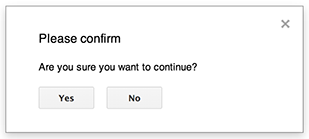
快訊是預先建構的對話方塊,會在 Google 文件、試算表、簡報或表單編輯器中開啟。這個對話方塊會顯示訊息和「確定」按鈕,標題和替代按鈕則為選用。這與在網頁瀏覽器中,從用戶端 JavaScript 呼叫
window.alert
類似。
對話方塊開啟時,快訊會暫停伺服器端指令碼。使用者關閉對話方塊後,指令碼會繼續執行,但 JDBC 連線不會在暫停期間保持連線。
如下列範例所示,Google 文件、表單、簡報和試算表都使用 Ui.alert 方法,這個方法有三種變體。如要覆寫預設的「確定」按鈕,請從 Ui.ButtonSet� enum 傳遞值做為 buttons 引數。如要評估使用者點選的按鈕,請將 alert 的傳回值與 Ui.Button 列舉進行比較。
function onOpen() {
  SpreadsheetApp.getUi() // Or DocumentApp or SlidesApp or FormApp.
    .createMenu("Custom Menu")
    .addItem("Show alert", "showAlert")
    .addToUi();
}

function showAlert() {
  const ui = SpreadsheetApp.getUi(); // Same variations.

  const result = ui.alert(
    "Please confirm",
    "Are you sure you want to continue?",
    ui.ButtonSet.YES_NO,
  );

  // Process the user's response.
  if (result === ui.Button.YES) {
    // User clicked "Yes".
    ui.alert("Confirmation received.");
  } else {
    // User clicked "No" or X in the title bar.
    ui.alert("Permission denied.");
  }
}
提示對話方塊
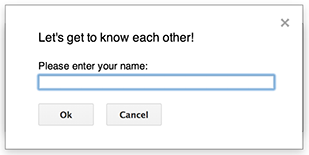
提示是預先建構的對話方塊,會在 Google 文件、試算表、簡報或表單編輯器中開啟。這個對話方塊會顯示訊息、文字輸入欄位和「確定」按鈕;標題和替代按鈕則為選用。這與在網頁瀏覽器中,從用戶端 JavaScript 呼叫
window.prompt
類似。
對話方塊開啟時,提示會暫停伺服器端指令碼。使用者關閉對話方塊後,指令碼會繼續執行,但 JDBC 連線不會在暫停期間保持連線。
如下列範例所示,Google 文件、表單、簡報和試算表都使用 Ui.prompt 方法,這個方法有三種變體。如要覆寫預設的「確定」按鈕,請從 Ui.ButtonSet 列舉傳遞值做為 buttons 引數。如要評估使用者的回應,請擷取 prompt 的傳回值,然後呼叫 PromptResponse.getResponseText 擷取使用者的輸入內容,並將 PromptResponse.getSelectedButton 的傳回值與 Ui.Button 列舉進行比較。
function onOpen() {
  SpreadsheetApp.getUi() // Or DocumentApp or SlidesApp or FormApp.
    .createMenu("Custom Menu")
    .addItem("Show prompt", "showPrompt")
    .addToUi();
}

function showPrompt() {
  const ui = SpreadsheetApp.getUi(); // Same variations.

  const result = ui.prompt(
    "Let's get to know each other!",
    "Please enter your name:",
    ui.ButtonSet.OK_CANCEL,
  );

  // Process the user's response.
  const button = result.getSelectedButton();
  const text = result.getResponseText();
  if (button === ui.Button.OK) {
    // User clicked "OK".
    ui.alert("Your name is " + text + ".");
  } else if (button === ui.Button.CANCEL) {
    // User clicked "Cancel".
    ui.alert("I didn't get your name.");
  } else if (button === ui.Button.CLOSE) {
    // User clicked X in the title bar.
    ui.alert("You closed the dialog.");
  }
}
試算表訊息
「浮動式訊息」是試算表編輯器右下角的小型對話方塊,會顯示訊息,但不會暫停指令碼。這項功能很適合顯示不需要使用者互動的狀態訊息或更新。
如下列範例所示,Google 試算表會使用 Spreadsheet.toast 方法。快訊僅適用於 Google 試算表。
function showToast() {
  SpreadsheetApp.getActiveSpreadsheet().toast("Task completed successfully.");
}
自訂對話方塊
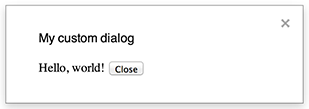
自訂對話方塊可以在 Google 文件、試算表、簡報或表單編輯器中,顯示 HTML 服務使用者介面。
自訂對話方塊不會在對話方塊開啟時暫停伺服器端指令碼。
由於這些函式是非同步,因此開啟對話方塊的伺服器端函式會立即完成。如要將資料從自訂對話方塊傳回伺服器,請在用戶端程式碼中使用 google.script API。
對話方塊可以透過在 HTML 服務介面的用戶端呼叫 google.script.host.close 自行關閉。對話方塊無法透過其他介面關閉,只能由使用者或對話方塊本身關閉。
如下列範例所示,Google 文件、表單、簡報和試算表都使用 Ui.showModalDialog 方法開啟對話方塊。
Code.gs
function onOpen() {
  SpreadsheetApp.getUi() // Or DocumentApp or SlidesApp or FormApp.
      .createMenu('Custom Menu')
      .addItem('Show dialog', 'showDialog')
      .addToUi();
}

function showDialog() {
  const html = HtmlService.createHtmlOutputFromFile('Page')
      .setWidth(400)
      .setHeight(300);
  SpreadsheetApp.getUi() // Or DocumentApp or SlidesApp or FormApp.
      .showModalDialog(html, 'My custom dialog');
}
Page.html
Hello, world! <input type="button" value="Close" onclick="google.script.host.close()" />
自訂側欄

側欄可以在文件、表單、簡報和試算表編輯器中,顯示 HTML 服務使用者介面。
對話方塊開啟時,側欄不會暫停伺服器端指令碼。用戶端元件可以使用 HTML 服務介面的 google.script API,對伺服器端指令碼發出非同步呼叫。
側欄可透過 HTML 服務介面的用戶端呼叫 google.script.host.close 關閉。側欄無法透過其他介面關閉,只能由使用者或側欄本身關閉。
如下列範例所示,Google 文件、表單、簡報和試算表都使用 Ui.showSidebar 方法開啟側欄。
Code.gs
function onOpen() {
  SpreadsheetApp.getUi() // Or DocumentApp or SlidesApp or FormApp.
      .createMenu('Custom Menu')
      .addItem('Show sidebar', 'showSidebar')
      .addToUi();
}

function showSidebar() {
  const html = HtmlService.createHtmlOutputFromFile('Page')
      .setTitle('My custom sidebar');
  SpreadsheetApp.getUi() // Or DocumentApp or SlidesApp or FormApp.
      .showSidebar(html);
}
Page.html
Hello, world! <input type="button" value="Close" onclick="google.script.host.close()" />
檔案開啟對話方塊
Google Picker 是一種 JavaScript API,可讓使用者選取或上傳 Google 雲端硬碟檔案。在 HTML 服務中使用 Google Picker 程式庫,建立自訂對話方塊,讓使用者選取現有檔案或上傳新檔案,然後將選取項目傳回指令碼。
需求條件
如要透過 Google Apps Script 使用 Google Picker,必須符合下列幾項規定:
指令碼專案必須使用標準 Google Cloud 專案。
如果使用
drive.file範圍,請將相同的雲端專案編號傳遞至PickerBuilder.setAppId。Apps Script 專案資訊清單必須指定 Google Picker API 要求的授權範圍,這樣
ScriptApp.getOAuthToken才能為PickerBuilder.setOauthtoken傳回正確的權杖。將在
PickerBuilder.setDeveloperKey中設定的 API 金鑰限制為僅限 Apps Script 使用。在「應用程式限制」下方,按照下列步驟操作:- 選取「HTTP 參照網址 (網站)」。
- 在「網站限制」下方,按一下「新增項目」。
- 按一下「參照網址」,然後輸入
*.google.com。 - 新增另一個項目,並輸入
*.googleusercontent.com做為參照位址。 - 按一下 [完成]。
範例
以下範例顯示 Apps Script 中的 Google 挑選器。