
نمایش قالب آگهی بومی تعریفشده توسط سیستم
وقتی آگهی بومی بار میشود، برنامه شما بااستفاده از یکی از پیامهای پروتکل GADAdLoaderDelegate،
شیء آگهی بومی دریافت میکند. سپس برنامه شما مسئولیت نمایش آگهی را برعهده دارد (اگرچه لزوماً نیازی نیست که این کار را بلافاصله انجام دهد).
«کیت توسعه نرمافزار» برای آسانتر کردن نمایش قالبهای آگهی تعریفشده توسط سیستم، منابع مفید
متعددی ارائه میدهد.
GADNativeAdView
برای GADNativeAd، کلاس «بازدید آگهی» مربوطه وجود دارد:
GADNativeAdView.
این کلاس نمای آگهی یک UIView است که ناشران باید از آن برای نمایش آگهی استفاده کنند.
برای مثال، یک GADNativeAdView میتواند یک نمونه از GADNativeAd را نمایش دهد. هریک از UIView شیء استفادهشده برای نمایش داراییهای آن آگهی باید نمای فرعی آن GADNativeAdView شیء باشد.
اگر آگهی را در UITableView نمایش میدادید، برای مثال،
سلسله مراتب نمای یکی از سلولها ممکن است به این شکل باشد:
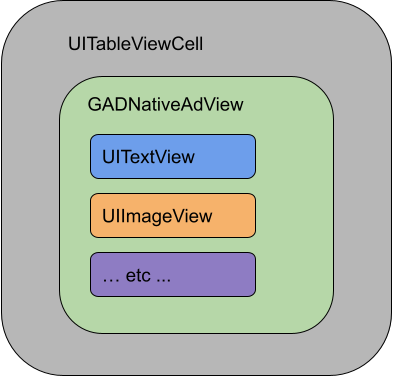
کلاس GADNativeAdView همچنین IBOutlets ارائهشده برای ثبت
نمای استفادهشده برای هر دارایی فردی، و روشی برای ثبت
خود شیء GADNativeAd
را ارائه میدهد. ثبت بازدیدها به این روش به «کیت توسعه نرمافزار» اجازه میدهد تا بهطور خودکار
وظایفی مانند موارد زیر را انجام دهد:
- درحال ضبط کلیکها.
- ظهورهای ضبط (وقتی اولین پیکسل در صفحه نمایان میشود).
- درحال نمایش رونهاد AdChoices.
رونهاد AdChoices
برای آگهیهای بومی غیرمستقیم (ارائهشده ازطریق رفع نواقص AdMob یا ازطریق Ad Exchange یا AdSense)، رونهاد AdChoices توسط کیت توسعه نرمافزار اضافه میشود. در گوشه ترجیحی نمای آگهی بومیتان برای نشانواره AdChoices که بهطور خودکار درج میشود فضا بگذارید. همچنین، مطمئن شوید که رونهاد AdChoices روی محتوایی قرار داده شده است که به نماد اجازه میدهد بهوضوح دیده شود. برای اطلاعات بیشتر درباره ظاهر و عملکرد رونهاد، به رهنمودهای پیادهسازی آگهیهای بومی برنامهریزیشده مراجعه کنید.
ارجاع آگهی
هنگام نمایش آگهیهای بومی برنامهریزیشده، باید یک اسناد آگهی نمایش دهید تا نشان دهید که نمای آگهی است.نمونه کد
این بخش نحوه نمایش آگهیهای بومی بااستفاده از نماهای بارگیریشده بهصورت پویا از فایلهای xib را نشان میدهد. این روش میتواند هنگام استفاده از GADAdLoaders
پیکربندیشده برای درخواست چندین قالب بسیار مفید باشد.
چیدمان UIViews
اولین قدم این است که UIViews را که داراییهای آگهی بومی را نمایش میدهد طراحی کنید.
میتوانید این کار را در «سازنده میانای کاربری» انجام دهید، همانطور که هنگام ایجاد هر فایل xib دیگری انجام میدهید. در اینجا نحوه چیدمان آگهی بومی آورده شده است:
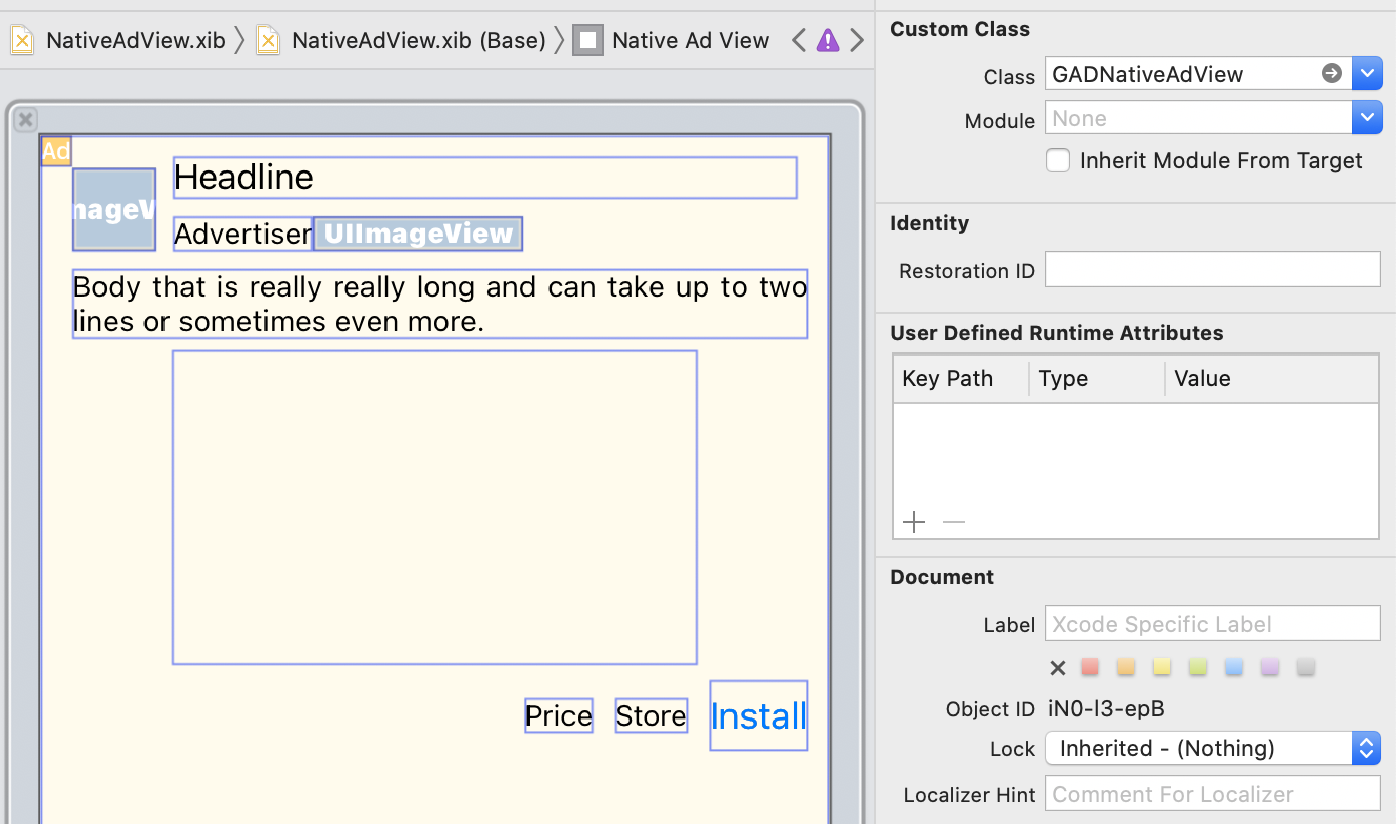
به مقدار «کلاس سفارشی» در گوشه بالای تصویر توجه کنید. روی این تنظیم شده است
GADNativeAdView.
این کلاس نمای آگهی است که برای نمایش GADNativeAd استفاده میشود.
همچنین باید کلاس سفارشی را برای GADMediaView تنظیم کنید که برای نمایش ویدیو یا تصویر آگهی استفاده میشود.
پیوند دادن پریزها به نماها
پساز اینکه نماها را در جای مناسب قرار دادید و کلاس نمای آگهی صحیح را به چیدمان اختصاص دادید،
بروندادهای دارایی نمای آگهی را به UIViews که ایجاد کردهاید پیوند دهید.
در اینجا نحوه پیوند دادن بروندادهای دارایی نمای آگهی به UIViews ایجادشده
برای آگهی آمده است:
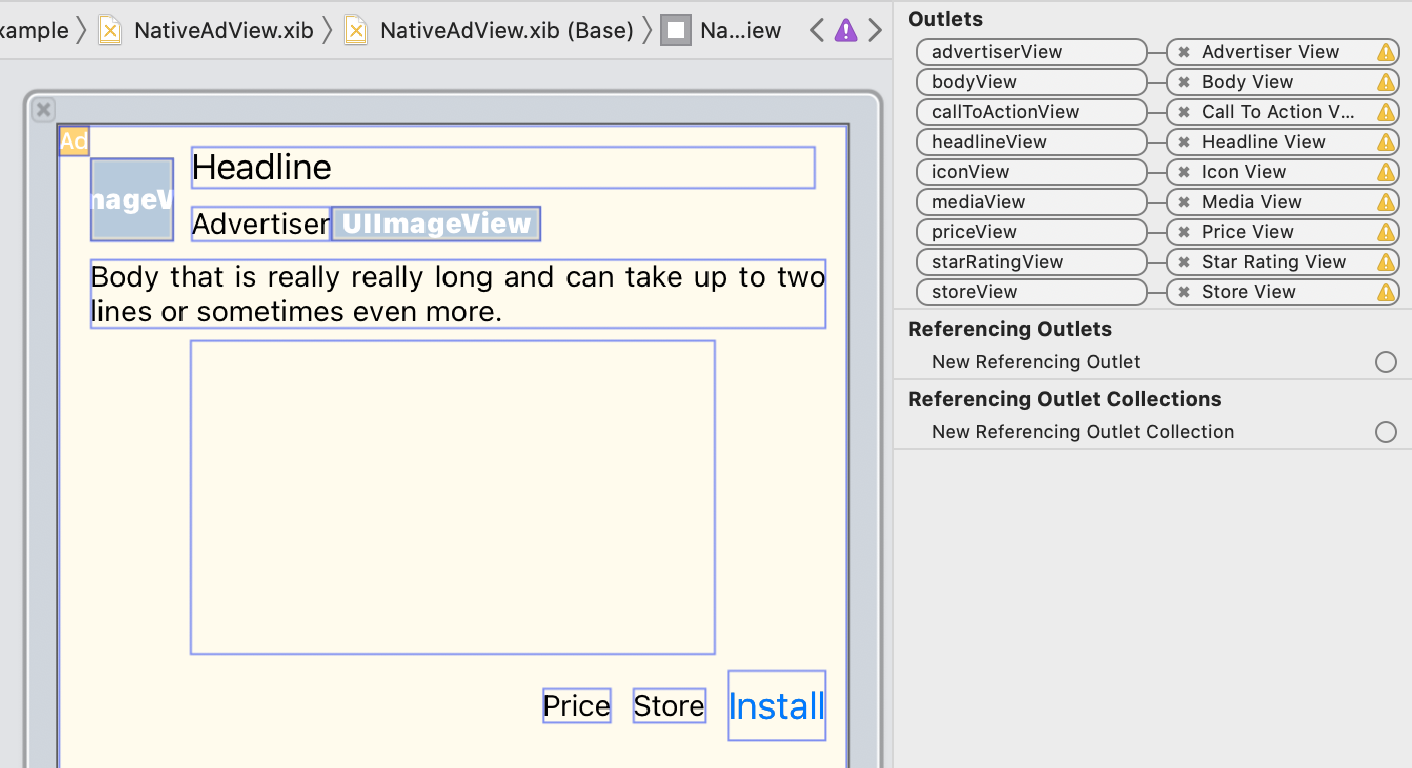
در پانل خروجی، خروجیهای GADNativeAdView به UIViews چیدهشده در «سازنده میانای کاربری» پیوند داده شده است. این کار به کیت توسعه نرمافزار کمک میکند تا بداند UIView کدام دارایی را نمایش میدهد.
همچنین مهم است که بهیاد داشته باشید این رسانهها نمایانگر دیدگاههایی هستند که در آگهی کلیککردنی هستند.
نمایش آگهی
پساز تکمیل چیدمان و پیوند دادن پریزها، کد زیر را به برنامهتان که آگهی را پساز بار شدن نمایش میدهد اضافه کنید:
Swift
func adLoader(_ adLoader: AdLoader, didReceive nativeAd: NativeAd) {
// ...
// Set ourselves as the native ad delegate to be notified of native ad events.
nativeAd.delegate = self
// Populate the native ad view with the native ad assets.
// The headline and mediaContent are guaranteed to be present in every native ad.
(nativeAdView.headlineView as? UILabel)?.text = nativeAd.headline
nativeAdView.mediaView?.mediaContent = nativeAd.mediaContent
// Some native ads will include a video asset, while others do not. Apps can use the
// GADVideoController's hasVideoContent property to determine if one is present, and adjust their
// UI accordingly.
let mediaContent = nativeAd.mediaContent
if mediaContent.hasVideoContent {
// By acting as the delegate to the GADVideoController, this ViewController receives messages
// about events in the video lifecycle.
mediaContent.videoController.delegate = self
videoStatusLabel.text = "Ad contains a video asset."
} else {
videoStatusLabel.text = "Ad does not contain a video."
}
// This app uses a fixed width for the GADMediaView and changes its height to match the aspect
// ratio of the media it displays.
if let mediaView = nativeAdView.mediaView, nativeAd.mediaContent.aspectRatio > 0 {
let aspectRatioConstraint = NSLayoutConstraint(
item: mediaView,
attribute: .width,
relatedBy: .equal,
toItem: mediaView,
attribute: .height,
multiplier: CGFloat(nativeAd.mediaContent.aspectRatio),
constant: 0)
mediaView.addConstraint(aspectRatioConstraint)
nativeAdView.layoutIfNeeded()
}
// These assets are not guaranteed to be present. Check that they are before
// showing or hiding them.
(nativeAdView.bodyView as? UILabel)?.text = nativeAd.body
nativeAdView.bodyView?.isHidden = nativeAd.body == nil
(nativeAdView.callToActionView as? UIButton)?.setTitle(nativeAd.callToAction, for: .normal)
nativeAdView.callToActionView?.isHidden = nativeAd.callToAction == nil
(nativeAdView.iconView as? UIImageView)?.image = nativeAd.icon?.image
nativeAdView.iconView?.isHidden = nativeAd.icon == nil
(nativeAdView.starRatingView as? UIImageView)?.image = imageOfStars(from: nativeAd.starRating)
nativeAdView.starRatingView?.isHidden = nativeAd.starRating == nil
(nativeAdView.storeView as? UILabel)?.text = nativeAd.store
nativeAdView.storeView?.isHidden = nativeAd.store == nil
(nativeAdView.priceView as? UILabel)?.text = nativeAd.price
nativeAdView.priceView?.isHidden = nativeAd.price == nil
(nativeAdView.advertiserView as? UILabel)?.text = nativeAd.advertiser
nativeAdView.advertiserView?.isHidden = nativeAd.advertiser == nil
// In order for the SDK to process touch events properly, user interaction should be disabled.
nativeAdView.callToActionView?.isUserInteractionEnabled = false
// Associate the native ad view with the native ad object. This is
// required to make the ad clickable.
// Note: this should always be done after populating the ad views.
nativeAdView.nativeAd = nativeAd
}
SwiftUI
ایجاد مدل نما
مدل نمایشی بسازید که آگهی بومی را بار میکند و تغییرات دادههای آگهی بومی را منتشر میکند:
import GoogleMobileAds
class NativeAdViewModel: NSObject, ObservableObject, NativeAdLoaderDelegate {
@Published var nativeAd: NativeAd?
private var adLoader: AdLoader!
func refreshAd() {
adLoader = AdLoader(
adUnitID: "ca-app-pub-3940256099942544/3986624511",
// The UIViewController parameter is optional.
rootViewController: nil,
adTypes: [.native], options: nil)
adLoader.delegate = self
adLoader.load(Request())
}
func adLoader(_ adLoader: AdLoader, didReceive nativeAd: NativeAd) {
// Native ad data changes are published to its subscribers.
self.nativeAd = nativeAd
nativeAd.delegate = self
}
func adLoader(_ adLoader: AdLoader, didFailToReceiveAdWithError error: Error) {
print("\(adLoader) failed with error: \(error.localizedDescription)")
}
}
ایجاد UIViewRepresentable
برای NativeView،
UIViewRepresentable
ایجاد کنید و در تغییرات داده در کلاس ViewModel مشترک شوید:
private struct NativeAdViewContainer: UIViewRepresentable {
typealias UIViewType = NativeAdView
// Observer to update the UIView when the native ad value changes.
@ObservedObject var nativeViewModel: NativeAdViewModel
func makeUIView(context: Context) -> NativeAdView {
return
Bundle.main.loadNibNamed(
"NativeAdView",
owner: nil,
options: nil)?.first as! NativeAdView
}
func updateUIView(_ nativeAdView: NativeAdView, context: Context) {
guard let nativeAd = nativeViewModel.nativeAd else { return }
// Each UI property is configurable using your native ad.
(nativeAdView.headlineView as? UILabel)?.text = nativeAd.headline
nativeAdView.mediaView?.mediaContent = nativeAd.mediaContent
(nativeAdView.bodyView as? UILabel)?.text = nativeAd.body
(nativeAdView.iconView as? UIImageView)?.image = nativeAd.icon?.image
(nativeAdView.starRatingView as? UIImageView)?.image = imageOfStars(from: nativeAd.starRating)
(nativeAdView.storeView as? UILabel)?.text = nativeAd.store
(nativeAdView.priceView as? UILabel)?.text = nativeAd.price
(nativeAdView.advertiserView as? UILabel)?.text = nativeAd.advertiser
(nativeAdView.callToActionView as? UIButton)?.setTitle(nativeAd.callToAction, for: .normal)
// For the SDK to process touch events properly, user interaction should be disabled.
nativeAdView.callToActionView?.isUserInteractionEnabled = false
// Associate the native ad view with the native ad object. This is required to make the ad
// clickable.
// Note: this should always be done after populating the ad views.
nativeAdView.nativeAd = nativeAd
}
افزودن نما به سلسلهمراتب نما
کد زیر اضافه کردن UIViewRepresentable به سلسلهمراتب نمای
را نشان میدهد:
struct NativeContentView: View {
// Single source of truth for the native ad data.
@StateObject private var nativeViewModel = NativeAdViewModel()
var body: some View {
ScrollView {
VStack(spacing: 20) {
// Updates when the native ad data changes.
NativeAdViewContainer(nativeViewModel: nativeViewModel)
.frame(minHeight: 300) // minHeight determined from xib.
آبجکتیو-سی
- (void)adLoader:(GADAdLoader *)adLoader didReceiveNativeAd:(GADNativeAd *)nativeAd {
// ...
GADNativeAdView *nativeAdView = self.nativeAdView;
// Set ourselves as the ad delegate to be notified of native ad events.
nativeAd.delegate = self;
// Populate the native ad view with the native ad assets.
// The headline and mediaContent are guaranteed to be present in every native ad.
((UILabel *)nativeAdView.headlineView).text = nativeAd.headline;
nativeAdView.mediaView.mediaContent = nativeAd.mediaContent;
// This app uses a fixed width for the GADMediaView and changes its height
// to match the aspect ratio of the media content it displays.
if (nativeAdView.mediaView != nil && nativeAd.mediaContent.aspectRatio > 0) {
NSLayoutConstraint *aspectRatioConstraint =
[NSLayoutConstraint constraintWithItem:nativeAdView.mediaView
attribute:NSLayoutAttributeWidth
relatedBy:NSLayoutRelationEqual
toItem:nativeAdView.mediaView
attribute:NSLayoutAttributeHeight
multiplier:(nativeAd.mediaContent.aspectRatio)
constant:0];
[nativeAdView.mediaView addConstraint:aspectRatioConstraint];
[nativeAdView layoutIfNeeded];
}
if (nativeAd.mediaContent.hasVideoContent) {
// By acting as the delegate to the GADVideoController, this ViewController
// receives messages about events in the video lifecycle.
nativeAd.mediaContent.videoController.delegate = self;
self.videoStatusLabel.text = @"Ad contains a video asset.";
} else {
self.videoStatusLabel.text = @"Ad does not contain a video.";
}
// These assets are not guaranteed to be present. Check that they are before
// showing or hiding them.
((UILabel *)nativeAdView.bodyView).text = nativeAd.body;
nativeAdView.bodyView.hidden = nativeAd.body ? NO : YES;
[((UIButton *)nativeAdView.callToActionView) setTitle:nativeAd.callToAction
forState:UIControlStateNormal];
nativeAdView.callToActionView.hidden = nativeAd.callToAction ? NO : YES;
((UIImageView *)nativeAdView.iconView).image = nativeAd.icon.image;
nativeAdView.iconView.hidden = nativeAd.icon ? NO : YES;
((UIImageView *)nativeAdView.starRatingView).image = [self imageForStars:nativeAd.starRating];
nativeAdView.starRatingView.hidden = nativeAd.starRating ? NO : YES;
((UILabel *)nativeAdView.storeView).text = nativeAd.store;
nativeAdView.storeView.hidden = nativeAd.store ? NO : YES;
((UILabel *)nativeAdView.priceView).text = nativeAd.price;
nativeAdView.priceView.hidden = nativeAd.price ? NO : YES;
((UILabel *)nativeAdView.advertiserView).text = nativeAd.advertiser;
nativeAdView.advertiserView.hidden = nativeAd.advertiser ? NO : YES;
// In order for the SDK to process touch events properly, user interaction
// should be disabled.
nativeAdView.callToActionView.userInteractionEnabled = NO;
// Associate the native ad view with the native ad object. This is
// required to make the ad clickable.
// Note: this should always be done after populating the ad views.
nativeAdView.nativeAd = nativeAd;
}
مثال کامل در GitHub
با دنبال کردن پیوند GitHub مربوطه، نمونه کامل یکپارچهسازی آگهیهای بومی در Swift، SwiftUI، و Objective-C را مشاهده کنید.
نمونه پیشرفته بومی Swift نمونه آگهیهای بومی SwiftUI نمونه پیشرفته بومی Objective-CGADMediaView
داراییهای تصویری و ویدیویی بااستفاده از
GADMediaView به کاربران نمایش داده میشود.
این UIView را میتوان در فایل xib تعریف کرد یا بهصورت پویا ساخت.
این عنصر باید در سلسلهمراتب نمای GADNativeAdView قرار گیرد، همانند
هر نمای دارایی دیگری.
همانند همه نماهای دارایی، نمای رسانه باید محتوای خود را
پر کند. این مورد بااستفاده از
mediaContent
خصوصیت در GADMediaView تنظیم شده است. دارایی
mediaContent
GADNativeAd
حاوی محتوای رسانهای است که میتواند به
GADMediaView منتقل شود.
در اینجا گزیدهای از
مثال «پیشرفته بومی»
(Swift |
Objective-C)
نشان میدهد چگونه بااستفاده از
GADMediaContent از GADNativeAd، GADMediaView را با داراییهای آگهی بومی تکمیل کنید:
Swift
nativeAdView.mediaView?.mediaContent = nativeAd.mediaContent
آبجکتیو-سی
nativeAdView.mediaView.mediaContent = nativeAd.mediaContent;
مطمئن شوید که در فایل سازنده واسط برای نمای آگهی بومی خود، کلاس سفارشی نماها را روی GADMediaView تنظیم کردهاید و آن را به برونداد mediaView متصل کردهاید.
تغییر حالت محتوای تصویر
هنگام نمایش تصاویر، کلاس GADMediaView از دارایی UIView
contentMode
پیروی میکند. اگر میخواهید نحوه مقیاسبندی تصویر در
GADMediaView را تغییر دهید،
UIViewContentMode
متناظر را در دارایی contentMode از GADMediaView تنظیم کنید تا به این هدف برسید.
برای مثال، برای پر کردن GADMediaView وقتی تصویری نمایش داده میشود (آگهی ویدیو ندارد):
Swift
nativeAdView.mediaView?.contentMode = .scaleAspectFit
آبجکتیو-سی
nativeAdView.mediaView.contentMode = UIViewContentModeScaleAspectFit;
GADMediaContent
کلاس GADMediaContent
دادههای مربوط به محتوای رسانهای آگهی بومی را دربرمیگیرد که
بااستفاده از کلاس GADMediaView نمایش داده میشود. وقتی روی خصوصیت GADMediaView
mediaContent تنظیم شده باشد:
اگر دارایی ویدیویی دردسترس باشد، بافر میشود و در
GADMediaViewشروع به پخش میکند. میتوانید با بررسیhasVideoContentمتوجه شوید که آیا یک دارایی ویدیویی دردسترس است یا خیر.اگر آگهی دارایی ویدیویی نداشته باشد، دارایی
mainImageبارگیری میشود و بهجای آن درGADMediaViewقرار میگیرد.
مراحل بعدی
درباره حریم خصوصی کاربر بیشتر بدانید.