
Отображение заданного системой формата нативной рекламы
When a native ad loads, your app will receive a native ad object using one of the GADAdLoaderDelegate protocol messages. Your app is then responsible for displaying the ad (though it doesn't necessarily have to do so immediately). To make displaying system-defined ad formats easier, the SDK offers some useful resources.
GADNativeAdView
For the GADNativeAd , there is a corresponding "ad view" class: GADNativeAdView . This ad view class is a UIView that publishers should use to display the ad. A single GADNativeAdView , for example, can display a single instance of a GADNativeAd . Each of the UIView objects used to display that ad's assets should be subviews of that GADNativeAdView object.
Например, если вы отображаете рекламу в UITableView , иерархия представлений для одной из ячеек может выглядеть следующим образом:
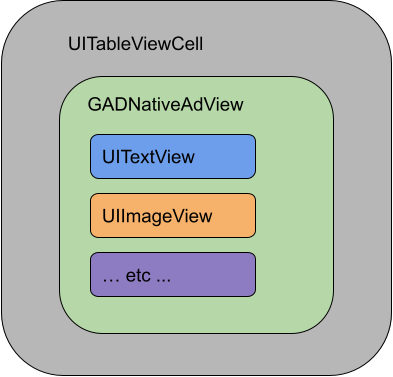
The GADNativeAdView class also provides IBOutlets used to register the view used for each individual asset, and a method to register the GADNativeAd object itself. Registering the views in this way allows the SDK to automatically handle tasks such as:
- Запись щелчков.
- Запись показов (когда первый пиксель становится виден на экране).
- Отображение всплывающего окна AdChoices.
Наложение AdChoices
Для косвенной нативной рекламы (поставляемой через AdMob Backfill, Ad Exchange или AdSense) SDK добавляет наложение AdChoices. Оставьте место в нужном углу экрана вашей нативной рекламы для автоматически вставляемого логотипа AdChoices. Также убедитесь, что наложение AdChoices размещено на контенте, позволяющем четко видеть значок. Для получения дополнительной информации о внешнем виде и функциях наложения см. руководство по внедрению программной нативной рекламы .
Атрибуция рекламы
При показе программной нативной рекламы необходимо указывать атрибуцию объявления, чтобы обозначить, что просмотр является рекламным.Пример кода
В этом разделе показано, как отображать нативную рекламу, используя представления, загружаемые динамически из файлов xib. Это может быть очень полезным подходом при использовании GADAdLoaders , настроенных на запрос нескольких форматов.
Разместите элементы интерфейса (UIViews) в нужном месте.
The first step is to lay out the UIViews that will display native ad assets. You can do this in the Interface Builder as you would when creating any other xib file. Here's how the layout for a native ad might look:
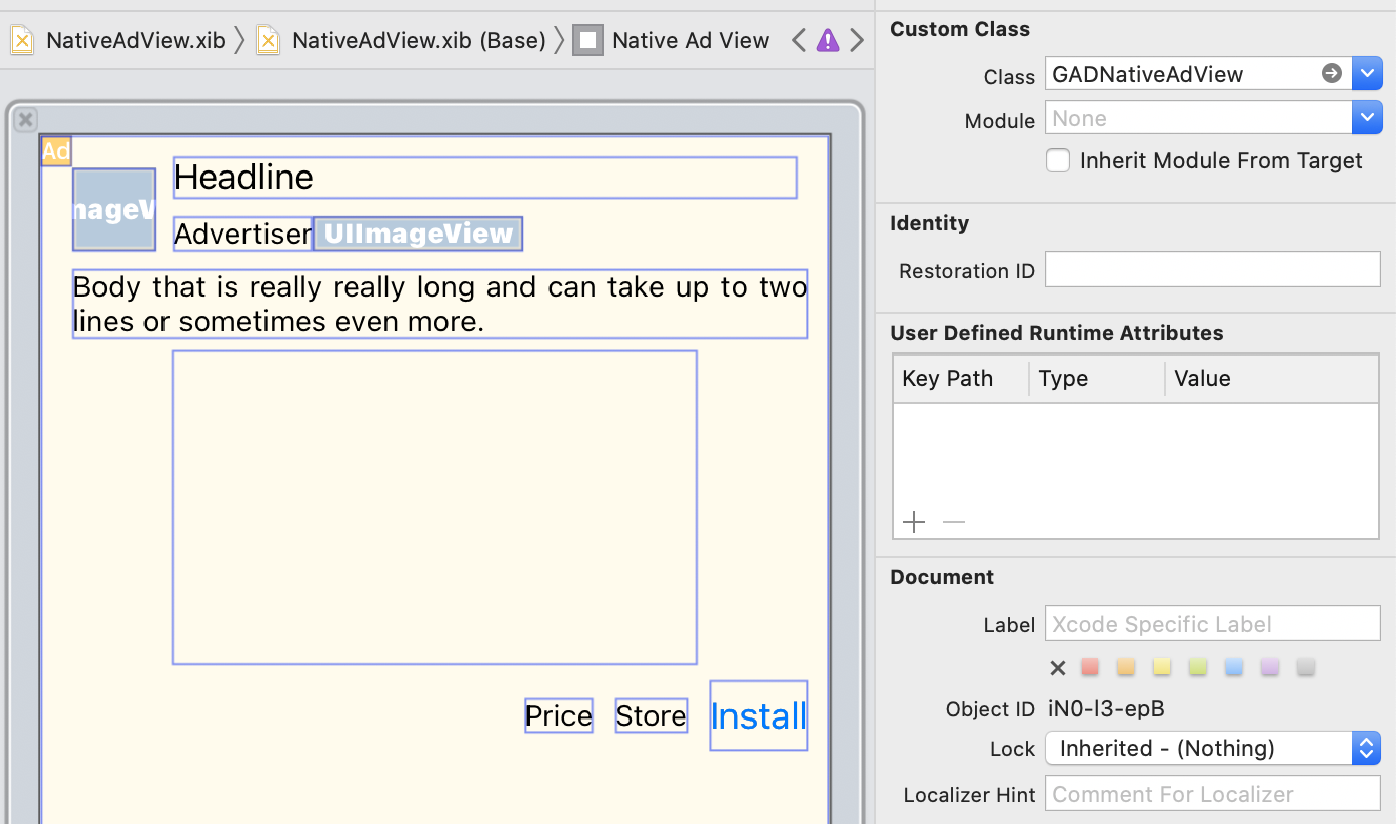
Обратите внимание на значение параметра "Custom Class" в правом верхнем углу изображения. Оно установлено на
GADNativeAdView . Это класс представления объявления, используемый для отображения GADNativeAd .
Вам также потребуется задать пользовательский класс для GADMediaView , который используется для отображения видео или изображения в рекламе.
Свяжите источники информации с мнениями.
Once the views are in place and you've assigned the correct ad view class to the layout, link the ad view's asset outlets to the UIViews you've created. Here's how you might link the ad view's asset outlets to the UIViews created for an ad: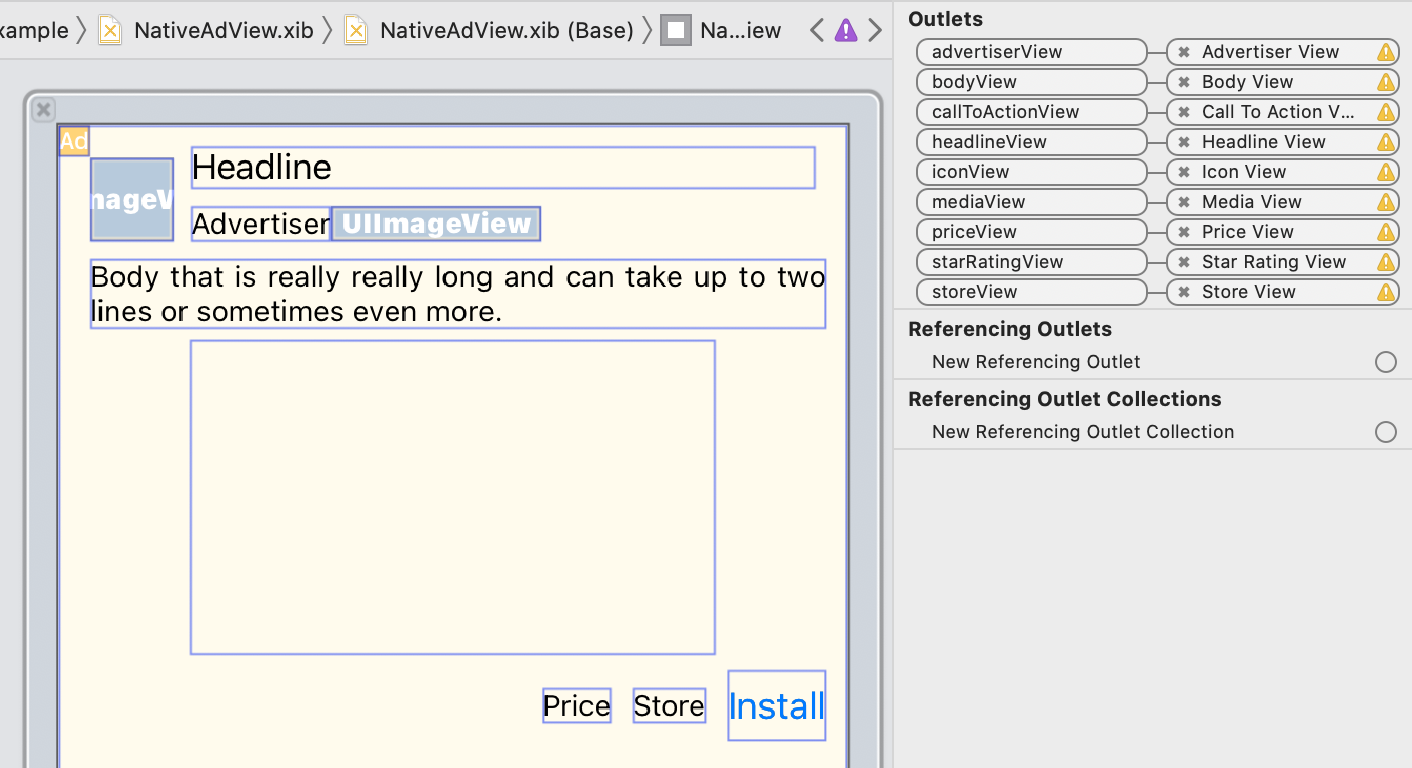
In the outlet panel, the outlets in GADNativeAdView have been linked to the UIViews laid out in the Interface Builder. This lets the SDK know which UIView displays which asset. It's also important to remember that these outlets represent the views that are clickable in the ad.
Показать объявление
После завершения настройки макета и подключения розеток добавьте в приложение следующий код, который будет отображать рекламу после загрузки приложения:
Быстрый
func adLoader(_ adLoader: AdLoader, didReceive nativeAd: NativeAd) {
// ...
// Set ourselves as the native ad delegate to be notified of native ad events.
nativeAd.delegate = self
// Populate the native ad view with the native ad assets.
// The headline and mediaContent are guaranteed to be present in every native ad.
(nativeAdView.headlineView as? UILabel)?.text = nativeAd.headline
nativeAdView.mediaView?.mediaContent = nativeAd.mediaContent
// Some native ads will include a video asset, while others do not. Apps can use the
// GADVideoController's hasVideoContent property to determine if one is present, and adjust their
// UI accordingly.
let mediaContent = nativeAd.mediaContent
if mediaContent.hasVideoContent {
// By acting as the delegate to the GADVideoController, this ViewController receives messages
// about events in the video lifecycle.
mediaContent.videoController.delegate = self
videoStatusLabel.text = "Ad contains a video asset."
} else {
videoStatusLabel.text = "Ad does not contain a video."
}
// This app uses a fixed width for the GADMediaView and changes its height to match the aspect
// ratio of the media it displays.
if let mediaView = nativeAdView.mediaView, nativeAd.mediaContent.aspectRatio > 0 {
let aspectRatioConstraint = NSLayoutConstraint(
item: mediaView,
attribute: .width,
relatedBy: .equal,
toItem: mediaView,
attribute: .height,
multiplier: CGFloat(nativeAd.mediaContent.aspectRatio),
constant: 0)
mediaView.addConstraint(aspectRatioConstraint)
nativeAdView.layoutIfNeeded()
}
// These assets are not guaranteed to be present. Check that they are before
// showing or hiding them.
(nativeAdView.bodyView as? UILabel)?.text = nativeAd.body
nativeAdView.bodyView?.isHidden = nativeAd.body == nil
(nativeAdView.callToActionView as? UIButton)?.setTitle(nativeAd.callToAction, for: .normal)
nativeAdView.callToActionView?.isHidden = nativeAd.callToAction == nil
(nativeAdView.iconView as? UIImageView)?.image = nativeAd.icon?.image
nativeAdView.iconView?.isHidden = nativeAd.icon == nil
(nativeAdView.starRatingView as? UIImageView)?.image = imageOfStars(from: nativeAd.starRating)
nativeAdView.starRatingView?.isHidden = nativeAd.starRating == nil
(nativeAdView.storeView as? UILabel)?.text = nativeAd.store
nativeAdView.storeView?.isHidden = nativeAd.store == nil
(nativeAdView.priceView as? UILabel)?.text = nativeAd.price
nativeAdView.priceView?.isHidden = nativeAd.price == nil
(nativeAdView.advertiserView as? UILabel)?.text = nativeAd.advertiser
nativeAdView.advertiserView?.isHidden = nativeAd.advertiser == nil
// In order for the SDK to process touch events properly, user interaction should be disabled.
nativeAdView.callToActionView?.isUserInteractionEnabled = false
// Associate the native ad view with the native ad object. This is
// required to make the ad clickable.
// Note: this should always be done after populating the ad views.
nativeAdView.nativeAd = nativeAd
}
SwiftUI
Создайте модель представления.
Создайте модель представления, которая загружает нативную рекламу и публикует изменения данных о ней:
import GoogleMobileAds
class NativeAdViewModel: NSObject, ObservableObject, NativeAdLoaderDelegate {
@Published var nativeAd: NativeAd?
private var adLoader: AdLoader!
func refreshAd() {
adLoader = AdLoader(
adUnitID: "ca-app-pub-3940256099942544/3986624511",
// The UIViewController parameter is optional.
rootViewController: nil,
adTypes: [.native], options: nil)
adLoader.delegate = self
adLoader.load(Request())
}
func adLoader(_ adLoader: AdLoader, didReceive nativeAd: NativeAd) {
// Native ad data changes are published to its subscribers.
self.nativeAd = nativeAd
nativeAd.delegate = self
}
func adLoader(_ adLoader: AdLoader, didFailToReceiveAdWithError error: Error) {
print("\(adLoader) failed with error: \(error.localizedDescription)")
}
}
Создайте UIViewRepresentable
Создайте объект UIViewRepresentable для NativeView и подпишитесь на изменения данных в классе ViewModel :
private struct NativeAdViewContainer: UIViewRepresentable {
typealias UIViewType = NativeAdView
// Observer to update the UIView when the native ad value changes.
@ObservedObject var nativeViewModel: NativeAdViewModel
func makeUIView(context: Context) -> NativeAdView {
return
Bundle.main.loadNibNamed(
"NativeAdView",
owner: nil,
options: nil)?.first as! NativeAdView
}
func updateUIView(_ nativeAdView: NativeAdView, context: Context) {
guard let nativeAd = nativeViewModel.nativeAd else { return }
// Each UI property is configurable using your native ad.
(nativeAdView.headlineView as? UILabel)?.text = nativeAd.headline
nativeAdView.mediaView?.mediaContent = nativeAd.mediaContent
(nativeAdView.bodyView as? UILabel)?.text = nativeAd.body
(nativeAdView.iconView as? UIImageView)?.image = nativeAd.icon?.image
(nativeAdView.starRatingView as? UIImageView)?.image = imageOfStars(from: nativeAd.starRating)
(nativeAdView.storeView as? UILabel)?.text = nativeAd.store
(nativeAdView.priceView as? UILabel)?.text = nativeAd.price
(nativeAdView.advertiserView as? UILabel)?.text = nativeAd.advertiser
(nativeAdView.callToActionView as? UIButton)?.setTitle(nativeAd.callToAction, for: .normal)
// For the SDK to process touch events properly, user interaction should be disabled.
nativeAdView.callToActionView?.isUserInteractionEnabled = false
// Associate the native ad view with the native ad object. This is required to make the ad
// clickable.
// Note: this should always be done after populating the ad views.
nativeAdView.nativeAd = nativeAd
}
Добавьте представление в иерархию представлений.
Приведенный ниже код демонстрирует добавление объекта UIViewRepresentable в иерархию представлений:
struct NativeContentView: View {
// Single source of truth for the native ad data.
@StateObject private var nativeViewModel = NativeAdViewModel()
var body: some View {
ScrollView {
VStack(spacing: 20) {
// Updates when the native ad data changes.
NativeAdViewContainer(nativeViewModel: nativeViewModel)
.frame(minHeight: 300) // minHeight determined from xib.
Objective-C
- (void)adLoader:(GADAdLoader *)adLoader didReceiveNativeAd:(GADNativeAd *)nativeAd {
// ...
GADNativeAdView *nativeAdView = self.nativeAdView;
// Set ourselves as the ad delegate to be notified of native ad events.
nativeAd.delegate = self;
// Populate the native ad view with the native ad assets.
// The headline and mediaContent are guaranteed to be present in every native ad.
((UILabel *)nativeAdView.headlineView).text = nativeAd.headline;
nativeAdView.mediaView.mediaContent = nativeAd.mediaContent;
// This app uses a fixed width for the GADMediaView and changes its height
// to match the aspect ratio of the media content it displays.
if (nativeAdView.mediaView != nil && nativeAd.mediaContent.aspectRatio > 0) {
NSLayoutConstraint *aspectRatioConstraint =
[NSLayoutConstraint constraintWithItem:nativeAdView.mediaView
attribute:NSLayoutAttributeWidth
relatedBy:NSLayoutRelationEqual
toItem:nativeAdView.mediaView
attribute:NSLayoutAttributeHeight
multiplier:(nativeAd.mediaContent.aspectRatio)
constant:0];
[nativeAdView.mediaView addConstraint:aspectRatioConstraint];
[nativeAdView layoutIfNeeded];
}
if (nativeAd.mediaContent.hasVideoContent) {
// By acting as the delegate to the GADVideoController, this ViewController
// receives messages about events in the video lifecycle.
nativeAd.mediaContent.videoController.delegate = self;
self.videoStatusLabel.text = @"Ad contains a video asset.";
} else {
self.videoStatusLabel.text = @"Ad does not contain a video.";
}
// These assets are not guaranteed to be present. Check that they are before
// showing or hiding them.
((UILabel *)nativeAdView.bodyView).text = nativeAd.body;
nativeAdView.bodyView.hidden = nativeAd.body ? NO : YES;
[((UIButton *)nativeAdView.callToActionView) setTitle:nativeAd.callToAction
forState:UIControlStateNormal];
nativeAdView.callToActionView.hidden = nativeAd.callToAction ? NO : YES;
((UIImageView *)nativeAdView.iconView).image = nativeAd.icon.image;
nativeAdView.iconView.hidden = nativeAd.icon ? NO : YES;
((UIImageView *)nativeAdView.starRatingView).image = [self imageForStars:nativeAd.starRating];
nativeAdView.starRatingView.hidden = nativeAd.starRating ? NO : YES;
((UILabel *)nativeAdView.storeView).text = nativeAd.store;
nativeAdView.storeView.hidden = nativeAd.store ? NO : YES;
((UILabel *)nativeAdView.priceView).text = nativeAd.price;
nativeAdView.priceView.hidden = nativeAd.price ? NO : YES;
((UILabel *)nativeAdView.advertiserView).text = nativeAd.advertiser;
nativeAdView.advertiserView.hidden = nativeAd.advertiser ? NO : YES;
// In order for the SDK to process touch events properly, user interaction
// should be disabled.
nativeAdView.callToActionView.userInteractionEnabled = NO;
// Associate the native ad view with the native ad object. This is
// required to make the ad clickable.
// Note: this should always be done after populating the ad views.
nativeAdView.nativeAd = nativeAd;
}
Полный пример на GitHub
Полный пример интеграции нативной рекламы в Swift, SwiftUI и Objective-C можно посмотреть, перейдя по соответствующей ссылке на GitHub.
Пример продвинутого использования нативных приложений Swift Пример нативной рекламы SwiftUI Пример продвинутого использования нативных приложений Objective-CGADMediaView
Image and video assets are displayed to users using GADMediaView . This is a UIView that can be defined in a xib file or constructed dynamically. It should be placed within the view hierarchy of a GADNativeAdView , as with any other asset view.
As with all asset views, the media view needs to have its content populated. This is set using the mediaContent property on GADMediaView . The mediaContent property of GADNativeAd contains media content that can be passed to a GADMediaView .
Вот фрагмент кода из примера Native Advanced ( Swift | Objective-C ), демонстрирующий, как заполнить GADMediaView нативными рекламными ресурсами, используя GADMediaContent из GADNativeAd :
Быстрый
nativeAdView.mediaView?.mediaContent = nativeAd.mediaContent
Objective-C
nativeAdView.mediaView.mediaContent = nativeAd.mediaContent;
Убедитесь, что в файле Interface Builder для вашего нативного рекламного представления пользовательский класс Views установлен на GADMediaView и подключен к аутлету mediaView .
Изменить режим содержимого изображения
The GADMediaView class respects the UIView contentMode property when displaying images. If you want to change how an image is scaled in the GADMediaView , set the corresponding UIViewContentMode on the contentMode property of the GADMediaView to achieve this.
Например, чтобы заполнить GADMediaView при отображении изображения (в рекламе нет видео):
Быстрый
nativeAdView.mediaView?.contentMode = .scaleAspectFit
Objective-C
nativeAdView.mediaView.contentMode = UIViewContentModeScaleAspectFit;
GADMediaContent
Класс GADMediaContent содержит данные, относящиеся к медиаконтенту нативной рекламы, которая отображается с помощью класса GADMediaView . При установке свойства mediaContent для класса GADMediaView :
Если видеофайл доступен, он буферизуется и начинает воспроизводиться внутри
GADMediaView. О наличии видеофайла можно судить по параметруhasVideoContent.Если в рекламе отсутствует видеофайл, то вместо него загружается и размещается в
GADMediaViewфайлmainImage.
Следующие шаги
Узнайте больше о конфиденциальности пользователей .