
नेटिव टेंप्लेट, आपके नेटिव विज्ञापनों के लिए कोड-कंप्लीट व्यू होते हैं. इन्हें तेज़ी से लागू करने और आसानी से बदलाव करने के लिए डिज़ाइन किया गया है. नेटिव टेंप्लेट की मदद से, प्लगिन आपको Android और iOS के लिए पहले से बने लेआउट उपलब्ध कराता है. साथ ही, Dart API का इस्तेमाल करके, नेटिव ऐसेट की स्टाइल को पसंद के मुताबिक बनाया जा सकता है.
इस गाइड में, Dart API का इस्तेमाल करके, प्लैटफ़ॉर्म व्यू को स्टाइल करने और विज्ञापन रेंडर करने का तरीका बताया गया है.
ज़रूरी शर्तें
आगे बढ़ने से पहले, ये काम करें:
- Flutter 2.4.0 या इसके बाद का वर्शन.
हमेशा टेस्ट विज्ञापनों का इस्तेमाल करके टेस्ट करना
अपने ऐप्लिकेशन बनाने और उनकी टेस्टिंग करने के लिए, लाइव और प्रोडक्शन विज्ञापन इस्तेमाल करने के बजाय, टेस्ट विज्ञापन इस्तेमाल करें. टेस्ट विज्ञापन लोड करने का सबसे आसान तरीका, नेटिव विज्ञापनों के लिए हमारे खास टेस्ट विज्ञापन यूनिट आईडी का इस्तेमाल करना है:
Android
ca-app-pub-3940256099942544/2247696110
iOS
ca-app-pub-3940256099942544/3986624511
टेस्ट विज्ञापन यूनिट को इस तरह कॉन्फ़िगर किया जाता है कि हर अनुरोध के लिए टेस्ट विज्ञापन दिखाए जा सकें. इसलिए, कोडिंग, टेस्टिंग, और डीबग करने के दौरान, इनका इस्तेमाल अपने ऐप्लिकेशन में किया जा सकता है. हालांकि, ऐप्लिकेशन पब्लिश करने से पहले, इन्हें अपने विज्ञापन यूनिट आईडी से बदल लें.
विज्ञापन लोड करना
यहां दिए गए उदाहरण में, medium साइज़ वाले नेटिव टेंप्लेट का इस्तेमाल करके नेटिव विज्ञापन लोड किया गया है:
class NativeExampleState extends State<NativeExample> {
  NativeAd? nativeAd;
  bool _nativeAdIsLoaded = false;

 // TODO: replace this test ad unit with your own ad unit.
 final String _adUnitId = Platform.isAndroid
      ? 'ca-app-pub-3940256099942544/2247696110'
      : 'ca-app-pub-3940256099942544/3986624511';

  /// Loads a native ad.
  void loadAd() {
    _nativeAd = NativeAd(
        adUnitId: _adUnitId,
        listener: NativeAdListener(
          onAdLoaded: (ad) {
            debugPrint('$NativeAd loaded.');
            setState(() {
              _nativeAdIsLoaded = true;
            });
          },
          onAdFailedToLoad: (ad, error) {
            // Dispose the ad here to free resources.
            debugPrint('$NativeAd failed to load: $error');
            ad.dispose();
          },
        ),
        request: const AdRequest(),
        // Styling
        nativeTemplateStyle: NativeTemplateStyle(
            // Required: Choose a template.
            templateType: TemplateType.medium,
            // Optional: Customize the ad's style.
            mainBackgroundColor: Colors.purple,
            cornerRadius: 10.0,
            callToActionTextStyle: NativeTemplateTextStyle(
                textColor: Colors.cyan,
                backgroundColor: Colors.red,
                style: NativeTemplateFontStyle.monospace,
                size: 16.0),
            primaryTextStyle: NativeTemplateTextStyle(
                textColor: Colors.red,
                backgroundColor: Colors.cyan,
                style: NativeTemplateFontStyle.italic,
                size: 16.0),
            secondaryTextStyle: NativeTemplateTextStyle(
                textColor: Colors.green,
                backgroundColor: Colors.black,
                style: NativeTemplateFontStyle.bold,
                size: 16.0),
            tertiaryTextStyle: NativeTemplateTextStyle(
                textColor: Colors.brown,
                backgroundColor: Colors.amber,
                style: NativeTemplateFontStyle.normal,
                size: 16.0)))
      ..load();
  }
}
स्टाइलिंग के उपलब्ध विकल्पों के लिए, NativeTemplateStyle और NativeTemplateTextStyle देखें.
विज्ञापन को पसंद के मुताबिक बनाना
नेटिव टेंप्लेट का इस्तेमाल करके नेटिव विज्ञापन को पसंद के मुताबिक बनाने पर, आपके विज्ञापन का यूज़र इंटरफ़ेस (यूआई) कॉन्फ़िगरेशन, NativeTemplateStyle क्लास में सेव हो जाएगा. इससे आपको डार्ट कोड में पूरे नेटिव विज्ञापन की स्टाइल तय करने में मदद मिलेगी.
टेंप्लेट के साइज़
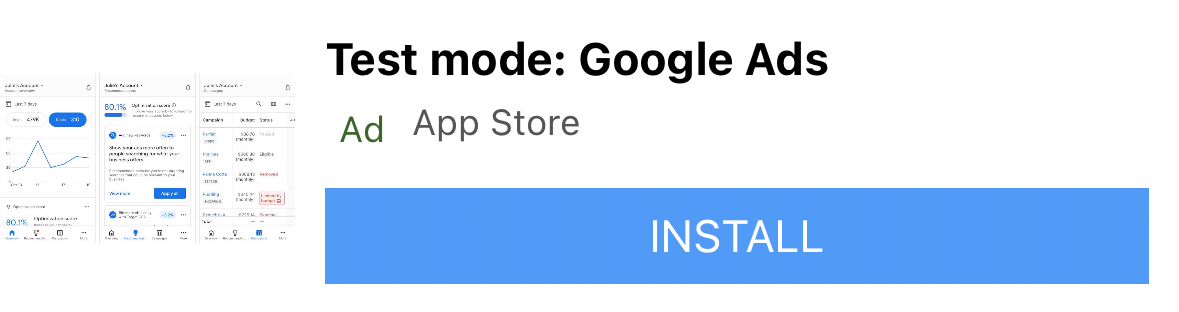
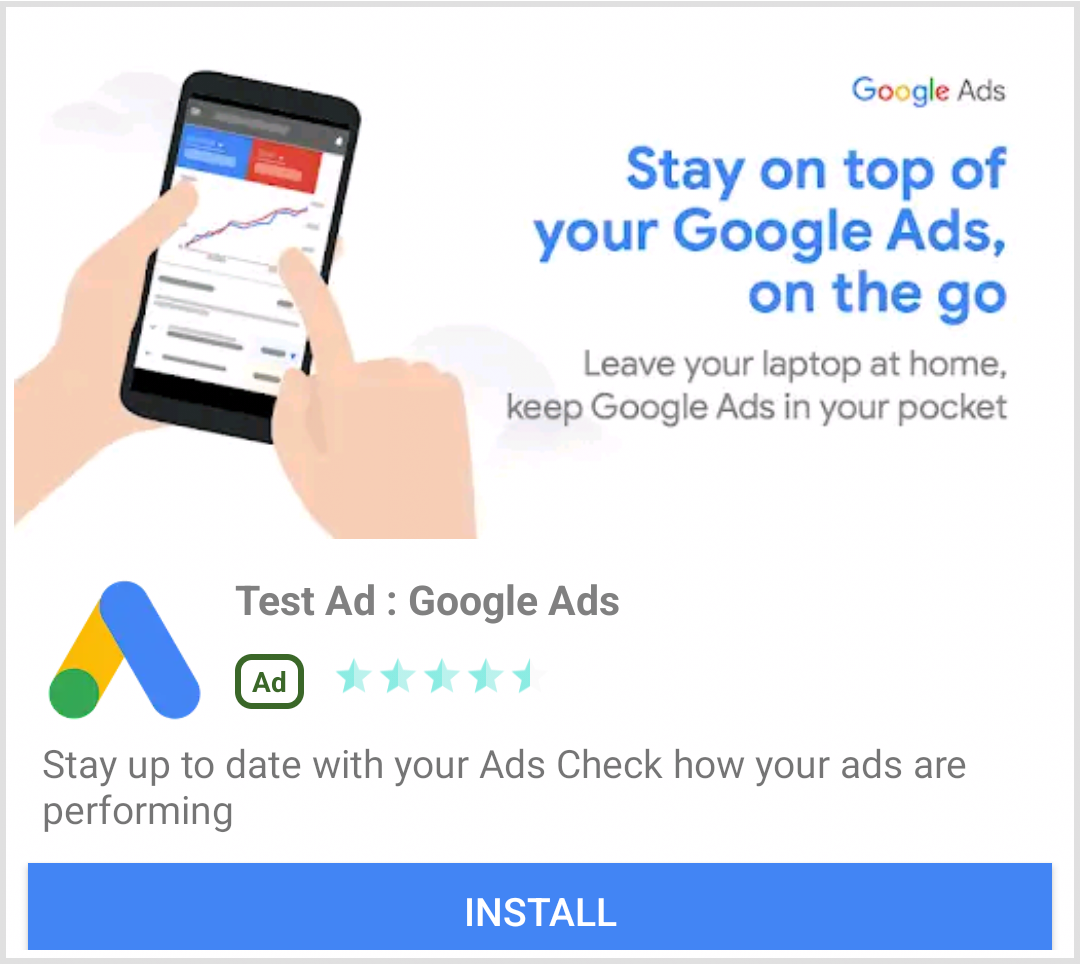
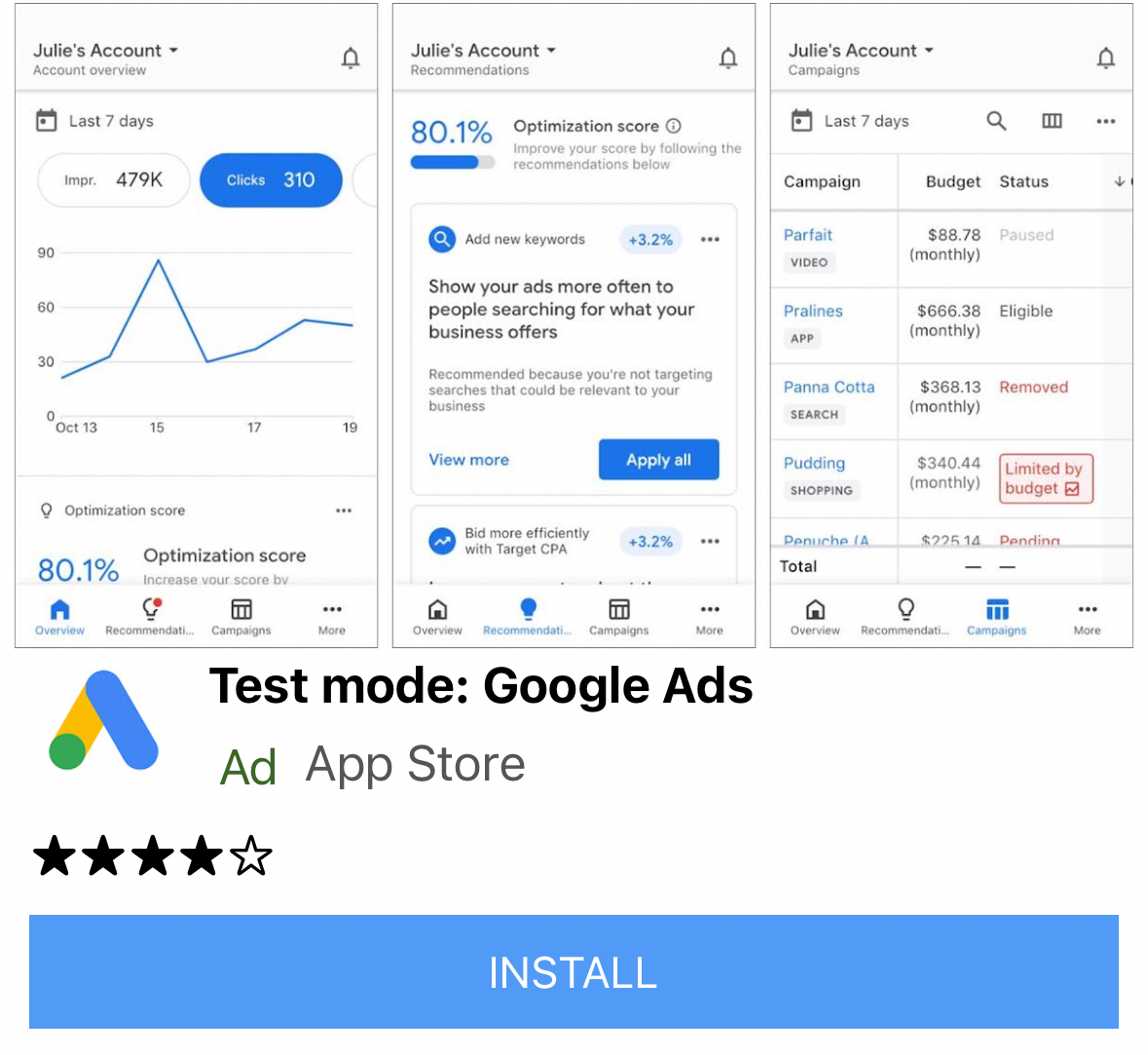
Flutter नेटिव विज्ञापन टेंप्लेट दो तरह के होते हैं: TemplateType.small और
TemplateType.medium. छोटा टेंप्लेट, TableView या GridView के लिए सबसे सही है. इसका इस्तेमाल फ़ीड में दिखने वाले विज्ञापनों या ऐसी किसी भी जगह पर किया जा सकता है जहां आपको पतला आयताकार विज्ञापन व्यू दिखाना हो. मीडियम टेंप्लेट, पेज व्यू का आधा से तीन-चौथाई हिस्सा होता है. यह लैंडिंग या स्प्लैश पेजों के लिए सबसे सही होता है.
| छोटा | |
|---|---|
 Android |
 iOS |
| मीडियम | |
 Android |
 iOS |
नेटिव विज्ञापन के इवेंट
नेटिव विज्ञापन इंटरैक्शन से जुड़े इवेंट की सूचना पाने के लिए, विज्ञापन की listener प्रॉपर्टी का इस्तेमाल करें. इसके बाद, विज्ञापन इवेंट के कॉल बैक पाने के लिए, NativeAdListener लागू करें.
class NativeExampleState extends State<NativeExample> {
  NativeAd? _nativeAd;
  bool _nativeAdIsLoaded = false;

 // TODO: replace this test ad unit with your own ad unit.
 final String _adUnitId = Platform.isAndroid
      ? 'ca-app-pub-3940256099942544/2247696110'
      : 'ca-app-pub-3940256099942544/3986624511';

  /// Loads a native ad.
  void loadAd() {
    _nativeAd = NativeAd(
        adUnitId: _adUnitId,
        listener: NativeAdListener(
          onAdLoaded: (ad) {
            print('$NativeAd loaded.');
            setState(() {
              _nativeAdIsLoaded = true;
            });
          },
          onAdFailedToLoad: (ad, error) {
            // Dispose the ad here to free resources.
            print('$NativeAd failedToLoad: $error');
            ad.dispose();
          },
          // Called when a click is recorded for a NativeAd.
          onAdClicked: (ad) {},
          // Called when an impression occurs on the ad.
          onAdImpression: (ad) {},
          // Called when an ad removes an overlay that covers the screen.
          onAdClosed: (ad) {},
          // Called when an ad opens an overlay that covers the screen.
          onAdOpened: (ad) {},
          // For iOS only. Called before dismissing a full screen view
          onAdWillDismissScreen: (ad) {},
          // Called when an ad receives revenue value.
          onPaidEvent: (ad, valueMicros, precision, currencyCode) {},
        ),
        request: const AdRequest(),
        // Styling
        nativeTemplateStyle: NativeTemplateStyle(
            // Required: Choose a template.
            templateType: TemplateType.medium,
            // Optional: Customize the ad's style.
            mainBackgroundColor: Colors.purple,
            cornerRadius: 10.0,
            callToActionTextStyle: NativeTemplateTextStyle(
                textColor: Colors.cyan,
                backgroundColor: Colors.red,
                style: NativeTemplateFontStyle.monospace,
                size: 16.0),
            primaryTextStyle: NativeTemplateTextStyle(
                textColor: Colors.red,
                backgroundColor: Colors.cyan,
                style: NativeTemplateFontStyle.italic,
                size: 16.0),
            secondaryTextStyle: NativeTemplateTextStyle(
                textColor: Colors.green,
                backgroundColor: Colors.black,
                style: NativeTemplateFontStyle.bold,
                size: 16.0),
            tertiaryTextStyle: NativeTemplateTextStyle(
                textColor: Colors.brown,
                backgroundColor: Colors.amber,
                style: NativeTemplateFontStyle.normal,
                size: 16.0)))
      ..load();
  }
}
विज्ञापन दिखाना
NativeAd को विजेट के तौर पर दिखाने के लिए, आपको load() को कॉल करने के बाद, काम करने वाले विज्ञापन के साथ AdWidget को इंस्टैंशिएट करना होगा. load() को कॉल करने से पहले, विजेट बनाया जा सकता है. हालांकि, विजेट ट्री में विजेट जोड़ने से पहले, load() को कॉल करना ज़रूरी है.
AdWidget, Flutter की Widget क्लास से इनहेरिट होता है. इसका इस्तेमाल किसी भी दूसरे विजेट की तरह किया जा सकता है. iOS पर, पक्का करें कि आपने विजेट को ऐसे कंटेनर में रखा हो जिसकी चौड़ाई और लंबाई तय की गई हो. ऐसा न करने पर, हो सकता है कि आपका विज्ञापन न दिखाया जाए.
// Small template
final adContainer = ConstrainedBox(
  constraints: const BoxConstraints(
    minWidth: 320, // minimum recommended width
    minHeight: 90, // minimum recommended height
    maxWidth: 400,
    maxHeight: 200,
  ),
  child: AdWidget(ad: _nativeAd!),
);

// Medium template
final adContainer = ConstrainedBox(
  constraints: const BoxConstraints(
    minWidth: 320, // minimum recommended width
    minHeight: 320, // minimum recommended height
    maxWidth: 400,
    maxHeight: 400,
  ),
  child: AdWidget(ad: _nativeAd!),
);
विज्ञापन खारिज करना
जब NativeAd की ज़रूरत न हो, तो उसे डिस्पोज़ करना ज़रूरी है. dispose() को कॉल करने का सबसे सही तरीका यह है कि नेटिव विज्ञापन से जुड़ा AdWidget, विजेट ट्री से हटाए जाने के बाद और AdListener.onAdFailedToLoad() कॉलबैक में इसे कॉल किया जाए.
अगले चरण
- हमारी नेटिव विज्ञापन प्लेबुक में, नेटिव विज्ञापनों के बारे में ज़्यादा जानें.
- नेटिव विज्ञापन की नीतियां और दिशा-निर्देश देखें.
- ग्राहकों की सफलता की कुछ कहानियां देखें: केस स्टडी 1, केस स्टडी 2.
GitHub पर पूरा उदाहरण
पूरा उदाहरण देखने के लिए, एपीआई डेमो देखें.