
This page is specific to the Precision Finding tests in the Validator App. See the LE Audio Validator App page and the Audio switch Validator App page for help on the other versions of the Validator App.
Precision Finding is an optional feature of the Find Hub Network specification. It lets a phone find a nearby Find Hub device by using a ranging technology, such as Ultra-wideband (UWB) or Bluetooth LE Channel Sounding (CS). The Validator App verifies that your device handles the Precision Finding messages correctly and can complete a ranging session with a phone.
Setup
To enable Precision Finding testing in the Validator App:
- Use a phone that supports both UWB and CS to run the Validator App. See Required Devices for details.
- Join the Validator App testing program, and then install Fast Pair Validator (Beta) from the Google Play Store.
- Ensure the phone has the latest public version of Google Play services.
- Ensure the Google Accounts used for testing were added to the allowlist by the Google team in advance.
- Turn on Bluetooth and Location on the phone. For UWB tests, also turn on UWB. On a Pixel phone, go to Settings > Connected devices > Connection preferences > Ultra-Wideband (UWB).
Required Devices
We recommend a phone that supports both UWB and CS, so that you can run all the Precision Finding tests on the same phone. Each test has the following minimum phone requirement:
| Test | Test phone requirement |
|---|---|
| Precision finding with UWB | Supports UWB, for example a Pixel 9 Pro or Pixel 10 Pro. |
| Precision finding with CS | Runs Android 16 or later and supports CS. |
| OOB capability message | Supports UWB, or runs Android 16 or later. |
Your device must implement Precision Finding with UWB, CS, or both. If your device supports both UWB and CS, run the tests for both ranging technologies.
Granting Ranging Permissions
When you open the Eddystone test category, the Validator App asks for the permissions that it needs to start a ranging session:
- The UWB ranging permission, on phones that support UWB and run Android 12 or later.
- The ranging permission, on phones that run Android 16 or later.
Allow these permissions. Without them, the Validator App can't start a Precision Finding session.
Test Procedure
- Open the Validator App and sign in. You should see a list of devices. Make sure that your device is in pairing mode.
Run the following ADB commands:
adb shell am broadcast \
    -a com.google.location.nearby.apps.fastpair.validator.FLAG_OVERRIDE \
    --es flag enable_qa_input_for_fast_pair \
    --es value true \
    --es type boolean \
    com.google.location.nearby.apps.fastpair.validator

adb shell am broadcast \
    -a com.google.location.nearby.apps.fastpair.validator.FLAG_OVERRIDE \
    --es flag enable_spot_tests \
    --es value true \
    --es type boolean \
    com.google.location.nearby.apps.fastpair.validator

adb shell am broadcast \
    -a com.google.location.nearby.apps.fastpair.validator.FLAG_OVERRIDE \
    --es flag skip_bonding_for_spot_locator_tags \
    --es value false \
    --es type boolean \
    com.google.location.nearby.apps.fastpair.validator
The first two commands enable the Find Hub tests, which include the Precision Finding tests. The third command makes the Validator App create a bond when it pairs with a data-only device, such as a locator tag, because Precision Finding with CS requires a bond.
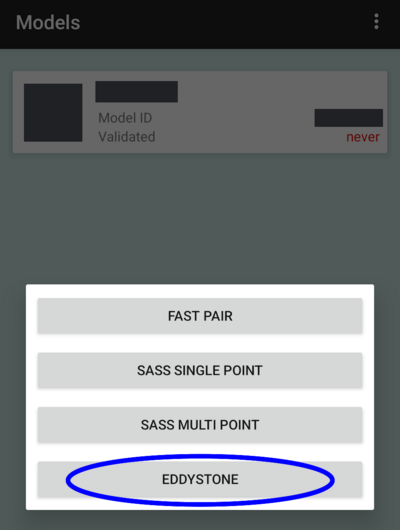
Select your device, and then select the Eddystone test category.
- If your device isn't in the list, see Automated tests using the Fast Pair Validator app (allow list access required) for how to start the tests with ADB.
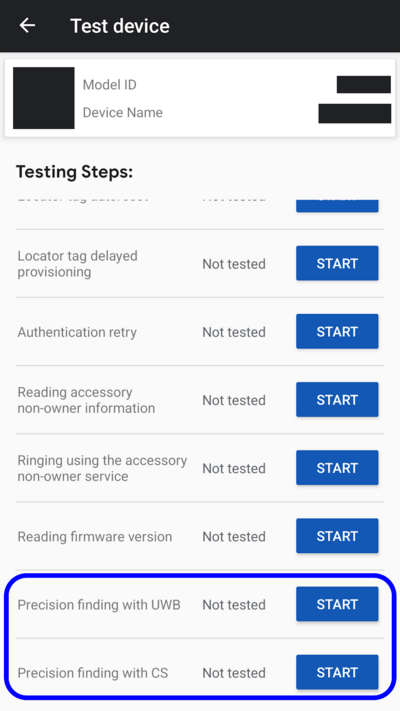
In the list of tests, start the Precision Finding test that you want to run: Precision finding with UWB, Precision finding with CS, or OOB capability message.
Follow the instructions in the dialogs that appear during the test. The first step is typically to put your device into pairing mode.
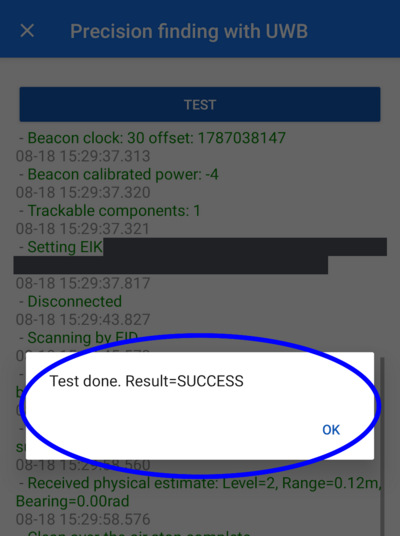
Wait until the "Test done" dialog appears, which signals that the test is complete. The test status changes from "Not tested" to "Passed" or "Failed".
Each test pairs your device with Fast Pair, provisions it as a Find Hub Network beacon, and then runs the test. When the test ends, the Validator App unprovisions and unpairs your device. If your device can store more than one account key, factory reset it between tests so that it doesn't have account keys when the next test starts. Devices that store only one account key, such as locator tags, don't need a factory reset.
Mandatory Tests
See the Mandatory Tests Section for which tests are required for a given ranging technology. Note that the table has separate tabs for Precision Finding with UWB and Precision Finding with CS.
Precision Finding with UWB
This test verifies the complete Precision Finding ranging process over UWB, from a successful out-of-band (OOB) configuration to the phone receiving distance data. A passing test confirms that UWB ranging started successfully and produces usable data within the Find Hub framework.
After it pairs and provisions your device, the Validator App connects to your device by using its Find Hub Network advertisement, and then:
- Sends a Ranging Capability Request (data ID
0x0A) that requests only UWB, and verifies that the Ranging Capability Response lists UWB as a supported technology and includes the UWB capabilities. - Sends a Ranging Configuration message (data ID
0x0B) to start a UWB ranging session. - Waits for the first distance estimate from the ranging session.
- Sends a Stop Ranging message (data ID
0x0D) to end the session.
For multi-component devices, the Validator App repeats these steps for each locatable component.
Device does not support UWB. Skip precision finding UWB test.
A successful test shows log messages similar to the following:
UWB Capability response verified successfully.
Precision finding OOB handshake completed successfully. Awaiting physical ranging estimate.
Received physical estimate: Level=<level>, Range=<distance>m, Bearing=<bearing>rad
Clean over-the-air stop complete.
Precision Finding with CS
This test verifies the complete Precision Finding ranging process over Bluetooth LE Channel Sounding (CS), from a successful OOB configuration to the phone receiving distance data. A passing test confirms that CS ranging started successfully and produces usable data within the Find Hub framework.
The test follows the same steps as the Precision Finding with UWB test, except that the Ranging Capability Request requests only CS. The Validator App verifies that the Ranging Capability Response lists CS as a supported technology and includes the CS capabilities.
CS requires a bond between the phone and your device, so your device must
support bonding. During the test, the Validator App creates the bond when it
pairs with your device. For data-only devices, such as locator tags, make sure
that you ran the skip_bonding_for_spot_locator_tags command in the
Test Procedure. Otherwise, the Validator App doesn't create
a bond.
Device does not support CS. Please use a different phone for testing.
A successful test shows log messages similar to the following:
CS Capability response verified successfully.
Precision finding OOB handshake completed successfully. Awaiting physical ranging estimate.
Received physical estimate: Level=<level>, Range=<distance>m, Bearing=<bearing>rad
Clean over-the-air stop complete.
OOB Capability Message
This test verifies that your device correctly handles Ranging Capability
Requests (data ID 0x0A) with different payloads. The request and response
payloads are defined in the
Ranging: Out-of-band message sequence and payload
specification. This test doesn't start a ranging session.
After it pairs and provisions your device, the Validator App sends the following Capability Requests in order, and checks each response:
| Step | Capability Request | Expected response |
|---|---|---|
| 1 | Requests no ranging technologies. | Lists no supported technologies. |
| 2 | Uses OOB version 3 and requests UWB. | Uses OOB version 1, 2, or 3. |
| 3 | Uses OOB version 1 and requests UWB. | Uses OOB version 1. |
| 4 | Same as step 3, with 10 extra bytes added. | A valid Capability Response. |
| 5 | Requests UWB and an unknown technology ID. | Lists UWB, and doesn't list the unknown technology. |
For multi-component devices, the Validator App repeats these steps for each locatable component.
The log shows Transmitting Step <number>: ... before each request and
Step <number> Response received: ... after each response, so you can tell
which step failed. A successful test ends with the following log message:
All OOB Capability Message Test cases (1 - 5) passed successfully!
How to Upload Results to the Device Console
The 'SUBMIT RESULT' button presents a summary of the test results, but doesn't submit the results to Google.

After reviewing all results, press the 'SUBMIT' button at the bottom of the results page to submit results to Google.

Viewing Uploaded Results in the Device Console
Submitted test results can be found on the Nearby Console. For example:

Troubleshooting
If a test fails, the Validator App shows the cause of the failure and the contents of the OOB messages in the test log to help you debug the issue.
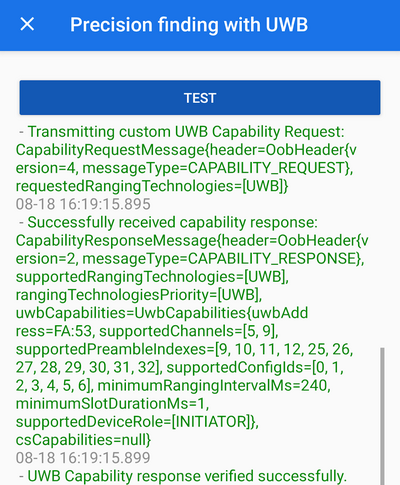
Try toggling Bluetooth off and on if all your tests failed.

For multi-component devices, the error messages end with
Component: <component>, which identifies the component that failed.
Target device advertised incompatible or invalid UWB/CS capability parameters
This failure occurs when your device sends an invalid Ranging Capability Response. Make sure that your device correctly sets the UWB or CS capability parameters in its response, as defined in the Precision Finding specification. Also verify that your device supports UWB or CS.
OOB handshake succeeded, but physical ranging failed to establish an RF distance estimate within timeout
This failure occurs when the phone doesn't receive any ranging data within the ranging timeout of about 10 seconds. Move your device and the phone closer to each other, and then run the test again.
If the test still fails, make sure that your device starts ranging with the configuration from the Ranging Configuration message. For UWB, check the UWB requirements in the Precision Finding specification, such as support for config ID 6, channel 9, and the UWB initiator role. For CS, make sure that the phone and your device are bonded.
Session failed during BLE GATT OOB negotiation
The Validator App couldn't complete the Precision Finding message exchange with your device. Check the log messages before the error:
- If the log shows
Successfully received capability responsebut doesn't showUWB Capability response verified successfully.orCS Capability response verified successfully., the Ranging Capability Response either doesn't list the requested technology as supported, or doesn't include the capabilities for that technology. - Otherwise, make sure that your device responds to the Ranging Capability
Request (data ID
0x0A) and Ranging Configuration (data ID0x0B) operations within 15 seconds, and that the Ranging Configuration Response reports that each requested technology started successfully.
Device does not support UWB or CS
In the following messages, "device" refers to the test phone, not the device that you're testing, such as a locator tag. Run the test on a phone that meets the test phone requirements.
Device does not support UWB. Skip precision finding UWB test.
Device does not support CS. Please use a different phone for testing.
Device does not support CS or UWB. Please use a different phone for testing.
Deactivated host ranging transceivers
If the error includes FAILED_TO_START_UWB_DISABLED or
FAILED_TO_START_CS_DISABLED, UWB or Bluetooth is turned off on the phone.
Turn it on, and then run the test again.
Session stopped abnormally
The ranging session stopped unexpectedly. Check the reason that's included in the error, and then run the test again.
OOB capability message test failures
Each of the following errors identifies the step of the OOB capability message test that failed:
| Step | Error | Cause |
|---|---|---|
| 1 | Peripheral failed to return empty supported technologies list when no technologies were requested. |
Your device listed supported technologies, even though the request didn't ask for any. |
| 2 | Expected response version 1, 2, or 3 for V3 request, but got: <version> |
Your device responded with an unsupported OOB version. |
| 3 | Expected V1 response for V1 request, but got: <version> |
Your device didn't respond to a version 1 request with a version 1 response. |
| 4 | Expected CAPABILITY_RESPONSE for overflow request, but got: <message> |
Your device didn't ignore the extra bytes at the end of the request. |
| 5 | Peripheral failed to return UWB capabilities for mixed tech request. |
Your device didn't list UWB when the request included an unknown technology ID. |
| 5 | Peripheral incorrectly returned support for unknown technology. |
Your device listed support for a technology ID that it doesn't recognize. |
| Any step | Failed to parse capability response: <details> |
The response from your device isn't a valid Capability Response. |