

Узнайте, как определить текущее местоположение устройства Android и отобразить подробную информацию о месте (предприятии или другом объекте, представляющем интерес) в этом месте. Следуйте этому руководству, чтобы создать приложение для Android, используя SDK карт для Android , SDK мест для Android и объединенный поставщик местоположения в API определения местоположения сервисов Google Play.
Получите код
Клонируйте или загрузите репозиторий Google Maps Android API v2 Samples с GitHub.
Посмотреть версию задания на Java:
    // Copyright 2020 Google LLC
//
// Licensed under the Apache License, Version 2.0 (the "License");
// you may not use this file except in compliance with the License.
// You may obtain a copy of the License at
//
//      http://www.apache.org/licenses/LICENSE-2.0
//
// Unless required by applicable law or agreed to in writing, software
// distributed under the License is distributed on an "AS IS" BASIS,
// WITHOUT WARRANTIES OR CONDITIONS OF ANY KIND, either express or implied.
// See the License for the specific language governing permissions and
// limitations under the License.

package com.example.currentplacedetailsonmap;

import android.content.DialogInterface;
import android.content.pm.PackageManager;
import android.location.Location;
import android.os.Bundle;

import android.util.Log;
import android.view.Menu;
import android.view.MenuItem;
import android.view.View;
import android.widget.FrameLayout;
import android.widget.TextView;

import androidx.annotation.NonNull;
import androidx.appcompat.app.AlertDialog;
import androidx.appcompat.app.AppCompatActivity;
import androidx.core.app.ActivityCompat;
import androidx.core.content.ContextCompat;

import com.google.android.gms.location.FusedLocationProviderClient;
import com.google.android.gms.location.LocationServices;
import com.google.android.gms.maps.CameraUpdateFactory;
import com.google.android.gms.maps.GoogleMap;
import com.google.android.gms.maps.OnMapReadyCallback;
import com.google.android.gms.maps.SupportMapFragment;
import com.google.android.gms.maps.model.CameraPosition;
import com.google.android.gms.maps.model.LatLng;
import com.google.android.gms.maps.model.Marker;
import com.google.android.gms.maps.model.MarkerOptions;
import com.google.android.gms.tasks.OnCompleteListener;
import com.google.android.gms.tasks.Task;

import com.google.android.libraries.places.api.Places;
import com.google.android.libraries.places.api.model.Place;
import com.google.android.libraries.places.api.model.PlaceLikelihood;
import com.google.android.libraries.places.api.net.FindCurrentPlaceRequest;
import com.google.android.libraries.places.api.net.FindCurrentPlaceResponse;
import com.google.android.libraries.places.api.net.PlacesClient;

import java.util.Arrays;
import java.util.List;

/**
 * An activity that displays a map showing the place at the device's current location.
 */
public class MapsActivityCurrentPlace extends AppCompatActivity
        implements OnMapReadyCallback {

    private static final String TAG = MapsActivityCurrentPlace.class.getSimpleName();
    private GoogleMap map;
    private CameraPosition cameraPosition;

    // The entry point to the Places API.
    private PlacesClient placesClient;

    // The entry point to the Fused Location Provider.
    private FusedLocationProviderClient fusedLocationProviderClient;

    // A default location (Sydney, Australia) and default zoom to use when location permission is
    // not granted.
    private final LatLng defaultLocation = new LatLng(-33.8523341, 151.2106085);
    private static final int DEFAULT_ZOOM = 15;
    private static final int PERMISSIONS_REQUEST_ACCESS_FINE_LOCATION = 1;
    private boolean locationPermissionGranted;

    // The geographical location where the device is currently located. That is, the last-known
    // location retrieved by the Fused Location Provider.
    private Location lastKnownLocation;

    // Keys for storing activity state.
    private static final String KEY_CAMERA_POSITION = "camera_position";
    private static final String KEY_LOCATION = "location";

    // Used for selecting the current place.
    private static final int M_MAX_ENTRIES = 5;
    private String[] likelyPlaceNames;
    private String[] likelyPlaceAddresses;
    private List[] likelyPlaceAttributions;
    private LatLng[] likelyPlaceLatLngs;

    @Override
    protected void onCreate(Bundle savedInstanceState) {
        super.onCreate(savedInstanceState);

        // Retrieve location and camera position from saved instance state.
        if (savedInstanceState != null) {
            lastKnownLocation = savedInstanceState.getParcelable(KEY_LOCATION);
            cameraPosition = savedInstanceState.getParcelable(KEY_CAMERA_POSITION);
        }

        // Retrieve the content view that renders the map.
        setContentView(R.layout.activity_maps);

        // Construct a PlacesClient
        Places.initialize(getApplicationContext(), BuildConfig.PLACES_API_KEY);
        placesClient = Places.createClient(this);

        // Construct a FusedLocationProviderClient.
        fusedLocationProviderClient = LocationServices.getFusedLocationProviderClient(this);

        // Build the map.
        SupportMapFragment mapFragment = (SupportMapFragment) getSupportFragmentManager()
                .findFragmentById(R.id.map);
        mapFragment.getMapAsync(this);
    }

    /**
     * Saves the state of the map when the activity is paused.
     */
    @Override
    protected void onSaveInstanceState(Bundle outState) {
        if (map != null) {
            outState.putParcelable(KEY_CAMERA_POSITION, map.getCameraPosition());
            outState.putParcelable(KEY_LOCATION, lastKnownLocation);
        }
        super.onSaveInstanceState(outState);
    }

    /**
     * Sets up the options menu.
     * @param menu The options menu.
     * @return Boolean.
     */
    @Override
    public boolean onCreateOptionsMenu(Menu menu) {
        getMenuInflater().inflate(R.menu.current_place_menu, menu);
        return true;
    }

    /**
     * Handles a click on the menu option to get a place.
     * @param item The menu item to handle.
     * @return Boolean.
     */
    @Override
    public boolean onOptionsItemSelected(MenuItem item) {
        if (item.getItemId() == R.id.option_get_place) {
            showCurrentPlace();
        }
        return true;
    }

    /**
     * Manipulates the map when it's available.
     * This callback is triggered when the map is ready to be used.
     */
    @Override
    public void onMapReady(GoogleMap map) {
        this.map = map;

        // Use a custom info window adapter to handle multiple lines of text in the
        // info window contents.
        this.map.setInfoWindowAdapter(new GoogleMap.InfoWindowAdapter() {

            @Override
            // Return null here, so that getInfoContents() is called next.
            public View getInfoWindow(Marker arg0) {
                return null;
            }

            @Override
            public View getInfoContents(Marker marker) {
                // Inflate the layouts for the info window, title and snippet.
                View infoWindow = getLayoutInflater().inflate(R.layout.custom_info_contents,
                        (FrameLayout) findViewById(R.id.map), false);

                TextView title = infoWindow.findViewById(R.id.title);
                title.setText(marker.getTitle());

                TextView snippet = infoWindow.findViewById(R.id.snippet);
                snippet.setText(marker.getSnippet());

                return infoWindow;
            }
        });

        // Prompt the user for permission.
        getLocationPermission();

        // Turn on the My Location layer and the related control on the map.
        updateLocationUI();

        // Get the current location of the device and set the position of the map.
        getDeviceLocation();
    }

    /**
     * Gets the current location of the device, and positions the map's camera.
     */
    private void getDeviceLocation() {
        /*
         * Get the best and most recent location of the device, which may be null in rare
         * cases when a location is not available.
         */
        try {
            if (locationPermissionGranted) {
                Task<Location> locationResult = fusedLocationProviderClient.getLastLocation();
                locationResult.addOnCompleteListener(this, new OnCompleteListener<Location>() {
                    @Override
                    public void onComplete(@NonNull Task<Location> task) {
                        if (task.isSuccessful()) {
                            // Set the map's camera position to the current location of the device.
                            lastKnownLocation = task.getResult();
                            if (lastKnownLocation != null) {
                                map.moveCamera(CameraUpdateFactory.newLatLngZoom(
                                        new LatLng(lastKnownLocation.getLatitude(),
                                                lastKnownLocation.getLongitude()), DEFAULT_ZOOM));
                            }
                        } else {
                            Log.d(TAG, "Current location is null. Using defaults.");
                            Log.e(TAG, "Exception: %s", task.getException());
                            map.moveCamera(CameraUpdateFactory
                                    .newLatLngZoom(defaultLocation, DEFAULT_ZOOM));
                            map.getUiSettings().setMyLocationButtonEnabled(false);
                        }
                    }
                });
            }
        } catch (SecurityException e)  {
            Log.e("Exception: %s", e.getMessage(), e);
        }
    }

    /**
     * Prompts the user for permission to use the device location.
     */
    private void getLocationPermission() {
        /*
         * Request location permission, so that we can get the location of the
         * device. The result of the permission request is handled by a callback,
         * onRequestPermissionsResult.
         */
        if (ContextCompat.checkSelfPermission(this.getApplicationContext(),
                android.Manifest.permission.ACCESS_FINE_LOCATION)
                == PackageManager.PERMISSION_GRANTED) {
            locationPermissionGranted = true;
        } else {
            ActivityCompat.requestPermissions(this,
                    new String[]{android.Manifest.permission.ACCESS_FINE_LOCATION},
                    PERMISSIONS_REQUEST_ACCESS_FINE_LOCATION);
        }
    }

    /**
     * Handles the result of the request for location permissions.
     */
    @Override
    public void onRequestPermissionsResult(int requestCode,
                                           @NonNull String[] permissions,
                                           @NonNull int[] grantResults) {
        locationPermissionGranted = false;
        if (requestCode
            == PERMISSIONS_REQUEST_ACCESS_FINE_LOCATION) {// If request is cancelled, the result arrays are empty.
            if (grantResults.length > 0
                && grantResults[0] == PackageManager.PERMISSION_GRANTED) {
                locationPermissionGranted = true;
            }
        } else {
            super.onRequestPermissionsResult(requestCode, permissions, grantResults);
        }
        updateLocationUI();
    }

    /**
     * Prompts the user to select the current place from a list of likely places, and shows the
     * current place on the map - provided the user has granted location permission.
     */
    private void showCurrentPlace() {
        if (map == null) {
            return;
        }

        if (locationPermissionGranted) {
            // Use fields to define the data types to return.
            List<Place.Field> placeFields = Arrays.asList(Place.Field.NAME, Place.Field.ADDRESS,
                    Place.Field.LAT_LNG);

            // Use the builder to create a FindCurrentPlaceRequest.
            FindCurrentPlaceRequest request =
                    FindCurrentPlaceRequest.newInstance(placeFields);

            // Get the likely places - that is, the businesses and other points of interest that
            // are the best match for the device's current location.
            @SuppressWarnings("MissingPermission") final
            Task<FindCurrentPlaceResponse> placeResult =
                    placesClient.findCurrentPlace(request);
            placeResult.addOnCompleteListener (new OnCompleteListener<FindCurrentPlaceResponse>() {
                @Override
                public void onComplete(@NonNull Task<FindCurrentPlaceResponse> task) {
                    if (task.isSuccessful() && task.getResult() != null) {
                        FindCurrentPlaceResponse likelyPlaces = task.getResult();

                        // Set the count, handling cases where less than 5 entries are returned.
                        int count;
                        if (likelyPlaces.getPlaceLikelihoods().size() < M_MAX_ENTRIES) {
                            count = likelyPlaces.getPlaceLikelihoods().size();
                        } else {
                            count = M_MAX_ENTRIES;
                        }

                        int i = 0;
                        likelyPlaceNames = new String[count];
                        likelyPlaceAddresses = new String[count];
                        likelyPlaceAttributions = new List[count];
                        likelyPlaceLatLngs = new LatLng[count];

                        for (PlaceLikelihood placeLikelihood : likelyPlaces.getPlaceLikelihoods()) {
                            // Build a list of likely places to show the user.
                            likelyPlaceNames[i] = placeLikelihood.getPlace().getName();
                            likelyPlaceAddresses[i] = placeLikelihood.getPlace().getAddress();
                            likelyPlaceAttributions[i] = placeLikelihood.getPlace()
                                    .getAttributions();
                            likelyPlaceLatLngs[i] = placeLikelihood.getPlace().getLatLng();

                            i++;
                            if (i > (count - 1)) {
                                break;
                            }
                        }

                        // Show a dialog offering the user the list of likely places, and add a
                        // marker at the selected place.
                        MapsActivityCurrentPlace.this.openPlacesDialog();
                    }
                    else {
                        Log.e(TAG, "Exception: %s", task.getException());
                    }
                }
            });
        } else {
            // The user has not granted permission.
            Log.i(TAG, "The user did not grant location permission.");

            // Add a default marker, because the user hasn't selected a place.
            map.addMarker(new MarkerOptions()
                    .title(getString(R.string.default_info_title))
                    .position(defaultLocation)
                    .snippet(getString(R.string.default_info_snippet)));

            // Prompt the user for permission.
            getLocationPermission();
        }
    }

    /**
     * Displays a form allowing the user to select a place from a list of likely places.
     */
    private void openPlacesDialog() {
        // Ask the user to choose the place where they are now.
        DialogInterface.OnClickListener listener = new DialogInterface.OnClickListener() {
            @Override
            public void onClick(DialogInterface dialog, int which) {
                // The "which" argument contains the position of the selected item.
                LatLng markerLatLng = likelyPlaceLatLngs[which];
                String markerSnippet = likelyPlaceAddresses[which];
                if (likelyPlaceAttributions[which] != null) {
                    markerSnippet = markerSnippet + "\n" + likelyPlaceAttributions[which];
                }

                // Add a marker for the selected place, with an info window
                // showing information about that place.
                map.addMarker(new MarkerOptions()
                        .title(likelyPlaceNames[which])
                        .position(markerLatLng)
                        .snippet(markerSnippet));

                // Position the map's camera at the location of the marker.
                map.moveCamera(CameraUpdateFactory.newLatLngZoom(markerLatLng,
                        DEFAULT_ZOOM));
            }
        };

        // Display the dialog.
        AlertDialog dialog = new AlertDialog.Builder(this)
                .setTitle(R.string.pick_place)
                .setItems(likelyPlaceNames, listener)
                .show();
    }

    /**
     * Updates the map's UI settings based on whether the user has granted location permission.
     */
    private void updateLocationUI() {
        if (map == null) {
            return;
        }
        try {
            if (locationPermissionGranted) {
                map.setMyLocationEnabled(true);
                map.getUiSettings().setMyLocationButtonEnabled(true);
            } else {
                map.setMyLocationEnabled(false);
                map.getUiSettings().setMyLocationButtonEnabled(false);
                lastKnownLocation = null;
            }
        } catch (SecurityException e)  {
            Log.e("Exception: %s", e.getMessage());
        }
    }
}
Посмотреть версию задания на Kotlin:
    // Copyright 2020 Google LLC
//
// Licensed under the Apache License, Version 2.0 (the "License");
// you may not use this file except in compliance with the License.
// You may obtain a copy of the License at
//
//      http://www.apache.org/licenses/LICENSE-2.0
//
// Unless required by applicable law or agreed to in writing, software
// distributed under the License is distributed on an "AS IS" BASIS,
// WITHOUT WARRANTIES OR CONDITIONS OF ANY KIND, either express or implied.
// See the License for the specific language governing permissions and
// limitations under the License.
package com.example.currentplacedetailsonmap

import android.Manifest
import android.annotation.SuppressLint
import android.content.DialogInterface
import android.content.pm.PackageManager
import android.location.Location
import android.os.Bundle
import android.util.Log
import android.view.Menu
import android.view.MenuItem
import android.view.View
import android.widget.FrameLayout
import android.widget.TextView
import androidx.appcompat.app.AlertDialog
import androidx.appcompat.app.AppCompatActivity
import androidx.core.app.ActivityCompat
import androidx.core.content.ContextCompat
import com.google.android.gms.location.FusedLocationProviderClient
import com.google.android.gms.location.LocationServices
import com.google.android.gms.maps.CameraUpdateFactory
import com.google.android.gms.maps.GoogleMap
import com.google.android.gms.maps.GoogleMap.InfoWindowAdapter
import com.google.android.gms.maps.OnMapReadyCallback
import com.google.android.gms.maps.SupportMapFragment
import com.google.android.gms.maps.model.CameraPosition
import com.google.android.gms.maps.model.LatLng
import com.google.android.gms.maps.model.Marker
import com.google.android.gms.maps.model.MarkerOptions
import com.google.android.libraries.places.api.Places
import com.google.android.libraries.places.api.model.Place
import com.google.android.libraries.places.api.net.FindCurrentPlaceRequest
import com.google.android.libraries.places.api.net.PlacesClient

/**
 * An activity that displays a map showing the place at the device's current location.
 */
class MapsActivityCurrentPlace : AppCompatActivity(), OnMapReadyCallback {
    private var map: GoogleMap? = null
    private var cameraPosition: CameraPosition? = null

    // The entry point to the Places API.
    private lateinit var placesClient: PlacesClient

    // The entry point to the Fused Location Provider.
    private lateinit var fusedLocationProviderClient: FusedLocationProviderClient

    // A default location (Sydney, Australia) and default zoom to use when location permission is
    // not granted.
    private val defaultLocation = LatLng(-33.8523341, 151.2106085)
    private var locationPermissionGranted = false

    // The geographical location where the device is currently located. That is, the last-known
    // location retrieved by the Fused Location Provider.
    private var lastKnownLocation: Location? = null
    private var likelyPlaceNames: Array<String?> = arrayOfNulls(0)
    private var likelyPlaceAddresses: Array<String?> = arrayOfNulls(0)
    private var likelyPlaceAttributions: Array<List<*>?> = arrayOfNulls(0)
    private var likelyPlaceLatLngs: Array<LatLng?> = arrayOfNulls(0)

    override fun onCreate(savedInstanceState: Bundle?) {
        super.onCreate(savedInstanceState)

        // Retrieve location and camera position from saved instance state.
        if (savedInstanceState != null) {
            lastKnownLocation = savedInstanceState.getParcelable(KEY_LOCATION)
            cameraPosition = savedInstanceState.getParcelable(KEY_CAMERA_POSITION)
        }

        // Retrieve the content view that renders the map.
        setContentView(R.layout.activity_maps)

        // Construct a PlacesClient
        Places.initialize(applicationContext, BuildConfig.MAPS_API_KEY)
        placesClient = Places.createClient(this)

        // Construct a FusedLocationProviderClient.
        fusedLocationProviderClient = LocationServices.getFusedLocationProviderClient(this)

        // Build the map.
        val mapFragment = supportFragmentManager
            .findFragmentById(R.id.map) as SupportMapFragment?
        mapFragment?.getMapAsync(this)
    }

    /**
     * Saves the state of the map when the activity is paused.
     */
    override fun onSaveInstanceState(outState: Bundle) {
        map?.let { map ->
            outState.putParcelable(KEY_CAMERA_POSITION, map.cameraPosition)
            outState.putParcelable(KEY_LOCATION, lastKnownLocation)
        }
        super.onSaveInstanceState(outState)
    }

    /**
     * Sets up the options menu.
     * @param menu The options menu.
     * @return Boolean.
     */
    override fun onCreateOptionsMenu(menu: Menu): Boolean {
        menuInflater.inflate(R.menu.current_place_menu, menu)
        return true
    }

    /**
     * Handles a click on the menu option to get a place.
     * @param item The menu item to handle.
     * @return Boolean.
     */
    override fun onOptionsItemSelected(item: MenuItem): Boolean {
        if (item.itemId == R.id.option_get_place) {
            showCurrentPlace()
        }
        return true
    }

    /**
     * Manipulates the map when it's available.
     * This callback is triggered when the map is ready to be used.
     */
    override fun onMapReady(map: GoogleMap) {
        this.map = map

        // Use a custom info window adapter to handle multiple lines of text in the
        // info window contents.
        this.map?.setInfoWindowAdapter(object : InfoWindowAdapter {
            // Return null here, so that getInfoContents() is called next.
            override fun getInfoWindow(arg0: Marker): View? {
                return null
            }

            override fun getInfoContents(marker: Marker): View {
                // Inflate the layouts for the info window, title and snippet.
                val infoWindow = layoutInflater.inflate(R.layout.custom_info_contents,
                    findViewById<FrameLayout>(R.id.map), false)
                val title = infoWindow.findViewById<TextView>(R.id.title)
                title.text = marker.title
                val snippet = infoWindow.findViewById<TextView>(R.id.snippet)
                snippet.text = marker.snippet
                return infoWindow
            }
        })

        // Prompt the user for permission.
        getLocationPermission()

        // Turn on the My Location layer and the related control on the map.
        updateLocationUI()

        // Get the current location of the device and set the position of the map.
        getDeviceLocation()
    }

    /**
     * Gets the current location of the device, and positions the map's camera.
     */
    @SuppressLint("MissingPermission")
    private fun getDeviceLocation() {
        /*
         * Get the best and most recent location of the device, which may be null in rare
         * cases when a location is not available.
         */
        try {
            if (locationPermissionGranted) {
                val locationResult = fusedLocationProviderClient.lastLocation
                locationResult.addOnCompleteListener(this) { task ->
                    if (task.isSuccessful) {
                        // Set the map's camera position to the current location of the device.
                        lastKnownLocation = task.result
                        if (lastKnownLocation != null) {
                            map?.moveCamera(CameraUpdateFactory.newLatLngZoom(
                                LatLng(lastKnownLocation!!.latitude,
                                    lastKnownLocation!!.longitude), DEFAULT_ZOOM.toFloat()))
                        }
                    } else {
                        Log.d(TAG, "Current location is null. Using defaults.")
                        Log.e(TAG, "Exception: %s", task.exception)
                        map?.moveCamera(CameraUpdateFactory
                            .newLatLngZoom(defaultLocation, DEFAULT_ZOOM.toFloat()))
                        map?.uiSettings?.isMyLocationButtonEnabled = false
                    }
                }
            }
        } catch (e: SecurityException) {
            Log.e("Exception: %s", e.message, e)
        }
    }

    /**
     * Prompts the user for permission to use the device location.
     */
    private fun getLocationPermission() {
        /*
         * Request location permission, so that we can get the location of the
         * device. The result of the permission request is handled by a callback,
         * onRequestPermissionsResult.
         */
        if (ContextCompat.checkSelfPermission(this.applicationContext,
                Manifest.permission.ACCESS_FINE_LOCATION)
            == PackageManager.PERMISSION_GRANTED) {
            locationPermissionGranted = true
        } else {
            ActivityCompat.requestPermissions(this, arrayOf(Manifest.permission.ACCESS_FINE_LOCATION),
                PERMISSIONS_REQUEST_ACCESS_FINE_LOCATION)
        }
    }

    /**
     * Handles the result of the request for location permissions.
     */
    override fun onRequestPermissionsResult(requestCode: Int,
                                            permissions: Array<String>,
                                            grantResults: IntArray) {
        locationPermissionGranted = false
        when (requestCode) {
            PERMISSIONS_REQUEST_ACCESS_FINE_LOCATION -> {

                // If request is cancelled, the result arrays are empty.
                if (grantResults.isNotEmpty() &&
                    grantResults[0] == PackageManager.PERMISSION_GRANTED) {
                    locationPermissionGranted = true
                }
            }
            else -> super.onRequestPermissionsResult(requestCode, permissions, grantResults)
        }
        updateLocationUI()
    }

    /**
     * Prompts the user to select the current place from a list of likely places, and shows the
     * current place on the map - provided the user has granted location permission.
     */
    @SuppressLint("MissingPermission")
    private fun showCurrentPlace() {
        if (map == null) {
            return
        }
        if (locationPermissionGranted) {
            // Use fields to define the data types to return.
            val placeFields = listOf(Place.Field.NAME, Place.Field.ADDRESS, Place.Field.LAT_LNG)

            // Use the builder to create a FindCurrentPlaceRequest.
            val request = FindCurrentPlaceRequest.newInstance(placeFields)

            // Get the likely places - that is, the businesses and other points of interest that
            // are the best match for the device's current location.
            val placeResult = placesClient.findCurrentPlace(request)
            placeResult.addOnCompleteListener { task ->
                if (task.isSuccessful && task.result != null) {
                    val likelyPlaces = task.result

                    // Set the count, handling cases where less than 5 entries are returned.
                    val count = if (likelyPlaces != null && likelyPlaces.placeLikelihoods.size < M_MAX_ENTRIES) {
                        likelyPlaces.placeLikelihoods.size
                    } else {
                        M_MAX_ENTRIES
                    }
                    var i = 0
                    likelyPlaceNames = arrayOfNulls(count)
                    likelyPlaceAddresses = arrayOfNulls(count)
                    likelyPlaceAttributions = arrayOfNulls<List<*>?>(count)
                    likelyPlaceLatLngs = arrayOfNulls(count)
                    for (placeLikelihood in likelyPlaces?.placeLikelihoods ?: emptyList()) {
                        // Build a list of likely places to show the user.
                        likelyPlaceNames[i] = placeLikelihood.place.name
                        likelyPlaceAddresses[i] = placeLikelihood.place.address
                        likelyPlaceAttributions[i] = placeLikelihood.place.attributions
                        likelyPlaceLatLngs[i] = placeLikelihood.place.latLng
                        i++
                        if (i > count - 1) {
                            break
                        }
                    }

                    // Show a dialog offering the user the list of likely places, and add a
                    // marker at the selected place.
                    openPlacesDialog()
                } else {
                    Log.e(TAG, "Exception: %s", task.exception)
                }
            }
        } else {
            // The user has not granted permission.
            Log.i(TAG, "The user did not grant location permission.")

            // Add a default marker, because the user hasn't selected a place.
            map?.addMarker(MarkerOptions()
                .title(getString(R.string.default_info_title))
                .position(defaultLocation)
                .snippet(getString(R.string.default_info_snippet)))

            // Prompt the user for permission.
            getLocationPermission()
        }
    }

    /**
     * Displays a form allowing the user to select a place from a list of likely places.
     */
    private fun openPlacesDialog() {
        // Ask the user to choose the place where they are now.
        val listener = DialogInterface.OnClickListener { dialog, which -> // The "which" argument contains the position of the selected item.
            val markerLatLng = likelyPlaceLatLngs[which]
            var markerSnippet = likelyPlaceAddresses[which]
            if (likelyPlaceAttributions[which] != null) {
                markerSnippet = """
                    $markerSnippet
                    ${likelyPlaceAttributions[which]}
                    """.trimIndent()
            }

            if (markerLatLng == null) {
                return@OnClickListener
            }

            // Add a marker for the selected place, with an info window
            // showing information about that place.
            map?.addMarker(MarkerOptions()
                .title(likelyPlaceNames[which])
                .position(markerLatLng)
                .snippet(markerSnippet))

            // Position the map's camera at the location of the marker.
            map?.moveCamera(CameraUpdateFactory.newLatLngZoom(markerLatLng,
                DEFAULT_ZOOM.toFloat()))
        }

        // Display the dialog.
        AlertDialog.Builder(this)
            .setTitle(R.string.pick_place)
            .setItems(likelyPlaceNames, listener)
            .show()
    }

    /**
     * Updates the map's UI settings based on whether the user has granted location permission.
     */
    @SuppressLint("MissingPermission")
    private fun updateLocationUI() {
        if (map == null) {
            return
        }
        try {
            if (locationPermissionGranted) {
                map?.isMyLocationEnabled = true
                map?.uiSettings?.isMyLocationButtonEnabled = true
            } else {
                map?.isMyLocationEnabled = false
                map?.uiSettings?.isMyLocationButtonEnabled = false
                lastKnownLocation = null
                getLocationPermission()
            }
        } catch (e: SecurityException) {
            Log.e("Exception: %s", e.message, e)
        }
    }

    companion object {
        private val TAG = MapsActivityCurrentPlace::class.java.simpleName
        private const val DEFAULT_ZOOM = 15
        private const val PERMISSIONS_REQUEST_ACCESS_FINE_LOCATION = 1

        // Keys for storing activity state.
        private const val KEY_CAMERA_POSITION = "camera_position"
        private const val KEY_LOCATION = "location"

        // Used for selecting the current place.
        private const val M_MAX_ENTRIES = 5
    }
}
Настройте свой проект разработки.
Выполните следующие шаги, чтобы создать учебный проект в Android Studio.
- Скачайте и установите Android Studio.
- Добавьте пакет сервисов Google Play в Android Studio.
- Если вы не сделали этого до начала чтения этого руководства, клонируйте или скачайте репозиторий с примерами Google Maps Android API v2 .
Импортируйте проект из учебного пособия:
- В Android Studio выберите Файл > Создать > Импортировать проект .
- Перейдите в папку, где вы сохранили репозиторий с примерами Google Maps Android API v2 после его загрузки.
- Найти проект CurrentPlaceDetailsOnMap можно по этой ссылке:
PATH-TO-SAVED-REPO /android-samples/tutorials/java/CurrentPlaceDetailsOnMap(Java) или
PATH-TO-SAVED-REPO /android-samples/tutorials/kotlin/CurrentPlaceDetailsOnMap(Kotlin) - Выберите каталог проекта, затем нажмите «Открыть» . Android Studio выполнит сборку вашего проекта с помощью инструмента сборки Gradle.
Включите необходимые API и получите ключ API.
Для выполнения этого руководства вам потребуется проект Google Cloud с включенными необходимыми API и ключ API, авторизованный для использования Maps SDK для Android. Более подробную информацию см. в разделе:
Чтобы просмотреть включенные вами API, перейдите на страницу Google Maps Platform в консоли Cloud и выберите свой проект:
Перейдите на страницу платформы Google Maps.Если вы не видите, что API Places включен в вашем проекте, вам необходимо его включить:
Включите API для работы с местами.Если вы добавляете какие-либо ограничения к своему API-ключу, обязательно добавьте в него API Places. Дополнительную информацию см. в разделе «Использование API-ключей» .
Добавьте ключ API в ваше приложение.
- Откройте файл
local.propertiesвашего проекта. Добавьте следующую строку и замените
YOUR_API_KEYзначением вашего API-ключа:MAPS_API_KEY=YOUR_API_KEY
При сборке приложения плагин Secrets Gradle для Android скопирует ключ API и сделает его доступным в качестве переменной сборки в манифесте Android.
Создайте и запустите свое приложение.
Подключите устройство Android к компьютеру. Следуйте инструкциям , чтобы включить параметры разработчика на вашем устройстве Android и настроить систему для обнаружения устройства.
В качестве альтернативы вы можете использовать Android Virtual Device Manager (AVD) Manager для настройки виртуального устройства. При выборе эмулятора убедитесь, что вы выбрали образ, включающий API Google. Для получения более подробной информации см. раздел «Настройка проекта Android Studio» .
- В Android Studio нажмите пункт меню «Выполнить» (или значок кнопки воспроизведения). Выберите устройство согласно подсказке.
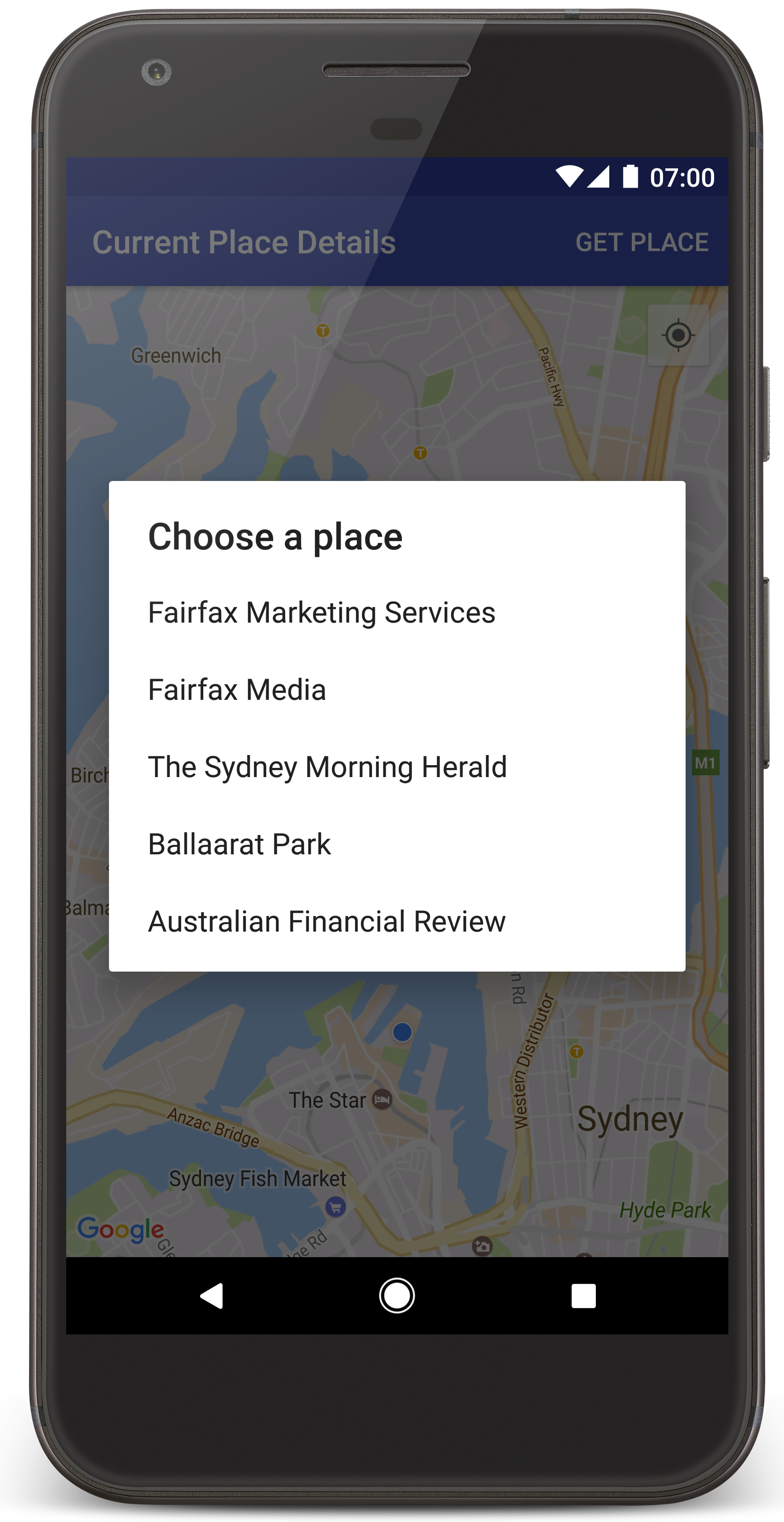
Android Studio запускает Gradle для сборки приложения, а затем запускает его на устройстве или в эмуляторе. Вы должны увидеть карту с несколькими маркерами, расположенными вокруг вашего текущего местоположения, как на изображении на этой странице.
- Выберите «Получить местоположение» , чтобы открыть список мест (предприятий или других достопримечательностей) рядом с вашим текущим местоположением.
- Выберите место из списка. На карту будет добавлен маркер для выбранного места.
Поиск неисправностей:
- Если вы не видите карту, убедитесь, что вы получили ключ API и добавили его в приложение, как описано выше . Проверьте журнал в Android Monitor в Android Studio на наличие сообщений об ошибках, связанных с ключом API.
- Если на карте отображается только один маркер, расположенный на Сиднейском мосту (местоположение по умолчанию, указанное в приложении), убедитесь, что вы предоставили приложению разрешение на определение местоположения . Приложение запрашивает разрешение на определение местоположения во время выполнения, следуя схеме, описанной в руководстве по разрешениям Android . Обратите внимание, что вы также можете установить разрешения непосредственно на устройстве, выбрав «Настройки» > «Приложения» > «Название приложения» > «Разрешения» > «Местоположение» . Подробную информацию о том, как обрабатывать разрешения в вашем коде, см. в руководстве ниже по запросу разрешения на определение местоположения в вашем приложении .
- Используйте инструменты отладки Android Studio для просмотра логов и отладки приложения.
Разберитесь в коде.
В этой части руководства объясняются наиболее важные аспекты приложения CurrentPlaceDetailsOnMap , чтобы помочь вам понять, как создать аналогичное приложение.
Создайте экземпляр клиента Places API.
Эти объекты являются основными точками входа в SDK Places для Android:
- Класс
Placesсоздает и управляет клиентами для SDK Places для Android. - Интерфейс
PlacesClientполучает текущее местоположение устройства и места, расположенные рядом с ним.
Интерфейс LocationServices является основной точкой входа для служб определения местоположения Android.
Для использования API выполните следующие действия в методе onCreate() вашего фрагмента или активности:
- Инициализируйте объект
Places. - Создайте объект
PlacesClient. - Создайте объект
FusedLocationProviderClient.
Например:
Java
@Override
protected void onCreate(Bundle savedInstanceState) {
    super.onCreate(savedInstanceState);

    // ...

    // Retrieve the content view that renders the map.
    setContentView(R.layout.activity_maps);

    // Construct a PlacesClient
    Places.initialize(getApplicationContext(), getString(R.string.maps_api_key));
    placesClient = Places.createClient(this);

    // Construct a FusedLocationProviderClient.
    fusedLocationProviderClient = LocationServices.getFusedLocationProviderClient(this);
}
Котлин
override fun onCreate(savedInstanceState: Bundle?) {
    super.onCreate(savedInstanceState)

    // ...

    // Retrieve the content view that renders the map.
    setContentView(R.layout.activity_maps)

    // Construct a PlacesClient
    Places.initialize(applicationContext, getString(R.string.maps_api_key))
    placesClient = Places.createClient(this)

    // Construct a FusedLocationProviderClient.
    fusedLocationProviderClient = LocationServices.getFusedLocationProviderClient(this)

}
Запросить разрешение на определение местоположения
Вашему приложению необходимо запросить разрешение на определение местоположения, чтобы установить местоположение устройства и позволить пользователю нажать кнопку «Мое местоположение» на карте.
В этом руководстве представлен код, необходимый для запроса разрешения на определение местоположения. Для получения более подробной информации см. руководство по разрешениям Android .
Добавьте разрешение в качестве дочернего элемента элемента
<manifest>в вашем Android-манифесте:<manifest xmlns:android="http://schemas.android.com/apk/res/android" package="com.example.currentplacedetailsonmap"> <uses-permission android:name="android.permission.ACCESS_FINE_LOCATION" /> </manifest>
В вашем приложении запрашиваются разрешения во время выполнения, предоставляя пользователю возможность разрешить или запретить доступ к местоположению. Следующий код проверяет, предоставил ли пользователь разрешение на доступ к местоположению. Если нет, он запрашивает разрешение:
Java
private void getLocationPermission() { /* * Request location permission, so that we can get the location of the * device. The result of the permission request is handled by a callback, * onRequestPermissionsResult. */ if (ContextCompat.checkSelfPermission(this.getApplicationContext(), android.Manifest.permission.ACCESS_FINE_LOCATION) == PackageManager.PERMISSION_GRANTED) { locationPermissionGranted = true; } else { ActivityCompat.requestPermissions(this, new String[]{android.Manifest.permission.ACCESS_FINE_LOCATION}, PERMISSIONS_REQUEST_ACCESS_FINE_LOCATION); } }
Котлин
private fun getLocationPermission() { /* * Request location permission, so that we can get the location of the * device. The result of the permission request is handled by a callback, * onRequestPermissionsResult. */ if (ContextCompat.checkSelfPermission(this.applicationContext, Manifest.permission.ACCESS_FINE_LOCATION) == PackageManager.PERMISSION_GRANTED) { locationPermissionGranted = true } else { ActivityCompat.requestPermissions(this, arrayOf(Manifest.permission.ACCESS_FINE_LOCATION), PERMISSIONS_REQUEST_ACCESS_FINE_LOCATION) } }
Переопределите функцию обратного вызова
onRequestPermissionsResult()для обработки результата запроса на разрешение:Java
@Override public void onRequestPermissionsResult(int requestCode, @NonNull String[] permissions, @NonNull int[] grantResults) { locationPermissionGranted = false; if (requestCode == PERMISSIONS_REQUEST_ACCESS_FINE_LOCATION) {// If request is cancelled, the result arrays are empty. if (grantResults.length > 0 && grantResults[0] == PackageManager.PERMISSION_GRANTED) { locationPermissionGranted = true; } } else { super.onRequestPermissionsResult(requestCode, permissions, grantResults); } updateLocationUI(); }
Котлин
override fun onRequestPermissionsResult(requestCode: Int, permissions: Array<String>, grantResults: IntArray) { locationPermissionGranted = false when (requestCode) { PERMISSIONS_REQUEST_ACCESS_FINE_LOCATION -> { // If request is cancelled, the result arrays are empty. if (grantResults.isNotEmpty() && grantResults[0] == PackageManager.PERMISSION_GRANTED) { locationPermissionGranted = true } } else -> super.onRequestPermissionsResult(requestCode, permissions, grantResults) } updateLocationUI() }
В последующем разделе этого руководства будет описан метод
updateLocationUI().
Добавить карту
Отобразите карту, используя Maps SDK для Android.
Добавьте элемент
<fragment>в файл разметки вашей активности,activity_maps.xml. Этот элемент определяетSupportMapFragment, который будет выступать в качестве контейнера для карты и предоставлять доступ к объектуGoogleMap. В этом руководстве используется версия фрагмента карты из библиотеки поддержки Android, чтобы обеспечить обратную совместимость с более ранними версиями фреймворка Android.<!-- Copyright 2020 Google LLC Licensed under the Apache License, Version 2.0 (the "License"); you may not use this file except in compliance with the License. You may obtain a copy of the License at http://www.apache.org/licenses/LICENSE-2.0 Unless required by applicable law or agreed to in writing, software distributed under the License is distributed on an "AS IS" BASIS, WITHOUT WARRANTIES OR CONDITIONS OF ANY KIND, either express or implied. See the License for the specific language governing permissions and limitations under the License. --> <fragment xmlns:android="http://schemas.android.com/apk/res/android" xmlns:tools="http://schemas.android.com/tools" android:id="@+id/map" android:name="com.google.android.gms.maps.SupportMapFragment" android:layout_width="match_parent" android:layout_height="match_parent" tools:context="com.example.currentplacedetailsonmap.MapsActivityCurrentPlace" />
В методе
onCreate()вашего Activity установите файл макета в качестве представления содержимого:Java
@Override protected void onCreate(Bundle savedInstanceState) { super.onCreate(savedInstanceState); // Retrieve the content view that renders the map. setContentView(R.layout.activity_maps); }
Котлин
override fun onCreate(savedInstanceState: Bundle?) { super.onCreate(savedInstanceState) // Retrieve the content view that renders the map. setContentView(R.layout.activity_maps) }
Реализуйте интерфейс
OnMapReadyCallbackи переопределите методonMapReady(), чтобы настроить карту, когда объектGoogleMapстанет доступен:Java
@Override public void onMapReady(GoogleMap map) { this.map = map; // ... // Turn on the My Location layer and the related control on the map. updateLocationUI(); // Get the current location of the device and set the position of the map. getDeviceLocation(); }
Котлин
override fun onMapReady(map: GoogleMap) { this.map = map // ... // Turn on the My Location layer and the related control on the map. updateLocationUI() // Get the current location of the device and set the position of the map. getDeviceLocation() }
В методе
onCreate()вашего Activity получите ссылку на фрагмент карты, вызвавFragmentManager.findFragmentById(). Затем используйтеgetMapAsync()для регистрации в функции обратного вызова для карты:Java
SupportMapFragment mapFragment = (SupportMapFragment) getSupportFragmentManager() .findFragmentById(R.id.map); mapFragment.getMapAsync(this);
Котлин
val mapFragment = supportFragmentManager .findFragmentById(R.id.map) as SupportMapFragment? mapFragment?.getMapAsync(this)
Напишите метод
updateLocationUI()для установки параметров определения местоположения на карте. Если пользователь предоставил разрешение на определение местоположения, включите слой «Мое местоположение» и соответствующий элемент управления на карте; в противном случае отключите слой и элемент управления и установите текущее местоположение в значение `null`.Java
private void updateLocationUI() { if (map == null) { return; } try { if (locationPermissionGranted) { map.setMyLocationEnabled(true); map.getUiSettings().setMyLocationButtonEnabled(true); } else { map.setMyLocationEnabled(false); map.getUiSettings().setMyLocationButtonEnabled(false); lastKnownLocation = null; } } catch (SecurityException e) { Log.e("Exception: %s", e.getMessage()); } }
Котлин
@SuppressLint("MissingPermission") private fun updateLocationUI() { if (map == null) { return } try { if (locationPermissionGranted) { map?.isMyLocationEnabled = true map?.uiSettings?.isMyLocationButtonEnabled = true } else { map?.isMyLocationEnabled = false map?.uiSettings?.isMyLocationButtonEnabled = false lastKnownLocation = null getLocationPermission() } } catch (e: SecurityException) { Log.e("Exception: %s", e.message, e) } }
Определите местоположение устройства Android и расположите его на карте.
Используйте объединенный поставщик местоположения, чтобы определить последнее известное местоположение устройства, а затем используйте это местоположение для позиционирования карты. В руководстве представлен необходимый код. Для получения более подробной информации о получении местоположения устройства см. руководство по объединенному поставщику местоположения в API определения местоположения сервисов Google Play.
Java
private void getDeviceLocation() { /* * Get the best and most recent location of the device, which may be null in rare * cases when a location is not available. */ try { if (locationPermissionGranted) { Task<Location> locationResult = fusedLocationProviderClient.getLastLocation(); locationResult.addOnCompleteListener(this, new OnCompleteListener<Location>() { @Override public void onComplete(@NonNull Task<Location> task) { if (task.isSuccessful()) { // Set the map's camera position to the current location of the device. lastKnownLocation = task.getResult(); if (lastKnownLocation != null) { map.moveCamera(CameraUpdateFactory.newLatLngZoom( new LatLng(lastKnownLocation.getLatitude(), lastKnownLocation.getLongitude()), DEFAULT_ZOOM)); } } else { Log.d(TAG, "Current location is null. Using defaults."); Log.e(TAG, "Exception: %s", task.getException()); map.moveCamera(CameraUpdateFactory .newLatLngZoom(defaultLocation, DEFAULT_ZOOM)); map.getUiSettings().setMyLocationButtonEnabled(false); } } }); } } catch (SecurityException e) { Log.e("Exception: %s", e.getMessage(), e); } }
Котлин
@SuppressLint("MissingPermission") private fun getDeviceLocation() { /* * Get the best and most recent location of the device, which may be null in rare * cases when a location is not available. */ try { if (locationPermissionGranted) { val locationResult = fusedLocationProviderClient.lastLocation locationResult.addOnCompleteListener(this) { task -> if (task.isSuccessful) { // Set the map's camera position to the current location of the device. lastKnownLocation = task.result if (lastKnownLocation != null) { map?.moveCamera(CameraUpdateFactory.newLatLngZoom( LatLng(lastKnownLocation!!.latitude, lastKnownLocation!!.longitude), DEFAULT_ZOOM.toFloat())) } } else { Log.d(TAG, "Current location is null. Using defaults.") Log.e(TAG, "Exception: %s", task.exception) map?.moveCamera(CameraUpdateFactory .newLatLngZoom(defaultLocation, DEFAULT_ZOOM.toFloat())) map?.uiSettings?.isMyLocationButtonEnabled = false } } } } catch (e: SecurityException) { Log.e("Exception: %s", e.message, e) } }
Узнать текущее местоположение
Используйте SDK Places для Android, чтобы получить список вероятных мест в текущем местоположении устройства. В данном контексте место — это предприятие или другой объект, представляющий интерес.
В этом руководстве пользователь получает текущее местоположение, когда нажимает кнопку « Получить местоположение» . Пользователю предлагается список вероятных мест на выбор, после чего на карте добавляется маркер в месте расположения выбранного места. В руководстве представлен код, необходимый для взаимодействия с SDK Places для Android. Более подробную информацию см. в руководстве по получению текущего местоположения .
- Создайте файл макета (
current_place_menu.xml) для меню параметров и переопределите методonCreateOptionsMenu(), чтобы настроить меню параметров. Код приведен в прилагаемом примере приложения. - Переопределите метод
onOptionsItemSelected(), чтобы получить текущее местоположение, когда пользователь нажимает кнопку « Получить местоположение» :Java
@Override public boolean onOptionsItemSelected(MenuItem item) { if (item.getItemId() == R.id.option_get_place) { showCurrentPlace(); } return true; }
Котлин
override fun onOptionsItemSelected(item: MenuItem): Boolean { if (item.itemId == R.id.option_get_place) { showCurrentPlace() } return true }
Создайте метод
showCurrentPlace(), который будет получать список вероятных мест в текущем местоположении устройства:Java
private void showCurrentPlace() { if (map == null) { return; } if (locationPermissionGranted) { // Use fields to define the data types to return. List<Place.Field> placeFields = Arrays.asList(Place.Field.NAME, Place.Field.ADDRESS, Place.Field.LAT_LNG); // Use the builder to create a FindCurrentPlaceRequest. FindCurrentPlaceRequest request = FindCurrentPlaceRequest.newInstance(placeFields); // Get the likely places - that is, the businesses and other points of interest that // are the best match for the device's current location. @SuppressWarnings("MissingPermission") final Task<FindCurrentPlaceResponse> placeResult = placesClient.findCurrentPlace(request); placeResult.addOnCompleteListener (new OnCompleteListener<FindCurrentPlaceResponse>() { @Override public void onComplete(@NonNull Task<FindCurrentPlaceResponse> task) { if (task.isSuccessful() && task.getResult() != null) { FindCurrentPlaceResponse likelyPlaces = task.getResult(); // Set the count, handling cases where less than 5 entries are returned. int count; if (likelyPlaces.getPlaceLikelihoods().size() < M_MAX_ENTRIES) { count = likelyPlaces.getPlaceLikelihoods().size(); } else { count = M_MAX_ENTRIES; } int i = 0; likelyPlaceNames = new String[count]; likelyPlaceAddresses = new String[count]; likelyPlaceAttributions = new List[count]; likelyPlaceLatLngs = new LatLng[count]; for (PlaceLikelihood placeLikelihood : likelyPlaces.getPlaceLikelihoods()) { // Build a list of likely places to show the user. likelyPlaceNames[i] = placeLikelihood.getPlace().getName(); likelyPlaceAddresses[i] = placeLikelihood.getPlace().getAddress(); likelyPlaceAttributions[i] = placeLikelihood.getPlace() .getAttributions(); likelyPlaceLatLngs[i] = placeLikelihood.getPlace().getLatLng(); i++; if (i > (count - 1)) { break; } } // Show a dialog offering the user the list of likely places, and add a // marker at the selected place. MapsActivityCurrentPlace.this.openPlacesDialog(); } else { Log.e(TAG, "Exception: %s", task.getException()); } } }); } else { // The user has not granted permission. Log.i(TAG, "The user did not grant location permission."); // Add a default marker, because the user hasn't selected a place. map.addMarker(new MarkerOptions() .title(getString(R.string.default_info_title)) .position(defaultLocation) .snippet(getString(R.string.default_info_snippet))); // Prompt the user for permission. getLocationPermission(); } }
Котлин
@SuppressLint("MissingPermission") private fun showCurrentPlace() { if (map == null) { return } if (locationPermissionGranted) { // Use fields to define the data types to return. val placeFields = listOf(Place.Field.NAME, Place.Field.ADDRESS, Place.Field.LAT_LNG) // Use the builder to create a FindCurrentPlaceRequest. val request = FindCurrentPlaceRequest.newInstance(placeFields) // Get the likely places - that is, the businesses and other points of interest that // are the best match for the device's current location. val placeResult = placesClient.findCurrentPlace(request) placeResult.addOnCompleteListener { task -> if (task.isSuccessful && task.result != null) { val likelyPlaces = task.result // Set the count, handling cases where less than 5 entries are returned. val count = if (likelyPlaces != null && likelyPlaces.placeLikelihoods.size < M_MAX_ENTRIES) { likelyPlaces.placeLikelihoods.size } else { M_MAX_ENTRIES } var i = 0 likelyPlaceNames = arrayOfNulls(count) likelyPlaceAddresses = arrayOfNulls(count) likelyPlaceAttributions = arrayOfNulls<List<*>?>(count) likelyPlaceLatLngs = arrayOfNulls(count) for (placeLikelihood in likelyPlaces?.placeLikelihoods ?: emptyList()) { // Build a list of likely places to show the user. likelyPlaceNames[i] = placeLikelihood.place.name likelyPlaceAddresses[i] = placeLikelihood.place.address likelyPlaceAttributions[i] = placeLikelihood.place.attributions likelyPlaceLatLngs[i] = placeLikelihood.place.latLng i++ if (i > count - 1) { break } } // Show a dialog offering the user the list of likely places, and add a // marker at the selected place. openPlacesDialog() } else { Log.e(TAG, "Exception: %s", task.exception) } } } else { // The user has not granted permission. Log.i(TAG, "The user did not grant location permission.") // Add a default marker, because the user hasn't selected a place. map?.addMarker(MarkerOptions() .title(getString(R.string.default_info_title)) .position(defaultLocation) .snippet(getString(R.string.default_info_snippet))) // Prompt the user for permission. getLocationPermission() } }
Создайте метод
openPlacesDialog()для отображения формы, позволяющей пользователю выбрать место из списка подходящих вариантов. Добавьте маркер на карту для выбранного места. Содержимое маркера включает название и адрес места, а также любые данные, предоставленные API:Java
private void openPlacesDialog() { // Ask the user to choose the place where they are now. DialogInterface.OnClickListener listener = new DialogInterface.OnClickListener() { @Override public void onClick(DialogInterface dialog, int which) { // The "which" argument contains the position of the selected item. LatLng markerLatLng = likelyPlaceLatLngs[which]; String markerSnippet = likelyPlaceAddresses[which]; if (likelyPlaceAttributions[which] != null) { markerSnippet = markerSnippet + "\n" + likelyPlaceAttributions[which]; } // Add a marker for the selected place, with an info window // showing information about that place. map.addMarker(new MarkerOptions() .title(likelyPlaceNames[which]) .position(markerLatLng) .snippet(markerSnippet)); // Position the map's camera at the location of the marker. map.moveCamera(CameraUpdateFactory.newLatLngZoom(markerLatLng, DEFAULT_ZOOM)); } }; // Display the dialog. AlertDialog dialog = new AlertDialog.Builder(this) .setTitle(R.string.pick_place) .setItems(likelyPlaceNames, listener) .show(); }
Котлин
private fun openPlacesDialog() { // Ask the user to choose the place where they are now. val listener = DialogInterface.OnClickListener { dialog, which -> // The "which" argument contains the position of the selected item. val markerLatLng = likelyPlaceLatLngs[which] var markerSnippet = likelyPlaceAddresses[which] if (likelyPlaceAttributions[which] != null) { markerSnippet = """ $markerSnippet ${likelyPlaceAttributions[which]} """.trimIndent() } if (markerLatLng == null) { return@OnClickListener } // Add a marker for the selected place, with an info window // showing information about that place. map?.addMarker(MarkerOptions() .title(likelyPlaceNames[which]) .position(markerLatLng) .snippet(markerSnippet)) // Position the map's camera at the location of the marker. map?.moveCamera(CameraUpdateFactory.newLatLngZoom(markerLatLng, DEFAULT_ZOOM.toFloat())) } // Display the dialog. AlertDialog.Builder(this) .setTitle(R.string.pick_place) .setItems(likelyPlaceNames, listener) .show() }
Создайте пользовательский макет для содержимого информационного окна. Это позволит отображать несколько строк содержимого в информационном окне. Сначала добавьте XML-файл макета,
custom_info_contents.xml, содержащий текстовое поле для заголовка информационного окна и еще одно текстовое поле для фрагмента текста (то есть текстового содержимого информационного окна):<?xml version="1.0" encoding="utf-8"?> <!-- Copyright 2020 Google LLC Licensed under the Apache License, Version 2.0 (the "License"); you may not use this file except in compliance with the License. You may obtain a copy of the License at http://www.apache.org/licenses/LICENSE-2.0 Unless required by applicable law or agreed to in writing, software distributed under the License is distributed on an "AS IS" BASIS, WITHOUT WARRANTIES OR CONDITIONS OF ANY KIND, either express or implied. See the License for the specific language governing permissions and limitations under the License. --> <LinearLayout xmlns:android="http://schemas.android.com/apk/res/android" android:layout_width="wrap_content" android:layout_height="wrap_content" android:layoutDirection="locale" android:orientation="vertical"> <TextView android:id="@+id/title" android:layout_width="wrap_content" android:layout_height="wrap_content" android:layout_gravity="center_horizontal" android:textColor="#ff000000" android:textStyle="bold" /> <TextView android:id="@+id/snippet" android:layout_width="wrap_content" android:layout_height="wrap_content" android:textColor="#ff7f7f7f" /> </LinearLayout>
Реализуйте интерфейс
InfoWindowAdapterдля создания макета и загрузки содержимого информационного окна:Java
// Use a custom info window adapter to handle multiple lines of text in the // info window contents. this.map.setInfoWindowAdapter(new GoogleMap.InfoWindowAdapter() { @Override // Return null here, so that getInfoContents() is called next. public View getInfoWindow(Marker arg0) { return null; } @Override public View getInfoContents(Marker marker) { // Inflate the layouts for the info window, title and snippet. View infoWindow = getLayoutInflater().inflate(R.layout.custom_info_contents, (FrameLayout) findViewById(R.id.map), false); TextView title = infoWindow.findViewById(R.id.title); title.setText(marker.getTitle()); TextView snippet = infoWindow.findViewById(R.id.snippet); snippet.setText(marker.getSnippet()); return infoWindow; } });
Котлин
// Use a custom info window adapter to handle multiple lines of text in the // info window contents. this.map?.setInfoWindowAdapter(object : InfoWindowAdapter { // Return null here, so that getInfoContents() is called next. override fun getInfoWindow(arg0: Marker): View? { return null } override fun getInfoContents(marker: Marker): View { // Inflate the layouts for the info window, title and snippet. val infoWindow = layoutInflater.inflate(R.layout.custom_info_contents, findViewById<FrameLayout>(R.id.map), false) val title = infoWindow.findViewById<TextView>(R.id.title) title.text = marker.title val snippet = infoWindow.findViewById<TextView>(R.id.snippet) snippet.text = marker.snippet return infoWindow } })
Сохраните состояние карты.
Сохраняйте положение камеры на карте и местоположение устройства. Когда пользователь поворачивает устройство Android или вносит изменения в конфигурацию, платформа Android уничтожает и заново создает активность карты. Для обеспечения плавной работы приложения рекомендуется сохранять соответствующее состояние и восстанавливать его при необходимости.
В этом руководстве представлен весь необходимый код для сохранения состояния карты. Более подробную информацию см. в руководстве по пакету savedInstanceState .
В вашем приложении «Карта» настройте ключ-значение для хранения состояния приложения:
Java
private static final String KEY_CAMERA_POSITION = "camera_position"; private static final String KEY_LOCATION = "location";
Котлин
private const val KEY_CAMERA_POSITION = "camera_position" private const val KEY_LOCATION = "location"
Реализуйте функцию обратного вызова
onSaveInstanceState()для сохранения состояния при приостановке активности:Java
@Override protected void onSaveInstanceState(Bundle outState) { if (map != null) { outState.putParcelable(KEY_CAMERA_POSITION, map.getCameraPosition()); outState.putParcelable(KEY_LOCATION, lastKnownLocation); } super.onSaveInstanceState(outState); }
Котлин
override fun onSaveInstanceState(outState: Bundle) { map?.let { map -> outState.putParcelable(KEY_CAMERA_POSITION, map.cameraPosition) outState.putParcelable(KEY_LOCATION, lastKnownLocation) } super.onSaveInstanceState(outState) }
В методе
onCreate()вашего Activity получите местоположение устройства и, если они были сохранены ранее, положение камеры на карте:Java
// Retrieve location and camera position from saved instance state. if (savedInstanceState != null) { lastKnownLocation = savedInstanceState.getParcelable(KEY_LOCATION); cameraPosition = savedInstanceState.getParcelable(KEY_CAMERA_POSITION); }
Котлин
if (savedInstanceState != null) { lastKnownLocation = savedInstanceState.getParcelable(KEY_LOCATION) cameraPosition = savedInstanceState.getParcelable(KEY_CAMERA_POSITION) }