
IMA SDK टूल की मदद से, अपनी वेबसाइटों और ऐप्लिकेशन में मल्टीमीडिया विज्ञापन इंटिग्रेट करना आसान हो जाता है. IMA SDK टूल, वीएएसटी के साथ काम करने वाले किसी भी विज्ञापन सर्वर से विज्ञापनों का अनुरोध कर सकते हैं. साथ ही, आपके ऐप्लिकेशन में विज्ञापन चलाने की सुविधा को मैनेज कर सकते हैं. IMA क्लाइंट-साइड SDK टूल की मदद से, वीडियो कॉन्टेंट के प्लेबैक पर आपका कंट्रोल बना रहता है. वहीं, SDK टूल विज्ञापन चलाने की सुविधा को मैनेज करता है. विज्ञापन, ऐप्लिकेशन के कॉन्टेंट वीडियो प्लेयर के ऊपर मौजूद किसी अलग वीडियो प्लेयर में चलते हैं.
इस गाइड में, वीडियो प्लेयर ऐप्लिकेशन में IMA SDK टूल को इंटिग्रेट करने का तरीका बताया गया है. इंटिग्रेशन का पूरा सैंपल देखने या उसे फ़ॉलो करने के लिए, GitHub से BasicExample डाउनलोड करें.
IMA क्लाइंट-साइड की खास जानकारी
IMA क्लाइंट-साइड को लागू करने के लिए, एसडीके के चार मुख्य कॉम्पोनेंट की ज़रूरत होती है. इनके बारे में इस गाइड में बताया गया है:
IMAAdDisplayContainer: यह एक कंटेनर ऑब्जेक्ट है. इससे यह तय होता है कि IMA, विज्ञापन यूज़र इंटरफ़ेस (यूआई) के एलिमेंट कहां रेंडर करता है. साथ ही, यह ऐक्टिव व्यू और ओपन मेज़रमेंट की मदद से, विज्ञापन दिखने से जुड़े आंकड़े भी मेज़र करता है. इसमें ऐक्टिव व्यू और ओपन मेज़रमेंट शामिल हैं.IMAAdsLoader: यह एक ऑब्जेक्ट है, जो विज्ञापनों का अनुरोध करता है और विज्ञापन अनुरोध के जवाबों से जुड़े इवेंट मैनेज करता है. आपको सिर्फ़ एक विज्ञापन लोडर का इंस्टेंस बनाना चाहिए. इसका इस्तेमाल, ऐप्लिकेशन के पूरे लाइफ़साइकल में किया जा सकता है.IMAAdsRequest: यह एक ऑब्जेक्ट है, जो विज्ञापन अनुरोध को तय करता है. विज्ञापन अनुरोधों में, वीएएसटी विज्ञापन टैग का यूआरएल और अन्य पैरामीटर शामिल होते हैं. जैसे, विज्ञापन के डाइमेंशन.IMAAdsManager: यह एक ऑब्जेक्ट है, जिसमें विज्ञापन अनुरोध का जवाब शामिल होता है. यह विज्ञापन चलाने की सुविधा को कंट्रोल करता है. साथ ही, एसडीके से ट्रिगर होने वाले विज्ञापन इवेंट को मॉनिटर करता है.
ज़रूरी शर्तें
शुरू करने से पहले, आपके पास ये चीज़ें होनी चाहिए:
- Xcode 13 या इसके बाद का वर्शन
- IMA SDK टूल इंस्टॉल करने का तरीका:
- Swift Package Manager (सुझाया गया)
- CocoaPods
- iOS के लिए IMA SDK टूल की डाउनलोड की गई कॉपी
1. Xcode में नया प्रोजेक्ट बनाना
Xcode में, Objective-C या Swift का इस्तेमाल करके, नया iOS प्रोजेक्ट बनाएं. प्रोजेक्ट के नाम के तौर पर, BasicExample का इस्तेमाल करें.
2. Xcode प्रोजेक्ट में IMA SDK टूल जोड़ना
IMA SDK टूल इंस्टॉल करने के लिए, अपनी पसंद का तरीका चुनें.
सुझाया गया: Swift Package Manager का इस्तेमाल करके, एसडीके इंस्टॉल करना
Interactive Media Ads SDK टूल, वर्शन 3.18.4 से Swift Package Manager के साथ काम करता है. Swift पैकेज इंपोर्ट करने के लिए, यह तरीका अपनाएं:
Xcode में, फ़ाइल > पैकेज डिपेंडेंसी जोड़ें... पर जाकर, IMA SDK टूल का Swift पैकेज इंस्टॉल करें.
प्रॉम्प्ट में, IMA iOS SDK टूल के Swift पैकेज के GitHub डेटाबेस को खोजें:
swift-package-manager-google-interactive-media-ads-ios.IMA SDK टूल के Swift पैकेज का वह वर्शन चुनें जिसका आपको इस्तेमाल करना है. नए प्रोजेक्ट के लिए, हमारा सुझाव है कि अगले मुख्य वर्शन तक का इस्तेमाल करें.
इसके बाद, Xcode आपके पैकेज की डिपेंडेंसी से जुड़ी समस्या को हल करेगा और उन्हें बैकग्राउंड में डाउनलोड करेगा. पैकेज डिपेंडेंसी जोड़ने के तरीके के बारे में ज़्यादा जानने के लिए, देखें Apple का लेख.
CocoaPods का इस्तेमाल करके, एसडीके इंस्टॉल करना
CocoaPods, Xcode प्रोजेक्ट के लिए डिपेंडेंसी मैनेजर है. हमारा सुझाव है कि IMA SDK टूल इंस्टॉल करने के लिए, इसका इस्तेमाल करें. CocoaPods को इंस्टॉल करने या इस्तेमाल करने के बारे में ज़्यादा जानकारी के लिए, CocoaPods का दस्तावेज़ देखें. CocoaPods इंस्टॉल करने के बाद, IMA SDK टूल इंस्टॉल करने के लिए यह तरीका अपनाएं:
BasicExample.xcodeproj फ़ाइल वाली डायरेक्ट्री में, Podfile नाम की टेक्स्ट फ़ाइल बनाएं. इसके बाद, इसमें यह कॉन्फ़िगरेशन जोड़ें:
platform :ios, '15'

target "BasicExample" do
  pod 'GoogleAds-IMA-iOS-SDK', '~> 3.32.0'
end
Podfile वाली डायरेक्ट्री से,
pod install --repo-updateकमांड चलाएं.BasicExample.xcworkspace फ़ाइल खोलकर पुष्टि करें कि इंस्टॉलेशन सही तरीके से हुआ है. साथ ही, यह भी पुष्टि करें कि इसमें दो प्रोजेक्ट शामिल हैं: BasicExample और Pods (CocoaPods से इंस्टॉल की गई डिपेंडेंसी).
एसडीके को मैन्युअल तरीके से डाउनलोड और इंस्टॉल करना
अगर आपको Swift Package Manager का इस्तेमाल नहीं करना है, तो IMA SDK टूल को डाउनलोड करें और अपने प्रोजेक्ट में मैन्युअल तरीके से जोड़ें.
निर्देश दिखाएं/छिपाएं
- iOS IMA डाउनलोड पेज से, iOS IMA SDK टूल का नया वर्शन डाउनलोड करें और उसे एक्सट्रैक्ट करें.
- BasicExample.xcodeproj खोलें.
- बाईं ओर मौजूद पैनल में, प्रोजेक्ट के नाम पर क्लिक करें.
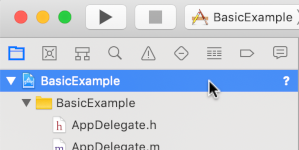
- बीच वाले पैनल में, बिल्ड फ़ेज़ पर क्लिक करें.

- लाइब्रेरी के साथ बाइनरी लिंक करें सेक्शन को बड़ा करें.
- लाइब्रेरी की सूची में सबसे नीचे, प्लस आइकॉन [+] पर क्लिक करें.
- अन्य जोड़ें पर क्लिक करें.
- डाउनलोड किए गए एसडीके को एक्सट्रैक्ट करने वाली डायरेक्ट्री में, GoogleInteractiveMediaAds.framework को चुनें. इसके बाद, खोलें पर क्लिक करें.
- लाइब्रेरी की सूची में सबसे नीचे, प्लस आइकॉन [+] पर फिर से क्लिक करें.
- स्टेटस कॉलम में, पुष्टि करें कि
GoogleInteractiveMediaAds.frameworkकोRequiredपर सेट किया गया हो. - अपनी बिल्ड सेटिंग में,
-ObjCलिंकर फ़्लैग शामिल करें. ज़्यादा जानकारी के लिए, Apple QA1490 देखें.
3. वीडियो प्लेयर बनाना
सबसे पहले, वीडियो प्लेयर लागू करें. शुरुआत में, यह प्लेयर IMA SDK टूल का इस्तेमाल नहीं करता है. साथ ही, इसमें प्लेबैक ट्रिगर करने का कोई तरीका नहीं होता है.
Objective-C
प्लेयर की डिपेंडेंसी इंपोर्ट करें:
#import "ViewController.h"
@import AVFoundation;
प्लेयर के वैरिएबल सेट अप करें:
@interface ViewController () <IMAAdsLoaderDelegate, IMAAdsManagerDelegate>
/// Content video player.
@property(nonatomic, strong) AVPlayer *contentPlayer;
/// Play button.
@property(nonatomic, weak) IBOutlet UIButton *playButton;
/// UIView in which we will render our AVPlayer for content.
@property(nonatomic, weak) IBOutlet UIView *videoView;
व्यू लोड होने पर, वीडियो प्लेयर शुरू करें:
@implementation ViewController
// The content URL to play.
NSString *const kTestAppContentUrl_MP4 =
@"https://storage.googleapis.com/gvabox/media/samples/stock.mp4";
// Ad tag
NSString *const kTestAppAdTagUrl = @"https://pubads.g.doubleclick.net/gampad/ads?"
@"iu=/21775744923/external/single_ad_samples&sz=640x480&cust_params=sample_ct%3Dlinear&"
@"ciu_szs=300x250%2C728x90&gdfp_req=1&output=vast&unviewed_position_start=1&env=vp&"
@"correlator=";
- (void)viewDidLoad {
[super viewDidLoad];
self.playButton.layer.zPosition = MAXFLOAT;
[self setupAdsLoader];
[self setUpContentPlayer];
}
#pragma mark Content Player Setup
- (void)setUpContentPlayer {
// Load AVPlayer with path to our content.
NSURL *contentURL = [NSURL URLWithString:kTestAppContentUrl_MP4];
self.contentPlayer = [AVPlayer playerWithURL:contentURL];
// Create a player layer for the player.
AVPlayerLayer *playerLayer = [AVPlayerLayer playerLayerWithPlayer:self.contentPlayer];
// Size, position, and display the AVPlayer.
playerLayer.frame = self.videoView.layer.bounds;
[self.videoView.layer addSublayer:playerLayer];
// Set up our content playhead and contentComplete callback.
self.contentPlayhead = [[IMAAVPlayerContentPlayhead alloc] initWithAVPlayer:self.contentPlayer];
[[NSNotificationCenter defaultCenter] addObserver:self
selector:@selector(contentDidFinishPlaying:)
name:AVPlayerItemDidPlayToEndTimeNotification
object:self.contentPlayer.currentItem];
}
- (IBAction)onPlayButtonTouch:(id)sender {
[self requestAds];
self.playButton.hidden = YES;
}
Swift
प्लेयर की डिपेंडेंसी इंपोर्ट करें:
import AVFoundation
प्लेयर के वैरिएबल सेट अप करें:
class PlayerContainerViewController: UIViewController, IMAAdsLoaderDelegate, IMAAdsManagerDelegate {
static let contentURL = URL(
string: "https://storage.googleapis.com/gvabox/media/samples/stock.mp4")!
private var contentPlayer = AVPlayer(url: PlayerContainerViewController.contentURL)
private lazy var playerLayer: AVPlayerLayer = {
AVPlayerLayer(player: contentPlayer)
}()
व्यू लोड होने पर, वीडियो प्लेयर शुरू करें:
private lazy var videoView: UIView = {
let videoView = UIView()
videoView.translatesAutoresizingMaskIntoConstraints = false
view.addSubview(videoView)
NSLayoutConstraint.activate([
videoView.bottomAnchor.constraint(
equalTo: view.safeAreaLayoutGuide.bottomAnchor),
videoView.topAnchor.constraint(equalTo: view.safeAreaLayoutGuide.topAnchor),
videoView.trailingAnchor.constraint(equalTo: view.safeAreaLayoutGuide.trailingAnchor),
videoView.leadingAnchor.constraint(equalTo: view.safeAreaLayoutGuide.leadingAnchor),
])
return videoView
}()
// MARK: - View controller lifecycle methods
override func viewDidLoad() {
super.viewDidLoad()
videoView.layer.addSublayer(playerLayer)
adsLoader.delegate = self
NotificationCenter.default.addObserver(
self,
selector: #selector(contentDidFinishPlaying(_:)),
name: .AVPlayerItemDidPlayToEndTime,
object: contentPlayer.currentItem)
}
override func viewDidAppear(_ animated: Bool) {
super.viewDidAppear(animated)
playerLayer.frame = videoView.layer.bounds
}
override func viewWillTransition(
to size: CGSize, with coordinator: UIViewControllerTransitionCoordinator
) {
coordinator.animate { _ in
// do nothing
} completion: { _ in
self.playerLayer.frame = self.videoView.layer.bounds
}
}
// MARK: - Public methods
func playButtonPressed() {
requestAds()
}
4. IMA SDK टूल इंपोर्ट करना
IMA SDK टूल इंपोर्ट करने के लिए, यह तरीका अपनाएं:
Objective-C
IMA SDK टूल इंपोर्ट करें:
@import GoogleInteractiveMediaAds;ऐप्लिकेशन में इस्तेमाल की जाने वाली
IMAAdsLoader,IMAAVPlayerContentPlayhead, औरIMAAdsManagerक्लास के लिए वैरिएबल बनाएं:// SDK /// Entry point for the SDK. Used to make ad requests. @property(nonatomic, strong) IMAAdsLoader *adsLoader; /// Playhead used by the SDK to track content video progress and insert mid-rolls. @property(nonatomic, strong) IMAAVPlayerContentPlayhead *contentPlayhead; /// Main point of interaction with the SDK. Created by the SDK as the result of an ad request. @property(nonatomic, strong) IMAAdsManager *adsManager;
Swift
IMA SDK टूल इंपोर्ट करें:
import GoogleInteractiveMediaAdsऐप्लिकेशन में इस्तेमाल की जाने वाली
IMAAdsLoader,IMAAVPlayerContentPlayhead, औरIMAAdsManagerक्लास के लिए वैरिएबल बनाएं:static let adTagURLString = "https://pubads.g.doubleclick.net/gampad/ads?iu=/21775744923/external/" + "single_ad_samples&sz=640x480&cust_params=sample_ct%3Dlinear&ciu_szs=300x250%2C728x90&" + "gdfp_req=1&output=vast&unviewed_position_start=1&env=vp&correlator=" private let adsLoader = IMAAdsLoader() private var adsManager: IMAAdsManager? private lazy var contentPlayhead: IMAAVPlayerContentPlayhead = { IMAAVPlayerContentPlayhead(avPlayer: contentPlayer) }()
5. कॉन्टेंट प्लेहेड ट्रैकर और एंड-ऑफ़-स्ट्रीम ऑब्ज़र्वर लागू करना
मिड-रोल विज्ञापन चलाने के लिए, IMA SDK टूल को आपके वीडियो कॉन्टेंट की मौजूदा स्थिति को ट्रैक करना होता है. ऐसा करने के लिए, IMAContentPlayhead को लागू करने वाली क्लास बनाएं. अगर इस उदाहरण में दिखाए गए तरीके से AVPlayer का इस्तेमाल किया जा रहा है,
तो एसडीके, IMAAVPlayerContentPlayhead क्लास उपलब्ध कराता है. यह क्लास, आपके लिए यह काम करती है.
अगर AVPlayer का इस्तेमाल नहीं किया जा रहा है, तो आपको अपनी क्लास पर IMAContentPlayhead लागू करना होगा.
आपको एसडीके को यह भी बताना होगा कि आपका कॉन्टेंट कब खत्म हो रहा है, ताकि वह पोस्ट-रोल विज्ञापन दिखा सके. ऐसा करने के लिए, IMAAdsLoader पर
contentComplete
मेथड को कॉल करें. इसके लिए, AVPlayerItemDidPlayToEndTimeNotification का इस्तेमाल करें.
Objective-C
प्लेयर सेटअप में, IMAAVPlayerContentPlayhead इंस्टेंस बनाएं:
// Set up our content playhead and contentComplete callback.
self.contentPlayhead = [[IMAAVPlayerContentPlayhead alloc] initWithAVPlayer:self.contentPlayer];
[[NSNotificationCenter defaultCenter] addObserver:self
selector:@selector(contentDidFinishPlaying:)
name:AVPlayerItemDidPlayToEndTimeNotification
object:self.contentPlayer.currentItem];
कॉन्टेंट खत्म होने पर, IMAAdsLoader.contentComplete() को कॉल करने के लिए, contentDidFinishPlaying() मेथड बनाएं:
- (void)contentDidFinishPlaying:(NSNotification *)notification {
// Make sure we don't call contentComplete as a result of an ad completing.
if (notification.object == self.contentPlayer.currentItem) {
[self.adsLoader contentComplete];
}
}
Swift
प्लेयर सेटअप में, कॉन्टेंट खत्म होने पर काम करने वाला ऑब्ज़र्वर बनाएं:
NotificationCenter.default.addObserver(
self,
selector: #selector(contentDidFinishPlaying(_:)),
name: .AVPlayerItemDidPlayToEndTime,
object: contentPlayer.currentItem)
कॉन्टेंट खत्म होने पर, IMAAdsLoader.contentComplete() को कॉल करने के लिए, contentDidFinishPlaying() मेथड बनाएं:
@objc func contentDidFinishPlaying(_ notification: Notification) {
// Make sure we don't call contentComplete as a result of an ad completing.
if notification.object as? AVPlayerItem == contentPlayer.currentItem {
adsLoader.contentComplete()
}
}
6. विज्ञापन लोडर शुरू करना और विज्ञापन अनुरोध करना
विज्ञापनों के सेट का अनुरोध करने के लिए, आपको IMAAdsLoader इंस्टेंस बनाना होगा.
यह लोडर, तय किए गए विज्ञापन टैग यूआरएल से जुड़े IMAAdsRequest ऑब्जेक्ट को प्रोसेस करता है.
सबसे सही तरीका यह है कि अपने ऐप्लिकेशन के पूरे लाइफ़साइकल के लिए, IMAAdsLoader का सिर्फ़ एक इंस्टेंस बनाए रखें. विज्ञापन के अतिरिक्त अनुरोध करने के लिए, नया IMAAdsRequest ऑब्जेक्ट बनाएं. हालांकि, उसी IMAAdsLoader का फिर से इस्तेमाल करें. ज़्यादा जानकारी के लिए, IMA SDK टूल से जुड़े अक्सर पूछे जाने वाले सवाल देखें.
Objective-C
- (void)setupAdsLoader {
self.adsLoader = [[IMAAdsLoader alloc] initWithSettings:nil];
self.adsLoader.delegate = self;
}
- (void)requestAds {
// Create an ad display container for ad rendering.
IMAAdDisplayContainer *adDisplayContainer =
[[IMAAdDisplayContainer alloc] initWithAdContainer:self.videoView
viewController:self
companionSlots:nil];
// Create an ad request with our ad tag, display container, and optional user context.
IMAAdsRequest *request = [[IMAAdsRequest alloc] initWithAdTagUrl:kTestAppAdTagUrl
adDisplayContainer:adDisplayContainer
contentPlayhead:self.contentPlayhead
userContext:nil];
[self.adsLoader requestAdsWithRequest:request];
}
Swift
private func requestAds() {
// Create ad display container for ad rendering.
let adDisplayContainer = IMAAdDisplayContainer(
adContainer: videoView, viewController: self, companionSlots: nil)
// Create an ad request with our ad tag, display container, and optional user context.
let request = IMAAdsRequest(
adTagUrl: PlayerContainerViewController.adTagURLString,
adDisplayContainer: adDisplayContainer,
contentPlayhead: contentPlayhead,
userContext: nil)
adsLoader.requestAds(with: request)
}
7. विज्ञापन लोडर डेलिगेट सेट अप करना
लोड होने का इवेंट पूरा होने पर, IMAAdsLoader असाइन किए गए डेलिगेट के
adsLoadedWithData
मेथड को कॉल करता है. साथ ही, उसे IMAAdsManager का इंस्टेंस पास करता है. इसके बाद, विज्ञापन मैनेजर को शुरू किया जा सकता है. यह विज्ञापन टैग यूआरएल के जवाब के मुताबिक, अलग-अलग विज्ञापन लोड करता है.
इसके अलावा, लोड होने की प्रोसेस के दौरान होने वाली किसी भी गड़बड़ी को मैनेज करना न भूलें. अगर विज्ञापन लोड नहीं होते हैं, तो पक्का करें कि मीडिया का प्लेबैक, बिना विज्ञापनों के जारी रहे, ताकि उपयोगकर्ता के अनुभव में कोई रुकावट न आए.
Objective-C
- (void)adsLoader:(IMAAdsLoader *)loader adsLoadedWithData:(IMAAdsLoadedData *)adsLoadedData {
// Grab the instance of the IMAAdsManager and set ourselves as the delegate.
self.adsManager = adsLoadedData.adsManager;
self.adsManager.delegate = self;
// Create ads rendering settings to tell the SDK to use the in-app browser.
IMAAdsRenderingSettings *adsRenderingSettings = [[IMAAdsRenderingSettings alloc] init];
adsRenderingSettings.linkOpenerPresentingController = self;
// Initialize the ads manager.
[self.adsManager initializeWithAdsRenderingSettings:adsRenderingSettings];
}
- (void)adsLoader:(IMAAdsLoader *)loader failedWithErrorData:(IMAAdLoadingErrorData *)adErrorData {
// Something went wrong loading ads. Log the error and play the content.
NSLog(@"Error loading ads: %@", adErrorData.adError.message);
[self.contentPlayer play];
}
Swift
func adsLoader(_ loader: IMAAdsLoader, adsLoadedWith adsLoadedData: IMAAdsLoadedData) {
// Grab the instance of the IMAAdsManager and set ourselves as the delegate.
adsManager = adsLoadedData.adsManager
adsManager?.delegate = self
// Create ads rendering settings and tell the SDK to use the in-app browser.
let adsRenderingSettings = IMAAdsRenderingSettings()
adsRenderingSettings.linkOpenerPresentingController = self
// Initialize the ads manager.
adsManager?.initialize(with: adsRenderingSettings)
}
func adsLoader(_ loader: IMAAdsLoader, failedWith adErrorData: IMAAdLoadingErrorData) {
if let message = adErrorData.adError.message {
print("Error loading ads: \(message)")
}
contentPlayer.play()
}
8. विज्ञापन मैनेजर डेलिगेट सेट अप करना
आखिर में, इवेंट और स्टेटस में होने वाले बदलावों को मैनेज करने के लिए, विज्ञापन मैनेजर को अपने डेलिगेट की ज़रूरत होती है. IMAAdManagerDelegate में, विज्ञापन इवेंट और गड़बड़ियों को मैनेज करने के लिए मेथड होते हैं. साथ ही, इसमें आपके वीडियो कॉन्टेंट को चलाने और रोकने के लिए भी मेथड होते हैं.
प्लेबैक प्रारंभ करें
कॉन्टेंट और विज्ञापनों का प्लेबैक शुरू करने के लिए, LOADED इवेंट को मॉनिटर करें. ज़्यादा जानकारी के लिए, देखें
didReceiveAdEvent.
Objective-C
- (void)adsManager:(IMAAdsManager *)adsManager didReceiveAdEvent:(IMAAdEvent *)event {
// When the SDK notified us that ads have been loaded, play them.
if (event.type == kIMAAdEvent_LOADED) {
[adsManager start];
}
}
Swift
func adsManager(_ adsManager: IMAAdsManager, didReceive event: IMAAdEvent) {
// When the SDK notifies us the ads have been loaded, play them.
if event.type == IMAAdEventType.LOADED {
adsManager.start()
}
}
गड़बड़ियां ठीक करना
विज्ञापन से जुड़ी गड़बड़ियों के लिए भी हैंडलर जोड़ें. अगर कोई गड़बड़ी होती है, तो पिछले चरण की तरह, कॉन्टेंट का प्लेबैक फिर से शुरू करें.
Objective-C
- (void)adsManager:(IMAAdsManager *)adsManager didReceiveAdError:(IMAAdError *)error {
// Something went wrong with the ads manager after ads were loaded. Log the error and play the
// content.
NSLog(@"AdsManager error: %@", error.message);
[self.contentPlayer play];
}
Swift
func adsManager(_ adsManager: IMAAdsManager, didReceive error: IMAAdError) {
// Something went wrong with the ads manager after ads were loaded.
// Log the error and play the content.
if let message = error.message {
print("AdsManager error: \(message)")
}
contentPlayer.play()
}
प्ले और पॉज़ इवेंट को मॉनिटर करना
आपको जिन दो डेलिगेट मेथड को लागू करना है वे IMA SDK टूल के अनुरोध करने पर, वीडियो कॉन्टेंट को चलाने और रोकने के इवेंट को ट्रिगर करते हैं. अनुरोध करने पर, वीडियो को रोकने और चलाने की सुविधा को ट्रिगर करने से, विज्ञापन दिखाने के दौरान उपयोगकर्ता वीडियो कॉन्टेंट के कुछ हिस्सों को मिस नहीं कर पाता.
Objective-C
- (void)adsManagerDidRequestContentPause:(IMAAdsManager *)adsManager {
// The SDK is going to play ads, so pause the content.
[self.contentPlayer pause];
}
- (void)adsManagerDidRequestContentResume:(IMAAdsManager *)adsManager {
// The SDK is done playing ads (at least for now), so resume the content.
[self.contentPlayer play];
}
Swift
func adsManagerDidRequestContentPause(_ adsManager: IMAAdsManager) {
// The SDK is going to play ads, so pause the content.
contentPlayer.pause()
}
func adsManagerDidRequestContentResume(_ adsManager: IMAAdsManager) {
// The SDK is done playing ads (at least for now), so resume the content.
contentPlayer.play()
}
हो गया! अब IMA SDK टूल की मदद से, विज्ञापनों का अनुरोध किया जा सकता है और उन्हें दिखाया जा सकता है. एसडीके की अन्य सुविधाओं के बारे में जानने के लिए, अन्य गाइड या GitHub पर मौजूद सैंपल देखें.
अगले चरण
iOS प्लैटफ़ॉर्म पर विज्ञापन से होने वाली आय बढ़ाने के लिए, आईडीएफ़ए का इस्तेमाल करने के लिए, App Transparency and Tracking की अनुमति का अनुरोध करें.