

Page Summary
-
This document provides guidance for developers on measuring page views for single-page applications (SPAs) using Google Analytics.
-
SPAs load content dynamically, requiring a different approach to tracking page views for accurate user journey analysis.
-
To measure SPA page views correctly, you need to count page views for each screen interaction and accurately track the referrer.
-
Implementing SPA measurement involves triggering virtual page views through either browser history changes or custom events.
-
Verifying your SPA measurement setup requires enabling debug mode and checking for
page_viewevents in DebugView as you navigate the application.
This document is for developers who want to measure page views on their single-page application using Google Analytics.
Single-page applications (SPA) are websites that load an HTML document once and fetch any additional content using JavaScript APIs.
Example: Suppose you have a form to acquire some leads. The form has three screens: > * First screen to capture the customer information. * Second screen where customers indicate interest in certain services. * Third screen page to sign up for webinars related to the customer's interests.
The key to measuring page views from SPAs correctly is to count page views for each screen a user interacts with and get the page referrer right, so you can correctly trace the user journey.
Before you begin
This page assumes that you already have:
A Google Analytics account and property for your website. Learn how to Set up Google Analytics.
A Google tag implemented on your website that fires when the page initially loads. Learn how to Set up the Google tag.
Implement single-page application measurement
To implement accurate SPA measurement, use one of these methods to trigger a new virtual page view:
Browser history changes (recommended): If your SPA uses the History API, specifically the
pushState()andreplaceState()method to update screens, use this option.Custom events: If your website uses the
DocumentFragmentobject to render different screens, use this option.
Browser history change implementation
If your SPA uses the History API, you can enable enhanced measurement in Google Analytics to automatically track page views based on browser history events.
Enable enhanced measurement in Google Analytics
To measure page_views automatically based on browser history:
Open Google Analytics
In Admin, under Data collection and modification, click Data Streams > Web.
Under Enhanced measurement, slide the switch On to enable all options.
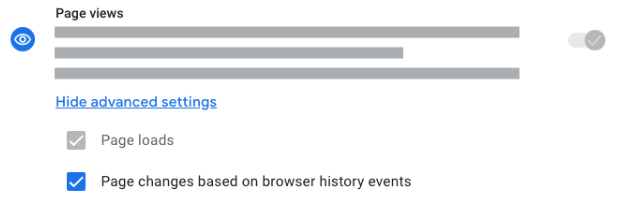
Click to edit individual options. Under Page Views, click Show advanced settings. Make sure to enable both Page loads and Page changes based on browser history events.
Save the changes.
Verify your measurement setup
To verify your single-page application measures page views correctly:
Enable debug mode for every tag in your SPA measurement setup. Learn how to Monitor events in DebugView.
Click through your single-page application. When you click to a new virtual screen, you should see a new
page_viewevent in DebugView. Compare thepage_viewevent parameters with the precedingpage_viewevent to check if the page referrer and page location have been updated correctly.
Additional considerations for SPAs
Besides sending page_view events, consider these additional aspects for a
robust SPA integration with Google Analytics and better user experience:
Manage scroll position
When users navigate between views in an SPA, the browser typically retains the current scroll position. This can mean users don't see the top of the new virtual page, and it can affect scroll depth tracking.
Recommendation: Programmatically reset the scroll position to the top of the page or the main content container after each virtual page transition.
// Example: Reset window scroll position on a route change in your SPA
window.scrollTo(0, 0);

// Or, if your content is within a specific element:
// document.getElementById('main-content').scrollTo(0, 0);
With this change, users will start at the top of the new content, which allows Google Analytics scroll tracking to measure engagement on the new virtual page accurately.
Ensure content accessibility for browser features
If users report issues with browser features like on-page search (Ctrl+F) not working after a virtual page load, it might indicate how your SPA updates the DOM.
Recommendation: Ensure that your SPA framework and routing logic completely and synchronously update the relevant parts of the DOM with the new page's content. Delayed rendering or content hidden from the main DOM tree might not be immediately indexable by the browser's search function. Test on-page search after virtual navigations to confirm content accessibility.
Impact on automatic events
If you correctly implement virtual page view measurement in your SPA, then Google Analytics will handle other automatic events appropriately. If virtual page views are not recorded for screen changes, Google Analytics treats the SPA as a single page, leading to skewed metrics.
For example, the user_engagement event measures the time a user actively
spends on a page. Without virtual page views, all engagement time is attributed
to the initial page load, making it impossible to analyze time spent on
individual screens.
When virtual page view measurement is correctly implemented:
- The
user_engagementevent is sent when the user navigates from one virtual page to another. - The engagement time for the previous virtual page is calculated and sent
along with the
user_engagementevent, typically just before thepage_viewevent for the new virtual page is processed. - Other events, such as clicks or scrolls, are associated with the
page_locationof the virtual page the user is currently viewing.
This lets you analyze user engagement and other metrics for individual screens or sections within your SPA, providing a more accurate understanding of the user journey.