

نمایش فرمت تبلیغات بومی تعریفشده توسط سیستم
When a native ad loads, your app will receive a native ad object using one of the GADAdLoaderDelegate protocol messages. Your app is then responsible for displaying the ad (though it doesn't necessarily have to do so immediately). To make displaying system-defined ad formats easier, the SDK offers some useful resources.
GADNativeAdView
For the GADNativeAd , there is a corresponding "ad view" class: GADNativeAdView . This ad view class is a UIView that publishers should use to display the ad. A single GADNativeAdView , for example, can display a single instance of a GADNativeAd . Each of the UIView objects used to display that ad's assets should be subviews of that GADNativeAdView object.
برای مثال، اگر در حال نمایش یک تبلیغ در یک UITableView هستید، سلسله مراتب نمایش برای یکی از سلولها ممکن است به این شکل باشد:
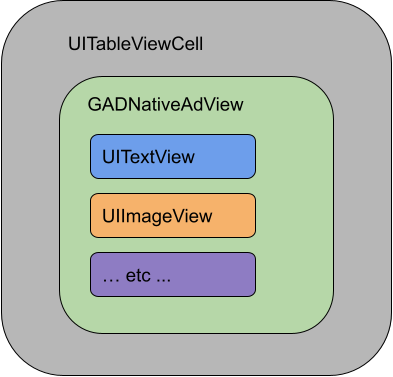
The GADNativeAdView class also provides IBOutlets used to register the view used for each individual asset, and a method to register the GADNativeAd object itself. Registering the views in this way allows the SDK to automatically handle tasks such as:
- ضبط کلیکها.
- ثبت برداشتها (زمانی که اولین پیکسل روی صفحه نمایش قابل مشاهده است).
- نمایش پوشش AdChoices.
پوشش AdChoices
برای تبلیغات بومی غیرمستقیم (که از طریق افزونه Ad Manager یا از طریق Ad Exchange یا AdSense ارائه میشوند)، یک پوشش AdChoices توسط SDK اضافه میشود. در گوشه دلخواه خود از نمای تبلیغات بومی، جایی برای لوگوی AdChoices که به طور خودکار درج میشود، بگذارید. همچنین، مطمئن شوید که پوشش AdChoices روی محتوایی قرار گرفته است که امکان مشاهده واضح آیکون را فراهم میکند. برای اطلاعات بیشتر در مورد ظاهر و عملکرد این پوشش، به دستورالعملهای پیادهسازی تبلیغات بومی برنامهریزیشده مراجعه کنید.
انتساب آگهی برای تبلیغات بومی برنامهریزیشده
هنگام نمایش تبلیغات بومی برنامهریزیشده، باید یک انتساب تبلیغ نمایش دهید تا مشخص شود که این نمایش یک تبلیغ است. برای اطلاعات بیشتر به دستورالعملهای خطمشی ما مراجعه کنید.مثال کد
این بخش نحوه نمایش تبلیغات بومی با استفاده از نماهای بارگذاری شده به صورت پویا از فایلهای xib را نشان میدهد. این میتواند یک رویکرد بسیار مفید هنگام استفاده از GADAdLoaders پیکربندی شده برای درخواست چندین فرمت باشد.
طرحبندی UIViewها
The first step is to lay out the UIViews that will display native ad assets. You can do this in the Interface Builder as you would when creating any other xib file. Here's how the layout for a native ad might look:
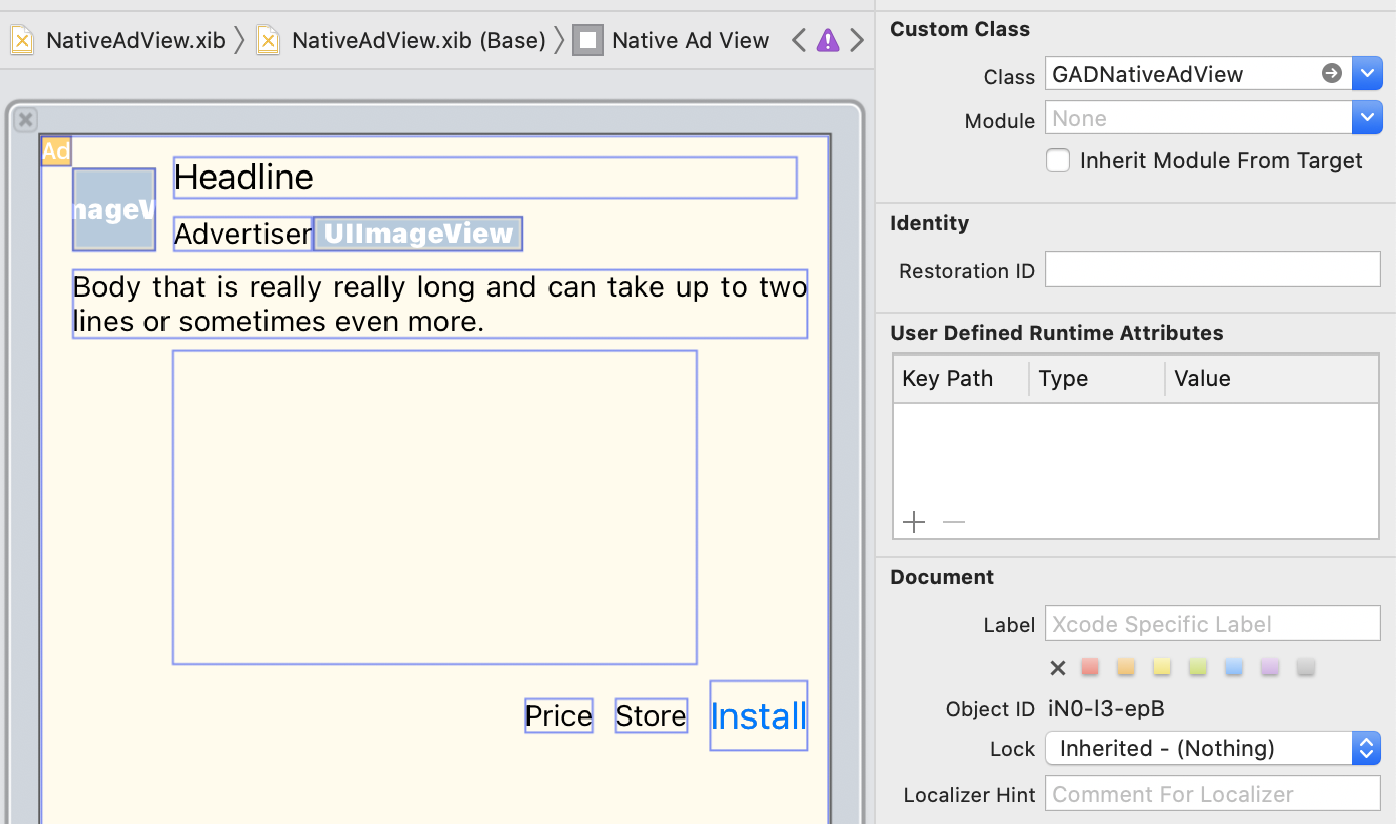
به مقدار Custom Class در بالا سمت راست تصویر توجه کنید. مقدار آن برابر است با
GADNativeAdView . این کلاس نمایش تبلیغات است که برای نمایش GADNativeAd استفاده میشود.
همچنین باید کلاس سفارشی را برای GADMediaView تنظیم کنید، که برای نمایش ویدیو یا تصویر برای تبلیغ استفاده میشود.
لینک کردن خروجیها به بازدیدها
Once the views are in place and you've assigned the correct ad view class to the layout, link the ad view's asset outlets to the UIViews you've created. Here's how you might link the ad view's asset outlets to the UIViews created for an ad: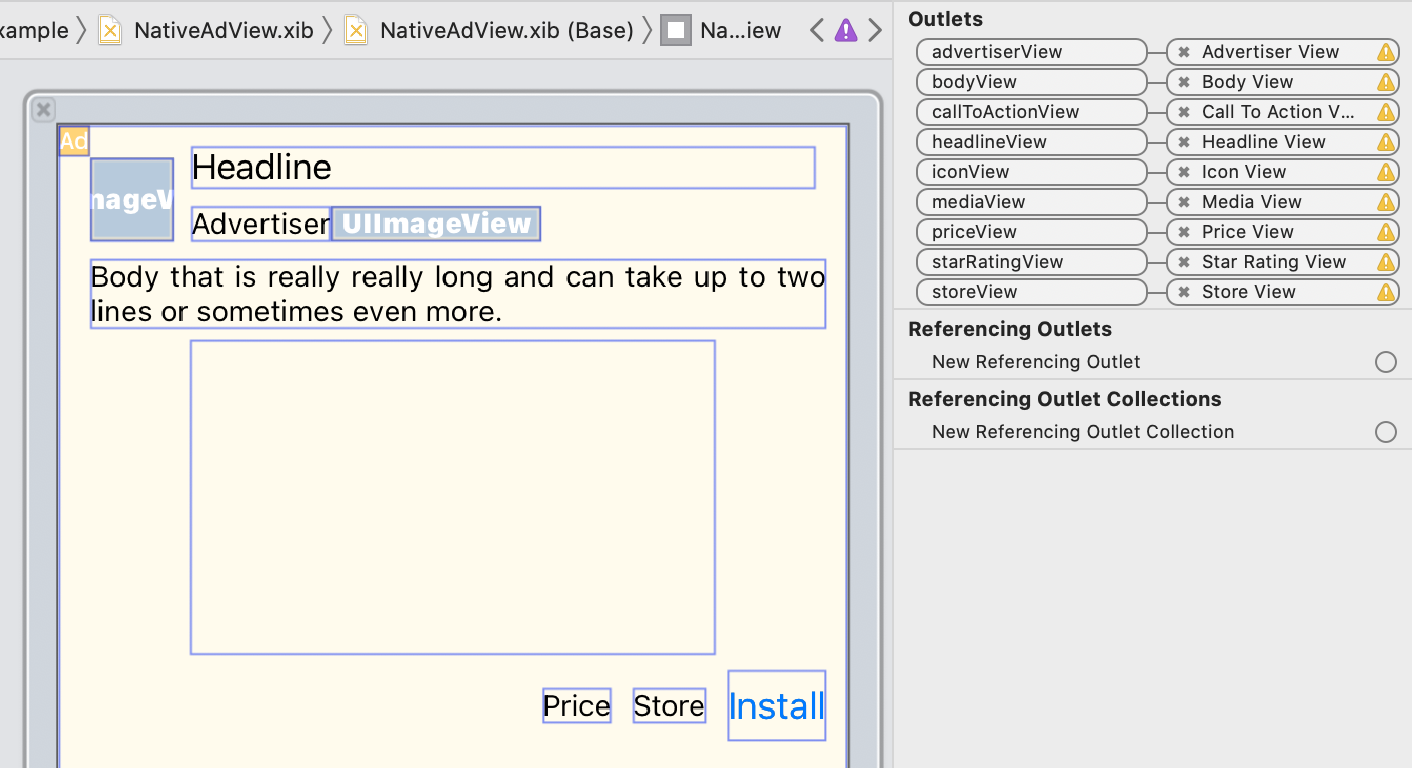
In the outlet panel, the outlets in GADNativeAdView have been linked to the UIViews laid out in the Interface Builder. This lets the SDK know which UIView displays which asset. It's also important to remember that these outlets represent the views that are clickable in the ad.
نمایش تبلیغ
پس از تکمیل طرحبندی و اتصال خروجیها، کد زیر را به برنامه خود اضافه کنید که پس از بارگذاری، یک تبلیغ نمایش میدهد:
سویفت
func adLoader(_ adLoader: AdLoader, didReceive nativeAd: NativeAd) {
// ...
// Set ourselves as the native ad delegate to be notified of native ad events.
nativeAd.delegate = self
// Populate the native ad view with the native ad assets.
// The headline and mediaContent are guaranteed to be present in every native ad.
(nativeAdView.headlineView as? UILabel)?.text = nativeAd.headline
nativeAdView.mediaView?.mediaContent = nativeAd.mediaContent
// Some native ads will include a video asset, while others do not. Apps can use the
// GADVideoController's hasVideoContent property to determine if one is present, and adjust their
// UI accordingly.
let mediaContent = nativeAd.mediaContent
if mediaContent.hasVideoContent {
// By acting as the delegate to the GADVideoController, this ViewController receives messages
// about events in the video lifecycle.
mediaContent.videoController.delegate = self
videoStatusLabel.text = "Ad contains a video asset."
} else {
videoStatusLabel.text = "Ad does not contain a video."
}
// This app uses a fixed width for the GADMediaView and changes its height to match the aspect
// ratio of the media it displays.
if let mediaView = nativeAdView.mediaView, nativeAd.mediaContent.aspectRatio > 0 {
let aspectRatioConstraint = NSLayoutConstraint(
item: mediaView,
attribute: .width,
relatedBy: .equal,
toItem: mediaView,
attribute: .height,
multiplier: CGFloat(nativeAd.mediaContent.aspectRatio),
constant: 0)
mediaView.addConstraint(aspectRatioConstraint)
nativeAdView.layoutIfNeeded()
}
// These assets are not guaranteed to be present. Check that they are before
// showing or hiding them.
(nativeAdView.bodyView as? UILabel)?.text = nativeAd.body
nativeAdView.bodyView?.isHidden = nativeAd.body == nil
(nativeAdView.callToActionView as? UIButton)?.setTitle(nativeAd.callToAction, for: .normal)
nativeAdView.callToActionView?.isHidden = nativeAd.callToAction == nil
(nativeAdView.iconView as? UIImageView)?.image = nativeAd.icon?.image
nativeAdView.iconView?.isHidden = nativeAd.icon == nil
(nativeAdView.starRatingView as? UIImageView)?.image = imageOfStars(from: nativeAd.starRating)
nativeAdView.starRatingView?.isHidden = nativeAd.starRating == nil
(nativeAdView.storeView as? UILabel)?.text = nativeAd.store
nativeAdView.storeView?.isHidden = nativeAd.store == nil
(nativeAdView.priceView as? UILabel)?.text = nativeAd.price
nativeAdView.priceView?.isHidden = nativeAd.price == nil
(nativeAdView.advertiserView as? UILabel)?.text = nativeAd.advertiser
nativeAdView.advertiserView?.isHidden = nativeAd.advertiser == nil
// In order for the SDK to process touch events properly, user interaction should be disabled.
nativeAdView.callToActionView?.isUserInteractionEnabled = false
// Associate the native ad view with the native ad object. This is
// required to make the ad clickable.
// Note: this should always be done after populating the ad views.
nativeAdView.nativeAd = nativeAd
}
سویفتیوآی
ایجاد یک مدل نمایش
یک مدل نمایش ایجاد کنید که یک تبلیغ بومی را بارگذاری کند و تغییرات دادههای تبلیغ بومی را منتشر کند:
import GoogleMobileAds
class NativeAdViewModel: NSObject, ObservableObject, NativeAdLoaderDelegate {
@Published var nativeAd: NativeAd?
private var adLoader: AdLoader!
func refreshAd() {
adLoader = AdLoader(
adUnitID: "ca-app-pub-3940256099942544/3986624511",
// The UIViewController parameter is optional.
rootViewController: nil,
adTypes: [.native], options: nil)
adLoader.delegate = self
adLoader.load(Request())
}
func adLoader(_ adLoader: AdLoader, didReceive nativeAd: NativeAd) {
// Native ad data changes are published to its subscribers.
self.nativeAd = nativeAd
nativeAd.delegate = self
}
func adLoader(_ adLoader: AdLoader, didFailToReceiveAdWithError error: Error) {
print("\(adLoader) failed with error: \(error.localizedDescription)")
}
}
ایجاد یک UIViewRepresentable
یک UIViewRepresentable برای NativeView ایجاد کنید و تغییرات دادهها را در کلاس ViewModel ثبت کنید:
private struct NativeAdViewContainer: UIViewRepresentable {
typealias UIViewType = NativeAdView
// Observer to update the UIView when the native ad value changes.
@ObservedObject var nativeViewModel: NativeAdViewModel
func makeUIView(context: Context) -> NativeAdView {
return
Bundle.main.loadNibNamed(
"NativeAdView",
owner: nil,
options: nil)?.first as! NativeAdView
}
func updateUIView(_ nativeAdView: NativeAdView, context: Context) {
guard let nativeAd = nativeViewModel.nativeAd else { return }
// Each UI property is configurable using your native ad.
(nativeAdView.headlineView as? UILabel)?.text = nativeAd.headline
nativeAdView.mediaView?.mediaContent = nativeAd.mediaContent
(nativeAdView.bodyView as? UILabel)?.text = nativeAd.body
(nativeAdView.iconView as? UIImageView)?.image = nativeAd.icon?.image
(nativeAdView.starRatingView as? UIImageView)?.image = imageOfStars(from: nativeAd.starRating)
(nativeAdView.storeView as? UILabel)?.text = nativeAd.store
(nativeAdView.priceView as? UILabel)?.text = nativeAd.price
(nativeAdView.advertiserView as? UILabel)?.text = nativeAd.advertiser
(nativeAdView.callToActionView as? UIButton)?.setTitle(nativeAd.callToAction, for: .normal)
// For the SDK to process touch events properly, user interaction should be disabled.
nativeAdView.callToActionView?.isUserInteractionEnabled = false
// Associate the native ad view with the native ad object. This is required to make the ad
// clickable.
// Note: this should always be done after populating the ad views.
nativeAdView.nativeAd = nativeAd
}
افزودن نما به سلسله مراتب نماها
کد زیر اضافه کردن UIViewRepresentable به سلسله مراتب نما را نشان میدهد:
struct NativeContentView: View {
// Single source of truth for the native ad data.
@StateObject private var nativeViewModel = NativeAdViewModel()
var body: some View {
ScrollView {
VStack(spacing: 20) {
// Updates when the native ad data changes.
NativeAdViewContainer(nativeViewModel: nativeViewModel)
.frame(minHeight: 300) // minHeight determined from xib.
هدف-سی
- (void)adLoader:(GADAdLoader *)adLoader didReceiveNativeAd:(GADNativeAd *)nativeAd {
// ...
GADNativeAdView *nativeAdView = self.nativeAdView;
// Set ourselves as the ad delegate to be notified of native ad events.
nativeAd.delegate = self;
// Populate the native ad view with the native ad assets.
// The headline and mediaContent are guaranteed to be present in every native ad.
((UILabel *)nativeAdView.headlineView).text = nativeAd.headline;
nativeAdView.mediaView.mediaContent = nativeAd.mediaContent;
// This app uses a fixed width for the GADMediaView and changes its height
// to match the aspect ratio of the media content it displays.
if (nativeAdView.mediaView != nil && nativeAd.mediaContent.aspectRatio > 0) {
NSLayoutConstraint *aspectRatioConstraint =
[NSLayoutConstraint constraintWithItem:nativeAdView.mediaView
attribute:NSLayoutAttributeWidth
relatedBy:NSLayoutRelationEqual
toItem:nativeAdView.mediaView
attribute:NSLayoutAttributeHeight
multiplier:(nativeAd.mediaContent.aspectRatio)
constant:0];
[nativeAdView.mediaView addConstraint:aspectRatioConstraint];
[nativeAdView layoutIfNeeded];
}
if (nativeAd.mediaContent.hasVideoContent) {
// By acting as the delegate to the GADVideoController, this ViewController
// receives messages about events in the video lifecycle.
nativeAd.mediaContent.videoController.delegate = self;
self.videoStatusLabel.text = @"Ad contains a video asset.";
} else {
self.videoStatusLabel.text = @"Ad does not contain a video.";
}
// These assets are not guaranteed to be present. Check that they are before
// showing or hiding them.
((UILabel *)nativeAdView.bodyView).text = nativeAd.body;
nativeAdView.bodyView.hidden = nativeAd.body ? NO : YES;
[((UIButton *)nativeAdView.callToActionView) setTitle:nativeAd.callToAction
forState:UIControlStateNormal];
nativeAdView.callToActionView.hidden = nativeAd.callToAction ? NO : YES;
((UIImageView *)nativeAdView.iconView).image = nativeAd.icon.image;
nativeAdView.iconView.hidden = nativeAd.icon ? NO : YES;
((UIImageView *)nativeAdView.starRatingView).image = [self imageForStars:nativeAd.starRating];
nativeAdView.starRatingView.hidden = nativeAd.starRating ? NO : YES;
((UILabel *)nativeAdView.storeView).text = nativeAd.store;
nativeAdView.storeView.hidden = nativeAd.store ? NO : YES;
((UILabel *)nativeAdView.priceView).text = nativeAd.price;
nativeAdView.priceView.hidden = nativeAd.price ? NO : YES;
((UILabel *)nativeAdView.advertiserView).text = nativeAd.advertiser;
nativeAdView.advertiserView.hidden = nativeAd.advertiser ? NO : YES;
// In order for the SDK to process touch events properly, user interaction
// should be disabled.
nativeAdView.callToActionView.userInteractionEnabled = NO;
// Associate the native ad view with the native ad object. This is
// required to make the ad clickable.
// Note: this should always be done after populating the ad views.
nativeAdView.nativeAd = nativeAd;
}
مثال کامل در گیتهاب
مثال کامل ادغام تبلیغات بومی در Swift، SwiftUI و Objective-C را با دنبال کردن لینک GitHub مربوطه مشاهده کنید.
مثال رندر سفارشی Swift مثال تبلیغات بومی SwiftUI مثال رندر سفارشی Objective-C
GADMediaView
Image and video assets are displayed to users using GADMediaView . This is a UIView that can be defined in a xib file or constructed dynamically. It should be placed within the view hierarchy of a GADNativeAdView , as with any other asset view.
As with all asset views, the media view needs to have its content populated. This is set using the mediaContent property on GADMediaView . The mediaContent property of GADNativeAd contains media content that can be passed to a GADMediaView .
در اینجا قطعهای از مثال رندر سفارشی ( Swift | Objective-C ) آورده شده است که نحوه پر کردن GADMediaView با داراییهای تبلیغاتی بومی با استفاده از GADMediaContent از GADNativeAd را نشان میدهد:
سویفت
nativeAdView.mediaView?.mediaContent = nativeAd.mediaContent
هدف-سی
nativeAdView.mediaView.mediaContent = nativeAd.mediaContent;
مطمئن شوید که در فایل سازنده رابط کاربری برای نمای تبلیغ بومی خود، کلاس سفارشی views را روی GADMediaView تنظیم کرده و آن را به خروجی mediaView متصل کردهاید.
تغییر حالت محتوای تصویر
The GADMediaView class respects the UIView contentMode property when displaying images. If you want to change how an image is scaled in the GADMediaView , set the corresponding UIViewContentMode on the contentMode property of the GADMediaView to achieve this.
برای مثال، برای پر کردن GADMediaView هنگام نمایش تصویر (تبلیغ فاقد ویدیو است):
سویفت
nativeAdView.mediaView?.contentMode = .scaleAspectFit
هدف-سی
nativeAdView.mediaView.contentMode = UIViewContentModeScaleAspectFit;
محتوای GADMedia
کلاس GADMediaContent دادههای مربوط به محتوای رسانهای تبلیغ بومی را در خود نگه میدارد که با استفاده از کلاس GADMediaView نمایش داده میشود. وقتی روی ویژگی GADMediaView mediaContent تنظیم شود:
اگر یک فایل ویدیویی موجود باشد، بافر شده و درون
GADMediaViewشروع به پخش میکند. میتوانید با بررسیhasVideoContentمتوجه شوید که آیا یک فایل ویدیویی در دسترس است یا خیر.اگر تبلیغ حاوی فایل ویدیویی نباشد، فایل
mainImageدانلود شده و درGADMediaViewقرار میگیرد.
مراحل بعدی
درباره حریم خصوصی کاربران بیشتر بدانید.