

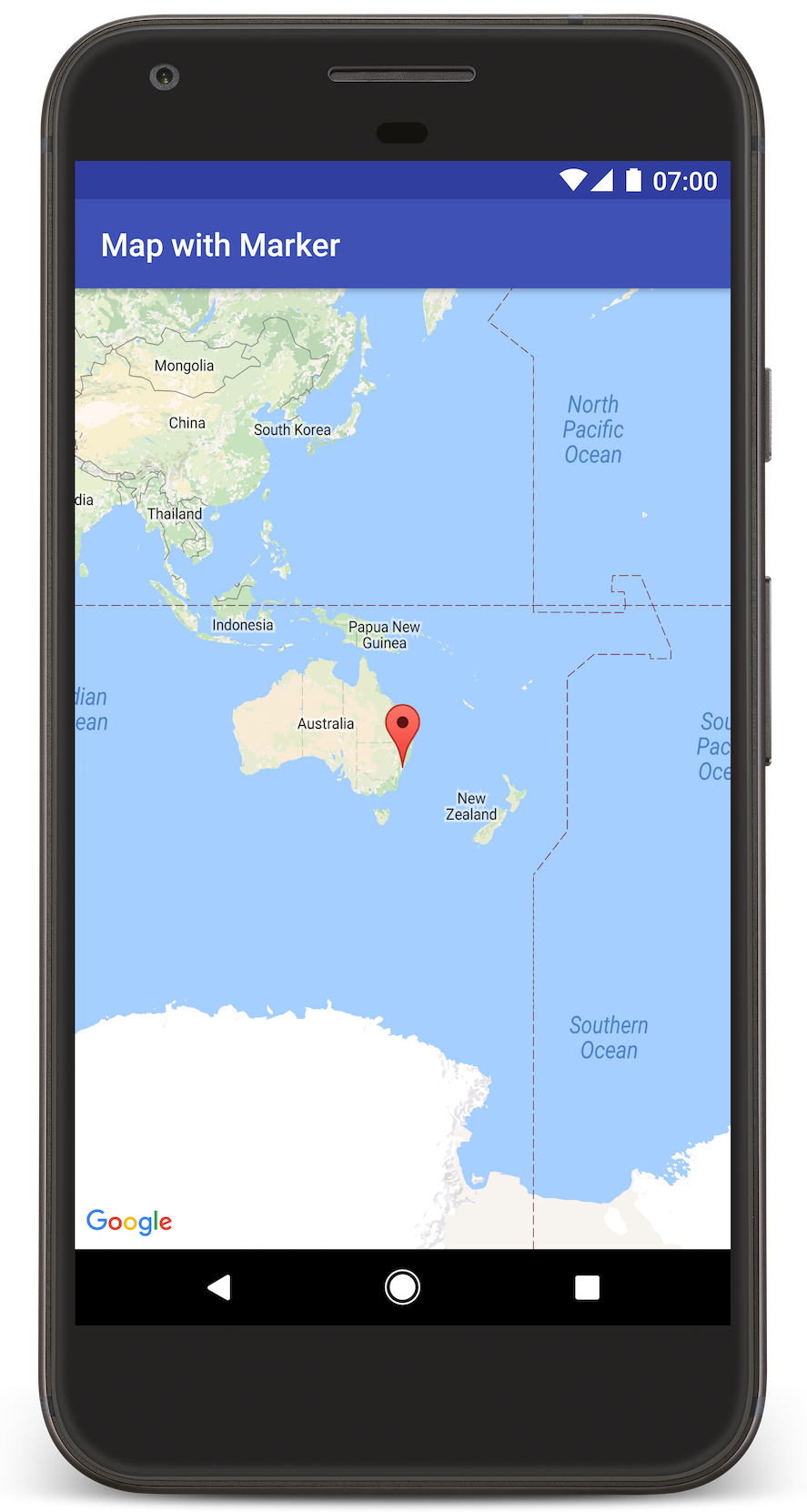
В этом руководстве показано, как добавить карту Google в ваше Android-приложение. Карта включает в себя маркер, также называемый булавкой, для обозначения определенного местоположения.
Следуйте инструкциям в руководстве, чтобы создать приложение для Android, используя Maps SDK для Android. Рекомендуемая среда разработки — Android Studio .
Получите код
Клонируйте или загрузите репозиторий Google Maps Android API v2 Samples с GitHub.
Посмотреть версию задания на Java:
// Copyright 2020 Google LLC // // Licensed under the Apache License, Version 2.0 (the "License"); // you may not use this file except in compliance with the License. // You may obtain a copy of the License at // // http://www.apache.org/licenses/LICENSE-2.0 // // Unless required by applicable law or agreed to in writing, software // distributed under the License is distributed on an "AS IS" BASIS, // WITHOUT WARRANTIES OR CONDITIONS OF ANY KIND, either express or implied. // See the License for the specific language governing permissions and // limitations under the License. package com.example.mapwithmarker; import android.os.Bundle; import androidx.appcompat.app.AppCompatActivity; import com.google.android.gms.maps.CameraUpdateFactory; import com.google.android.gms.maps.GoogleMap; import com.google.android.gms.maps.OnMapReadyCallback; import com.google.android.gms.maps.SupportMapFragment; import com.google.android.gms.maps.model.LatLng; import com.google.android.gms.maps.model.MarkerOptions; /** * An activity that displays a Google map with a marker (pin) to indicate a particular location. */ public class MapsMarkerActivity extends AppCompatActivity implements OnMapReadyCallback { @Override protected void onCreate(Bundle savedInstanceState) { super.onCreate(savedInstanceState); // Retrieve the content view that renders the map. setContentView(R.layout.activity_maps); // Get the SupportMapFragment and request notification when the map is ready to be used. SupportMapFragment mapFragment = (SupportMapFragment) getSupportFragmentManager() .findFragmentById(R.id.map); mapFragment.getMapAsync(this); } /** * Manipulates the map when it's available. * The API invokes this callback when the map is ready to be used. * This is where we can add markers or lines, add listeners or move the camera. In this case, * we just add a marker near Sydney, Australia. * If Google Play services is not installed on the device, the user receives a prompt to install * Play services inside the SupportMapFragment. The API invokes this method after the user has * installed Google Play services and returned to the app. */ @Override public void onMapReady(GoogleMap googleMap) { // Add a marker in Sydney, Australia, // and move the map's camera to the same location. LatLng sydney = new LatLng(-33.852, 151.211); googleMap.addMarker(new MarkerOptions() .position(sydney) .title("Marker in Sydney")); googleMap.moveCamera(CameraUpdateFactory.newLatLng(sydney)); } }
Посмотреть версию задания на Kotlin:
// Copyright 2020 Google LLC // // Licensed under the Apache License, Version 2.0 (the "License"); // you may not use this file except in compliance with the License. // You may obtain a copy of the License at // // http://www.apache.org/licenses/LICENSE-2.0 // // Unless required by applicable law or agreed to in writing, software // distributed under the License is distributed on an "AS IS" BASIS, // WITHOUT WARRANTIES OR CONDITIONS OF ANY KIND, either express or implied. // See the License for the specific language governing permissions and // limitations under the License. package com.example.mapwithmarker import android.os.Bundle import android.widget.Toast import androidx.appcompat.app.AppCompatActivity import com.google.android.gms.maps.CameraUpdateFactory import com.google.android.gms.maps.GoogleMap import com.google.android.gms.maps.OnMapReadyCallback import com.google.android.gms.maps.SupportMapFragment import com.google.android.gms.maps.model.LatLng import com.google.android.gms.maps.model.MarkerOptions /** * An activity that displays a Google map with a marker (pin) to indicate a particular location. */ class MapsMarkerActivity : AppCompatActivity(), OnMapReadyCallback { override fun onCreate(savedInstanceState: Bundle?) { super.onCreate(savedInstanceState) // Retrieve the content view that renders the map. setContentView(R.layout.activity_maps) // Get the SupportMapFragment and request notification when the map is ready to be used. val mapFragment = supportFragmentManager.findFragmentById(R.id.map) as? SupportMapFragment mapFragment?.getMapAsync(this) } override fun onMapReady(googleMap: GoogleMap) { val sydney = LatLng(-33.852, 151.211) googleMap.addMarker( MarkerOptions() .position(sydney) .title("Marker in Sydney") ) googleMap.moveCamera(CameraUpdateFactory.newLatLng(sydney)) } }
Настройте свой проект разработки.
Выполните следующие шаги, чтобы создать учебный проект в Android Studio.
- Скачайте и установите Android Studio.
- Добавьте пакет сервисов Google Play в Android Studio.
- Если вы не сделали этого до начала чтения этого руководства, клонируйте или скачайте репозиторий с примерами Google Maps Android API v2 .
Импортируйте проект из учебного пособия:
- В Android Studio выберите Файл > Создать > Импортировать проект .
- Перейдите в папку, где вы сохранили репозиторий с примерами Google Maps Android API v2 после его загрузки.
- Проект MapWithMarker можно найти по этой ссылке:
PATH-TO-SAVED-REPO /android-samples/tutorials/java/MapWithMarker(Java) или
PATH-TO-SAVED-REPO /android-samples/tutorials/kotlin/MapWithMarker(Kotlin) - Выберите каталог проекта, затем нажмите «Открыть» . Android Studio выполнит сборку вашего проекта с помощью инструмента сборки Gradle.
Включите необходимые API и получите ключ API.
Для выполнения этого руководства вам потребуется проект Google Cloud с включенными необходимыми API и ключ API, авторизованный для использования Maps SDK для Android. Более подробную информацию см. в разделе:
Добавьте ключ API в ваше приложение.
- Откройте файл
local.propertiesвашего проекта. Добавьте следующую строку и замените
YOUR_API_KEYзначением вашего API-ключа:MAPS_API_KEY=YOUR_API_KEYПри сборке приложения плагин Secrets Gradle для Android скопирует ключ API и сделает его доступным в качестве переменной сборки в манифесте Android, как описано ниже .
Создайте и запустите свое приложение.
Для сборки и запуска приложения:
Подключите устройство Android к компьютеру. Следуйте инструкциям , чтобы включить параметры разработчика на вашем устройстве Android и настроить систему для обнаружения устройства.
В качестве альтернативы вы можете использовать Android Virtual Device Manager (AVD) Manager для настройки виртуального устройства. При выборе эмулятора убедитесь, что вы выбрали образ, включающий API Google. Дополнительные сведения см. в разделе «Настройка проекта Android Studio» .
В Android Studio нажмите пункт меню «Выполнить» (или значок кнопки воспроизведения). Выберите устройство согласно подсказке.
Android Studio запускает Gradle для сборки приложения, а затем запускает его на устройстве или в эмуляторе. Вы должны увидеть карту с маркером, указывающим на Сидней на восточном побережье Австралии, похожую на изображение на этой странице.
Поиск неисправностей:
- Если вы не видите карту, убедитесь, что вы получили ключ API и добавили его в приложение, как описано выше . Проверьте журнал в Android Monitor в Android Studio на наличие сообщений об ошибках, связанных с ключом API.
- Используйте инструменты отладки Android Studio для просмотра логов и отладки приложения.
Разберитесь в коде.
В этой части руководства объясняются наиболее важные аспекты приложения MapWithMarker , чтобы помочь вам понять, как создать аналогичное приложение.
Проверьте свой Android-манифест.
Обратите внимание на следующие элементы в файле AndroidManifest.xml вашего приложения:
Добавьте элемент
meta-data, чтобы указать версию сервисов Google Play, с которой было скомпилировано приложение.<meta-data android:name="com.google.android.gms.version" android:value="@integer/google_play_services_version" />Добавьте элемент
meta-dataуказывающий ваш API-ключ. В примере, сопровождающем это руководство, значение API-ключа сопоставляется с переменной сборки, соответствующей имени ключа, определенного ранее,MAPS_API_KEY. При сборке приложения плагин Secrets Gradle для Android сделает ключи из вашего файлаlocal.propertiesдоступными в качестве переменных сборки манифеста.<meta-data android:name="com.google.android.geo.API_KEY" android:value="${MAPS_API_KEY}" />В файле
build.gradleследующая строка передает ваш API-ключ в манифест Android.id 'com.google.android.libraries.mapsplatform.secrets-gradle-plugin'
Ниже приведён пример полного списка документов:
<?xml version="1.0" encoding="utf-8"?>
<!--
 Copyright 2020 Google LLC

 Licensed under the Apache License, Version 2.0 (the "License");
 you may not use this file except in compliance with the License.
 You may obtain a copy of the License at

      http://www.apache.org/licenses/LICENSE-2.0

 Unless required by applicable law or agreed to in writing, software
 distributed under the License is distributed on an "AS IS" BASIS,
 WITHOUT WARRANTIES OR CONDITIONS OF ANY KIND, either express or implied.
 See the License for the specific language governing permissions and
 limitations under the License.
-->

<manifest xmlns:android="http://schemas.android.com/apk/res/android">

    <application
        android:allowBackup="true"
        android:icon="@mipmap/ic_launcher"
        android:label="@string/app_name"
        android:supportsRtl="true"
        android:theme="@style/AppTheme">

        <meta-data
            android:name="com.google.android.gms.version"
            android:value="@integer/google_play_services_version" />

        <!--
             The API key for Google Maps-based APIs.
        -->
        <meta-data
            android:name="com.google.android.geo.API_KEY"
            android:value="${MAPS_API_KEY}" />

        <activity
            android:name=".MapsMarkerActivity"
            android:label="@string/title_activity_maps"
            android:exported="true">
            <intent-filter>
                <action android:name="android.intent.action.MAIN" />

                <category android:name="android.intent.category.LAUNCHER" />
            </intent-filter>
        </activity>
    </application>

</manifest>
Добавить карту
Отобразите карту, используя Maps SDK для Android.
Добавьте элемент
<fragment>в файл разметки вашей активности,activity_maps.xml. Этот элемент определяетSupportMapFragment, который будет выступать в качестве контейнера для карты и предоставлять доступ к объектуGoogleMap. В этом руководстве используется версия фрагмента карты из библиотеки поддержки Android, чтобы обеспечить обратную совместимость с более ранними версиями фреймворка Android.<!-- Copyright 2020 Google LLC Licensed under the Apache License, Version 2.0 (the "License"); you may not use this file except in compliance with the License. You may obtain a copy of the License at http://www.apache.org/licenses/LICENSE-2.0 Unless required by applicable law or agreed to in writing, software distributed under the License is distributed on an "AS IS" BASIS, WITHOUT WARRANTIES OR CONDITIONS OF ANY KIND, either express or implied. See the License for the specific language governing permissions and limitations under the License. --> <fragment xmlns:android="http://schemas.android.com/apk/res/android" xmlns:tools="http://schemas.android.com/tools" android:id="@+id/map" android:name="com.google.android.gms.maps.SupportMapFragment" android:layout_width="match_parent" android:layout_height="match_parent" tools:context="com.example.mapwithmarker.MapsMarkerActivity" />
В методе
onCreate()вашего Activity установите файл макета в качестве представления содержимого. Получите дескриптор фрагмента карты, вызвавFragmentManager.findFragmentById(). Затем используйтеgetMapAsync()для регистрации обратного вызова карты:Java
@Override protected void onCreate(Bundle savedInstanceState) { super.onCreate(savedInstanceState); // Retrieve the content view that renders the map. setContentView(R.layout.activity_maps); // Get the SupportMapFragment and request notification when the map is ready to be used. SupportMapFragment mapFragment = (SupportMapFragment) getSupportFragmentManager() .findFragmentById(R.id.map); mapFragment.getMapAsync(this); }
Котлин
override fun onCreate(savedInstanceState: Bundle?) { super.onCreate(savedInstanceState) // Retrieve the content view that renders the map. setContentView(R.layout.activity_maps) // Get the SupportMapFragment and request notification when the map is ready to be used. val mapFragment = supportFragmentManager.findFragmentById(R.id.map) as? SupportMapFragment mapFragment?.getMapAsync(this) }
Реализуйте интерфейс
OnMapReadyCallbackи переопределите методonMapReady(), чтобы настроить карту, когда объектGoogleMapстанет доступен:Java
public class MapsMarkerActivity extends AppCompatActivity implements OnMapReadyCallback { // ... @Override public void onMapReady(GoogleMap googleMap) { LatLng sydney = new LatLng(-33.852, 151.211); googleMap.addMarker(new MarkerOptions() .position(sydney) .title("Marker in Sydney")); } }
Котлин
class MapsMarkerActivity : AppCompatActivity(), OnMapReadyCallback { // ... override fun onMapReady(googleMap: GoogleMap) { val sydney = LatLng(-33.852, 151.211) googleMap.addMarker( MarkerOptions() .position(sydney) .title("Marker in Sydney") ) } }
По умолчанию Maps SDK для Android отображает содержимое информационного окна при касании пользователем маркера. Нет необходимости добавлять обработчик клика для маркера, если вас устраивает поведение по умолчанию.
Следующие шаги
Узнайте больше об объекте «Карта» и о том, что можно делать с маркерами .