

OAuth bağlantı türü, iki endüstri standardı OAuth 2.0 akışını destekler: dolaylı. ve yetkilendirme kod akışları kullanılır.
Dolaylı kod akışında Google, yetkilendirme uç noktanızı kullanıcının tarayıcısında açar. Başarılı bir şekilde oturum açtıktan sonra Google'a uzun ömürlü bir erişim jetonu döndürürsünüz. Bu erişim jetonu artık Asistan'dan Action'ınıza gönderilen her isteğe dahil edilir.
Yetkilendirme kodu akışında iki uç noktaya ihtiyacınız vardır:
- Oturum açma kullanıcı arayüzünü henüz oturum açmamış kullanıcılara sunmaktan ve istenen erişime kısa süreli bir yetkilendirme kodu biçiminde izin kaydetmekten sorumlu olan yetkilendirme uç noktası.
- İki tür exchange'den sorumlu olan jeton değişimi uç noktası:
- Yetkilendirme kodunu uzun ömürlü yenileme jetonu ve kısa ömürlü erişim jetonu ile değiştirir. Bu değişim, kullanıcı hesap bağlama akışından geçer.
- Kısa ömürlü bir erişim jetonu için uzun süreli yenileme jetonunu değiştirir. Bu exchange, Google'ın süresi dolmuş olduğundan yeni bir erişim jetonuna ihtiyacı olduğunda gerçekleşir.
Örtülü akış kullanılarak verilen erişim jetonlarının geçerlilik süresinin hiçbir zaman dolmaması, Google'ın örtülü akışla kullanılması nedeniyle kullanıcının hesabını tekrar bağlamayı zorunlu kıldığı için Google, örtülü akış akışının uygulanmasını önerir. Güvenlik nedeniyle jetonun süresinin dolması gerekiyorsa kimlik doğrulama kodu akışını kullanmanız önerilir.
OAuth hesap bağlamayı uygulayın
Projeyi yapılandırma
Projenizi OAuth hesap bağlamayı kullanacak şekilde yapılandırmak için şu adımları uygulayın:
- Actions Console'u açın ve kullanmak istediğiniz projeyi seçin.
- Geliştir sekmesini tıklayıp Hesap bağlama'yı seçin.
- Hesap bağlama'nın yanındaki anahtarı etkinleştirin.
- Hesap oluşturma bölümünde Hayır, yalnızca web sitemde hesap oluşturulmasına izin vermek istiyorum'u seçin.
Bağlantı türü bölümünde OAuth ve Dolaylı'yı seçin.
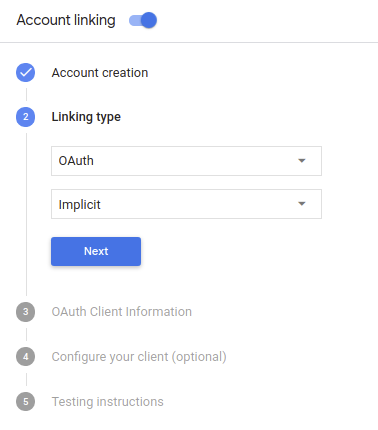
Müşteri Bilgileri bölümünde:
- Aşağıdakileri belirlemek için Actions'ınız tarafından Google'a verilen Client-ID'ye Google'dan gelen isteklerle karşılaşıyorum.
- Yetkilendirme ve Token Exchange uç noktalarınızın URL'lerini ekleyin.
- Kaydet'i tıklayın.
OAuth sunucunuzu uygulama
OAuth 2.0 örtülü akışını desteklemek için hizmetiniz bir yetkilendirme yapar uç nokta ile kullanılabilir. Bu uç nokta, kimlik doğrulama ve güvenlikten ve verilere erişim için kullanıcılardan izin alınması gerekir. Yetkilendirme uç noktası Henüz oturum açmamış kullanıcılarınıza bir oturum açma kullanıcı arayüzü sunar ve istenen erişim için izin verin.
İşleminizin, hizmetinizin yetkili API'lerinden birini çağırması gerektiğinde Google, API'leri kendi cihazlarında çağırmak için bu uç noktayı anlamına gelir.
Google tarafından başlatılan tipik bir OAuth 2.0 örtülü akış oturumunda, takip eden akış:
- Google, yetkilendirme uç noktanızı kullanıcının tarayıcısında açar. İlgili içeriği oluşturmak için kullanılan kullanıcı oturum açmış değilse oturum açar ve Google'a erişim için izin verir izin vermedilerse verilerini API'nizle birlikte göndermelerini isteyin.
- Hizmetiniz bir erişim jetonu oluşturur ve bu jetonu Kullanıcının tarayıcısını erişim jetonuyla tekrar Google'a yönlendirerek Google ekleyebilirsiniz.
- Google, hizmetinizin API'lerini çağırır ve erişim jetonunu dikkat edin. Hizmetiniz, erişim jetonunun Google'a ve ardından API çağrısını tamamlar.
Yetkilendirme isteklerini işleme
İşleminizin OAuth2 örtülü akışı üzerinden hesap bağlama yapması gerektiğinde Google, kullanıcıyı yetkilendirme uç noktanıza şunu içeren bir istekle gönderir: şu parametrelere sahip olursunuz:
| Yetkilendirme uç noktası parametreleri | |
|---|---|
client_id |
Google'a atadığınız istemci kimliği. |
redirect_uri |
Bu isteğe yanıt gönderdiğiniz URL. |
state |
yönlendirme URI'si. |
response_type |
Yanıtta döndürülecek değerin türü. OAuth 2.0 dolaylı için
akışında, yanıt türü her zaman token olur. |
Örneğin, yetkilendirme uç noktanız https://myservice.example.com/auth üzerinde mevcutsa,
talep şu şekilde görünebilir:
GET https://myservice.example.com/auth?client_id=GOOGLE_CLIENT_ID&redirect_uri=REDIRECT_URI&state=STATE_STRING&response_type=token
Yetkilendirme uç noktanızın oturum açma isteklerini işlemesi için aşağıdaki adımları uygulayın:
Aşağıdaki işlemler için
client_idveredirect_urideğerlerini doğrulayın: istenmeyen veya yanlış yapılandırılmış istemci uygulamalarına erişim verilmesini önleyin:client_iddeğerinin, kullandığınız istemci kimliğiyle eşleştiğini doğrulayın Google'a atanmıştır.redirect_uritarafından belirtilen URL'yi doğrulayın parametresi aşağıdaki biçimdedir:https://oauth-redirect.googleusercontent.com/r/YOUR_PROJECT_ID
Kullanıcının hizmetinizde oturum açıp açmadığını kontrol edin. Kullanıcı oturum açmamışsa hizmetinizin oturum açma veya kaydolma akışını tamamlayın.
Google'ın API'nize erişmek için kullanacağı bir erişim jetonu oluşturun. İlgili içeriği oluşturmak için kullanılan erişim jetonu herhangi bir dize değeri olabilir, ancak jetonun ait olduğu ve tahmin edilememesi gerekir.
Kullanıcının tarayıcısını URL'ye yönlendiren bir HTTP yanıtı gönderme
redirect_uriparametresiyle belirtilir. Aşağıdakilerin tümünü dahil edin: aşağıdaki parametreleri kullanabilirsiniz:access_token: Az önce oluşturduğunuz erişim jetonutoken_type:bearerdizesistate: Orijinal durumdaki değiştirilmemiş durum değeri istek Sonuçta elde edilen URL'nin bir örneği aşağıda verilmiştir:https://oauth-redirect.googleusercontent.com/r/YOUR_PROJECT_ID#access_token=ACCESS_TOKEN&token_type=bearer&state=STATE_STRING
Google'ın OAuth 2.0 yönlendirme işleyicisi, erişim jetonunu alır ve onay verir
state değerinin değişmediğinden emin olun. Google,
erişim jetonunuz varsa Google, jetonu sonraki çağrılara ekler
AppRequest'in bir parçası olarak İşleminize ekleyin.
Kimlik doğrulama akışını başlat
Hesapta Oturum Açma yardımcı amacını kullanma kimlik doğrulama akışını başlatın. Aşağıdaki kod snippet'lerinde bu yardımcıyı kullanmak için Dialogflow'da ve Actions SDK'sında yanıt gönderin.
Dialogflow:
const {dialogflow, SignIn} = require('actions-on-google');
const app = dialogflow({
  // REPLACE THE PLACEHOLDER WITH THE CLIENT_ID OF YOUR ACTIONS PROJECT
  clientId: CLIENT_ID,
});
// Intent that starts the account linking flow.
app.intent('Start Signin', (conv) => {
  conv.ask(new SignIn('To get your account details'));
});
@ForIntent("Start Signin")
public ActionResponse text(ActionRequest request) {
  ResponseBuilder rb = getResponseBuilder(request);
  return rb.add(new SignIn().setContext("To get your account details")).build();
}
{
  "payload": {
    "google": {
      "expectUserResponse": true,
      "richResponse": {
        "items": [
          {
            "simpleResponse": {
              "textToSpeech": "PLACEHOLDER"
            }
          }
        ]
      },
      "userStorage": "{\"data\":{}}",
      "systemIntent": {
        "intent": "actions.intent.SIGN_IN",
        "data": {
          "@type": "type.googleapis.com/google.actions.v2.SignInValueSpec",
          "optContext": "To get your account details"
        }
      }
    }
  },
  "outputContexts": [
    {
      "name": "/contexts/_actions_on_google",
      "lifespanCount": 99,
      "parameters": {
        "data": "{}"
      }
    }
  ]
}
İşlemler SDK'sı:
const {actionssdk, SignIn} = require('actions-on-google');
const app = actionssdk({
  // REPLACE THE PLACEHOLDER WITH THE CLIENT_ID OF YOUR ACTIONS PROJECT
  clientId: CLIENT_ID,
});
// Intent that starts the account linking flow.
app.intent('actions.intent.TEXT', (conv) => {
  conv.ask(new SignIn('To get your account details'));
});
@ForIntent("actions.intent.TEXT")
public ActionResponse text(ActionRequest request) {
  ResponseBuilder rb = getResponseBuilder(request);
  return rb.add(new SignIn().setContext("To get your account details")).build();
}
{
  "expectUserResponse": true,
  "expectedInputs": [
    {
      "inputPrompt": {
        "richInitialPrompt": {
          "items": [
            {
              "simpleResponse": {
                "textToSpeech": "PLACEHOLDER"
              }
            }
          ]
        }
      },
      "possibleIntents": [
        {
          "intent": "actions.intent.SIGN_IN",
          "inputValueData": {
            "@type": "type.googleapis.com/google.actions.v2.SignInValueSpec",
            "optContext": "To get your account details"
          }
        }
      ]
    }
  ],
  "conversationToken": "{\"data\":{}}",
  "userStorage": "{\"data\":{}}"
}
Veri erişimi isteklerini işleme
Asistan isteği bir erişim jetonu içeriyorsa: Öncelikle erişim jetonunun geçerli olduğundan (ve süresinin dolmadığından) emin olun, ardından ilişkili kullanıcı hesabını veritabanınızdan alın.