

Il tipo di collegamento OAuth e Accedi con Google aggiunge Accedi con Google oltre alle impostazioni basate su OAuth collegamento dell'account. In questo modo, gli utenti Google possono collegarsi tramite comandi vocali e abilitare il collegamento degli account per gli utenti che si sono registrati al tuo servizio con un'identità non Google.
Questo tipo di collegamento inizia con Accedi con Google, che ti consente di verificare se l'utente Nel sistema sono presenti informazioni del profilo Google. Se le informazioni dell'utente non è presente nel sistema, viene avviato un flusso OAuth standard. L'utente può inoltre sceglie di creare un nuovo account con i dati del proprio profilo Google.
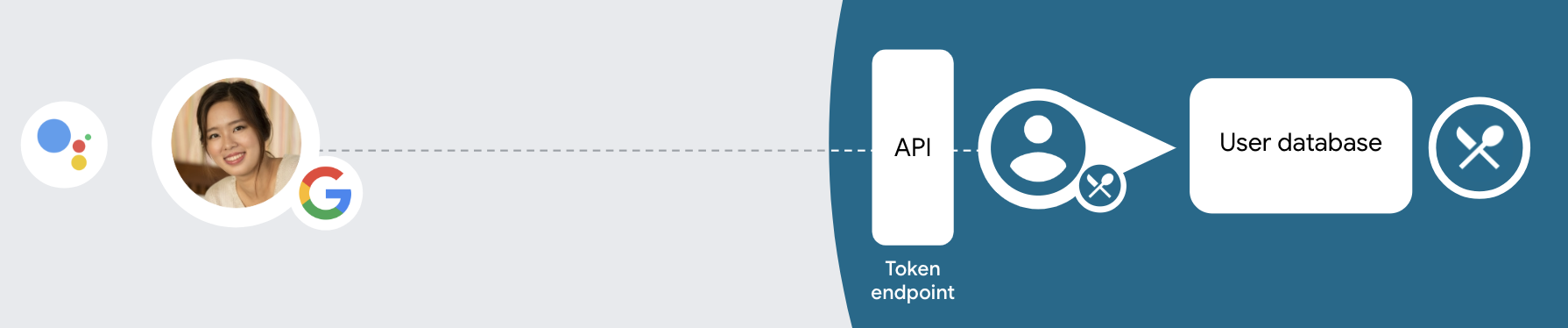
Per eseguire il collegamento dell'account con OAuth e Accedi con Google, segui queste informazioni generali passaggi:
- Per prima cosa, chiedi all'utente di dare il consenso per accedere al suo profilo Google.
- Utilizza le informazioni presenti nel profilo per identificare l'utente.
- Se non riesci a trovare una corrispondenza per l'utente Google nel tuo sistema di autenticazione,
il flusso procede a seconda che tu abbia configurato o meno il progetto Actions
Nella console di Actions per consentire la creazione di account utente tramite comandi vocali o solo
del tuo sito web.
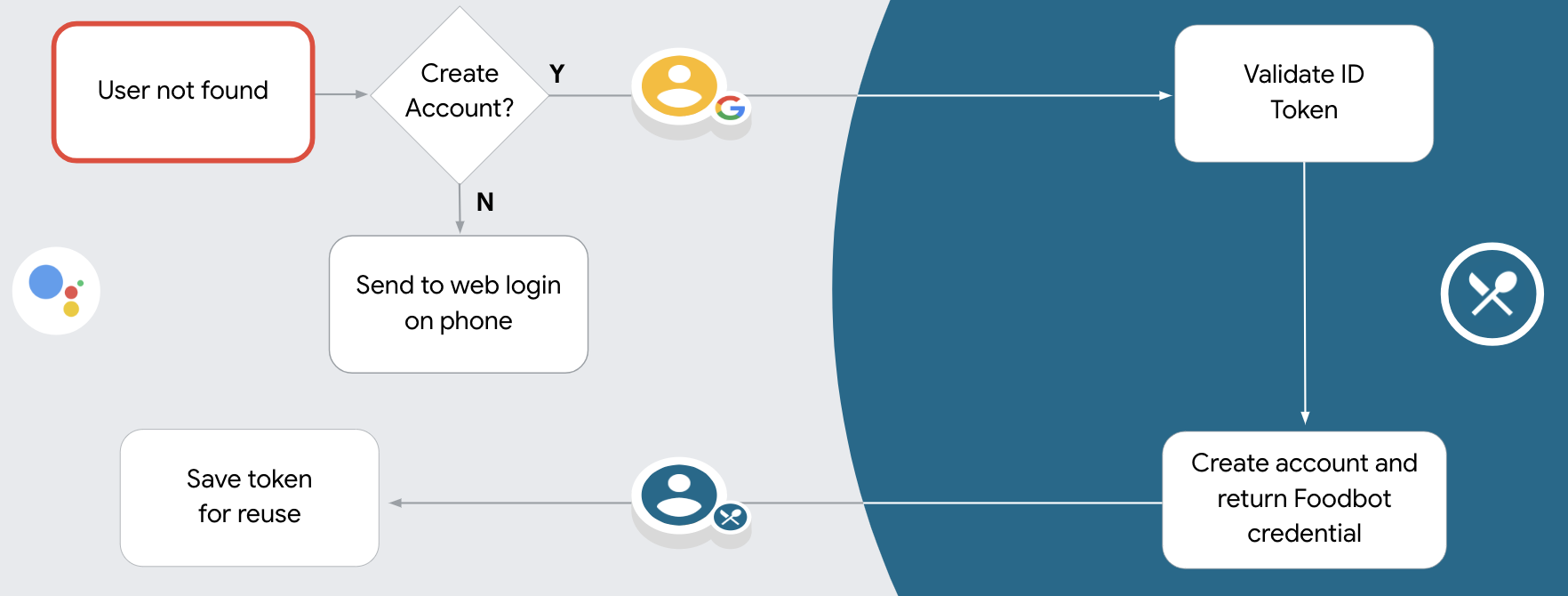
- Se consenti la creazione di account tramite comandi vocali, convalida l'ID di accesso al token ricevuto da Google. Puoi quindi creare un utente in base le informazioni del profilo contenute nel token ID.
- Se non consenti la creazione di account tramite comandi vocali, l'utente viene trasferito a un browser in cui possano caricare la pagina di autorizzazione e completare la procedura flusso di creazione di contenuti.
Assistenza per la creazione di account tramite comandi vocali
Se consenti la creazione di account utente tramite comandi vocali, l'assistente chiede all'utente se l'utente vuole effettuare le seguenti operazioni:
- Creare un nuovo account sul tuo sistema utilizzando i dati del loro Account Google oppure
- Accedere al sistema di autenticazione con un account diverso, se dispone di un account non Google esistente.
Ti consigliamo di consentire la creazione di account tramite comandi vocali se vuoi ridurre al minimo le le difficoltà del flusso di creazione dell'account. L'utente deve solo uscire dal flusso vocale se l'utente vuole accedere utilizzando un account non Google esistente.
Non consentire la creazione di account tramite comandi vocali
Se non consenti la creazione di account utente tramite comandi vocali, l'assistente apre l'URL nella sezione fornito per l'autenticazione degli utenti. Se l'interazione è in corso su un dispositivo privo di schermo, l'assistente indirizza l'utente a un telefono per continuare il flusso di collegamento dell'account.
Si consiglia di non consentire la creazione se:
Non vuoi consentire agli utenti che hanno account non Google di creare un nuovo account utente e vuoi che si colleghino ai loro account utente esistenti nel tuo sistema di autenticazione basato su query. Ad esempio, se offri un programma fedeltà, potresti voler assicurarti che l'utente non perda i punti accumulati sulla sua account esistente.
Devi avere il controllo completo del flusso di creazione dell'account. Ad esempio, potresti non consentire la creazione se devi mostrare i tuoi Termini di servizio all'utente durante creazione di account.
Implementare il collegamento degli account OAuth e Accedi con Google
Gli account sono collegati ai flussi OAuth 2.0 standard di settore. Actions on Google supporta i flussi implicito e del codice di autorizzazione.
In the implicit code flow, Google opens your authorization endpoint in the user's browser. After successful sign in, you return a long-lived access token to Google. This access token is now included in every request sent from the Assistant to your Action.
In the authorization code flow, you need two endpoints:
- The authorization endpoint, which is responsible for presenting the sign-in UI to your users that aren't already signed in and recording consent to the requested access in the form of a short-lived authorization code.
- The token exchange endpoint, which is responsible for two types of exchanges:
- Exchanges an authorization code for a long-lived refresh token and a short-lived access token. This exchange happens when the user goes through the account linking flow.
- Exchanges a long-lived refresh token for a short-lived access token. This exchange happens when Google needs a new access token because the one it had expired.
Although the implicit code flow is simpler to implement, Google recommends that access tokens issued using the implicit flow never expire, because using token expiration with the implicit flow forces the user to link their account again. If you need token expiration for security reasons, you should strongly consider using the auth code flow instead.
Configura il progetto
Per configurare il progetto in modo che utilizzi OAuth e l'account Accedi con Google segui questi passaggi:
- Apri la console di Actions e seleziona il progetto che vuoi utilizzare.
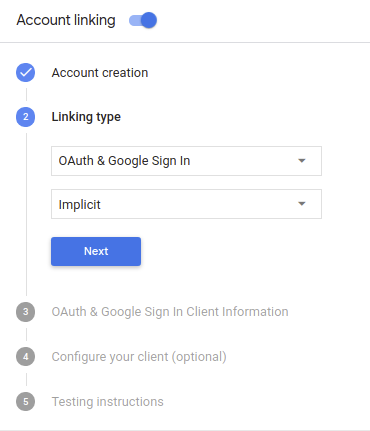
- Fai clic sulla scheda Sviluppo e scegli Collegamento dell'account.
- Attiva l'opzione Collegamento dell'account.
- Nella sezione Creazione dell'account, seleziona Sì.
In Tipo di collegamento, seleziona OAuth e Accedi con Google e implicito.
In Informazioni sul cliente, procedi nel seguente modo:
- Assegna un valore all'ID client emesso dalle tue Azioni a Google per identificare da Google.
- Inserisci gli URL degli endpoint di autorizzazione e di scambio di token.
Fai clic su Salva.
Implementare il server OAuth
To support the OAuth 2.0 implicit flow, your service makes an authorization endpoint available by HTTPS. This endpoint is responsible for authenticating and obtaining consent from users for data access. The authorization endpoint presents a sign-in UI to your users that aren't already signed in and records consent to the requested access.
When your Action needs to call one of your service's authorized APIs, Google uses this endpoint to get permission from your users to call these APIs on their behalf.
A typical OAuth 2.0 implicit flow session initiated by Google has the following flow:
- Google opens your authorization endpoint in the user's browser. The user signs in if not signed in already, and grants Google permission to access their data with your API if they haven't already granted permission.
- Your service creates an access token and returns it to Google by redirecting the user's browser back to Google with the access token attached to the request.
- Google calls your service's APIs, and attaches the access token with each request. Your service verifies that the access token grants Google authorization to access the API and then completes the API call.
Handle authorization requests
When your Action needs to perform account linking via an OAuth2 implicit flow, Google sends the user to your authorization endpoint with a request that includes the following parameters:
| Authorization endpoint parameters | |
|---|---|
client_id |
The client ID you assigned to Google. |
redirect_uri |
The URL to which you send the response to this request. |
state |
A bookkeeping value that is passed back to Google unchanged in the redirect URI. |
response_type |
The type of value to return in the response. For the OAuth 2.0 implicit
flow, the response type is always token. |
For example, if your authorization endpoint is available at https://myservice.example.com/auth,
a request might look like:
GET https://myservice.example.com/auth?client_id=GOOGLE_CLIENT_ID&redirect_uri=REDIRECT_URI&state=STATE_STRING&response_type=token
For your authorization endpoint to handle sign-in requests, do the following steps:
Verify the
client_idandredirect_urivalues to prevent granting access to unintended or misconfigured client apps:- Confirm that the
client_idmatches the client ID you assigned to Google. - Confirm that the URL specified by the
redirect_uriparameter has the following form:https://oauth-redirect.googleusercontent.com/r/YOUR_PROJECT_ID
- Confirm that the
Check if the user is signed in to your service. If the user isn't signed in, complete your service's sign-in or sign-up flow.
Generate an access token that Google will use to access your API. The access token can be any string value, but it must uniquely represent the user and the client the token is for and must not be guessable.
Send an HTTP response that redirects the user's browser to the URL specified by the
redirect_uriparameter. Include all of the following parameters in the URL fragment:access_token: the access token you just generatedtoken_type: the stringbearerstate: the unmodified state value from the original request The following is an example of the resulting URL:https://oauth-redirect.googleusercontent.com/r/YOUR_PROJECT_ID#access_token=ACCESS_TOKEN&token_type=bearer&state=STATE_STRING
Google's OAuth 2.0 redirect handler will receive the access token and confirm
that the state value hasn't changed. After Google has obtained an
access token for your service, Google will attach the token to subsequent calls
to your Action as part of the AppRequest.
Handle automatic linking
After the user gives your Action consent to access their Google profile, Google sends a request that contains a signed assertion of the Google user's identity. The assertion contains information that includes the user's Google Account ID, name, and email address. The token exchange endpoint configured for your project handles that request.
If the corresponding Google account is already present in your authentication system,
your token exchange endpoint returns a token for the user. If the Google account doesn't
match an existing user, your token exchange endpoint returns a user_not_found error.
The request has the following form:
POST /token HTTP/1.1
Host: oauth2.example.com
Content-Type: application/x-www-form-urlencoded

grant_type=urn:ietf:params:oauth:grant-type:jwt-bearer&intent=get&assertion=JWT&consent_code=CONSENT_CODE&scope=SCOPES
Your token exchange endpoint must be able to handle the following parameters:
| Token endpoint parameters | |
|---|---|
grant_type |
The type of token being exchanged. For these requests, this
parameter has the value urn:ietf:params:oauth:grant-type:jwt-bearer. |
intent |
For these requests, the value of this parameter is `get`. |
assertion |
A JSON Web Token (JWT) that provides a signed assertion of the Google user's identity. The JWT contains information that includes the user's Google Account ID, name, and email address. |
consent_code |
Optional: When present, a one-time code that indicates that the user has granted consent for your Action to access the specified scopes. |
scope |
Optional: Any scopes you configured Google to request from users. |
When your token exchange endpoint receives the linking request, it should do the following:
Validate and decode the JWT assertion
You can validate and decode the JWT assertion by using a JWT-decoding library for your language. Use Google's public keys (available in JWK or PEM format) to verify the token's signature.
When decoded, the JWT assertion looks like the following example:
{
  "sub": 1234567890,        // The unique ID of the user's Google Account
  "iss": "https://accounts.google.com",        // The assertion's issuer
  "aud": "123-abc.apps.googleusercontent.com", // Your server's client ID
  "iat": 233366400,         // Unix timestamp of the assertion's creation time
  "exp": 233370000,         // Unix timestamp of the assertion's expiration time
  "name": "Jan Jansen",
  "given_name": "Jan",
  "family_name": "Jansen",
  "email": "jan@gmail.com", // If present, the user's email address
  "locale": "en_US"
}
In addition to verifying the token's signature, verify that the assertion's issuer
(iss field) is https://accounts.google.com and that the audience (aud field)
is the client ID assigned to your Action.
Check if the Google account is already present in your authentication system
Check whether either of the following conditions are true:
- The Google Account ID, found in the assertion's
subfield, is in your user database. - The email address in the assertion matches a user in your user database.
If either condition is true, the user has already signed up and you can issue an access token.
If neither the Google Account ID nor the email address specified in the assertion
matches a user in your database, the user hasn't signed up yet. In this case, your
token exchange endpoint should reply with a HTTP 401 error, that specifies error=user_not_found,
as in the following example:
HTTP/1.1 401 Unauthorized
Content-Type: application/json;charset=UTF-8

{
  "error":"user_not_found",
}
user_not_found error, Google
calls your token exchange endpoint with the value of the intent parameter
set to create and sending an ID token that contains the user's profile information
with the request.
Handle account creation via Google Sign-In
When a user needs to create an account on your service, Google makes a
request to your token exchange endpoint that specifies
intent=create, as in the following example:
POST /token HTTP/1.1
Host: oauth2.example.com
Content-Type: application/x-www-form-urlencoded

response_type=token&grant_type=urn:ietf:params:oauth:grant-type:jwt-bearer&scope=SCOPES&intent=create&consent_code=CONSENT_CODE&assertion=JWT[&NEW_ACCOUNT_INFO]
The assertion parameter contains A JSON Web Token (JWT) that provides
a signed assertion of the Google user's identity. The JWT contains information
that includes the user's Google Account ID, name, and email address, which you can use
to create a new account on your service.
To respond to account creation requests, your token exchange endpoint must do the following:
Validate and decode the JWT assertion
You can validate and decode the JWT assertion by using a JWT-decoding library for your language. Use Google's public keys (available in JWK or PEM format) to verify the token's signature.
When decoded, the JWT assertion looks like the following example:
{
  "sub": 1234567890,        // The unique ID of the user's Google Account
  "iss": "https://accounts.google.com",        // The assertion's issuer
  "aud": "123-abc.apps.googleusercontent.com", // Your server's client ID
  "iat": 233366400,         // Unix timestamp of the assertion's creation time
  "exp": 233370000,         // Unix timestamp of the assertion's expiration time
  "name": "Jan Jansen",
  "given_name": "Jan",
  "family_name": "Jansen",
  "email": "jan@gmail.com", // If present, the user's email address
  "locale": "en_US"
}
In addition to verifying the token's signature, verify that the assertion's issuer
(iss field) is https://accounts.google.com and that the audience (aud field)
is the client ID assigned to your Action.
Validate user information and create new account
Check whether either of the following conditions are true:
- The Google Account ID, found in the assertion's
subfield, is in your user database. - The email address in the assertion matches a user in your user database.
If either condition is true, prompt the user to link their existing account with
their Google Account by responding to the request with an HTTP 401 error, specifying
error=linking_error and the user's email address as the login_hint, as in the
following example:
HTTP/1.1 401 Unauthorized
Content-Type: application/json;charset=UTF-8

{
  "error":"linking_error",
  "login_hint":"foo@bar.com"
}
If neither condition is true, create a new user account using the information provided in the JWT. New accounts do not typically have a password set. It is recommended that you add Google Sign In to other platforms to enable users to log in via Google across the surfaces of your application. Alternatively, you can email the user a link that starts your password recovery flow to allow the user to set a password for signing in on other platforms.
When the creation is completed, issue an access token and return the values in a JSON object in the body of your HTTPS response, like in the following example:
{
  "token_type": "Bearer",
  "access_token": "ACCESS_TOKEN",

  "expires_in": SECONDS_TO_EXPIRATION
}
Avvia il flusso di autenticazione
Utilizzare l'intent di supporto per l'accesso all'account per avviare il flusso di autenticazione.
const app = dialogflow({
  // REPLACE THE PLACEHOLDER WITH THE CLIENT_ID OF YOUR ACTIONS PROJECT
  clientId: CLIENT_ID,
})

// Intent that starts the account linking flow.
app.intent('Start Signin', conv => {
  conv.ask(new SignIn('To get your account details'))
})
private String clientId = "<your_client_id>";

@ForIntent("Start Signin")
public ActionResponse text(ActionRequest request) {
  ResponseBuilder rb = getResponseBuilder(request);
  return rb.add(new SignIn().setContext("To get your account details")).build();
}
const app = actionssdk({
  clientId: CLIENT_ID,
})

app.intent('Start Signin', conv => {
  conv.ask(new SignIn('To get your account details'))
})
private String clientId = "<your_client_id>";

@ForIntent("actions.intent.TEXT")
public ActionResponse text(ActionRequest request) {
  ResponseBuilder rb = getResponseBuilder(request);
  return rb.add(new SignIn().setContext("To get your account details")).build();
}
Gestire le richieste di accesso ai dati
Se la richiesta dell'assistente contiene un token di accesso, verifica che il token di accesso sia valido e non scaduto, quindi recuperalo dal tuo l'account utente associato al token.